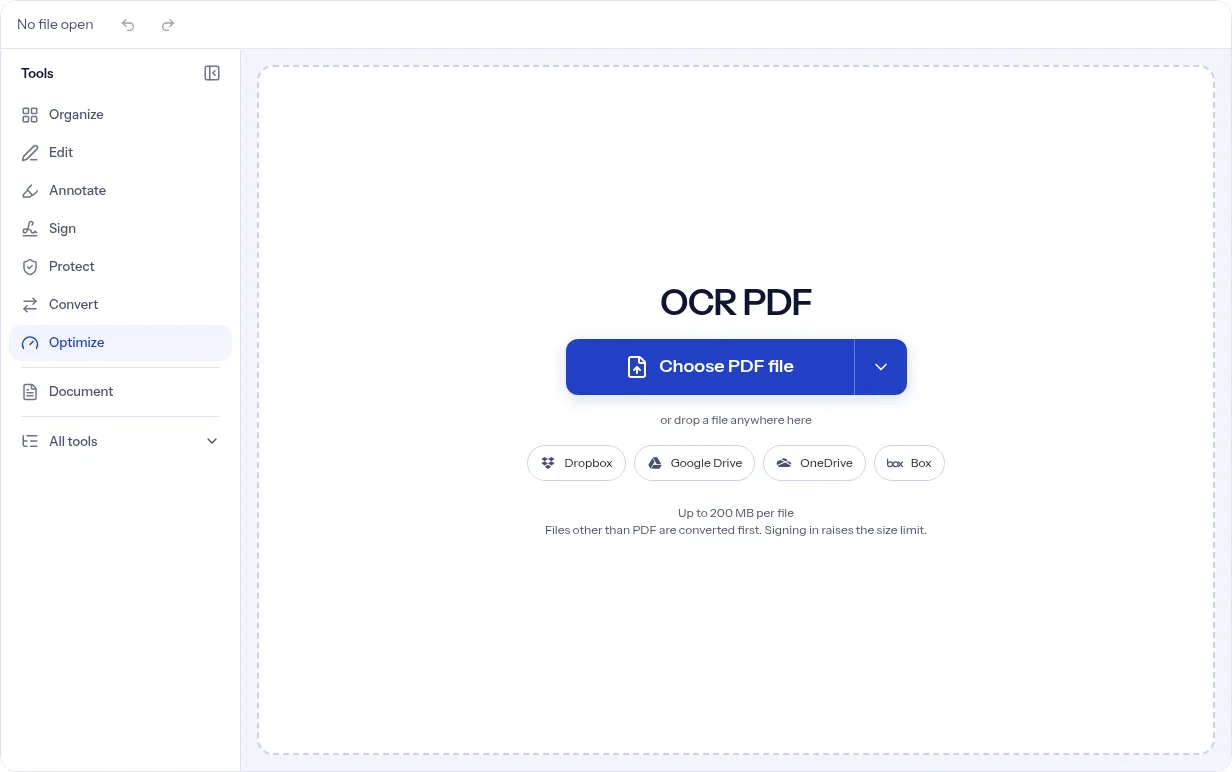
Files other than PDF are converted first. Signing in raises the size limit.
You add
One scanned PDF
You set
The languages that appear on the pages
You get
A PDF with a text layer on the scanned pages
OCR, optical character recognition, reads the picture of each scanned page and adds its words as hidden text behind the picture, so you can select, search and copy them. This page is for people who hold a scanned PDF, such as a letter, an invoice or a book chapter, and need to search it or copy a passage. Add your PDF, open Make searchable and tick the languages that appear on the pages. The list offers five: Chinese (Simplified), German, English, French and Portuguese. English is ticked to start, and the button stays off until at least one language is ticked. Persian and Arabic are not in the list, so a page in either cannot be read here. The panel says that pages that already have text are left as they are. The result is a PDF, and a signed-out visitor gets it without signing in or signing up, within the daily free allowance and a file size cap of 200 MB. The measured run on this page shows one real result on a scan we made ourselves, on 5 November 2026.
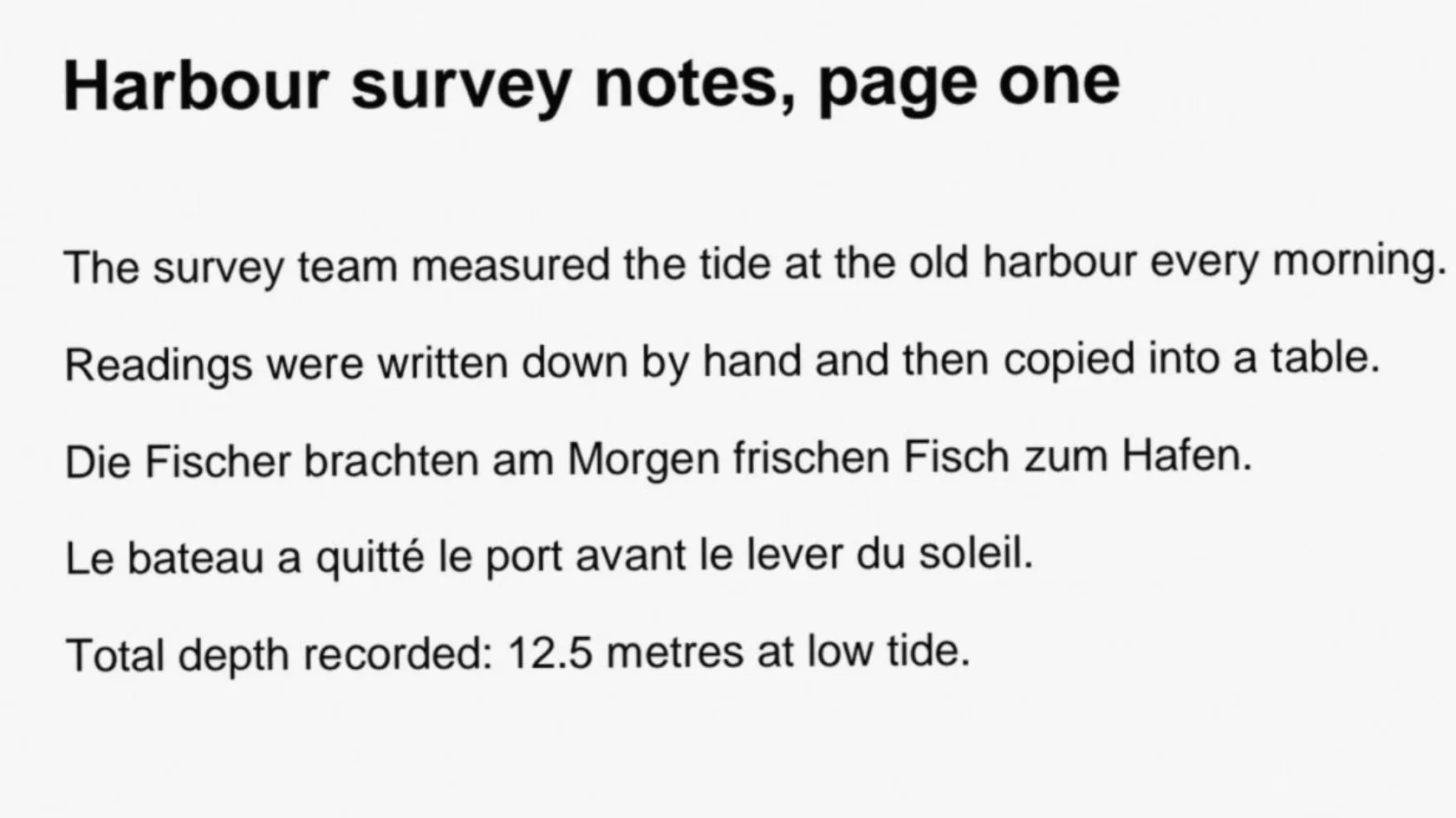
Our own 2-page A4 scan, image only, English, German and French text, run on indox.org with those three languages ticked
Scan PDFthe original, 2 pages, no text
295,431 B
Searchable PDFfrom indox, same 2 pages
300,465 B+1.7%
Text characters found, scanextracted from the original
0
Text characters found, result320 on page 1, 269 on page 2
589
Character error rateagainst the known text, this sample only
0.34%
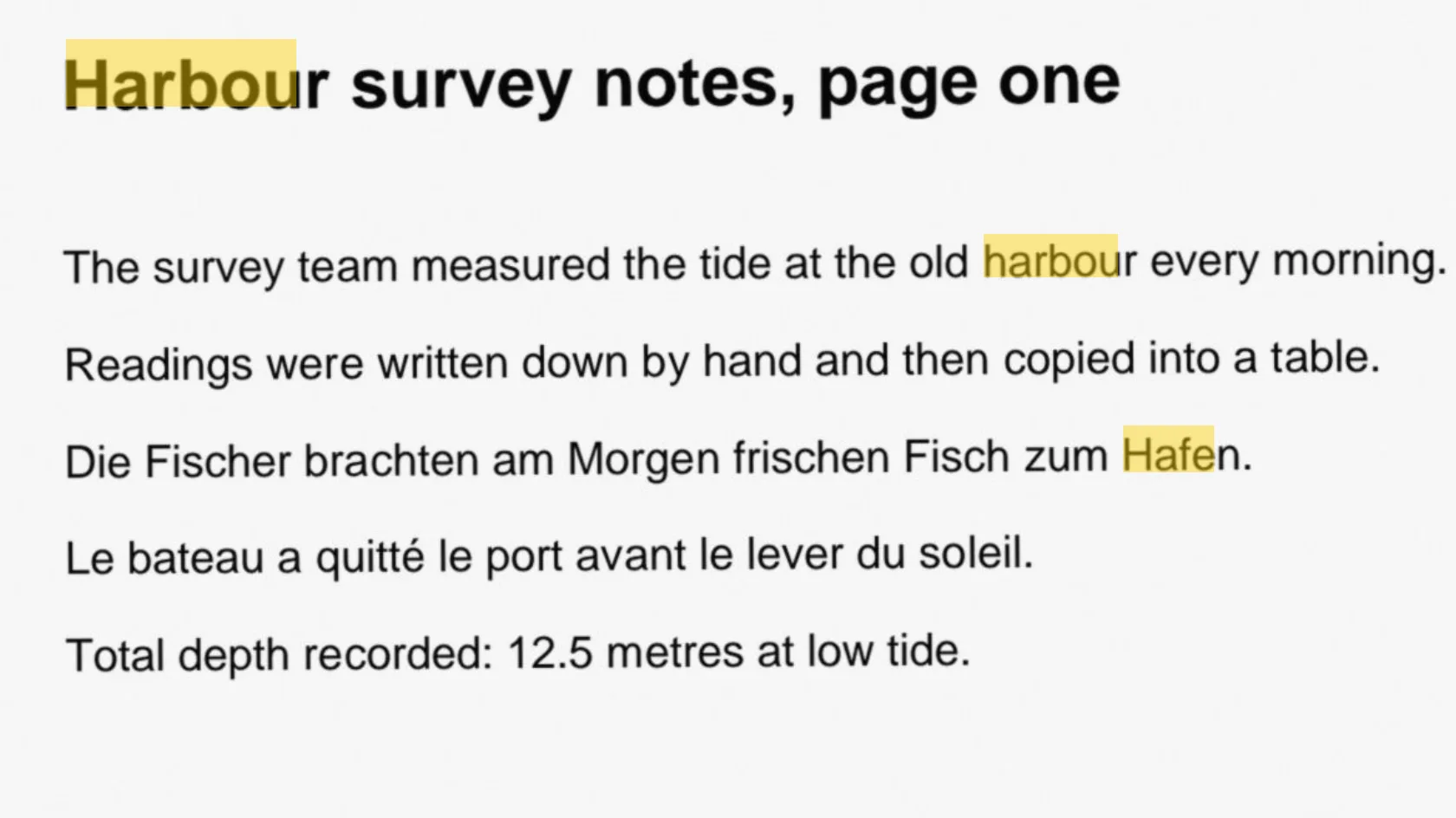
Scan as it looksAfter OCR, hits marked
Measured on indox.org on 5 November 2026, signed out, one run on one sample. The page looks the same after OCR, so the slider compares the scan with the same page after OCR, where the yellow boxes mark search hits for harbour and Hafen in the hidden text.
What can you do when you run OCR on a PDF?
Select and search a scan
After OCR the words on a scanned page are stored as text under the picture. In our test, searches for harbour, Fische, bateau and 12.5 found them in the output and found nothing in the scan. Use the search box of your PDF reader, or select a line and copy it into another document.
Pick the languages on the pages
Tick every language that appears on the pages. The panel offers Chinese (Simplified), German, English, French and Portuguese, and shows how many you picked, for example 2 selected. English is on by default. In our test we ticked English, German and French for pages that held all three, and the German and French sentences came out right apart from one accent.
Leave pages that already have text alone
The panel says that pages that already have text are left as they are, so a file that mixes typed pages with scanned ones keeps its typed pages. We also ran a PDF that was already searchable: its text was identical afterwards. The file itself is written again, so its bytes change, and its Producer and Creator fields name the site's domain.
Get a result without an account
A signed-out visitor can run OCR and get the PDF without signing in or signing up, within the daily free allowance. Visitors can upload up to 200 MB per file and signed-in accounts up to 200 MB.
What OCR keeps and what it changes
Stays the same
Every page, in the same order, with its scanned picture at its original size (1654 by 2339 pixels in our test).
How the page looks: in our test it rendered pixel for pixel the same at 100 dpi.
The text on pages that already hold text.
The file on your device. You get a new PDF in the editor.
Changes
Each page without text gets a hidden text layer, so you can search, select and copy its words.
The words are read in the languages you ticked.
The file is written again even when a page needs nothing. In our test a text-only PDF grew by 345 bytes and its creator field changed.
A digital signature on the PDF may stop being valid, because OCR writes a new file.
The result is one PDF. The recognized text is not returned as a separate file.
OCR PDF, PDF to DOCX or Rotate PDF: which do you need?
You want to
Use
What you get
Search or copy text from a scanned PDF
UseOCR PDF, this page
What you getThe same PDF with a hidden text layer behind each page picture
What you getUpright pages, so the text can be recognized
How to OCR a PDF in 3 steps
1
Add your scanned PDF
Drop one PDF on the upload area at the top of the page, click to choose it, or use From URL. Try selecting a sentence in your PDF reader first: if nothing highlights, the pages are pictures and OCR is what you need.
1 / 3
2
Tick the languages
Open Make searchable and tick every language that appears on the pages. English is ticked to start. The button stays off if none is ticked.
2 / 3
3
Press Make searchable and download
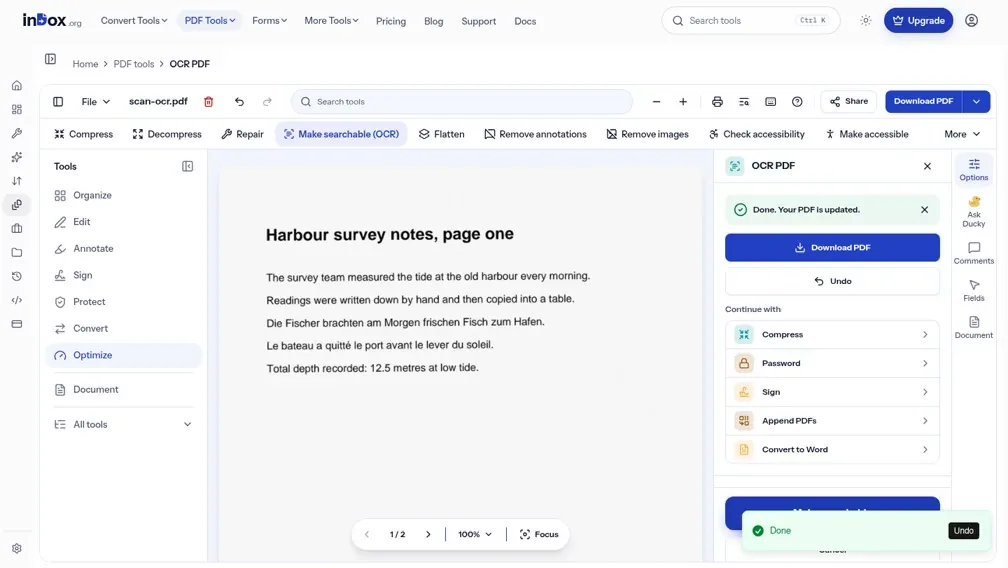
The button fills with the job's progress and the steps show under it, with Cancel to stop. When the run ends, a Done message offers Undo, and Download PDF saves the searchable copy. Search for a word from a scanned page to check.
3 / 3
Why run OCR with indox?
You get the same PDF with a hidden text layer added to the pages that have none. You choose the languages, English is on to start, and the panel will not run with none picked. We ran the tool ourselves, signed out, on a scan with known text, and the figures in the measured run come from that file. The language list is short, and if yours is not among the five, this tool cannot read it. You do not have to sign in or sign up to get the result, within the daily free allowance and the visitor size cap.
You pick the languages, from five offered
English is on by default
Pages that already have text keep their text
Undo brings back the scan
No sign-in or sign-up before the result
What are the limits of OCR on a PDF?
File size
Signed out, you can run OCR on a PDF of up to 200 MB within a daily free allowance. A signed-in account can upload up to 200 MB per file.
Where it runs
Your PDF is uploaded to indox's server and recognized there with OCRmyPDF and Tesseract. If you are not signed in, the upload and the result are deleted 24 hours after the job finishes. A signed-in account keeps them in its history until you delete them, for at most 180 days, and you can choose 24 hours or 30 days instead. Either way indox keeps a record of the job, such as the file name and its status, not the file.
Limits worth knowing
Only five languages are offered: Chinese (Simplified), German, English, French and Portuguese. Persian and Arabic are not among them, so a Persian or Arabic scan cannot be read here.
The tool does not check or score its own accuracy. In our one test the character error rate was 0.34% on a clean two-page sample with known text, and an accent was lost once: dégagé was read as degage. Faint, tilted or low-resolution scans are harder to read, so proofread names, numbers and dates before you rely on the text.
A page that already has a text layer is left as it is, even when that layer is wrong. This tool does not repair OCR made by a scanner or another program. The file is written again either way, so its bytes change.
The panel has no controls to straighten, rotate or clean a scan. Our test scan was tilted by under half a degree and still read well. Turn sideways pages upright with Rotate PDF first.
The result is a PDF. The recognized text is not returned as a separate file.
When the OCR result is not what you expected
What you see
Why
What to do
Nothing is searchable after the run
WhyThe pages already had text and were left as they were, or the text on them is not in a language you ticked
What to doSearch for a word from a scanned page. Run OCR again with every language on the pages ticked.
Words come out garbled
WhyThe scan is low resolution, tilted or faint, or the page is in a language you did not tick
What to doRescan at a higher resolution, straighten the page and tick every language in the document.
An accented letter comes out plain
WhyIn our test dégagé was read as degage, so recognition is not exact on small marks
What to doProofread accented words and fix them in your editor.
Persian or Arabic words are not found
WhyNeither language is in the list of five, so those pages were not read
What to doUse this tool only for Chinese (Simplified), German, English, French and Portuguese pages.
Sideways pages read as nonsense
WhyThe panel has no rotate setting
What to doTurn the pages upright with Rotate PDF, then run OCR again.
Make searchable is off
WhyNo language is ticked
What to doTick at least one language.
The file changed although it already had text
WhyOCR writes the file again. In our test the text was identical but the file grew by 345 bytes
What to doKeep your original if you need its exact bytes.
The signature shows as invalid
WhyOCR writes a new file
What to doKeep the signed original as the record and use the OCR copy only for searching.
It reads the letters on each scanned page and adds them as a hidden text layer behind the page picture. In our test the picture stayed at its original size, and the words became searchable, selectable and copyable.
Which languages can the tool read?
The five the panel lists: Chinese (Simplified), German, English, French and Portuguese. Tick each one that appears in your document. With none ticked, the panel asks you to pick at least one and Make searchable stays off.
Can it read Persian or Arabic?
No. Neither language is in the list, so a page in either cannot be recognized here.
How can I tell whether my PDF is a scan?
Try to select a sentence in your PDF reader, or search for a word you can see on the page. If nothing highlights or the search finds nothing, the pages are pictures and OCR will give them text.
How do I OCR a PDF on a Mac or iPhone?
Open this page in Safari, Chrome or any other browser, add the PDF and press Make searchable. The work happens on indox's server, so there is nothing to install on a Mac, an iPhone, an iPad or an Android phone, and the searchable PDF downloads like any other file.
My PDF already has selectable text. Will OCR change it?
The panel says that pages that already have text are left as they are. In our test with a PDF that already had text, the extracted text was identical afterwards and no hidden layer was added. The file was still written again: it grew by 345 bytes, and the copy you get names the site's domain in its Producer and Creator fields.
How accurate is the text it finds?
We measured one run: a two-page scan we made at 200 dpi from known English, German and French text, with a slight tilt and added noise. 0.34% of the characters differed from the known text, none on page 1 and 0.74% on page 2, and the only error was the accent lost in dégagé. That is one clean sample, so treat it as a data point and proofread your own result.
Will the file get bigger?
In our test the scan went from 295,431 bytes to 300,465 bytes, 1.7% larger, because a text layer is added and the page picture is kept. That is one file, and we do not promise a size for yours.
Do I need to sign in or sign up to get the result?
No. A signed-out visitor gets the OCR result without signing in or signing up, within the daily free allowance and a 200 MB cap per file. Signing in raises the cap to 200 MB.
Can I get a Word or text file from a scan?
This tool returns a PDF. Run OCR first, then convert the searchable PDF to Word.
Will OCR break a digital signature?
It may. OCR writes a new file, so a signature on the original can stop being valid. Keep the signed original and use the OCR copy for searching.
Where is my PDF processed, and how long is it kept?
It is uploaded to indox's server, recognized there and sent back to the editor. If you are not signed in, the upload and the searchable copy are deleted 24 hours after the job finishes; with an account they stay in your history until you delete them. The file on your device is not changed.