Last updated
Ask other people to sign a PDF
Before you start
- You need to be signed in, and your email address must be verified. The people who sign see your email as the sender.
- Have the PDF ready, and the name and email address of each person who must sign.
- The people you invite do not sign in. Each one opens a private link from their email. A link works for about four weeks.
Open Sign PDF
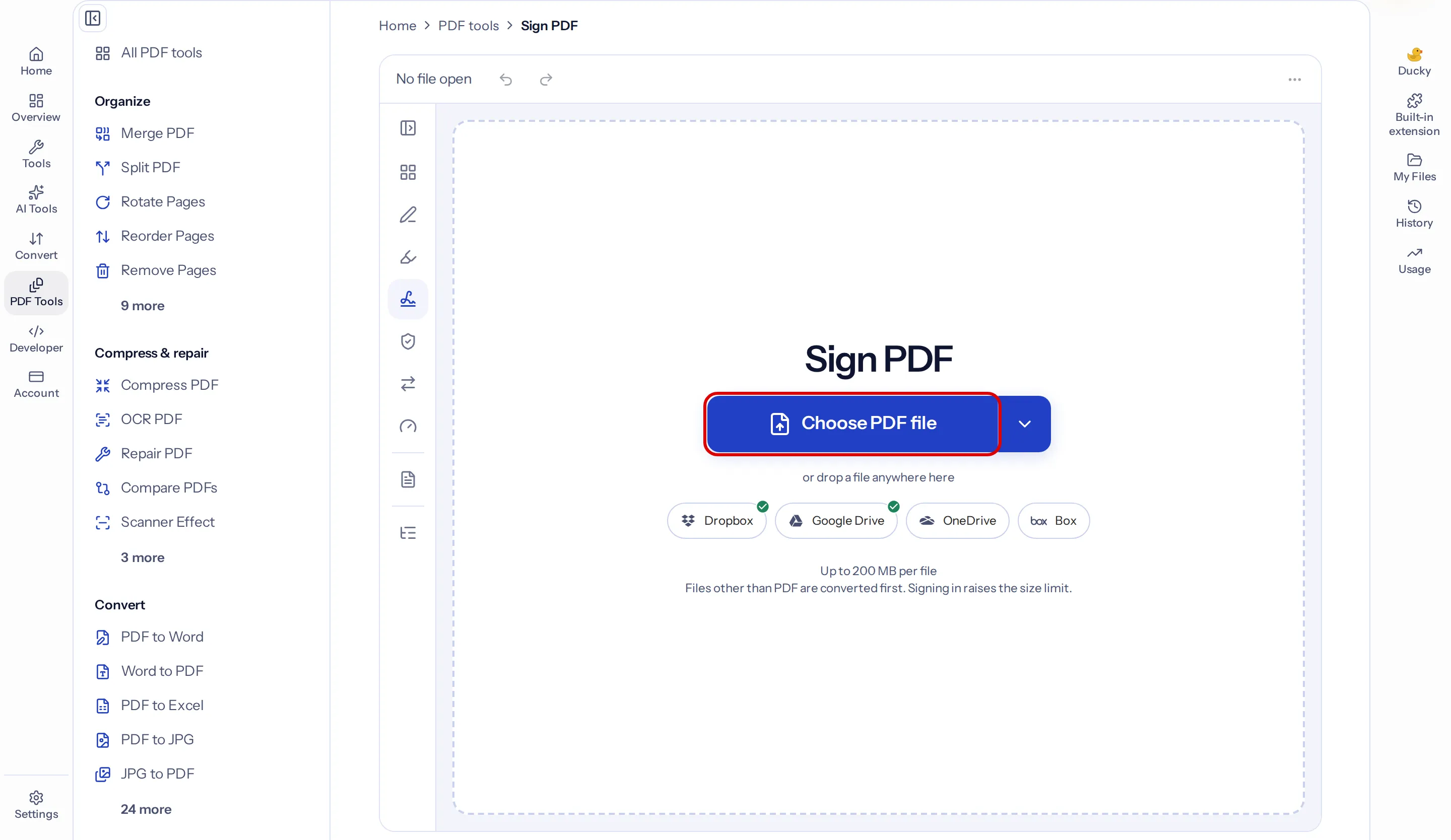
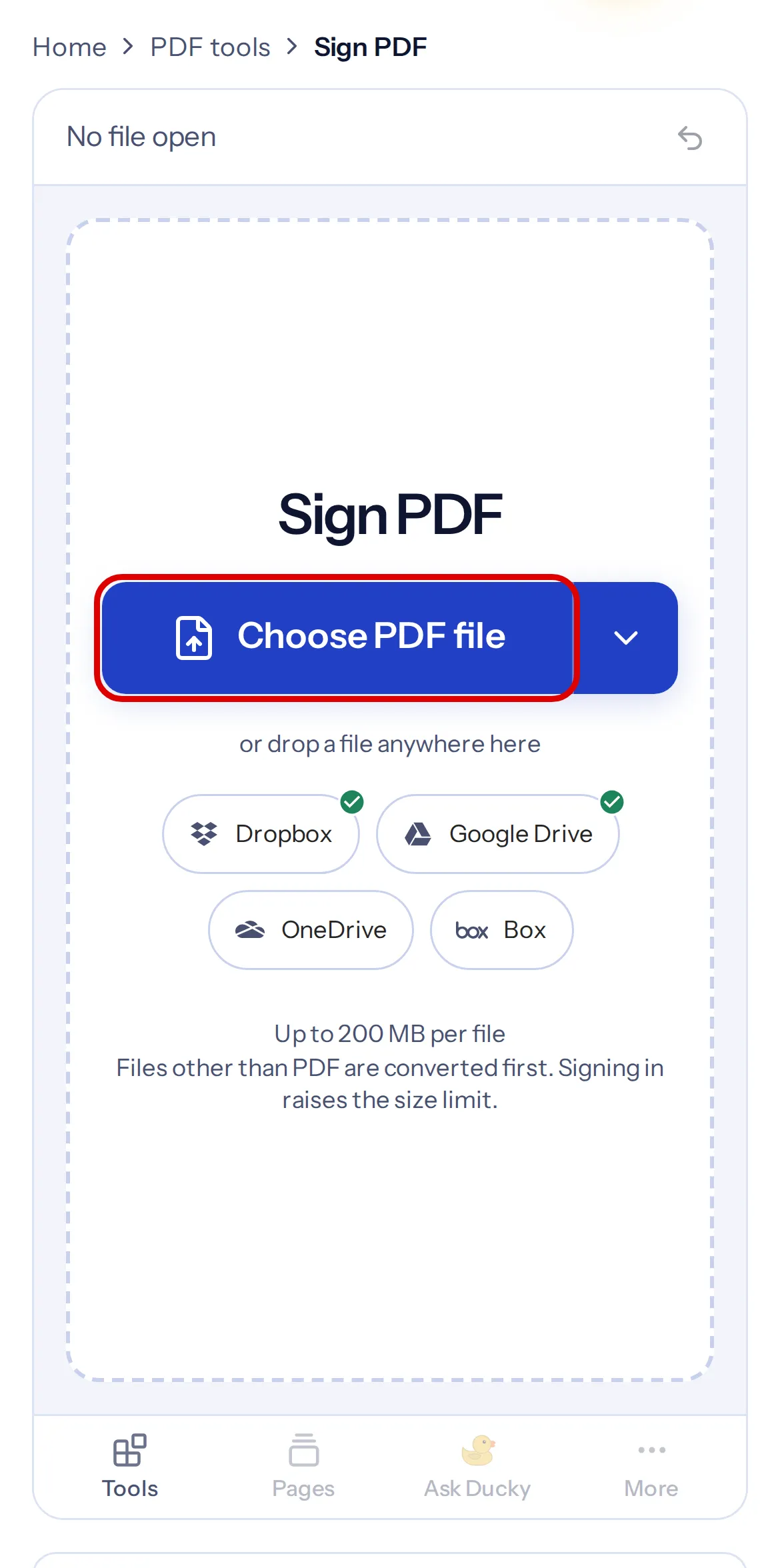
Go to the Sign PDF page. In the middle of the page, select the blue Choose PDF file button. A box opens so you can pick a file from your device. You can also drag a file onto the page.
Choose Several people
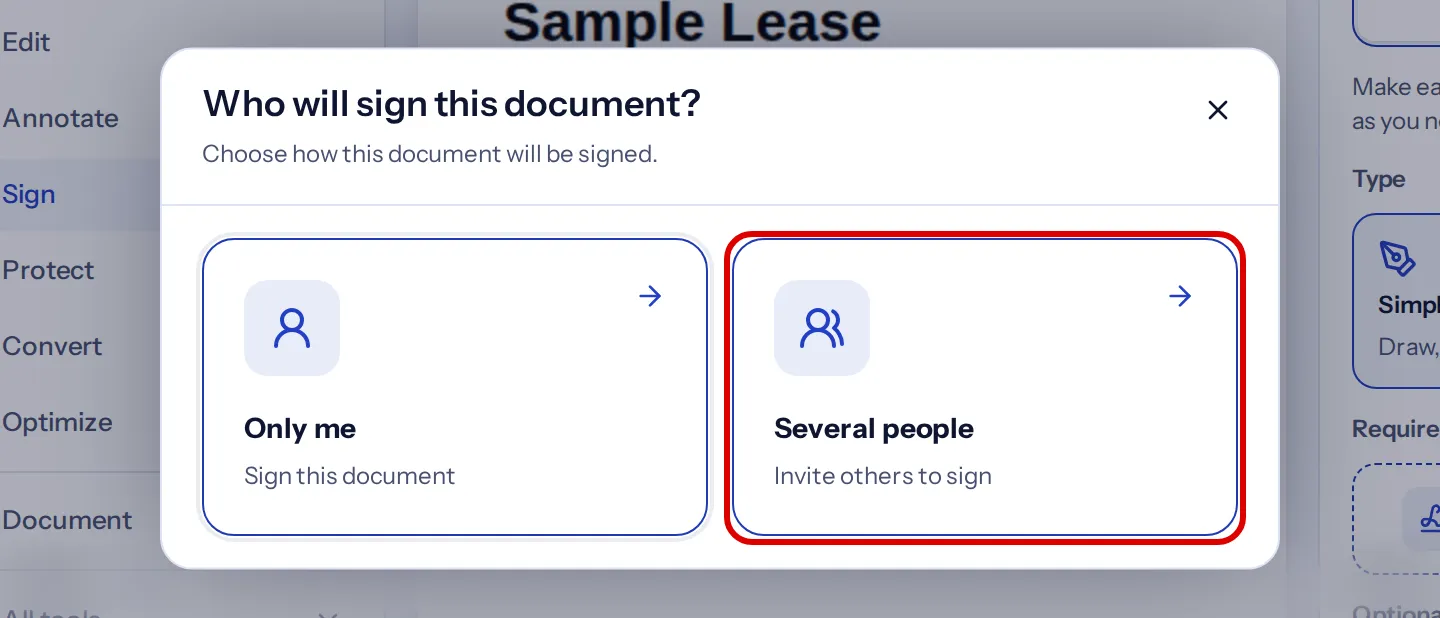
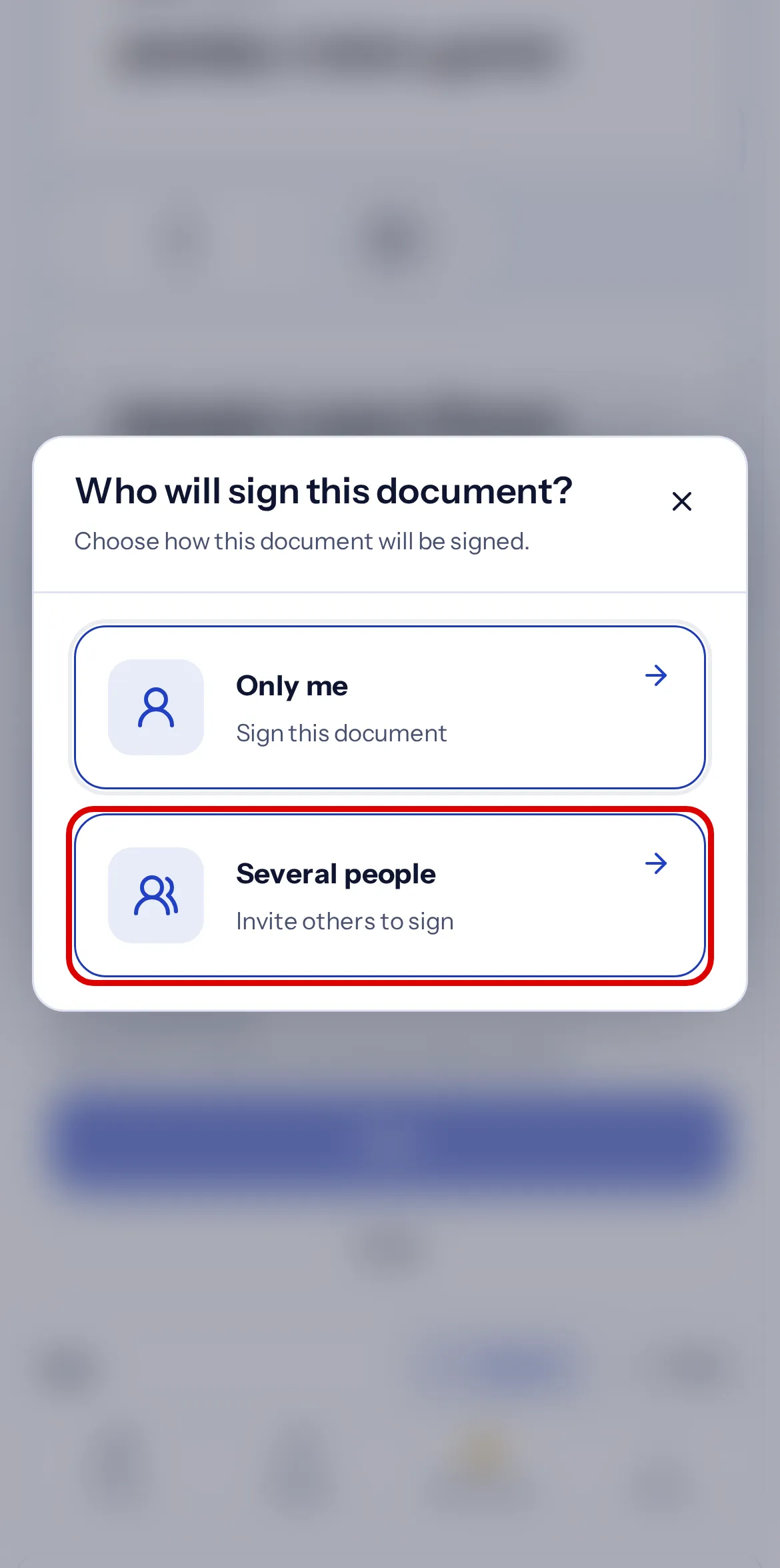
When the file loads, a window asks Who will sign this document? Select Several people. Choose Only me if you only want to sign it yourself.
Add the signer
A window called Create your signature request opens. Under Who should sign?, type the person's full name in the first box. Type their email address in the second box. To invite more people, select Add signer. Each person needs a name and an email.
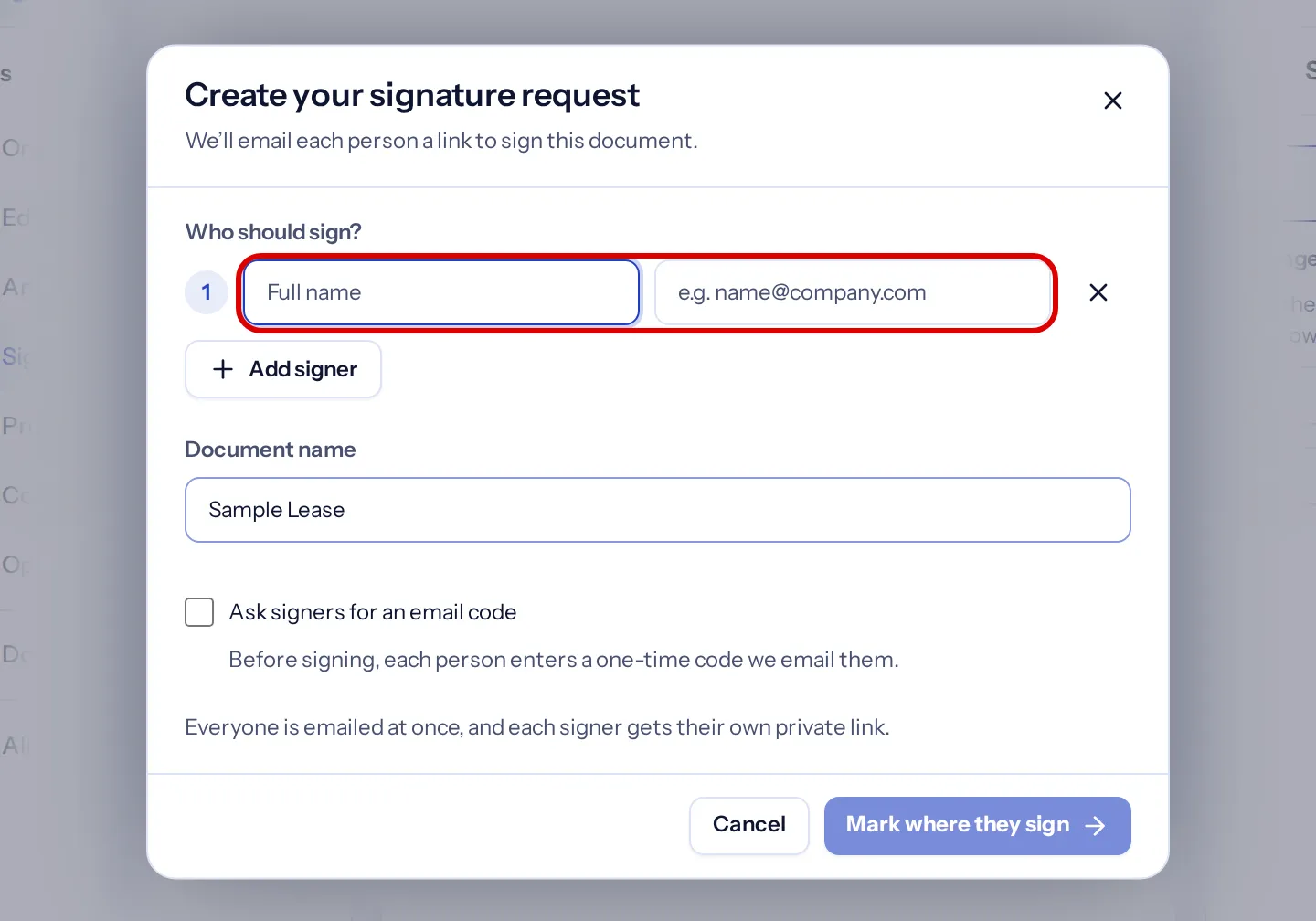
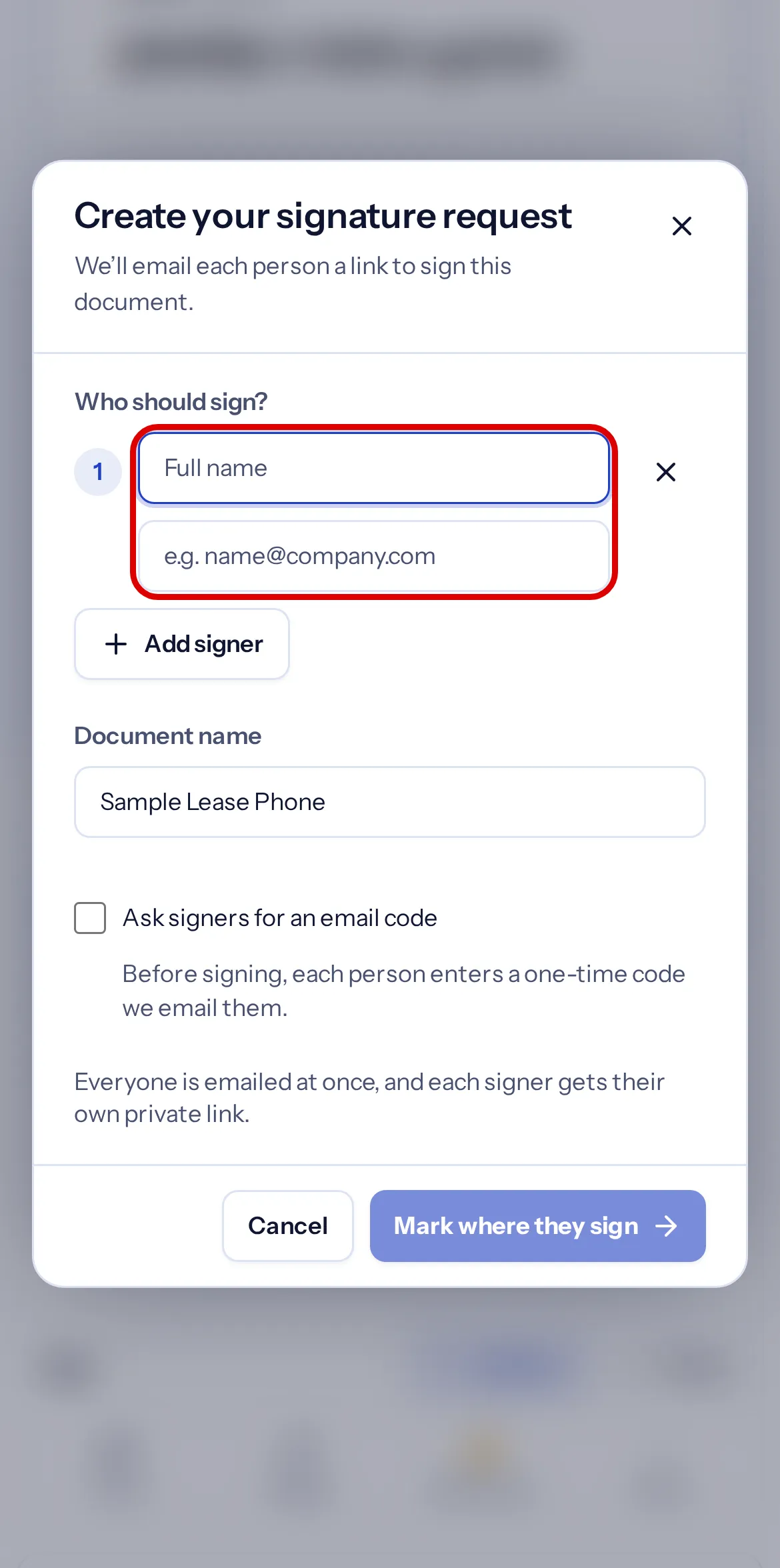
Name the document
Below, the Document name box shows the file name. Change it if you like, because the people you invite see this name. Tick Ask signers for an email code if you want each person to type a one-time code, which indox emails to them, before they sign. Then select Mark where they sign at the bottom right.
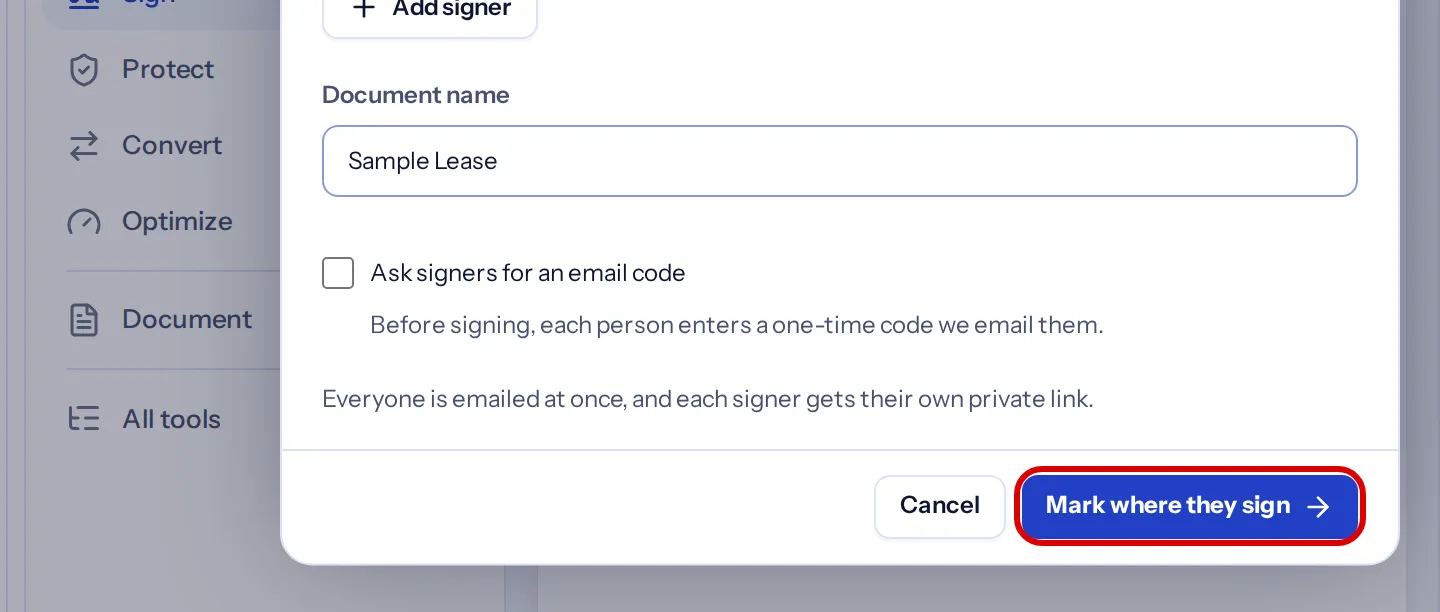
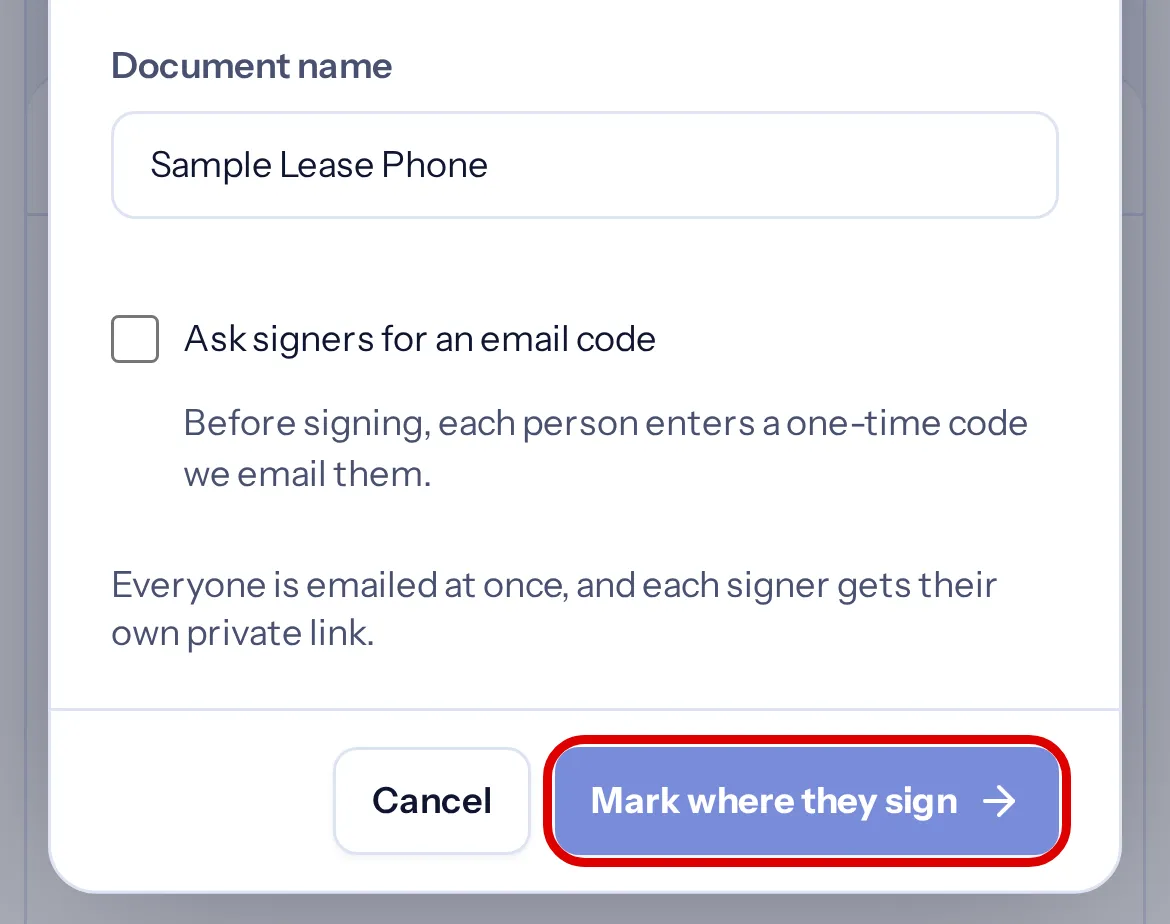
Mark where they sign
The window closes and you see your PDF. Above the page, on a computer, select Signature. On a phone, select the pen icon in the bar at the bottom of the screen. A line says Click or tap the page to place a signature box. Click or tap where the person should sign. A blue box appears. Each person needs at least one signature box. You can also add Name and Date boxes.
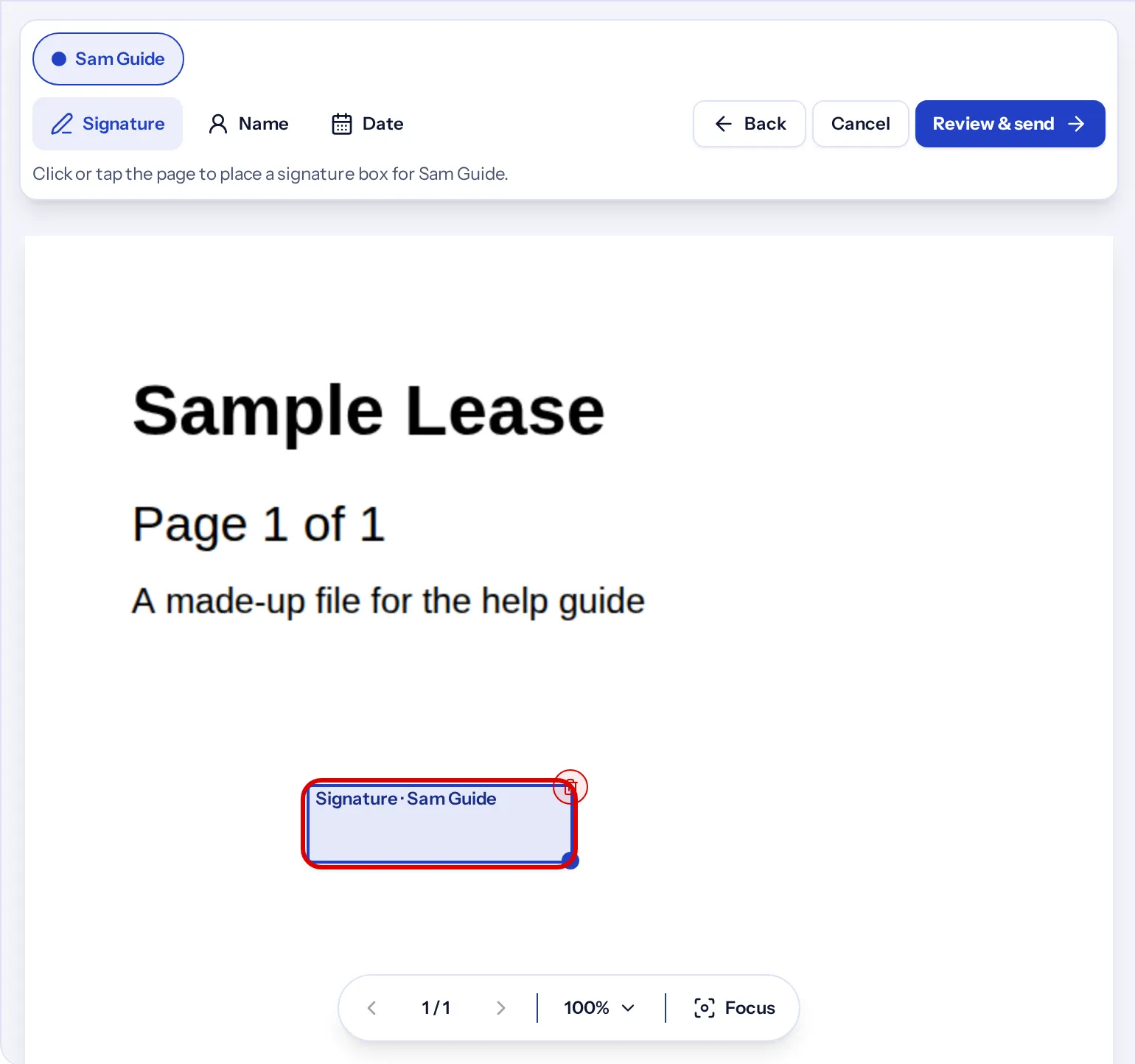
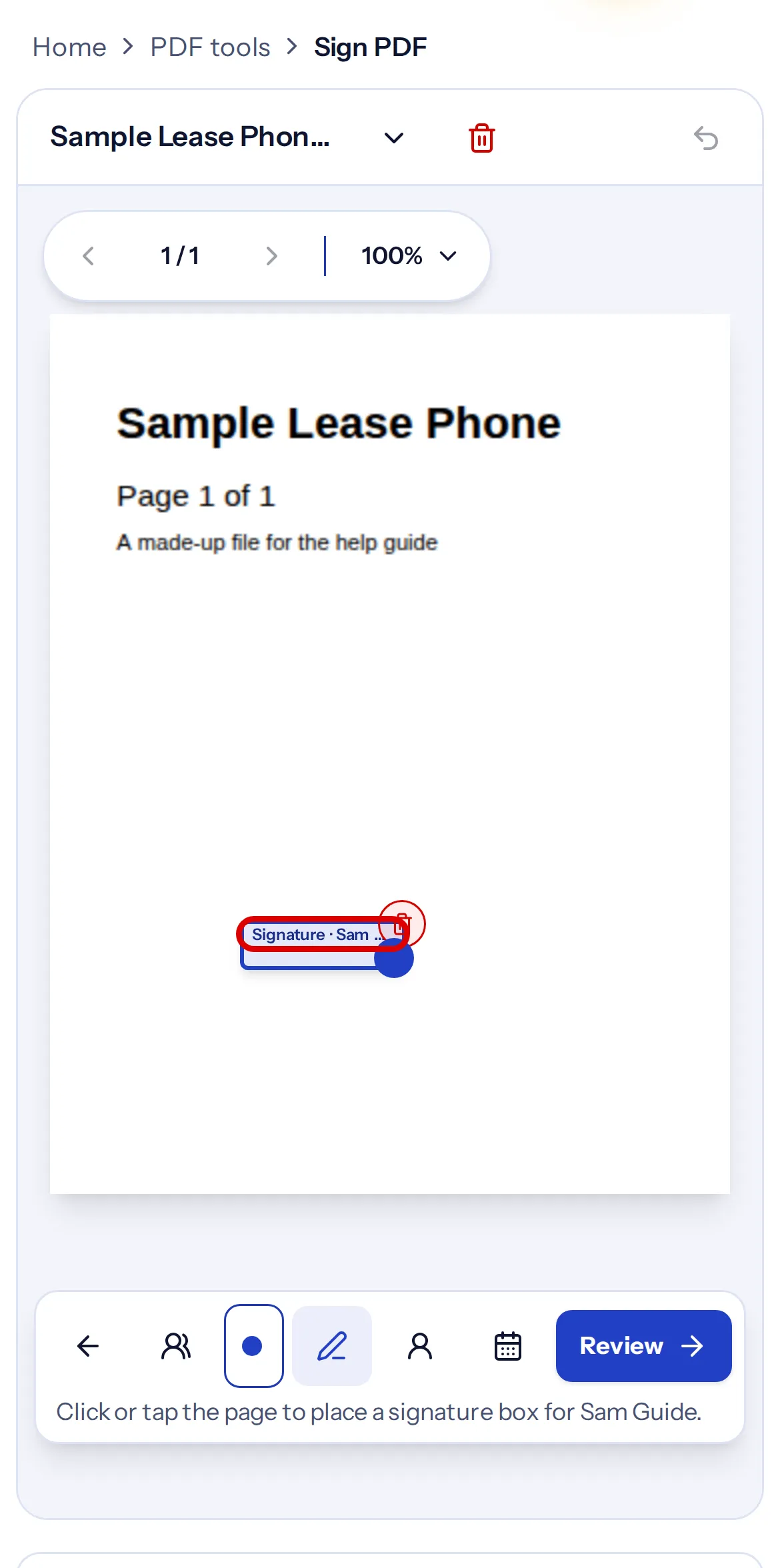
Review your request
Select Review & send at the top right of the bar above the page. On a phone the button says Review, and it sits at the right end of the bar at the bottom.
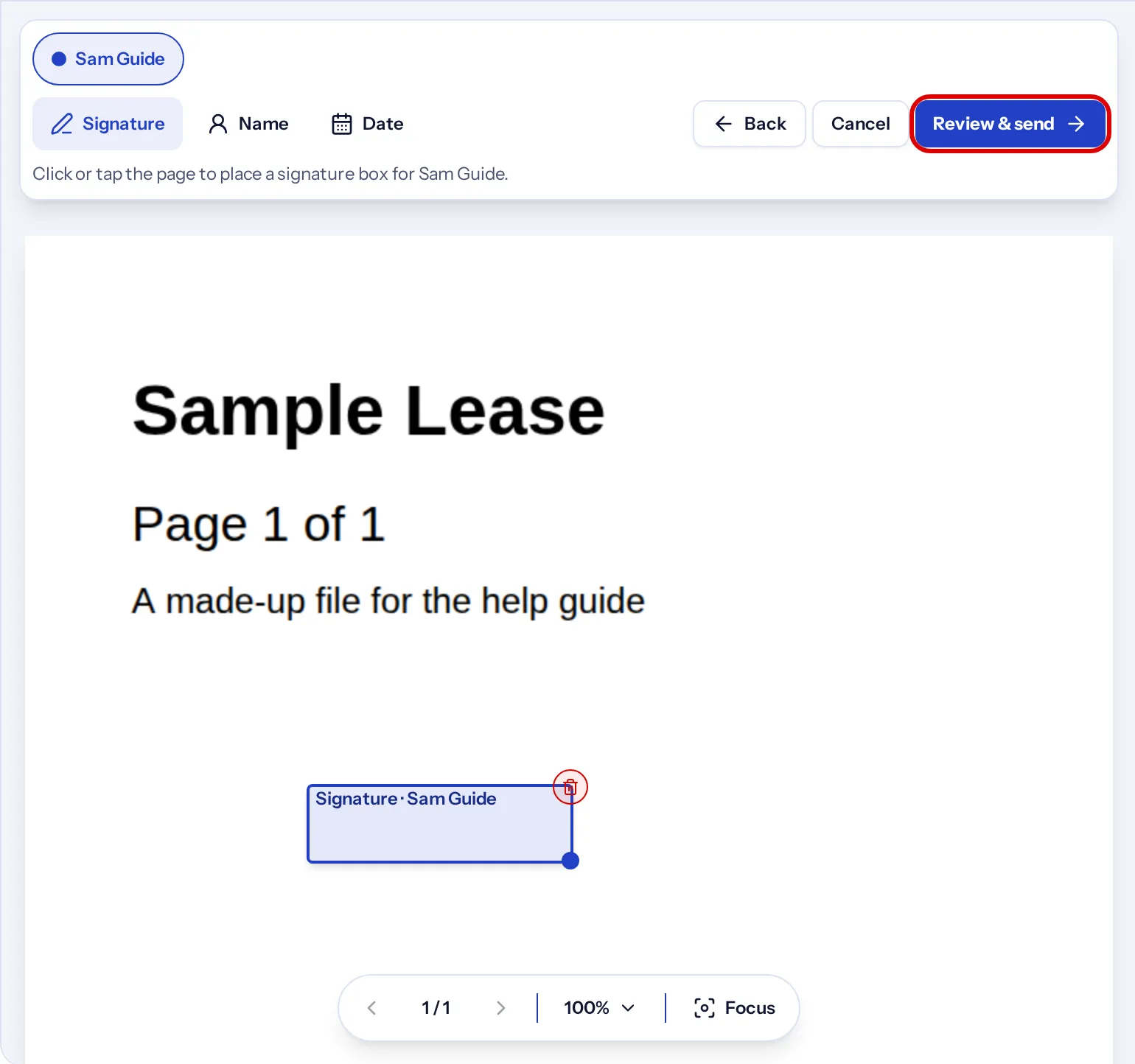
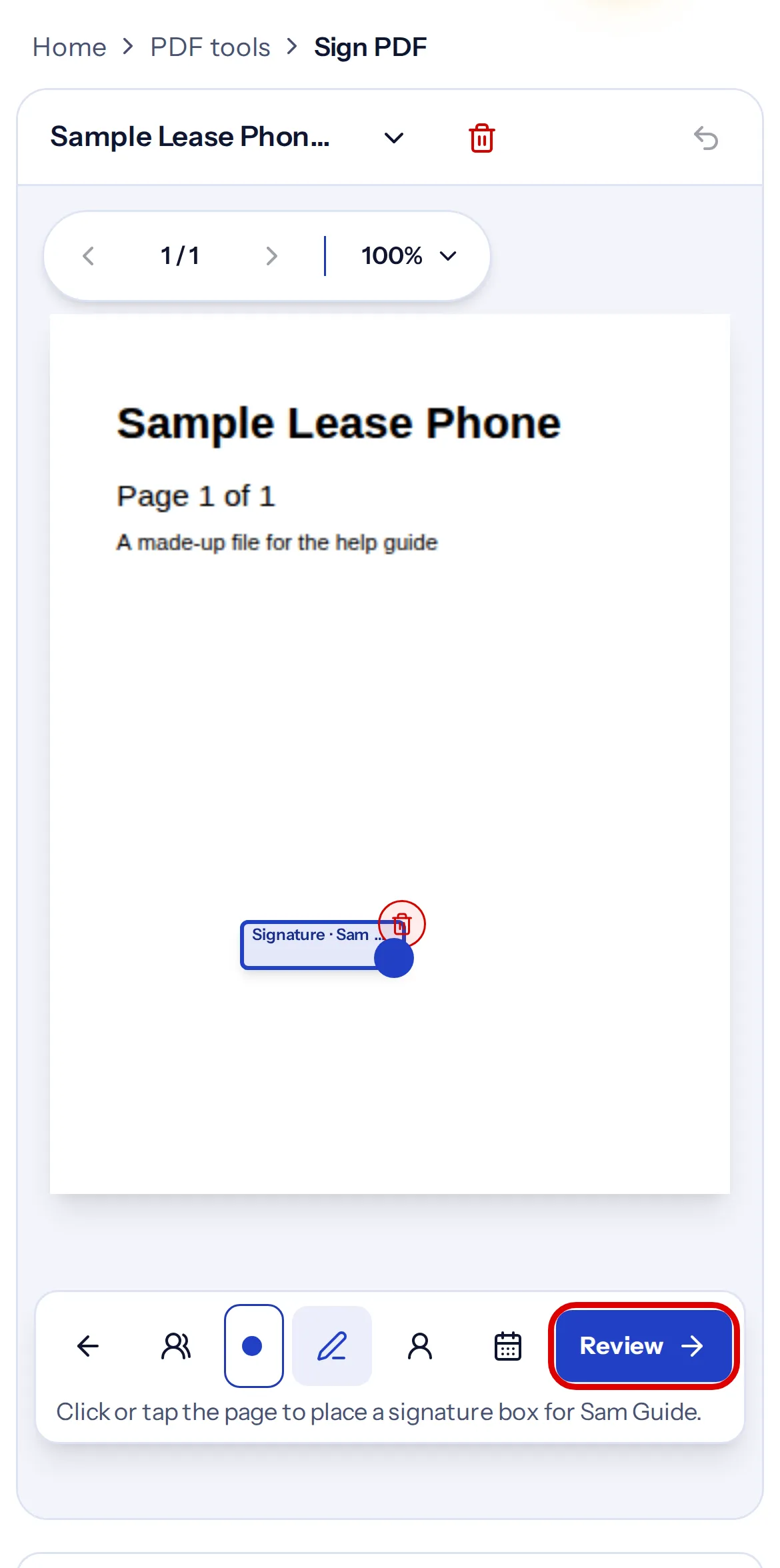
Send it
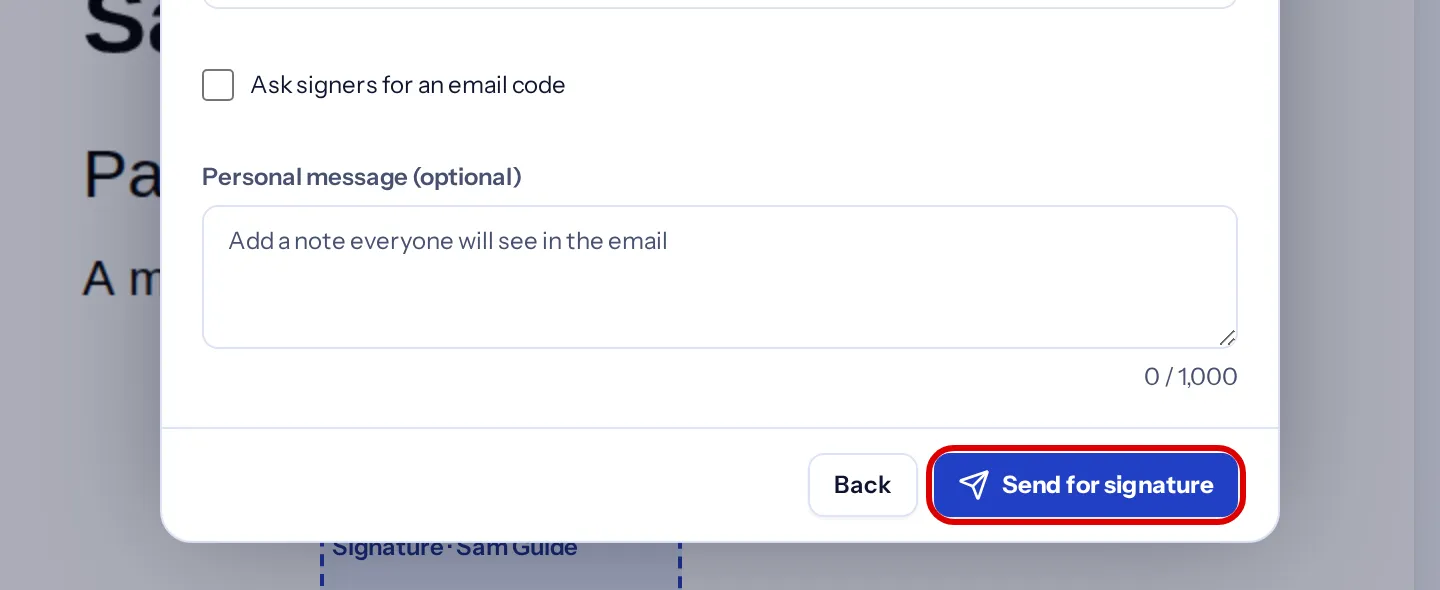
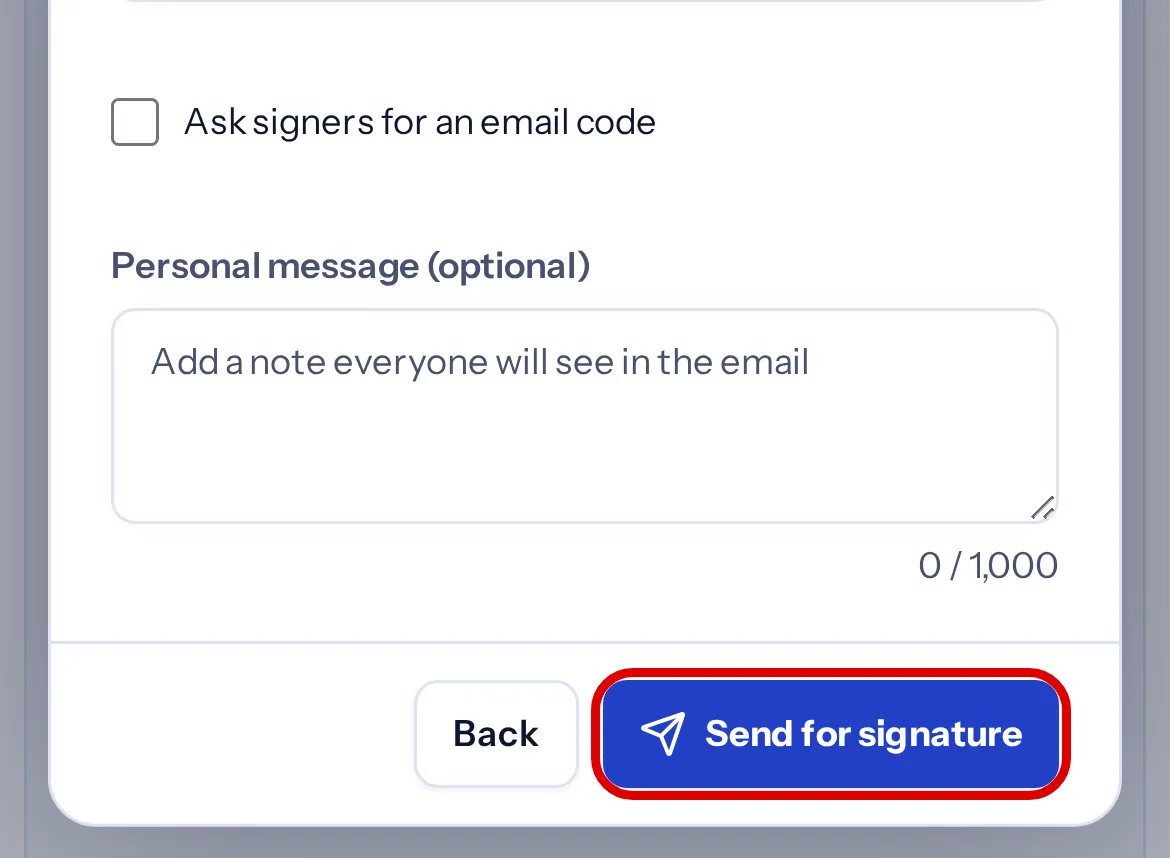
A window called Review and send lists each person and their email. Check them. You can type a note in Personal message (optional), and everyone sees it in the email. Select Send for signature at the bottom right. A green message says Sent for signature to 1 person, and each person gets an email with their own link.
Troubleshooting
| Problem | Cause | Fix |
|---|---|---|
| Verify your email address first. | Your account email is not verified | Verify your email address, then send the request again |
| Still needs a signature box | One of the people has no signature box yet | Select that person's name above the page, select Signature, and click the page |
| One of the email addresses isn't valid. | An email address has a typo | Check each email. It should look like [email protected] |
| That PDF is too large to send for signing. | The file is bigger than the limit | Pick a smaller PDF, or compress it first |
| Sign in to start a signing. | You are not signed in | Sign in, then choose the file again |