Last updated
Install the browser extension and pin it
Before you start
- A computer with Chrome, Microsoft Edge or Firefox. Do these steps in a normal browser window. Chrome can't add extensions in Incognito mode or as a guest.
- You don't need an indox account to install the extension, and it is free.
- An extension is a small add-on that gives your browser a new tool. The toolbar is the row of buttons next to the address bar. Pinning an extension keeps its icon in that row.
Open the Browser extensions page
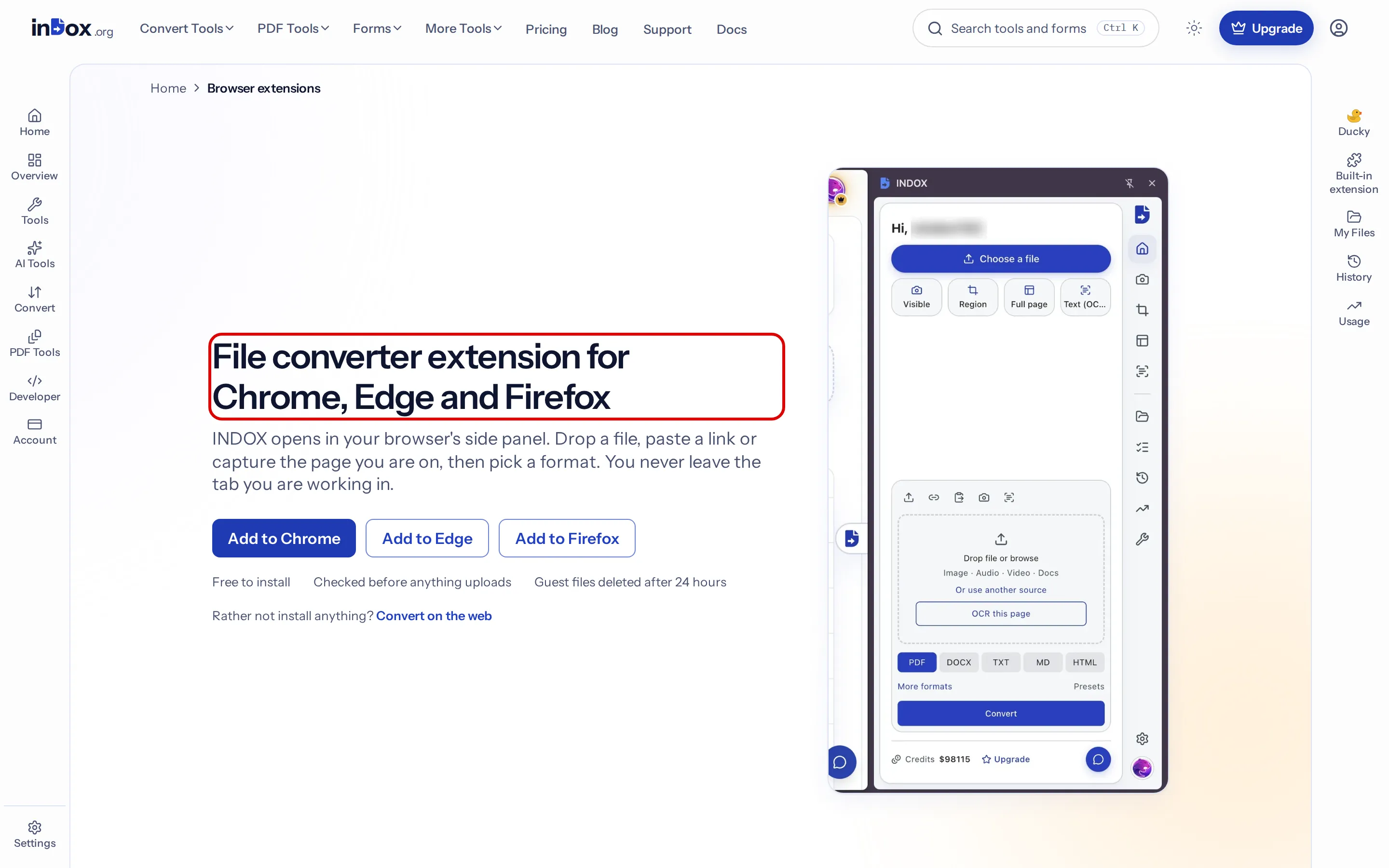
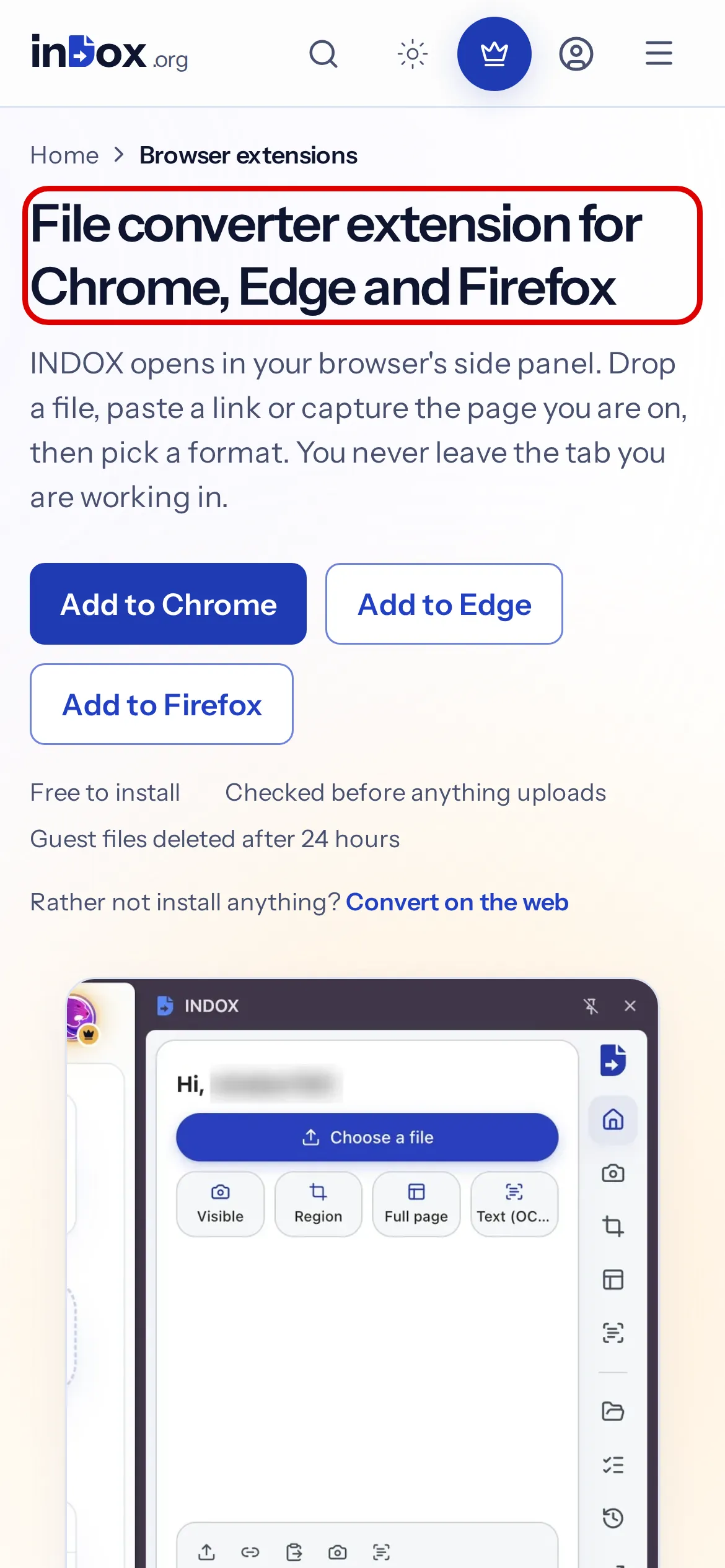
Go to the Browser extensions page. The big heading says File converter extension for Chrome, Edge and Firefox. The picture on the right shows the INDOX side panel, a strip that opens along the side of your browser window.
Select the button for your browser
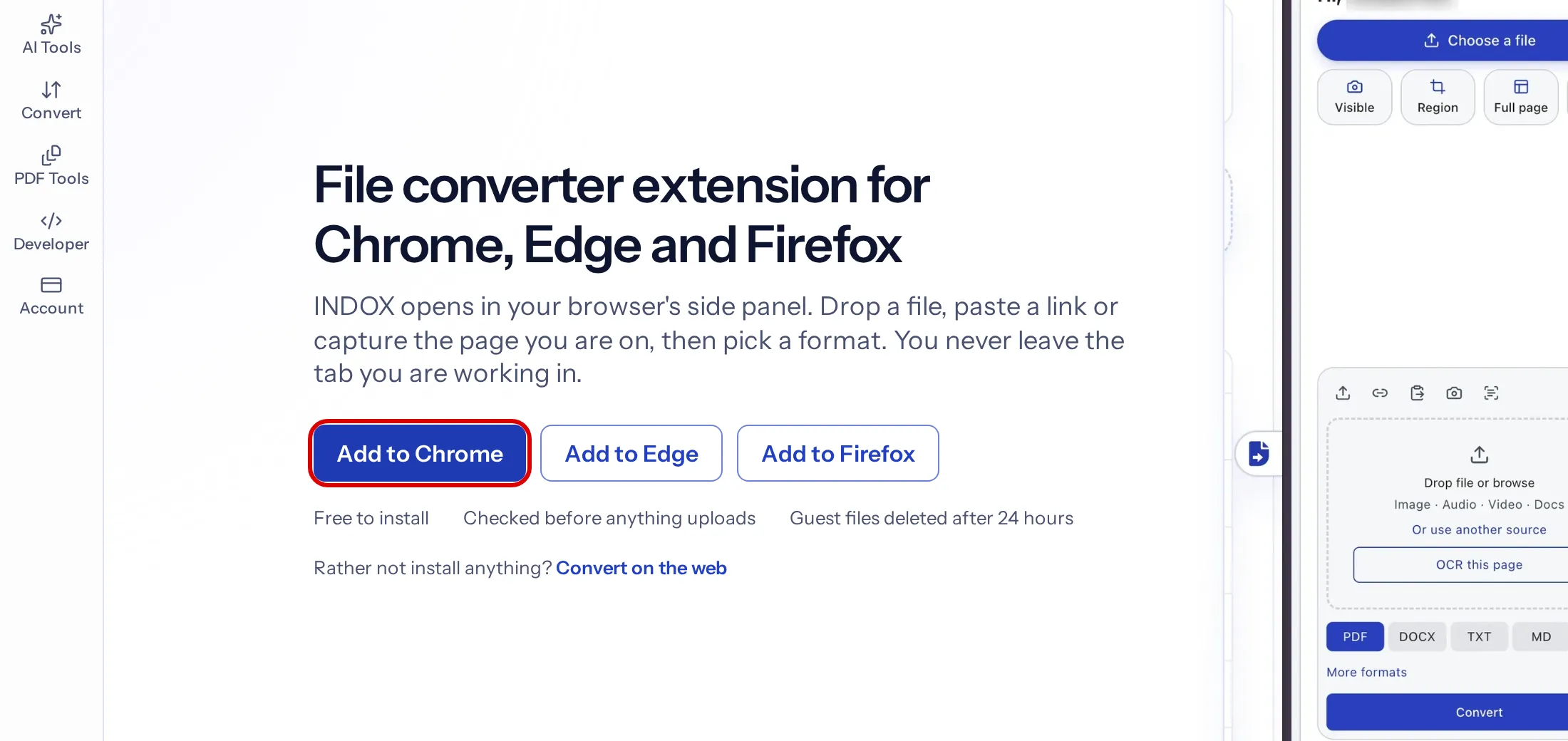
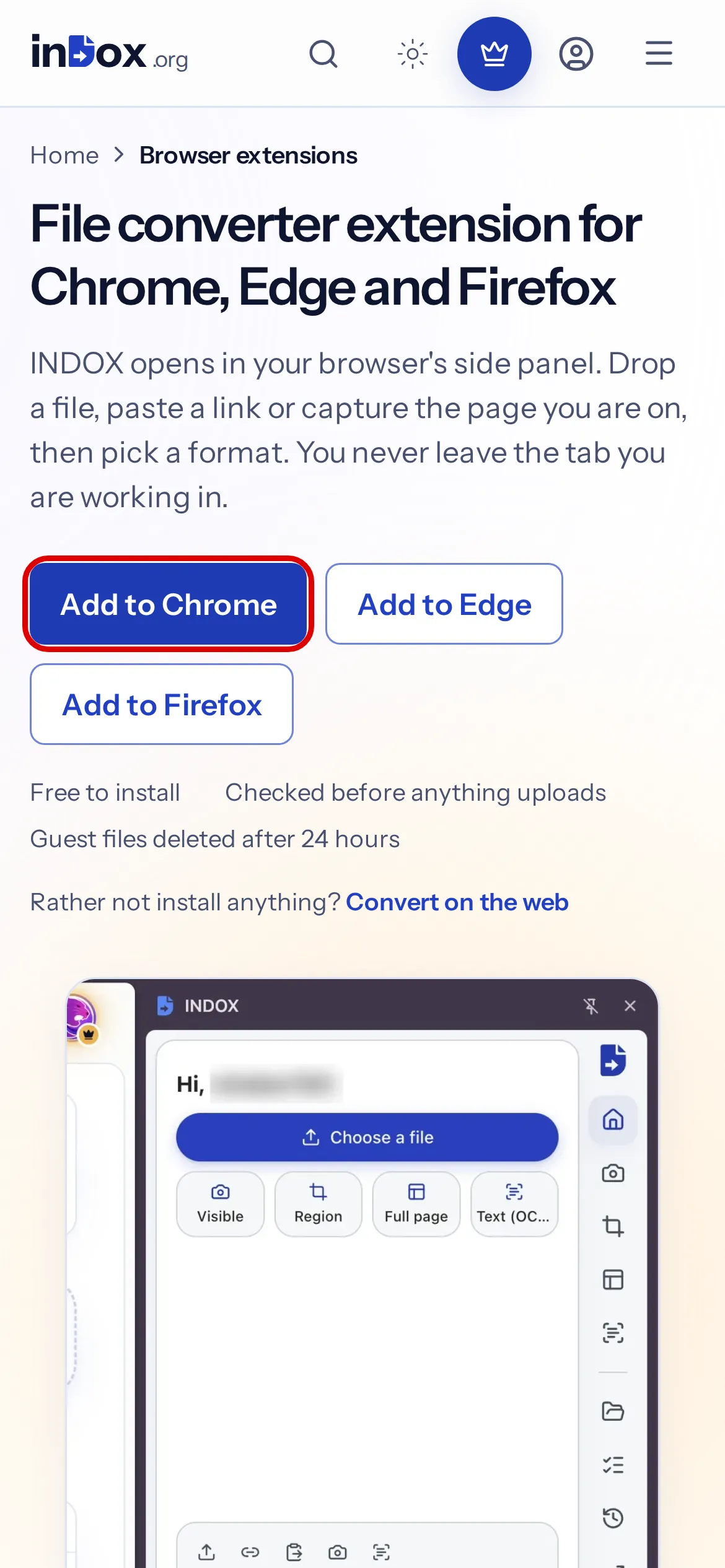
Under the heading, select Add to Chrome, Add to Edge or Add to Firefox. The store for that browser opens in a new tab. The next steps use Chrome.
Add it in the store
The store page is called INDOX - Convert anywhere, from NEMATI AI LLC. Select Add to Chrome, the button near the top right of the listing.
Approve the new extension
A small box from Chrome asks you to approve it. Select Add extension.
Pin the icon
Select the Extensions icon to the right of the address bar. It looks like a puzzle piece. A list of your extensions opens. Next to INDOX, select Pin. The INDOX icon now stays in the toolbar.
Troubleshooting
| Problem | Cause | Fix |
|---|---|---|
| The Chrome store says Switch to Chrome to install extensions and themes | You opened the Chrome store in a browser that is not Chrome | Open the page in Chrome, or go back and pick the button for the browser you use |
| The Edge store says Incompatible with your browser | You opened the Edge store in a browser that is not Edge | Open the page in Microsoft Edge, or pick another button on the Browser extensions page |
| Chrome says This extension is not trusted by Enhanced Safe Browsing | Chrome's Enhanced protection is turned on, and it warns about extensions it doesn't trust | Choose Continue to install if you want the extension, or Close if you do not |
| You can't add the extension on a school or work computer | Your school or work may block some extensions on that computer | Ask the person who looks after that computer |
| You cannot see the INDOX icon after installing | The icon is hidden in the Extensions list | Select the Extensions icon, then select Pin next to INDOX |
| The extension does not work in a private window | Browsers keep extensions off in private windows until you allow them | In Chrome or Edge, open the extension's details and turn on Allow in Incognito. In Firefox, turn on Run in Private Windows |
| Chrome asks to read data on all websites | The INDOX tab sits on the edge of every page. It reads nothing until you choose an action | You can limit the sites in the extension's details, or hide the tab in the extension's settings |