Run PDF tools without opening a site
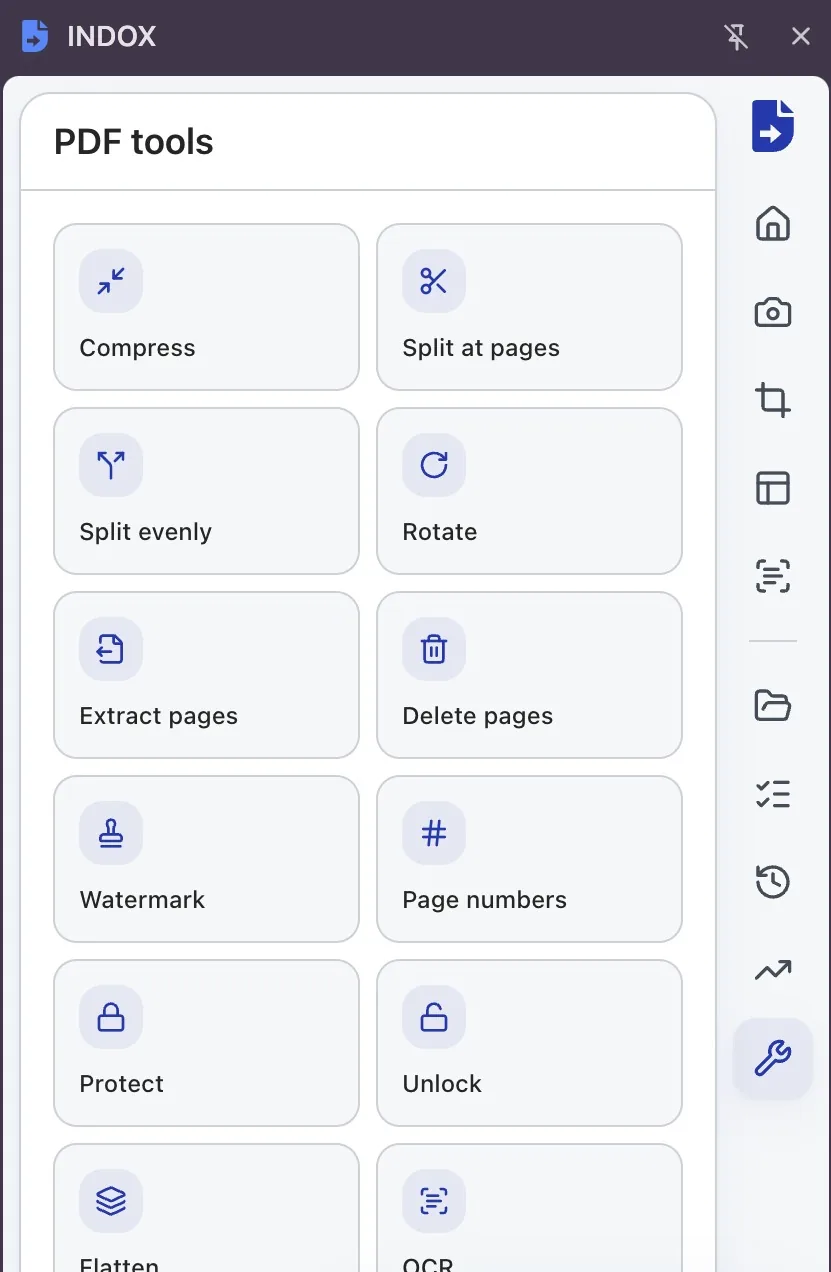
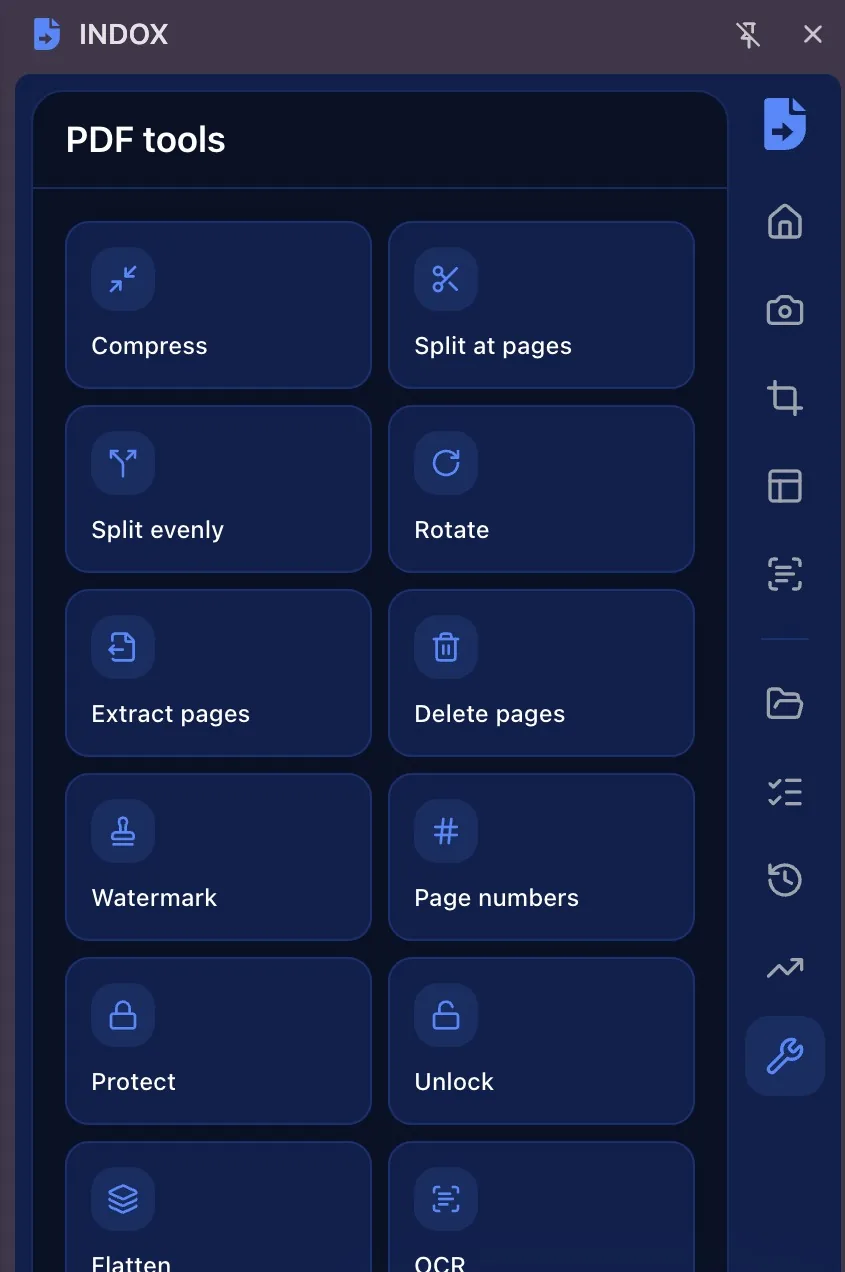
Compress, split, rotate, extract or delete pages, add a watermark or page numbers, protect, unlock, flatten or OCR a PDF, each from the PDF Tools tab in the panel.
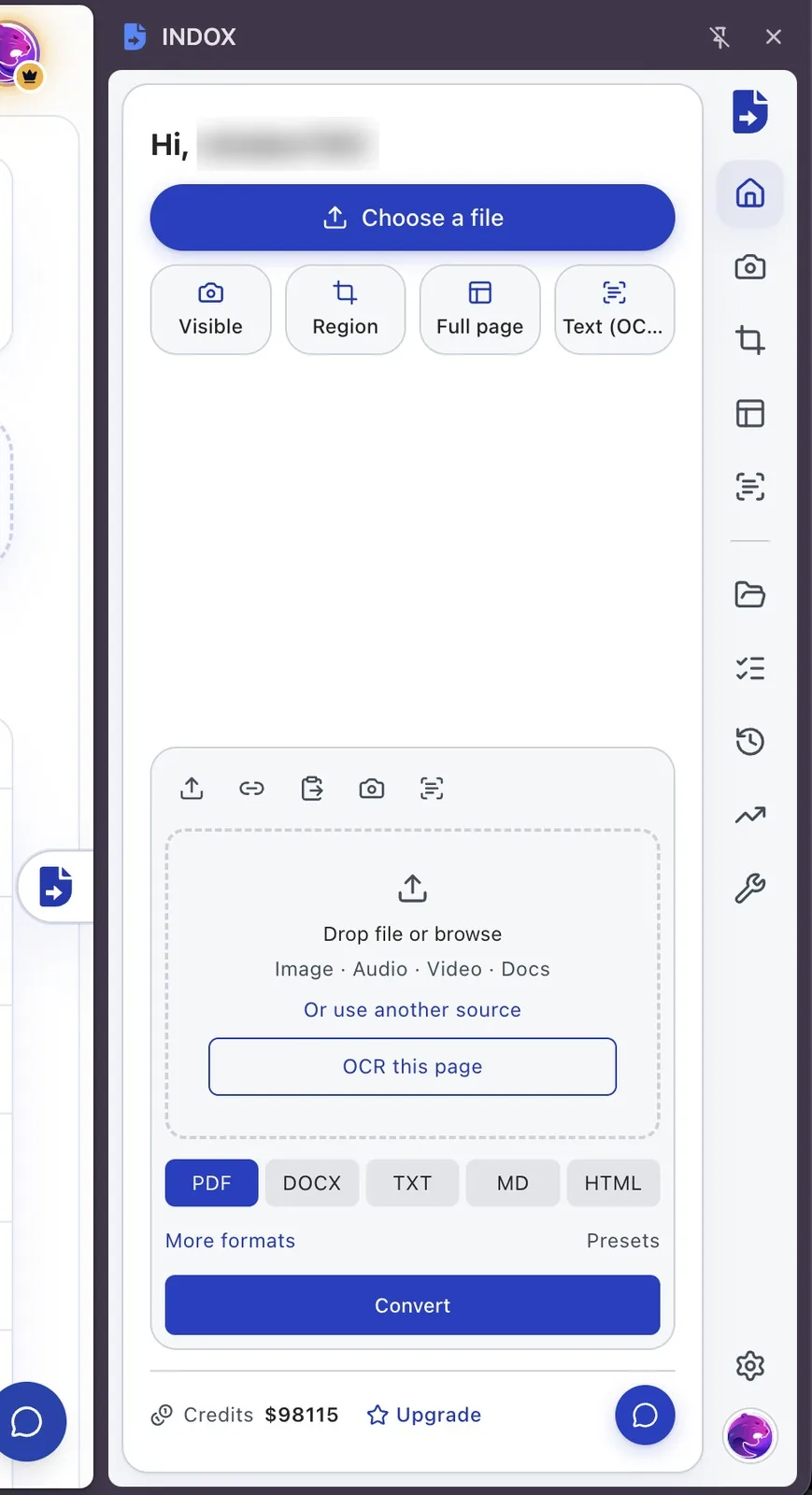
INDOX opens in your browser's side panel. Drop a file, paste a link or capture the page you are on, then pick a format. You never leave the tab you are working in.
Rather not install anything? Convert on the web
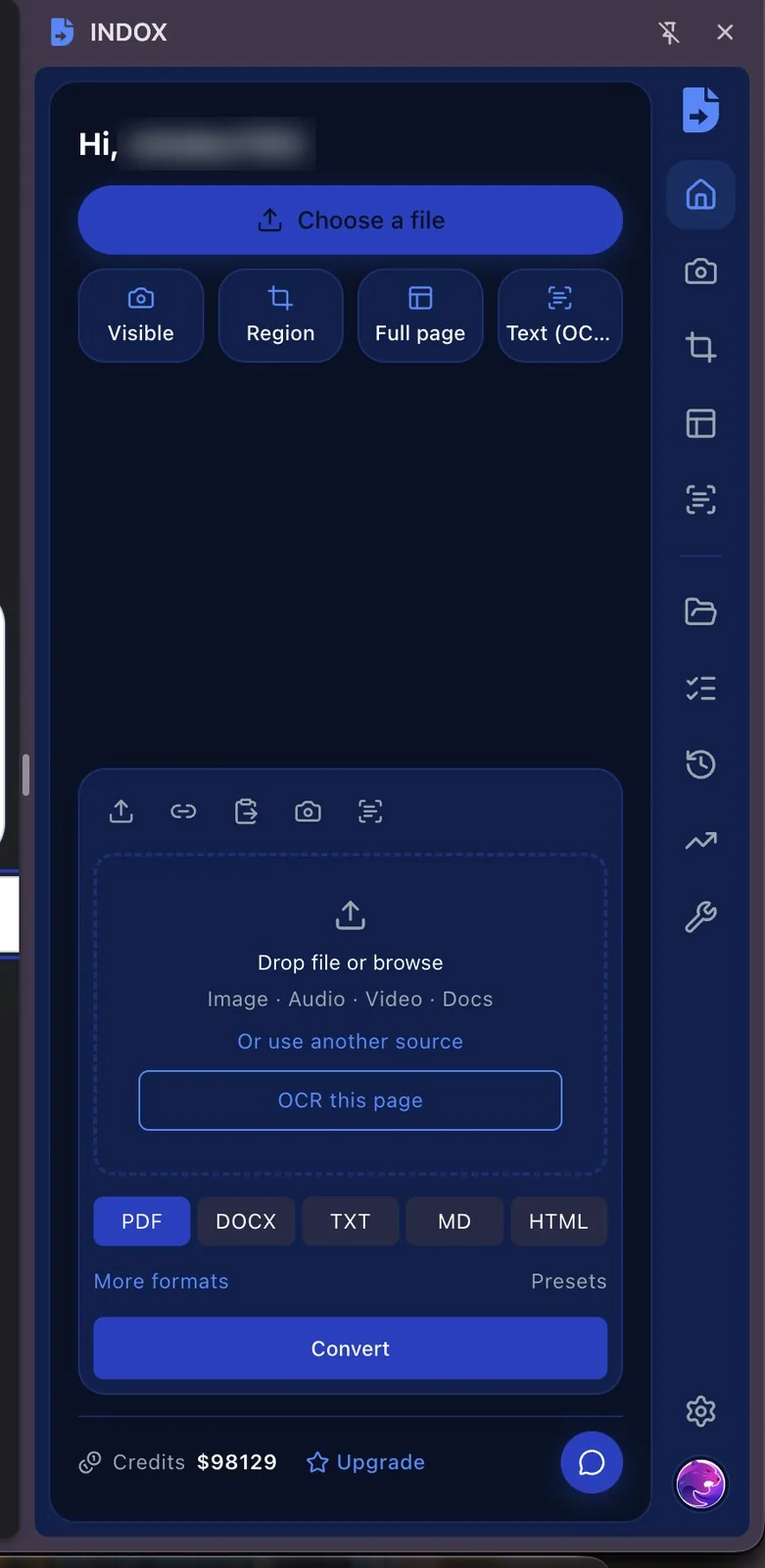
Compress, split, rotate, extract or delete pages, add a watermark or page numbers, protect, unlock, flatten or OCR a PDF, each from the PDF Tools tab in the panel.
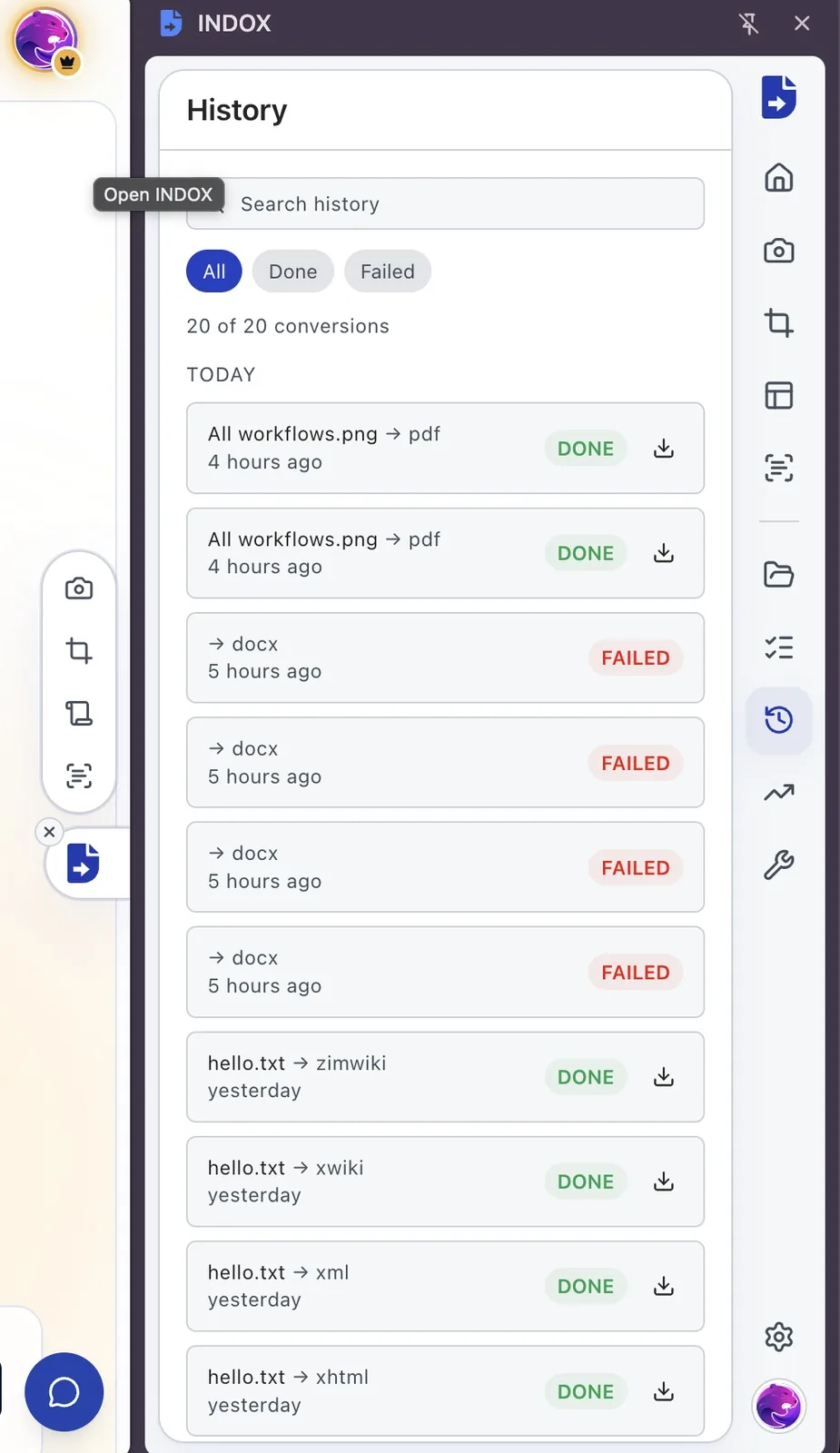
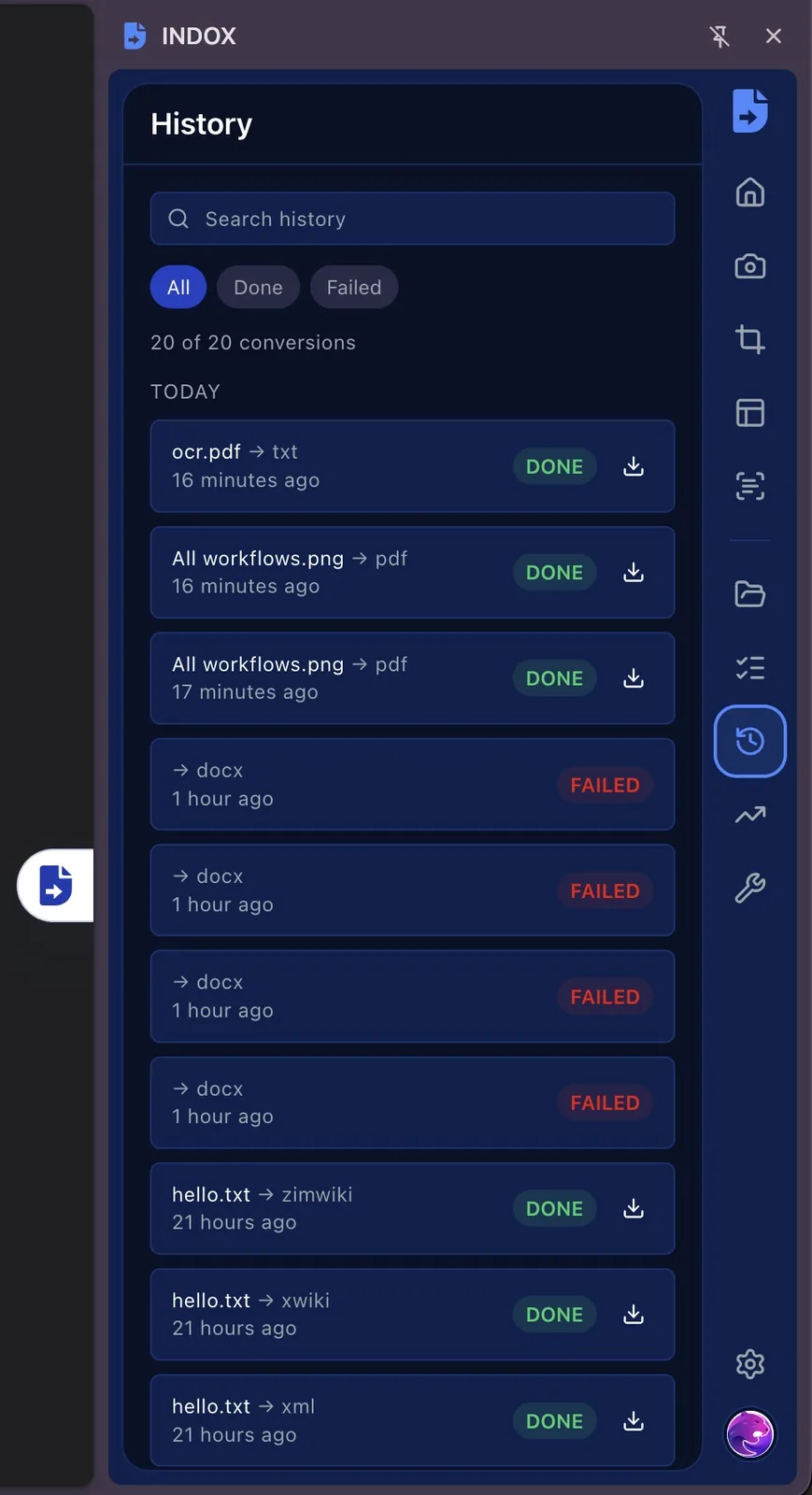
History lists every job with its status. Search it, show only finished or failed jobs, and download a result again without converting the file twice.
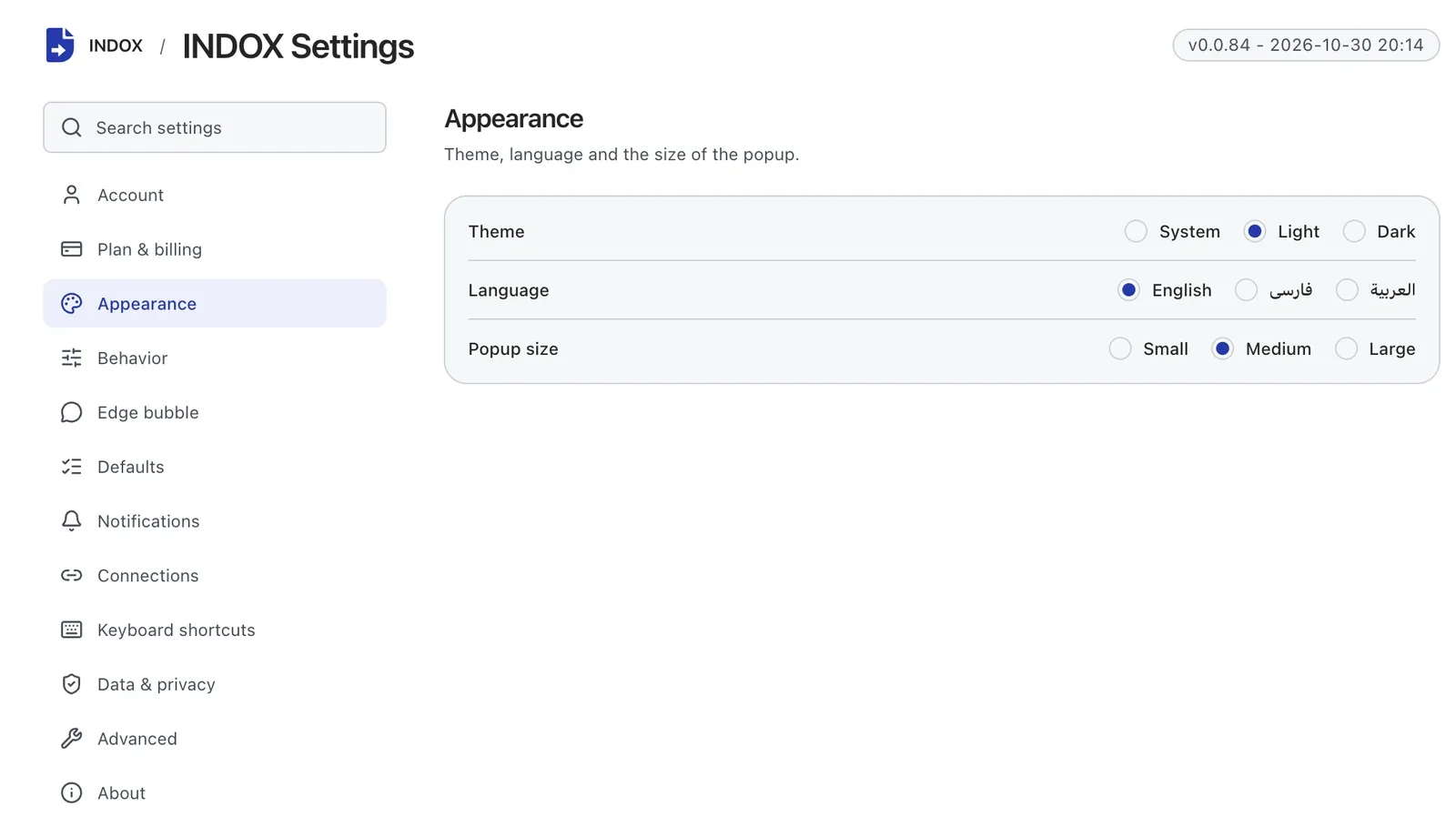
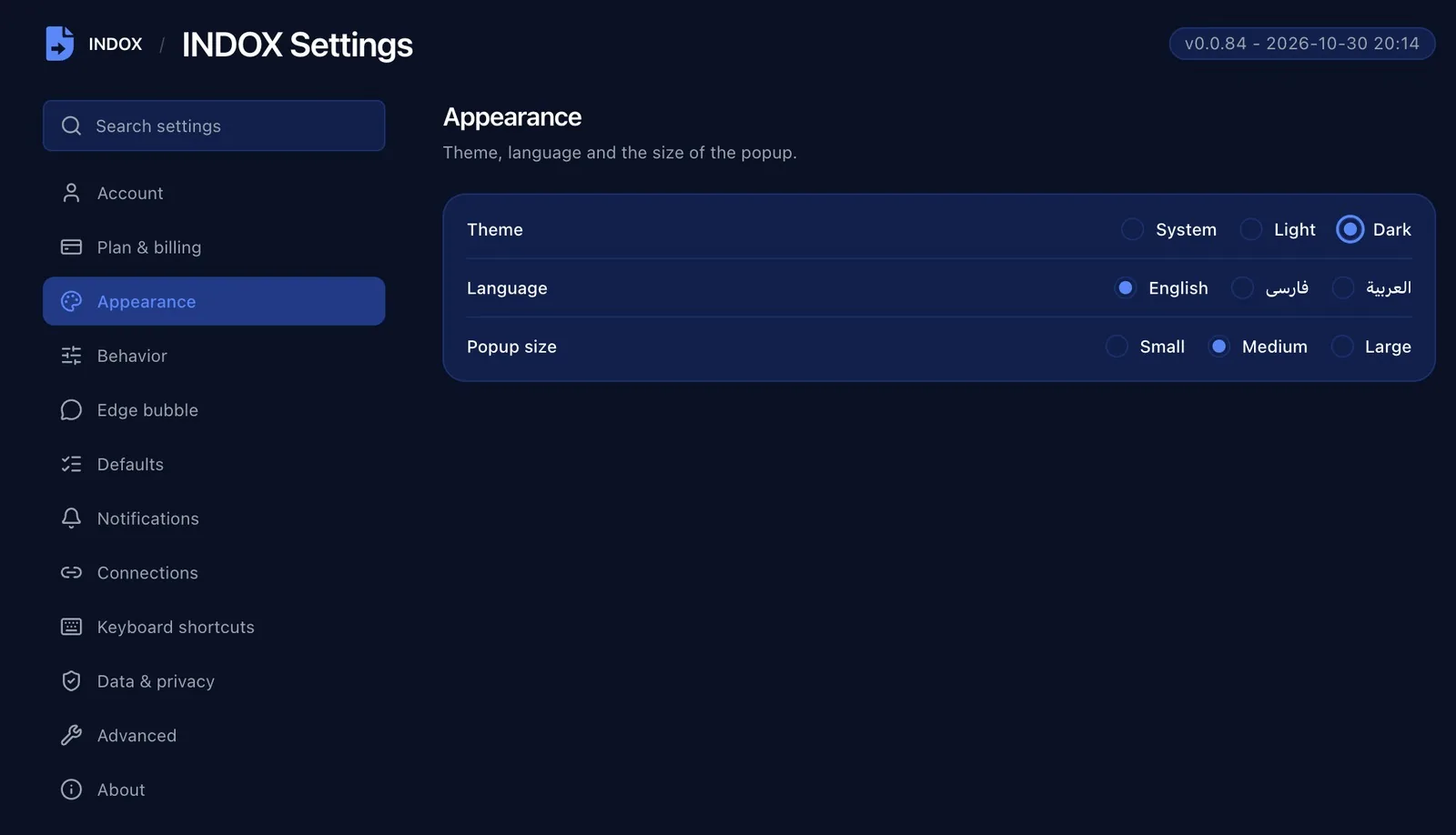
In the extension's settings, pick the theme, language and popup size, decide where the INDOX tab sits or hide it, and set your default formats and keyboard shortcuts.
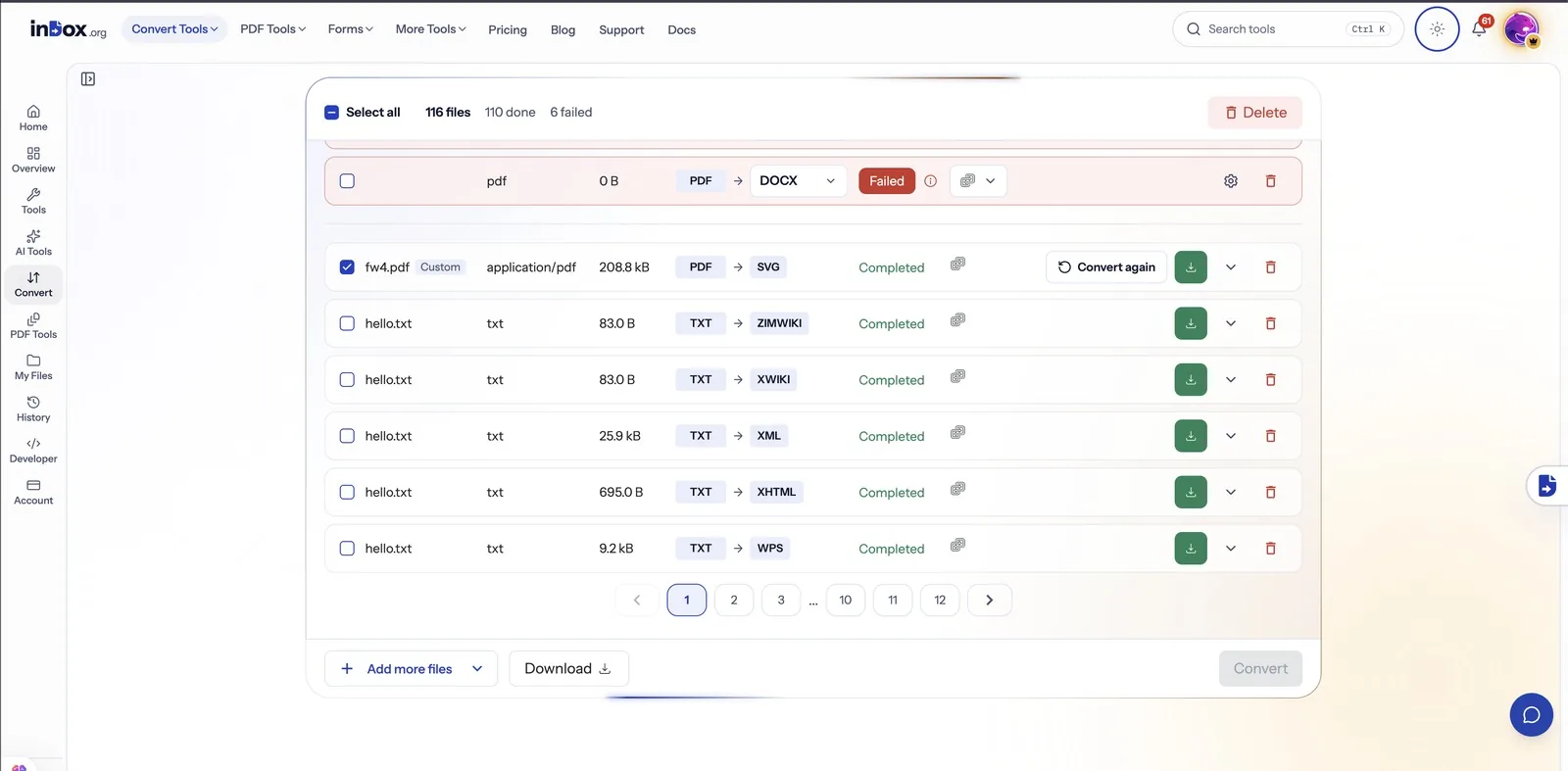
Everything you convert in the panel also lands in My Files on indox.org, where you can download it, convert it again or delete files in bulk.
Pick Chrome, Edge or Firefox at the top of this page and install INDOX from that browser's store.
Click the INDOX icon in the toolbar, or the INDOX tab docked to the edge of any page.
Choose PDF, DOCX, TXT or any other format the file supports, press Convert, and download the result when it is ready.
The website converts files you already have. The extension also works on whatever is in front of you, without opening another tab.
The extension checks the file's size against your plan, its real type, your credits and your connection before anything is sent. If a check fails, nothing is uploaded.
Your plan sets the largest file you can send, and the panel tells you before you upload if a file is over it.
Free-tier files are deleted within 24 hours after the job finishes. Paid plans keep results for 180 days so you can download them again.
The extension uses your indox.org account, so credits, history and files are the same on the website and in the panel.
No tool matches that search.
Chrome, Microsoft Edge and Firefox. Each one installs from its own store, using the buttons at the top of this page.
Installing it is free, and it runs on the same account and credits as indox.org, free tier included. Paid plans add credits, larger files and longer storage.
Yes. Sign in from the side panel with email, Google or Apple. If you are already signed in on indox.org, the extension picks that up.
Click the INDOX icon in the toolbar, or the INDOX tab on the edge of the page. To move the panel to the left, use your browser's own side panel setting. Extensions cannot move it.
So the INDOX tab can sit on the edge of every page. It reads nothing until you choose an action, and you can hide it on a single site or turn it off in the extension's settings.
Yes. In Chrome or Edge, open the extension's details and set site access to on click or to specific sites. The INDOX tab then appears only where you allow it, and the toolbar icon still opens the panel.
Only when you press Convert. Size, type and credit checks run in your browser first. Saving selected text as Markdown happens entirely in your browser and uploads nothing.
Free-tier files are deleted within 24 hours after the job finishes. Paid plans keep them for 180 days.
No. Conversions run on indox servers, so you need a connection. The panel checks for one before it uploads and tells you if you are offline.
Documents, images, video and audio. The panel reads its format list from the same converters as indox.org, so a format added there shows up in the extension too.
Yes. Choose Page in the panel to send the page as you see it, or capture it as an image. A PDF open in the tab can be converted directly too.
Only if you allow it. In Chrome and Edge, open the extension's details and turn on Allow in Incognito. In Firefox, turn on Run in Private Windows.
Free to install. Works with your indox.org account.
Also for Microsoft Edge and Firefox.