No file open

Tools

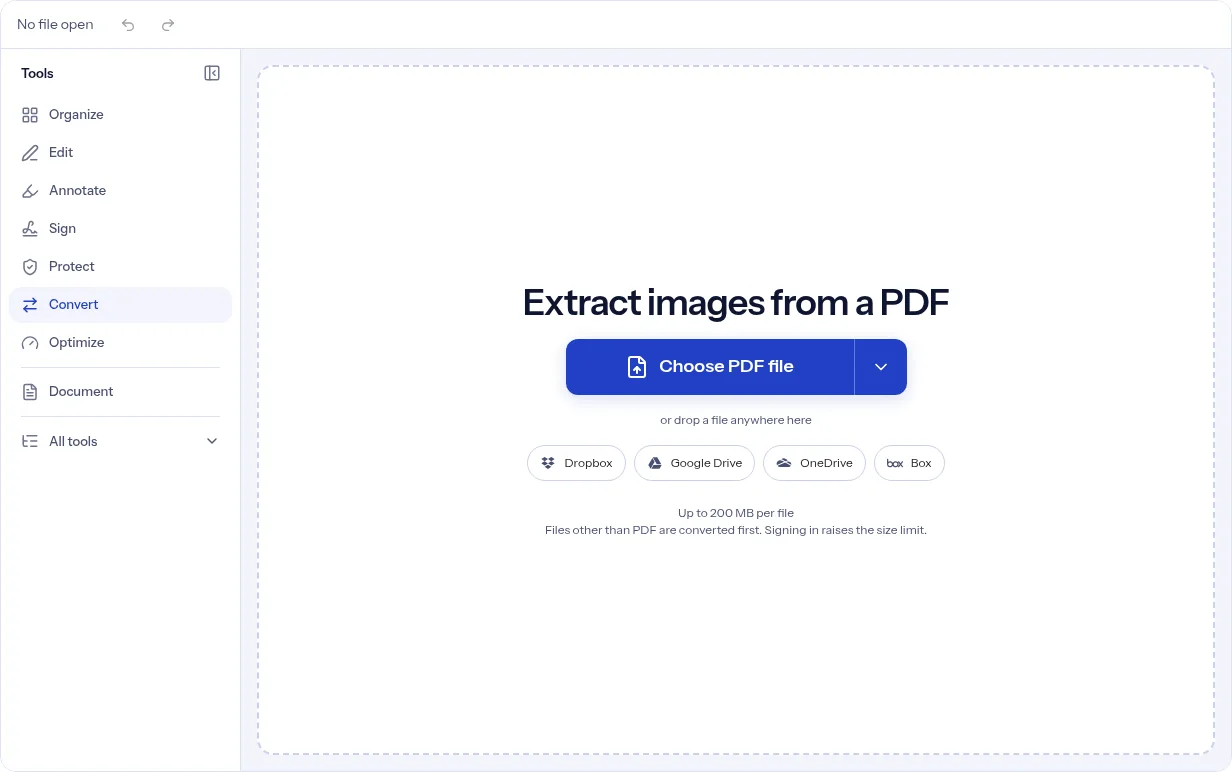
Extract images from a PDF

or drop a file anywhere here

Dropbox
Google Drive
OneDrive
Box

Files other than PDF are converted first. Signing in raises the size limit.

You add
One PDF
You set
The format (PNG, JPEG or GIF) and the pages
You get
A ZIP with the extracted images

To extract images from a PDF, open it here, choose the pages in From and the format in Save as, and press Extract images: you get one ZIP with every picture stored in the document, each saved once. This page is for you if you hold a PDF with photos, logos or figures and want them as files to reuse. From offers All pages or Pages I type (like 1-3, 7), and Save as offers PNG, JPEG or GIF. It saves only the pictures stored in the PDF, and a picture repeated on several pages comes out once. Text and drawings are not pictures. The tool takes images out and cannot place a new picture on a page; Add Stamp puts a text or image stamp on the pages you choose. Extracting is free, and in our run it worked without an account.

Our own 4-page PDF (431,700 bytes) with a photo, a transparent logo and a text-only page, run on indox.org

Sample PDFthe file we uploaded
422 KB
Photo inside the PDFstored as a JPEG, 335,256 bytes
327 KB
ZIP saved as PNG3 files, the panel shows 1463 KB
1463 KB
ZIP saved as JPEG3 files, size shown by the panel
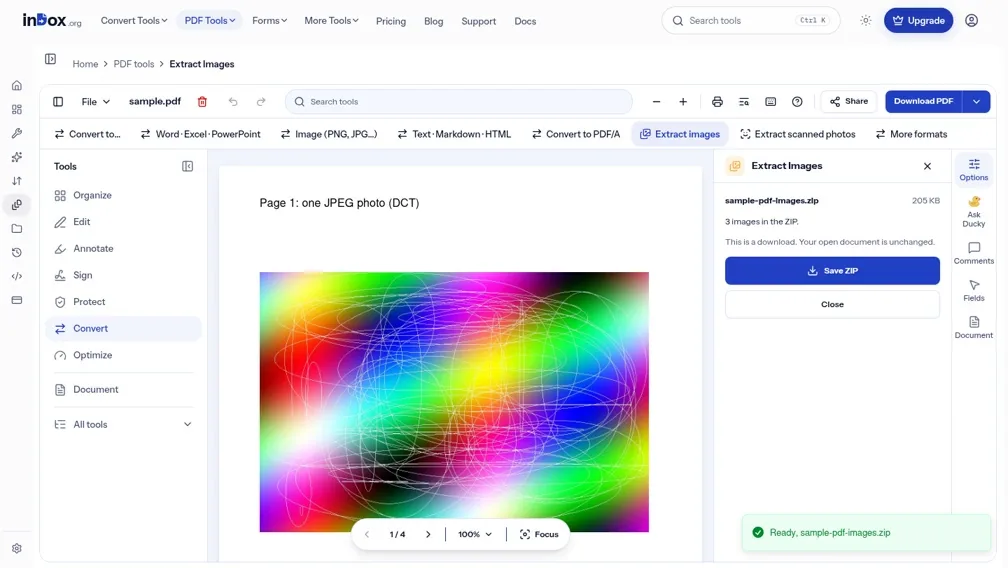
205 KB
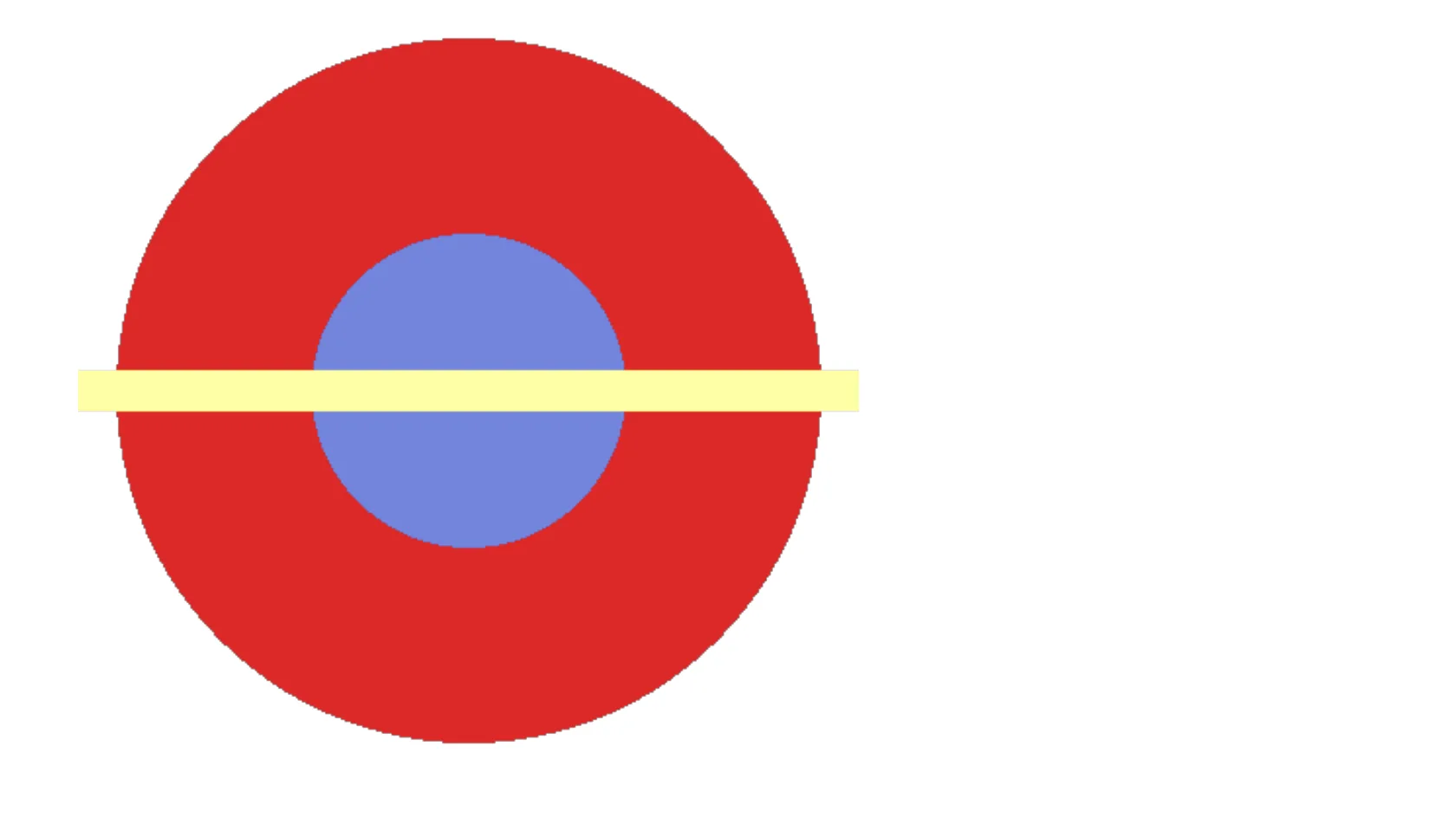
The logo on page 2 of our sample PDF, drawn on white and enlarged
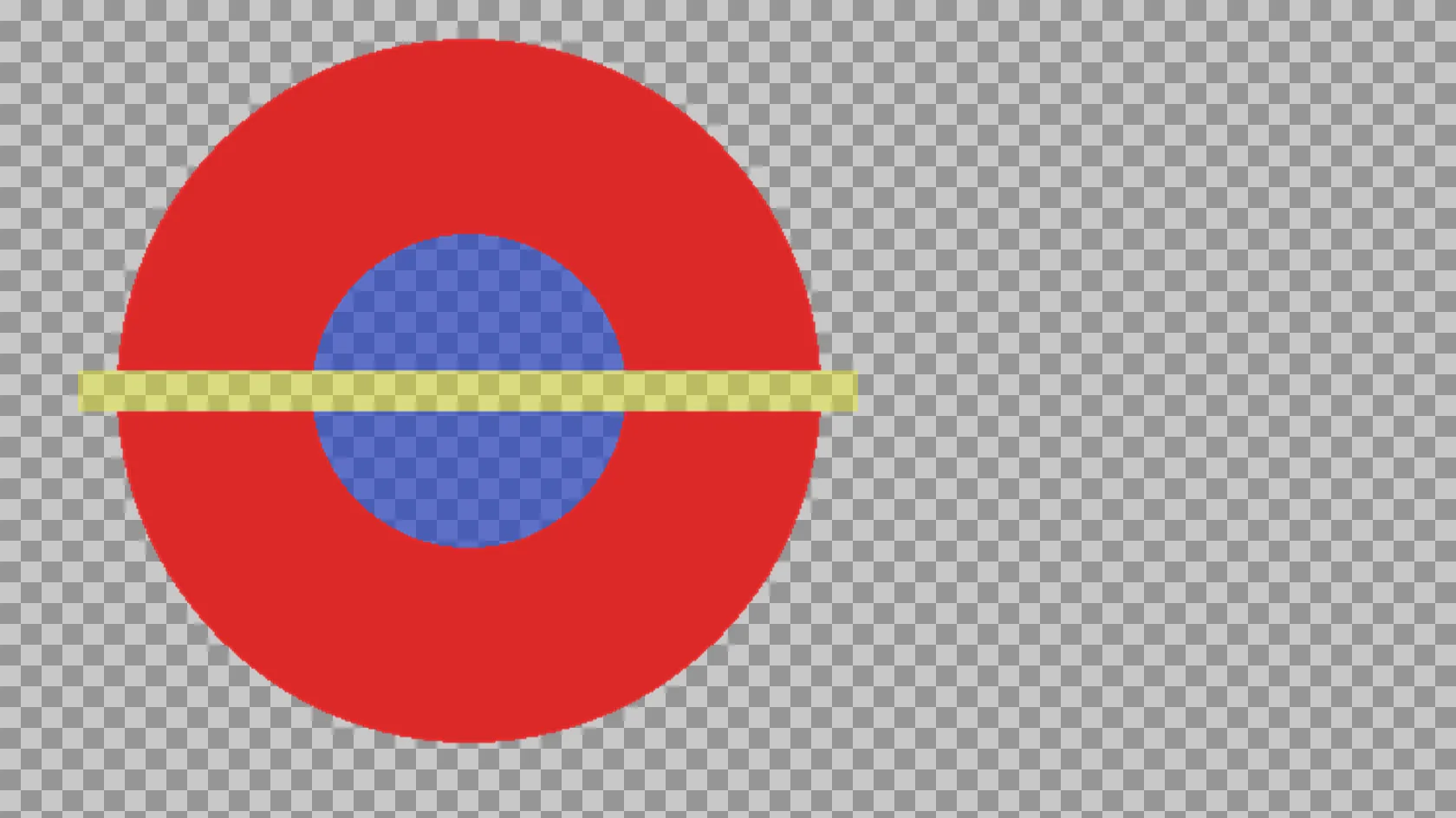
The same logo extracted as a PNG and shown on a grey checkerboard, with the transparent area showing through
Measured on indox.org on 5 November 2026, with no sign-in: our 4-page sample with 3 different pictures. Drag the handle to compare the logo on the page with the extracted PNG on a checkerboard, where the transparent area shows through.

What can you do when you extract images from a PDF?

Save every image in one run

The job reads the PDF and gathers its images into one ZIP to download. A picture that repeats on several pages is saved once, and the panel tells you how many images are in the ZIP. You do not have to go through the document page by page and save each picture by hand.
Choose PNG, JPEG or GIF

Save as is a choice of three formats, and it starts on PNG, which keeps transparent areas. JPEG makes smaller files and drops transparency. Every image in the archive is saved in the format you pick, so a document with mixed picture types comes back as a single file type. In our test a photo stored as a JPEG came out far larger as a PNG, and the numbers are in the section on what stays and what changes.

Choose the pages

From offers All pages, which is the default, or Pages I type. Enter pages like 1-3, 7 to take the pictures from those pages only.

Leave the PDF as it is

Extraction copies the images out. The document on your device keeps every picture, and indox returns no edited PDF. To strip the pictures from a file, Remove Images is the separate tool for that.

What extracting images keeps and changes

Stays the same

  • The PDF and its pages. Nothing is written back to it.
  • Each picture's width and height in pixels. In our test the three pictures came out at the sizes stored in the PDF: 1200 x 800, 400 x 400 and 300 x 200.
  • The transparent area of a PNG logo. In our test the soft mask was merged, the transparent pixels stayed transparent and no black box appeared.
  • A picture placed inside another page object. In our test an image in a Form XObject was extracted, and its pixels matched our source.

Changes

  • One ZIP comes out. Each picture is a file named like sample_page_2_1.png: the file name, the page number and the picture's number on that page.
  • Every picture is saved again in the format you choose, not copied byte for byte. In our test a photo stored as a 335,256-byte JPEG became a 1,492,653-byte PNG, 4.45 times larger, and differed from the decoded JPEG by 2.20 of 255 per pixel on average.
  • JPEG and GIF are saved without transparency. That comes from how the tool converts colour modes, and we tested transparency with PNG output only.
  • A picture used on several pages is saved once. In our test the PDF's image list had 7 entries, masks included, and the ZIP held 3 files.
  • Text, vector drawings and form fields are not exported, because they are not pictures. The text-only page in our sample gave 0 files.

Which image format to choose

You wantChooseWhy
To keep transparent areasPNGThe default. In our test a logo with a transparent background came out as a PNG with its transparency intact. MDN recommends PNG for lossless still images.
Smaller files for photos to place in a document or shareJPEGJPEG is lossy and has no transparency here. In our test the ZIP for the same three pictures was 205 KB as JPEG against 1463 KB as PNG, by the panel's own figures.
A program that only accepts GIFGIFMDN suggests PNG for still images, so pick GIF only when the other program needs it.

How to extract images from a PDF in 3 steps

  1. Add the PDF that holds the images

    Drag the PDF with the pictures onto the upload area, or press Choose file and find it on your device. It can be up to 200 MB when you are not signed in, or 200 MB with a signed-in account.

  2. Pick the pages and the format

    In From, keep All pages, or choose Pages I type and enter pages like 1-3, 7. Then choose PNG, JPEG or GIF in Save as; PNG is already selected.

  3. Run the job and save the ZIP

    Press Extract images. The button fills with the job's progress and the steps appear under it. When the result is ready, download the ZIP and unzip the archive to see the pictures.

Screenshot of the Extract Images panel after a run: a 205 KB ZIP with 3 images ready to save, beside page 1 of the sample PDF

Why extract PDF images with indox?

The panel has two settings, From and Save as, and both are already filled in, so most jobs need only the upload and the Extract images button. You get all the images in one archive, with no saving picture by picture, and the panel says how many images are in the ZIP. In our test the ZIP was ready 5.1 seconds after the click, for a 4-page sample. Extracting is free, and the PDF reaches indox over HTTPS. Three limits to know: the download is an archive, one format covers every picture, and pictures are saved again rather than copied byte for byte.

  • All images from a PDF in one ZIP
  • PNG, JPEG or GIF output
  • Two settings, already filled in
  • Free, with no account needed in our run
  • A measured run on a real sample, shown on this page
The indox Extract images from a PDF tool on indox.org, ready for your file

What are the limits when you extract images from a PDF?

File size
When you are not signed in, a PDF can be up to 200 MB, within a daily free allowance. A signed-in account can upload up to 200 MB per file. The ZIP that comes back has no cap of its own, and it can be larger than the PDF.
Where it runs
Your PDF is uploaded to indox's server, which builds the ZIP and sends it back; the panel counts the images in it in your browser. If you are not signed in, the upload and the result are deleted 24 hours after the job finishes. A signed-in account keeps them in its history until you delete them, for at most 180 days, or for 24 hours or 30 days if you choose that. Either way indox keeps a record of the job, such as the file name and its status, not the file.

Limits worth knowing

  • This tool only extracts. It has no field for adding an image to a page.
  • The download is a ZIP even when the PDF holds a single image. Unzip it to open the picture.
  • One format applies to the whole archive. You cannot save some images as PNG and others as JPEG in the same run, and there is no quality or resolution setting.
  • The original bytes are not kept and the panel has no option to keep them. In our test a 335,256-byte JPEG stored in the PDF came out as a 1,492,653-byte PNG, about 4.45 times larger.
  • The ZIP is stored without compression, so its size is about the sum of the images and can be much larger than the PDF.
  • It saves only the pictures stored in the PDF, and a picture repeated on several pages is saved once. Text and vector drawings are not pictures, so a page made of them gives nothing to extract.
  • The panel shows no preview of the images. It tells you how many are in the ZIP, or that the PDF has no pictures. It also has no password box, and a password-protected PDF stops with a message to remove the password first, so open it with Unlock PDF.
  • GIF output, the Pages I type range and a PDF with no pictures were not part of our run. The page describes those from the panel, and no measurement backs them.

When the images are not what you expected

What you seeWhyWhat to do
The ZIP has fewer pictures than you expectA page made of text or vector drawings has no picture to extract, and a picture that is identical on several pages is saved onceUse PDF to JPG to get each whole page as a picture instead.
The ZIP is much larger than the PDFPictures are saved again as PNG by default and the ZIP is not compressed. In our test a 335,256-byte JPEG became a 1,492,653-byte PNGRun the job again with JPEG for smaller files, and accept that JPEG has no transparency.
A transparent background turned solidJPEG and GIF files are saved without transparencyRun the job again with PNG.
The panel shows an errorThe PDF may be damaged, or it has a passwordTry Repair PDF, or Unlock PDF for a protected file.
The panel says "This PDF has no pictures to extract"The PDF holds only text and drawings, which are not stored as pictures. A text-only file was not part of our runUse PDF to JPG to get each whole page as a picture.

What do the free and paid plans add?

Free

  • All converters
  • Daily credit refresh
  • Email support

Basic

  • Access to all features
  • AI Extract
  • Priority conversions
  • Email support
Highest priority

Premium

  • Everything in Basic
  • Highest priority queue
  • Priority support

Pay-As-You-Go

  • No subscription
  • Credits never expire
  • Opt-in auto-refill
  • Access to all features
See prices

Extract images, PDF to JPG or Remove Images: which one?

You wantUseWhy
The pictures stored in the file, as separate filesExtract Images (this page)It saves the images stored in the PDF. Transparency is kept as a separate soft mask that follows its image (Poppler pdfimages manual), and in our test it was merged into the PNG.
A picture of each whole page, text and drawings includedPDF to JPGThe page is drawn as one picture. Text and vector drawings are not stored images, so extraction never returns them.
The PDF itself, without its picturesRemove ImagesIt returns a PDF, not a ZIP. Extract Images leaves the PDF unchanged and gives you the pictures instead.

Who extracts images from PDFs?

  • Designers reusing artwork

    A client sends a brochure as a PDF and the original photos are gone. Pull the pictures out and work from those files.

  • Writers and editors

    An article needs a chart that exists only inside a PDF report. Extract the images and place the chart in your own document.

  • Marketing and web teams

    Product photos sit in a catalog PDF. One job hands you the pictures as separate files for a website or a slide deck.

When to extract images, and when to pick another tool

  • Recovering photos from a brochure or catalog when the source files are lost.
  • Collecting the figures from a report to reuse in a presentation.
  • Saving the logo embedded in a letterhead PDF.
  • Gathering the pictures from a photo book that was saved as one PDF.
  • You want a picture of each full page, text included. PDF to JPG exports pages as images, and this tool does not.

Where can I read more?

Sources

Facts checked on November 5, 2026

Do it all with indox

Extract images FAQs

Can I add an image to a PDF on this page?

No. The tool only takes images out. To put a logo or a seal on the pages, use Add Stamp, which places a text or image stamp; to put a picture on one page, use Edit PDF.

Which image formats can I choose?

PNG, JPEG or GIF, set in Save as. PNG is selected by default and keeps transparent areas, JPEG makes smaller files, and the choice applies to every image in the archive.

Why do I get a ZIP file and not the images directly?

The job packs its output into one archive, so a document with many pictures is still a single download. Unzip it to see the image files.

Can I extract images from only a few pages?

Yes. In From, choose Pages I type and enter pages like 1-3, 7. The ZIP then holds the pictures from those pages only.

Does this turn each page into a picture?

No. It saves the images stored in the document, not the pages themselves. To export whole pages as pictures, use PDF to JPG.

Does extracting remove the images from my PDF?

No. The images are copied into the ZIP and your PDF is not changed. Remove Images is the tool that returns a PDF with its pictures stripped out.

Is an account needed to extract images?

No. Extracting images is free, and in our run it worked without signing in. Visitors who are not signed in have a daily free allowance.

What happens to my PDF and the image archive afterward?

The PDF travels over HTTPS to indox's server, which builds the ZIP. If you are not signed in, the upload and the ZIP are deleted 24 hours after the job ends, and the file on your device is not changed. Save the ZIP once it is ready. A signed-in account keeps them in its history instead.

Can I extract images from a PDF without losing quality?

Each picture keeps its width and height in pixels, but it is saved again in the format you choose, not copied as the original file bytes. In our test a 335,256-byte JPEG stored in the PDF came out as a 1,492,653-byte PNG, and its pixels differed from the decoded JPEG by 2.20 of 255 on average. PNG is the closer choice; the panel has no option to keep the original file.

Why does my logo appear only once when it is on every page?

A picture that is identical on several pages is saved once. In our test the PDF's image list had 7 entries and the ZIP held 3 files. If you need one file per page, PDF to JPG gives a picture of each page.