Pick pages in the grid
Click page thumbnails to pick them. Odd pages, Even pages, Select all and Invert selection pick many at once, and Clear selection starts over.
or drop a file anywhere here
Files other than PDF are converted first. Signing in raises the size limit.
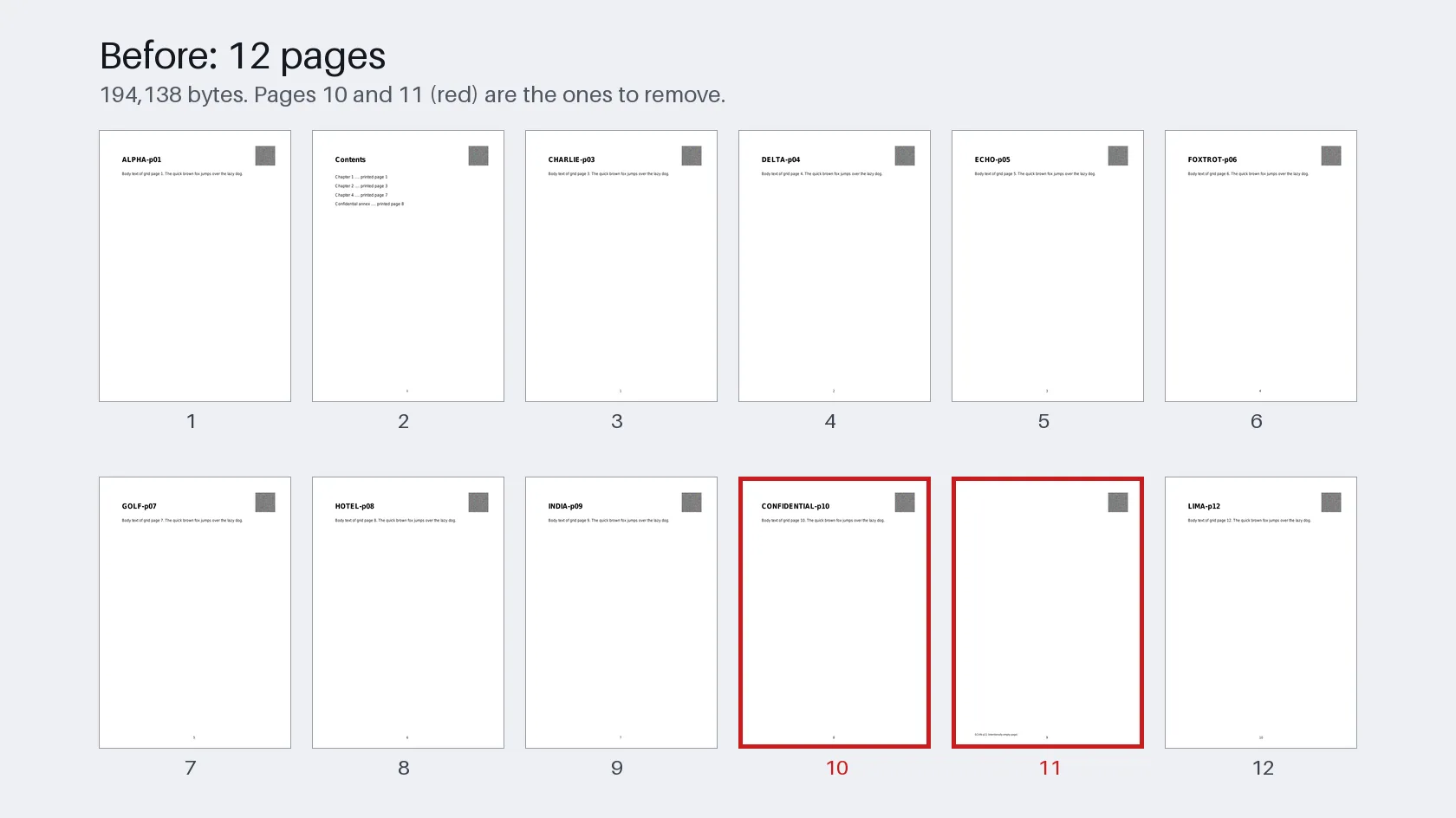
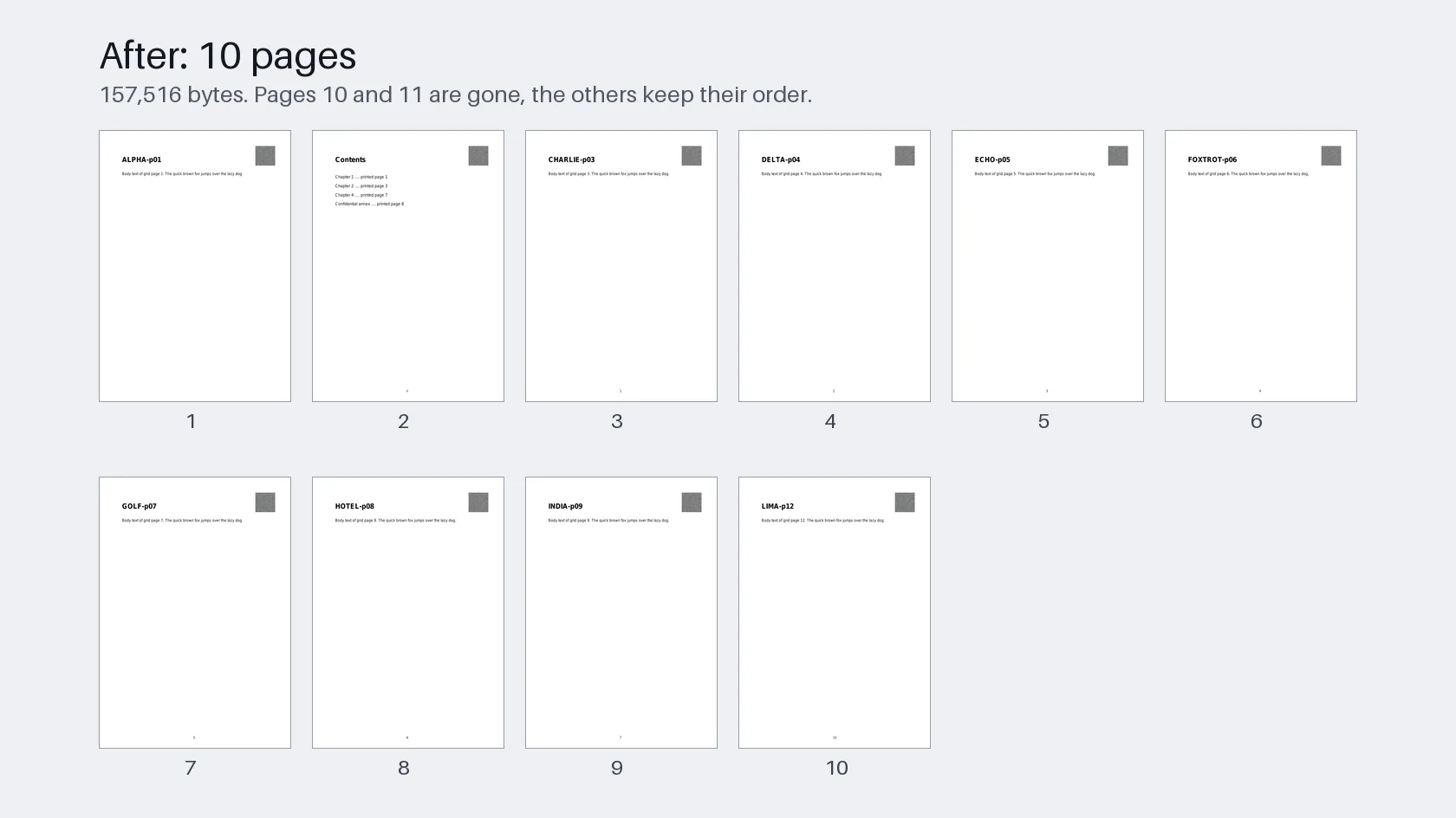
Remove pages shows your PDF as a grid of page thumbnails. Pick the pages to remove by clicking them, with the quick picks for odd pages, even pages, all pages or the reverse of your selection, or by typing a list in the Pages to remove box, such as 1-3, 5 or 8- for page 8 to the end. What you type selects those places in the grid. A line under the box counts the pages to remove and the pages that stay. Press the Remove button and the pages leave the grid at once. Nothing changes in the file until you press Apply changes, so you can Undo or restore a page first. A PDF needs at least one page, so you cannot remove every page. It is for anyone with one PDF who needs a shorter copy, such as a scan with a blank page or a report where some pages should not be shared. In our test, removing two pages from a 12-page sample gave a 10-page file without the text of those pages.
Our own 12-page A4 PDF with 11 bookmarks, 4 contents links and roman then arabic page labels
Click page thumbnails to pick them. Odd pages, Even pages, Select all and Invert selection pick many at once, and Clear selection starts over.
Write pages in Pages to remove, such as 1-3, 5 or 8- to run from page 8 to the last page. The grid picks the same places. Persian and Arabic digits work. An entry the box cannot read shows an error, and so does a page past the last one.
A line under the box reads, for example, 3 pages to remove, 7 pages stay. The button is named for the count, such as Remove 3 pages.
Removed pages are listed under Removed pages, each with Restore, and Restore all brings back every one. Undo also works.
| You want to remove | Type | Note |
|---|---|---|
| Page 3 | 3 | One number. |
| Pages 2, 6 and 9 | 2, 6, 9 | Separate the entries with commas. |
| Pages 4 to 7 | 4-7 | Both ends are included. Write the lower number first. |
| Page 8 to the end | 8- | An open end runs to the last page. |
| Pages 1 to 3 and page 5 | 1-3, 5 | Ranges and single numbers can be mixed. |
Drop one PDF on the upload area at the top of the page, or click to choose it. The pages appear as thumbnails.
Click the pages, use the quick picks, or type a list such as 1-3, 5 in Pages to remove. Check the count under the box, then press the Remove button. The pages leave the grid.
Press Apply changes. The button fills with the job's progress. When it finishes, press Download PDF, or Undo to go back. In our test, a 12-page sample took 3.96 seconds from the click to done.
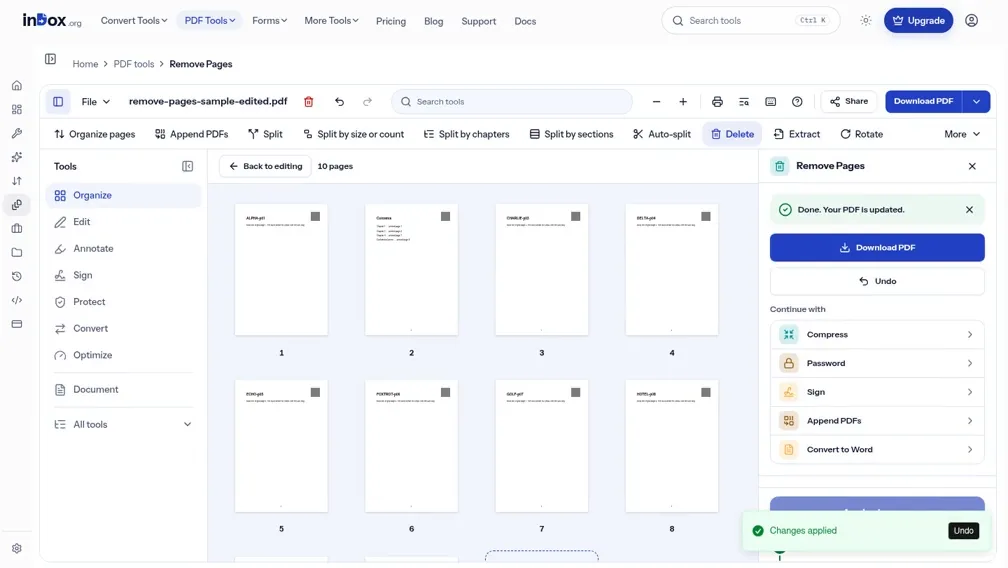
You see the pages before you delete them, and you can do it by clicking or by typing, because both change the same selection. The panel counts what goes and what stays, refuses to remove every page, and does not touch the file until you apply. If you remove the wrong page, restore it from the list before applying, or after applying from the list of pages removed earlier. You can do this without signing in, within the free daily limit and the free file size limit. The page also reports what a real run did to bookmarks, links and page labels, including where it fell short.
| What you see | Why | What to do |
|---|---|---|
| The Remove button is off | No page is picked, or every page is picked | Pick at least one page and leave at least one page unpicked. |
| The box shows an error about the list | The entry is not a page, a range such as 4-7, or an open end such as 8- | Rewrite it as 1-3, 5 or 8-. |
| The box says a page is past the last page | The number is higher than the page count | Use a number up to the last page. |
| The file looks unchanged | The pages left the grid but Apply changes was not pressed | Press Apply changes. |
| Restore is off for earlier pages | Pending changes are in the grid | Apply or undo them, then restore. |
| A bookmark is missing after Apply | Its page was removed, or it sat under a bookmark whose page was removed | Check the outline of the shorter file and add back what you need. In our test removing pages 3 and 4 also dropped Chapter 2, whose page stayed. |
| A link in the contents page does nothing | It points to a page you removed, and the link stays in the file | Remove or change that link in the shorter file, or keep the page it points to. |
| The viewer shows page numbers that differ from the printed ones | Page labels are not changed when pages are removed | Compare the number in the viewer with the footer. Removing pages at the end keeps them in line. |
| Apply changes sits at a progress value for a long time | The job is still running. In one recorded run it stayed at 90% for about 205 seconds | Wait for it to finish. If it never does, add the file again and repeat the removal. |
Compared from each tool's own page on indox and, for what a removed page leaves behind, from our test.
| Tool | What you pick | What you get | Use it when |
|---|---|---|---|
| Remove pages (this tool) | The pages to drop | One shorter PDF with the other pages in order. In our test the text of the removed pages was not in it | You know which pages must go |
| Extract pages | The pages to keep | A new PDF of the picked pages, or one PDF per page | You know which few pages you want out of a long file |
| Split PDF | Where each file should end | Several smaller PDFs | You need parts of a document, not one shorter copy |
| Redact Text | Areas, words or whole pages to cover | A PDF with solid boxes, and pages that come back as images | The page must stay but what is on it must not be readable |
A scan has blank or cover pages you do not need. Pick them and keep only the pages you cite.
A contract has pages that should not go to the client. Type the list, check the count, and apply.
You want to drop every other page of a duplex scan. Pick Even pages and remove them.
Facts checked on November 5, 2026
Yes. Type a list in Pages to remove, such as 1-3, 5 or 8-. The grid picks those places and the count updates. 8- means page 8 to the last page.
They are places in the grid. If you have not reordered or removed anything they match the order of the file. The page labels a viewer shows, such as i, ii, 1, are not changed. In our test, removing pages 3 and 4 left the new page 3 labelled 1 while its footer said 3.
The pages leave the grid at once, but the file changes only when you press Apply changes.
Yes. Use Restore under Removed pages, or Undo. After you apply, pages removed in that Apply are listed under Removed when you applied changes, each with Restore.
No. A PDF needs at least one page.
Yes. Use the Odd pages or Even pages quick picks, then press the Remove button.
No sign-in is needed to get the shorter PDF. Signed out, a daily free allowance applies and the PDF can be up to 200 MB. Signing in raises that to 200 MB.
Open this page in Safari or Chrome, add the PDF, pick the pages and press Apply changes. The steps are the same on a Mac as on Windows, and nothing needs installing. The editor has a phone layout as well, but our test ran on a desktop browser only.
Bookmarks that point to a removed page are dropped. In our test, removing pages 10 and 11 took the outline from 11 to 9 entries and the kept bookmarks still opened the right pages. Removing pages 3 and 4 also dropped Chapter 2 although its page stayed, because a bookmark under a removed one goes with it. Links on kept pages that point to a removed page stay clickable but lead nowhere.
In our test, the text of the removed pages was not in the extracted text of the new PDF or in any uncompressed object, and qpdf --check found no errors. That was one sample. Open your shorter PDF and search it for the words you meant to remove before you share it.
In our test the 12-page sample went from 194,138 to 157,516 bytes, 18.9% smaller, after two pages were removed. The 1 image and 2 fonts stayed, because kept pages use them. The saving depends on the file, so do not count on a fixed amount.