See the current values first
The six fields open with what the file already stores, so you know what you are replacing. A field the file does not have opens empty.
or drop a file anywhere here
Files other than PDF are converted first. Signing in raises the size limit.
To edit PDF metadata, open the file here, type over Title, Author, Subject, Keywords, Created with or PDF made by in the Properties panel, and press Save properties. Metadata is the descriptive information a PDF carries about itself, separate from what is printed on its pages. The six fields open already filled in from your file. Save properties stays off until you change something, and only the fields you changed are saved. If you empty a field, that value is removed from the file, so you can delete a value as well as replace one. The pages are not changed. This page is for one PDF with a wrong or leftover title or author, such as a draft name or a person who has left the team. In our test the edit reached both places a PDF can keep these values, described below. The same panel lists the page count, the file size, the attached files and any scripts.
Our own 2-page sample PDF with an Info title, author, keywords and an XMP copy, edited on indox.org
The six fields open with what the file already stores, so you know what you are replacing. A field the file does not have opens empty.
Only the fields you edit are saved. The others are not rewritten, so correcting a misspelt author name does not touch the keywords.
Delete the text in a field and save to remove that value from the file, from both places a PDF can keep it. Clear all empties all six fields at once; Save properties then removes them.
Created with names the app that made the original, such as Word. PDF made by names the app that wrote the PDF. Both open filled in and can be edited like the rest.
More details reads one thing at a time from the file without changing it: words, characters and images, page sizes, fonts, form fields, comments and links, or security settings.
Add the PDF in the upload area, up to 200 MB when you are not signed in or 200 MB with a signed-in account, then open Properties. The panel shows the pages, the size and six fields filled in from the file.
Type new values in Title, Author, Subject, Keywords, Created with or PDF made by. Leave alone anything that should stay.
A message says how many properties were saved. Download the new PDF and check the document properties in your PDF reader.
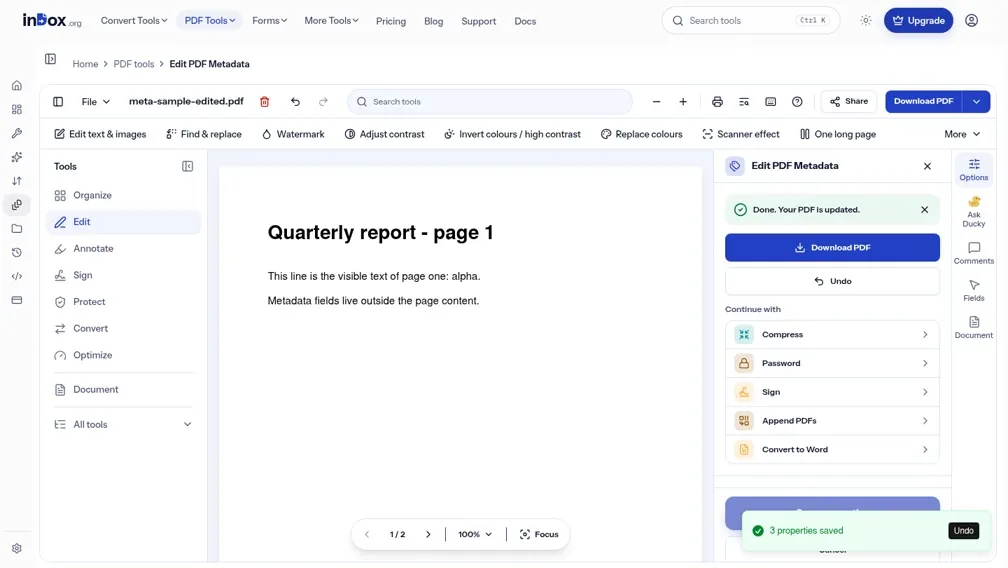
Changing a title or an author name should not need a desktop PDF editor. The panel opens with your file's own values in the boxes, so you edit instead of retyping. It saves only what you changed, and it says what it leaves out: no creation or modification dates, no custom properties, and nothing for a file that is still locked with a password. We ran it on a file of our own and read the result back with outside tools, as shown in the measured block above.
| What you see | Why | What to do |
|---|---|---|
| Save properties is greyed out | No field differs from what the file already had | Change at least one field. The button turns on as soon as something differs. |
| The panel says the file has a password | Properties cannot be read from a locked file | Unlock the PDF first, then open Properties again. |
| The creation or modification date did not change | The panel has no date box and leaves both dates as they were | Those dates cannot be edited here. Your reader will show the original ones. |
| A value I wanted gone is still in the file | Only the fields you emptied were removed | Empty the field, or press Clear all, then Save properties. For everything at once use Sanitize PDF. |
| A reader still shows the old author | Some readers use the XMP copy and others the document information. If the file's XMP copy cannot be read, it is dropped rather than repaired | Open the new file in a second reader. Re-check after saving the edited file, not the original. |
| The file name is shown instead of the title | The title field and the file name are different things, and viewers differ in which one they show | Check the document properties in your reader to confirm the title was saved. |
| Place or action | What it is | Does Edit PDF Metadata change it? |
|---|---|---|
| Document information (Info) | The older store: Title, Author, Subject, Keywords, Creator, Producer and dates | Yes, for the six fields in the panel. Dates are left as they were. |
| XMP stream | A second copy in the document catalog, such as dc:title, dc:creator and pdf:Keywords | Yes, if the file already has one. None is created for a file without one. |
| Sanitize PDF | A separate tool that removes metadata and other hidden content | Use Sanitize PDF when you want it all removed, not edited. |
| The file name | The name on disk, not stored in either place | No. Rename the file yourself. |
A report, ebook or paper is about to go out and its title still shows a draft name. Set the final title and author first.
Files entering an archive need consistent subjects and keywords so they can be found later. Update each document's fields on intake.
A PDF you made lists your own name as author, and it is going to a client. Replace it with a company or team name, or empty the field.
Facts checked on November 5, 2026
Information stored in the file about the document itself. This panel shows and edits six items: title, author, subject, keywords, the app that created the original and the app that made the PDF.
Title, Author, Subject, Keywords, Created with and PDF made by. Dates and custom properties have no box.
Yes. The fields open filled in from your file. The panel also shows the page count, the file size and the number of attached files.
It is removed from the file: from the document information and, when the file has one, from the XMP copy. In our test an emptied Keywords was gone from both places. Fields you did not touch keep their values.
Empty the field and press Save properties. To remove metadata from the whole file, use Sanitize PDF.
Open this page in the browser on your Mac, add the PDF and change the fields in Properties. The editor runs in the browser, so nothing is installed and the steps are the same on Windows and Linux.
No. The new values go into the document information. Text, images, annotations and form fields are left alone. In our test, the text of both pages and the rendering of page 1 were identical before and after.
It is sent to indox's server over HTTPS, which writes the new values. If you are not signed in, the upload and the edited copy are deleted 24 hours after the job ends. A signed-in account keeps them in its history instead.
A PDF can keep the author in two places: the document information and an XMP copy. A tool that edits only one leaves the other, and readers differ in which they show. This tool changes both when the file has an XMP copy. In our test the new title and author were read from both places by two outside tools.
No. In our test both dates were the same before and after the edit, and the tool has no date box.
In our test on the Persian page, a Persian title and author were saved and read back correctly from both the document information and the XMP copy by exiftool and pypdf.