No file open

Tools

Sanitize PDF

or drop a file anywhere here

Dropbox
Google Drive
OneDrive
Box

Files other than PDF are converted first. Signing in raises the size limit.

You add
One PDF
You set
Checkboxes for what to remove
You get
A sanitized copy of the PDF

Sanitizing a PDF means stripping out parts of the file that can run code, carry extra files or reveal details about the document. It suits people who send, publish or upload PDFs and want the hidden parts gone first. It offers six removals as checkboxes in three groups. Things that can run or open: JavaScript, Attached files and Links. Document details: Document info and XMP metadata. Appearance: Fonts. JavaScript, Attached files, Document info and XMP metadata are ticked when the page opens, while Links and Fonts are not. indox passes your choices to its PDF engine and returns the result as a new PDF. It is free and needs no account. We ran it on 5 November 2026 with a test PDF we built, and two boxes did not do what their labels suggest: a file attached through a page annotation stayed in the copy, and Fonts removed all page text. Both are described under the limits below. The tool does not list what it found, so to hide text on the page use Redact PDF.

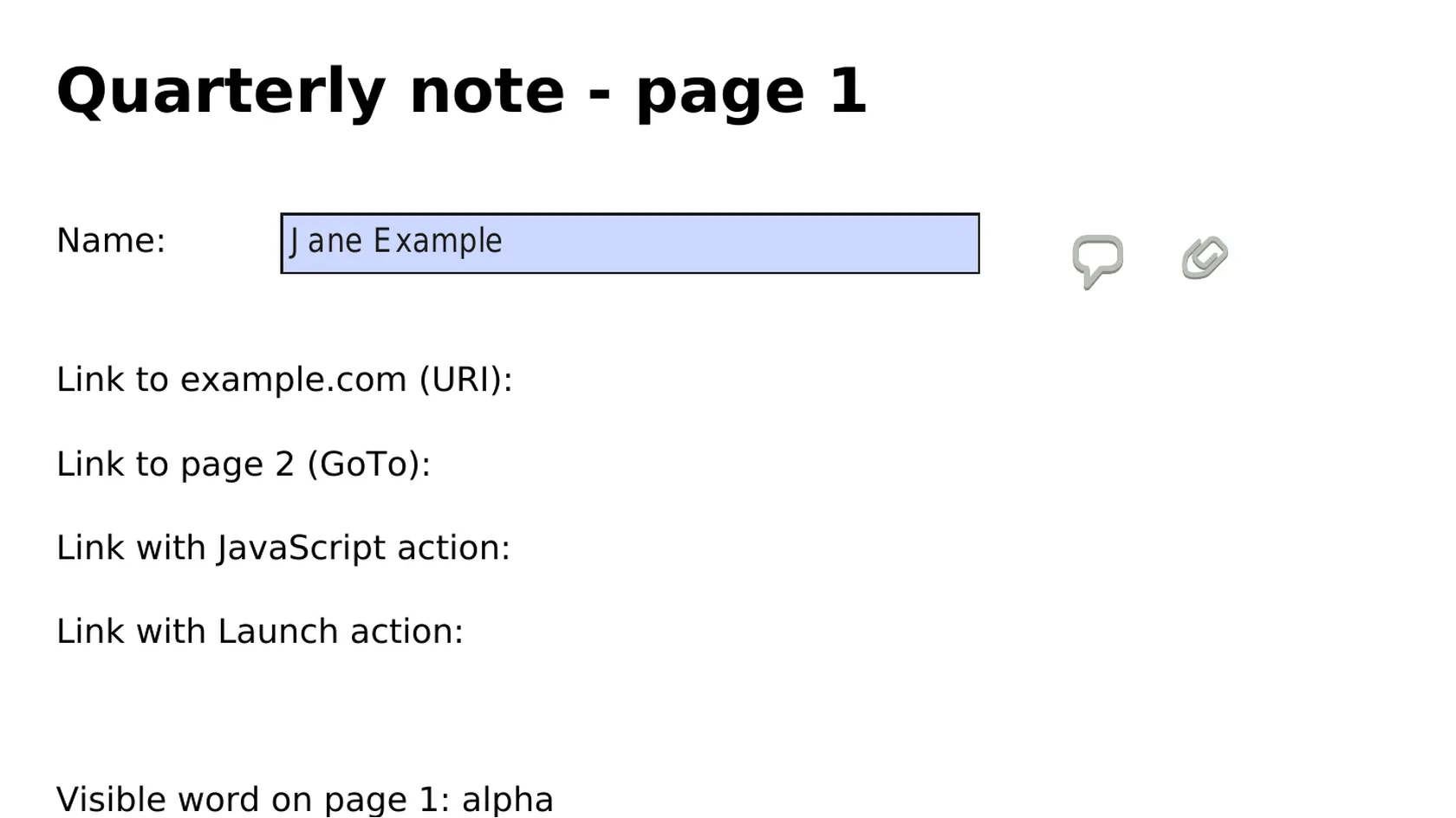
A 2-page test PDF we built: 5 script actions, 2 attached files, 4 links, 8 info entries, XMP and embedded fonts

Originalthe file we uploaded
47,422 B
Sanitized copy93% smaller, with the page text gone
3,243 B
Page 1 of the test PDF before sanitizing: a heading, a name field with a note and a paperclip icon, four link lines and a visible word
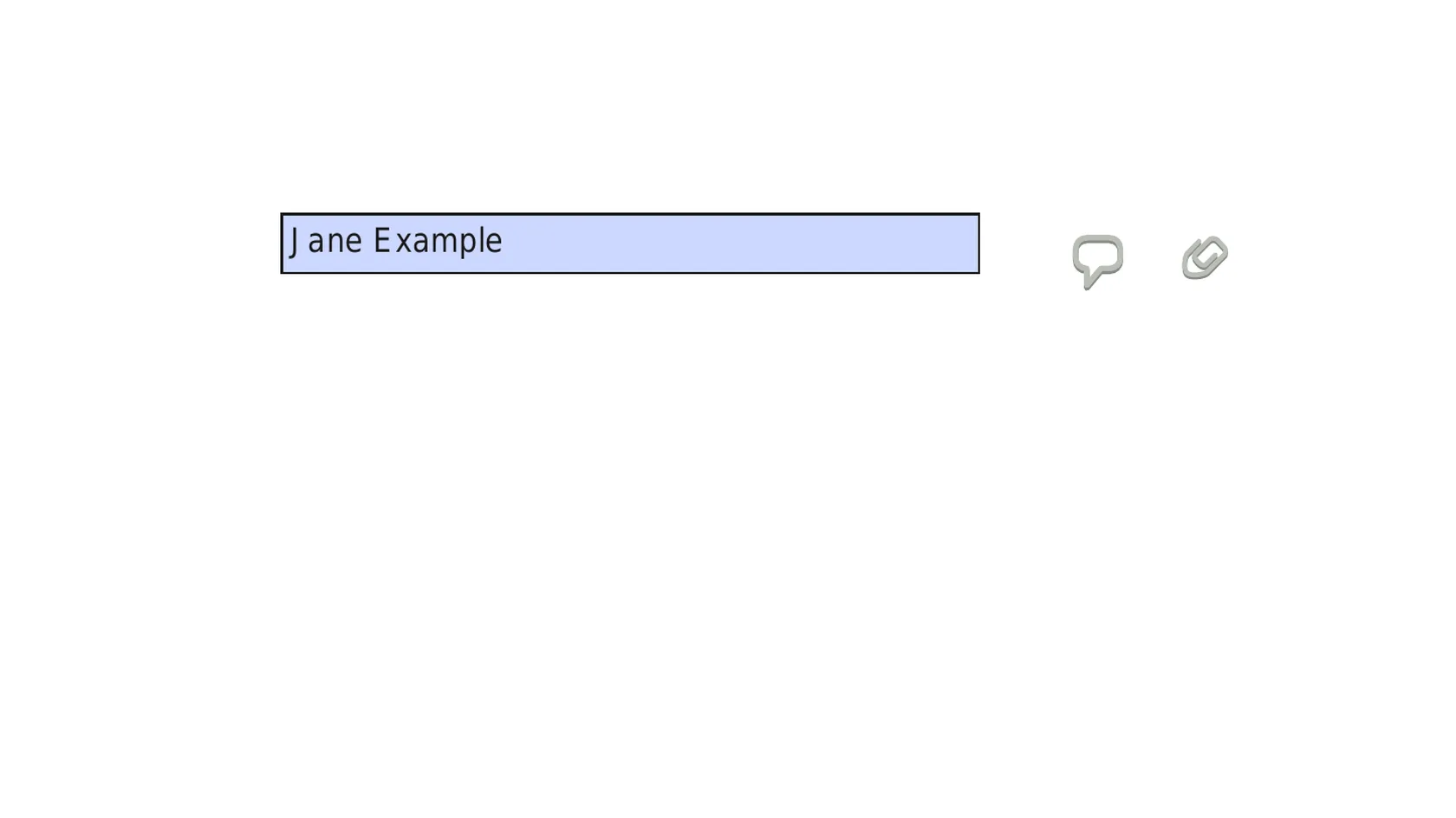
Page 1 after all six boxes: the heading and body text are gone, only the name field and the two icons remain
Measured on indox.org on 5 November 2026, signed out, with all six boxes ticked. Drag the handle: the page text is gone because of the Fonts box, shown here as that limit. The note and paperclip icons are still on the page.

What can you do when you sanitize a PDF?

Strip JavaScript

JavaScript is ticked by default. A PDF can carry scripts that run when the file is opened or a form is used. In our test the sample held 5 script actions (on open, in the document, on a page, on a form field and on a link) and the copy held none. indox also disarms every upload before the engine runs, so we cannot credit that result to this box alone. Show JavaScript lists the embedded scripts if you want to look first.
Drop the attached-files list

Attached files is ticked by default too. It clears the list of files stored inside the PDF, such as a spreadsheet tucked into a report. In our test it did not touch a file attached through a paperclip icon on a page, and that file stayed readable. List Attachments shows what is embedded, and Extract Attachments saves those files.

Clear document details

Document info (title, author, dates and the app that made it) and XMP metadata, the same details kept in a second place inside the file, are both ticked by default. In our test the sample's 8 info entries, the author among them, were removed and its 677-byte XMP packet was gone. Every indox output now carries indox's site name in its Producer and Creator fields, so expect those two entries in the copy. To set new values instead, Edit PDF Metadata sets the title, author, subject and keywords.

Remove links or fonts with care

Links and Fonts stay off until you tick them. In our test Links removed the web and launch actions and kept the link areas and a jump to page 2. Fonts deleted the fonts the text is drawn with, and all page text disappeared. Leave Fonts unticked unless you have a reason, and read the whole copy after you use either box.

What sanitizing keeps and what it changes

Stays the same

  • Page text and images, unless you tick Fonts. In our test Fonts removed all text from both pages.
  • Page order and page count: 2 pages in, 2 pages out.
  • A file attached through a page icon. In our test it stayed with its bytes intact.
  • A comment note, a hidden layer, and a form field with its widget.
  • Link areas and a link that jumps to another page.
  • Anything you leave unticked, such as links and fonts in a default run.
  • The file on your device. You download a cleaned copy.

Changes

  • JavaScript: in our test 5 script actions went to 0, including the one that runs on open. Empty action entries are left on the pages.
  • Attached files: clears the document's list of embedded files. A file attached through a page icon is not covered.
  • Document info: the 8 entries in our sample were removed, and indox writes its site name into Producer and Creator. XMP metadata: the 677-byte packet naming the author was removed.
  • Links: web and launch actions are cleared, so those links open nothing. The text stays.
  • Fonts: deletes the fonts the text is drawn with, and in our test all page text with them.

Which boxes for which job

You want toTickCheck after
Send a form or report without scriptsJavaScriptOpen the result and use any form fields once. Run Show JavaScript on it.
Share a PDF without files tucked inside itAttached filesRun List Attachments on the result. If a file is still listed, do not share the copy.
Share a PDF without the author and title fieldsDocument info and XMP metadataOpen Document Properties in a viewer and confirm the author and dates are gone.
Make links inertLinksClick a link in the result. A link to another page in the same file still works.
Strip every optional part that is safe to stripThe first five boxes, not FontsRead every page, then run List Attachments.

How to sanitize a PDF in 3 steps

  1. Add the PDF to sanitize

    Drop one PDF on the upload box or press Choose file. Use Replace on the file card if the wrong document is showing.

  2. Tick what to remove

    Keep the starting boxes, or change them. Tick Links if you want link actions gone as well, and clear Document info or XMP metadata if you want to keep those details. Leave Fonts unticked unless you have a reason, because in our test it removed all page text. Running with nothing ticked is refused.

  3. Sanitize and download

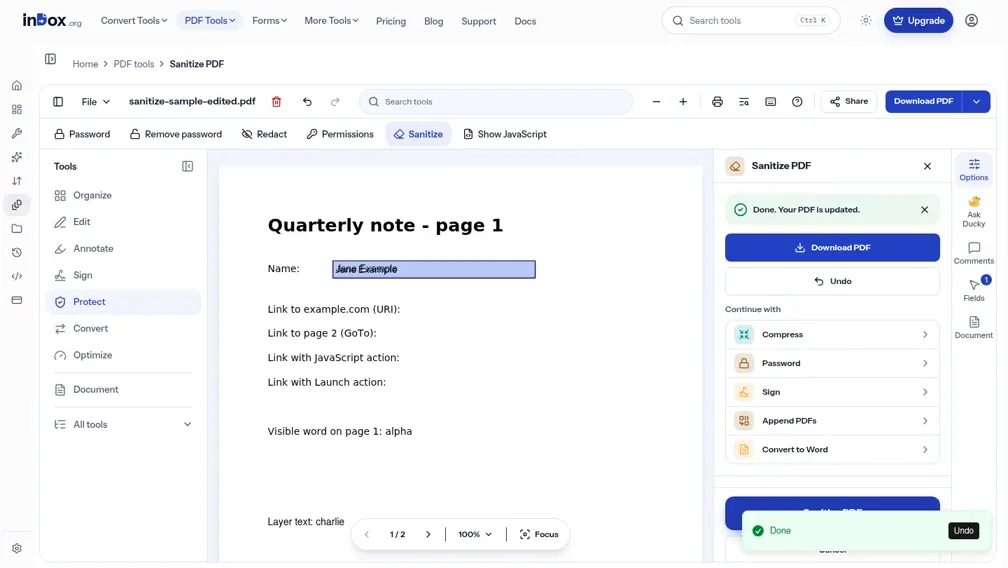
    Press Sanitize PDF. The button fills with the job's progress and the steps show under it. Cancel stops a running job and leaves your file unchanged. When it shows Done. Your PDF is updated., press Download PDF, or Undo to go back. Open the copy, read every page and run List Attachments on it before you share it.

Screenshot of Sanitize PDF after a run on a sample quarterly note with test links, with the panel showing Done and Download PDF

Why sanitize a PDF with indox?

Each removal is its own checkbox, grouped and labeled with the thing it removes, so you can see what a run will ask for before you start it. The four defaults cover scripts, the attached-files list and document details, and Links and Fonts stay off until you decide you need them. If the PDF engine is unavailable or reports an error, the job fails with a message and does not hand your original back marked as done. Your PDF reaches indox over an HTTPS connection, and if you are not signed in it is deleted with the result 24 hours after the job. This page reports what we measured, including two boxes that fell short, and makes no claim that a sanitized file is safe to open.

  • Six removals in three groups, each with its own checkbox
  • JavaScript, attached-files list and document details ticked by default
  • Links and fonts left for you to choose
  • A failed job shows an error, not a file
  • Files travel over HTTPS
  • Free, with no account needed
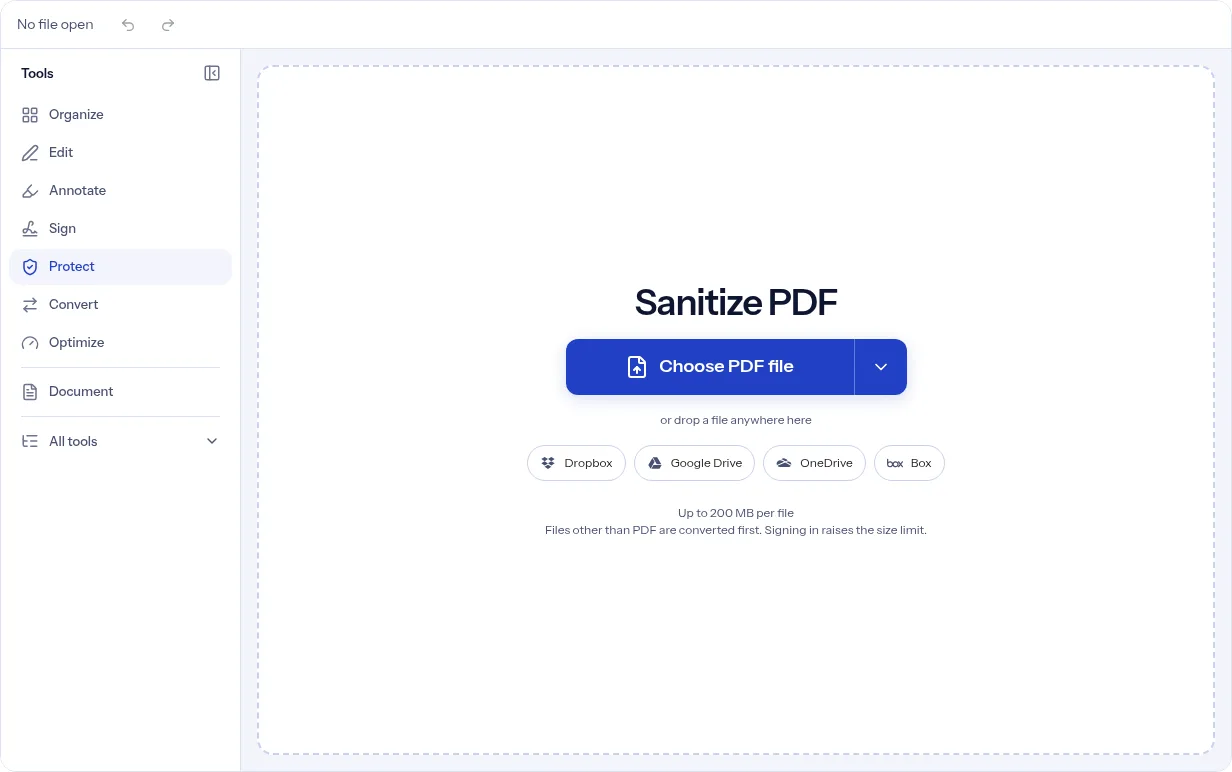
The indox Sanitize PDF tool on indox.org, ready for your file, with its six checkboxes

What are the limits when you sanitize a PDF?

File size
A visitor who is not signed in can sanitize a PDF of up to 200 MB, within a daily free allowance. A signed-in account can upload up to 200 MB per file.
Where it runs
Your PDF is uploaded to indox's server, cleaned there by indox's PDF engine with the boxes you ticked, and sent back to the editor. If you are not signed in, the upload and the sanitized copy are deleted 24 hours after the job finishes. A signed-in account keeps them in its history until you delete them, for at most 180 days, and you can choose 24 hours or 30 days instead. Either way indox keeps a record of the job, such as the file name and its status, not the file.

Limits worth knowing

  • Privacy: Attached files left a file inside the copy. In our test on 5 November 2026 we ticked all six boxes on a PDF with two attached files. The copy still listed one of them, annot-attachment.csv, and its 34 bytes were intact. It was attached through a paperclip icon on the page, and the box cleared only the document's file list. This page has no other option for it, so do not share a sanitized copy until List Attachments shows nothing left, and keep the original private.
  • Data loss: Fonts erased the page text. In our test the same run gave a 2-page copy with no heading, no body text and no text inside the layer. Only the value in a form field was still readable. The panel says text may stop showing in some readers, but it failed in the viewer we used and in the poppler tools we checked with. Run again with Fonts unticked and keep the original.
  • The result does not list what was removed, so the surviving attachment gave no sign on screen. Check the copy yourself with List Attachments and Show JavaScript.
  • We cannot credit the script removal to this tool alone, because indox disarms every uploaded PDF before the engine runs. Show JavaScript on your own copy is the check that counts.
  • The tool removes only what the six boxes name. In our test a comment note, a hidden layer and a form field with its widget all stayed in the copy. There is no setting for them.
  • The copy came back with empty page-level action entries. Some tools print the warning Page additional action object is wrong type when they open it. The pages still showed.
  • indox's server checks uploads with the ClamAV virus scanner when that check is switched on. Even so, a sanitized PDF is not proof that a file is safe to open.
  • Running with nothing ticked is refused. Links and Fonts are off by default, so a run with the starting boxes leaves them in the file.
  • When you open a password-protected PDF, the editor asks for its password, and the job runs on the opened file. The copy may come back without the password, so protect it again with Protect PDF if it needs one.

When the result is not what you expected

What you seeWhyWhat to do
The text vanishedFonts deleted the fonts the text is drawn with. In our test every line of page text wentRun the original again with Fonts unticked.
An attached file is still in the copyThe Attached files box clears the document's file list, not a file attached through a page iconCheck with List Attachments. This tool has no other option for it, so keep the copy private.
A paperclip or note icon is still on the pageAttachment icons and comment notes are not covered by any of the six boxesTreat them as still present and open them to see what they hold.
The author and title are still thereDocument info or XMP metadata was untickedTick both. To set new values instead, use Edit Metadata.
A form field no longer does anythingJavaScript clears scripts that fields use for checks and calculationsRun again with that box unticked, or fill the form first with Fill PDF Form.
You want to read the scripts before they goThe job gives no list of what it removedLook first with Show JavaScript.
A tool warns that a page additional action object is the wrong typeThe copy keeps empty action entries on its pagesThe pages still showed in our test. Ignore the warning or open the copy in another viewer.
The editor asks for a password firstThe PDF is protected, and the editor needs the password to open itType the password. The copy may come back unprotected, so run Protect PDF on it if needed.

What do the free and paid plans add?

Free

  • All converters
  • Daily credit refresh
  • Email support

Basic

  • Access to all features
  • AI Extract
  • Priority conversions
  • Email support
Highest priority

Premium

  • Everything in Basic
  • Highest priority queue
  • Priority support

Pay-As-You-Go

  • No subscription
  • Credits never expire
  • Opt-in auto-refill
  • Access to all features
See prices

Sanitize, redact or protect: which one does what

Compared onSanitize PDFRedact TextProtect PDF
What it acts onHidden parts of the file that the six boxes nameVisible words on the pageWho can open the file
Visible page textStays, unless Fonts is tickedThe words you choose are hiddenStays, behind a password
Scripts, attached-files list and document detailsRemoved when tickedUse Sanitize PDF for theseNot changed
Use it whenYou send, publish or upload a PDF and want the hidden parts goneSpecific names or numbers must not be readableYou want to stop people opening the file at all
Open itSanitize PDFRedact TextProtect PDF

Who sanitizes PDFs?

  • People who receive PDFs from outside

    A file arrives from an unknown sender or an old archive. Strip its scripts, then check for attachments yourself before you pass it to colleagues, and still treat it with care.

  • Teams publishing documents

    A report is about to go on a website. Keep Document info and XMP metadata ticked, so the job also asks for the stored document details to be removed from the published copy.

  • Administrators with upload rules

    A portal or records system refuses PDFs that contain scripts or attachments. Run the file here, then confirm with Show JavaScript and List Attachments before you submit it.

When to sanitize, and when to pick another tool

  • A PDF from outside your organization is going to be forwarded, and its scripts and attachments should not go with it.
  • A document is being published and its stored details should be stripped first.
  • An intake system rejects files with embedded attachments or JavaScript.
  • You want to hide words on the page. None of the six boxes covers visible text, so use Redact Text for that.
  • You want to stop people opening the file at all. Protect PDF adds a password, which sanitizing does not.

Where can I read more?

Sources

Facts checked on November 5, 2026

Do it all with indox

Sanitize PDF FAQs

What does Sanitize PDF remove by default?

JavaScript, Attached files, Document info and XMP metadata. Those four boxes are ticked when the page opens. Links and Fonts stay in the file unless you tick their boxes. In our test the Attached files box cleared the file list but left a file attached through a page icon.

Does sanitizing make a PDF safe?

It asks for the kinds of content you ticked to be removed, and that is all the tool does. It gives no verdict on the file, so keep your usual care with documents from unknown senders.

Can sanitizing clean a PDF of viruses?

Not the way an antivirus program does. Sanitizing removes the parts of a PDF that can run or open things: scripts, attached files and, if you tick it, links. indox's server also checks uploads with ClamAV when that check is switched on, but neither step gives a verdict that a file is safe.

How can I check what was removed?

The tool gives no report. Run Show JavaScript and List Attachments on the original and again on the download, then compare the two results.

Will sanitizing change how my PDF looks?

The starting boxes do not target page content, so the pages should read as before. Fonts is different: in our test all page text disappeared. Read the result through whenever you tick Links or Fonts.

How do I remove metadata from a PDF?

Keep Document info and XMP metadata ticked, as they are when the page opens, and press Sanitize PDF. In our test 8 info entries and a 677-byte XMP packet were gone from the copy. Every indox output now carries indox's site name in its Producer and Creator fields, so expect those two entries in the copy.

What happens if I untick every box?

The run is refused, and the panel asks you to tick at least one thing to remove.

Is Sanitize PDF free?

Yes. It needs no plan and no account; our test ran without signing in. Signed out, each run counts against a daily free allowance and each file can be up to 200 MB.

What happens when the job fails?

You see an error and a Try another button, and no file is produced. indox does not return the original PDF as if it had been sanitized.

Can I send the copy if it still lists an attachment?

Not if the attachment is private. In our test a file attached through a page icon stayed in the copy with its bytes intact. This tool has no box that removes it, so keep the original and the copy off any shared channel until List Attachments shows none.

Is sanitizing the same as redacting?

No. Sanitizing acts on hidden parts of the file named by its six boxes, and the visible words on the page stay. To hide words on the page use Redact Text. A comment note, a layer and a form field also stayed in our sanitized test copy.