Start from what the file has
The panel lists the existing bookmarks first, with a count and their nesting. An empty file says so and offers to add one for your current page.
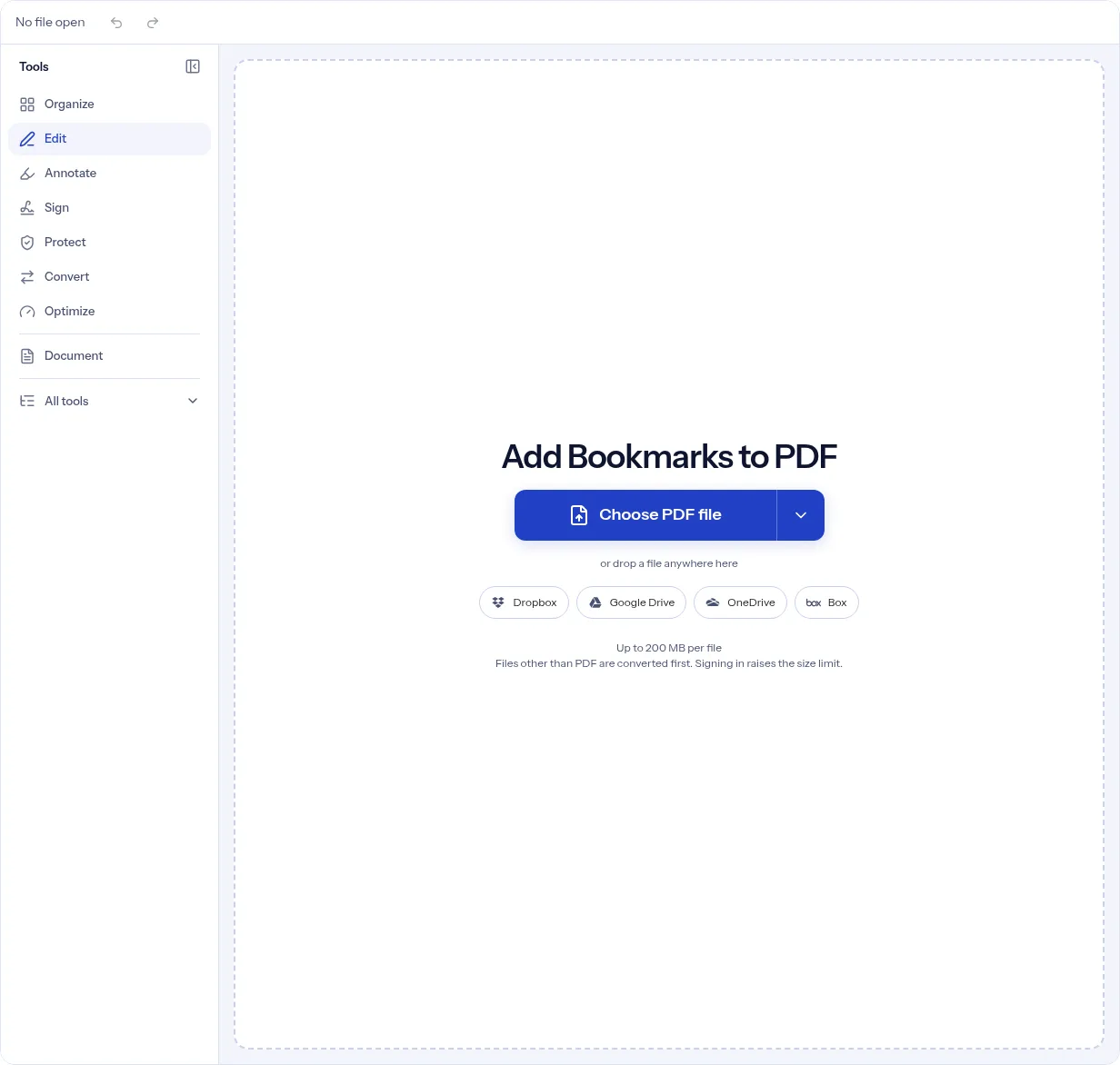
or drop a file anywhere here
Files other than PDF are converted first. Signing in raises the size limit.
Bookmarks are the outline a PDF reader shows beside the pages. Click one and the reader jumps to its page, so a long document becomes easy to move around in. This page is for anyone with a long PDF that has no outline, or an outline with the wrong titles, nesting or pages, such as a thesis, a manual or a merged file. It opens the Bookmarks panel in the editor. It starts with the bookmarks your file already has, with their nesting, and says how many there are. Each entry is a row with a title and a page number. Change either one, move the entry up or down, indent it under the entry above or take it back out, or delete it. Add a bookmark puts a new row at the page you are on. Save bookmarks writes the whole list you see, so what is on screen is what the file will hold. Entries with an empty title, or a page the file does not have, are refused until you fix them.
A 6-page test PDF with 2 bookmarks that we made, edited on indox.org
The panel lists the existing bookmarks first, with a count and their nesting. An empty file says so and offers to add one for your current page.
Each row has a title and a page number. Change either. A page that is not in the file is refused with a message, and an empty title too.
Move an entry up or down, indent it to make it a child of the entry above, or take the indent back. That builds chapters and sections.
Add a bookmark for page N puts a new row on the page you are viewing. Type its title and move it where it belongs.
Add the PDF in the upload area. The Bookmarks panel lists the bookmarks it already has, with a count.
Change titles and pages, move entries, indent or outdent them, delete the ones you do not want, or add one for the page you are on.
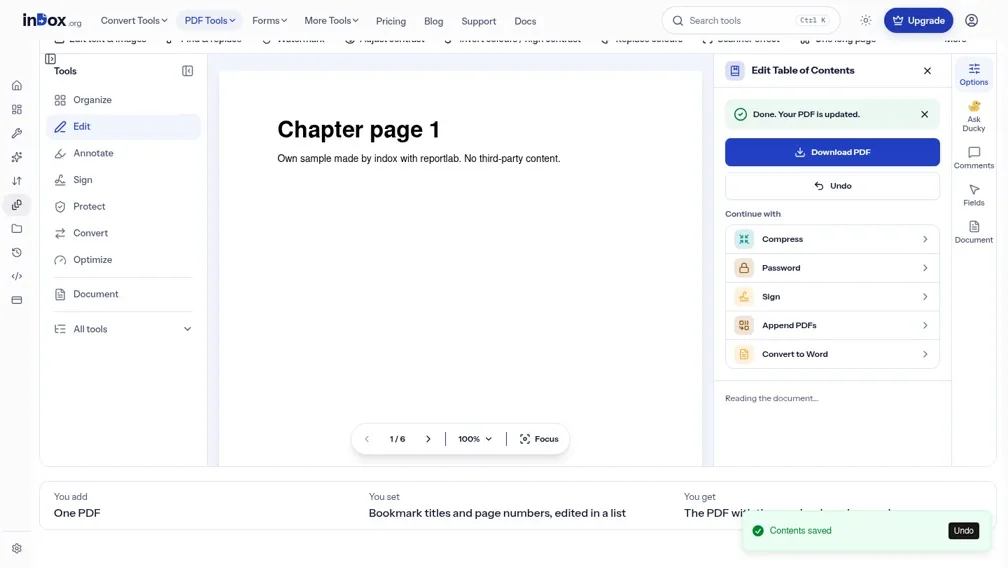
Fix any row the panel refuses first. Wait for Done. Your PDF is updated. before you download. In our test that took 4.06 seconds from the click.
Most bookmark tools make you type a list from memory and replace what the file had without showing it. This panel shows the existing outline first, with its nesting, so you edit instead of starting over. Rows give titles and page numbers one field each, and the panel stops a row with no title or a page that does not exist before anything is saved. In our test, bookmarks we did not touch kept their title, page and nesting, and the text of every page was identical after the save. It does not build bookmarks from headings, and it does not create clickable links inside the pages.
| What you see | Why | What to do |
|---|---|---|
| Save bookmarks is greyed out | Nothing changed yet, or a row is refused | Change something, and fix any row that shows a message. |
| A row says to pick a page that exists | The page is zero or past the last page of the file | Type a page number inside the file. |
| A row says to give the entry a title | The title is empty | Type a title or delete the row. |
| Old bookmarks I wanted are gone | Saving replaces the outline with the list on screen | Reopen the file's original, or add the entries back and save again. |
| The page says Contents saved but the job still shows as in progress | The Contents saved text can appear before the save has finished | Wait for Done. Your PDF is updated. before you download. |
| The panel says the file has no bookmarks | The PDF has no outline, which is common for scans and some exports | Add each entry with Add a bookmark for the page you are on and type its title. |
| You want to | Use | What it does |
|---|---|---|
| Add, rename, nest or delete the bookmarks in the side panel | This tool | Shows the file's bookmarks and saves your edited list as its outline |
| See the existing outline as data | Extract Bookmarks | Pulls a PDF's table of contents out as a nested JSON outline |
| Print page numbers on the pages | Add Page Numbers | Stamps a number on every page in one of nine positions, such as Page 3 of 12 |
| Check page count and producer first | Get PDF Info | Inspects page count, sizes, fonts, encryption and producer details |
| Put the pages in another order | Reorder Pages | Moves pages by dragging thumbnails or to a place you type |
| Print a contents page into the document | Not offered | This tool edits the side-panel outline only |
A long paper or scanned book has no outline. Add bookmarks for each chapter so you can jump around while you study.
Your export lost its bookmarks or kept the wrong ones. Fix the titles and nesting before you share the PDF.
The combined PDF has bookmarks in the wrong order or at the wrong page. Reorder them and correct the page numbers.
Facts checked on November 5, 2026
Open the Bookmarks panel, press Add a bookmark for the page you are on, type a title, and press Save bookmarks. Repeat for each page you want.
Yes. Open this page in a web browser on Windows or a Mac, add the PDF and use the Bookmarks panel. Nothing needs installing, and one PDF needs no account.
Yes. They are listed first, with a count and their nesting. In our test a file with a nested outline of four bookmarks was loaded with the nesting intact. A file with none says so.
Press Delete on its row, then Save bookmarks. In our test the deleted entry was gone from the saved outline and the entries around it stayed.
Yes. Indent an entry to put it under the entry above, or outdent it to bring it back.
The row is refused with a message asking for a page that exists, and Save bookmarks stays off until it is fixed.
Yes. In our test an entry we did not edit kept its title, its page and its place in the nesting after the save. Only what the panel shows is written, so an old entry's zoom, colour or style is not carried over.
Yes. The saved list is exactly the one on screen. In our test the old titles we removed were not found anywhere in the saved file.
In a PDF reader, yes: the outline in the side panel is what people call the table of contents. This does not print a contents page into the document.
Yes, when the file has bookmarks. Copy as text copies an indented list with page numbers, and Download the list gives a JSON file.
Save bookmarks sends it to indox's server, which writes the new outline and sends the PDF back to the editor. When you are not signed in, the upload and the result are deleted there 24 hours after the job; the limits section covers signed-in accounts.