See the whole outline
Every bookmark is listed with a count above it, indented under its parent, with its page number.
or drop a file anywhere here
Files other than PDF are converted first. Signing in raises the size limit.
Bookmarks are the outline a PDF reader shows beside the pages. Sometimes you want that outline as a list you can paste into a document or an email, or as data a script can read. This page opens the Bookmarks panel in the editor. It lists every bookmark the file has, with a count, nested the way the file nests them, each with its page number. Copy as text puts an indented list on your clipboard, with the page number in parentheses after each title. Download the list gives you a JSON file. The two buttons appear when the file has at least one bookmark. The panel is also where you edit the bookmarks, but you can just read and copy. It is for anyone who has a PDF that already has bookmarks and wants them out as text or JSON. It does not make bookmarks from headings, and it does not read links or positions on the page. The figures below come from our own run on this page with a sample we made.
Own 8-page sample with 8 bookmarks on 3 levels, made by indox, no third-party content
Every bookmark is listed with a count above it, indented under its parent, with its page number.
Copy as text puts an indented list on your clipboard, one bookmark per line, with the page in parentheses, such as Chapter 1 (3). The button then says Copied.
Download the list saves a JSON file of the bookmarks the file has, named after your PDF with -contents.json added. Use it when a program, not a person, will read the list. Edits you make on screen are not in this file.
The rows are editable. Copy as text copies the list as it stands on screen, so corrections you make are in the copy.
| You want to | Use | What we saw |
|---|---|---|
| Read the outline as text or JSON | Extract bookmarks (this page) | 8 bookmarks listed in 4.2 s in our test, all pages correct |
| Add, rename or move bookmarks | Edit Table of Contents | The same panel, with editable rows |
| Join PDFs and keep their outlines | Merge PDF | In our test the merged file kept every bookmark and page but at one level |
Add the PDF in the upload area. The editor sends it to indox's server, which reads the outline. In our test there was no run button to press: the Bookmarks panel listed the bookmarks with a count once the file was read.
Check the titles, the nesting and the page numbers.
Press Copy as text for an indented list, or Download the list for a JSON file.
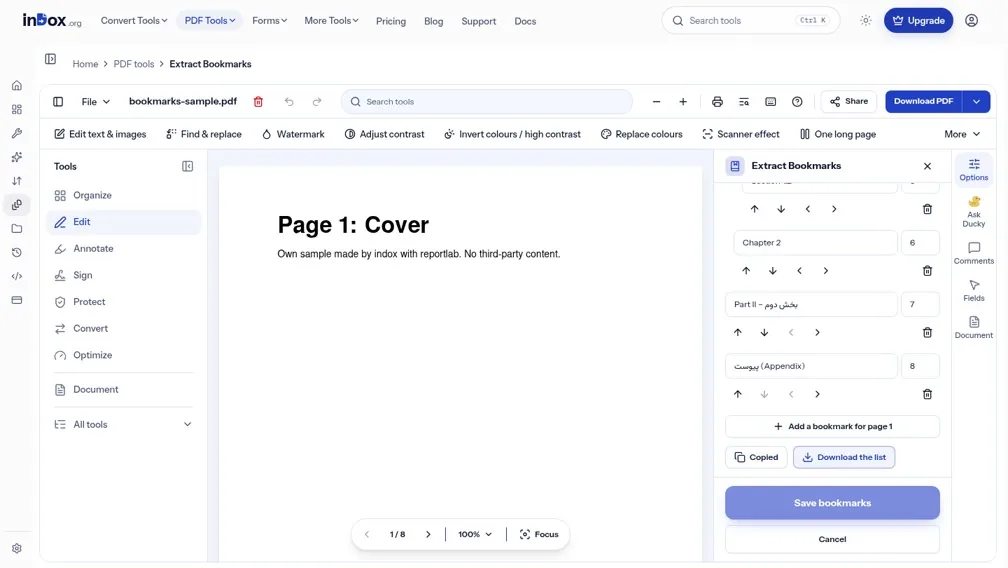
Getting a bookmark list out of a PDF usually means opening a desktop editor and retyping it. Here the outline is on screen the moment the file is open, and one button copies it as plain indented text. It is the same panel you use to edit bookmarks, so a wrong title can be fixed before you copy it. It lists bookmarks only, with their pages, and does not read headings from the text. In our test, titles written in Persian script came out in the copied text and in the JSON exactly as they were in the file.
| What you see | Why | What to do |
|---|---|---|
| There are no copy or download buttons | The file has no bookmarks | The panel says so. Add some in the same panel if you want them. |
| I cannot see page numbers in the copied list | Page numbers are in parentheses after each title | Look for the number in parentheses at the end of each line. |
| The downloaded file is JSON, not text | Download the list gives JSON | Use Copy as text if you want a plain indented list. |
| The copy shows my edits, not the file's list | Copy as text copies what is on screen | Reopen the file for the untouched list, or save your edits with Save bookmarks. |
| The JSON does not have my edits | Download the list holds the bookmarks as the file has them | Use Copy as text for the edited list, or save the edits and extract again. |
| A merged file shows every bookmark at one level | In our test the Merge PDF page wrote the bookmarks flat, so the file had no nesting to read | Rebuild the nesting in Edit Table of Contents, or extract from the source files before merging. |
| A bookmark shows page 1 and that looks wrong | A bookmark whose page cannot be resolved is shown as page 1 | Check the entry in Edit Table of Contents and set its page. |
| Method | What you get | Page numbers | Nesting |
|---|---|---|---|
| indox Bookmarks panel | Indented text to copy, and a JSON file | In parentheses after each title | Two spaces per level in the text, children in the JSON |
| A PDF reader's outline pane | The outline on screen beside the pages | Click an entry to go to its page | An expandable tree |
| A Python library such as pypdf | Nested lists in your own code | get_destination_page_number returns a zero-based index | A list after its parent entry, read with recursion |
| A command-line bookmark dump | YAML or JSON with title, page and children | A 1-based page field | A children list |
Paste a book's chapter list into your notes, with page numbers, without retyping it.
Check that a manuscript's outline matches the contents page before it goes out.
Download the bookmarks as JSON to feed a script, a search index or a table of contents on a website.
Facts checked on November 5, 2026
Open the Bookmarks panel. The bookmarks are listed with a count. Press Copy as text for a list you can paste, or Download the list for a JSON file.
One bookmark per line, indented two spaces for each level, with the page number in parentheses after the title. In our 8-page sample, Chapter 1 (3) sat two spaces in under Part I (2), and Section 1.1 (4) sat four spaces in.
The bookmarks as JSON, as a nested list. Each entry has a title, a page and a children list. In our test the file for the 8-bookmark sample was 711 bytes. It does not include edits made on screen.
The file has no bookmarks. The panel says so.
No. Reading, copying and downloading leave the file alone.
Yes. Copy as text copies what is on screen, so your edits are in the copy. The downloaded JSON does not have them. Saving them into the file needs Save bookmarks.
No. It lists the bookmarks the file already has. To add some, use the Add Bookmarks to PDF page.
Not in one step. This panel reads and edits the bookmarks of the open file and has no import. Copy the list as text, open the other PDF on the Add Bookmarks to PDF page and add the entries there, checking the page numbers as you go.
The editor sends it to indox's server as soon as it opens, because the outline is read there, and reading the list does not change the file. When you are not signed in, the upload is deleted there 24 hours after the job.
In our test, two titles in Persian script, one mixed with English, appeared in the panel, in the copied text and in the JSON exactly as in the file.
In our test, a file made with the indox Merge PDF page listed all 11 bookmarks with the right pages, but all at one level. The nesting was already missing in the merged file, so there was none to show. See the troubleshooting table.