Four ready-made looks
White text on black is selected when the panel opens. Yellow text on black, Green text on black and Black text on white are one click away, and each shows a small swatch of its colors.
or drop a file anywhere here
Files other than PDF are converted first. Signing in raises the size limit.
Inverting a PDF swaps a light page and dark text for a dark page and light text, which is easier on the eyes at night. This page is for people who read papers, ebooks or slides in a dark room, or who want a light copy of a dark deck. It opens the colors panel on High contrast. Pick White text on black, which is selected when the panel opens, or Yellow text on black, Green text on black or Black text on white. High contrast redraws the page background and the text and leaves pictures alone. On our ordinary test PDF the text stayed selectable and the picture kept its colors. On a PDF whose text is set at 1 pt and scaled up, the result was unreadable, even though the tool said it was done, so look at page 1 at full size before you download. If you want a true photo negative, choose Invert every colour, photos too. That turns each page into an image, so the text can no longer be selected or searched, and the panel warns you before you run it. We did not run that option in our test. To choose your own background and text colors instead, switch the panel to Your own colours.
Our own 2-page A4 PDF (CC0): a blue title and link, body text and a gradient picture, set at 12 pt and again at 1 pt
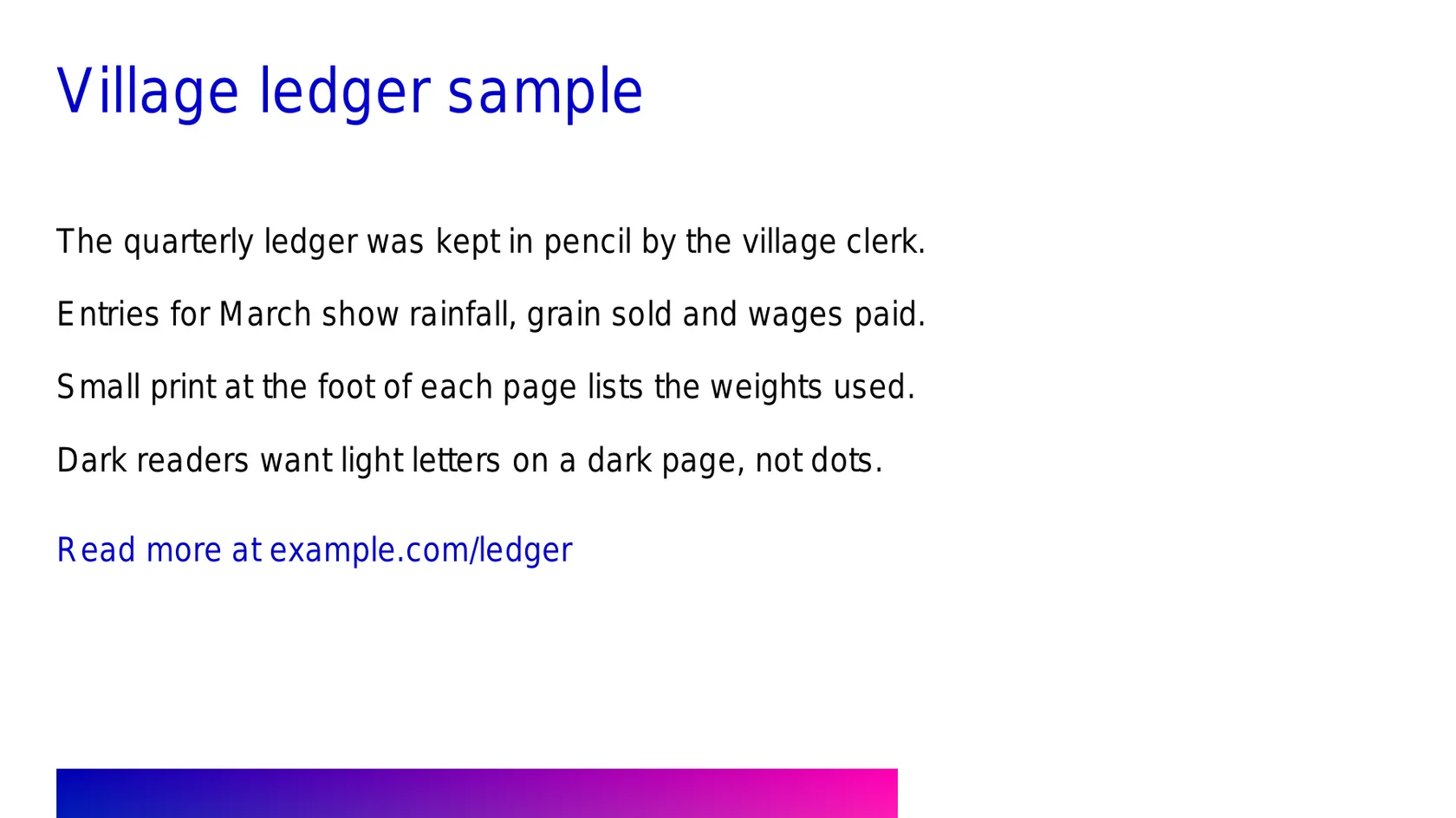
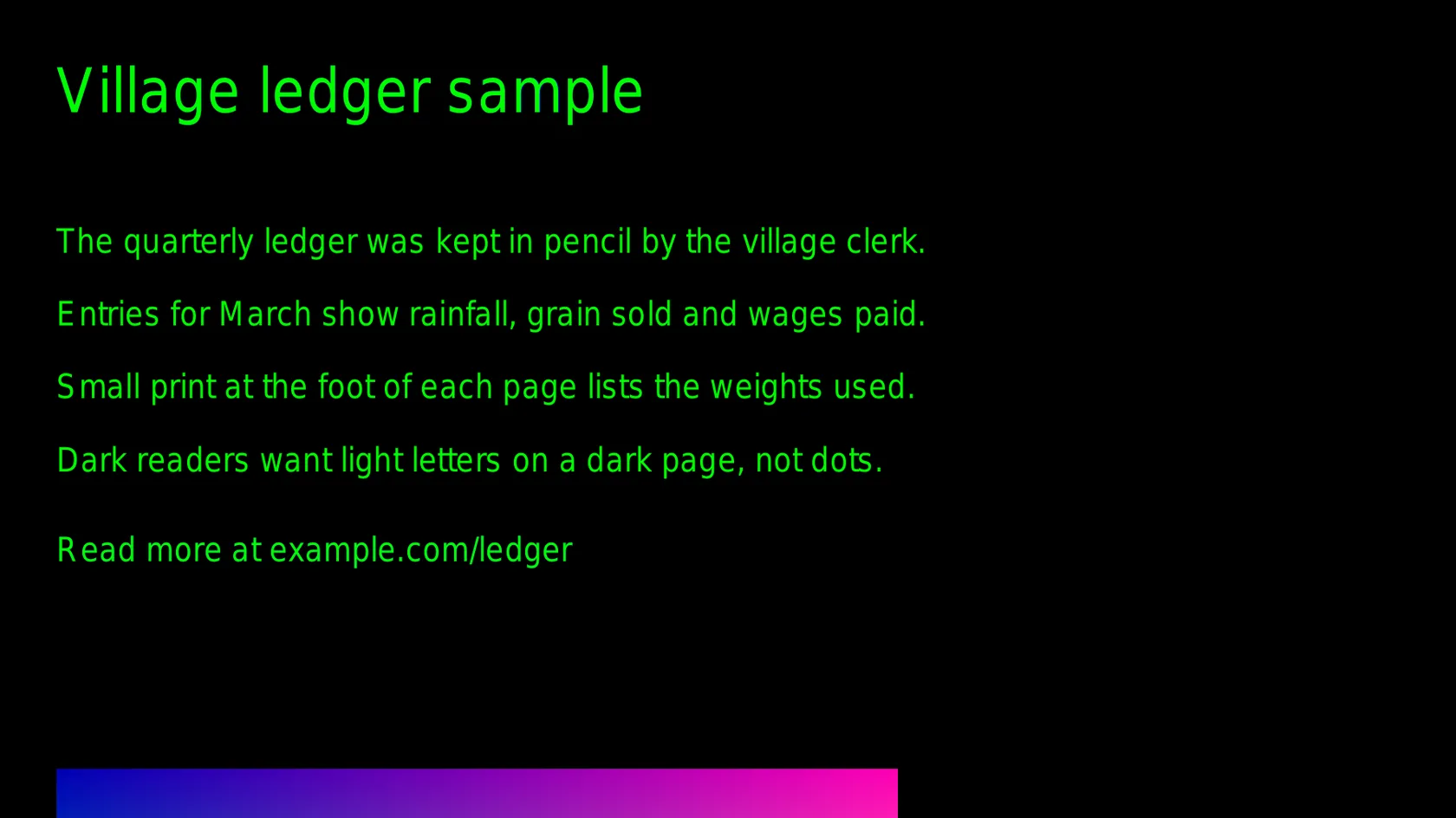
White text on black is selected when the panel opens. Yellow text on black, Green text on black and Black text on white are one click away, and each shows a small swatch of its colors.
In our test on an ordinary PDF, the text stayed selectable after a high-contrast look and the picture kept its colors. Files with very small text can fail, see the limits.
Invert every colour, photos too flips every color, pictures included. The option says it is slow on long files, and a warning explains that each page becomes an image before you run it.
The What to change switch moves the panel between High contrast and Your own colours, where you pick a background and a text color yourself.
| You want | Pick | Keep in mind |
|---|---|---|
| A dark page you can still select text on | White text on black | Worked on our ordinary PDF. Check page 1 at full size first, because a file with 1 pt text failed. A page that is one full-page picture may not change. |
| Easier reading for some eyes | Yellow text on black or Green text on black | Try both on a page of your own text. |
| A light page from a dark deck | Black text on white, or Invert every colour, photos too | A dark background drawn as a shape or picture covers the new white one. The negative turns pages into images. |
| A dark version of a scan, or a photo negative | Invert every colour, photos too | Not part of our run. Text becomes part of the picture. Expect a much bigger file. |
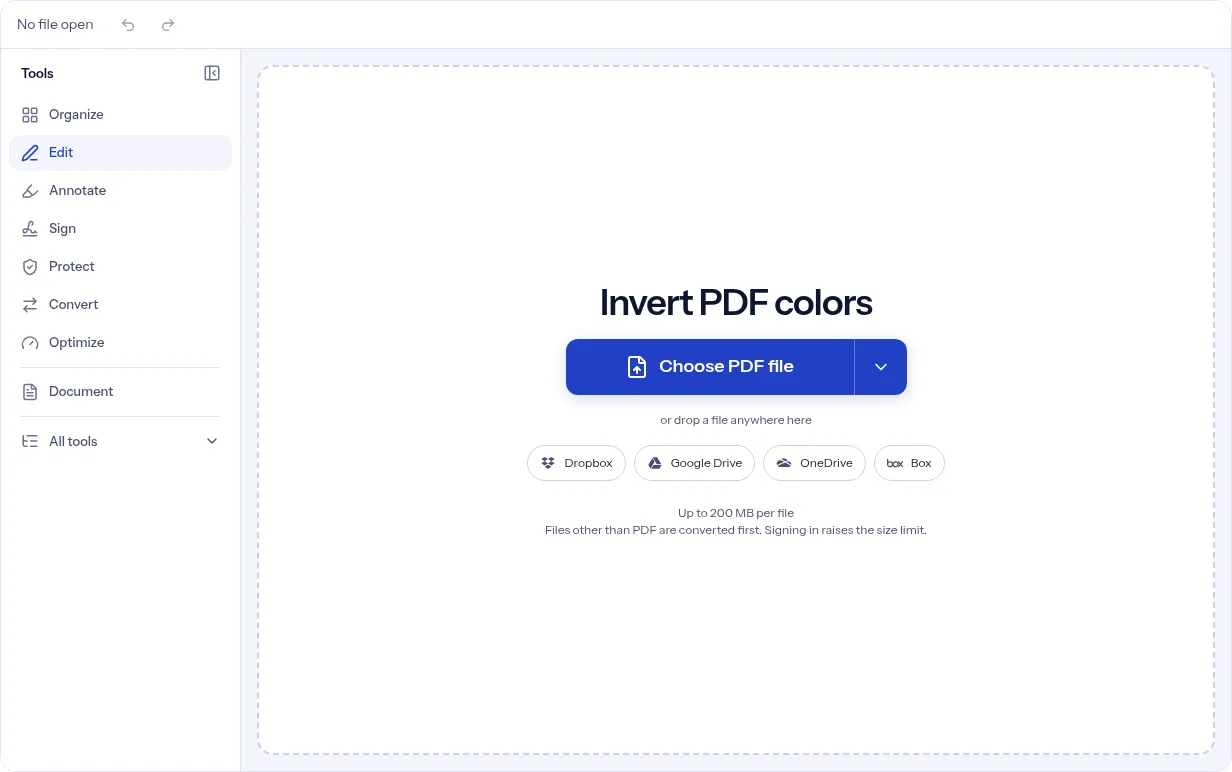
Drop the PDF into the upload area at the top of the page, or click to choose it: up to 200 MB when you are not signed in, or 200 MB with a signed-in account. It opens in the editor with the colors panel ready.
With High contrast selected, choose White text on black, Yellow text on black, Green text on black or Black text on white. Choose Invert every colour, photos too only if you want a photo negative, and read the warning that appears.
Press Change colours. When the editor shows 'Done. Your PDF is updated.', look through the pages at full size, especially page 1. Then press Download PDF, or Undo to go back.
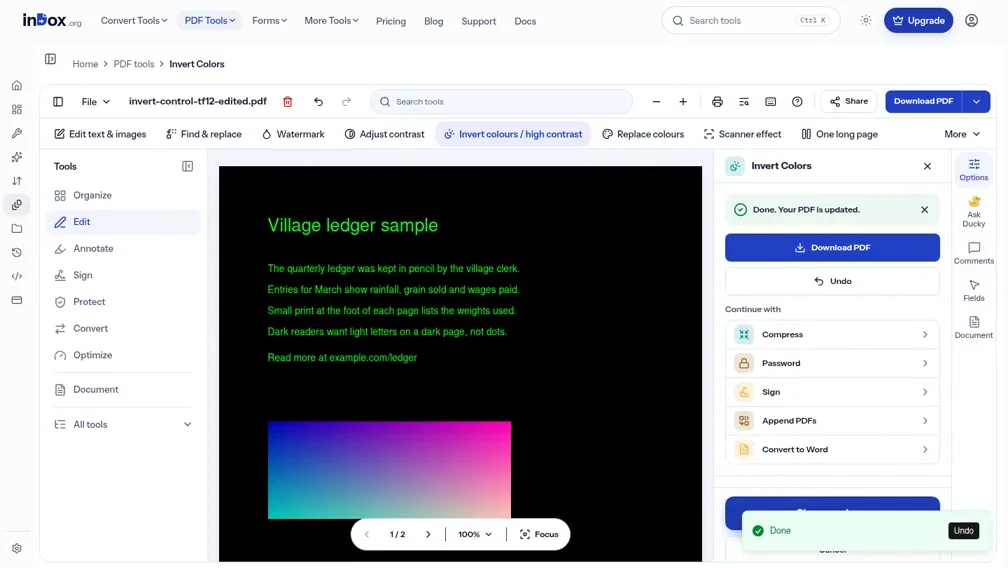
Each look is named for what you see and shows a swatch, so there is no mode or color code to decode. On an ordinary PDF the default keeps your text as text and your picture in its colors. The one option that costs you something, the photo negative, says so before you run it. Undo brings the original back, so you can try another look on the same file. It is free, and our run needed no account. The limits list where the tool failed in our run, so you know what to check before you download.
| What you see | Why | What to do |
|---|---|---|
| A scanned page stays white | A picture that fills the page covers the new background | Choose Invert every colour, photos too. |
| Photos look like negatives | Invert every colour, photos too flips every color | Use one of the four looks to keep photos as they are. |
| Text can no longer be selected | A full inversion replaces each page with an image | Use one of the four looks, or run OCR PDF on the result. |
| The file is much bigger and slow to make | Pages stored as images take far more space and time | Use one of the four looks, or shrink the result with Compress PDF. |
| Body text shows as tiny dots on black | The PDF sets its text at 1 pt and scales it up, and the recolored copy kept it at 1 pt | Click Undo, then try another look, Your own colours or Adjust contrast |
| A title or link stays dark blue on black | In the 1 pt file we tested, coloured text was not recolored | Click Undo and use a look or tool that rebuilds the page, then check page 1 at full size |
| Copied text is doubled or has spaces between letters | The text is drawn twice, and on the 1 pt file the copy had 2,056 characters against 594 | Copy from the original PDF, or run OCR PDF on a picture version |
| It said Done but the page is hard to read | The tool reports that the job ran and does not check that the result is legible | Look at the pages at full size and click Undo if they are not readable |
| Way | Text afterwards | File | Best for |
|---|---|---|---|
| High contrast look (this page) | Selectable on our ordinary test PDF. Broken on a PDF with 1 pt text. | A new recolored PDF | A dark or light copy of an ordinary text PDF. |
| Invert every colour, photos too (this page) | Not selectable, because each page becomes an image. | A new PDF, much bigger | A scan or a photo negative. We did not run it. |
| Replace colors | Redrawn text in colors you choose. The original text stays under it, so copied text can come out doubled. | A new recolored PDF | Your own palette instead of a fixed look. |
| Adjust contrast | In our test on a faint scan, selectable text went to 0 characters. | A new PDF made of page pictures | A readable copy of a faint or dark scan. |
| A dark mode in your PDF reader | The file is unchanged. | No new file | Reading on screen when the reader has such a mode. |
A white page is tiring on a screen in a dark room. White text on black gives you a dark copy of a paper or an ebook for late reading.
Some people read yellow or green on black more comfortably than black on white. Pick that look and keep the copy for your own use.
A deck with a dark theme uses a lot of ink. The four looks paint their background behind the page content. In a deck whose dark background is a filled shape or a picture, that fill stays on top, so Black text on white can leave black text on the dark slide. Invert every colour, photos too flips such a page to light, as an image. Check the pages before you print.
Facts checked on November 5, 2026
High contrast draws a new background and redraws the text, and leaves pictures alone. Invert every colour, photos too turns each page into an image and flips every color, photos included, so the text can't be selected.
On an ordinary PDF, yes in the four looks: White text on black, Yellow text on black, Green text on black and Black text on white. In our test, 488 of 488 glyphs on page 1 stayed legible and pdftotext found the same 594 characters as in the original. Not after Invert every colour, photos too, which turns pages into images. On a file whose text is set at 1 pt, the copied text came out doubled and letter-spaced.
Some PDFs set their text at 1 pt and scale it up. In our test on such a file, the high-contrast copy had every body glyph at 1 pt, so it showed as dots on black. Click Undo and try another look, Your own colours, or Adjust contrast, and check page 1 at full size.
Not in the four looks, which leave pictures as they are. The gradient picture on our test page kept its colors. Only Invert every colour, photos too flips them.
A scan is one picture that fills the page, and it covers the new background. Choose Invert every colour, photos too, which recolors the picture itself.
The four looks paint their background behind the page content. In a deck whose dark background is a filled shape or a picture, that fill stays on top, so Black text on white can leave black text on the dark slide. Invert every colour, photos too flips such a page to light, as an image. For an ordinary text PDF, Black text on white gives a light page with selectable text.
It makes a new PDF with the new colors, built on indox's server. If you are not signed in, the upload and the result are deleted 24 hours after the job ends. Your original is not changed, and Undo brings it back in the editor. A dark mode in a PDF reader changes only the display and gives you no new file. A signed-in account keeps them in its history instead.
Yes. Switch the What to change control to Your own colours, or open Replace colors, and pick a background and a text color.
No. The panel recolors the whole document and has no page range.
Yes. Undo brings the original back. Download PDF saves the recolored file.
In our test, the high-contrast look took 4.1 seconds and the file went from 83,883 to 71,278 bytes, about 15% smaller. Your file will differ. Invert every colour, photos too stores each page as an image, which takes far more space than text, and the panel warns about this before you run it. Compress PDF may bring the size down.