Choose where the number sits
Position is a grid of nine spots, with bottom center selected to begin with. Margin sets how far the number sits from the page edge in millimetres. It starts at 10.
or drop a file anywhere here
Files other than PDF are converted first. Signing in raises the size limit.
Adding page numbers to a PDF stamps a number on each page so readers can cite, print and reassemble the document. This tool numbers every page of your file, starting from 1 on the first page. A small preview page shows the number as it will look on the page in view. You choose the format (1, Page 1, 1 of N, Page 1 of N, or your own text), one of nine positions, the font size, the color, the opacity and the margin from the page edge. The numbers are drawn on top of the page as text. They become part of the page, so keep your original file in case you want a different look later. It suits upright PDFs such as reports, handouts and exhibit bundles. Pages stored rotated or cropped need a check afterwards, because in our test the number did not land at the bottom on them (see the limits below).
A six-page test PDF we made (6,254 bytes): 3 A4 pages, 1 Letter landscape, 1 A4 stored rotated 90 degrees, 1 A4 with a cropped box
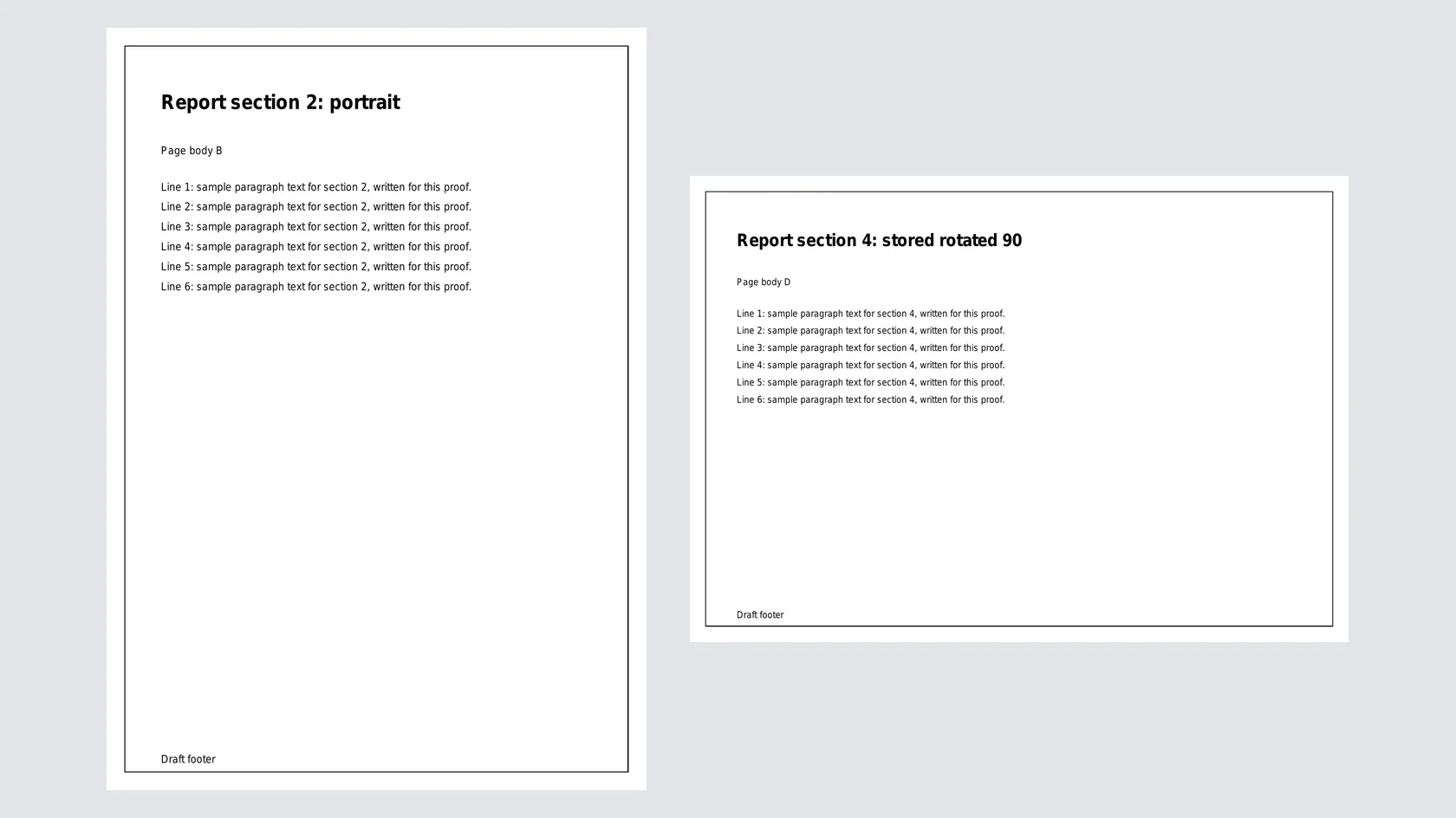
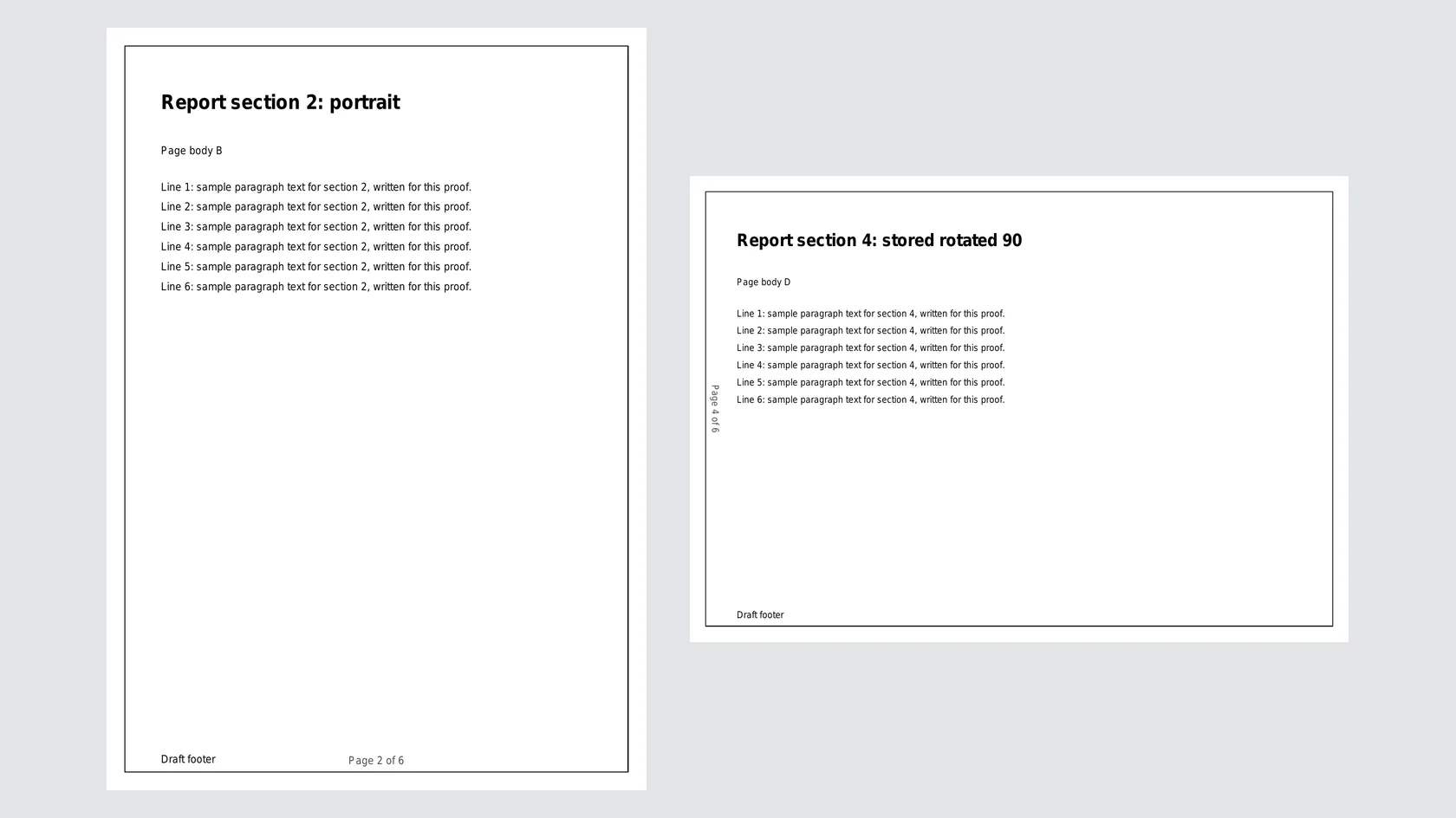
Position is a grid of nine spots, with bottom center selected to begin with. Margin sets how far the number sits from the page edge in millimetres. It starts at 10.
Format offers 1, Page 1, 1 of N, Page 1 of N and Custom. Font size is in points and starts at 12. Color is one of five dots, with black selected to begin with. Opacity runs from 10 to 100 percent and starts at 70.
The position is worked out for each page from that page's own width and height. In our test, A4 pages and a US Letter landscape page in one file all got the number bottom centre. Rotated or cropped pages are the exception (see limits).
Pick 1 of N or Page 1 of N to carry the page count as well as the page number, so someone holding one printed sheet can spot a missing page. Under Custom, write your own text with {n} for the page number and {total} for the page count.
| You want to | Set | Check after |
|---|---|---|
| Number a report people read on screen | Bottom center, Opacity 100 | Zoom in and confirm the number does not touch a footer. |
| Number a document you will print | Bottom right or Bottom left | Print one page as a test and see whether the number sits where you want it. |
| Keep the number quiet next to the content | A smaller Font size and a lower Opacity | Check that it is still readable at the size you will print. |
Drop the PDF on the upload box above, or click the box and pick the file from your device.
Choose a Format and a Position in the grid, then adjust Font size, Colour, Opacity and Margin. Left as they are, the settings give a black 12 point number at the bottom center, slightly see-through. The preview page shows the result.
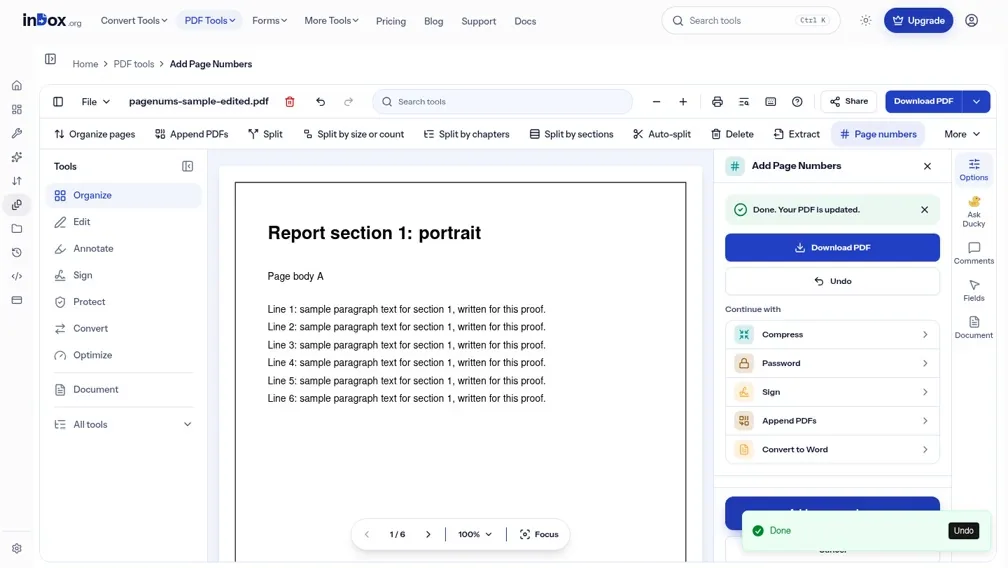
Press Add page numbers. The button fills with the job's progress and the steps show under it. Cancel stops a running job and leaves your file unchanged. When it shows Done. Your PDF is updated., press Download PDF, or Undo to go back. Look at the first page, the last page, any page with a footer and any page that was rotated or cropped.
Page numbers are easy to add and hard to take back, so this tool shows you the result first. A preview page reflects every setting as you change it, and the result is a new PDF, which leaves your original free for a second try. Numbering one PDF took no sign-in and no account in our test. The numbers are stamped on indox's server, which deletes your PDF and the numbered copy after 24 hours when you are not signed in. We ran the tool on indox.org with our own test file, and the proof and limits sections show what we measured, including where it falls short.
| What you see | Why | What to do |
|---|---|---|
| The number sits on the side edge, turned sideways | The page is stored rotated, and the number is placed on the page as stored, not as shown | This tool has no option for it. Number a version of the file whose pages are stored upright, and check every rotated page in the result. |
| The number is cut off or half hidden | The page has a crop box smaller than the page, and the number is placed from the page edge | Set Margin larger than the crop inset, for example 13 mm for a 36-point inset, then run the original file again. |
| The file is about twice the size | In our test the result was 2.02 times the input | Check the size before sending it on, and try Compress PDF if it is too large. |
| The number lands on a footer or other text | The label is drawn over the existing content at the spot you chose | Change Position or raise Margin, then run the original file again. |
| Two sets of numbers show | The PDF already had page numbers, and the tool does not detect them | Start from a version of the file that has no printed numbers. |
| The numbers look faint | Opacity opens at 70 percent, which lets some of the page show through | Set Opacity to 100 for solid numbers. |
| The numbers are wrong after you changed the pages | A stamped number stays with its page | Finish Reorder Pages and Remove Pages first, then number the result. |
Sources are listed under References. The first column is how this tool works.
| Compared on | Stamp on the finished PDF (this tool) | Number in the source document | PDF page labels |
|---|---|---|---|
| Where the number lives | Drawn on each page of the finished PDF as text | Created by the word processor or layout program when it exports | A page label entry in the PDF catalog that viewers display; nothing is drawn on the page |
| Prints on paper | Yes, it is on the page | Yes | Not by itself, because the label is not drawn on the page |
| Updates when pages move | No, the number stays with its page | Yes, if you re-export | The labels follow the page order of the file |
| Restarts after a cover | Not in the screen we tested | Yes, in most programs | Yes, label ranges can restart or change style |
| Rotated or cropped pages | Needs a check; in our test the number landed wrong | Placed by the program that draws the page | Not applicable, nothing is drawn |
A report or assignment was exported without numbers and the brief asks for them. This fits when every page, cover included, may carry a number.
A bundle of exhibits or a contract pack needs a number on every sheet so people can point to a page in a call. The total in each label also shows when a sheet is missing.
Loose printed pages get shuffled. A number and a total on each sheet let you put the stack back in order.
Facts checked on November 5, 2026
That depends on the Format you pick: 1, Page 1, 1 of N, Page 1 of N, or your own text. The preview page shows it in the size and color you choose.
No. Every page is numbered and the count starts at 1 on the first page. A workaround we have not tried: split the cover off with Split PDF, number the rest, then join the two files with Merge PDF. The numbering would still start at 1 on the first numbered page.
Yes. Pick Page 1 of N, or choose Custom and write your own text with {n} for the page number and {total} for the page count. In our test the Page 1 of 6 format printed Page 1 of 6 to Page 6 of 6. Roman numerals are not offered.
Anywhere on a grid of nine spots: top, middle or bottom, each left, center or right. Use Margin to move it closer to the edge or further from it.
This tool cannot remove them, because they become part of each page. Keep the original PDF so you can start again from it.
Opacity starts at 70 percent, which lets a little of the page show through. Set it to 100 for solid numbers.
The tool does not detect them. It stamps its own label on every page, so both sets are visible.
After. A stamped number stays with its page, so finish removing and reordering pages first and add the numbers as the last step.
In our test they were real text. The labels used the standard Helvetica font, the result held no images, and a text extraction found Page 1 of 6 to Page 6 of 6 on the six pages.
Not always. In our test on 5 November 2026 a page stored rotated 90 degrees got its number on the left edge, turned on its side, and a cropped page got its number half outside the visible area. Upright pages were fine.
Open this page in Safari or Chrome and add the PDF. Pick a Format and a Position, check the preview page, then press Add page numbers and Download PDF. Nothing needs installing, and the steps are the same on Windows.
No account is needed for one PDF. Signed out, a daily free allowance applies and the file can be up to 200 MB. The numbers are stamped on indox's server, and when you are not signed in both copies are deleted there 24 hours after the job.