Files other than PDF are converted first. Signing in raises the size limit.
You add
One PDF with text you can select
You set
Text, images and whiteout edited on the page
You get
The edited PDF, ready to download
To edit PDF text, open the file here and click a line: the caret lands where you clicked, and a line inside a paragraph opens the whole paragraph, so the words rewrap within its width as you type. Press Enter to keep the change. Editing the text already in the PDF is free, and in our test no account was needed to edit or download. You can also click empty space to add new text, add a PNG or JPEG image, or cover an area with whiteout. Nothing is written into the file until you press Download edited PDF. Use it when a name, date or number in a PDF is wrong and the source file is gone. Scanned pages and existing right-to-left lines such as Persian or Arabic cannot be edited in place.
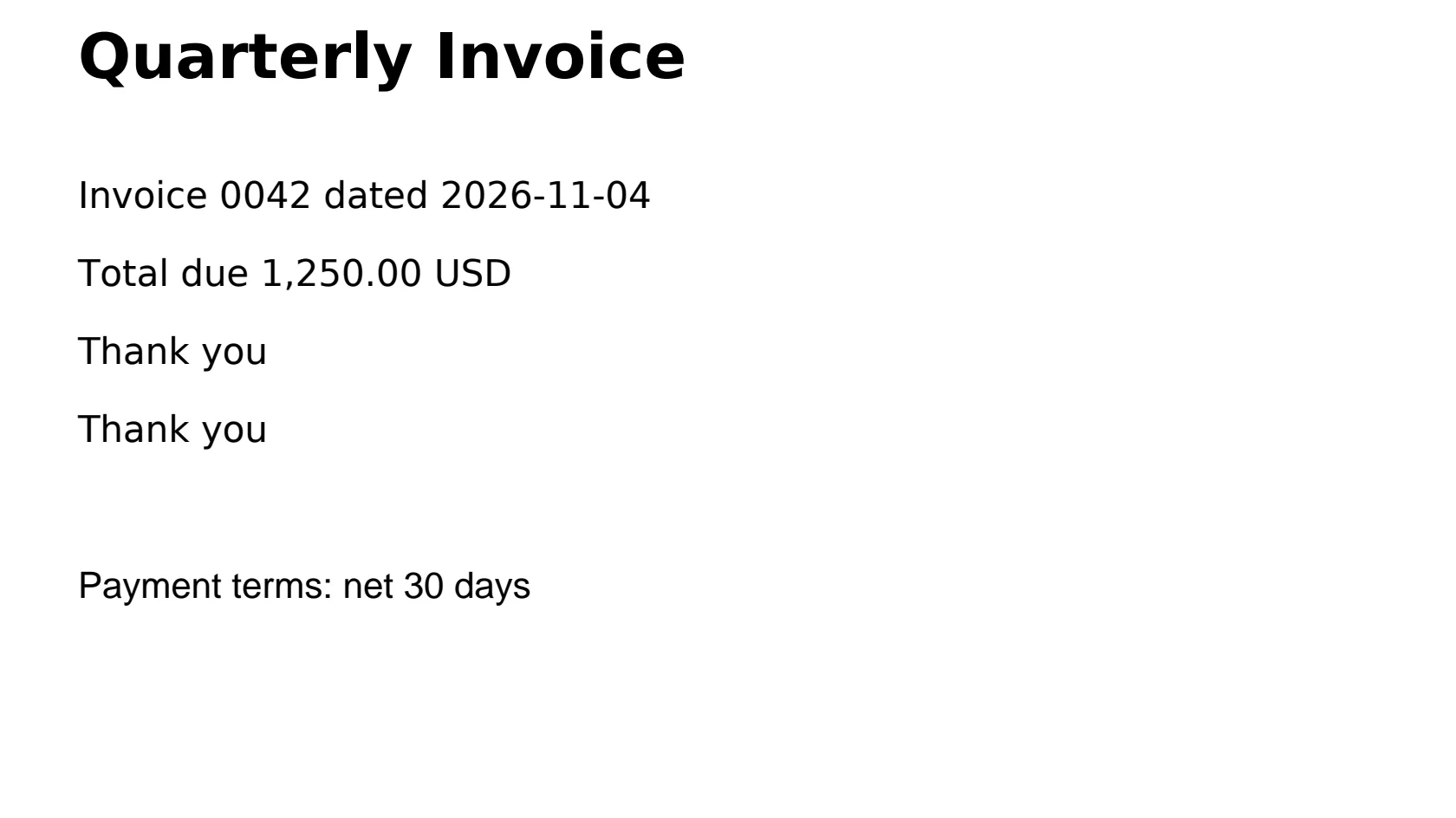
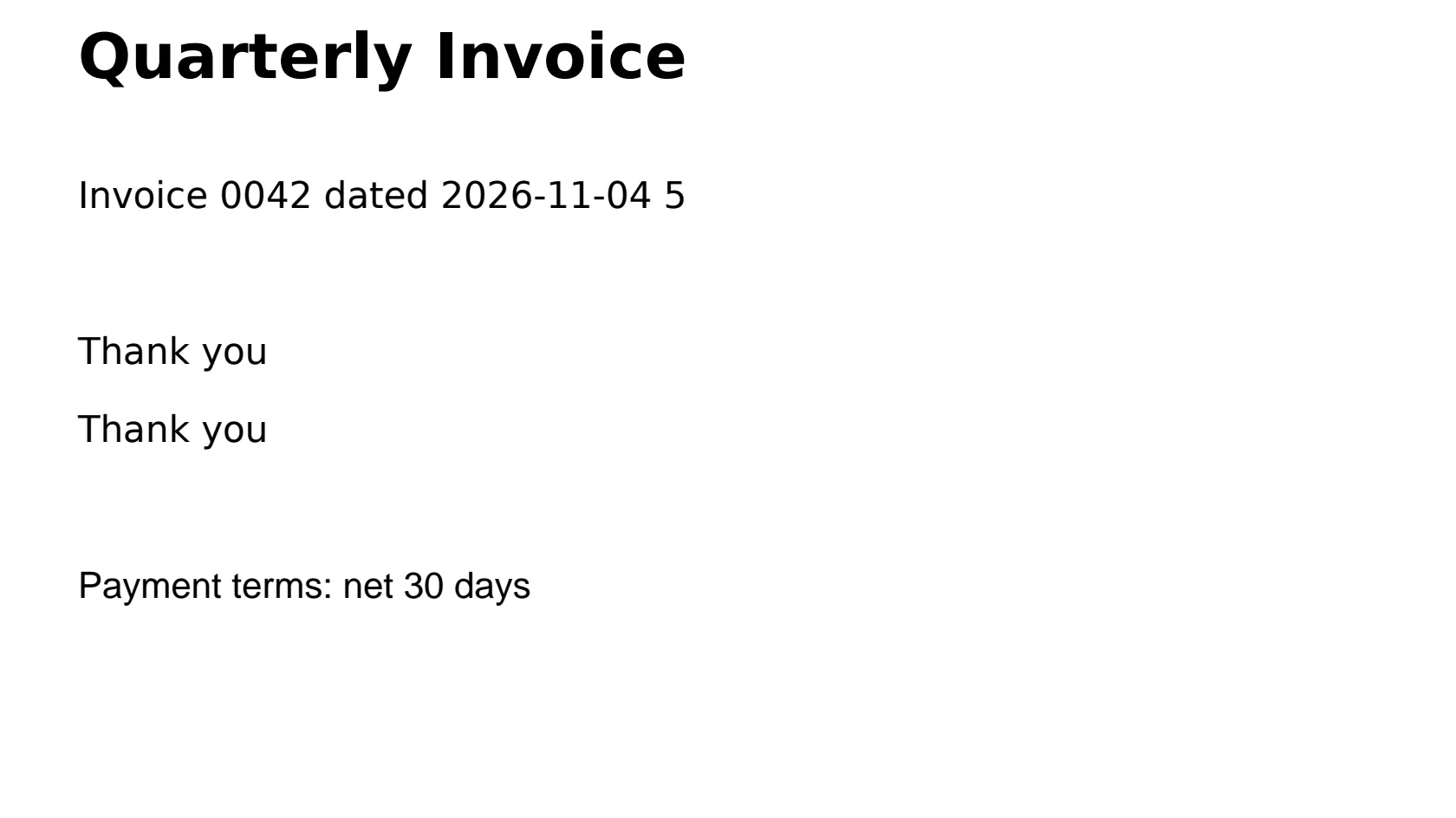
Our own one-page test invoice (no personal data), edited on indox.org
Input PDFthe original, 1 page, subset DejaVu Sans fonts
43 KB
Edited, run 1line edit, added text and whiteout; about 18.5 times the input
806 KB
Edited, run 2line edit with a digit missing from the original subset; about 17.3 times the input
753 KB
Original PDFEdited by indox
Measured on indox.org on 4 November 2026, as an anonymous visitor: the invoice we uploaded and the file we downloaded after one line edit, an added line and a whiteout. Drag the handle to compare the same part of the page. Sizes are for the whole PDF.
What can you do when you edit a PDF?
Change text in place, one line or a whole paragraph
Click a line on the page and type, then press Enter or click elsewhere to keep the change; Escape cancels. A line that belongs to a paragraph opens the whole paragraph: the words rewrap inside its width as you type, and Shift+Enter starts a new line. Each line goes back into its own place in the file. In our test an edited line stayed in the same font family and size (14 pt), but the file came back with a full copy of the font in place of the original subset and was much larger (see the measured run above). If the same line repeats on the page, the editor warns you that all of them will change.
Change the size or colour of words
While a line is open, select words and pick a size from 8 to 72 pt, or a colour from the suggested inks or any custom colour. Clicking the ink already in use takes it off, and Match text goes back to the look of the nearest line. In the downloaded file a restyled line is drawn again in the editor's standard font, in one size and colour taken from its first characters, so zoom in on it before you send the file.
Find and replace across the file
In Find & replace, type the words to find and what to put in their place. Match case and Whole words narrow the matches. Replace changes the current match and Replace all changes every match, with the count on the button.
Add images and new text
Add image puts a PNG or JPEG on the page you are looking at. Drag it to move it, drag a corner to resize it in proportion, or use the arrow keys and + or −. With the image selected you can set its opacity from 10 to 100%, turn it a quarter turn left or right, replace the picture in the same spot or duplicate it; Delete removes it. Click empty space to add new text in the size and colour you choose. New text goes into the file as one line in one size and colour, in the editor's standard font, so keep each addition short. Each addition shows in the Changes list with an X to take it back, and Undo works too.
White out a line or any area
Choose Whiteout, then click a line to cover it or drag on the page to cover any area. The cover is white, or a custom colour to match a coloured background. It hides the words on the page only: they stay in the file and can still be selected, copied or found, so use it to cover text for the eye.
Remove every image
Remove images strips all the pictures from the PDF when you download. A confirmation asks first, because it affects the whole file.
Edit on a phone or a Mac
The editor runs in your browser, so the steps are the same on an iPhone, an Android phone or a Mac. Nothing to install.
What happens to your PDF
Stays
Your original PDF, which is not touched
The text and fonts of lines you did not edit; in our test both repeated Thank you lines were left as they were
The page count, and in our test no annotations were added and the file stayed unencrypted
The producer field of the file, which still read ReportLab in our test
Changes
The edited line: its text is replaced, in the same font family and size in our test
Fonts and file size: a full copy of the font replaces the subset, so a 43 KB file came back at 753 to 806 KB in our test
The PDF version, which went from 1.3 to 1.6 in our test
Whiteout: an image of a solid box is added, and the covered text stays in the file
Added and restyled text: drawn in the editor's standard font, one line in one size and colour
How to edit text in a PDF in 4 steps
1
Add your PDF
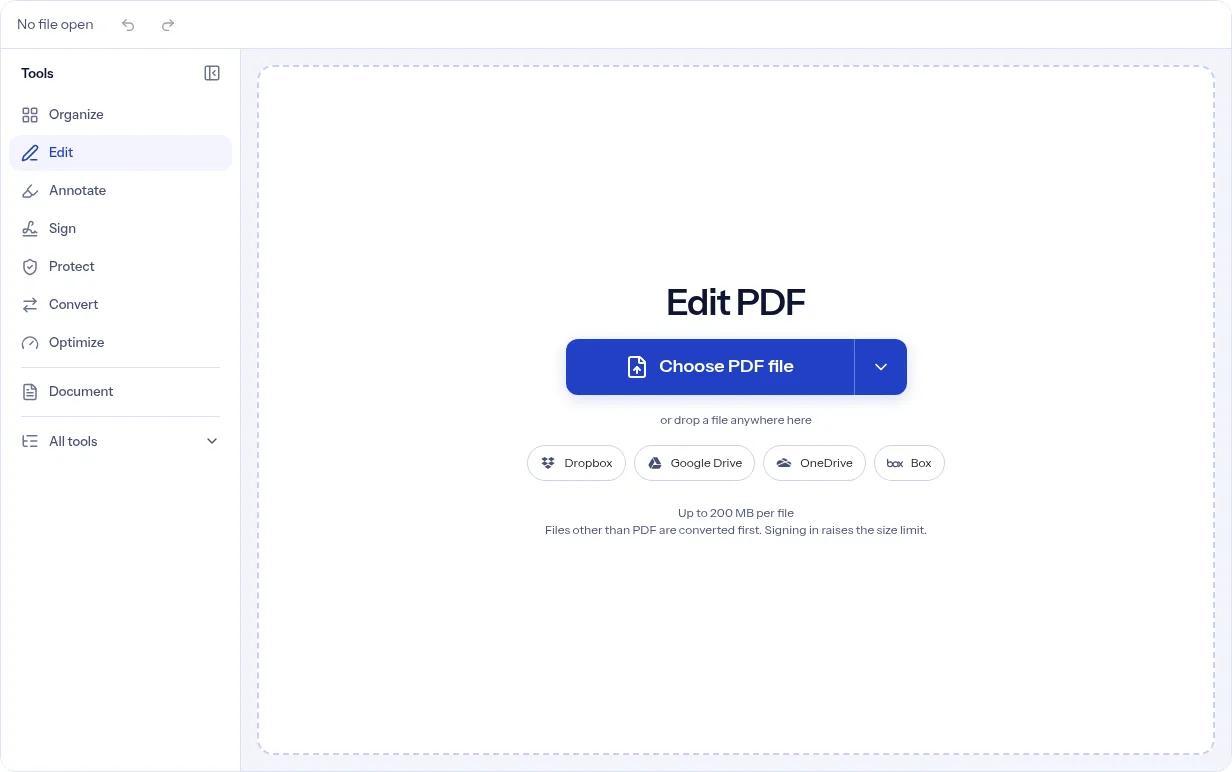
Put your PDF in the upload area: up to 200 MB when you are not signed in, or 200 MB with a signed-in account. It opens in the editor with Edit text & images ready, under Edit in the tool list. If it asks for a password, enter it and press Unlock.
1 / 4
2
Click a line and type
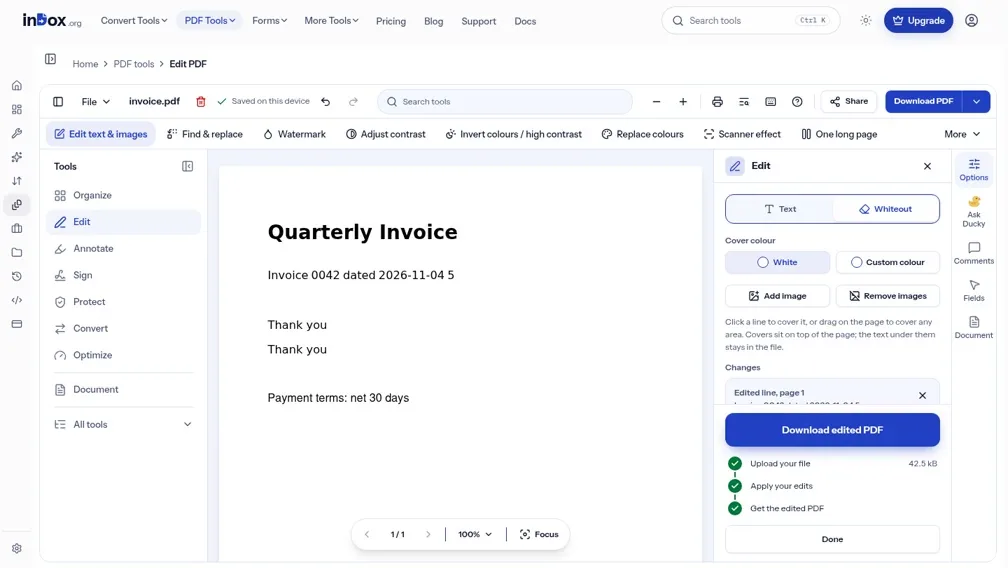
Click a line of text on the page and type; Enter or a click elsewhere keeps the change. Click empty space to start new text. Text and Whiteout switch what a click does, and Add image and Remove images sit under them. Find & replace is in the Edit list.
2 / 4
3
Review your changes
Check each row in Changes. The X beside a row takes that change back, and Undo steps back one edit. Zoom in on every line you changed.
3 / 4
4
Press Download edited PDF
Press Download edited PDF. Your edits are written into the file and the edited PDF downloads.
4 / 4
Why edit a PDF with indox?
You edit text on the page itself, so you see the real layout while you work. Changing the text already in the PDF is free here, along with images and whiteout. Below are our measurements on one sample, including what an edit does to fonts and file size and what whiteout leaves behind in the file.
Edit existing text free, nothing to install
Font family and size kept on an edited line, in our test
A whole paragraph rewraps as you type
Whiteout and file growth measured and stated
No account needed to edit or download, in our test
What are the limits when you edit a PDF?
File size
When you are not signed in, a PDF can be up to 200 MB, within a daily free allowance. A signed-in account can upload up to 200 MB per file. A text edit that would make the downloaded file larger than the server's text-edit size ceiling is rejected instead of returned, and each image you add has a size and pixel cap the server sets.
Where it runs
You edit in your browser until you press Download edited PDF. Then the PDF and your edits go to indox's server, which writes the changes and sends back the new file. If you are not signed in, the upload and the result are deleted 24 hours after the job finishes. A signed-in account keeps them in its history until you delete them, for at most 180 days, or for 24 hours or 30 days if you choose that. Either way indox keeps a record of the job, such as the file name and its status, not the file.
Limits worth knowing
Right-to-left text, such as Persian or Arabic, cannot be edited in place yet. Clicking such a line says so; click empty space to add new text instead.
A scanned PDF is a picture of text, so it has no text lines to click. OCR PDF can add a text layer first.
Whiteout hides text on the page but does not delete it. For text that must be gone, use Redact PDF or Redact Text.
A paragraph rewraps only inside its own width. When an edit makes it longer, the extra lines are drawn below it in the editor's standard font and the text underneath does not move, so the two can overlap. The editor shows a note when this happens.
An added image keeps its proportions when you resize it and turns in quarter turns only. A whiteout box can be stretched freely.
An edited file can be many times larger than the original. In our test a 43 KB invoice came back at 753 KB and 806 KB, because a full copy of the font replaced the original subset.
An edit rewrites the file's font entries and its version. In our test the output listed 6 font entries against 3 in the input, and the PDF version went from 1.3 to 1.6.
In our test the editor showed no warning, including when we typed a digit the original font subset did not contain. That digit came out correctly, but we tried one digit in one file, so check every changed line.
New text is written into the file as one line in one size and colour, in the editor's standard font, even when the editor shows it wrapped or in mixed styles. Text that runs past the right edge of the page is cut, and a Heads up note after the download says so.
Paragraph rewrapping, restyled words, image turning and opacity, coloured covers, Remove images and a repeated-line edit were not part of our sample run; what this page says about them comes from the editor itself.
When editing does not go as expected
What you see
Why
What to do
Clicking the page selects no line of text.
WhyThe PDF is a scan, so the page holds a picture and no text lines.
What to doRun OCR PDF to add a text layer, then open the result here and check how it edits.
A message says right-to-left text can't be edited in place yet.
WhyThe line you clicked is in a right-to-left script such as Persian, Arabic or Hebrew.
What to doEdit the other lines. This line stays as it is.
A message says the line appears a number of times and all of them will be changed.
WhyThe same text repeats on that page, and a text edit replaces every copy on the page.
What to doGo on if every copy should change. Otherwise take the change back with the X in Changes or Undo.
Download fails and says the text was not found on a page.
WhyThe text to replace no longer matches the page's text, so nothing could be changed.
What to doRemove that change from the Changes list and make it again from the line on the page.
A page says This PDF is password-protected.
WhyThe file needs its password before it can be opened.
What to doEnter the password and press Unlock, or try another file.
Text under a whiteout box can still be selected.
WhyWhiteout is a white image over the line. The text is still in the file.
The downloaded file is many times larger than the one you opened.
WhyA text edit puts a full copy of the font in the file in place of the original subset. In our test a 43 KB invoice came back at 753 to 806 KB.
What to doIf size matters, run Compress PDF on the result and check that the lines still look right.
A changed line looks a little different in the downloaded file.
WhyThe edit rewrites the line with a full copy of its font, and the editor shows no warning if it has to use a different one. In our test the family and size stayed the same.
What to doZoom in on each changed line in the downloaded file before you send it. Take the change back and redo it if it is wrong.
Text you added runs off the right edge of the page, and a Heads up note says it is cut off.
WhyNew text goes into the file as one line, even if the editor showed it wrapped.
What to doKeep new text short, or add it as two lines in two additions, then check the downloaded file.
A note says a paragraph you edited now runs into the text below it.
WhyThe paragraph has more lines than before, and the text below a paragraph does not move.
What to doShorten the wording until the note goes, then zoom in on that part of the downloaded page.
Can I edit the text in a PDF, on a computer, iPhone, Android phone or Mac?
Yes, if the PDF has real text, and it is free. Click a line on the page, type the new wording and press Enter. A line inside a paragraph opens the whole paragraph, so the words rewrap as you type. The editor runs in your browser, so the steps are the same on a phone or a Mac. Scanned pages and right-to-left text cannot be edited this way.
Is this PDF editor free, and do I need an account?
Yes, it is free, including changing the text already in the PDF. In our test no account was needed: we opened the editor, made edits and downloaded the edited PDF with no sign-up dialog. Visitors who are not signed in have a daily free allowance, and a free account comes with its own daily credits. If you are not signed in, your file and the edited result are deleted from indox's server 24 hours after the job ends. A signed-in account keeps them in its history instead.
How do I white out text in a PDF, and does it remove the text?
Open the PDF, choose Whiteout and click a line of text, or drag over any area. A box in white, or a custom colour you pick, is placed over it; the X in Changes or Undo takes it back. It does not remove the text. In our test the covered line was still extracted from the downloaded file by pdfplumber and pdftotext, so it can be selected, copied or found. To remove text for good, use Redact PDF or Redact Text.
Can I edit a PDF and keep the same font, even for a letter it does not contain?
In our test, yes for a line edit. We added text to a line set in DejaVu Sans 14 pt in a test invoice and it came back in DejaVu Sans at 14 pt. PDFs often embed only the letters they use, a font subset (ISO 32000-1, section 9.6.4). We typed a digit that our subset did not contain and it came out correctly, drawn in a full copy of the font, with no missing-glyph box. That was one digit in one file, and the editor shows no warning if it uses another font, so zoom in on each changed line before you send the file. New text and lines you restyle are drawn in the editor's standard font instead.
Why is my PDF bigger after editing?
A text edit replaces the original font subset with a full embedded copy of the font. In our test a 43 KB invoice came back at 806 KB after an edit, an added line and a whiteout, and at 753 KB after one edit. Other lines kept their text and fonts.
How do I find and replace text in a PDF?
Open Find & replace in the Edit list. Type what to find and what to replace it with. Match case and Whole words narrow the matches. Replace changes the current match and Replace all changes every match. Then download the PDF.
How do I add text or an image to a PDF?
For text, click empty space on the page and type; pick its size and colour in the panel. It goes into the file as one line, so add a second line as a second addition. For a picture, press Add image and choose a PNG or JPEG: drag it into place, drag a corner to resize it, and turn it or set its opacity in Selected image. Each addition appears in Changes, where an X removes it.
Can I edit Persian, Arabic or Hebrew text in a PDF?
Not in place yet. When you click a right-to-left line, the editor says that right-to-left text cannot be edited in place yet and suggests clicking empty space to add new text instead. You can edit the other lines on the page.
Can I edit a scanned PDF?
Not directly. A scan is a picture of text, so the page has no lines to click. OCR PDF can add a text layer, but check the result, because how well the recognized text edits depends on the scan.
Why can't I edit my PDF?
The usual reasons are a scanned page with no text lines, a line in a right-to-left script, or a password you have not entered yet. If the download fails with a message that text was not found on a page, remove that change and redo it from the line on the page. A fillable form is better filled with Fill PDF Form.