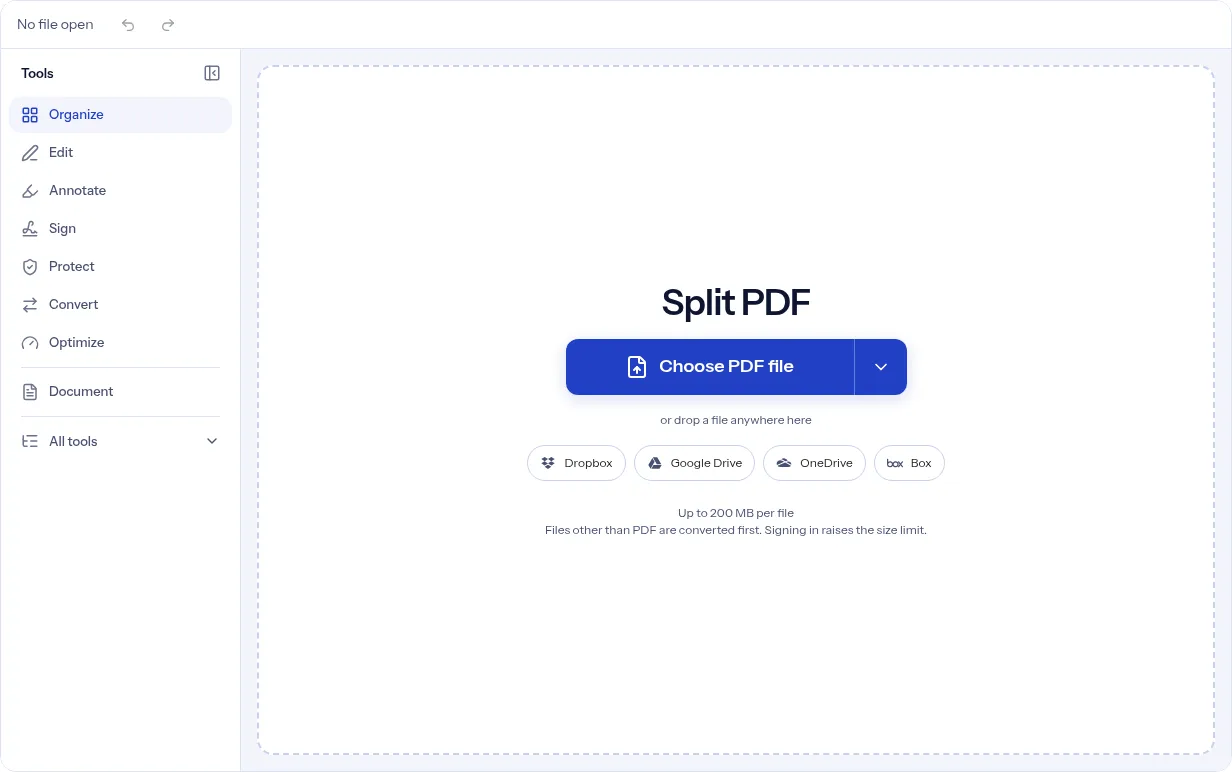
Files other than PDF are converted first. Signing in raises the size limit.
You add
One PDF
You set
How to cut it: after selected pages, by size or count, by chapters or into sections
You get
One ZIP with the parts
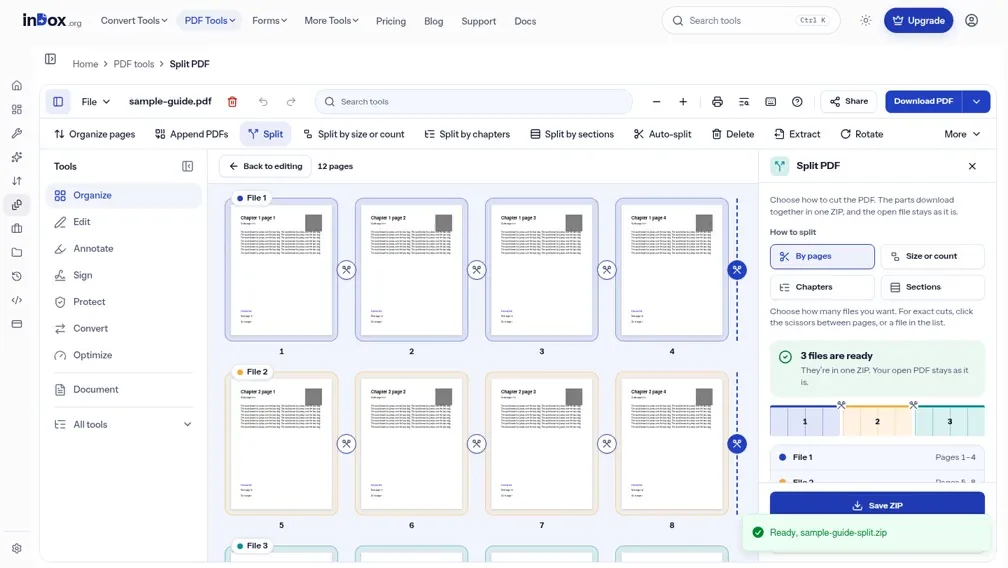
Splitting a PDF cuts one document into several smaller PDF files. This page is for anyone who holds one long PDF and needs parts: one file per invoice in a scanned batch, one per chapter of a manual, or pieces small enough for an email. Open your PDF here and pick the cut. In By pages, the default, press More files until the panel lists the files you want, or click the scissors between the pages where each file should end, then press Split into N files. The other modes make files of a set size, page count or file count, cut at the bookmarks, or cut each page into sections. The parts come back in one ZIP and the open PDF stays as it is. Splitting is free, needs no account and needs nothing installed. Further down is what we measured when we split a 12-page test PDF, including what the parts lost.
sample-guide.pdf, our own 12-page test PDF with bookmarks and links, split on indox.org
Source PDF12 pages, 3 chapters
355 KB
Part 1pages 1 to 4
273 KB
Part 2pages 5 to 8
273 KB
Part 3pages 9 to 12
273 KB
All 3 parts2.3 times the source
819 KB
Measured on indox.org on 4 November 2026, without signing in: one 12-page PDF split by pages into 3 files. A before and after picture would show nothing, because the pages do not change, so the table shows file sizes instead.
What can you do when you split a PDF?
Split after the pages you choose
By pages is the default mode. It shows Number of files with Fewer files and More files buttons and a list such as File 1, Pages 1-4. To cut at exact places, click the scissors between two pages in the grid. Each cut ends a file and the next page starts a new one. Click a file in the list to split it again with Split File N into, or to join it to the next file. Split into N files stays greyed out until there is a cut before the last page, because nothing can follow the last page.
Split into single pages or every few pages
In By pages, switch Split by from Number of files to Pages per file. Set it to 1 for one file per page, or to 5 for a new file every five pages.
Split a PDF by size
Choose Size or count and set the size of each part in megabytes. A part has to fit under the limit, so a single page larger than the limit cannot be split and the job fails. Parts do not shrink in proportion to the cut. In our test every part kept a full copy of an image shared by all pages, so the parts added up to more than the source.
Split into a set number of files
In By pages, Number of files starts at 2, which splits a PDF in half as two files, and More files adds one file at a time. The pages are shared between the files. In our test, a 12-page PDF split into 3 files gave 4 pages in each.
Split by chapters or bookmarks
Chapters cuts at each bookmark, so the PDF needs bookmarks, and without them the job reports that none were found. Bookmark level defaults to 0, the top level. In our test, level 0 gave one part for each of the 3 top-level bookmarks. Keep metadata and Allow duplicate chapters are off until you tick them.
Cut each page into sections
Sections cuts every page into pieces with Horizontal cuts and Vertical cuts, each set to 1 by default. To cut each page in half, set one of the two to 0. Merge sections into one file puts the pieces in a single PDF. We did not run this mode in our test.
What happens to your PDF
Stays
Your open PDF, which is not changed
Page text: each part held its own pages in order, and the text matched the source (Chapter 1 to 3, page 1 to 4)
Page count: 4 pages in each of the 3 parts of our 12-page sample
Web links: kept on all 12 pages
Bookmark titles and nesting: each part carried its 3 entries
File validity: qpdf --check reported no errors on any part
Changes
File size: the 3 parts totalled 819 KB from a 355 KB source, 2.3 times, because each part carried a full copy of the 270 KB image shared by every page
Bookmark targets: titles stayed, but each bookmark pointed to a position that is not a page, so pypdf could not resolve any of them to a page
Links between pages: the clickable areas stayed, but the destination was lost for next-page links and for links to page 1 in other parts. Only part 1 kept its link to page 1
Names in Chapters mode: the parts were named with a number counting from 0, such as 0 Chapter 1 section 1.pdf
Delivery: always one ZIP, even for two parts
Which split mode to use
You want
Choose
What you get
One file per page
ChooseBy pages, Pages per file set to 1, then Split into N files
What you getA ZIP with a file for each page
A new file every few pages
ChooseBy pages, Pages per file set to that number
What you getA ZIP of files with that many pages each
Files under a size limit
ChooseSize or count, then the megabytes
What you getA ZIP of parts that each fit the limit, or an error if one page is larger
Two files
ChooseBy pages, Number of files at 2
What you getA ZIP with two PDFs
One file per chapter
ChooseChapters
What you getA ZIP with a file for each bookmark at the level you set
Each page cut into pieces
ChooseSections
What you getA ZIP of the pieces, or one PDF if you tick Merge sections into one file
How to split PDF pages into separate files in 4 steps
1
Add your PDF
Put a PDF in the upload area by choosing a file, dropping it, using From URL or scanning pages with Scan with phone. It opens in the editor with the page grid and the Split panel on the right.
1 / 4
2
Choose how to cut
In the Split panel pick By pages, Size or count, Chapters or Sections. In By pages, press More files until the panel says how many files you will get, or click the scissors between pages to cut at exact places. Size or count sets pages per file, megabytes per file or the number of files. Chapters cuts at the bookmarks, and Sections cuts each page into pieces.
2 / 4
3
Split
Press Split into N files, where N is the number of files the panel lists. For the other modes, set the options in the form and submit it.
3 / 4
4
Save the ZIP and check the parts
The result card says the files are ready in one ZIP. Press Save ZIP to download it, then open the parts. The measured table on this page shows what a split can change, such as file size and bookmark targets.
4 / 4
Why split a PDF with indox?
Several ways to cut sit in one editor, so you can pick the one that matches your file. Choosing a number of files or clicking the scissors between pages is the quickest way to cut at exact places. Size, pages per file and chapters are there for the cases where counting pages by hand takes too long. All of them work without an account, and the result is a download, so your open PDF is untouched and you can try another cut straight away. The measured run further down includes the parts that went wrong, so you know what to check in your own parts.
Four ways to cut in one editor
Free, and no account needed
Open PDF stays unchanged
A measured run with its flaws shown on this page
What are the limits when you split a PDF?
File size
Not signed in, the PDF can be up to 200 MB, within a daily free allowance. A signed-in account can upload up to 200 MB per file. By pages needs at least two pages, and in Size or count a single page larger than the size you set cannot fit, so that job fails.
Where it runs
The split runs on indox's server, which sends the parts back as one ZIP and leaves the open PDF as it was. If you are not signed in, your PDF and the ZIP of parts are deleted 24 hours after the split finishes. A signed-in account keeps them in its history until you delete them, for at most 180 days, or for 24 hours or 30 days if you choose that. Either way indox keeps a record of the job, such as the file name and its status, but not the file.
Limits worth knowing
Every split downloads as a ZIP, even when it makes only two files.
There is no box for typed ranges such as 1-3,4-6. You choose cut points with the scissors between pages, or use Number of files, Pages per file, size or chapters. There is also no mode that sorts odd and even pages into two files.
The last page can never be a cut point, so it has no scissors after it. Split into N files stays greyed out until there is a cut before the last page, and it needs a connection to run.
Chapters needs bookmarks in the PDF. It cuts at each bookmark at the level you set.
Parts can be larger than you expect. In our test a 355 KB, 12-page PDF became 3 parts of about 273 KB each, 819 KB in total or 2.3 times the source, because each part kept a full copy of the 270 KB image shared by every page. Do not use a split to make a file smaller.
Bookmarks and links between pages did not survive intact in our test. Bookmark titles stayed, but none of them pointed to a page. Links between pages kept their clickable area but mostly lost their destination.
We ran one sample of our own, split by pages and by chapters. Our run did not include Size or count, Sections, fillable forms, signed or password-protected PDFs, or a phone. Another PDF can behave differently.
In our test, from pressing Split into 3 files to Save ZIP appearing took 7.1 seconds, and Chapters took 4.2 seconds. These times are one anonymous run, not a promise.
In our test, Chapters named the parts with a number counting from 0, such as 0 Chapter 1 section 1.pdf, while By pages counted from 1, as in sample-guide_1.pdf.
Auto-split is a separate tool. It starts a new file at each page that carries a QR-code divider, not at blank pages.
When the split does not go as expected
What you see
Why
What to do
Split into N files is greyed out
WhyNo cut before the last page, or you are offline
What to doCut between two pages before the last one and check your connection.
The download is a ZIP
WhyEvery split returns its parts in one ZIP
What to doOpen the ZIP on your device to get the parts.
The open PDF did not change
WhyA split is a download, not an edit
What to doPress Save ZIP. Your open document stays as it was.
Chapters does not cut where you expect, or reports no bookmarks
WhyIt cuts at each bookmark, so the file needs bookmarks
Each page you cut after ends a part, which follows the open source code of Stirling-PDF v2.14.2. Our deployment may run another version, so the rows marked in our test are the ones we measured.
Method
Cuts at
Good for
Watch out for
By pages with the scissors
Cuts atThe pages you pick; the last page always ends the final part
Good forA scanned batch with one document per run of pages
Watch out forYou count the pages yourself. There is no typed range box
Number of files or Pages per file
Cuts atEqual blocks by count
Good forOne file per page, halves, every 5 pages
Watch out forThe last block can be shorter. In our test 12 pages and 3 files gave 4 pages each
Size or count
Cuts atA megabyte limit
Good forAttachment limits
Watch out forA page larger than the limit cannot fit. Parts keep their own copies of shared images and fonts, so they can be large
Chapters
Cuts atThe bookmarks at the level you set
Good forManuals and books with a contents list
Watch out forNo bookmarks, no split. In our test bookmark targets were lost in the parts
Sections
Cuts atA grid on every page
Good forA two-page spread scanned as one page
Watch out forIt cuts page content, not document structure
How do I split a PDF into separate files or single pages?
Open the PDF and stay in By pages. To get one file per page, switch Split by to Pages per file and set it to 1, then press Split into N files. For a new file every few pages, set Pages per file to that number, such as 5. You can also click the scissors where each file should end. The parts come back in one ZIP.
Can I split a PDF in half?
Yes, and it can mean two things. To get two files, use By pages with Number of files set to 2. To cut every page down the middle, use Sections and set one of Horizontal cuts and Vertical cuts to 0 and the other to 1.
Can I split a PDF by size?
Yes. Choose Size or count and set the size of each part in megabytes. A single page larger than the limit cannot fit, so that job fails. The parts are not guaranteed to be small, see the question about part size below.
Can I split a PDF by chapters or bookmarks?
Yes. Chapters cuts at each bookmark, so the PDF needs bookmarks. You can set the Bookmark level, keep metadata and allow duplicate chapters. In our test the parts kept their bookmark titles, but the bookmarks did not point to a page.
Can I split a PDF by page range?
There is no field for typed ranges. Click the scissors after the page each file should end on and press Split into N files. To cut every few pages, set Pages per file instead.
Do the parts keep their bookmarks and links?
Partly. In our test with a 12-page sample, every part kept its bookmark titles and the web links, but the bookmarks no longer pointed to a page and the links between pages mostly lost their destination. Check bookmarks and internal links in the parts before you send them.
Why are the parts almost as big as the whole file?
Images and fonts used on many pages are shared inside a PDF, and each part can keep its own full copy. In our test a 355 KB PDF became 3 parts of about 273 KB, 2.3 times the source in total. The pdfsam blog describes the same effect in other tools. Compress PDF can be tried on a part afterwards.
Do I need an account or an install, and does it work on a Mac?
No account and no install. Open this page in Safari, Chrome or another browser on a Mac or any other computer, and the steps are the same. The browser only shows the pages; the cutting happens on indox's server.
How long are my files kept?
If you are not signed in, your PDF and the ZIP of parts are deleted from indox's server 24 hours after the split, so save the ZIP before then. Signed-in accounts keep them longer, as the limits section explains. The PDF open in the editor is not changed by the split.
Should I split, extract or remove pages?
Split when you want several files. Use Extract pages to keep some pages as one new PDF, and Remove pages to drop some pages and keep the rest.