Last updated
Scan paper pages to a PDF
Before you start
- Take a photo of each paper page with your phone first. The Document Scanner page has no camera button. You add pictures that are already on the device you are using. It takes JPG, PNG and HEIC pictures.
- Lay each page flat in even light when you take the photo, so the scan comes out clean.
- You can add and arrange pages without an account. You need an account to save the PDF, and it is the same for every plan.
Open the scanner
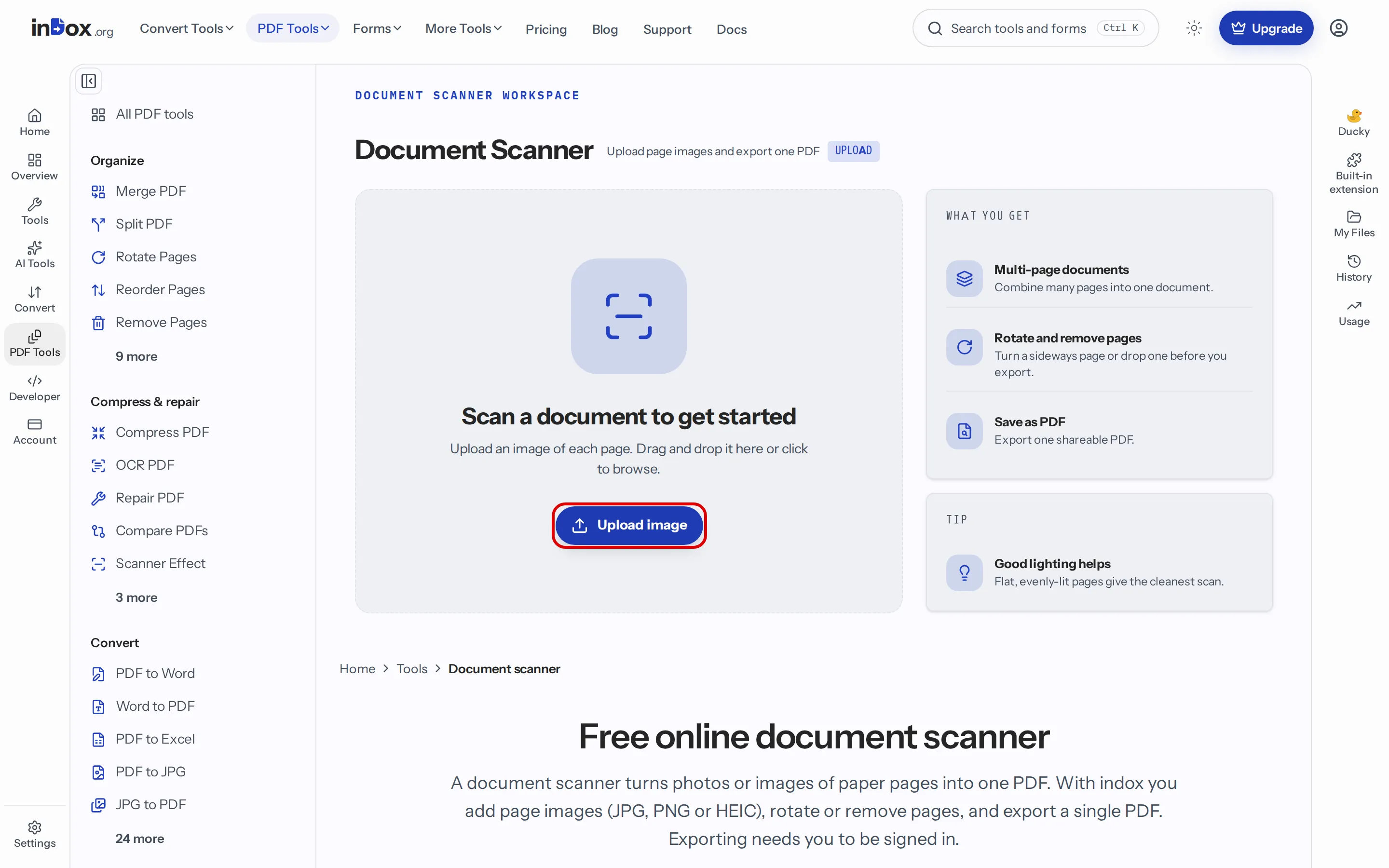
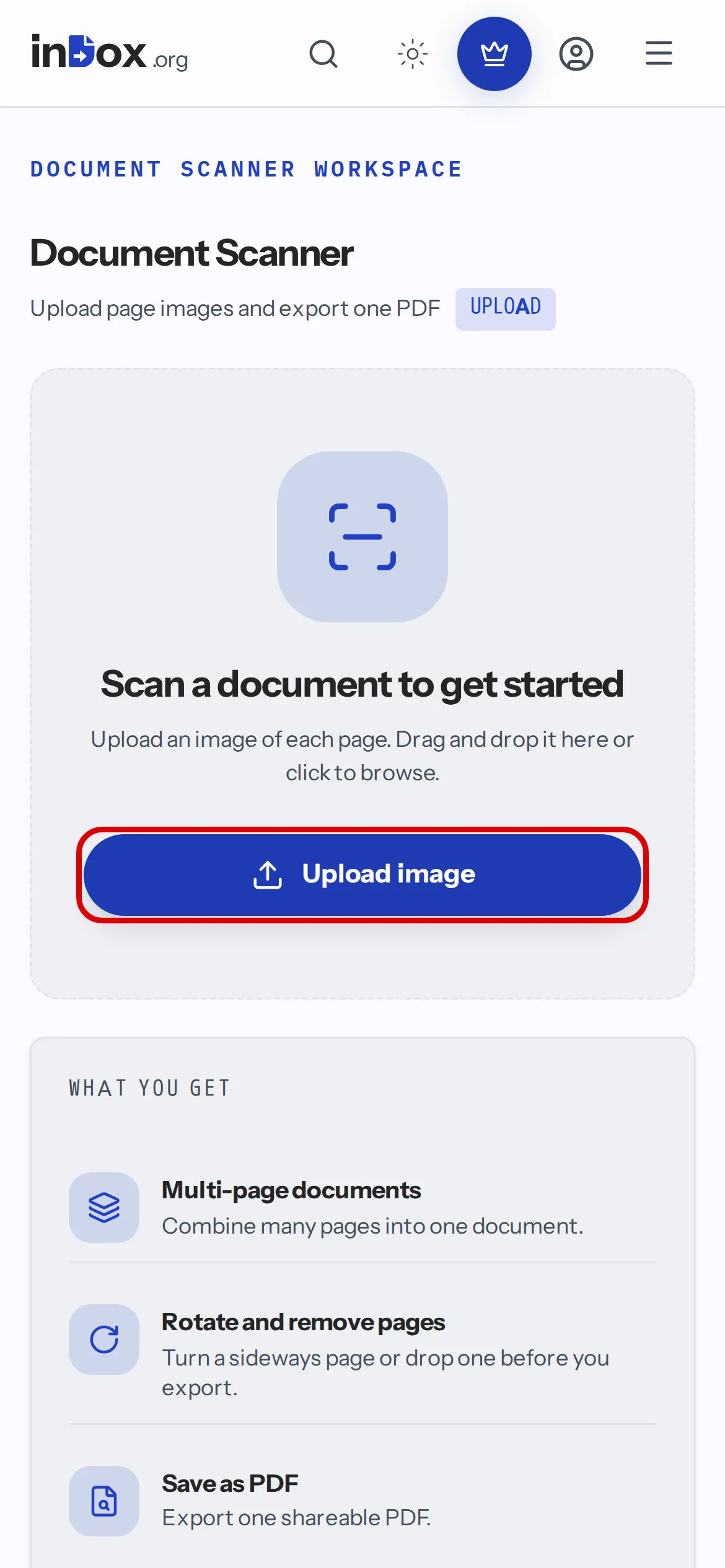
Go to the Document Scanner page. In the middle of the page, select the blue Upload image button. A box opens so you can pick a picture from your device. You can also drag a picture onto the page.
Add your first page
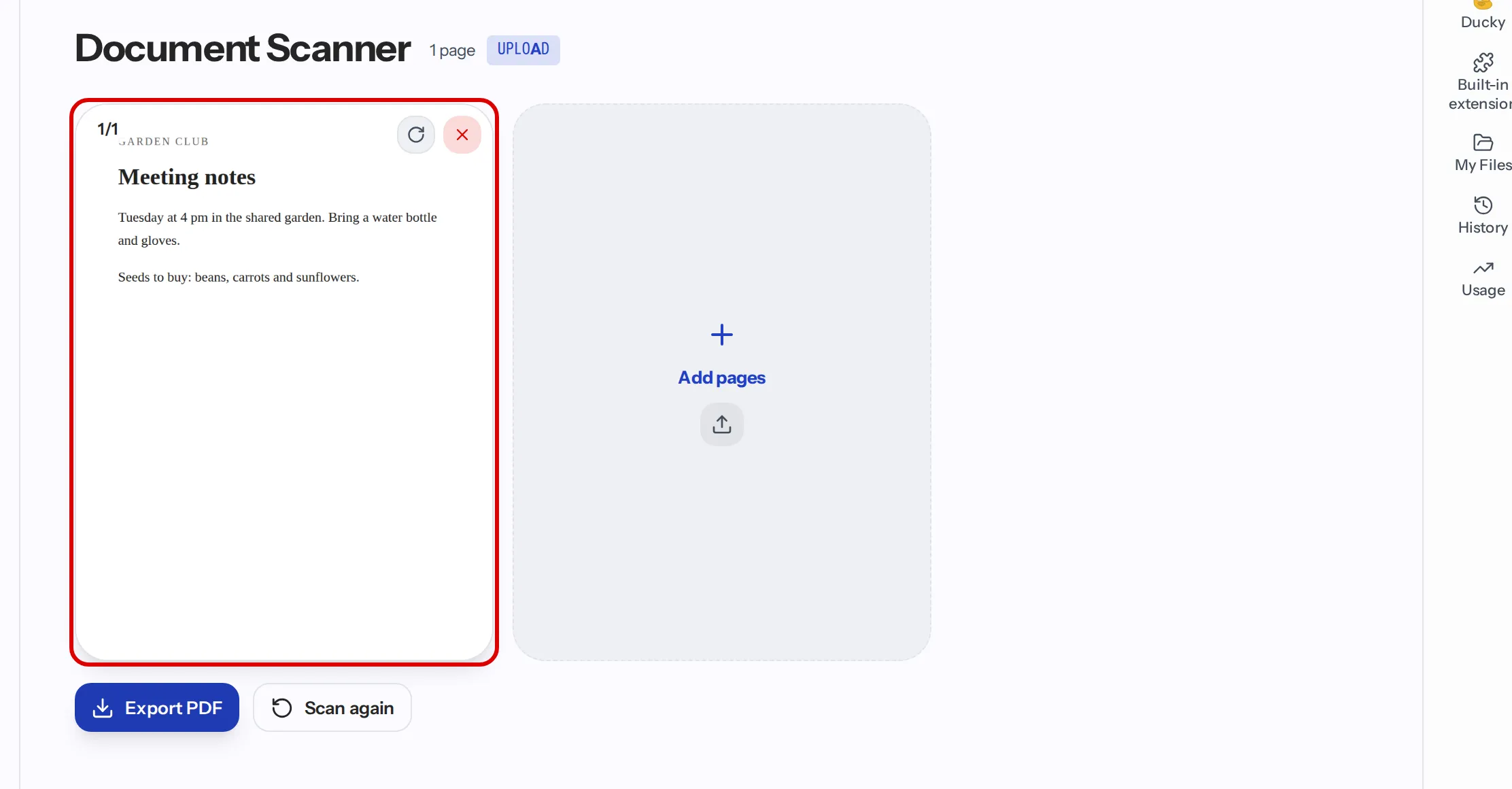
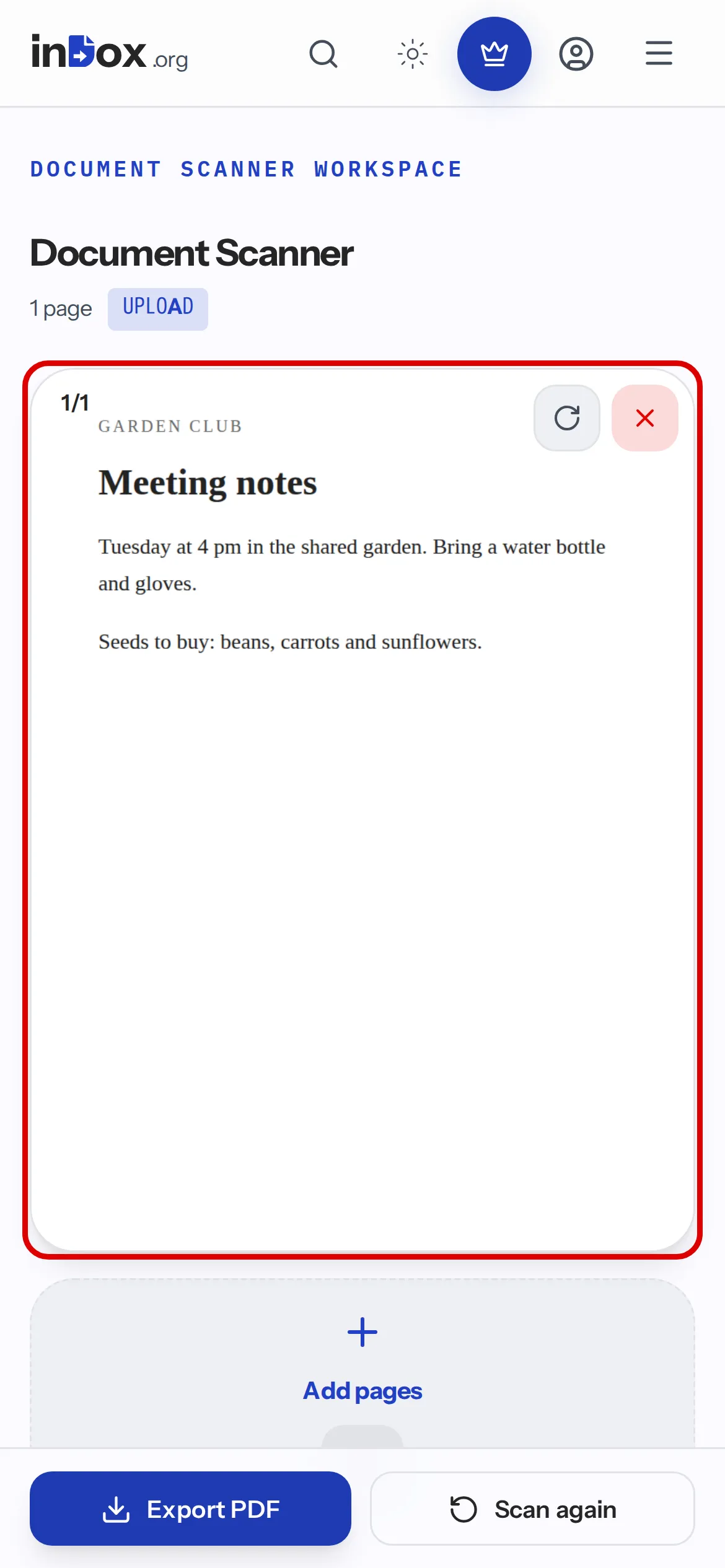
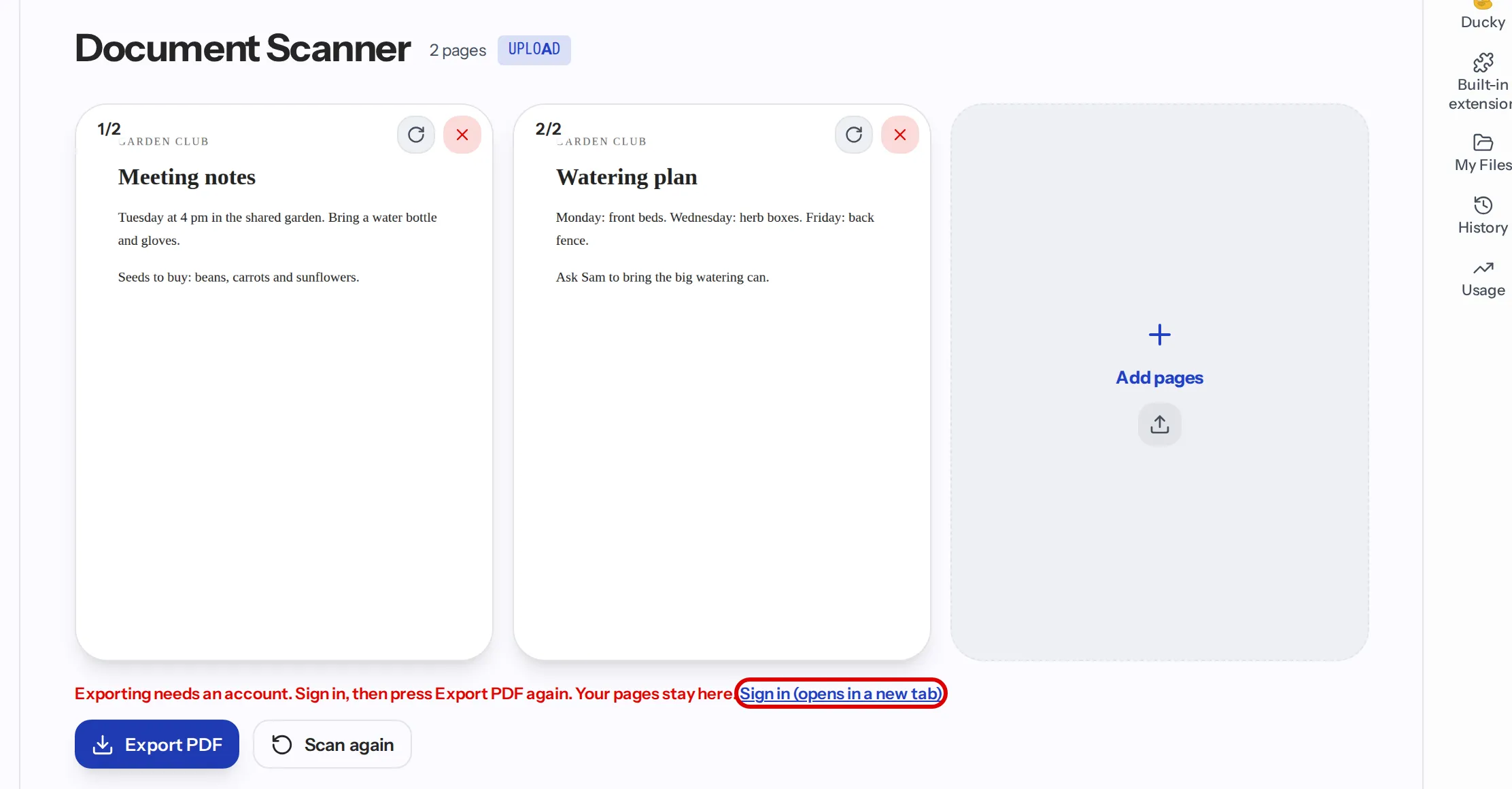
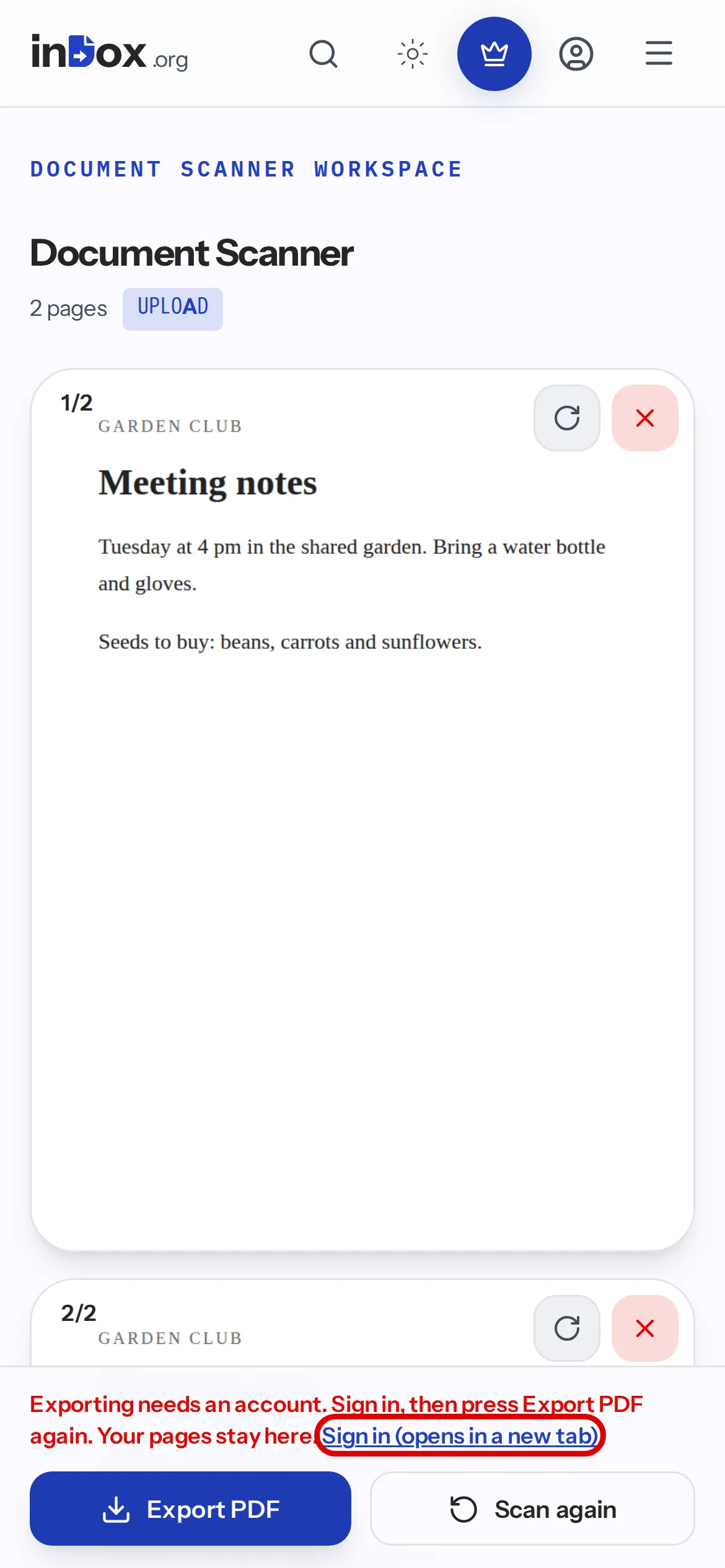
Pick the picture of your first page. The page shows up as a card with a small number at the top left, like 1/1. The card shows the page as it will look in the PDF.
Add the other pages
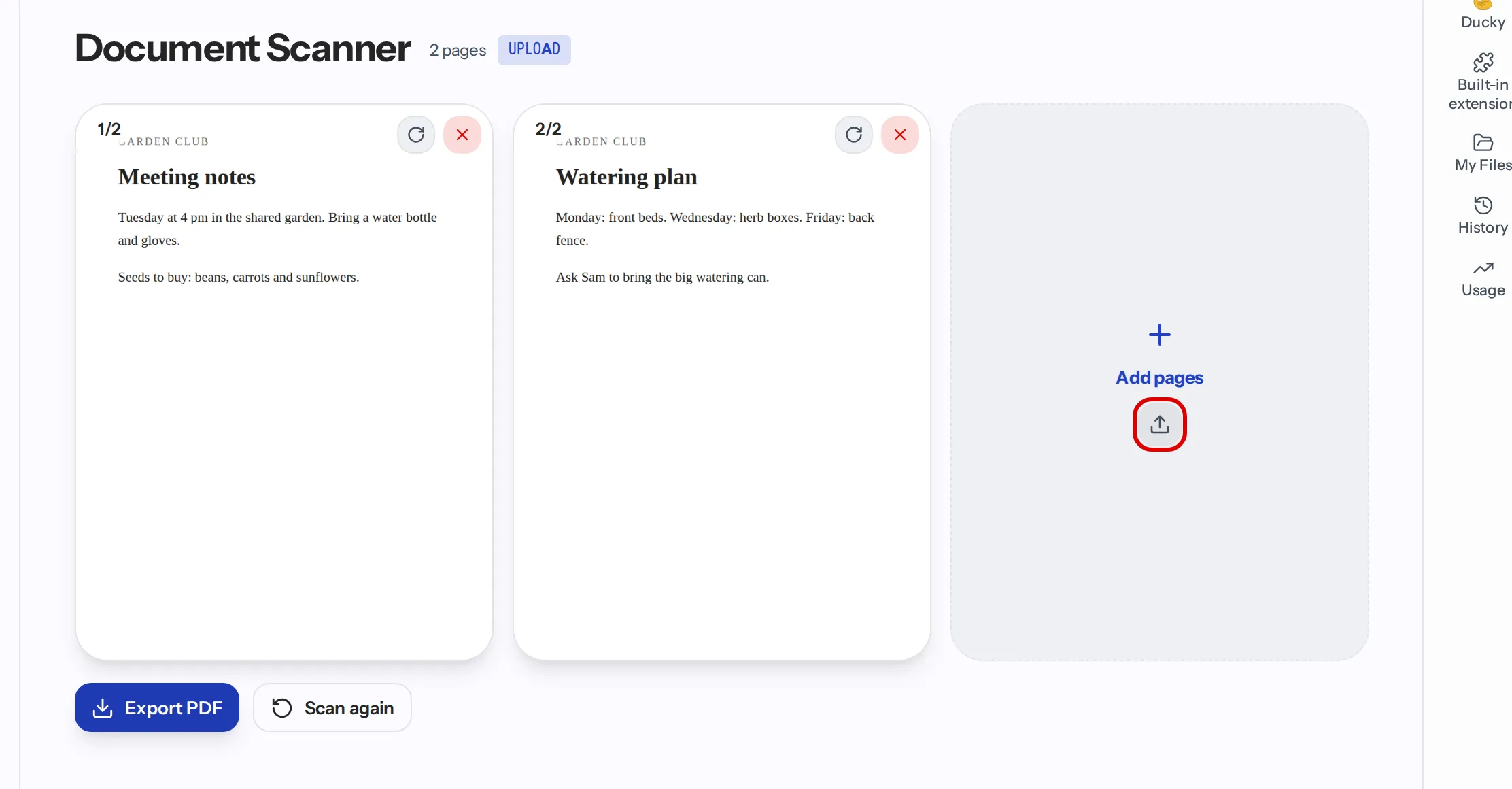
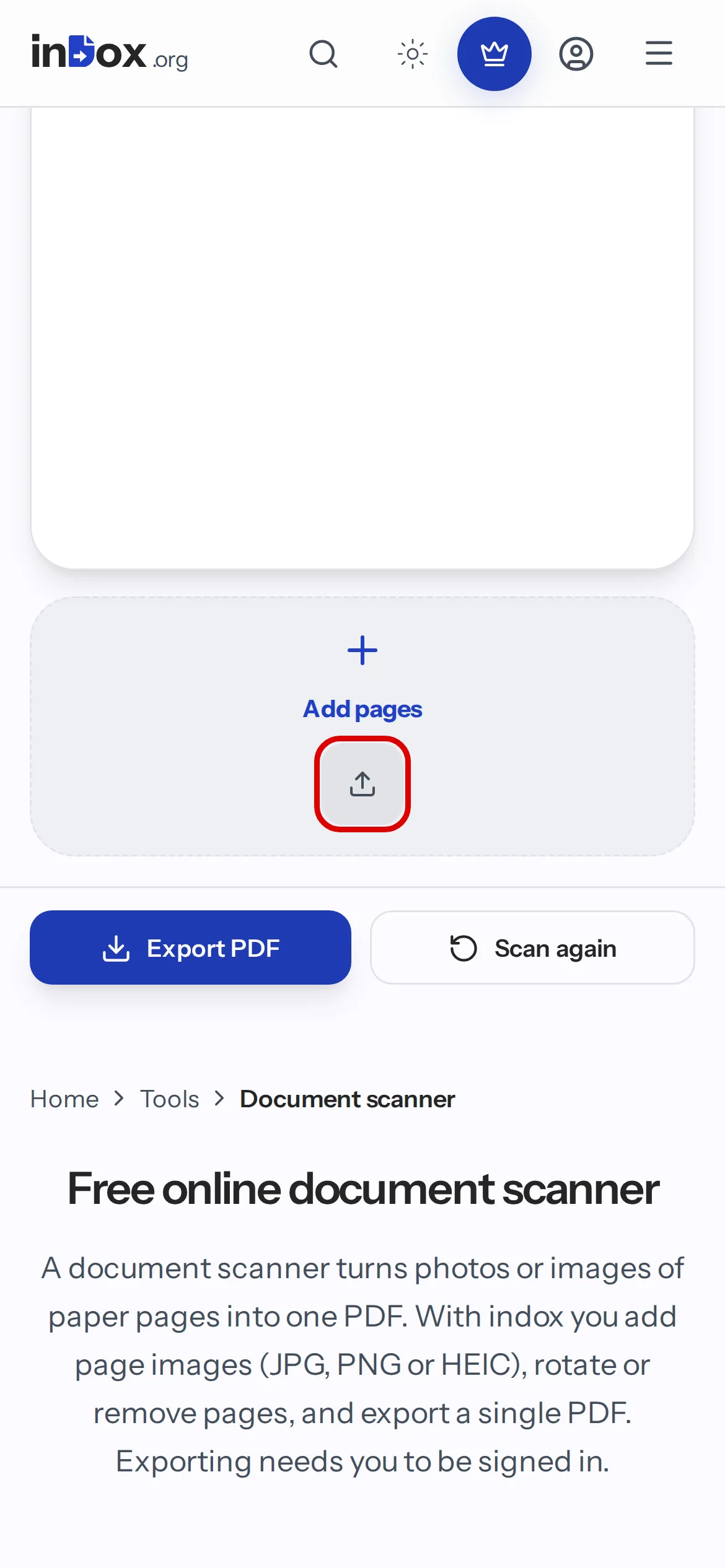
Select the small upload button under Add pages. Pick the next picture. Do this once for every page. The pages go in the order you add them, and the numbers update. On a phone, the Add pages tile sits below the last card.
Turn or remove a page
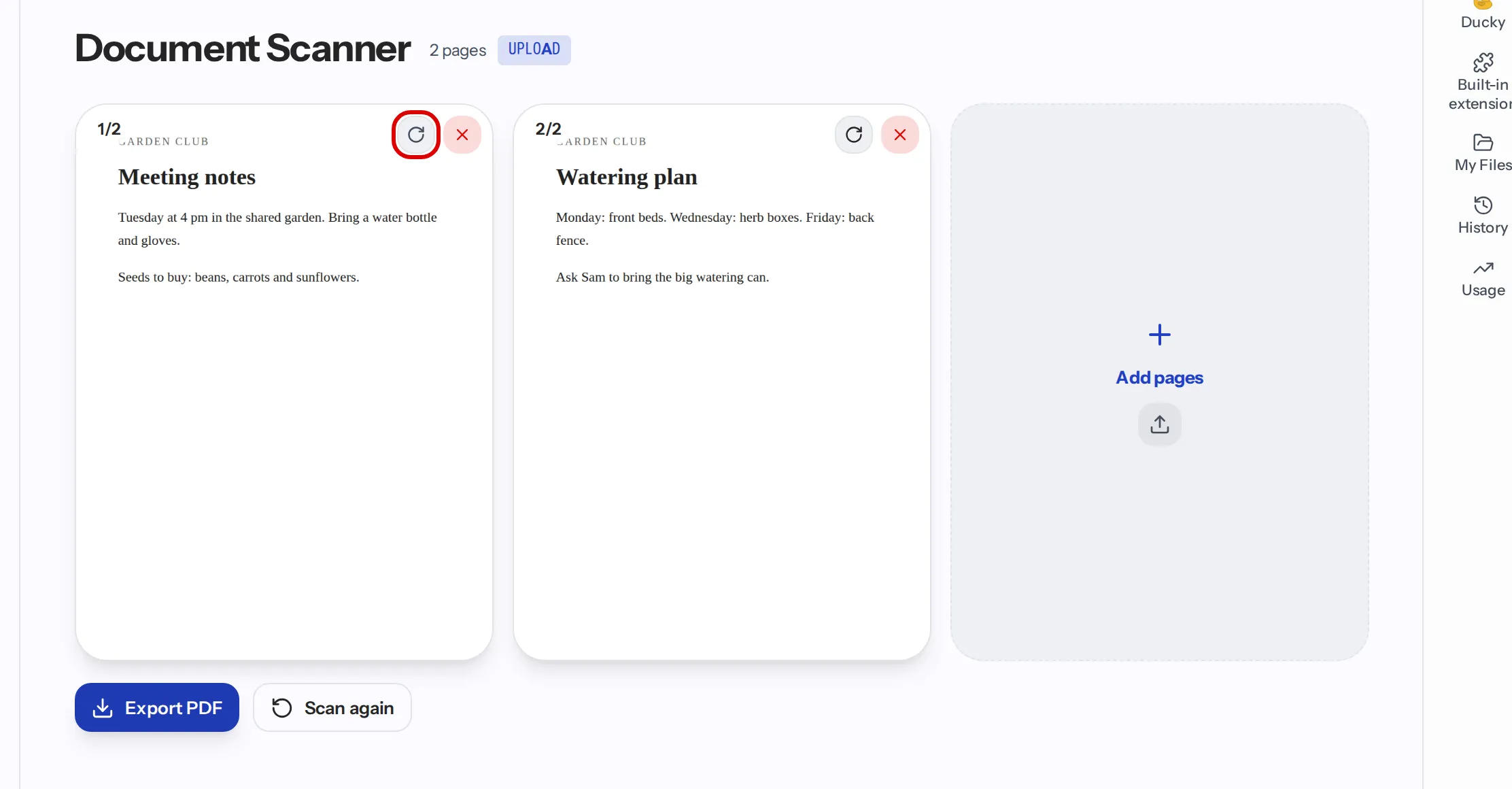
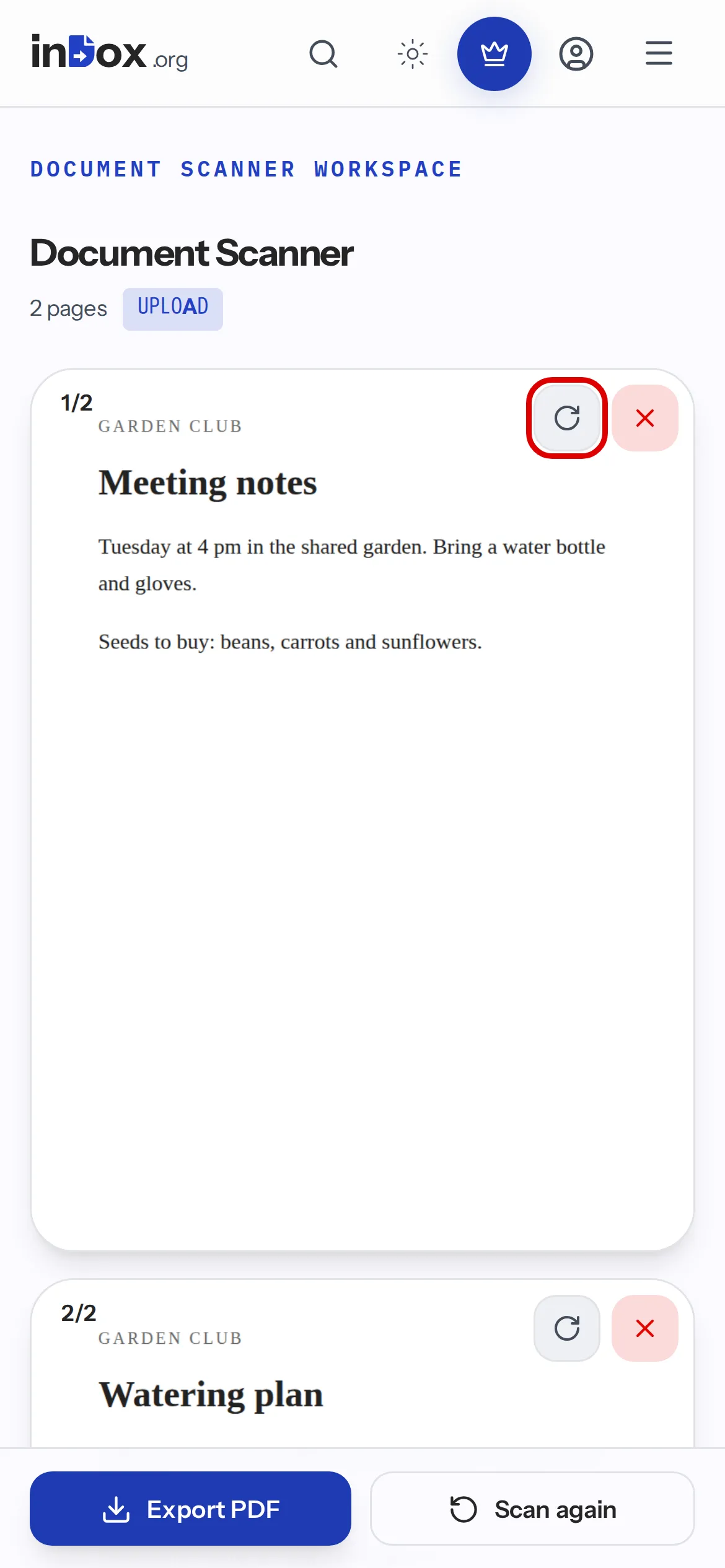
If a page sits sideways, select the round arrow at the top right of its card. Each press turns the page a quarter turn. To drop a page you do not need, select the red X next to the arrow.
Sign in, then export
Select the blue Export PDF button. If you are signed out, a red message says Exporting needs an account. Select Sign in (opens in a new tab), sign in there, then come back and select Export PDF again. Your pages stay on the screen while you sign in.
Save your PDF
Wait a few seconds. A green message says Exported 2 pages to PDF, with the number of pages you added. The PDF is saved on your device as scan.pdf. A Share button now appears next to Export PDF.
Troubleshooting
| Problem | Cause | Fix |
|---|---|---|
| Export failed. Try again. | The PDF could not be made this time | Wait a minute, then select Export PDF again. Your pages stay on the screen |
| A picture was not added | It is over the size limit, and a red message says so | Use a smaller picture. The pages you already added stay as they were |
| You want to search the text in the PDF | The pages are pictures, so the PDF has no text to search | Run Make searchable (OCR) on the new file |