Last updated
Make a faint scan readable
Before you start
- Have the PDF on your phone or computer. The upload box tells you how big a file can be.
- A scan is a paper page that was turned into a picture by a scanner or a phone camera. Old or light scans can look pale.
- Every page is redrawn as a picture, so you can't select its text afterwards.
- You don't need an account.
Open your PDF
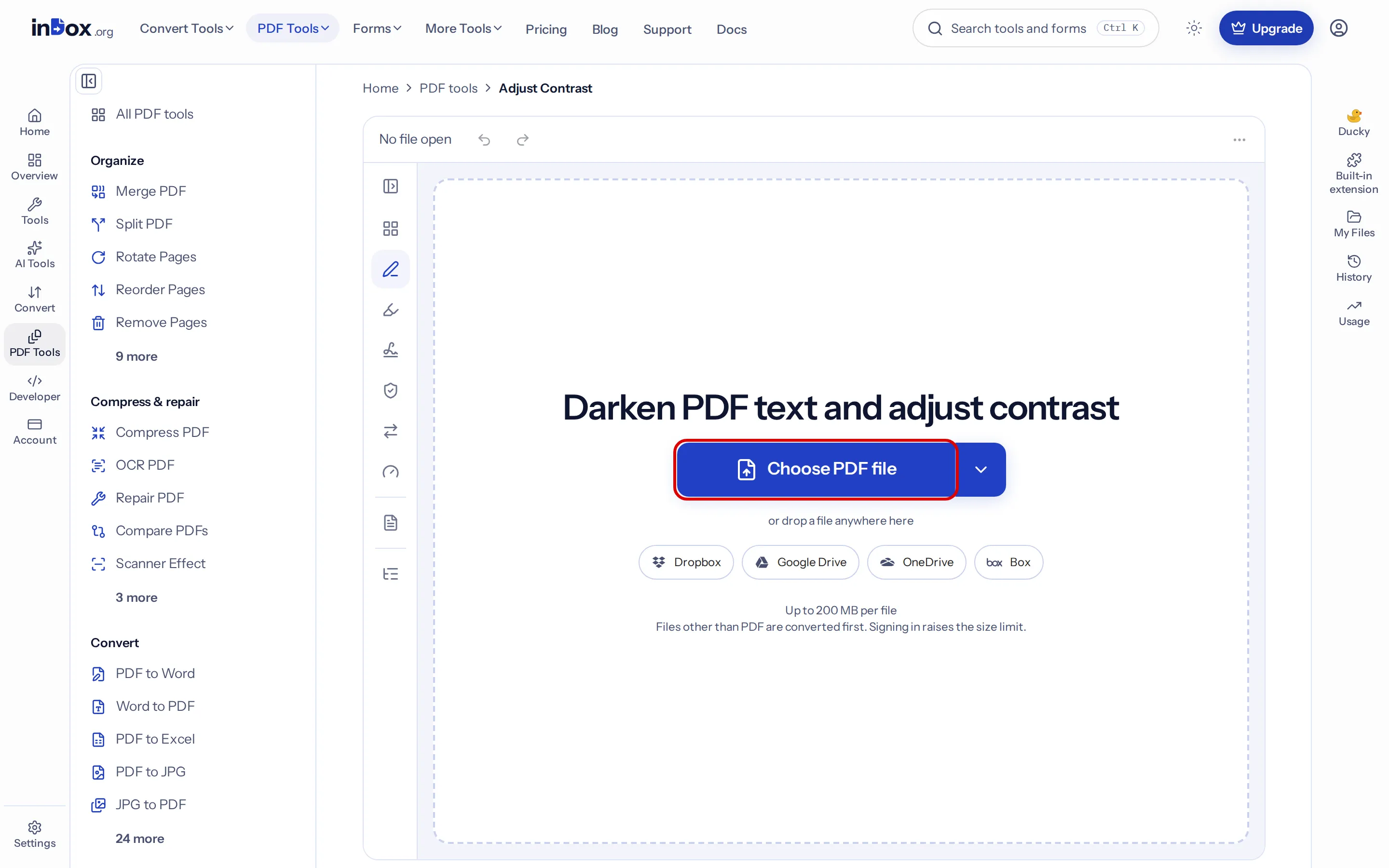
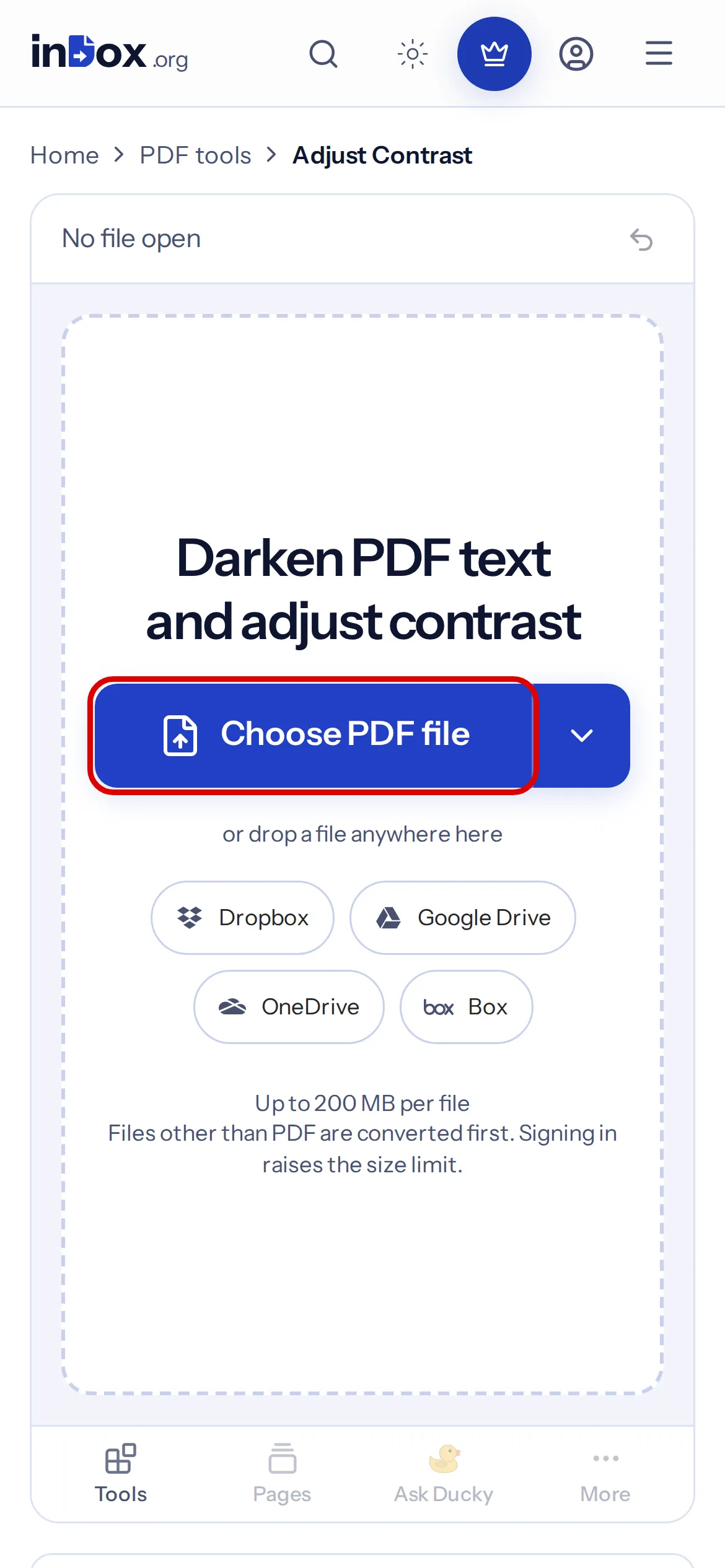
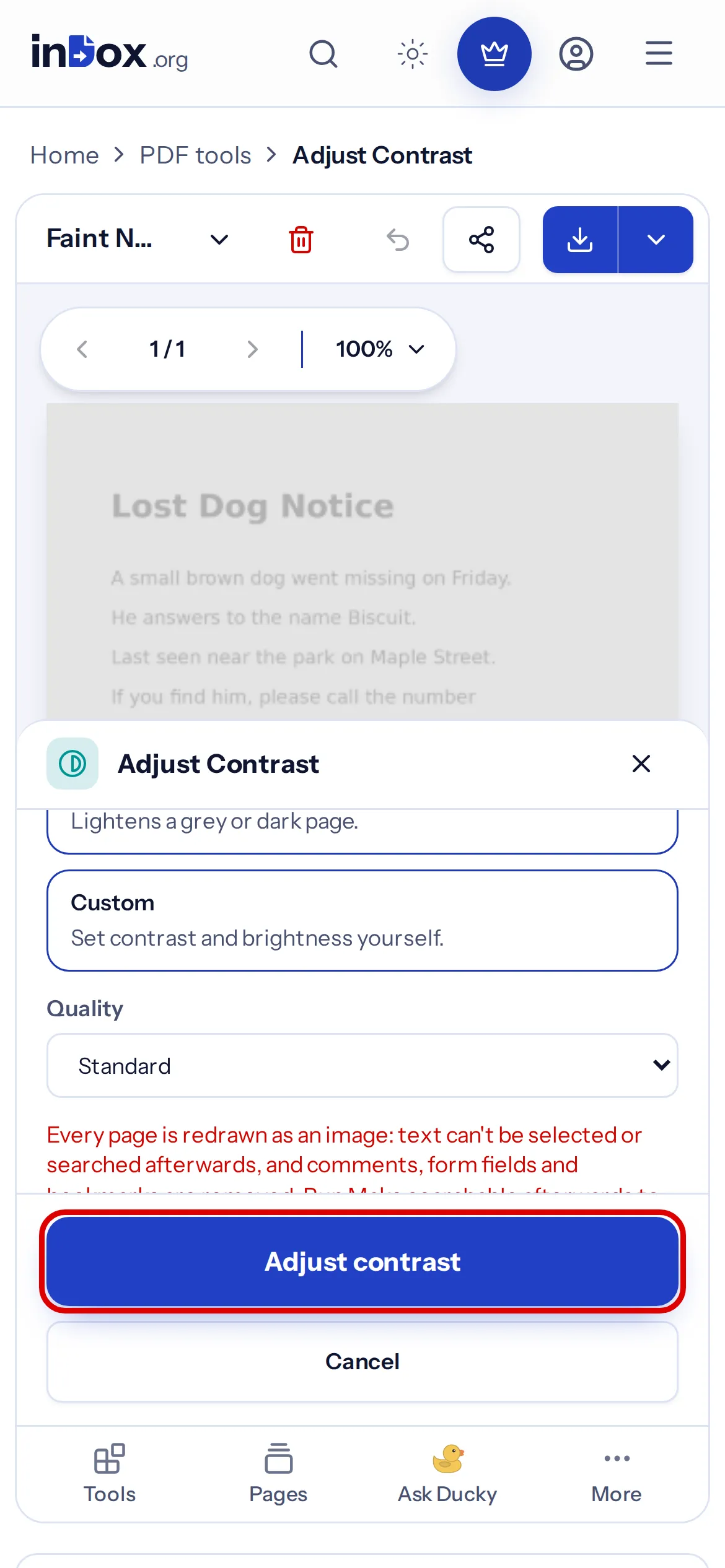
Go to the Adjust Contrast page. In the middle of the page, select the blue Choose PDF file button. A box opens so you can pick a file from your device. You can also drag a file onto the page. The file opens with a panel called Adjust Contrast. On a computer the panel is on the right. On a phone it slides up from the bottom.
Pick a starting point
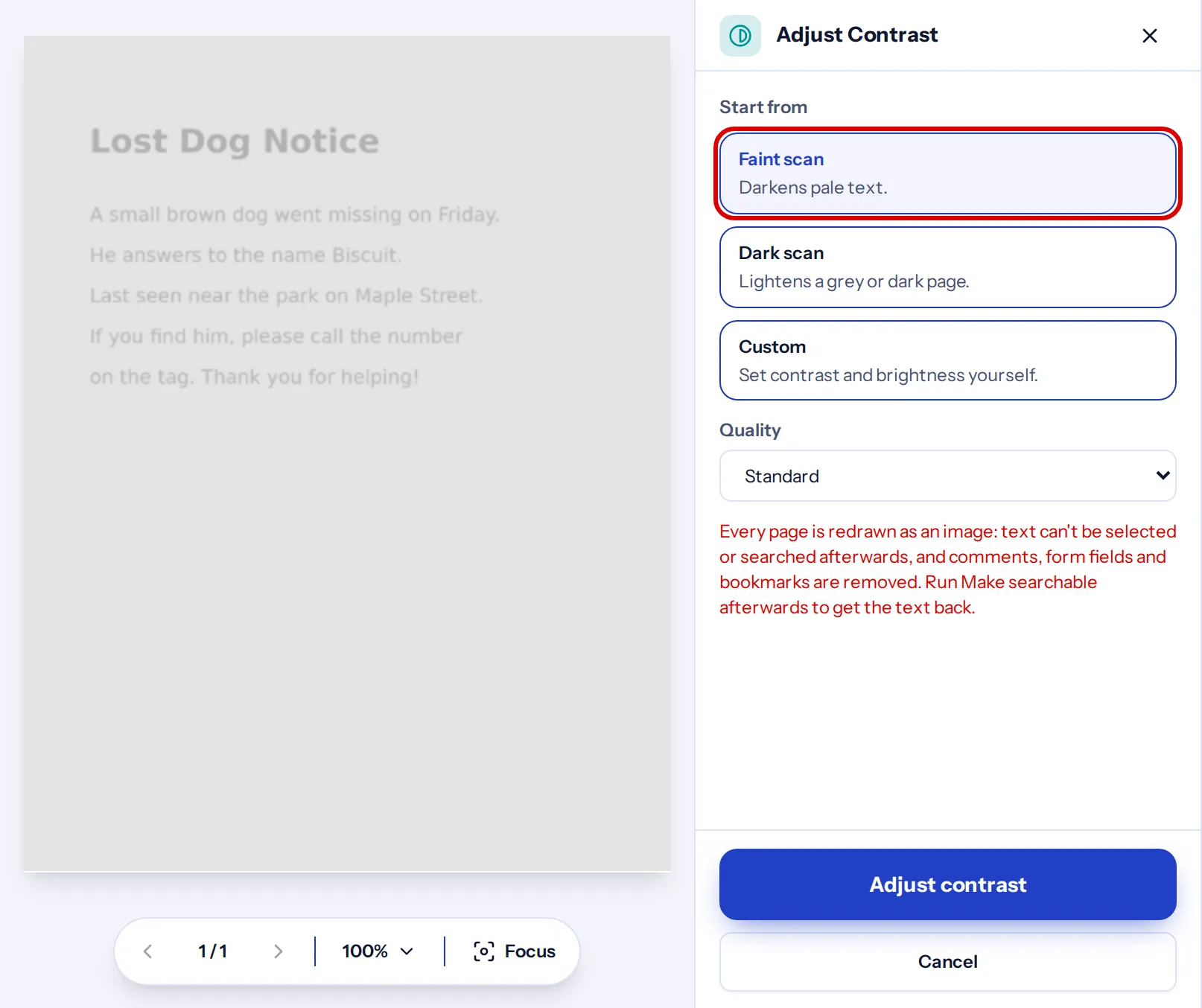
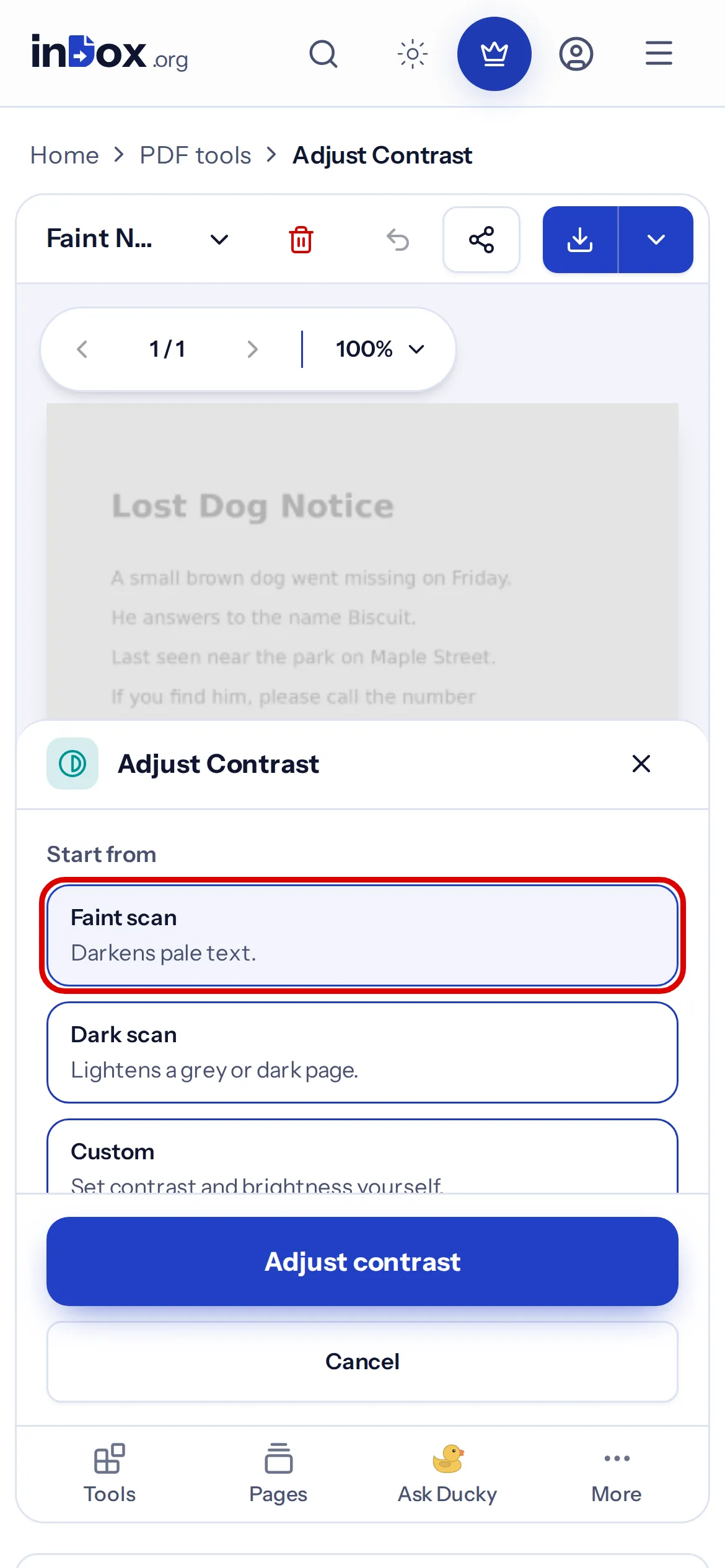
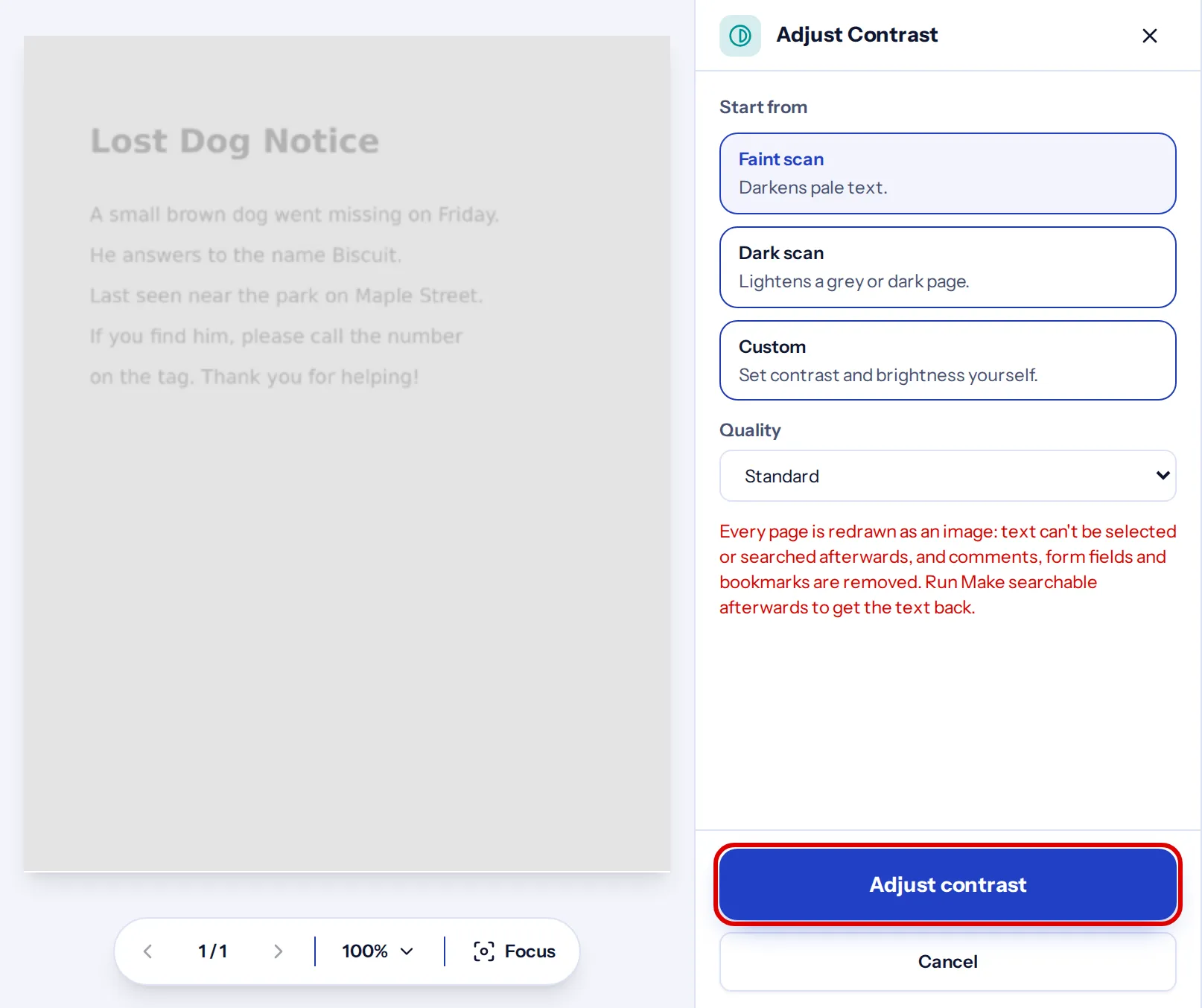
Under Start from, you see three choices. Faint scan darkens pale text. Dark scan lightens a grey or dark page. Custom lets you set the numbers yourself. Select Faint scan for a pale page.
Set your own numbers (optional)
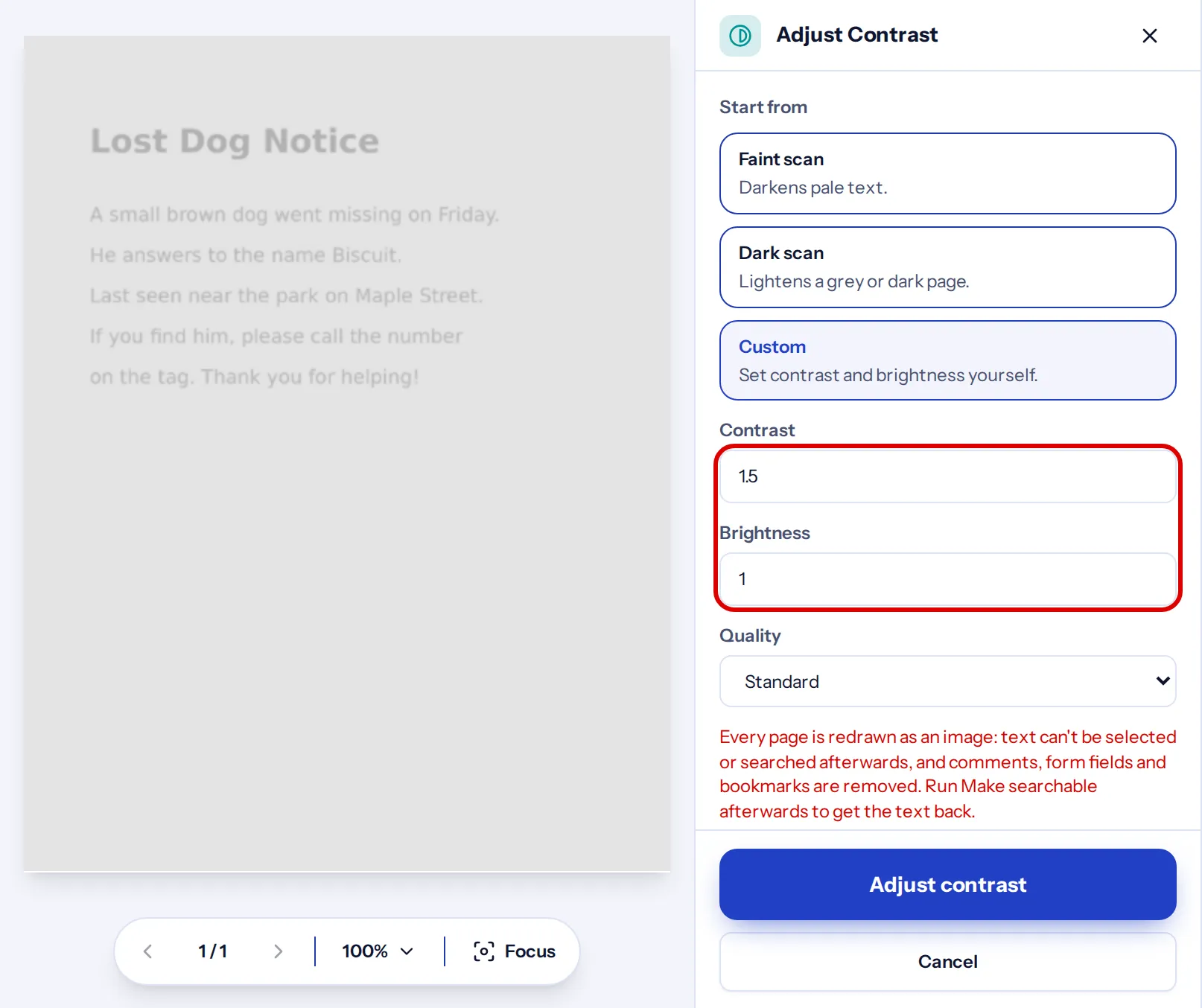
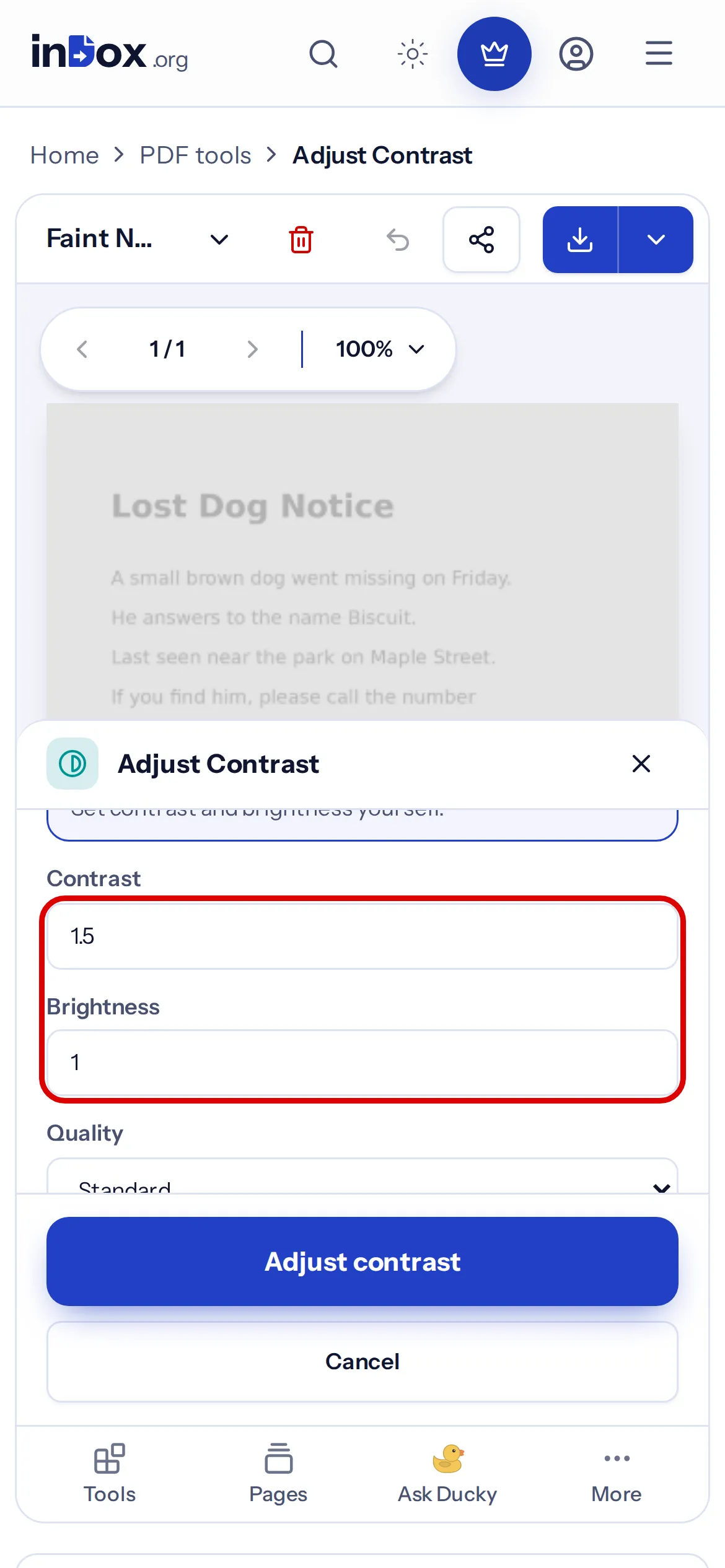
Skip this step if a ready-made choice looks right. To set the numbers yourself, select Custom. Two boxes open. Contrast is how different dark and light look. Brightness is how light the page is. Use a number from 0.1 to 3. A 1 leaves it unchanged. Then select Faint scan again if you want to go back.
Choose the quality
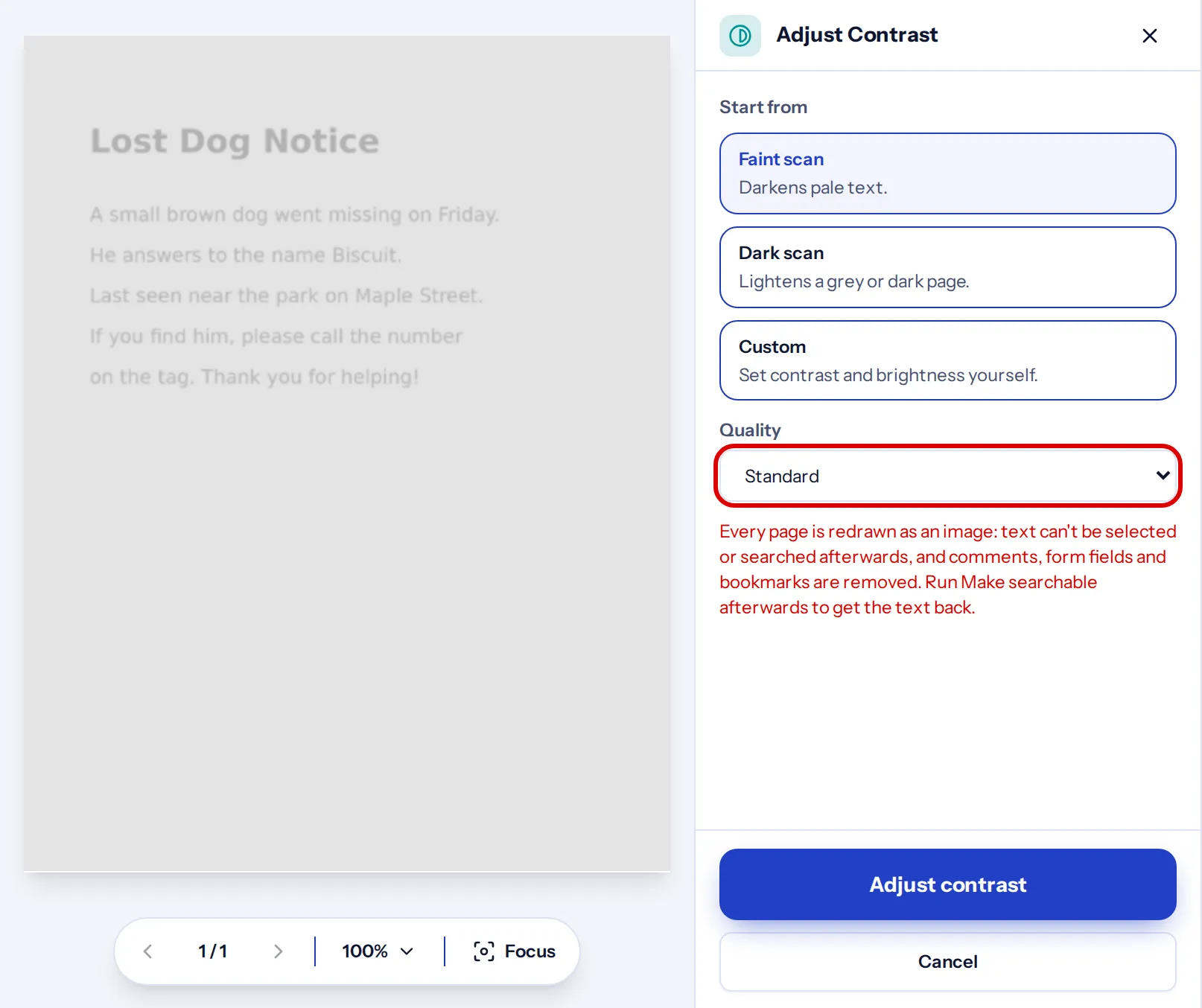
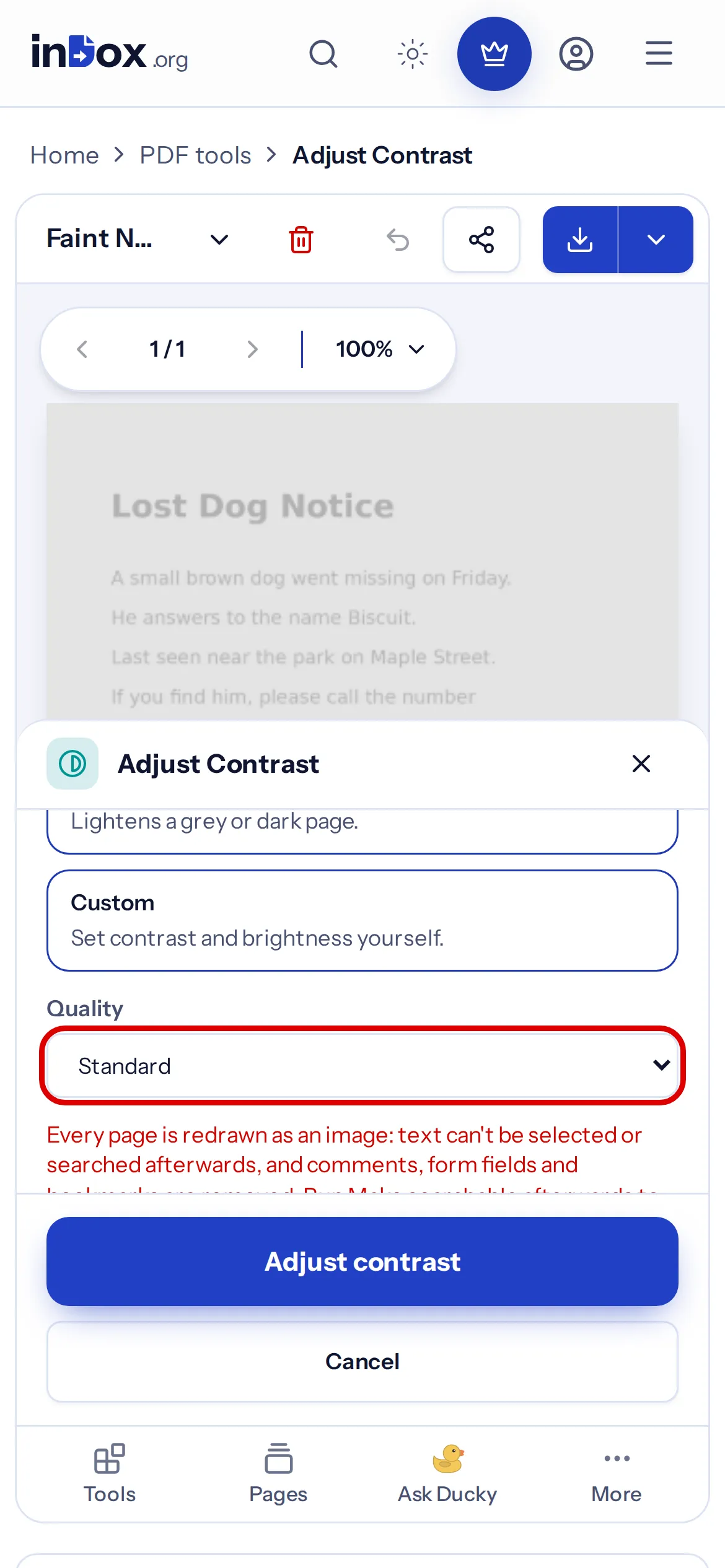
Find Quality. Pick Draft (smallest file), Standard, Sharp or Print (largest file). Standard is picked at the start. A sharper choice makes a bigger file.
Adjust the contrast
Select the blue Adjust contrast button at the bottom of the panel. Wait a moment. A red note under the list says every page is redrawn as a picture. You can't select or search the text afterwards, and comments, form fields and bookmarks are removed.
Download your PDF
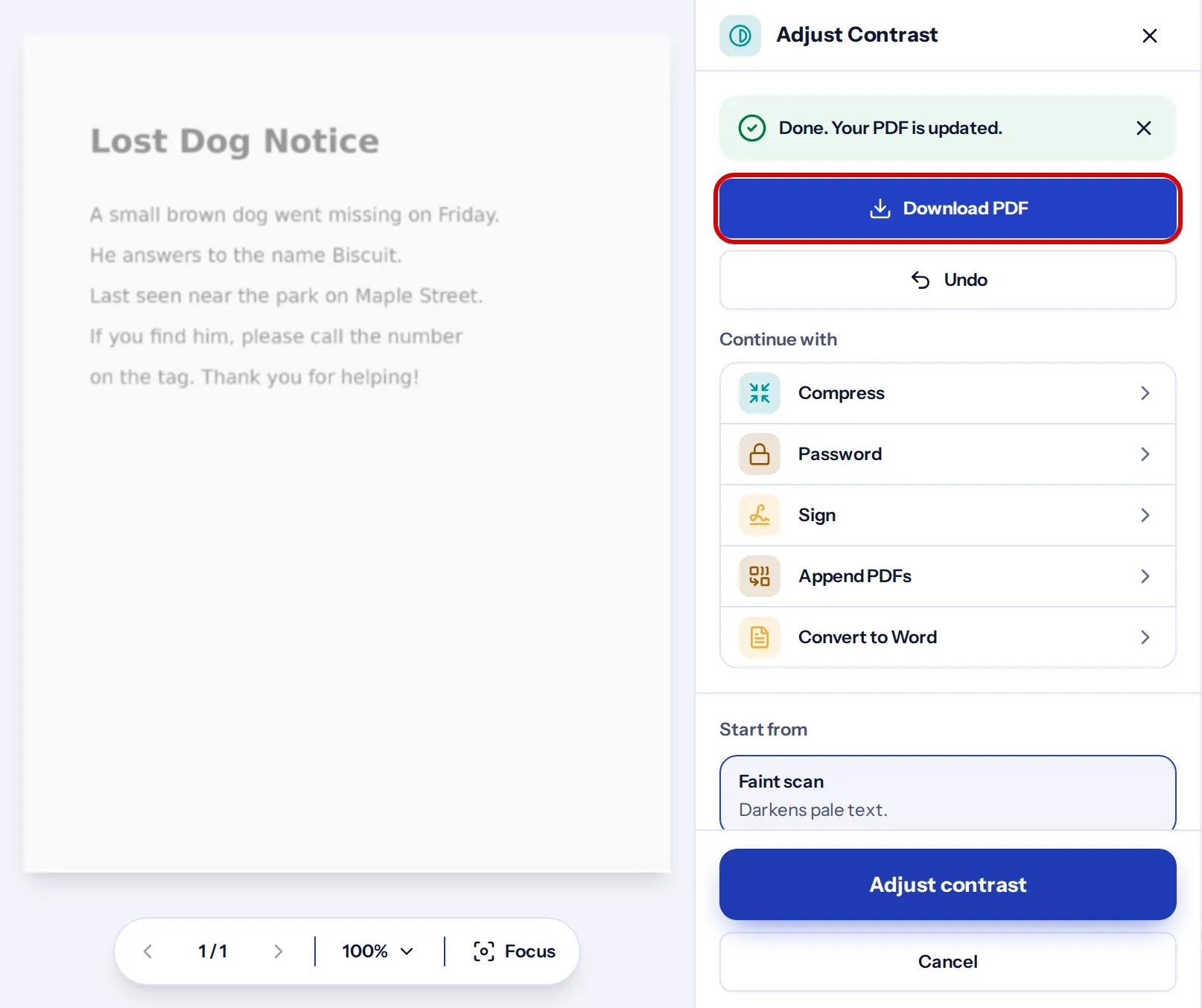
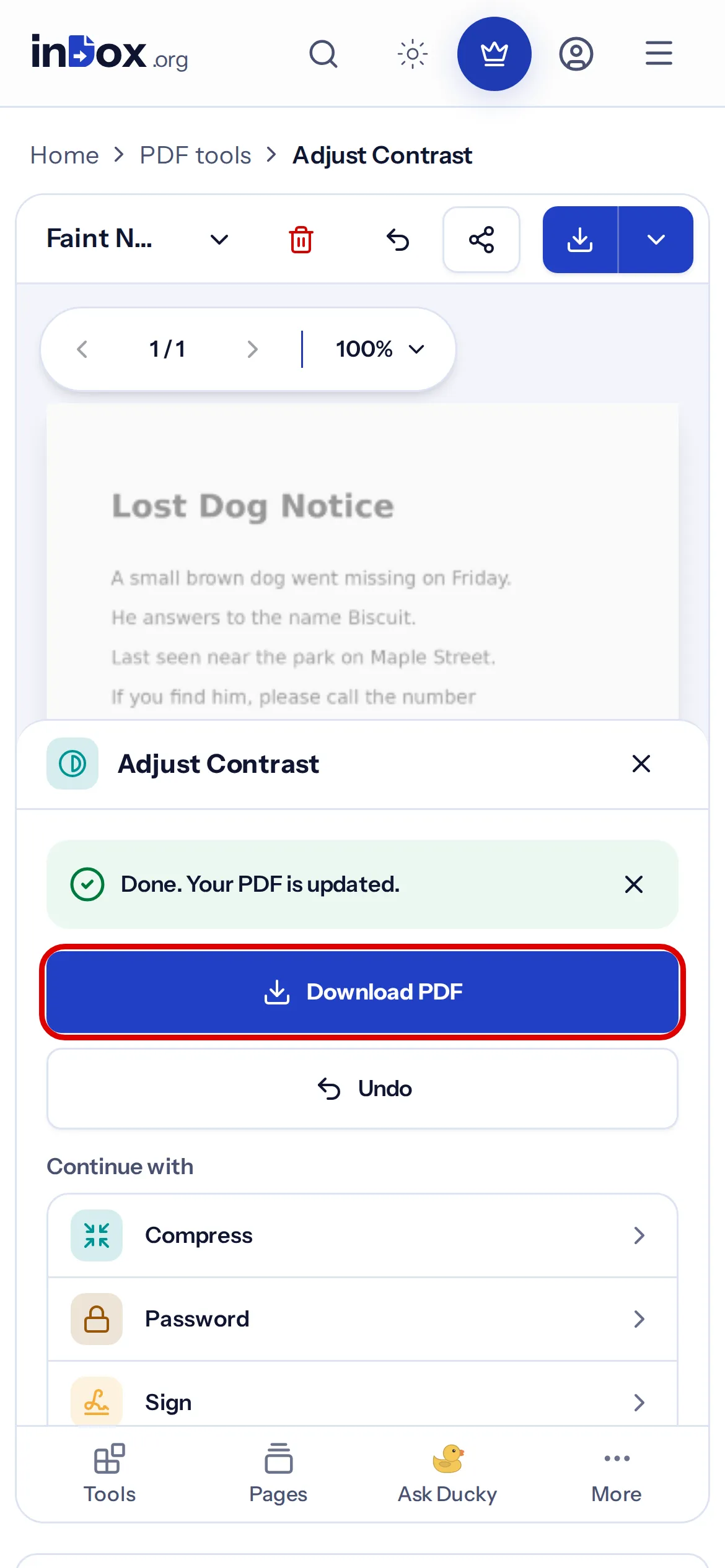
The panel says Done. Your PDF is updated. The page on the left now has darker text. A warning also says some pages were turned into images. Select the blue Download PDF button. The new file is saved on your device. Its name ends in -edited.
Troubleshooting
| Problem | Cause | Fix |
|---|---|---|
| The text is still too faint | The ready-made choice was not strong enough | Select Undo, pick Custom, raise Contrast a little and run it again |
| The panel says to use a number from 0.1 to 3 | A number in Contrast or Brightness is out of range | Type a number from 0.1 to 3. A 1 leaves it unchanged |
| You can't select the text any more | Every page was redrawn as a picture | Run Make searchable (OCR) on the new file to get the text back |
| You want the original page back | The new PDF replaces the one on screen | Select Undo next to Download PDF |