Last updated
Extract text from a web page with OCR in the INDOX extension
Goal: The words from a picture of a web page, copied or saved in a text file.
Before you start
- The INDOX extension added to Chrome on a computer, and a signed-in INDOX account.
- OCR means the computer reads the words in a picture. Reading a picture uses credits.
Start the capture
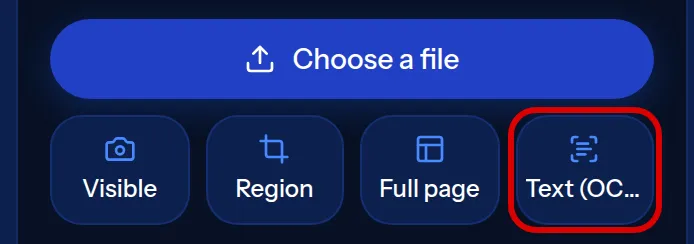
Open the web page with the words you want. In the INDOX side panel, select Text (OCR), under Choose a file. The panel takes a picture of the part of the page you can see. The tab at the edge of the page has the same button, Extract text (OCR).
Select Convert
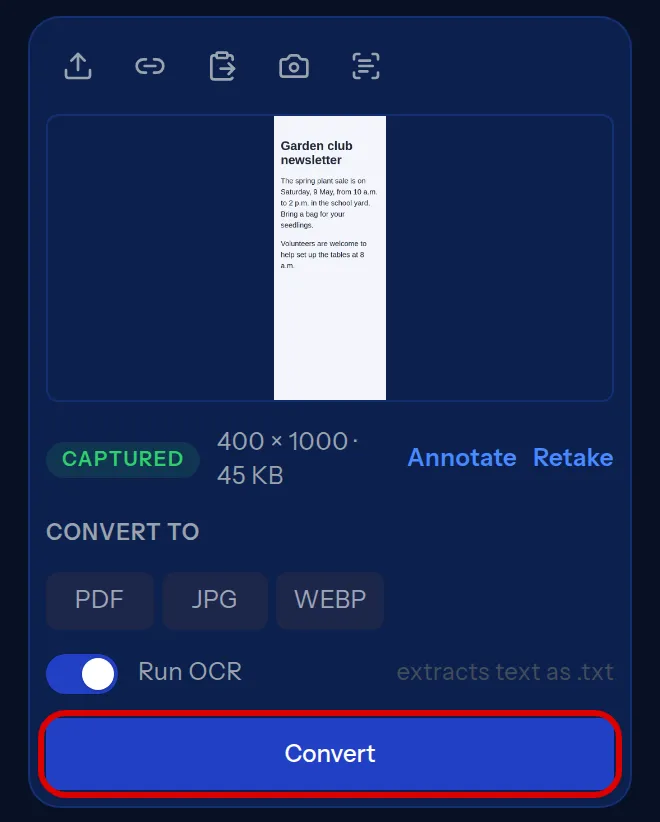
The panel shows your picture and the word CAPTURED. Run OCR is switched on and says extracts text as .txt. Select Convert.
Read the words
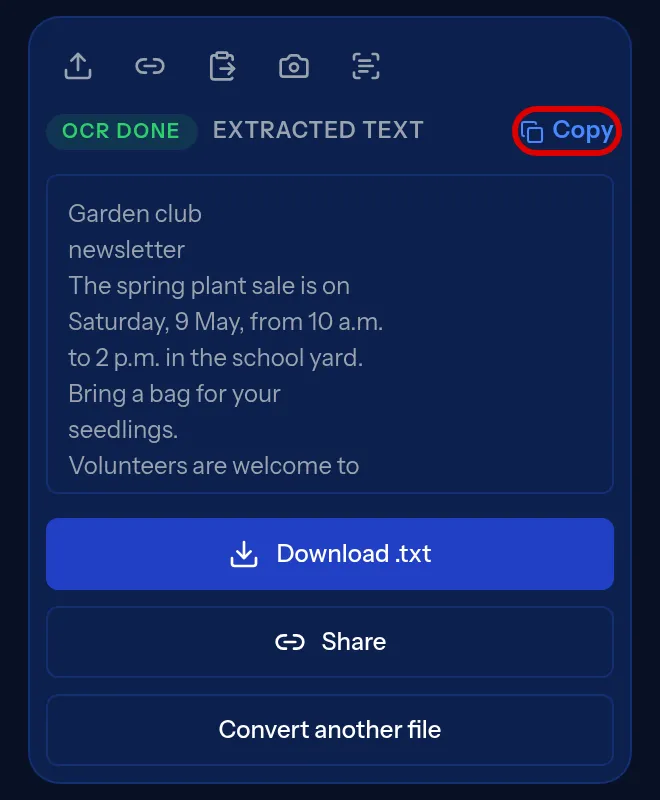
Wait a moment. The panel says Conversion started, then OCR DONE with EXTRACTED TEXT under it. Read the text through. Small or blurry words can come out wrong. To copy the words, select Copy.
Save the words in a file
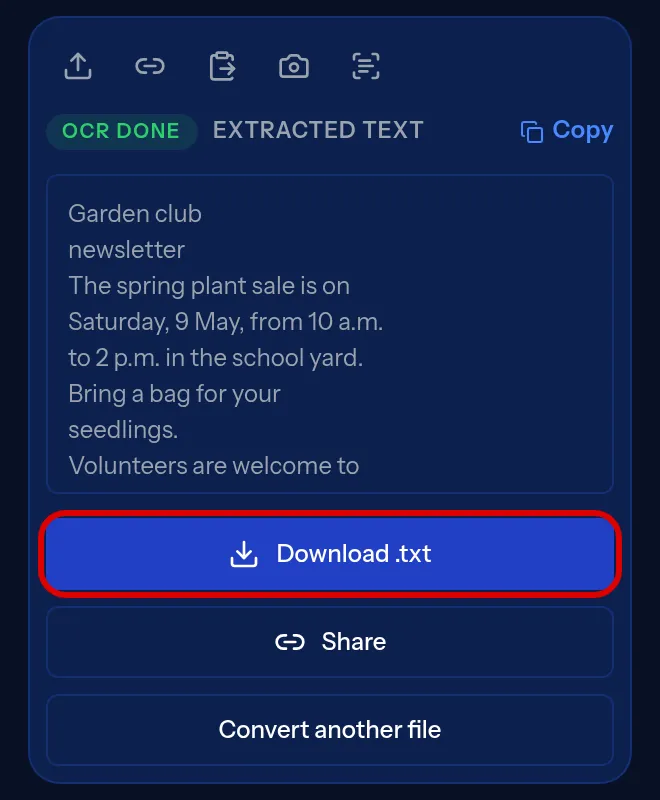
To keep the words, select Download .txt. Chrome saves a text file.
Troubleshooting
| Problem | Cause | Fix |
|---|---|---|
| Some words are wrong | The words in the picture are small or blurry | Zoom the page in so the words are bigger, then take the capture again. |
| The panel shows Get started instead of the buttons | You are not signed in | Select Sign in, then start again. |