Last updated
Check your credits and usage
Before you start
- You need to be signed in to indox.org.
- Credits are what indox spends when you convert a file or use an AI tool.
Open the Usage page
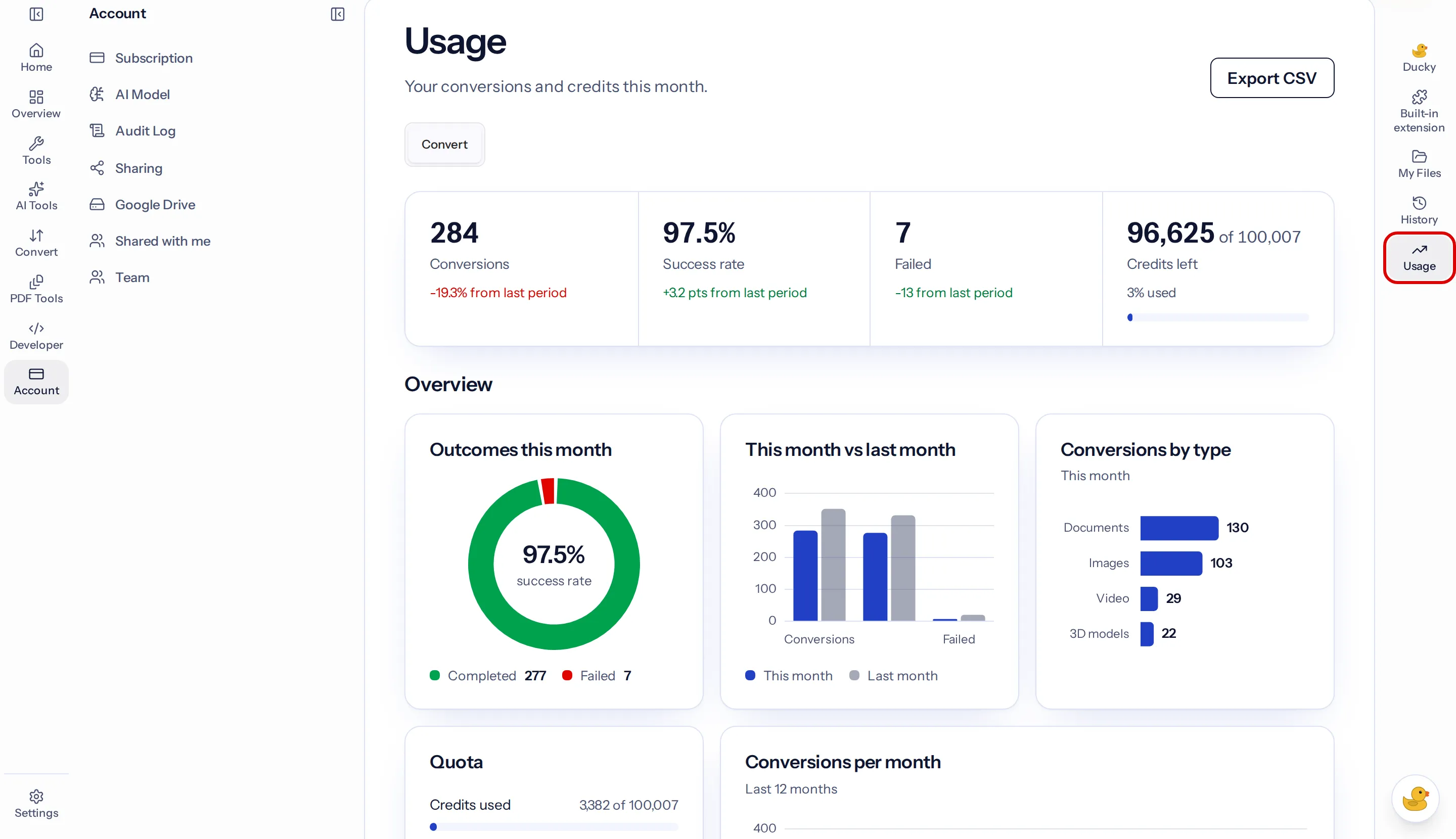
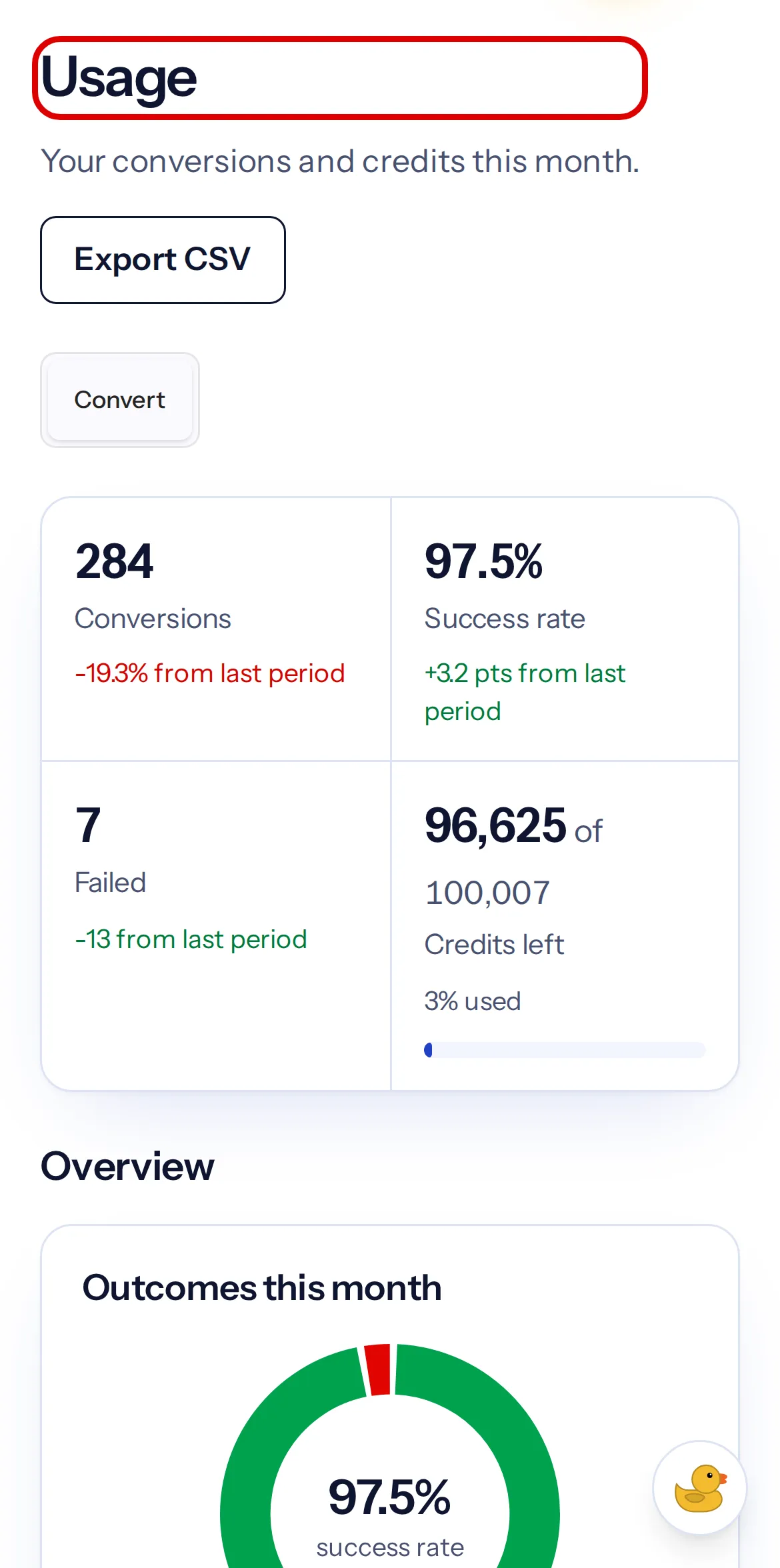
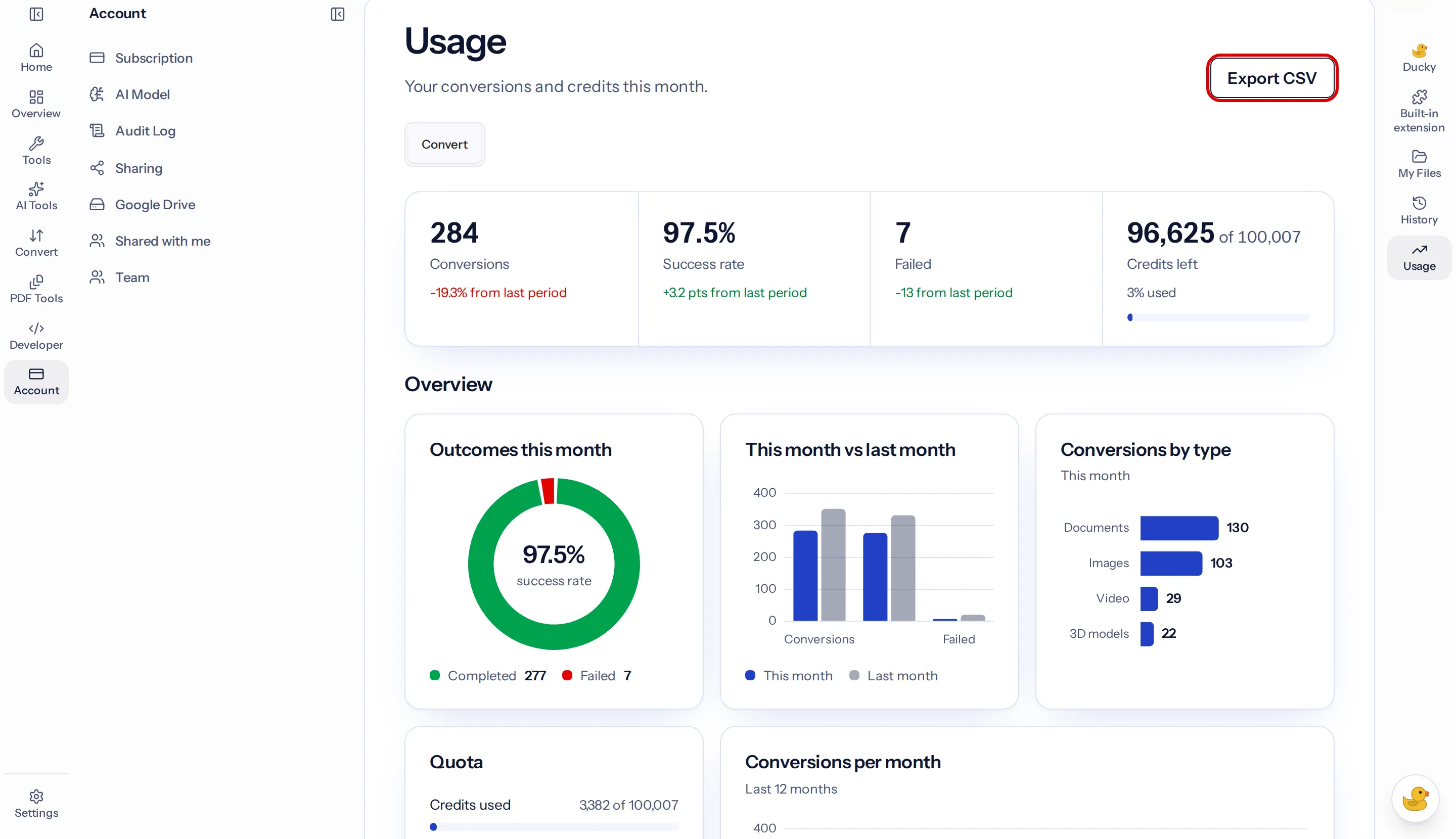
Go to the Usage page. On a computer, you can also select Usage in the bar on the right. The page is called Usage, and the text under the title says Your conversions and credits this month.
Read the number boxes at the top
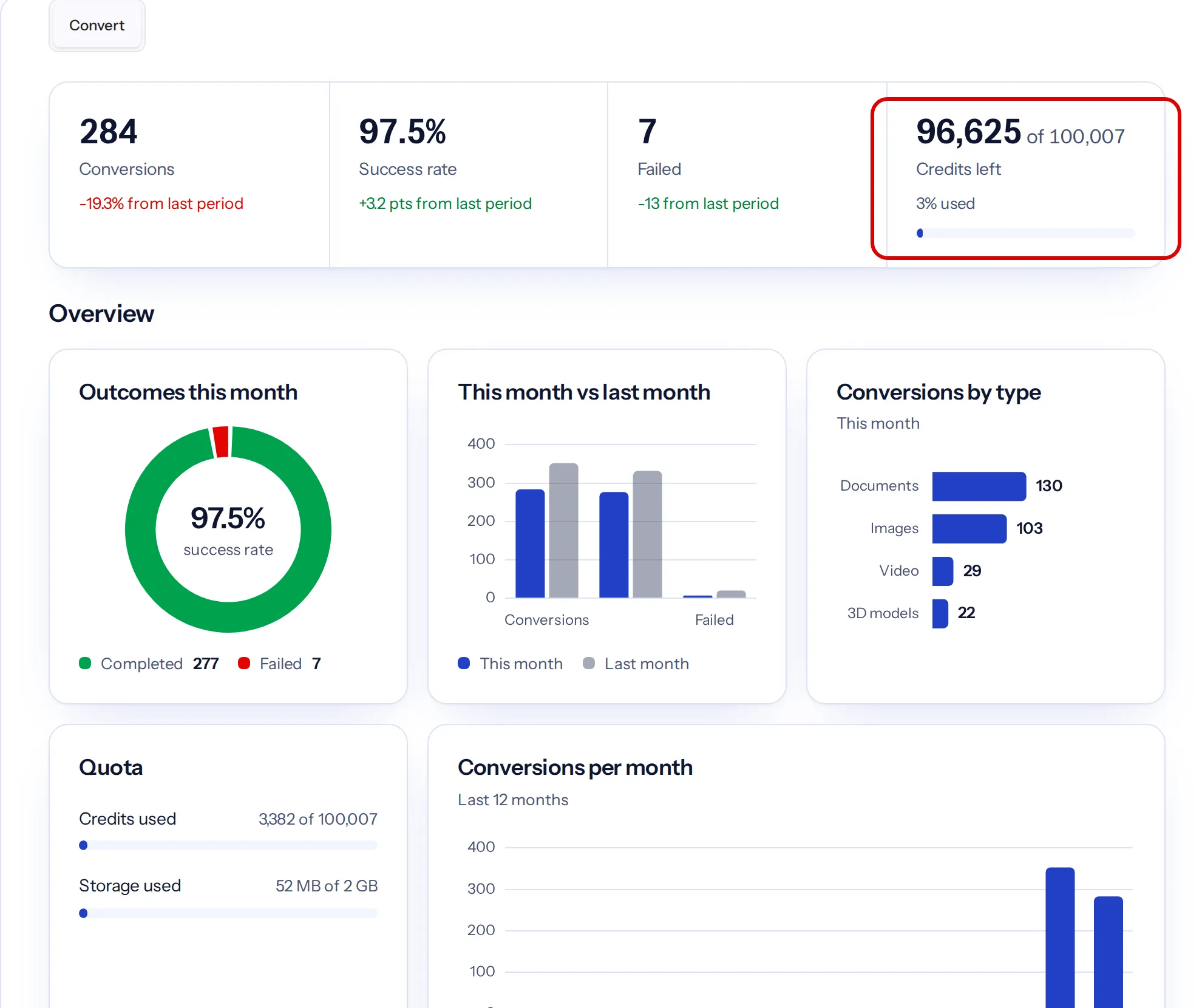
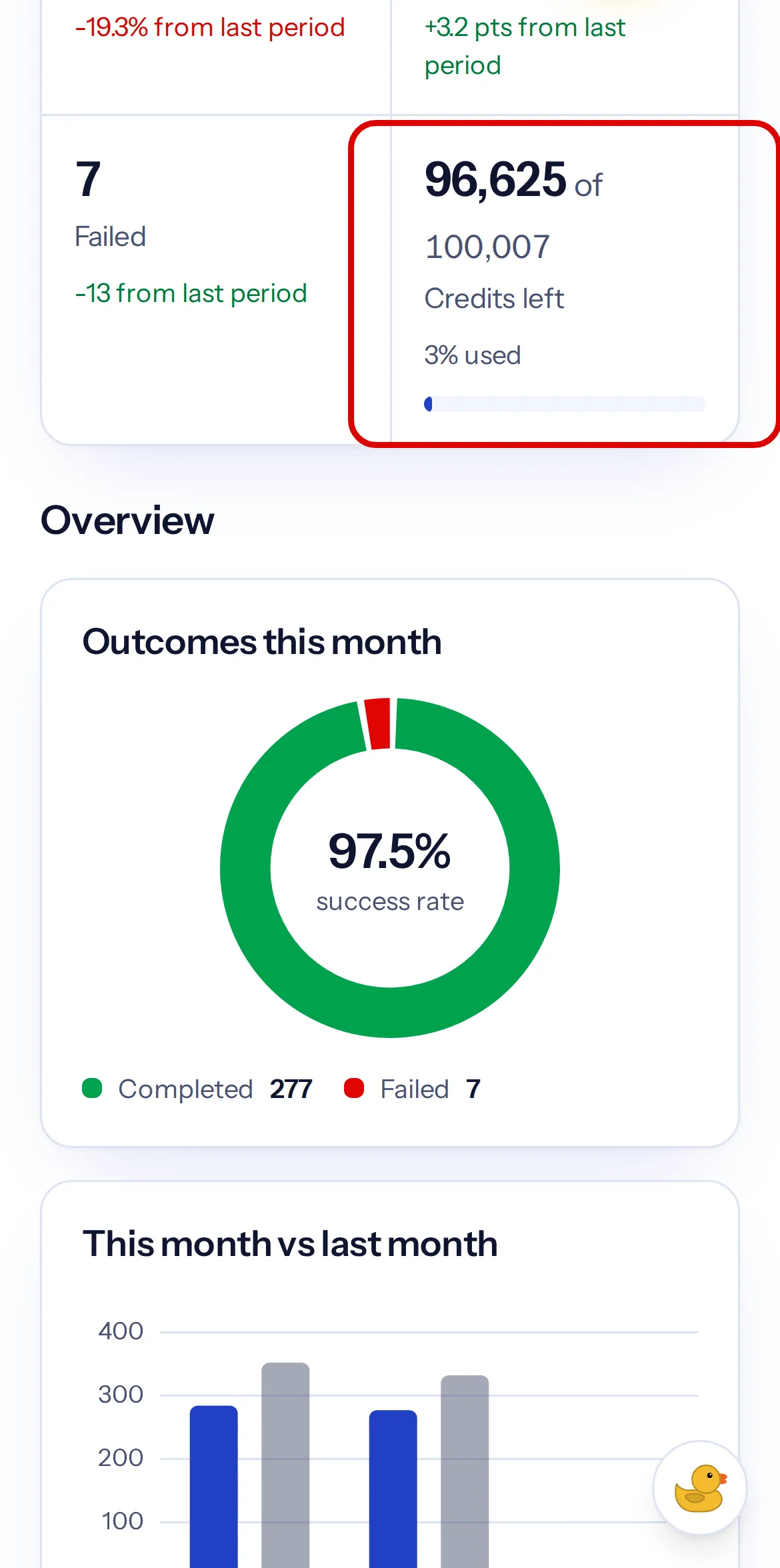
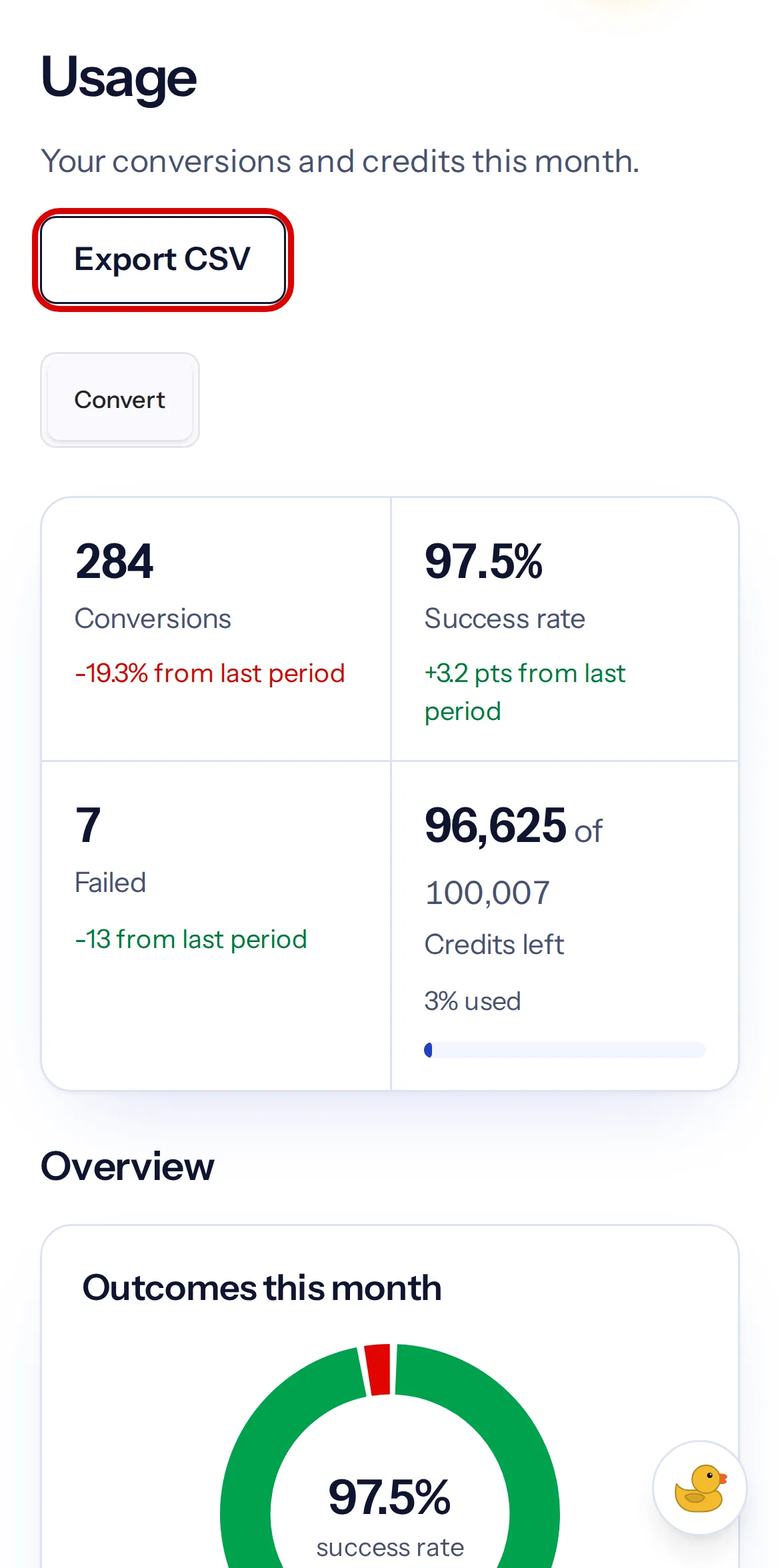
Near the top are boxes for Conversions, Success rate, Failed and Credits left. Credits left shows how many credits you have now and how many you have in all, with a bar for the part you used. The other boxes show how this month compares with last month.
Find the Quota box
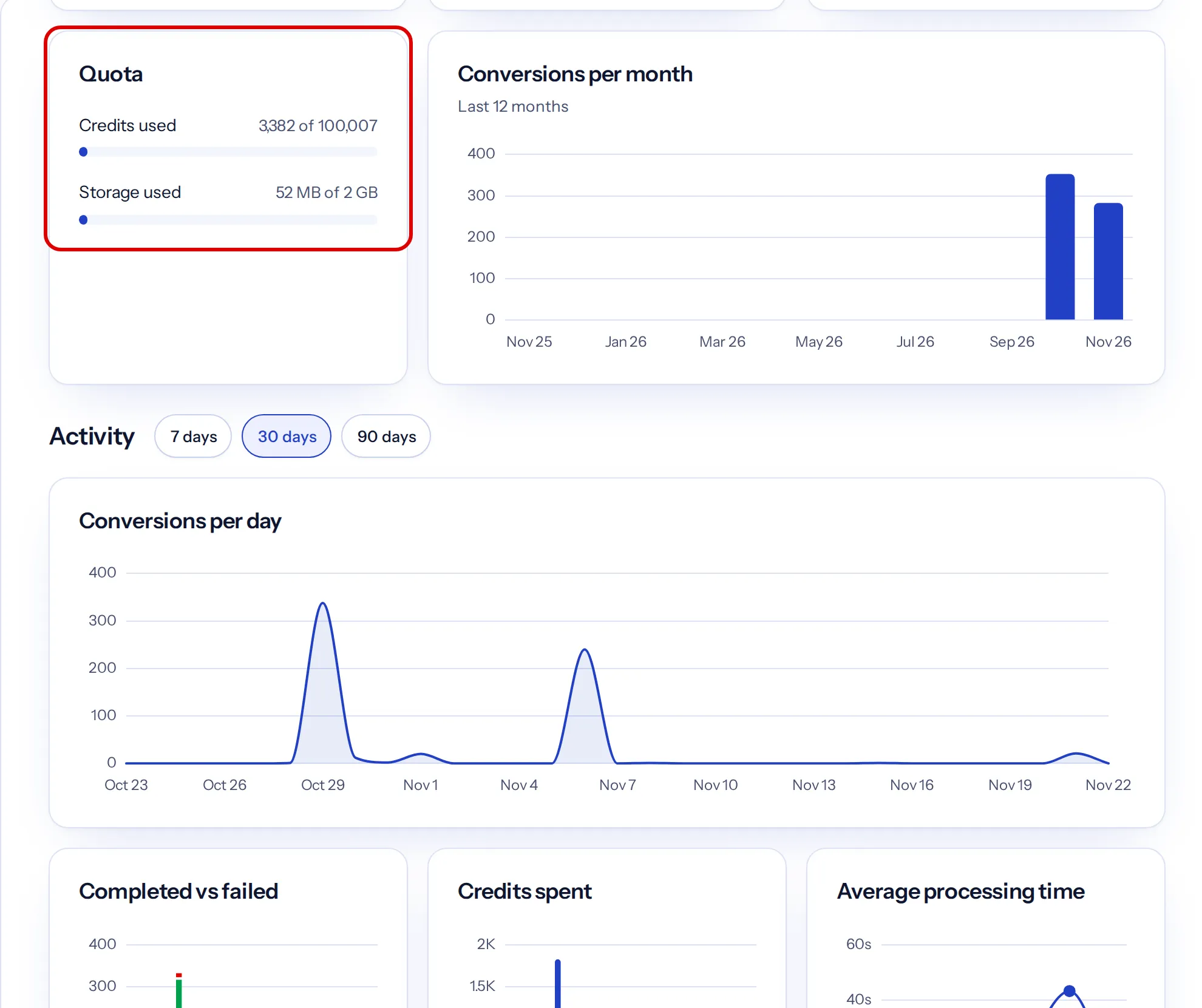
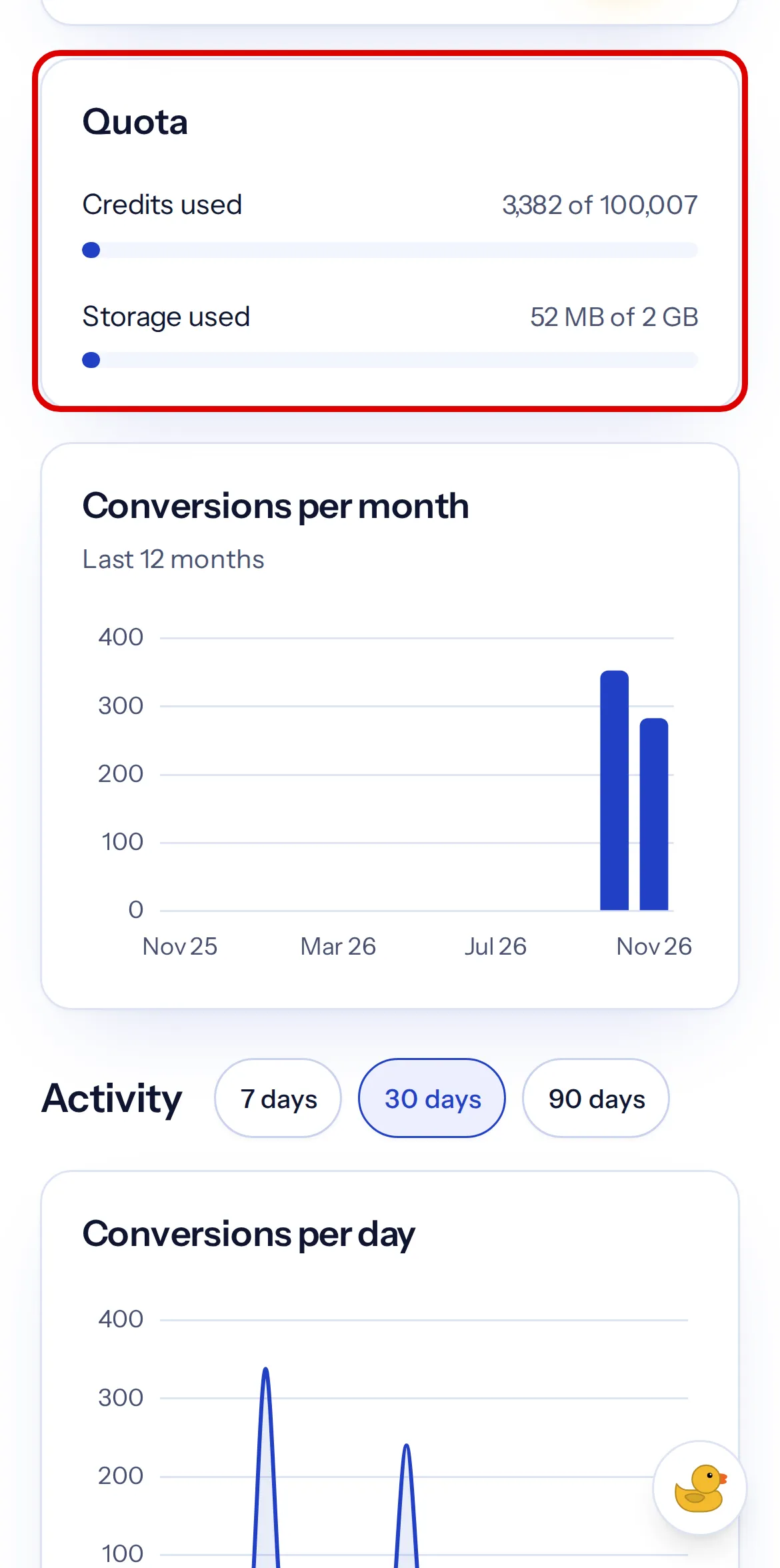
Scroll down to the box called Quota. Credits used shows the credits you spent out of your total. Storage used shows how much file space you use.
Pick how many days to look at
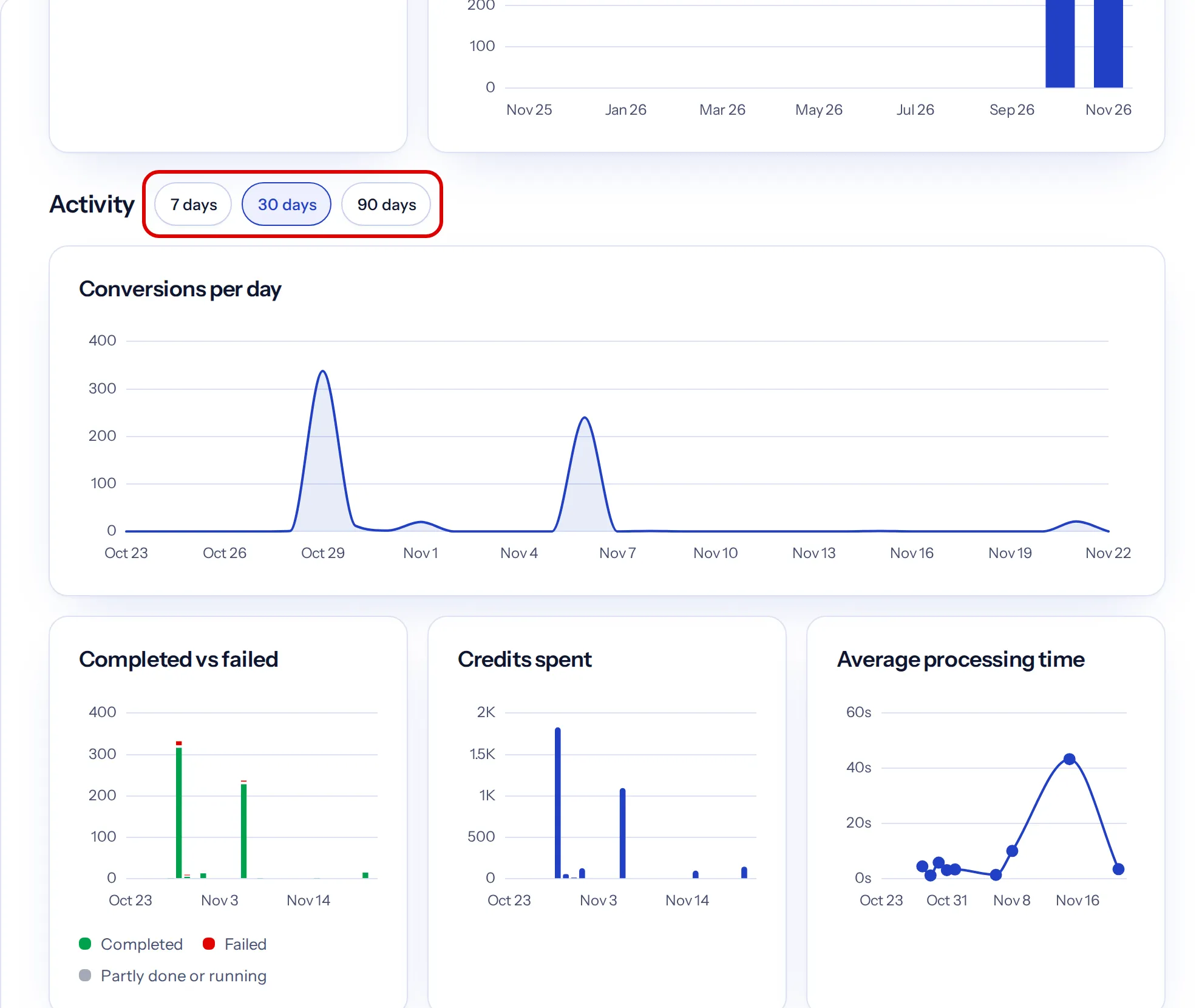
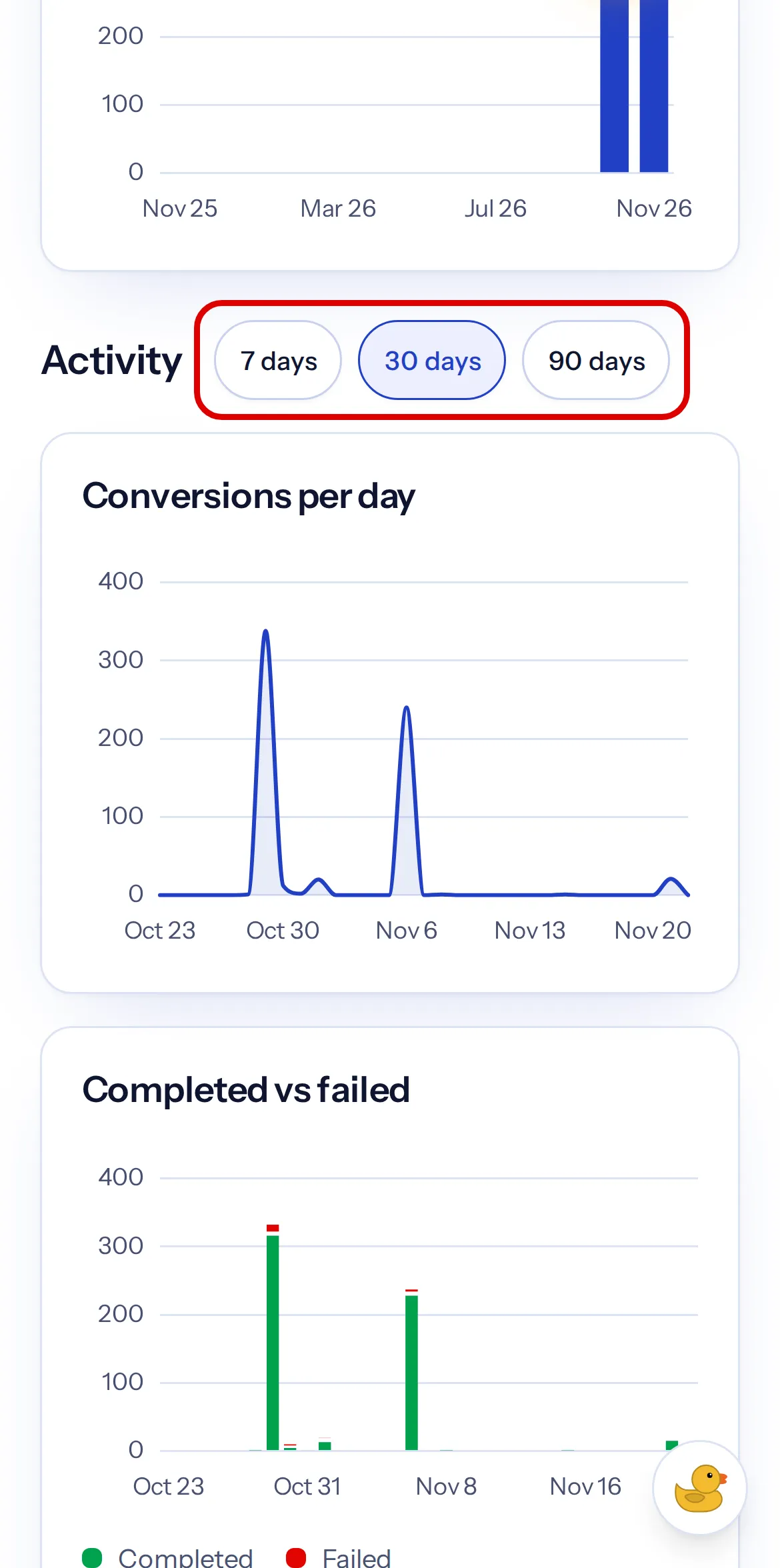
Further down is a row called Activity. Select 7 days, 30 days or 90 days. The charts below show your conversions each day, how many finished or failed, the Credits spent each day, and the average time a file took.
Download your usage if you want a copy
Scroll back to the top and select Export CSV. A file named usage with today's date downloads. A CSV file is a simple table that opens in a spreadsheet app.
See where your credits went
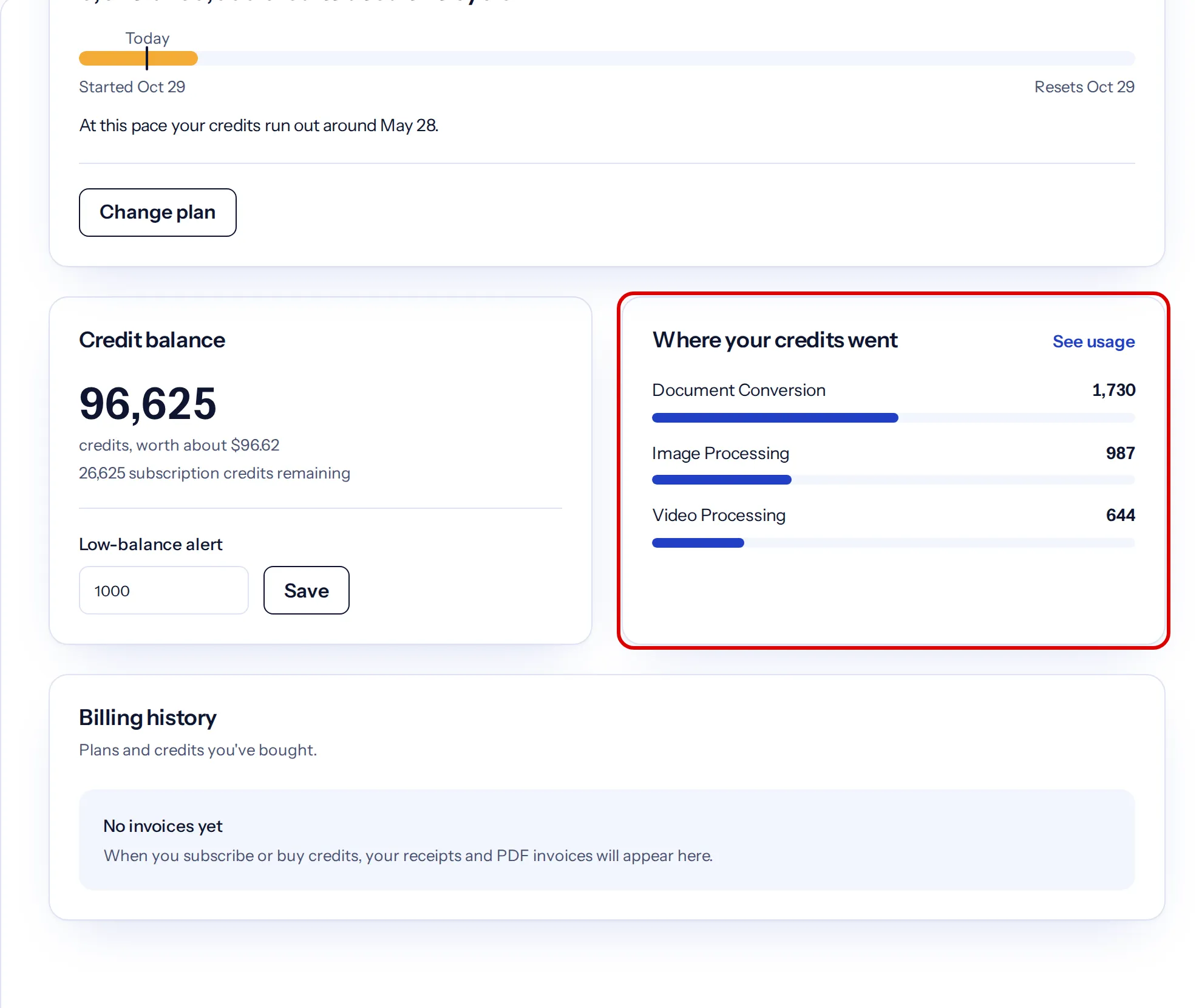
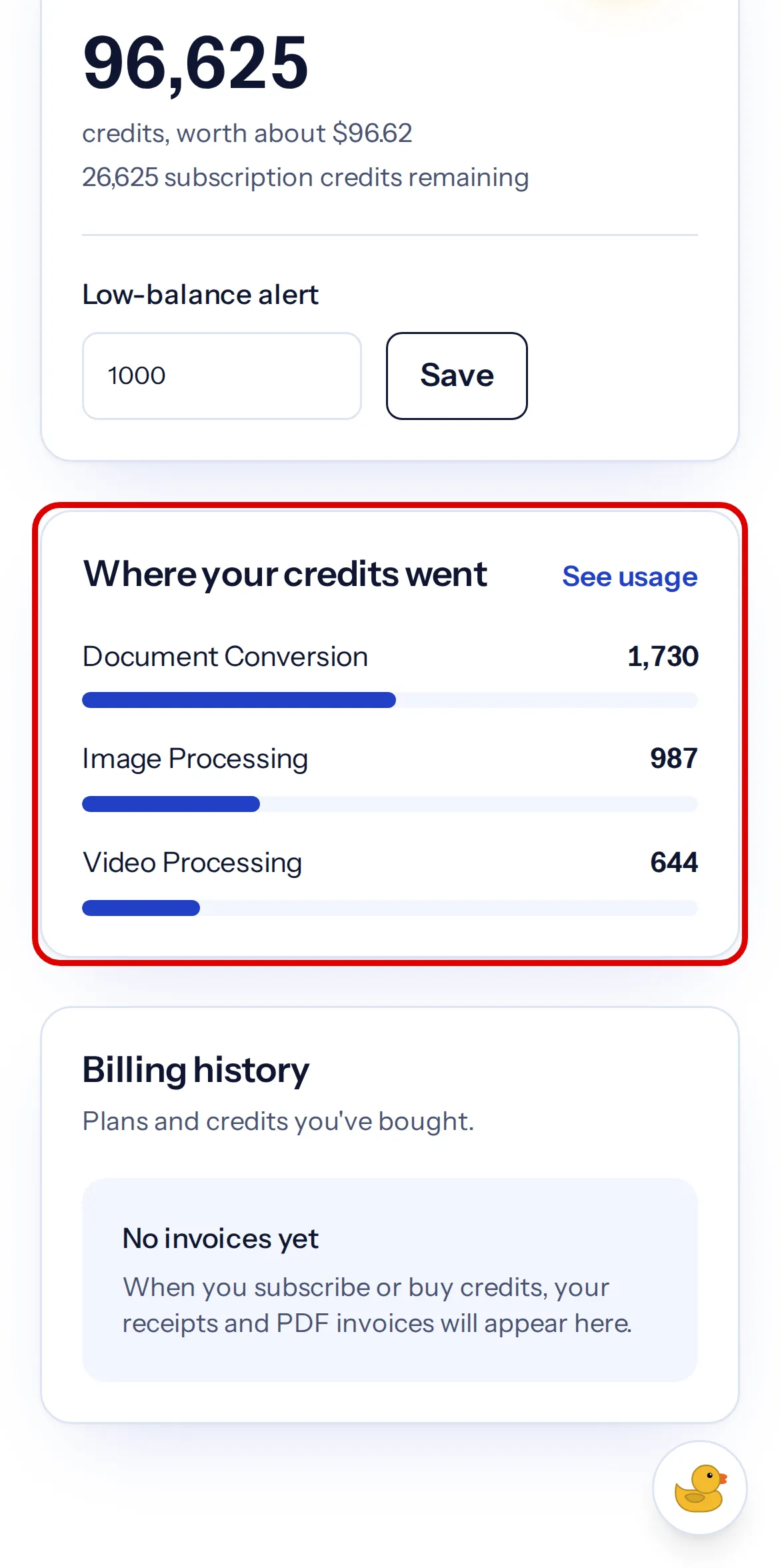
Open the Subscription page. The Where your credits went card lists the kinds of work that used your credits, such as Document Conversion. Select See usage in that card to come back to the Usage page.
Troubleshooting
| Problem | Cause | Fix |
|---|---|---|
| A chart shows only zeros | You did not convert files in those days | Select 90 days to look further back |
| You want to know what a conversion costs | Each kind of work costs a set number of credits | A document conversion costs 7 credits. The line under the plan cards on the Pricing page says so |
| You need more credits | Your balance is low | Open the Subscription page and select Buy credits |