Last updated
Save selected text as Markdown
Goal: The text you picked on a web page saved in a Markdown file on your computer.
Before you start
- The INDOX extension added to Chrome on a computer. These steps are for the computer version of Chrome.
- You don't need an account for this. The file is made inside your browser.
- Markdown is a plain text format. You can open the file in any text app. A line that starts with # is a heading.
Select some text on a web page
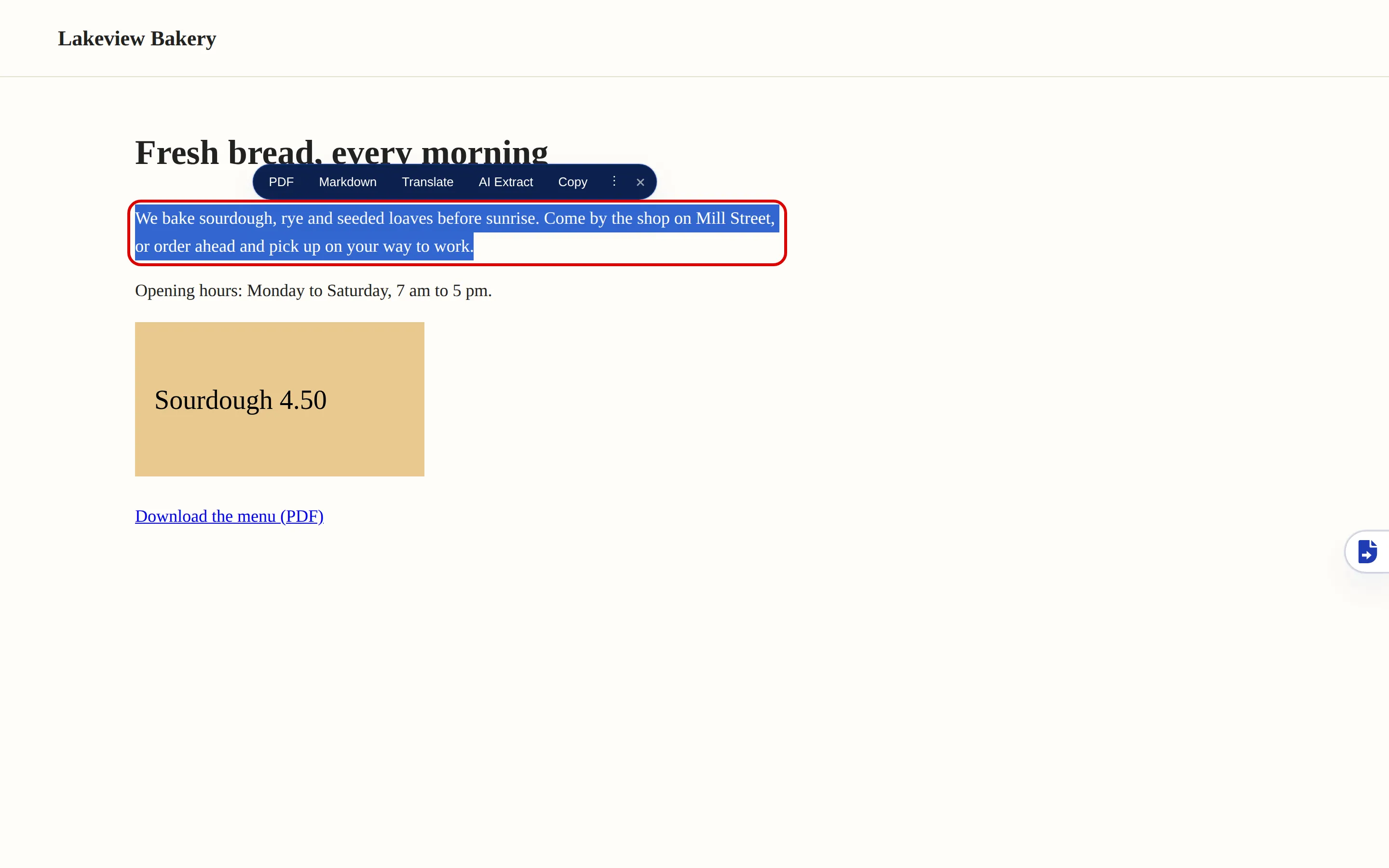
Drag across the words you want. Pick at least three letters. A dark bar appears above your selection with the buttons PDF, Markdown, Translate, AI Extract and Copy.
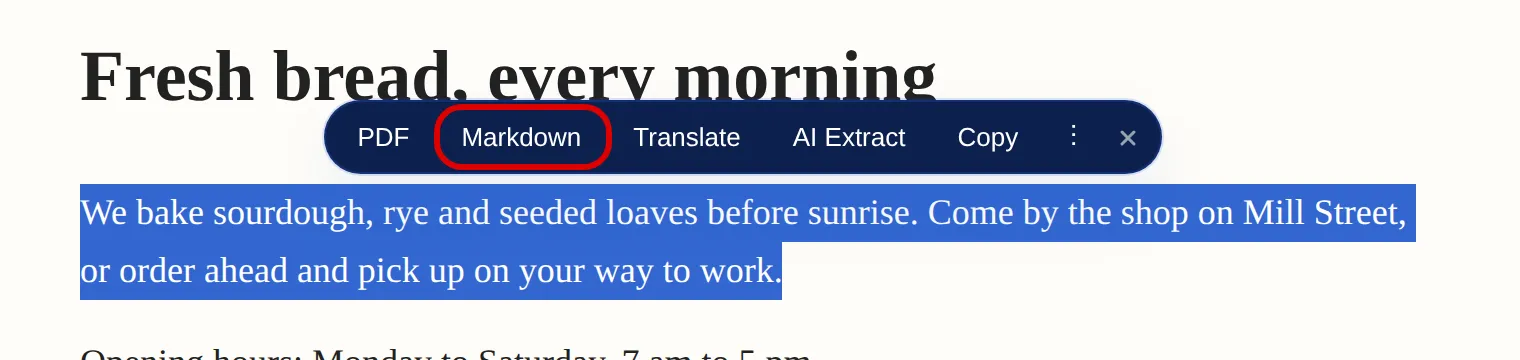
Select Markdown
Select Markdown on the bar. The bar closes and Chrome saves a file that ends in .md.
Open the file
Chrome downloads it like any other file. Open the file in a text app. The first line is the page title after a #. Next comes the text you selected. The last line is the page address inside < and >.
Or use the right-click menu
Select the text, then right-click it. In the menu that opens, point at INDOX - Convert anywhere. Chrome groups the extension's items under its name. Select Save selection as Markdown.
Troubleshooting
| Problem | Cause | Fix |
|---|---|---|
| The dark bar does not appear | You selected fewer than three letters, or the text is inside a box you can type in | Select a longer piece of text that is part of the page itself, not a box you type into |
| The dark bar never appears on any page | Selection toolbar is turned off | Open the INDOX settings, select Edge bubble and turn on Selection toolbar |
| The right-click menu has no INDOX items | Right-click menu items is turned off | Open the INDOX settings, select Behavior and turn on Right-click menu items |