Last updated
Edit the bookmarks in a PDF
Before you start
- Have the PDF on your phone or computer. The upload box tells you how big a file can be.
- Bookmarks are the list of titles a PDF reader shows beside the pages. Select one and the reader jumps to that page.
- You don't need an account.
Open your PDF
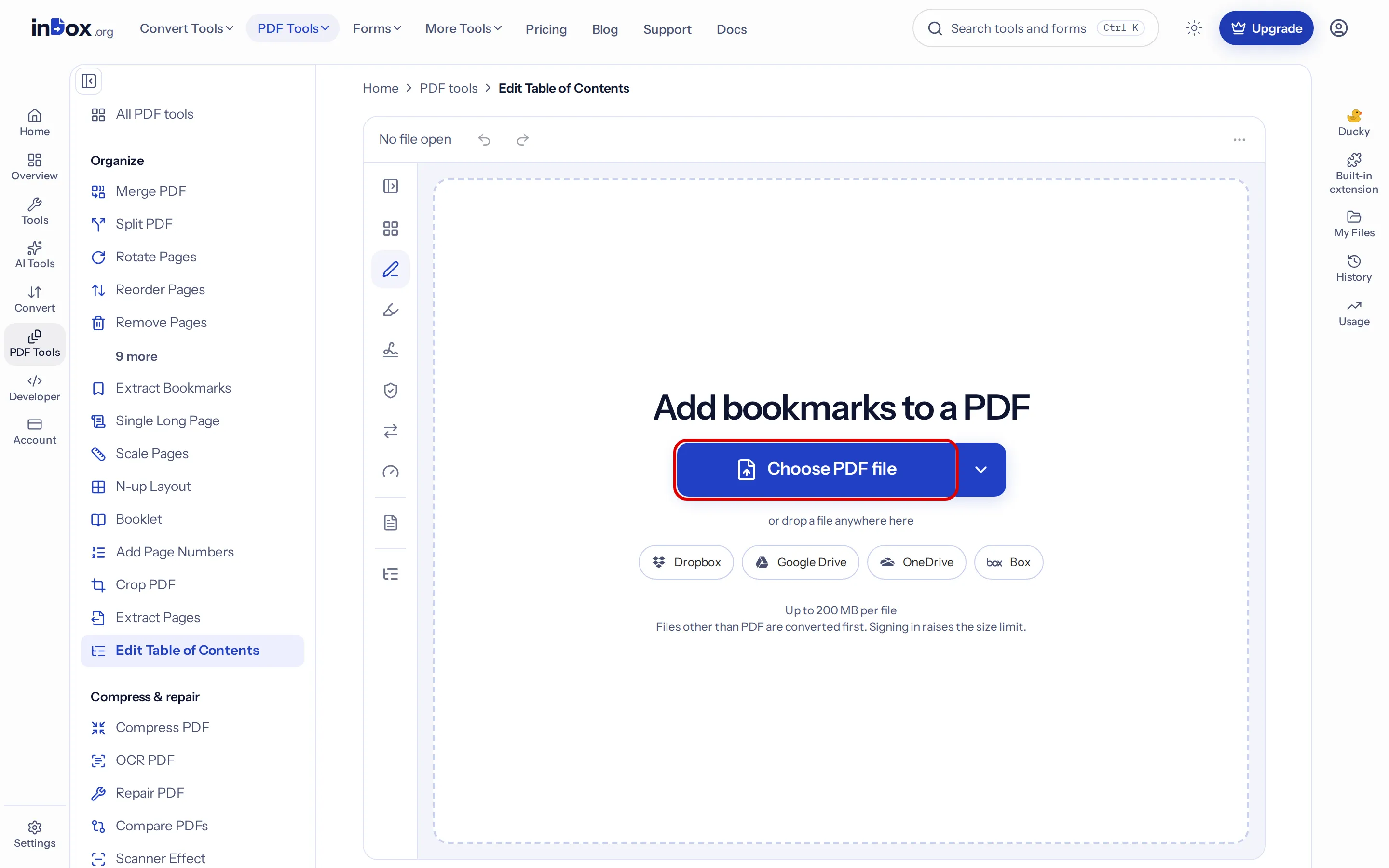
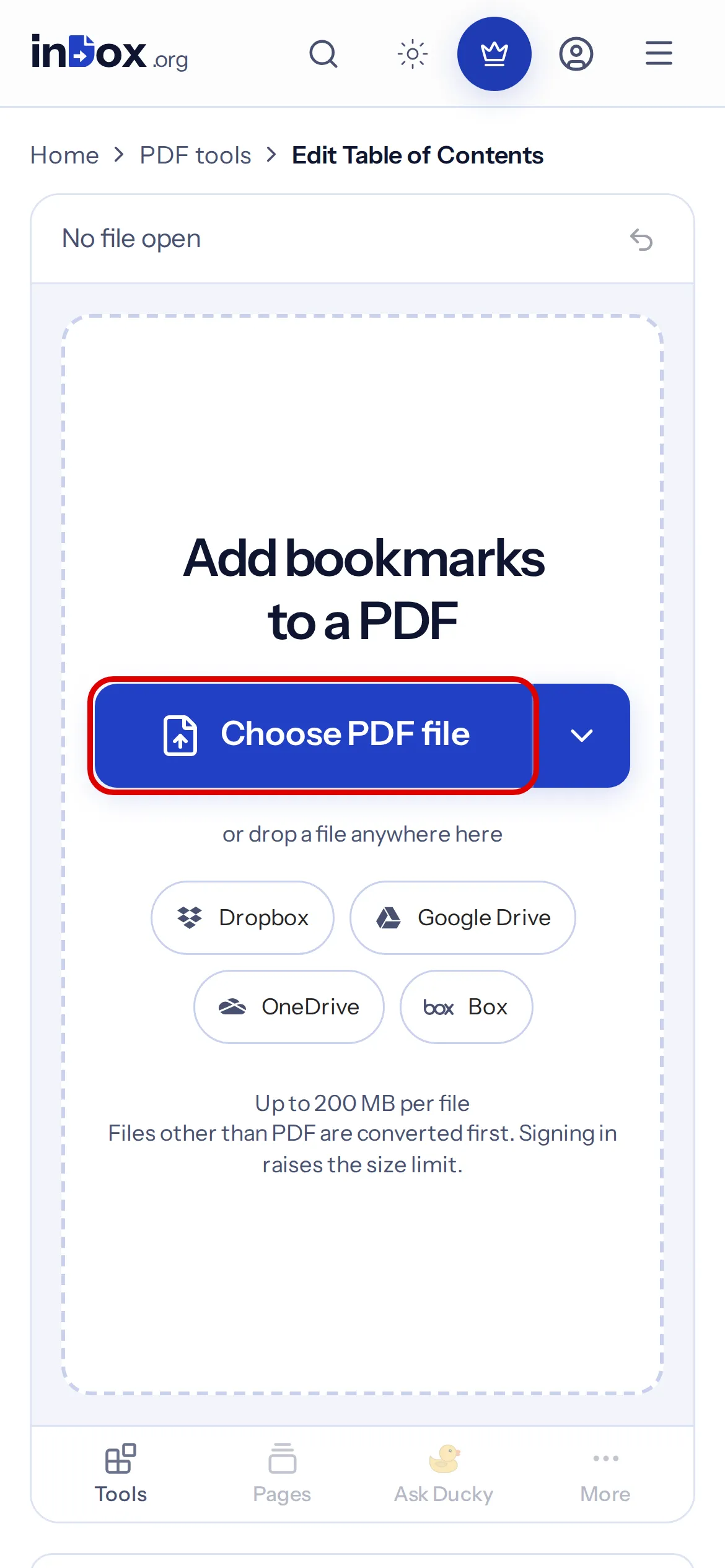
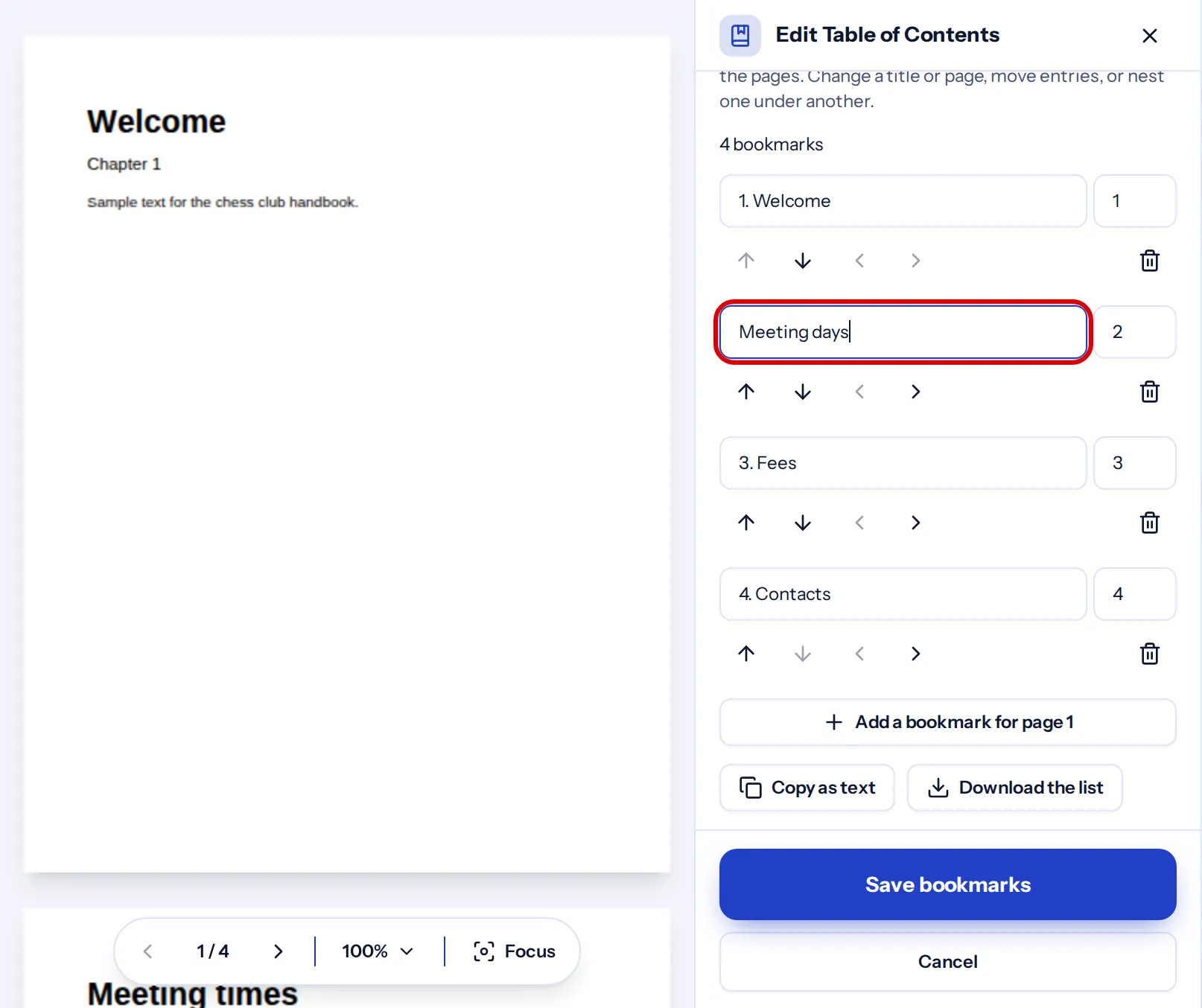
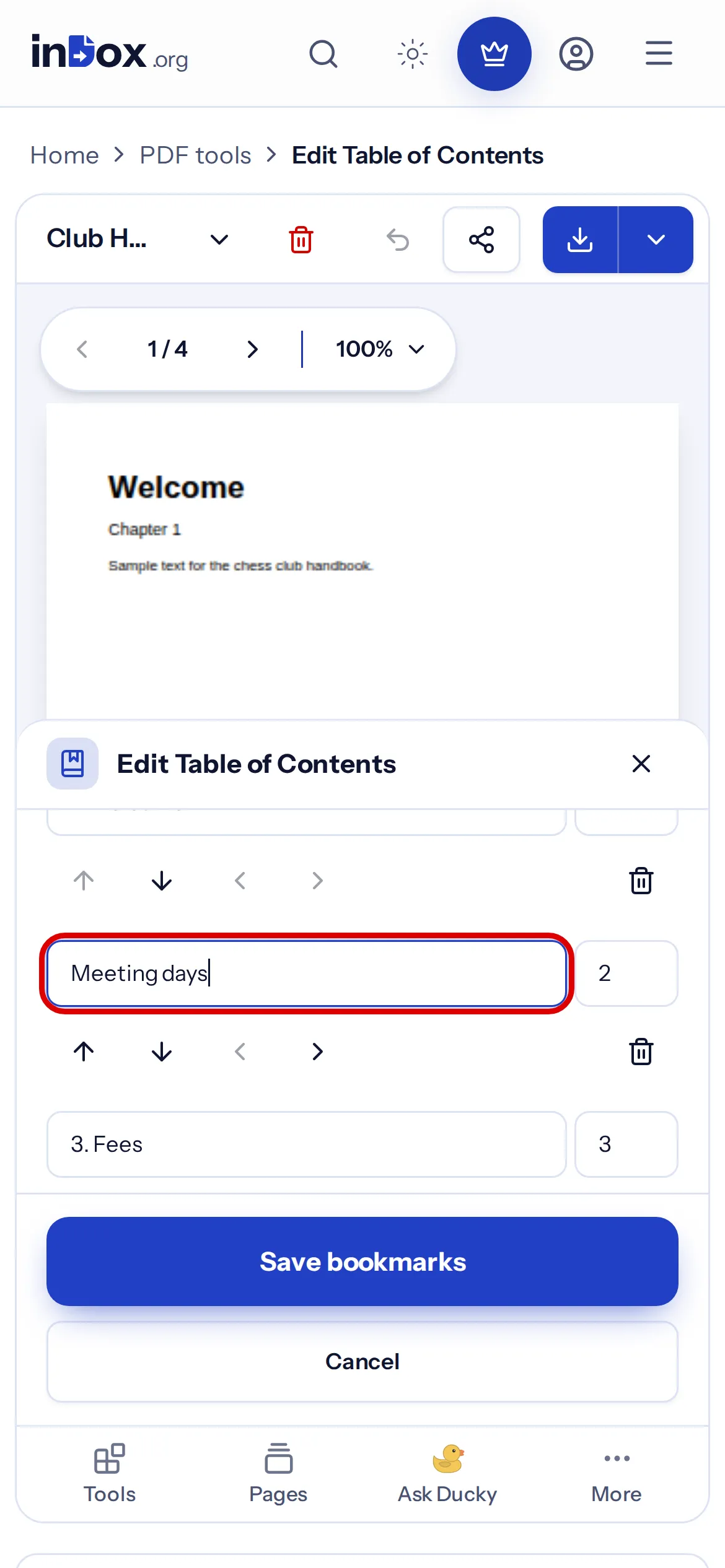
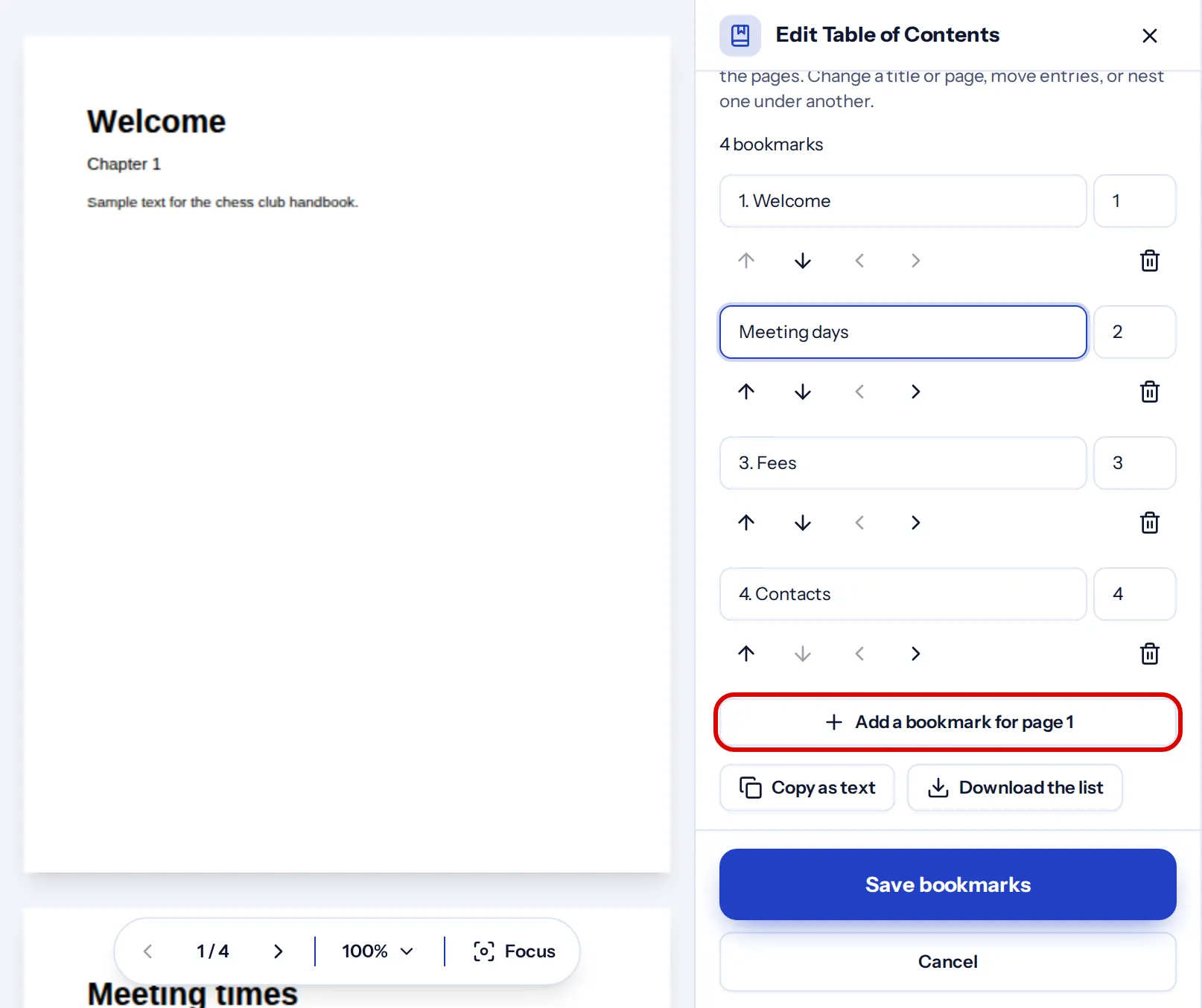
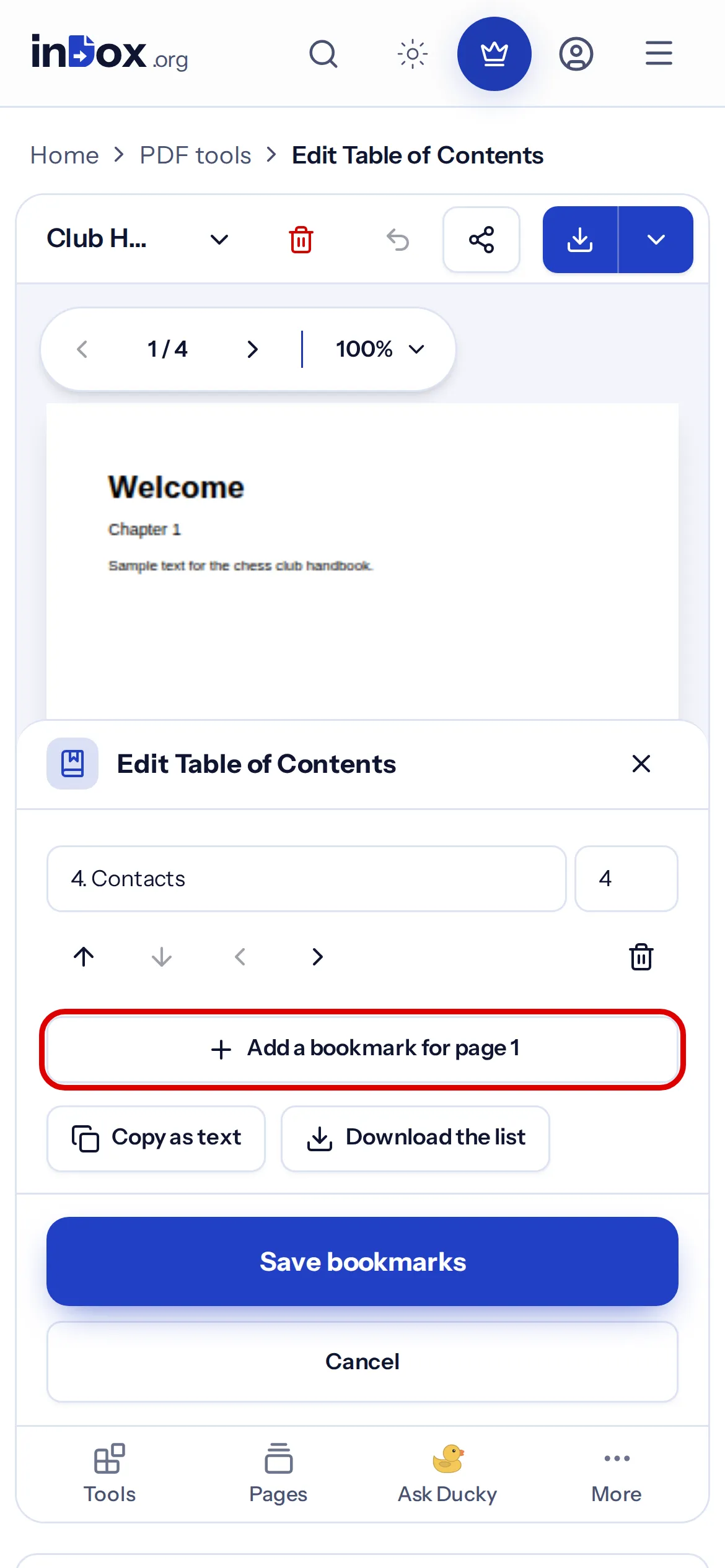
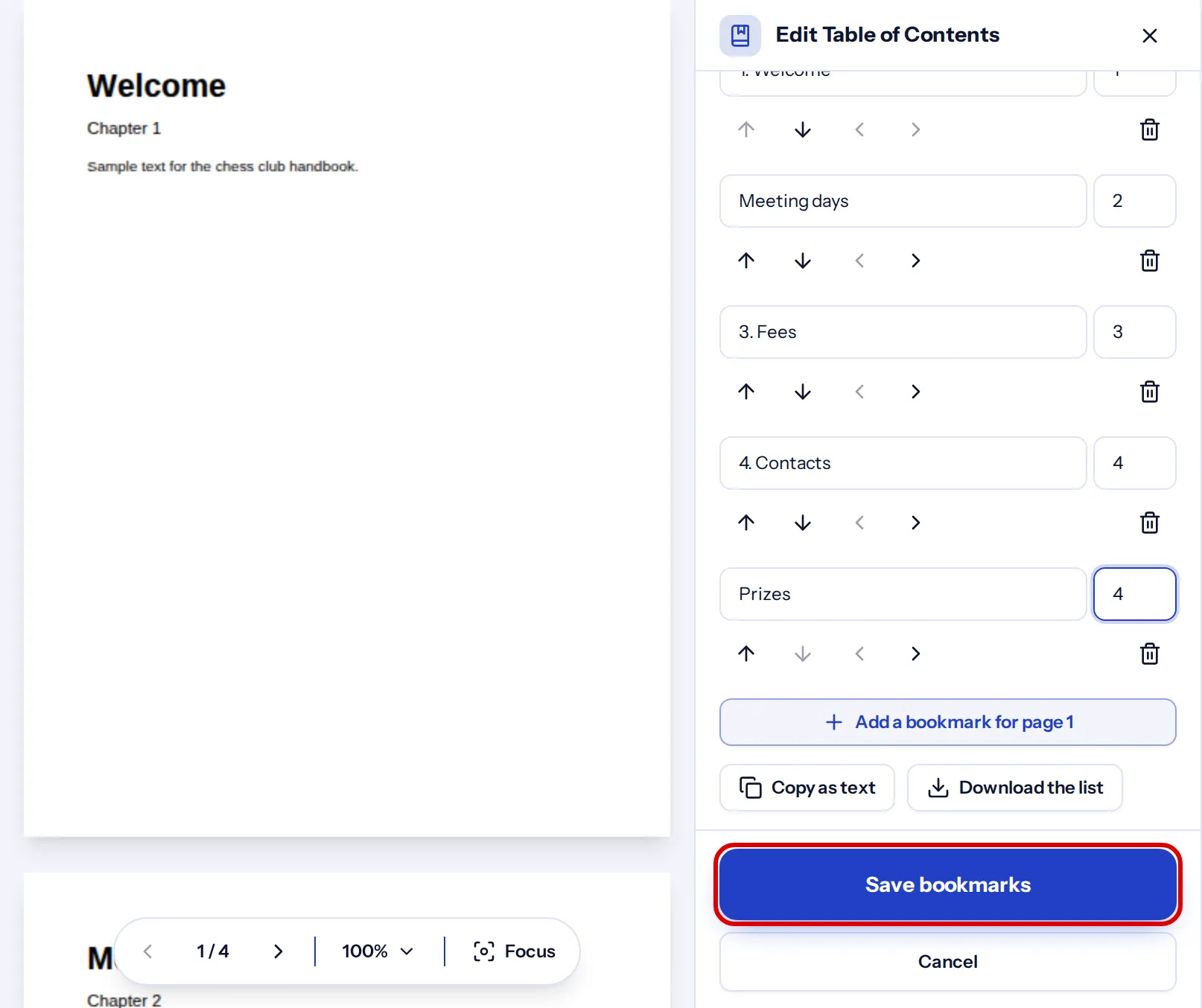
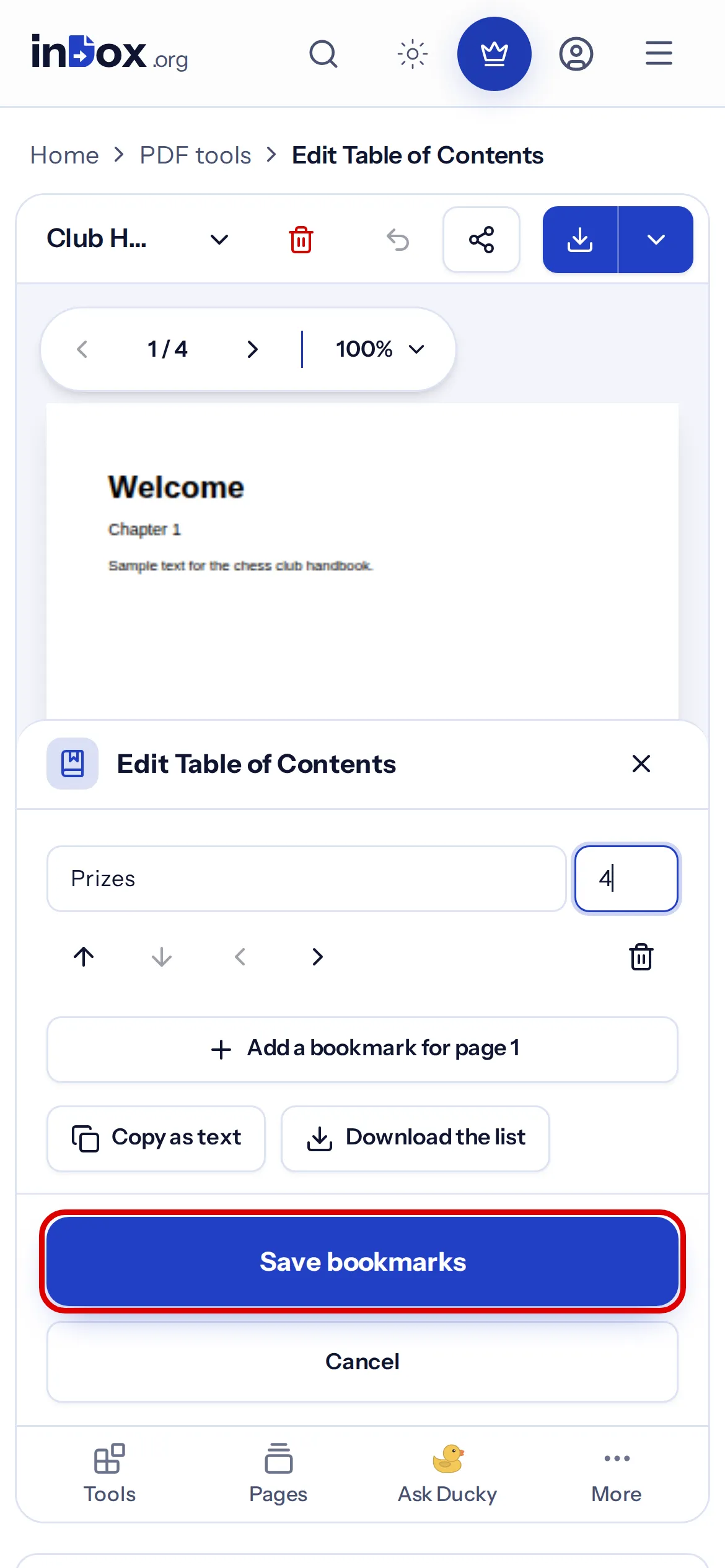
Go to the Edit Table of Contents page. In the middle of the page, select the blue Choose PDF file button. A box opens so you can pick a file from your device. You can also drag a file onto the page. The file opens with a panel called Edit Table of Contents. On a computer the panel is on the right. On a phone it slides up from the bottom. It lists the bookmarks the file already has and counts them, such as 4 bookmarks.
Change a title
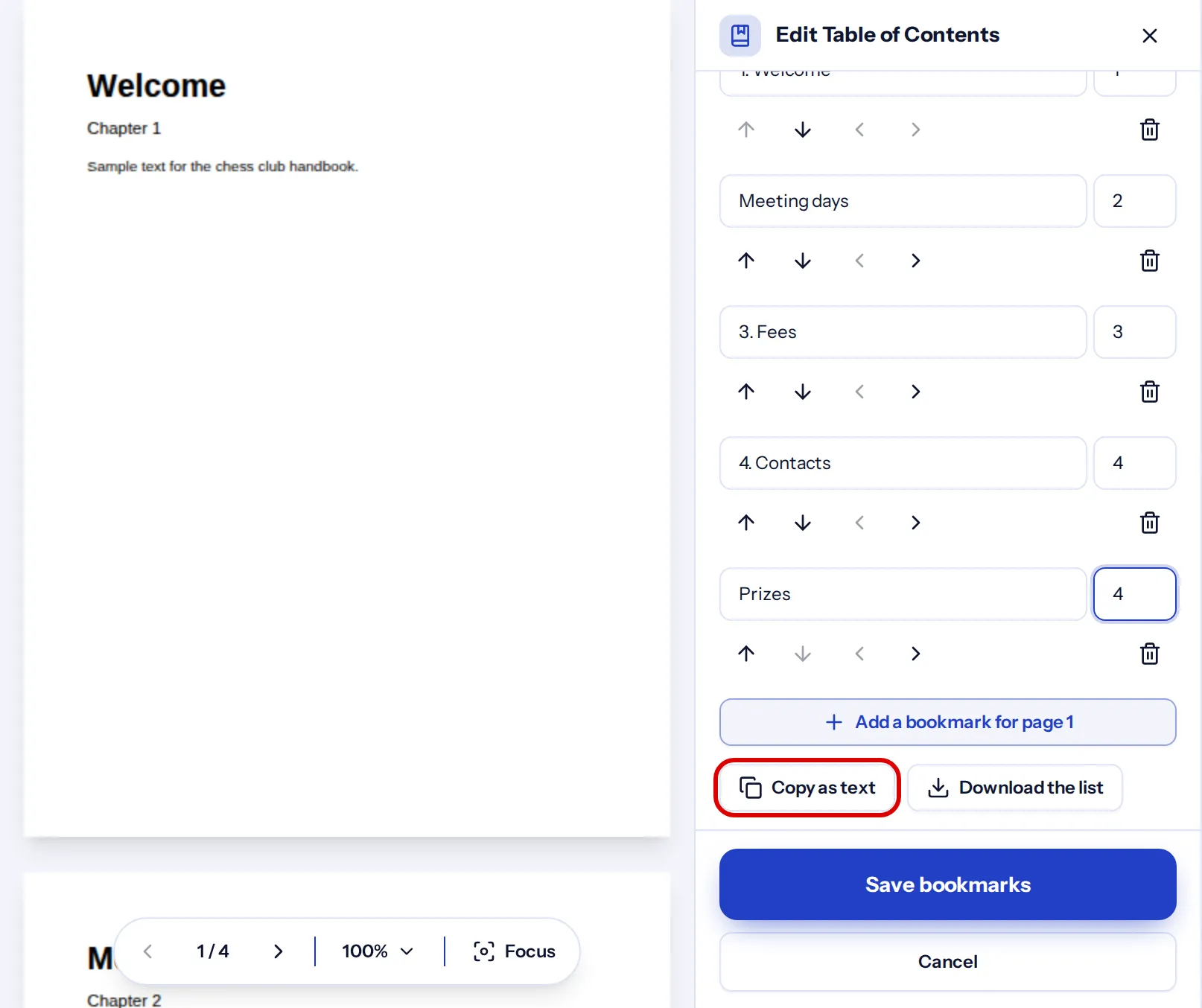
Each bookmark is one row in the list. The wide box holds its title. The small box next to it holds its page number. Select a title box and type a new title. You can change the page number the same way. The small arrows under a row move it up or down, or tuck it under the bookmark above it. The bin icon deletes the row.
Add a bookmark
Scroll to the bottom of the list. Select Add a bookmark for page 1. The page number in the button is the page you are on. A new empty row appears at the end of the list, and the panel says Give this entry a title.
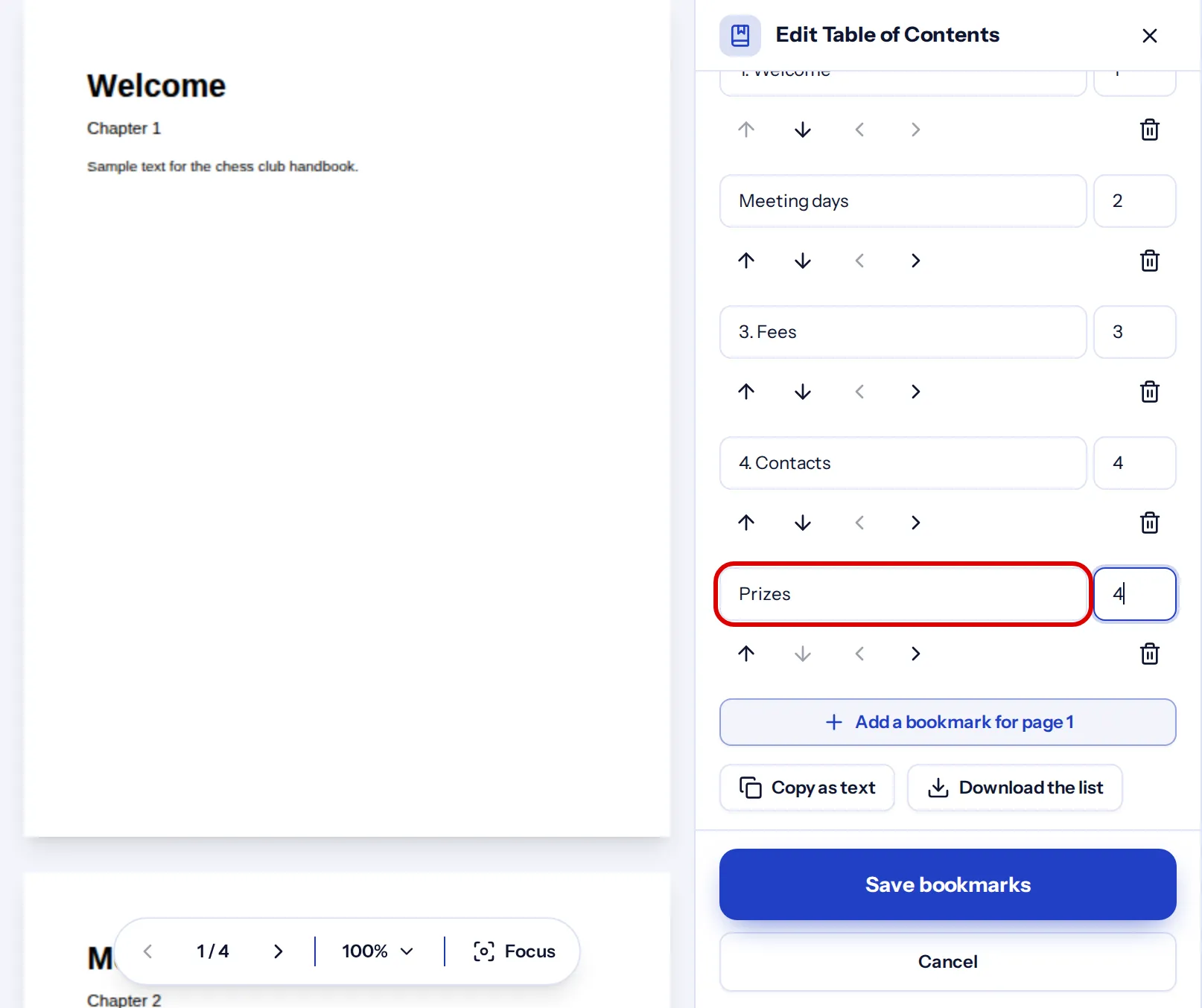
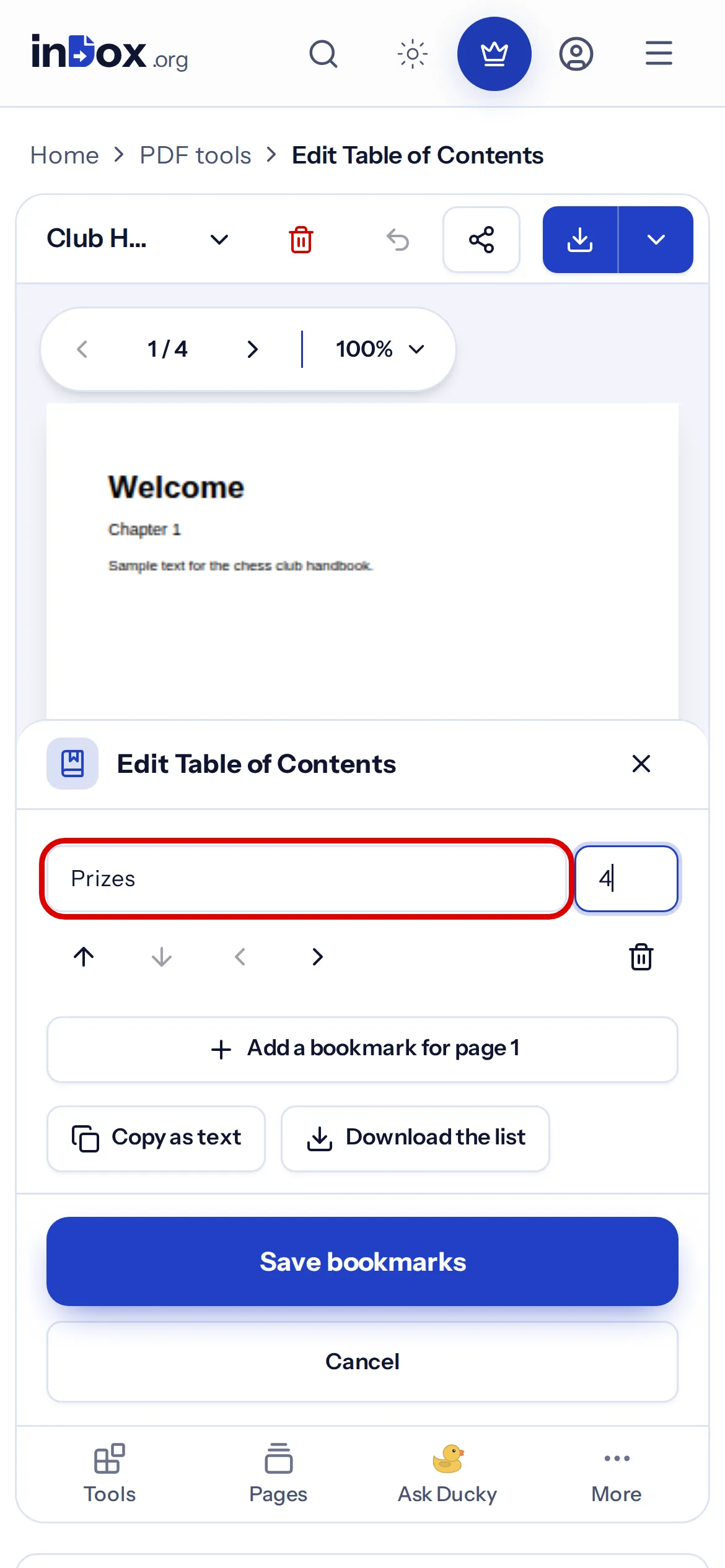
Name the new bookmark
Type a title in the new row. Then type its page number in the small box next to it. The blue Save bookmarks button stays greyed out until every row has a title.
Save the bookmarks
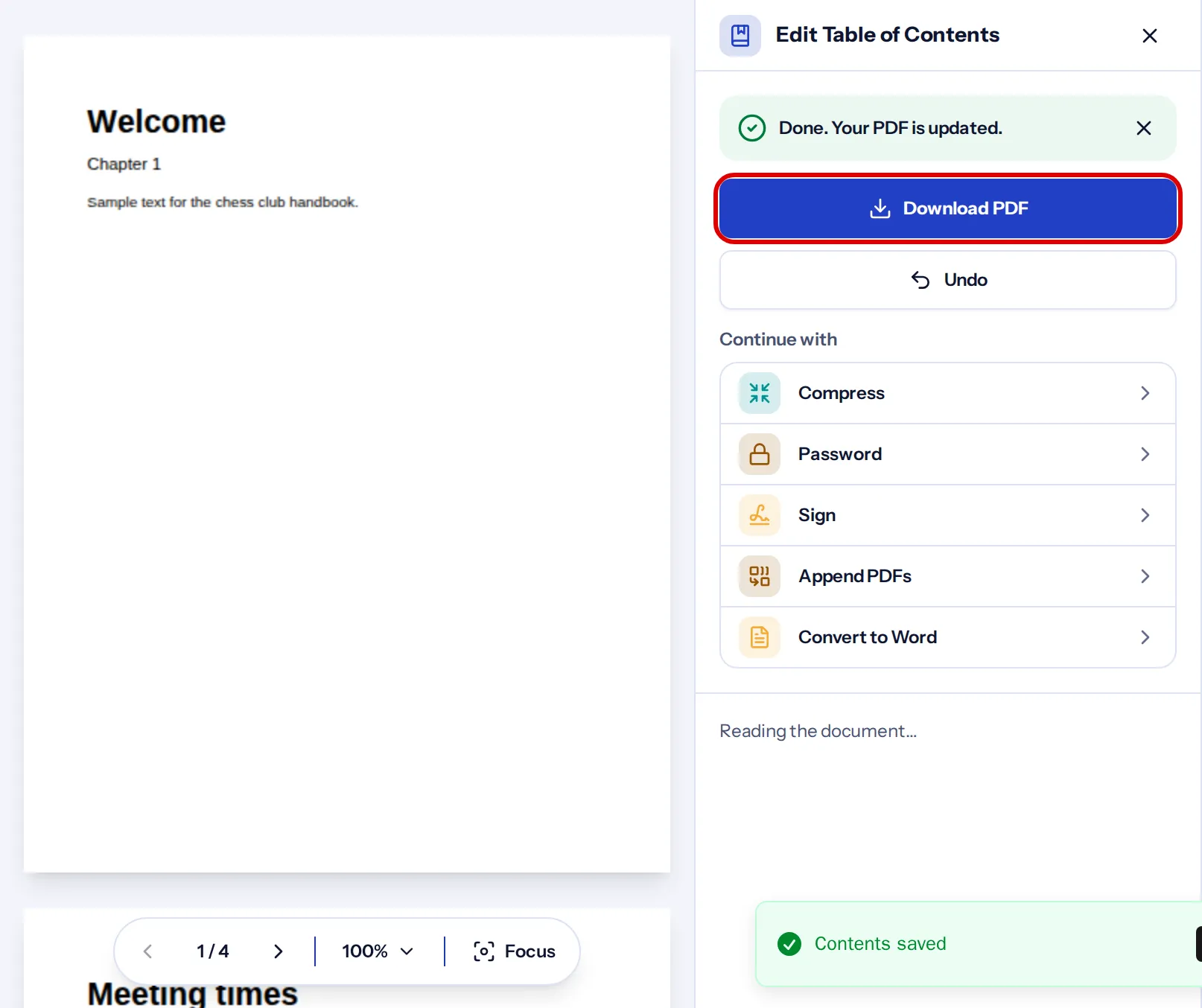
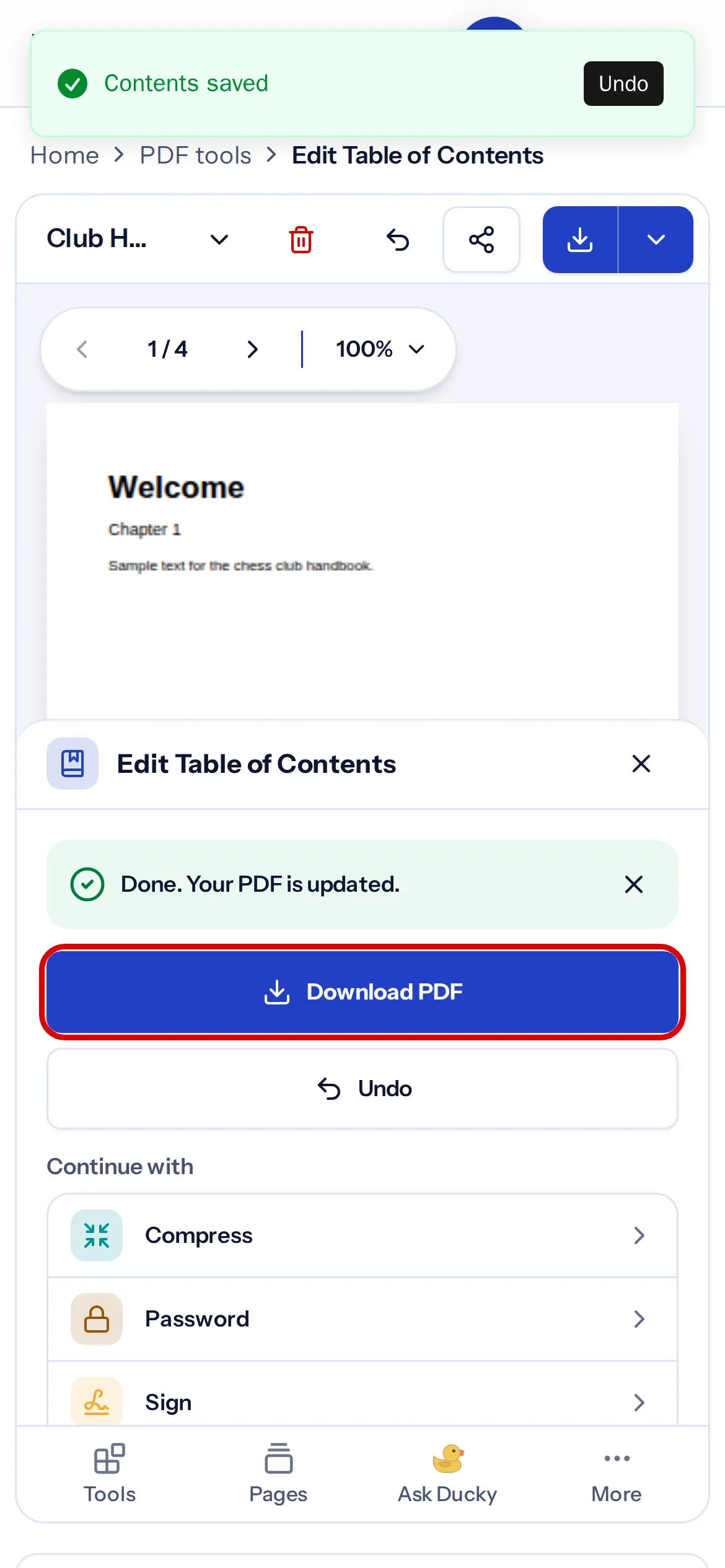
Select the blue Save bookmarks button at the bottom of the panel. The panel says Done. Your PDF is updated. A small message also says Contents saved.
Download your PDF
Select the blue Download PDF button in the panel. The new file downloads to your device. Its name ends in -edited.
Or copy the list as text
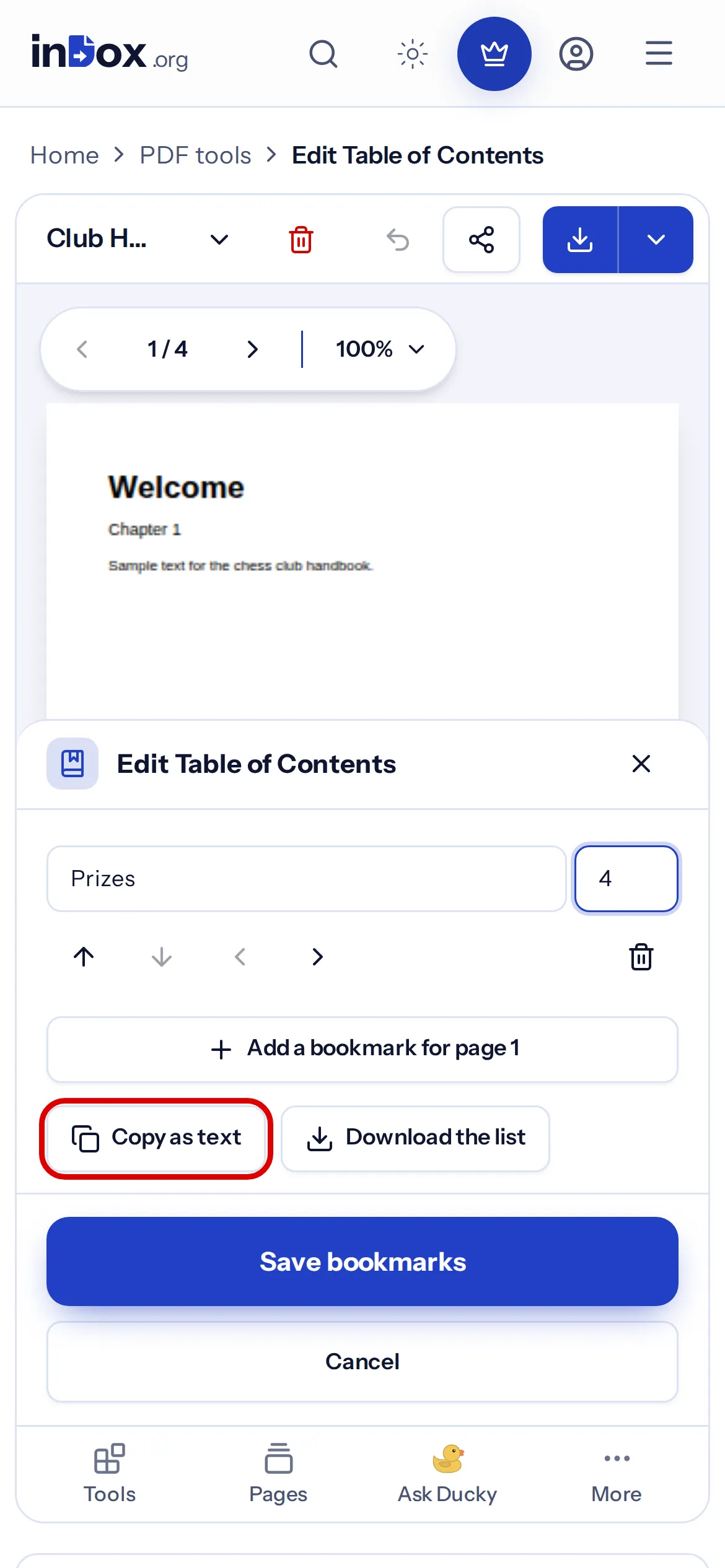
To get the bookmarks out as a list instead, use the buttons under the list before you save. Select Copy as text. indox copies each title with its page number in brackets, and the button says Copied. Select Download the list to get a JSON file instead. A JSON file is a plain data file that other programs can read. The Extract Bookmarks page opens this same panel.
Troubleshooting
| Problem | Cause | Fix |
|---|---|---|
| Save bookmarks is greyed out | A row has no title, or nothing has changed yet | Give every row a title, or change something first |
| Your page number is refused | The file has no page with that number | Type a number from 1 up to the last page of the file |
| Copy as text and Download the list are missing | The file has no bookmarks yet | Add a bookmark first. The two buttons show up once the file has at least one |