Last updated
Check tax form boxes and export to Excel or CSV
Before you start
- A PDF of a US tax form, such as a 1099-NEC.
- You need to be signed in.
- A CSV file is plain text with one row of values. Excel, Numbers and Google Sheets all open it.
- Tax IDs and account numbers show only their last 4 digits, in the page and in the file.
Add your tax form
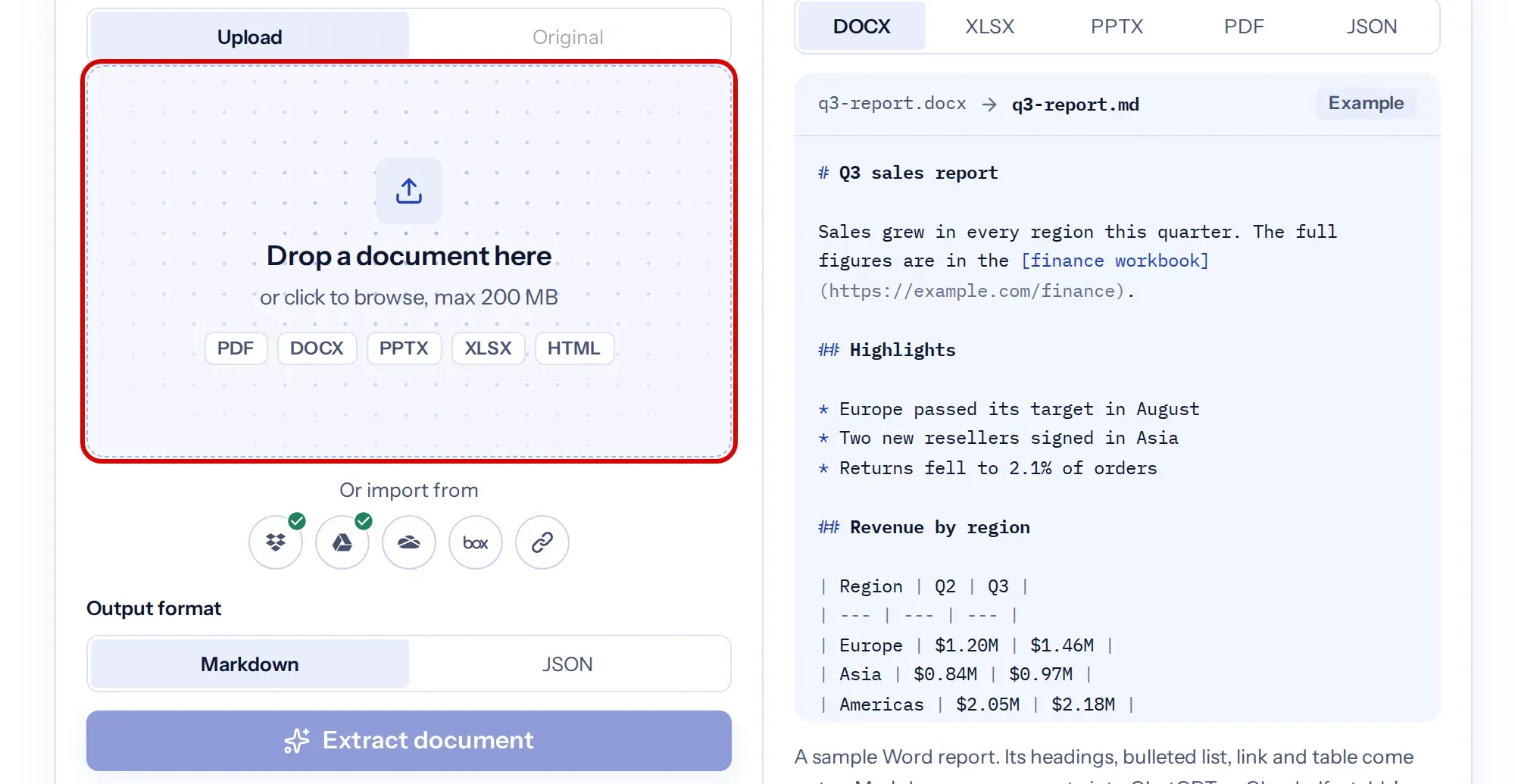
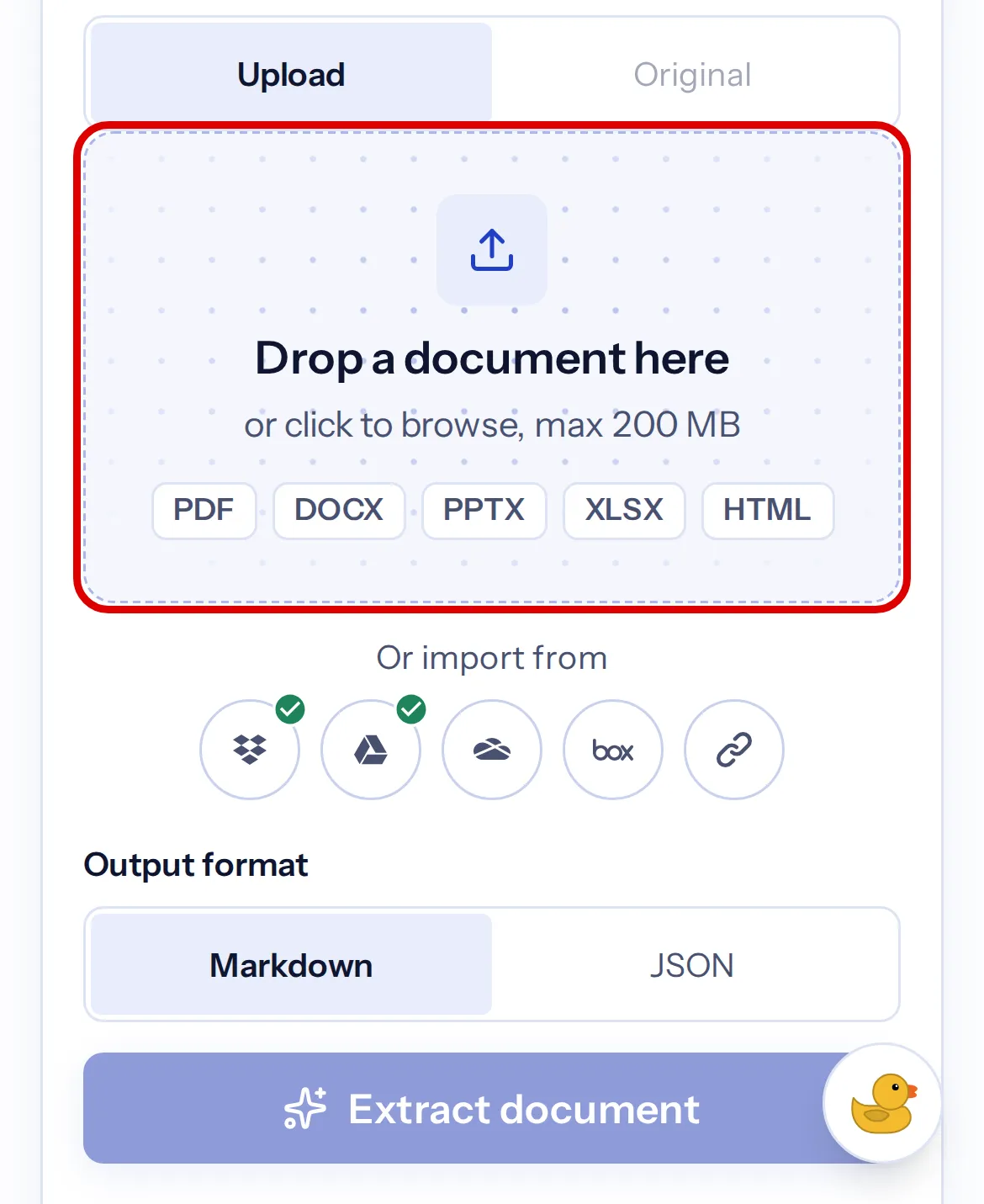
Go to the AI Extract page. Drag your PDF onto the dashed area that says Drop a document here, or select the area and pick the file. Your file shows on the left, under the tab Original. The extraction starts by itself.
Open the Fields tab
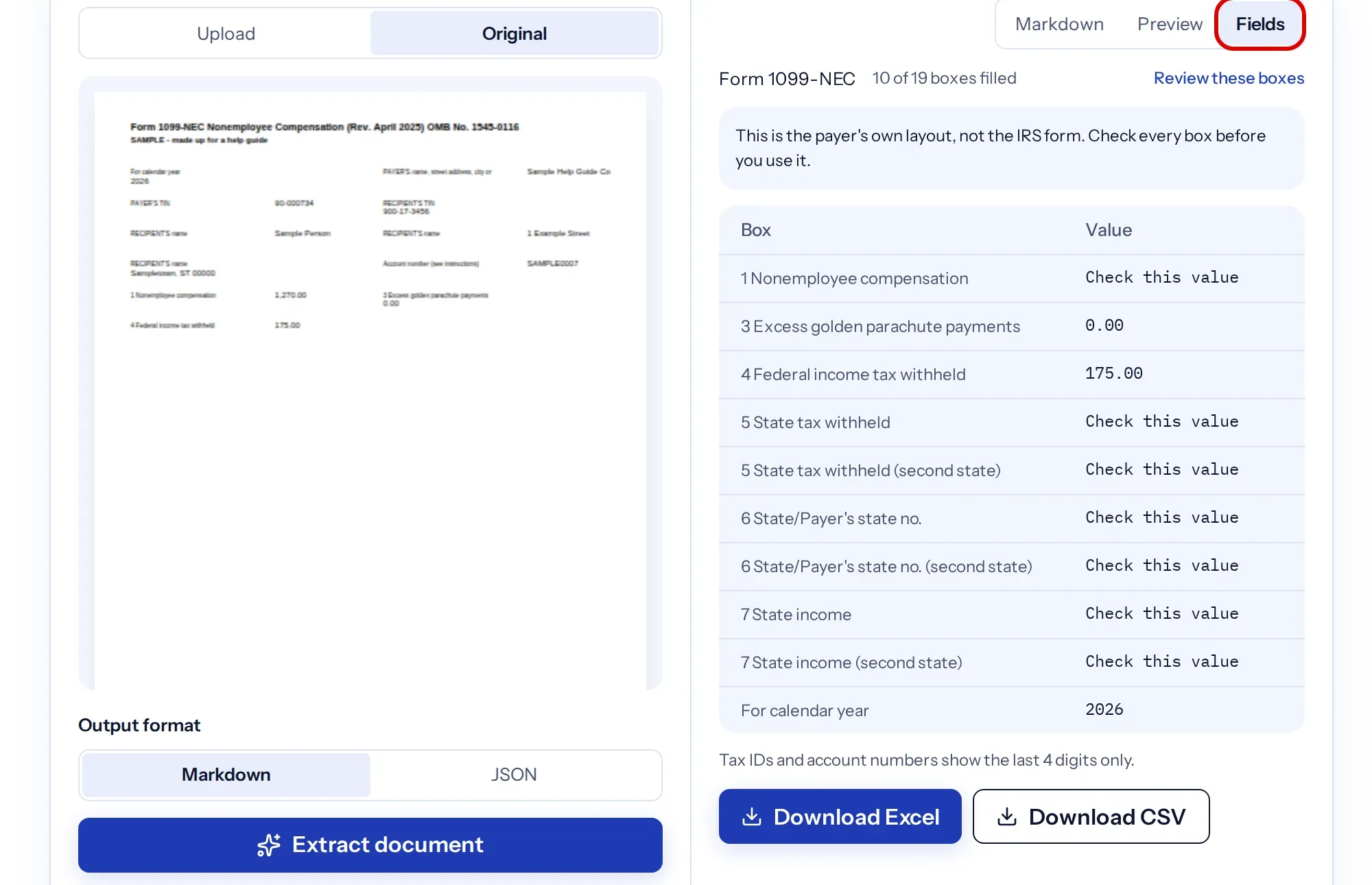
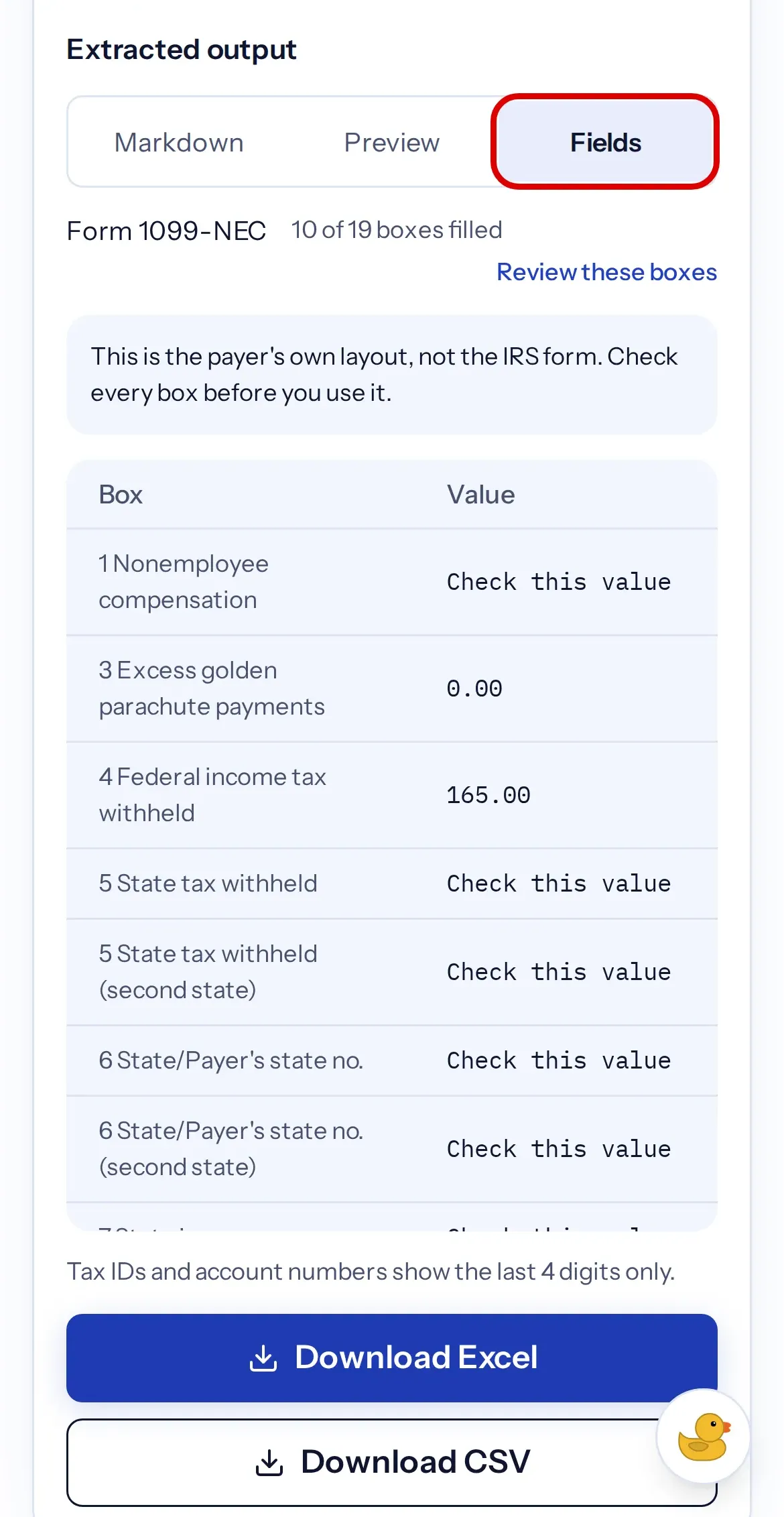
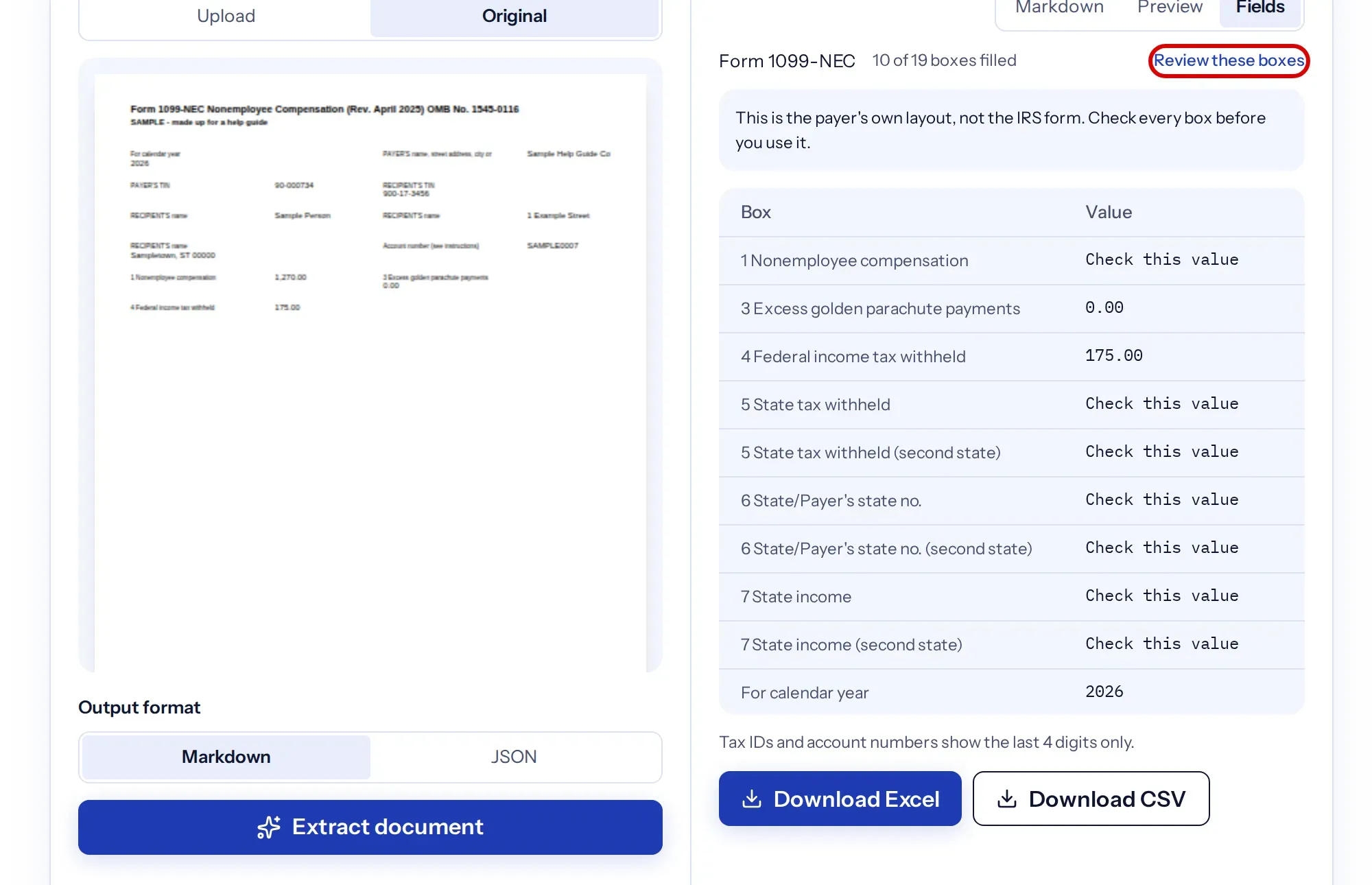
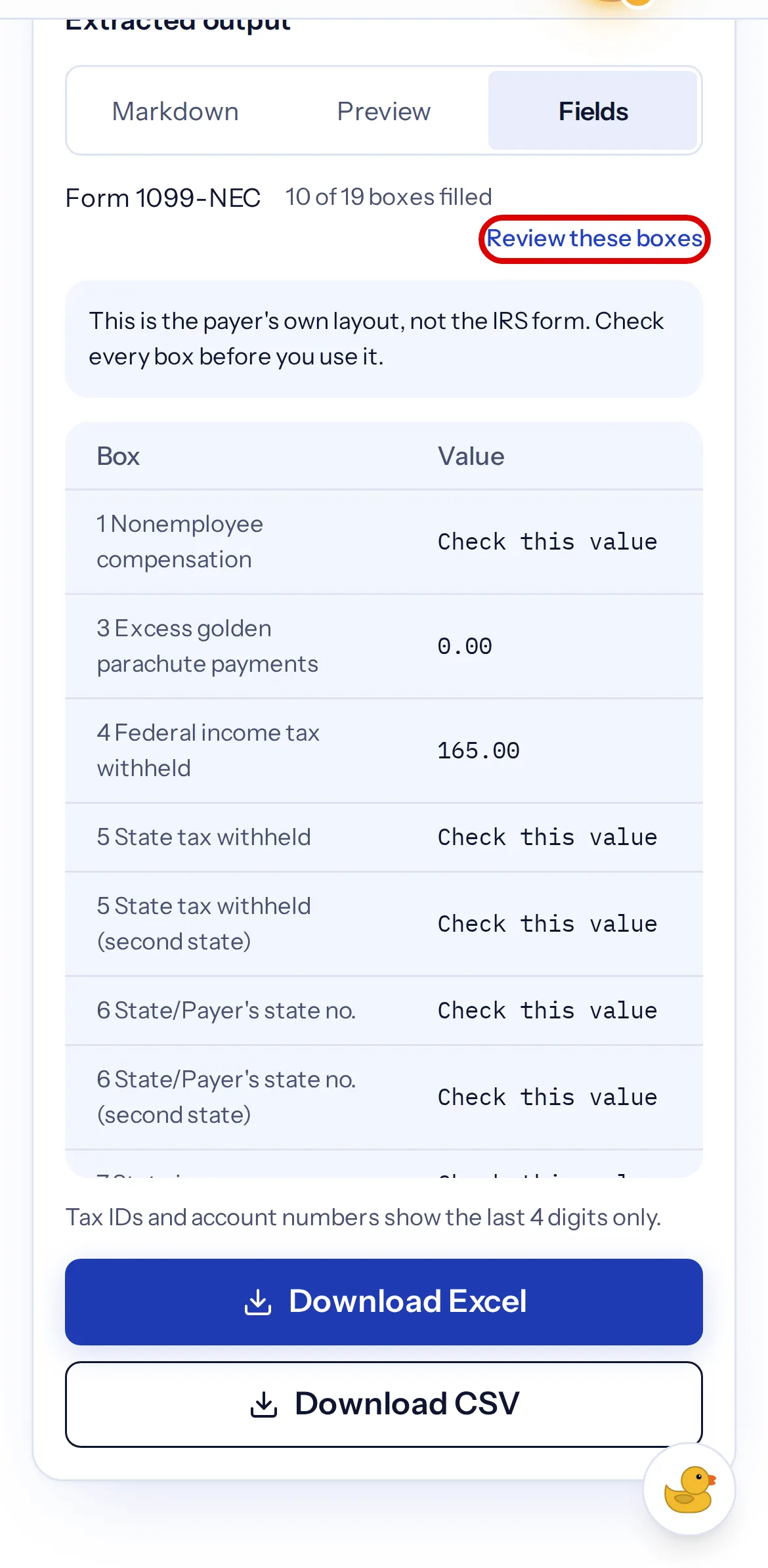
In the box on the right, called Extracted output, there are three tabs: Markdown, Preview and Fields. Select Fields. For a moment it says that it is reading the form's boxes. On a phone the right box sits below the left one.
Read the list of boxes
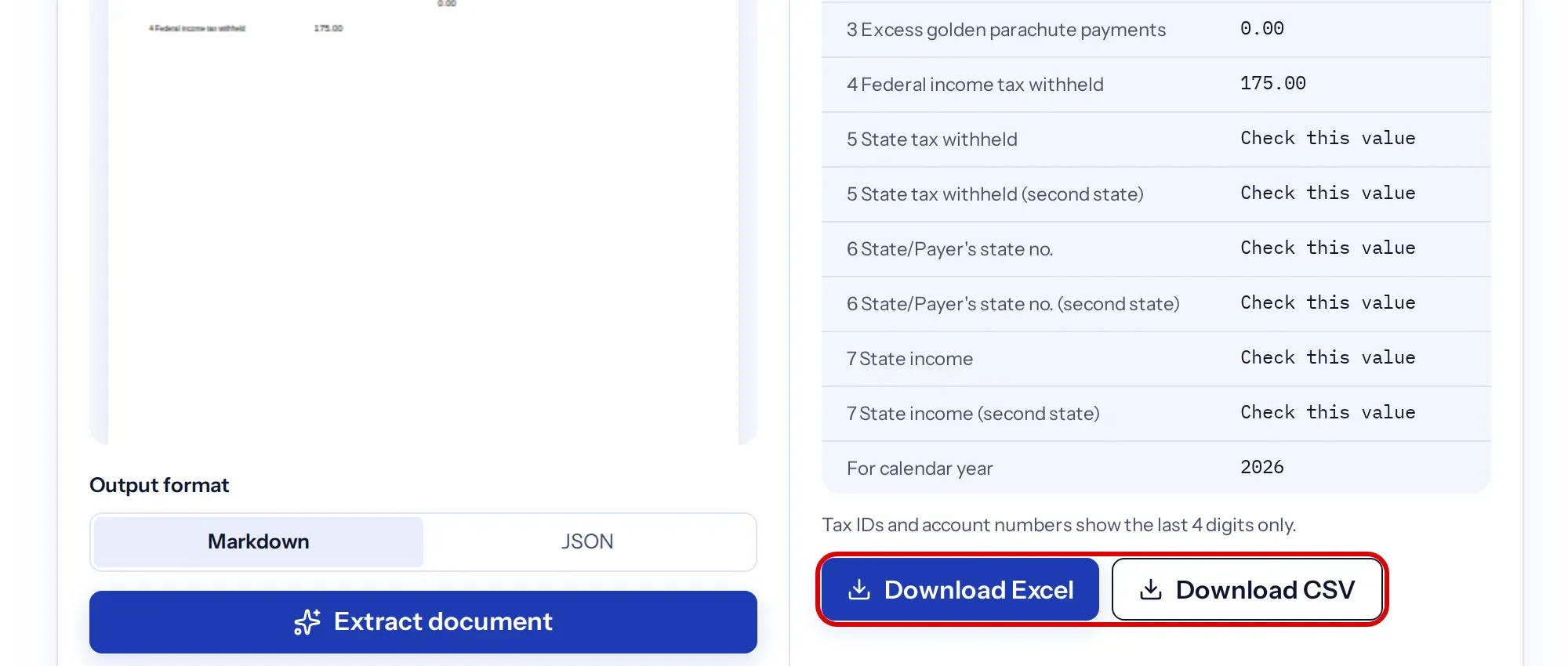
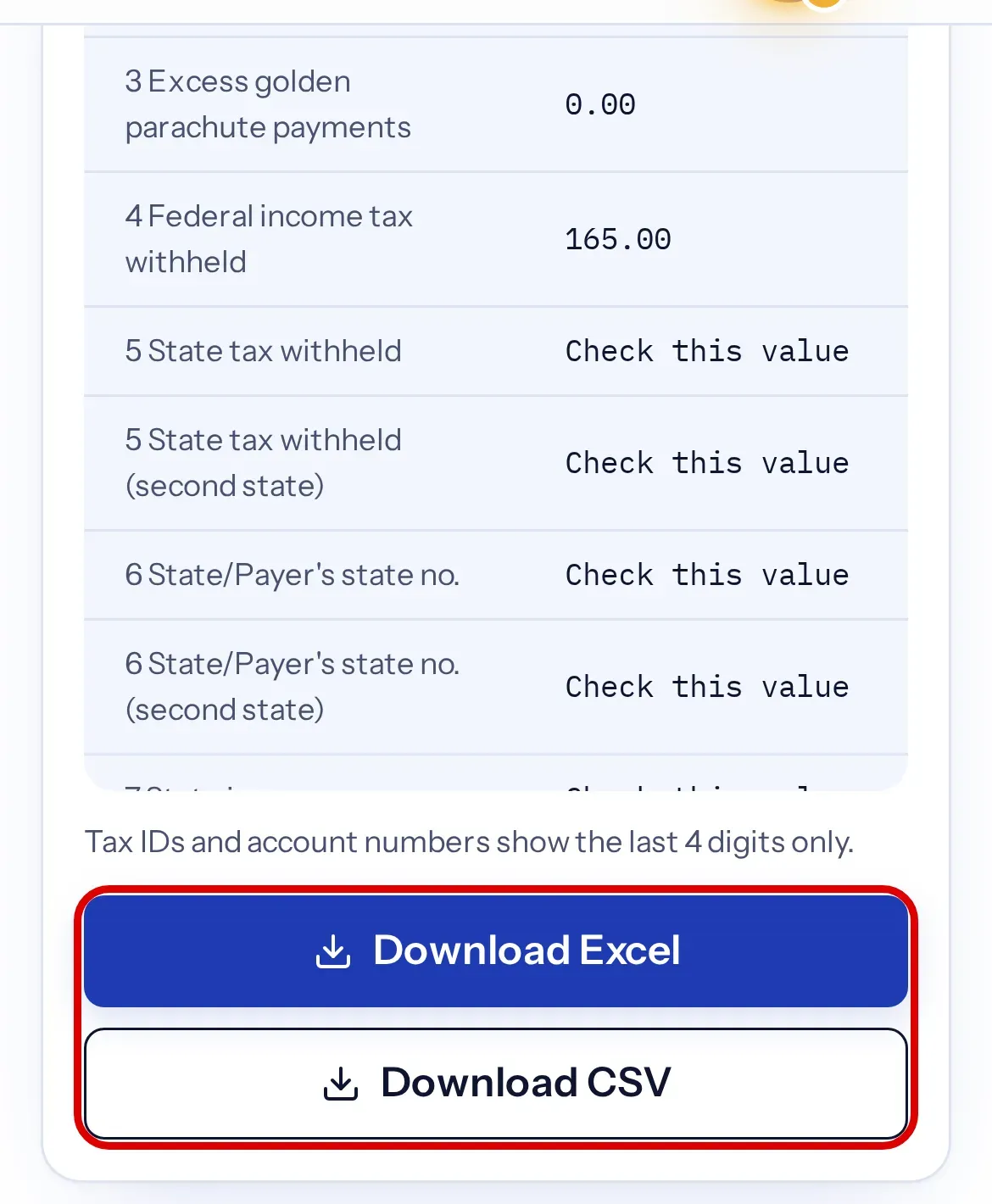
Above the list you see the form name, such as Form 1099-NEC, and how many boxes were read, such as 10 of 19 boxes filled. Below it is a table with a Box column and a Value column. A box that says Check this value was not read well, or is empty. A note may say the form is the payer's own layout. In that case, check every box.
Open the review page in a new tab
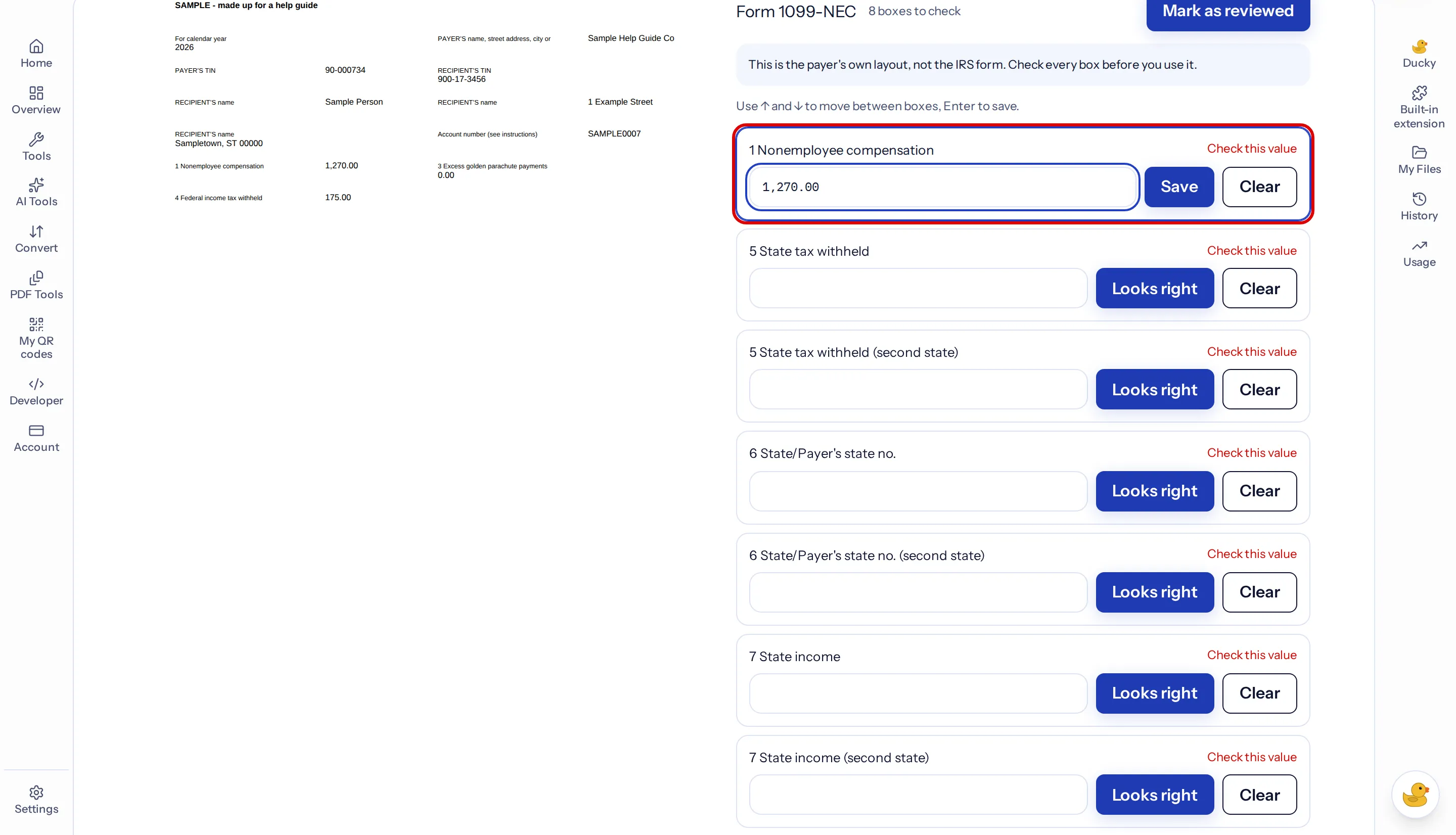
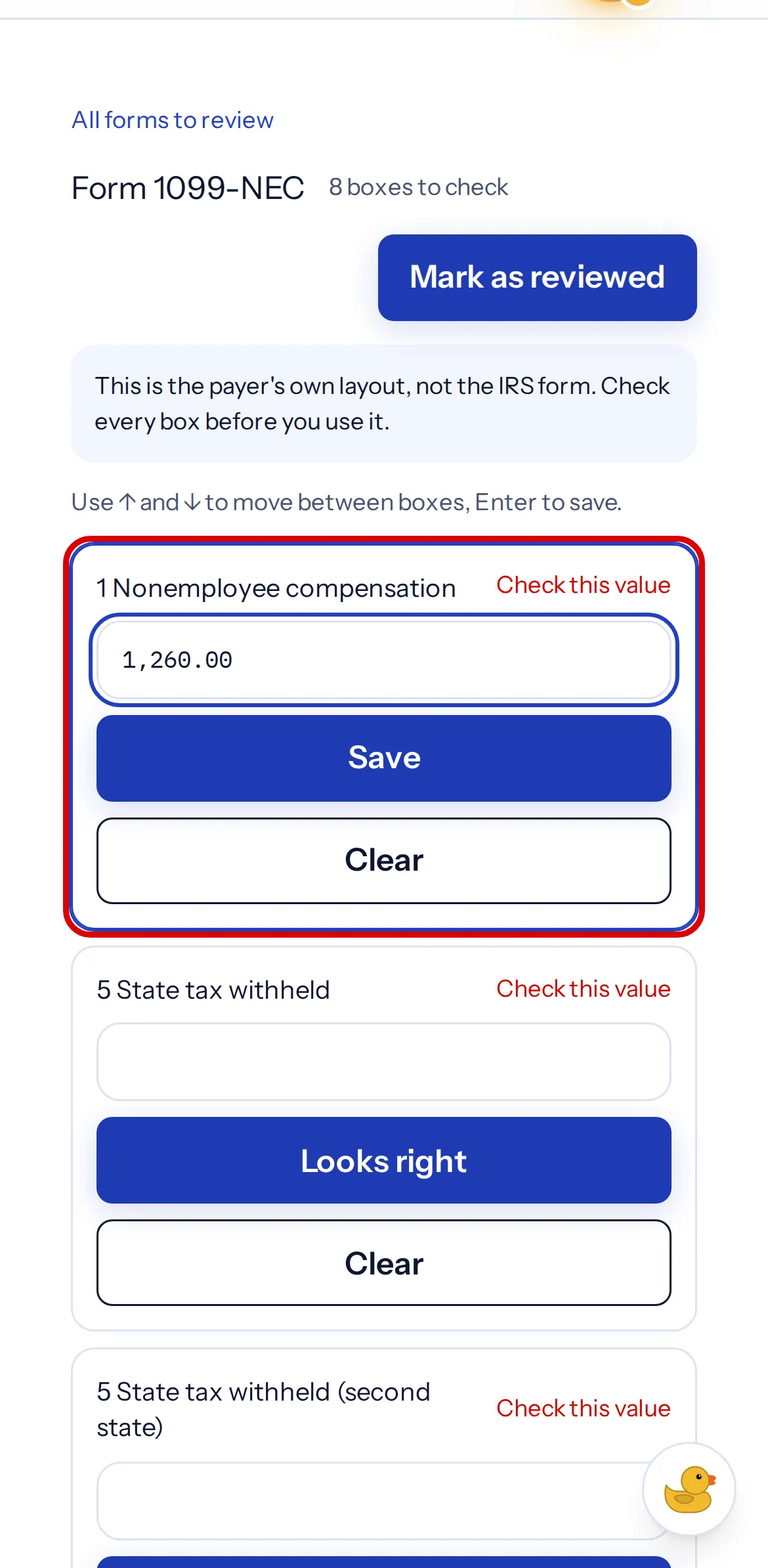
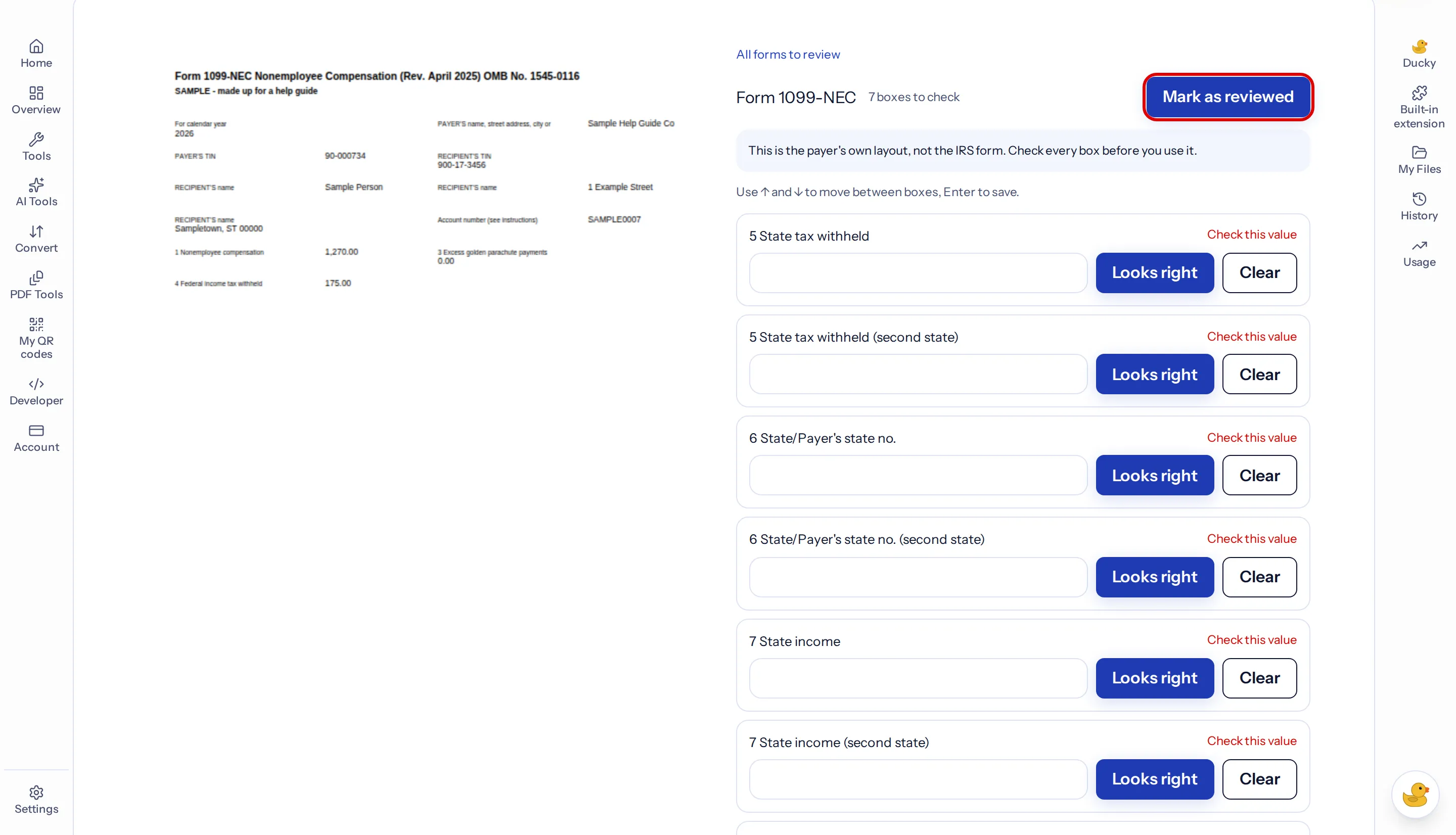
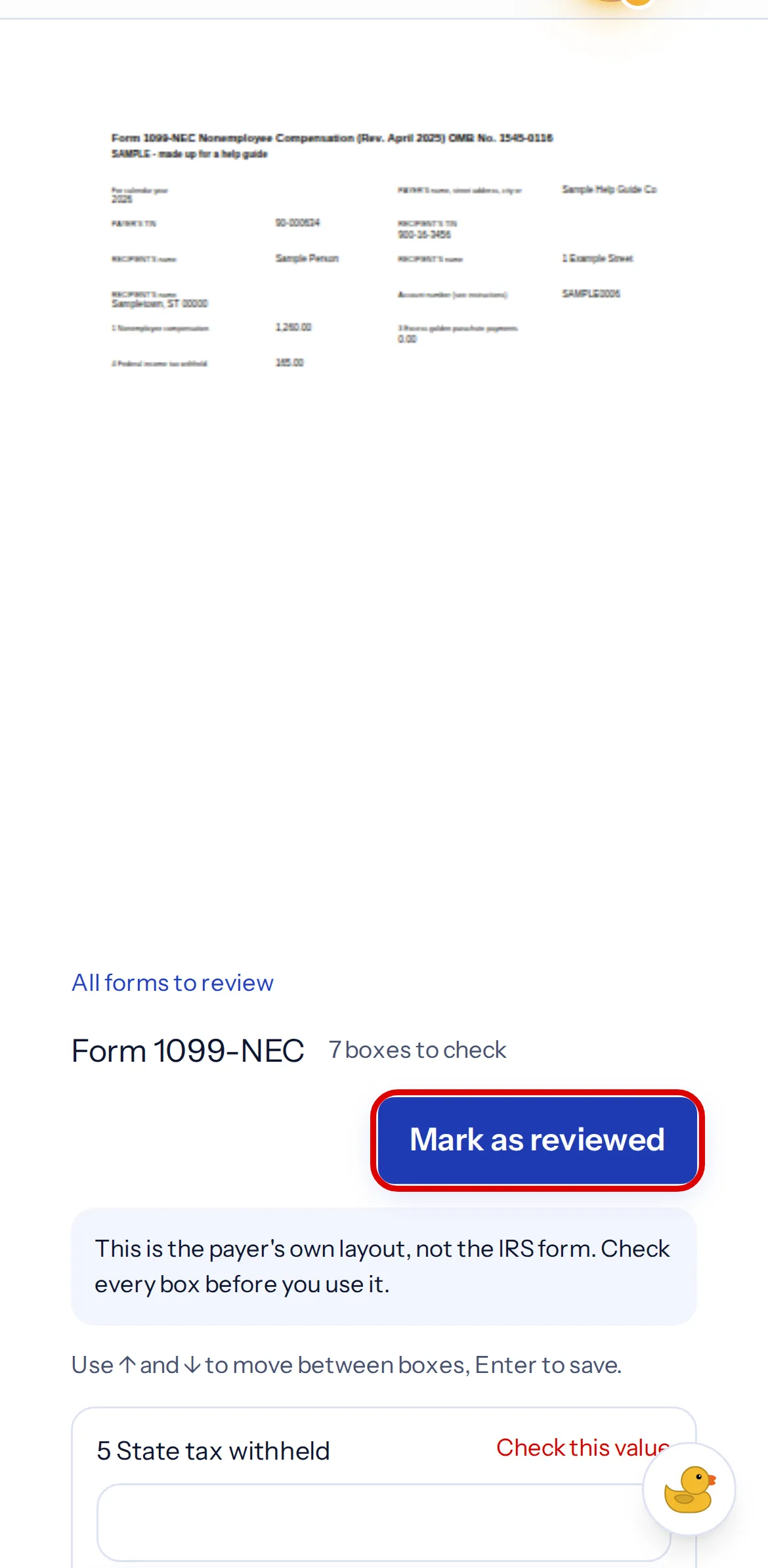
Select Review these boxes, above the table on the right. Open it in a new tab so that this page stays open: hold Ctrl (Cmd on a Mac) while you select it, or press and hold it on a phone and pick Open in new tab. The new tab shows your form on the left and one card for each box on the right.
Fix the boxes
Cards that say Check this value come first. Compare each one with the form on the left. If the value is right, select Looks right. If it is wrong or empty, type the right value in the field, and the button changes to Save. Select it, or press Enter. A card you saved says Edited. Clear empties a box.
Mark the form as reviewed
When you have gone through the boxes, select Mark as reviewed at the top right. The button then says Reviewed. You do not need to fix every box first.
Download Excel or CSV
Go back to the first tab, the AI Extract page. Select Download Excel or Download CSV, under the table. A file called 1099nec-fields.xlsx or 1099nec-fields.csv saves to your device. It holds the values you saved on the review page. Make your fixes before you download.
Troubleshooting
| Problem | Cause | Fix |
|---|---|---|
| There is no Fields tab | You are not signed in | Sign in, then open AI Extract again |
| The page says We couldn't read the fields from this file | The page could not read this file | Check that it is a PDF of a US tax form. If it is, try again in a few minutes |
| The file I downloaded has the old values | You downloaded before you saved your fixes | Save your fixes on the review page, then select Download Excel or Download CSV again on the AI Extract page |