Last updated
Merge PDF files into one
Before you start
- To merge files means to join them into one. Have the PDFs on your phone or computer. The upload box tells you how big a file can be.
- Every file you add must be a PDF. Convert a Word file or an image to PDF first.
- You don't need an account.
Open your first PDF
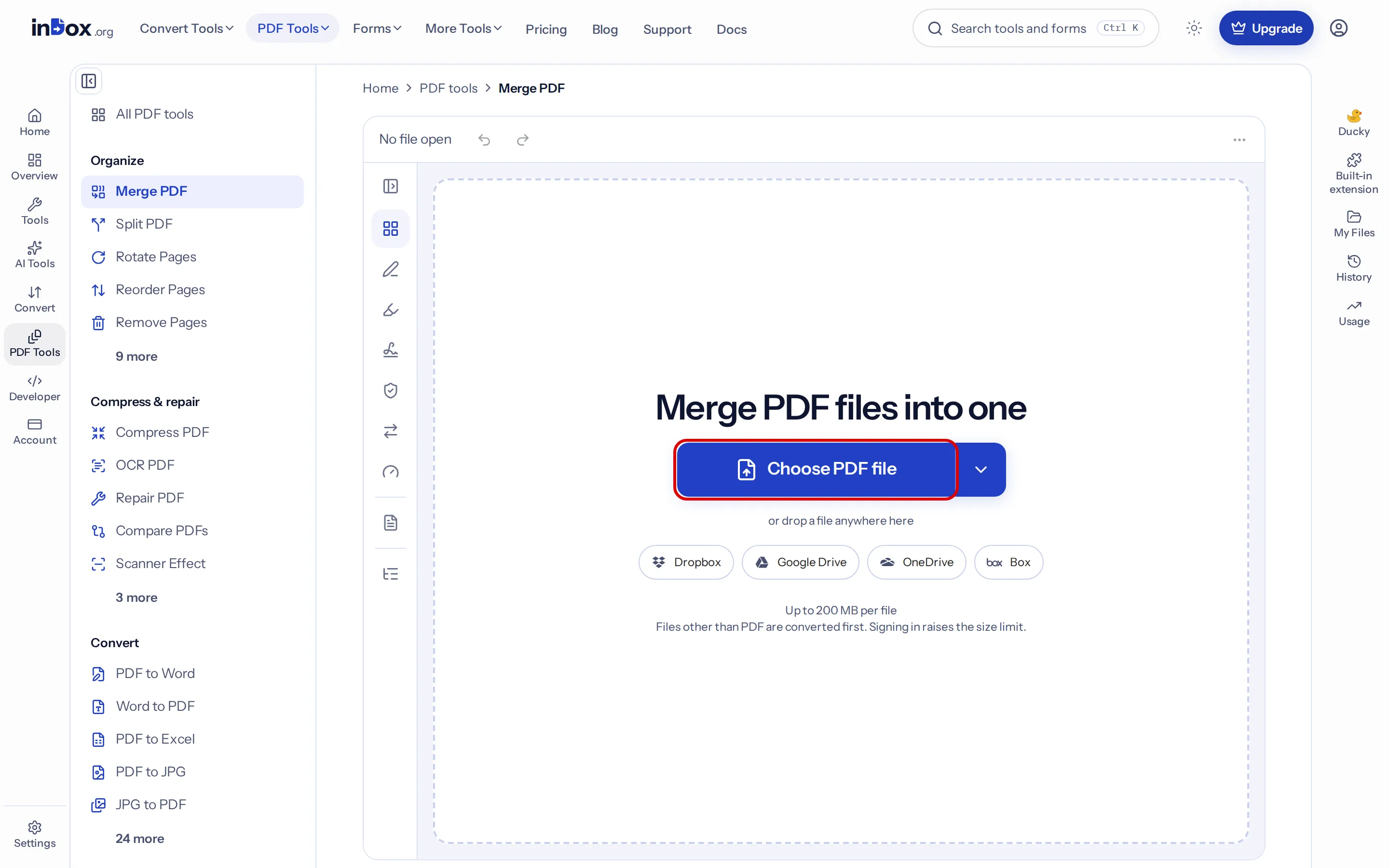
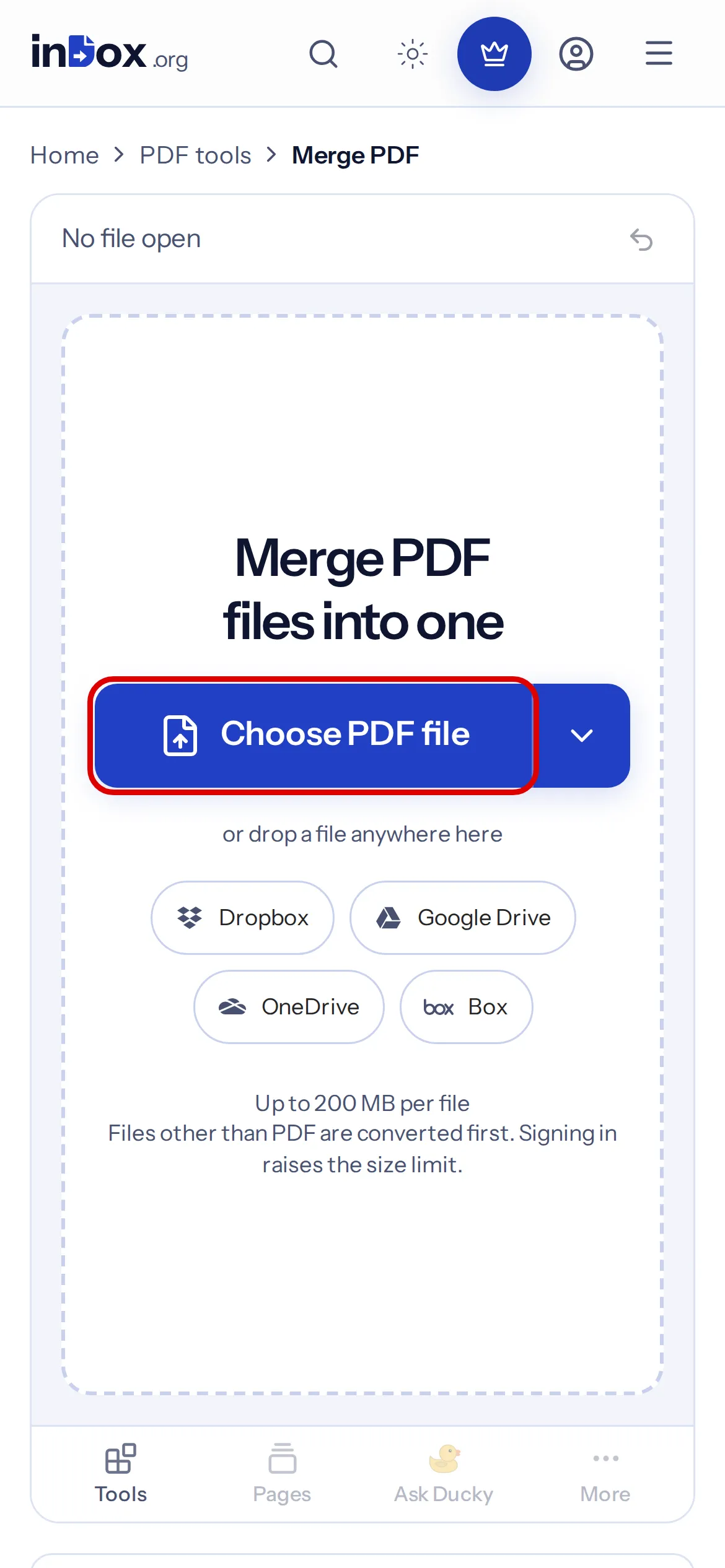
Go to the Merge PDF page. In the middle of the page, select the blue Choose PDF file button. A box opens so you can pick a file from your device. You can also drag a file onto the page. This file stays first in the merged PDF. When it loads, a Merge PDF panel opens. On a computer the panel is on the right. On a phone it is at the bottom of the screen.
Add the other PDFs
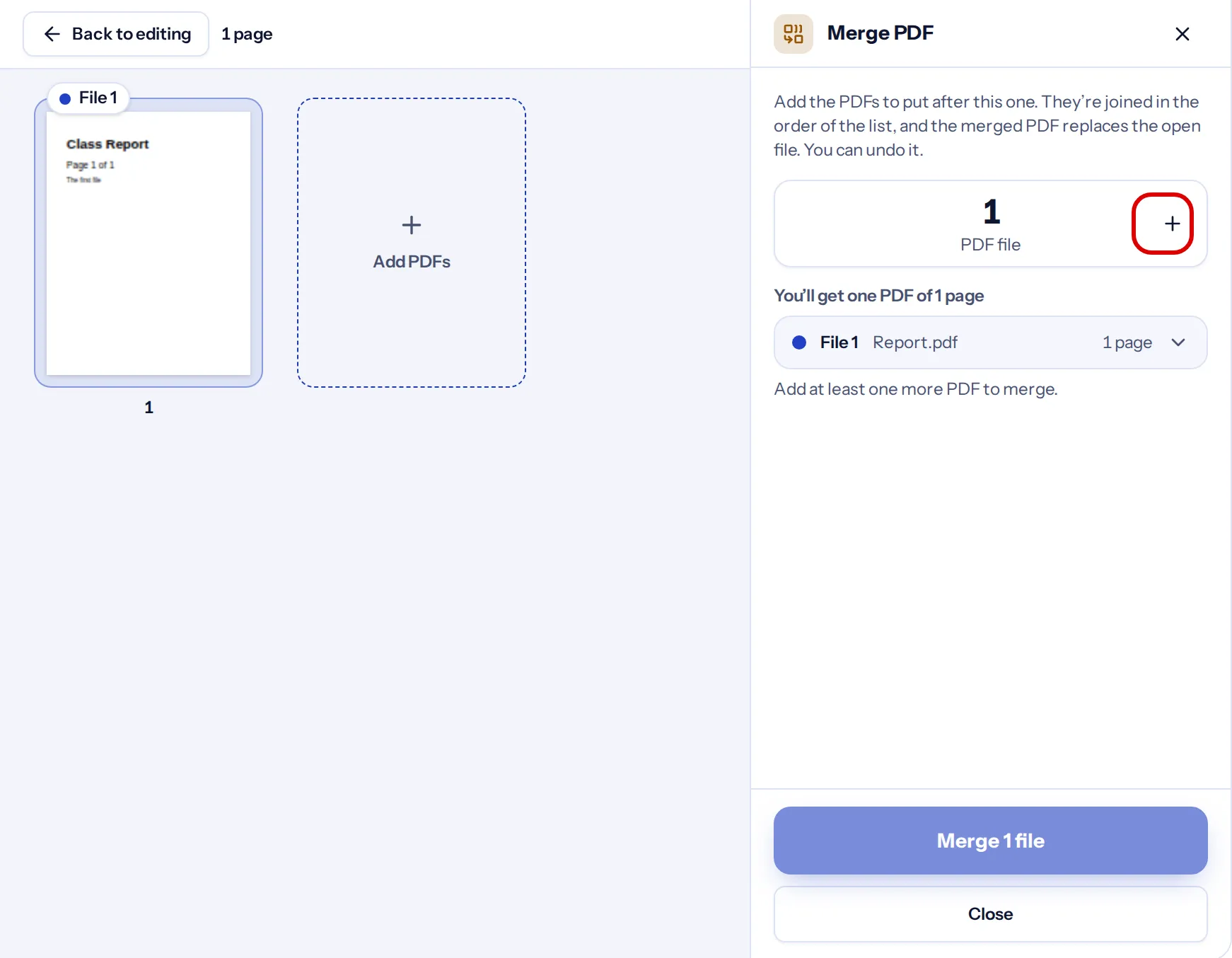
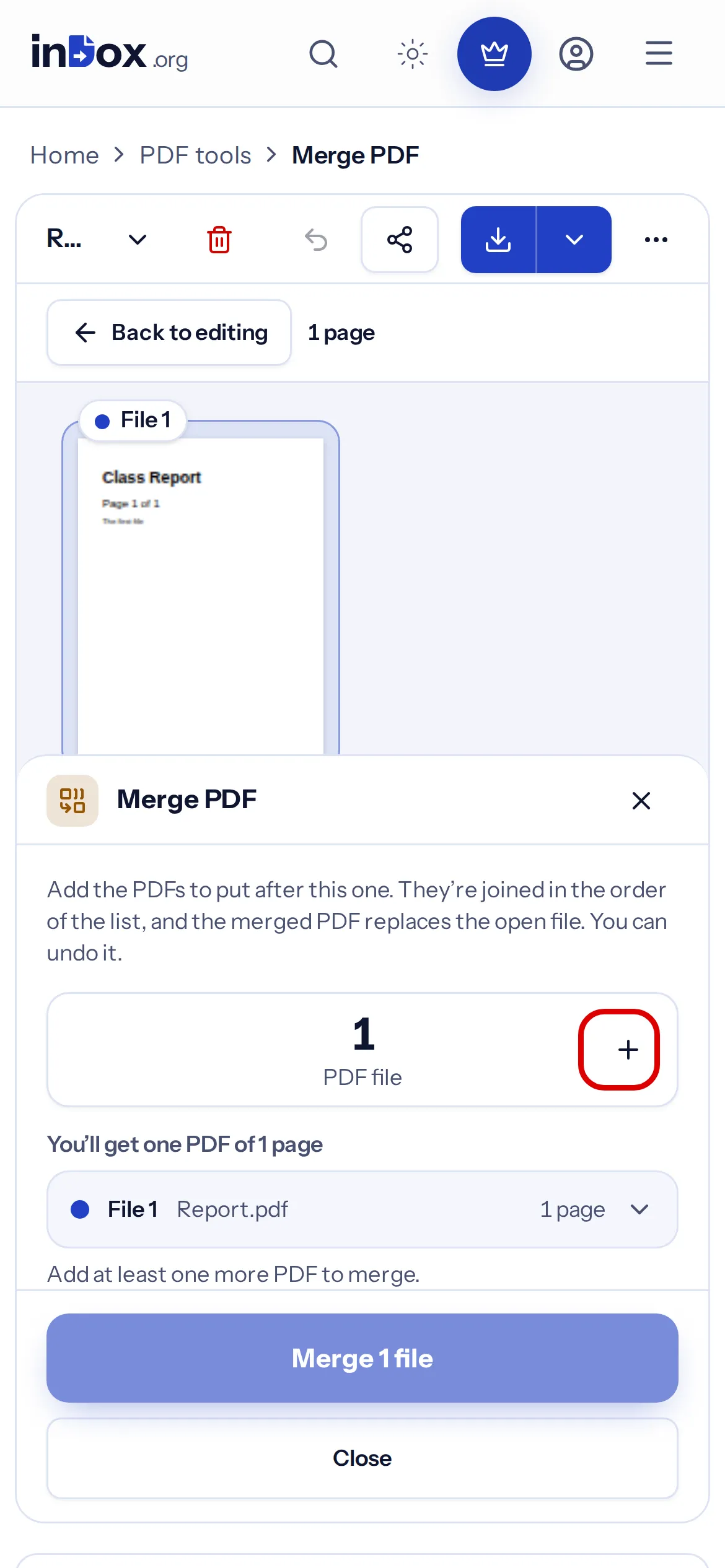
In the Merge PDF panel, find the number of PDF files. Select the + at the right end of it. A box opens so you can pick one or more PDFs from your device. Select + again to add more, up to 50. Each file you add shows on the page as a card with a number, and in the list in the panel.
Put the files in order
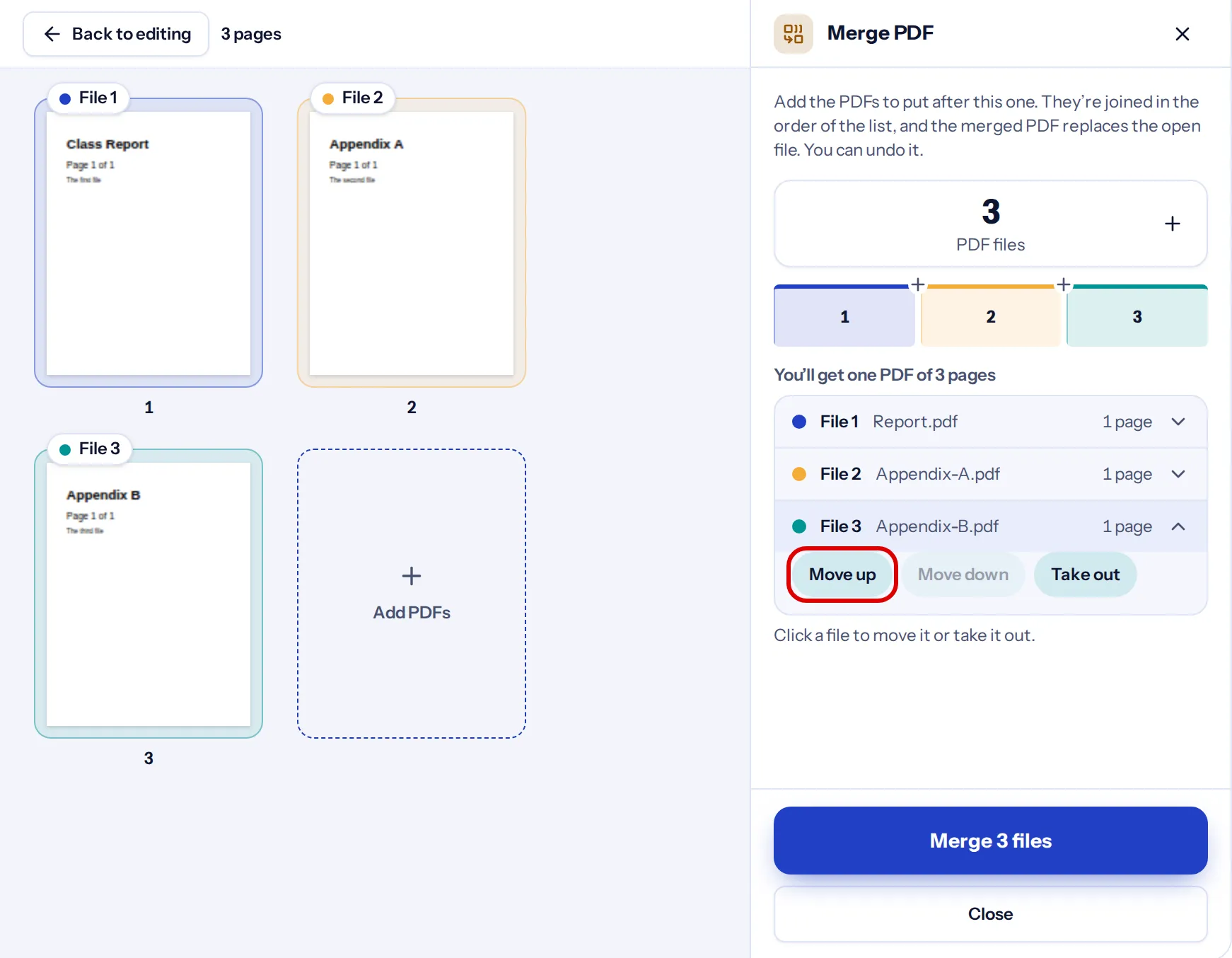
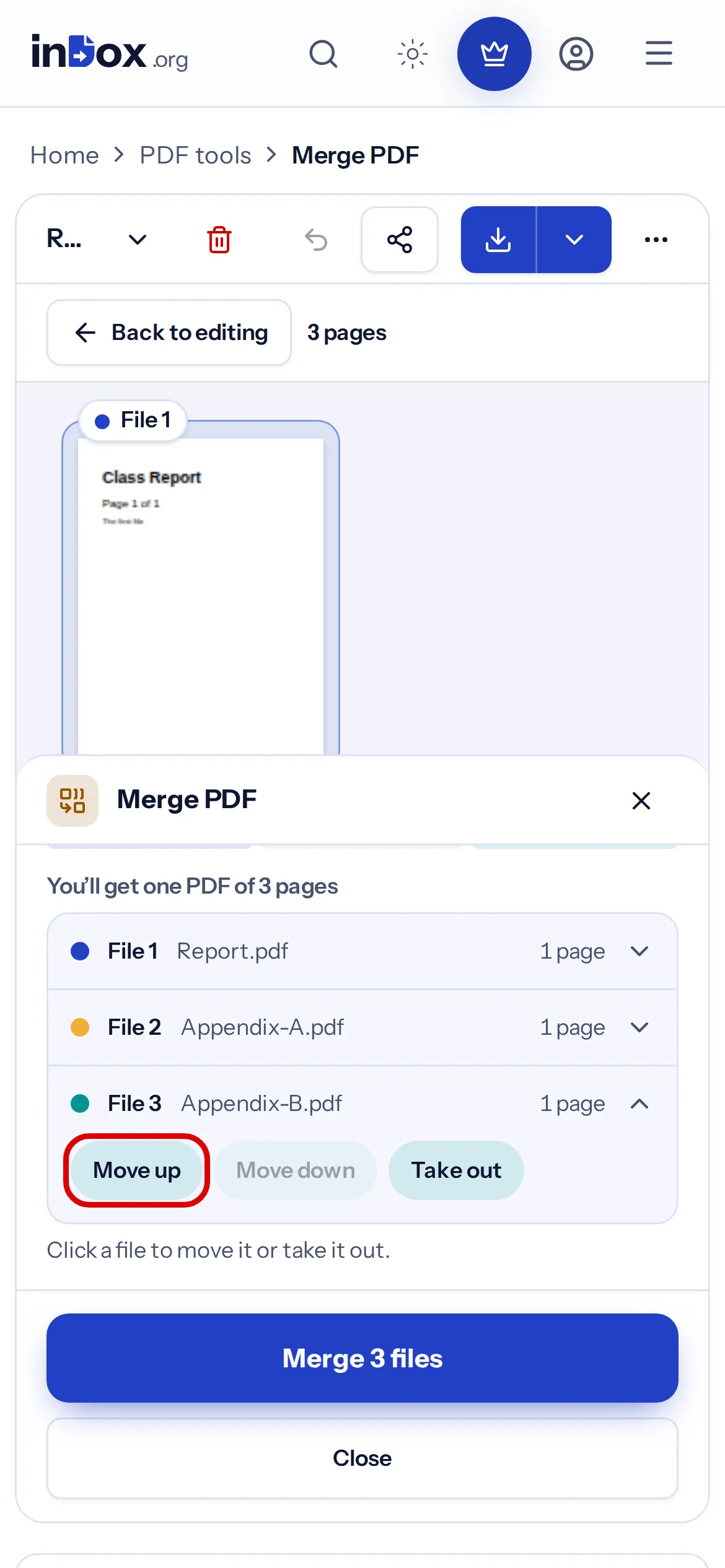
The list in the panel shows the order of the merged PDF, with File 1 first. To move a file, select its row in the list. Three buttons appear: Move up, Move down and Take out. Select Move up or Move down to change the place of the file. Select Take out to leave the file out. The file you opened first can't be moved.
Merge the files
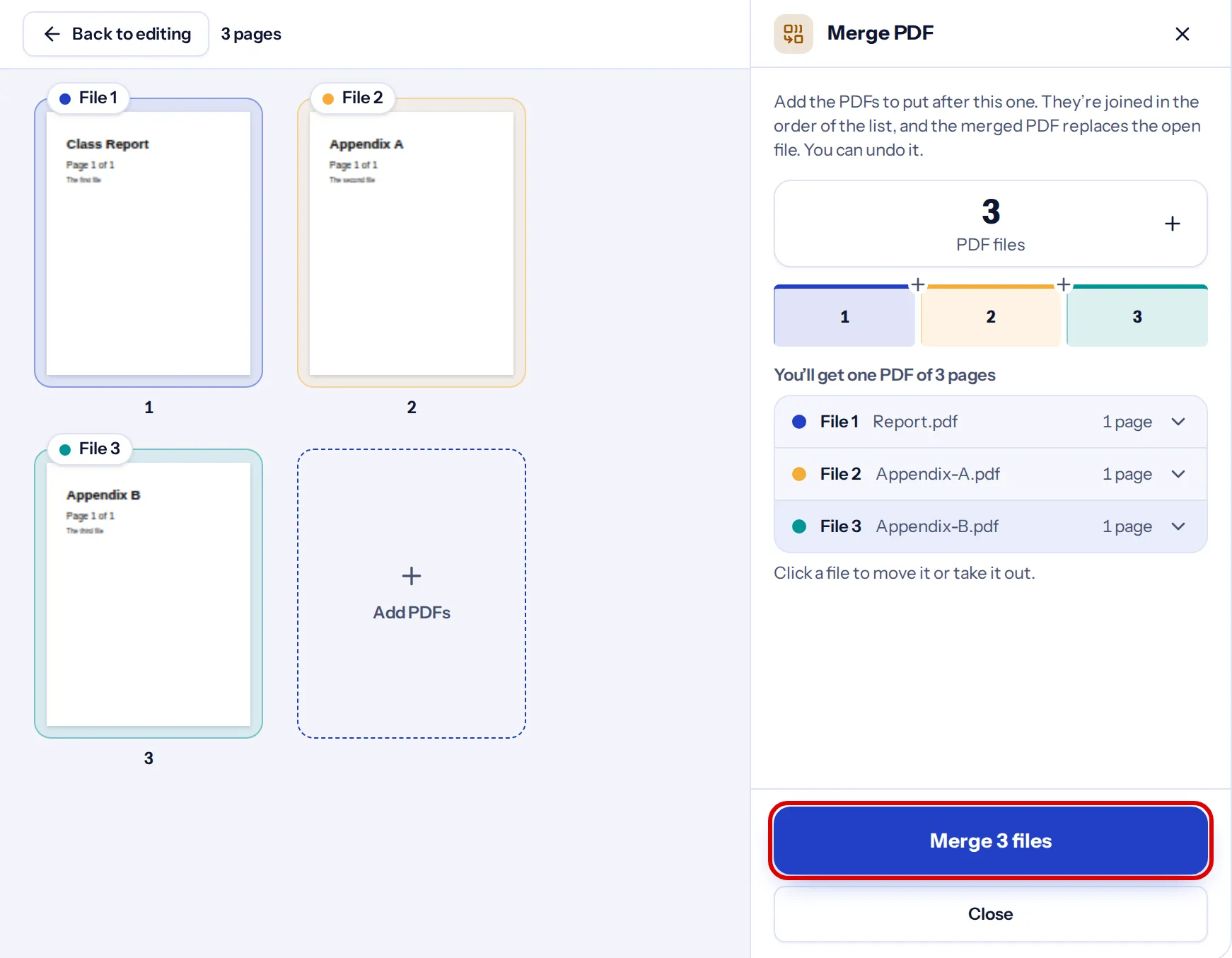
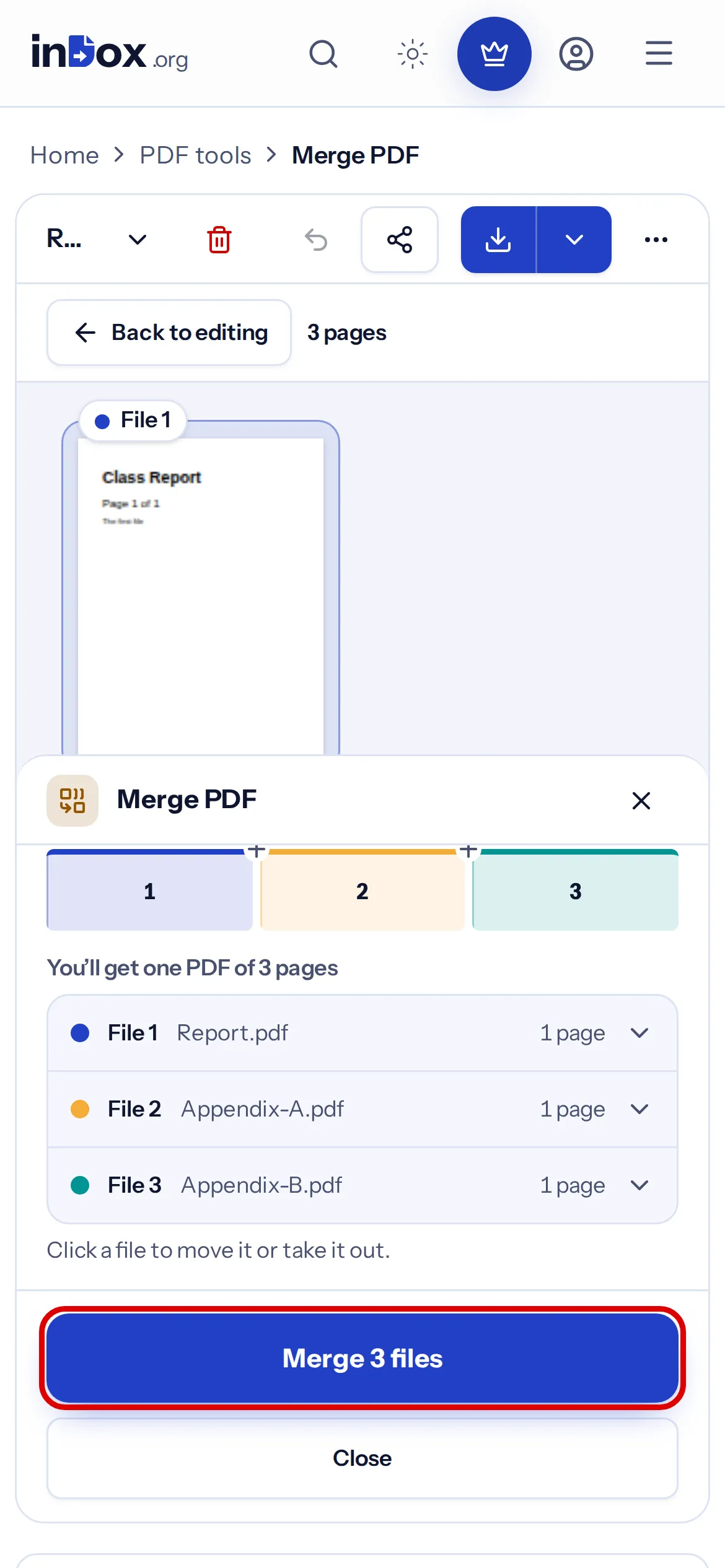
Select the blue Merge button at the bottom of the panel. It counts every file, including the one you opened, so three files read Merge 3 files. Wait a moment. The merged PDF replaces the file you opened, and you can look through its pages before you download it.
Download the merged PDF
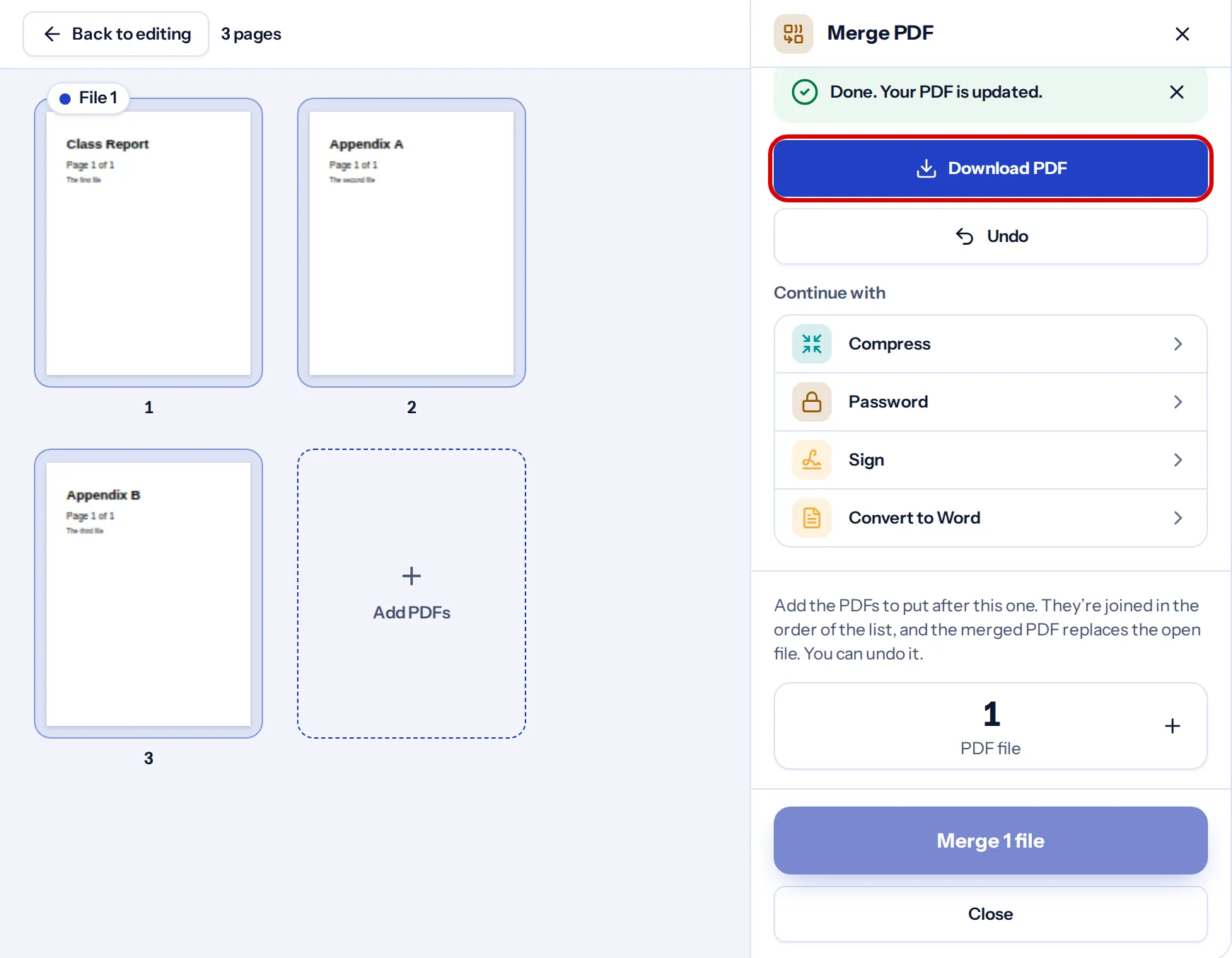
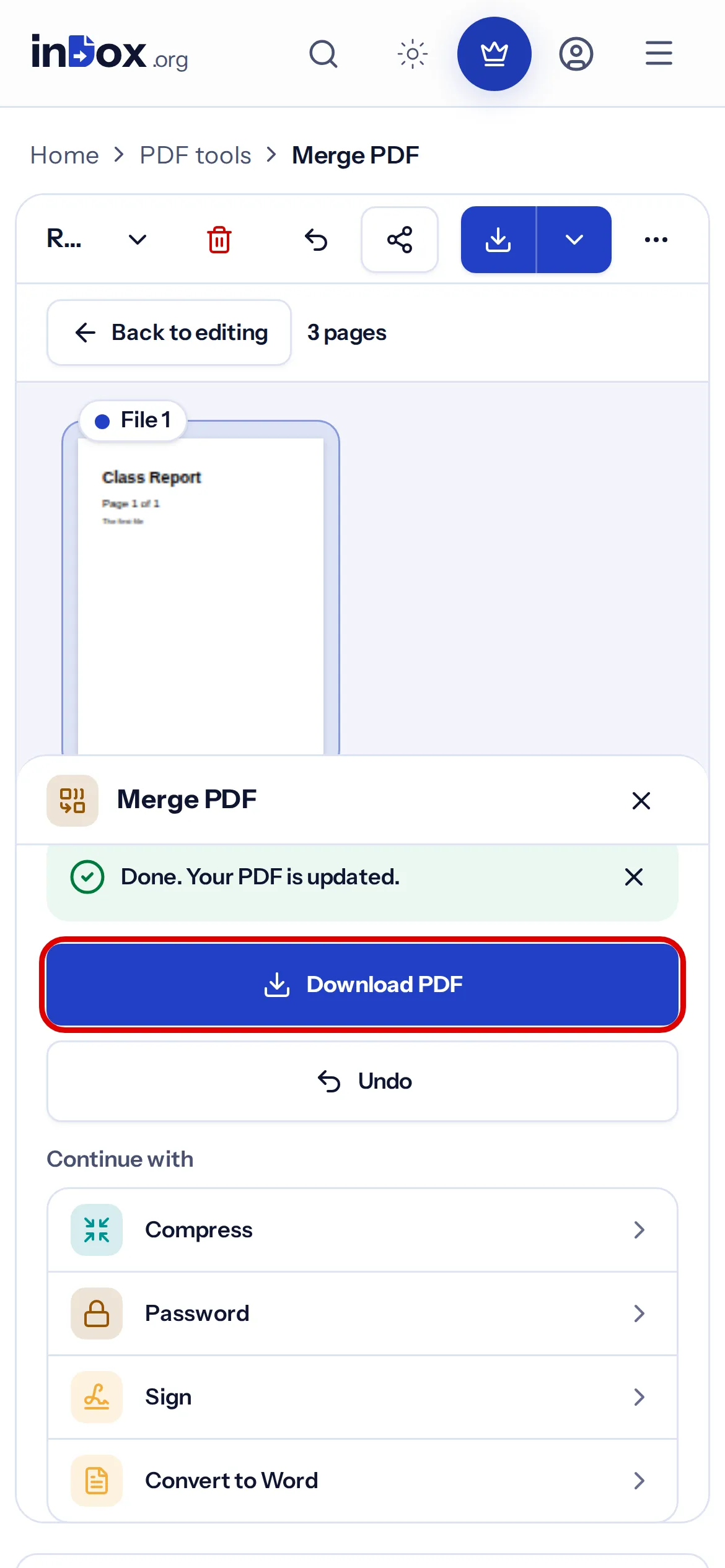
A green message says Done. Your PDF is updated. at the top of the panel. Select Download PDF, just below it. The merged file is saved on your device. Not happy with it? Select Undo to get your first file back as it was.
Troubleshooting
| Problem | Cause | Fix |
|---|---|---|
| A file you added isn't in the list | Only PDF files can be added, and other files are left out without a message | Convert the file to PDF first, then add it |
| Merge 1 file is greyed out | Only the file you opened is in the list. The panel says Add at least one more PDF to merge. | Select + and add at least one more PDF |
| A file can't be opened | The file is locked with a password | Select it and choose Take out, or remove the password with Unlock PDF and add it again |
| The merge fails with many files | One merge takes the file you opened plus up to 50 more | Merge in two rounds, then merge the two results |
| Bookmarks from a later file are missing | Bookmarks can be lost when the files have form fields | Rebuild them with Edit TOC |