Last updated
Print several pages per sheet
Before you start
- A sheet is one piece of paper. This guide puts several small pages on one sheet, so you use less paper when you print.
- Have the PDF on your phone or computer. The upload box tells you how big a file can be.
- You don't need an account.
Open your PDF
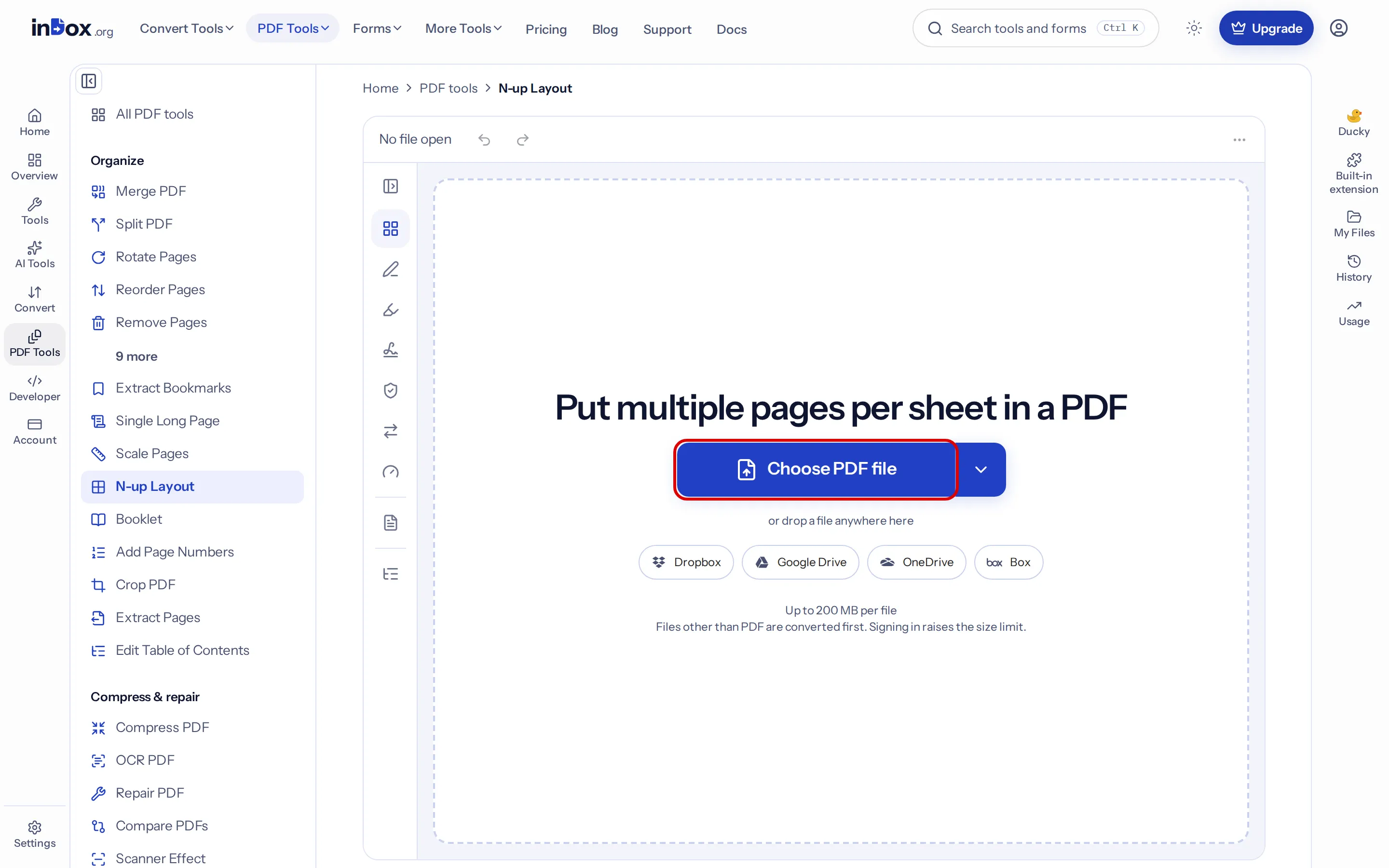
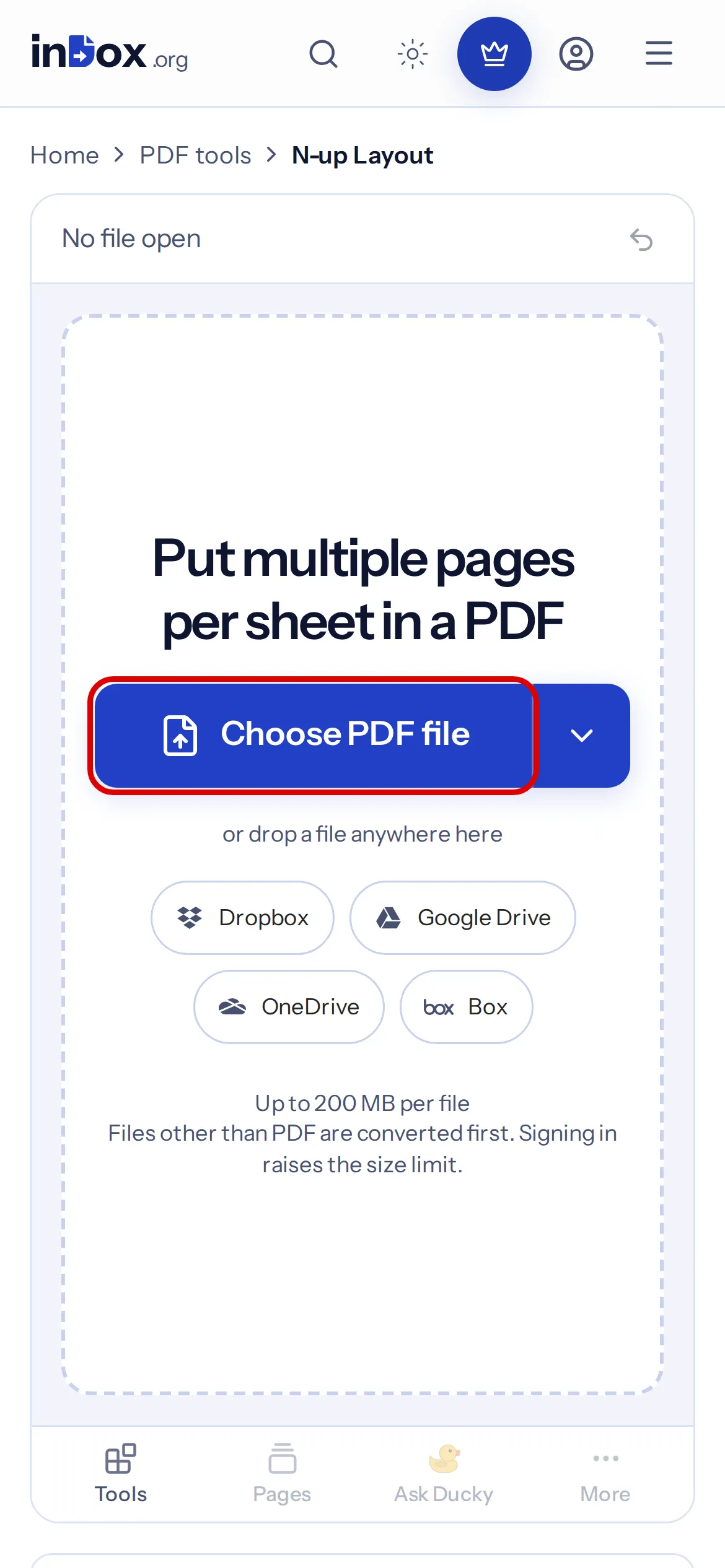
Go to the Put multiple pages per sheet in a PDF page. In the middle of the page, select the blue Choose PDF file button. A box opens so you can pick a file from your device. You can also drag a file onto the page. When the file loads, you see its pages and an N-up Layout panel. On a computer the panel is on the right. On a phone it is at the bottom of the screen.
Choose how many pages per sheet
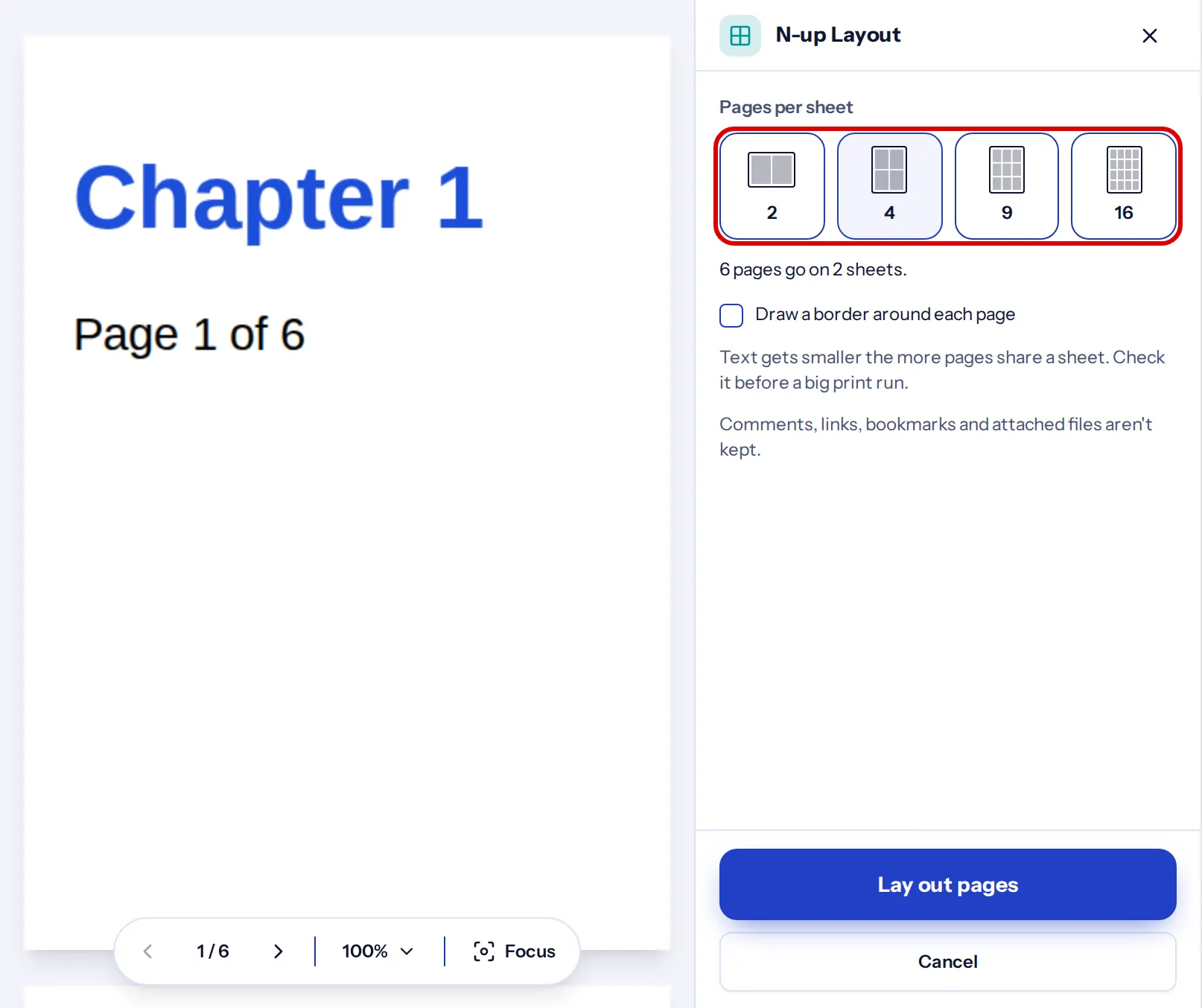
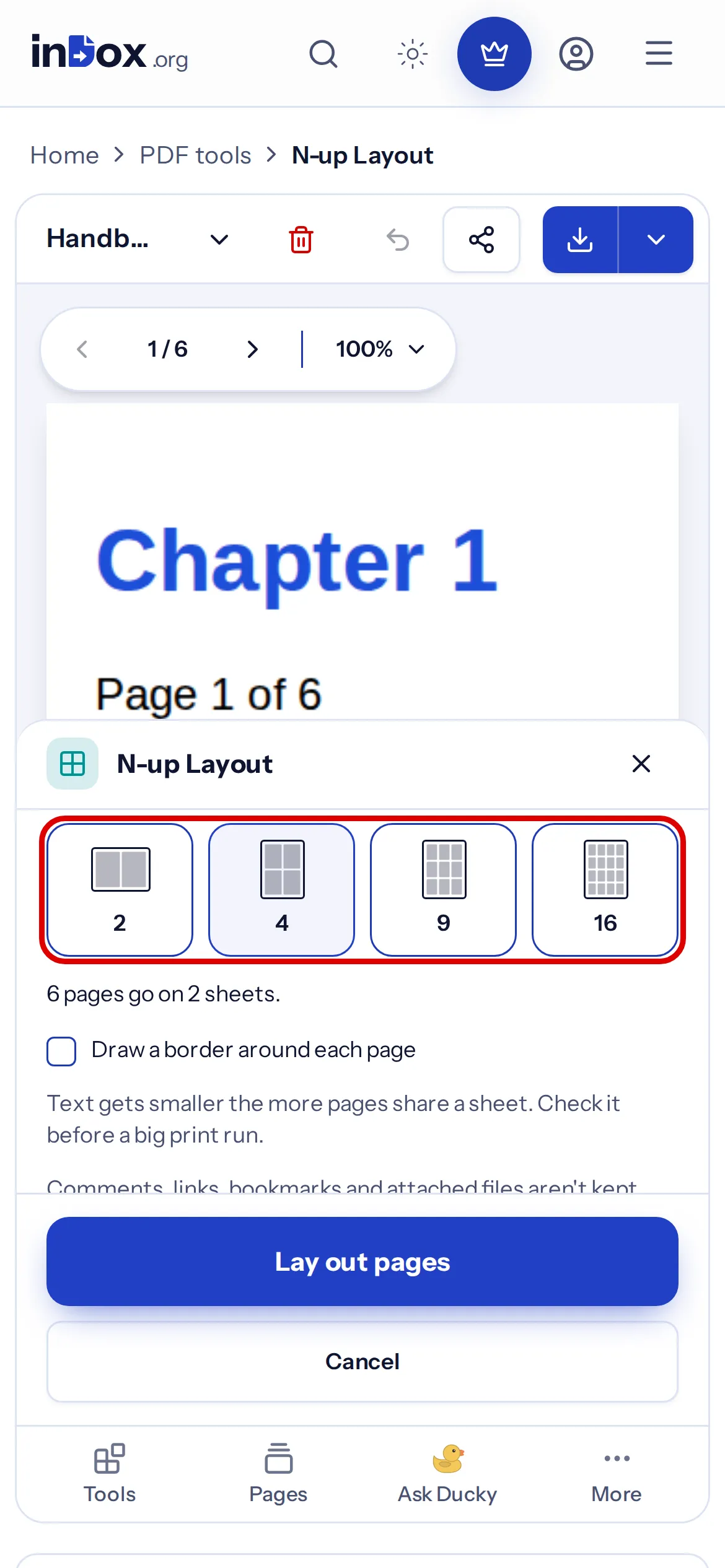
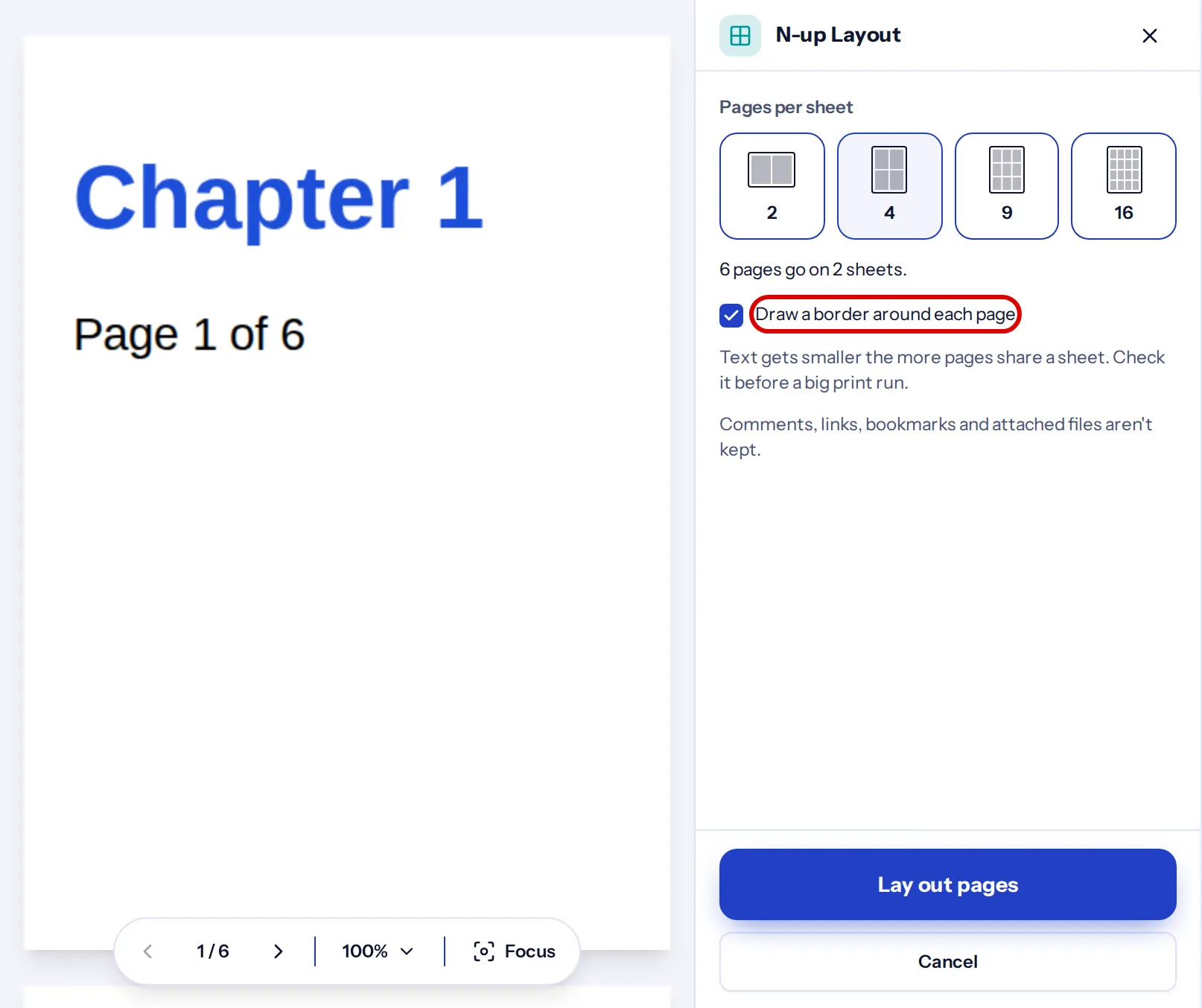
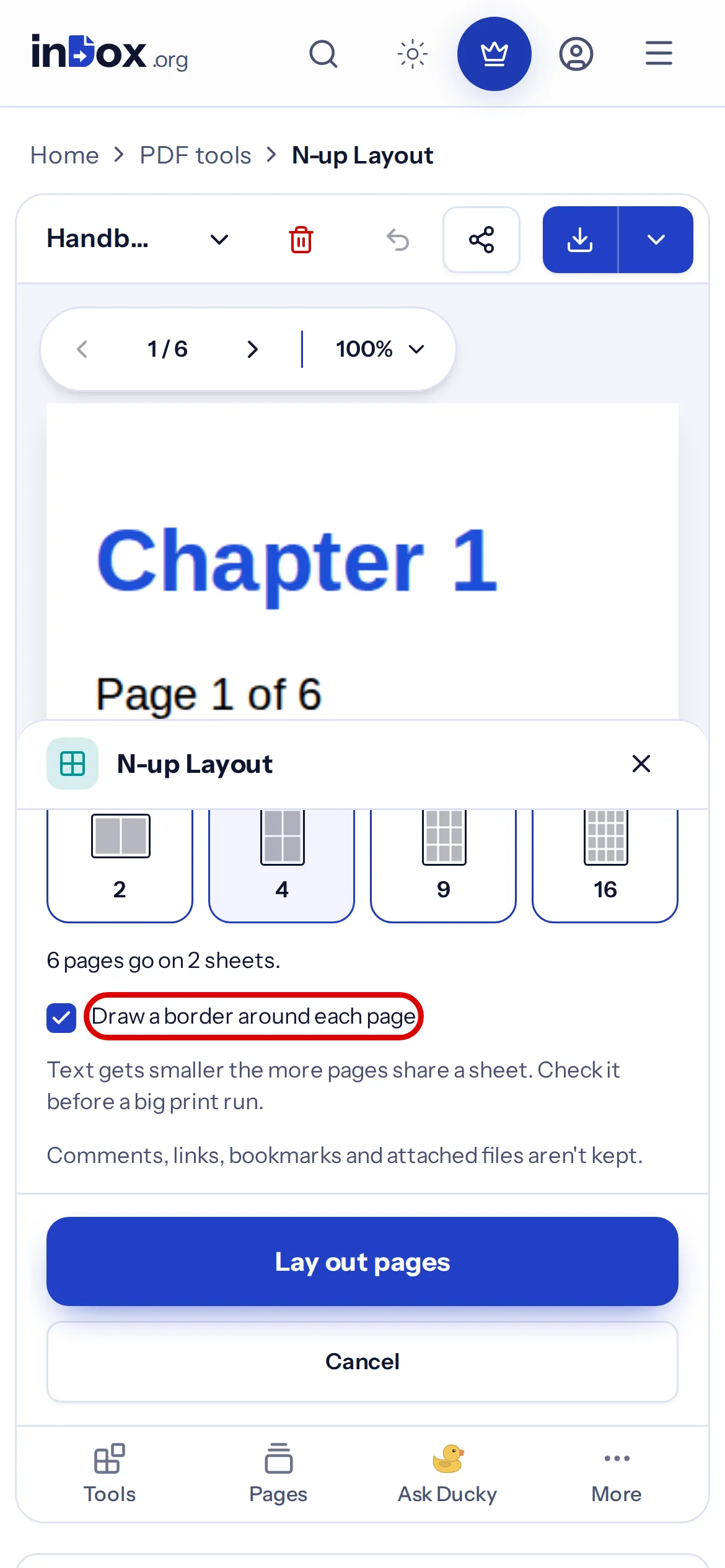
Look at the N-up Layout panel. Under Pages per sheet, you see four buttons: 2, 4, 9 and 16. Each one has a small picture of a sheet cut into that many parts. 4 is already picked. Select another number if you want. A line under the buttons says how many sheets you will get, for example 6 pages go on 2 sheets. More pages on a sheet means smaller pages.
Add a border (optional)
Under the count line, find Draw a border around each page. Select it to put a thin line around every page on the sheet. A tick appears in the box. The box starts empty, so skip this step if you don't want lines. Below it, a note says text gets smaller the more pages share a sheet.
Lay out the pages
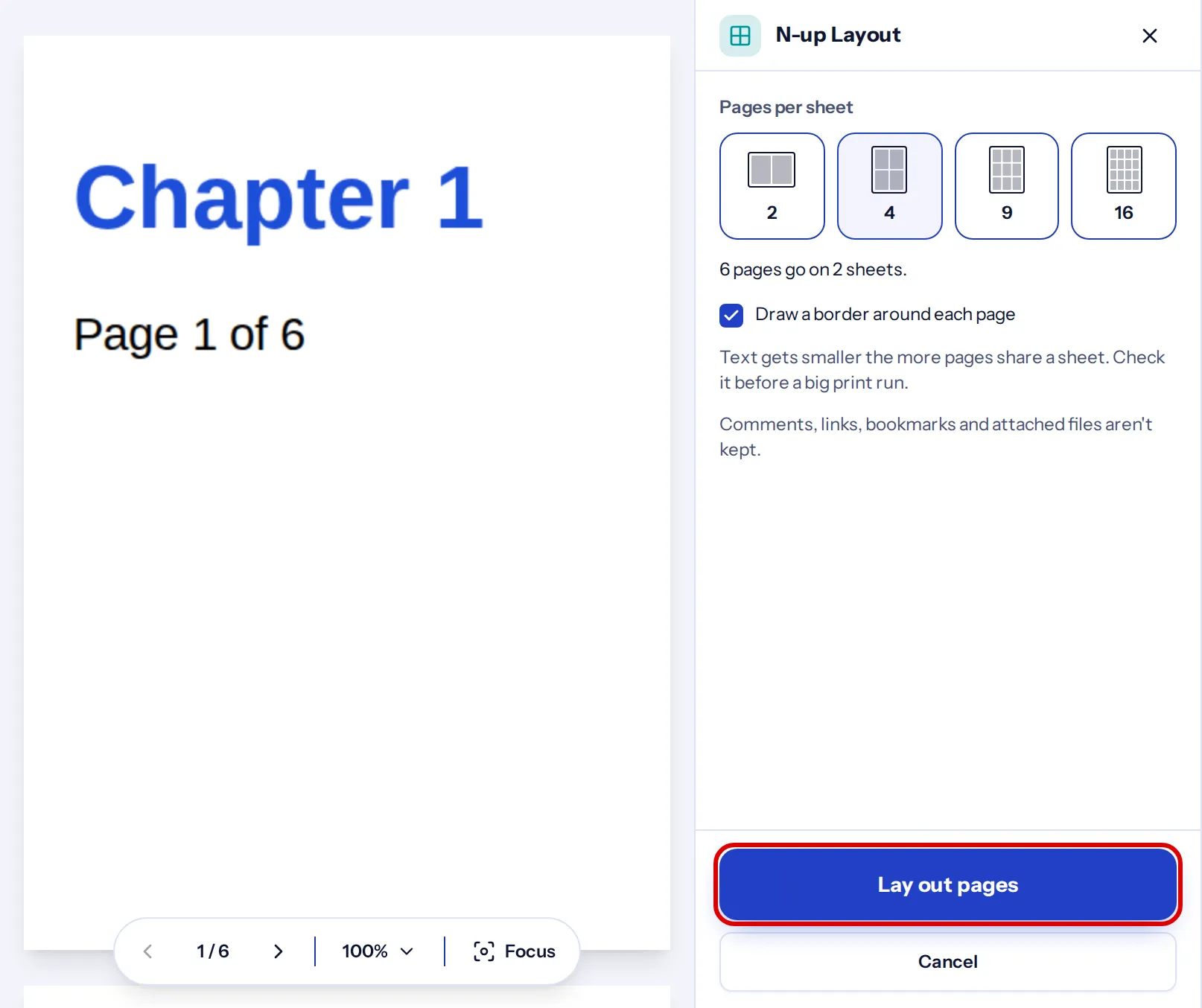
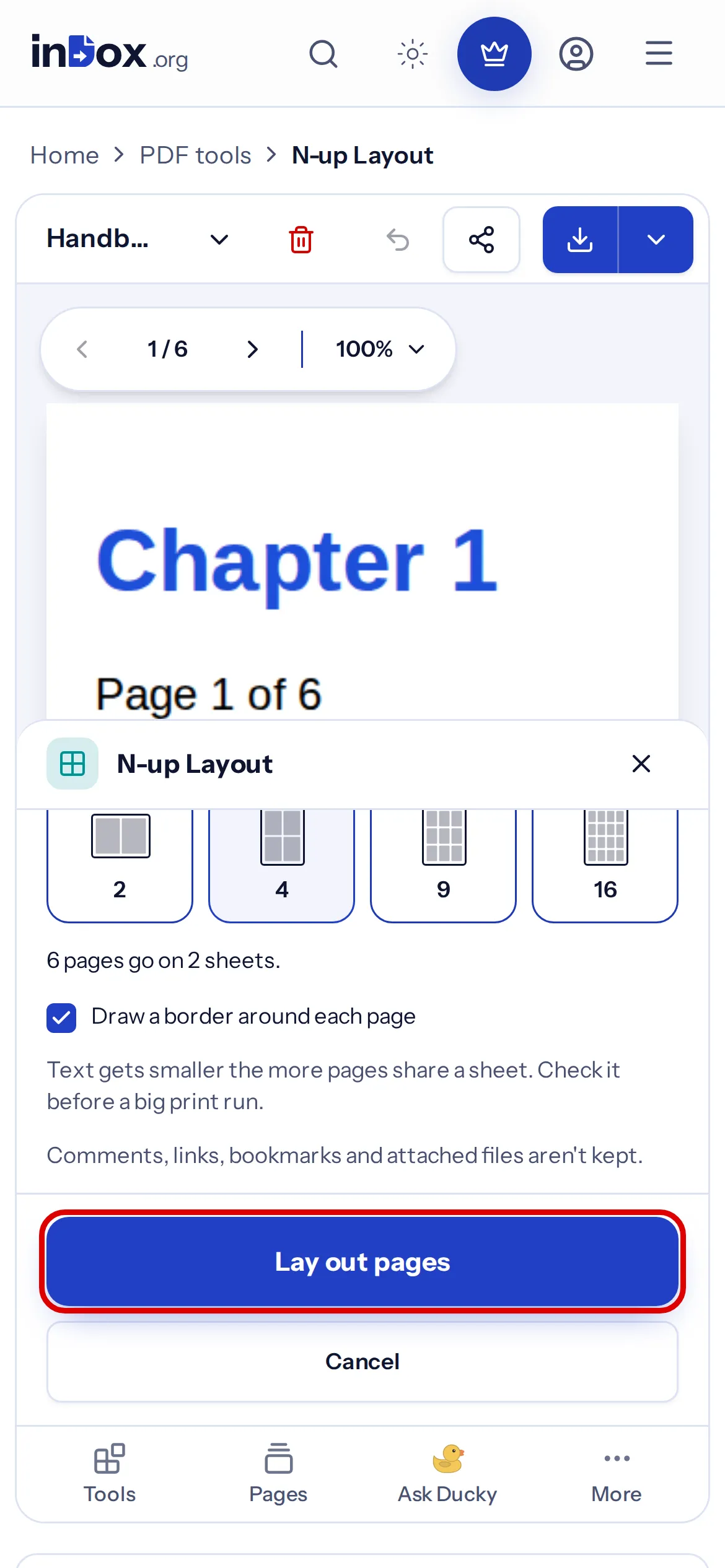
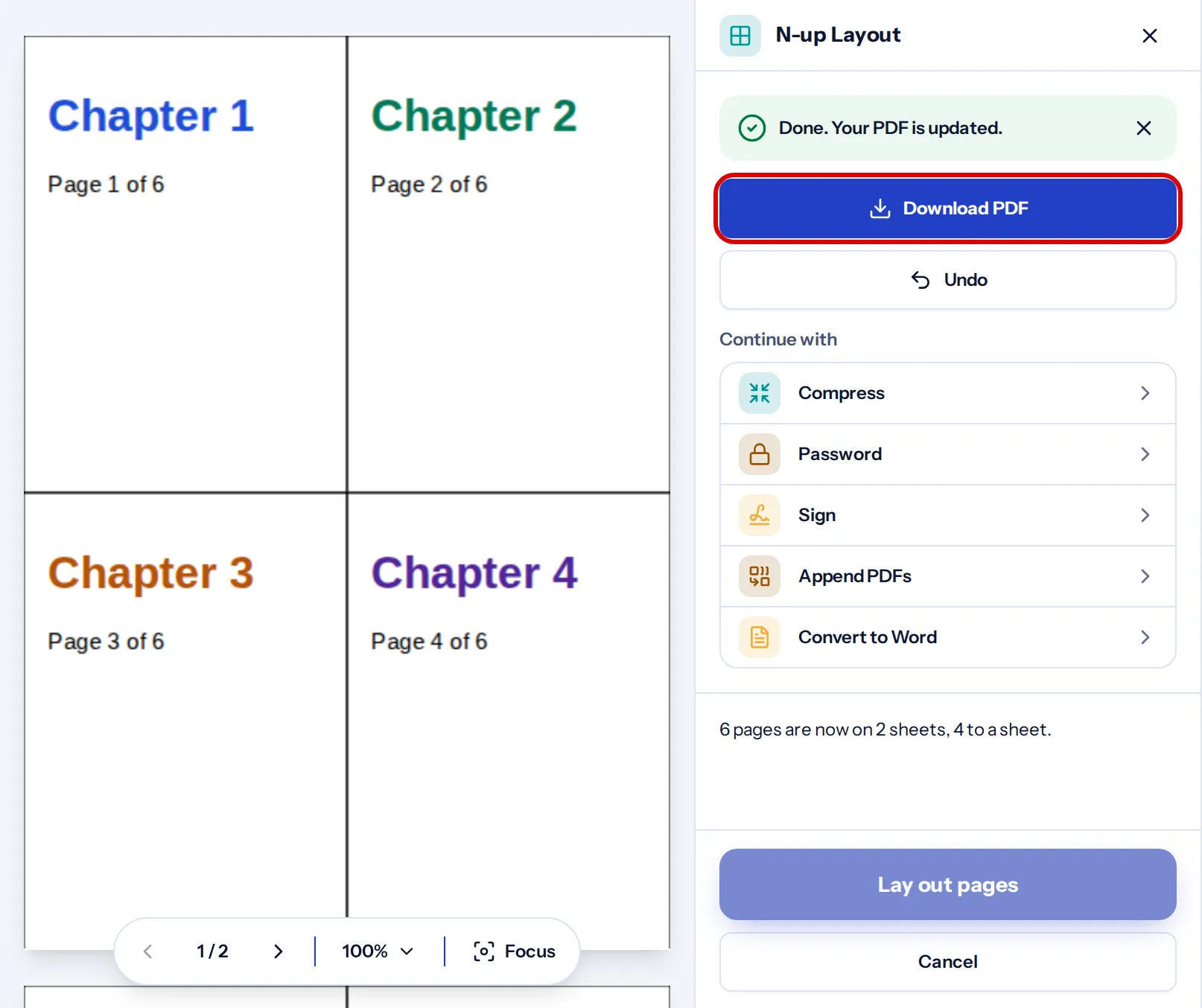
Select the blue Lay out pages button at the bottom of the panel. Wait a moment. The page on the left changes to show several pages on one sheet.
Download your PDF
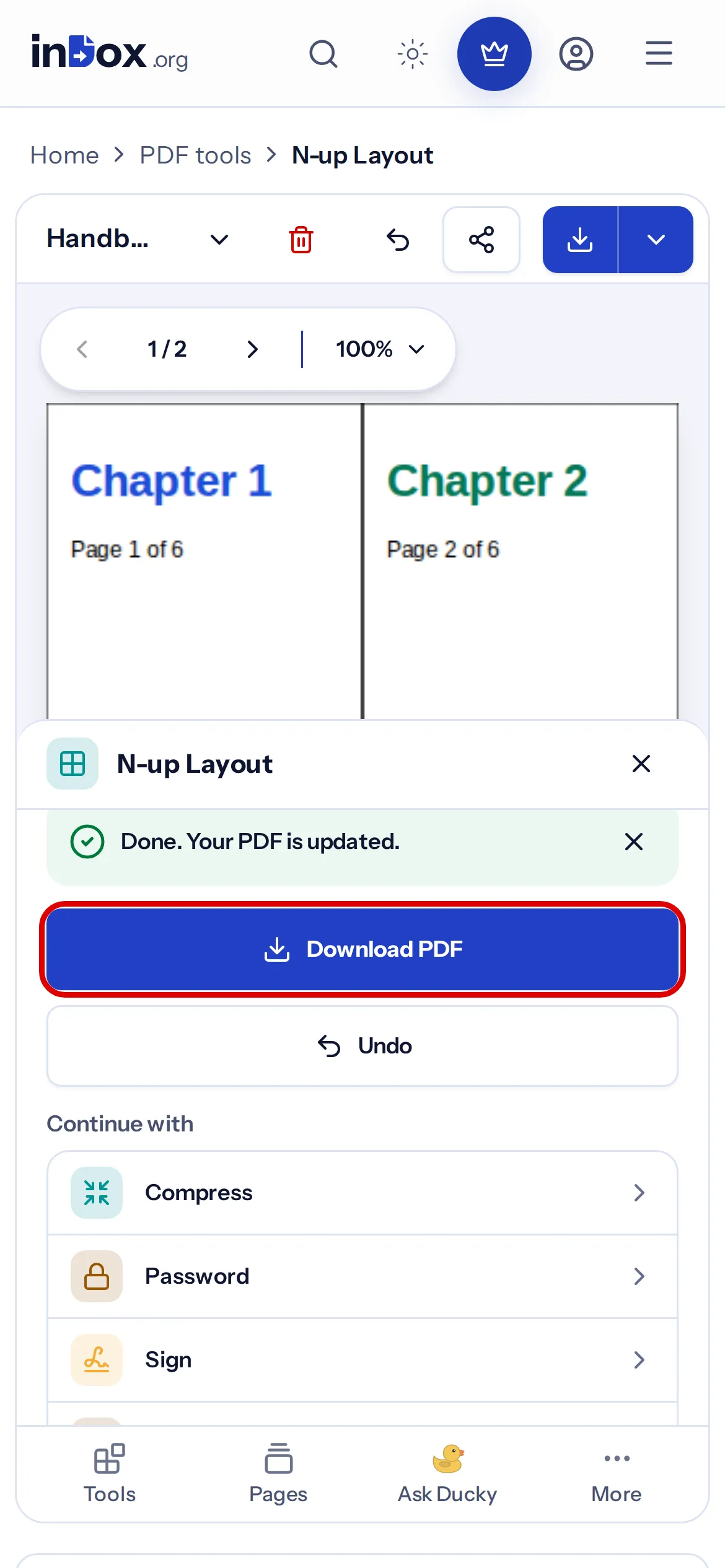
A green message says Done. Your PDF is updated. at the top of the panel. Select Download PDF, just below it. The new file is saved on your device. Its name is your file's name with -edited added. Lower in the panel, a line such as 6 pages are now on 2 sheets, 4 to a sheet. tells you the result. Not happy with it? Select Undo to get your pages back.
Troubleshooting
| Problem | Cause | Fix |
|---|---|---|
| The text is too small to read | The more pages share a sheet, the smaller each page prints | Select Undo, pick 2 or 4, and select Lay out pages again. Look at the result before you print a lot |
| Links, bookmarks or comments are gone | The new PDF doesn't keep comments, links, bookmarks or attached files | Keep your first PDF if you need them, and print from the new one |
| There are fewer sheets than you expected | 9 and 16 put many pages on one sheet, so a short PDF can fit on a single sheet | Pick a smaller number under Pages per sheet. The line under the buttons shows the sheet count before you start |
| You want the old layout back | The new layout replaces the PDF on screen | Select Undo next to Download PDF |