Last updated
Fix a failed conversion
Goal: A clear reason for the failure, and a fresh try.
Before you start
- Have a file in the converter that shows a red Failed label.
- You don't need an account.
Find the Failed label
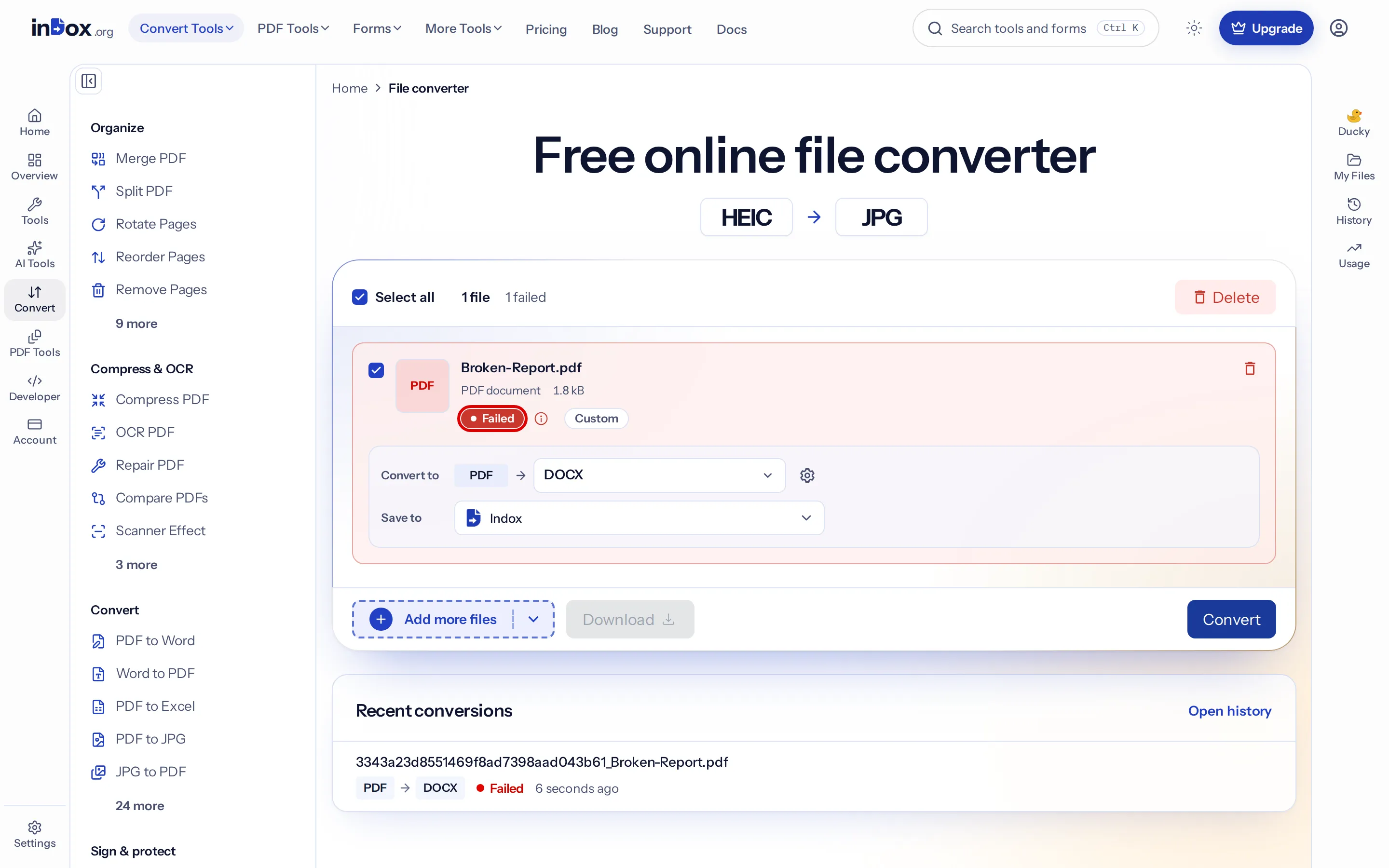
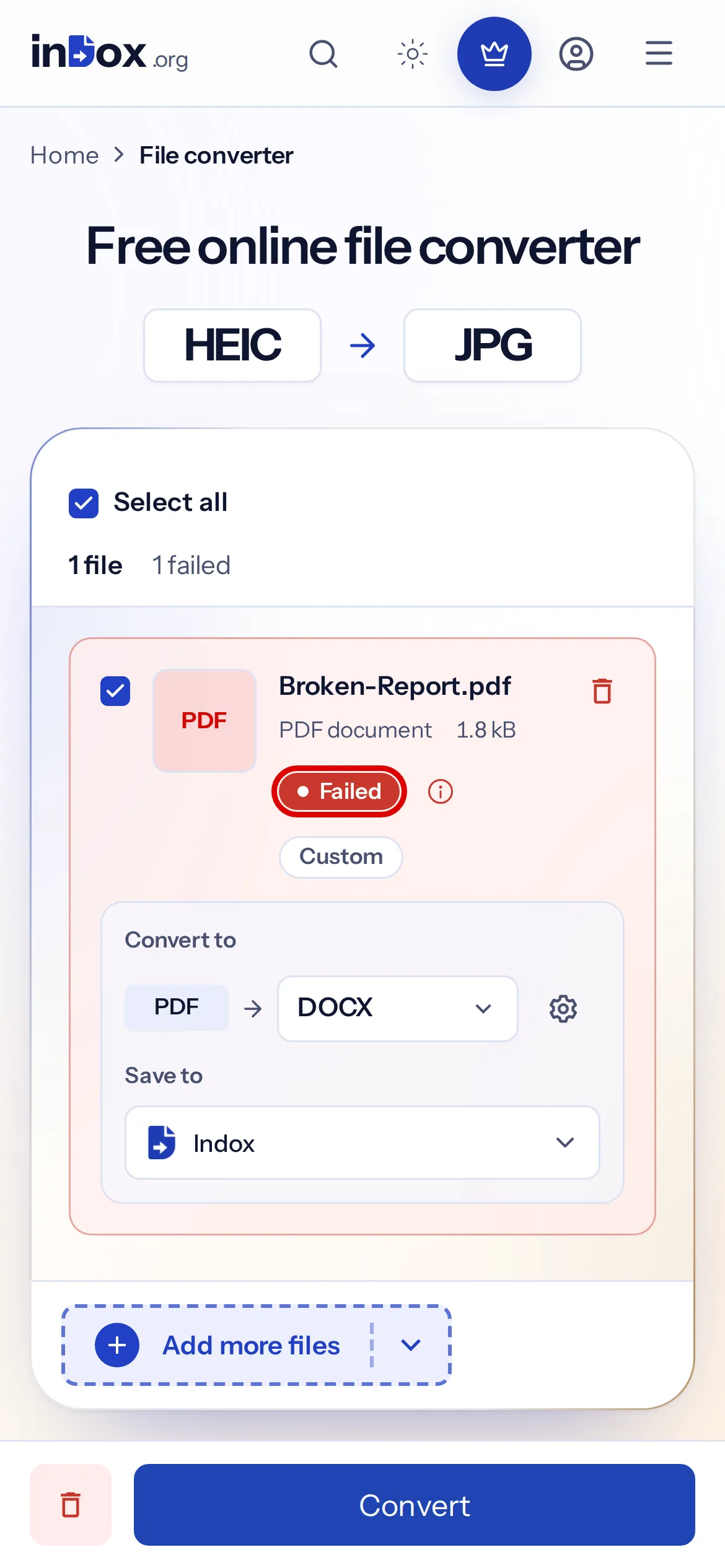
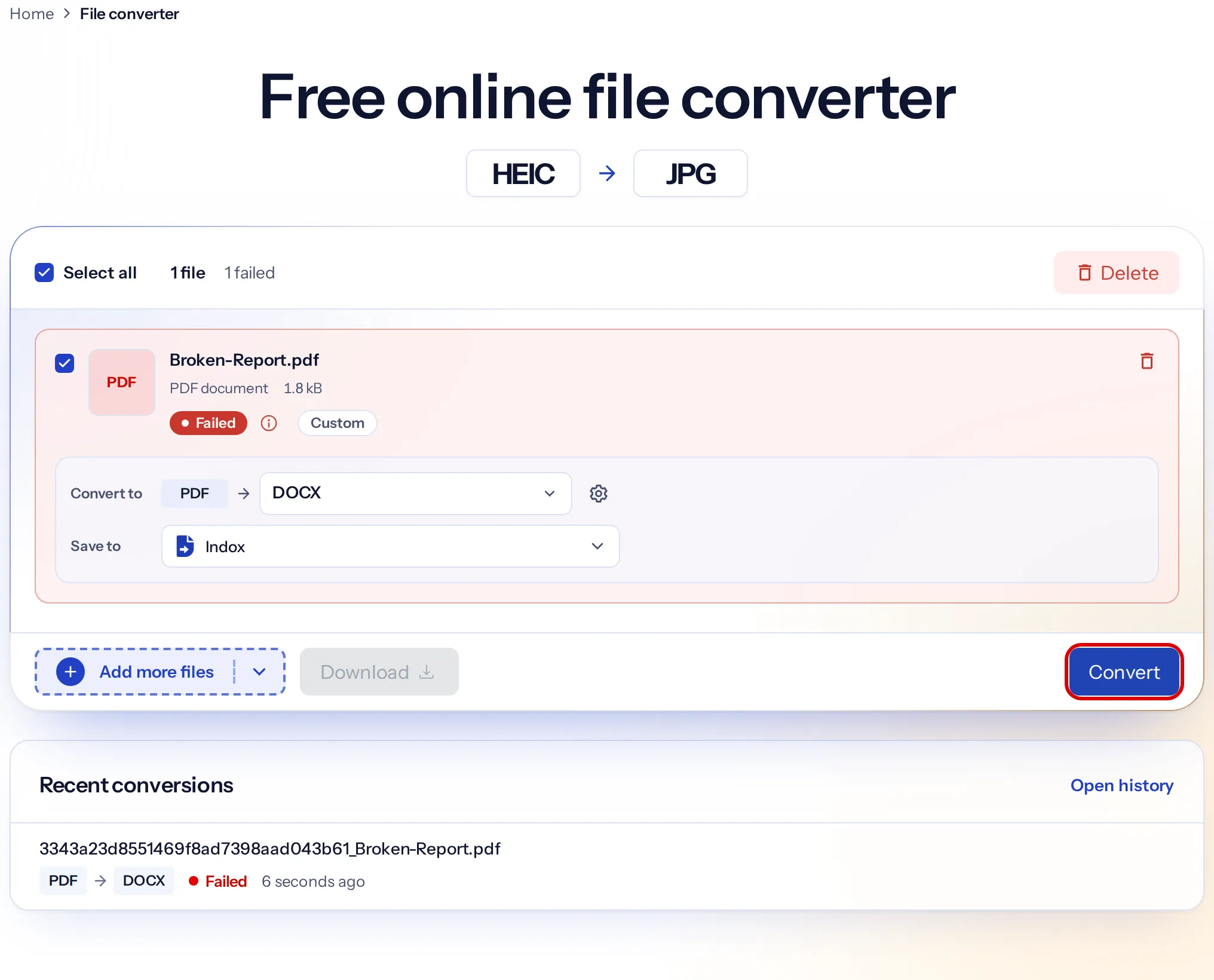
A failed file has a red card. Look for the red Failed label under the file name. A small red message may also show at the bottom right of the screen. It says 1 file failed. Hover the row to see why.
Read the reason
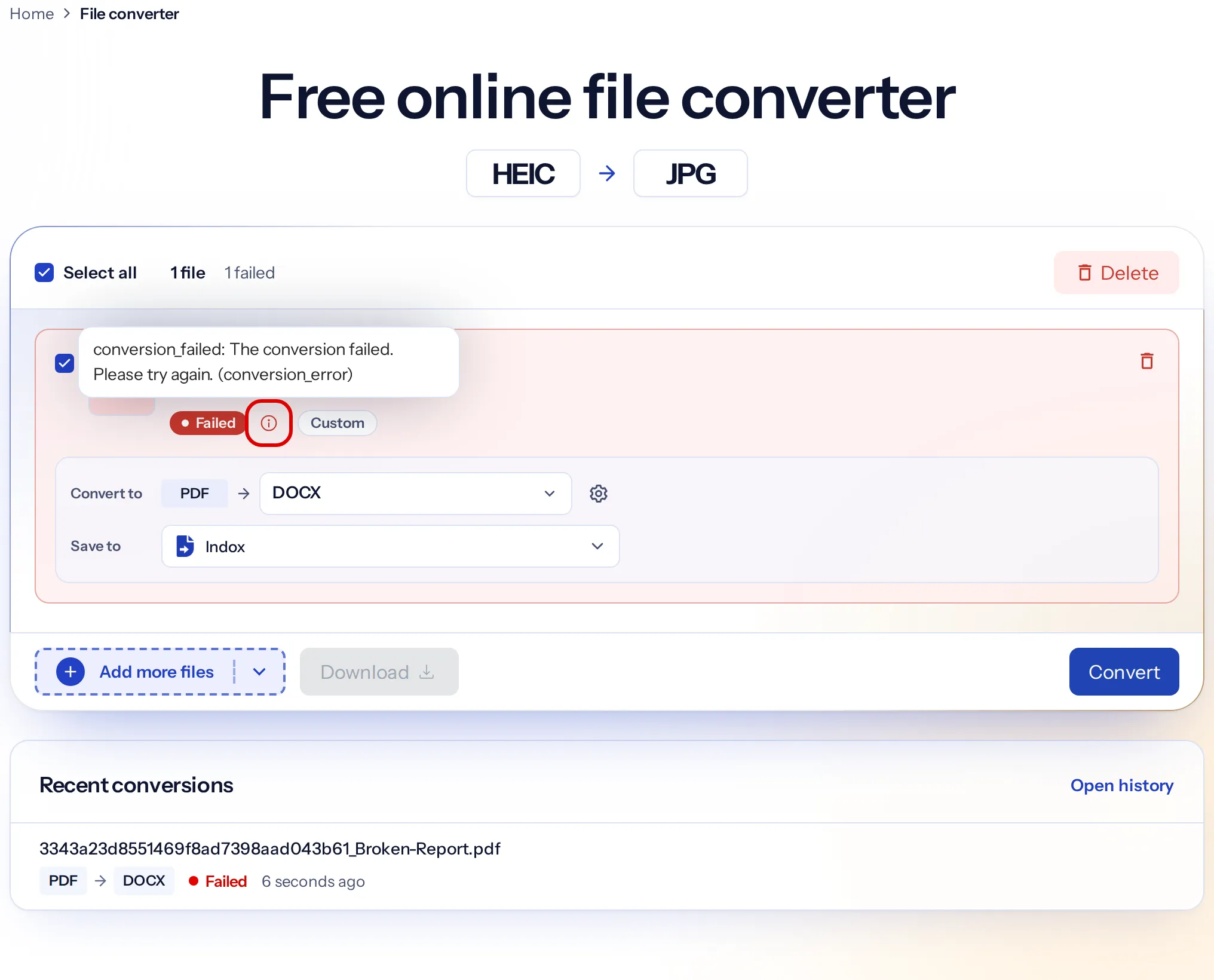
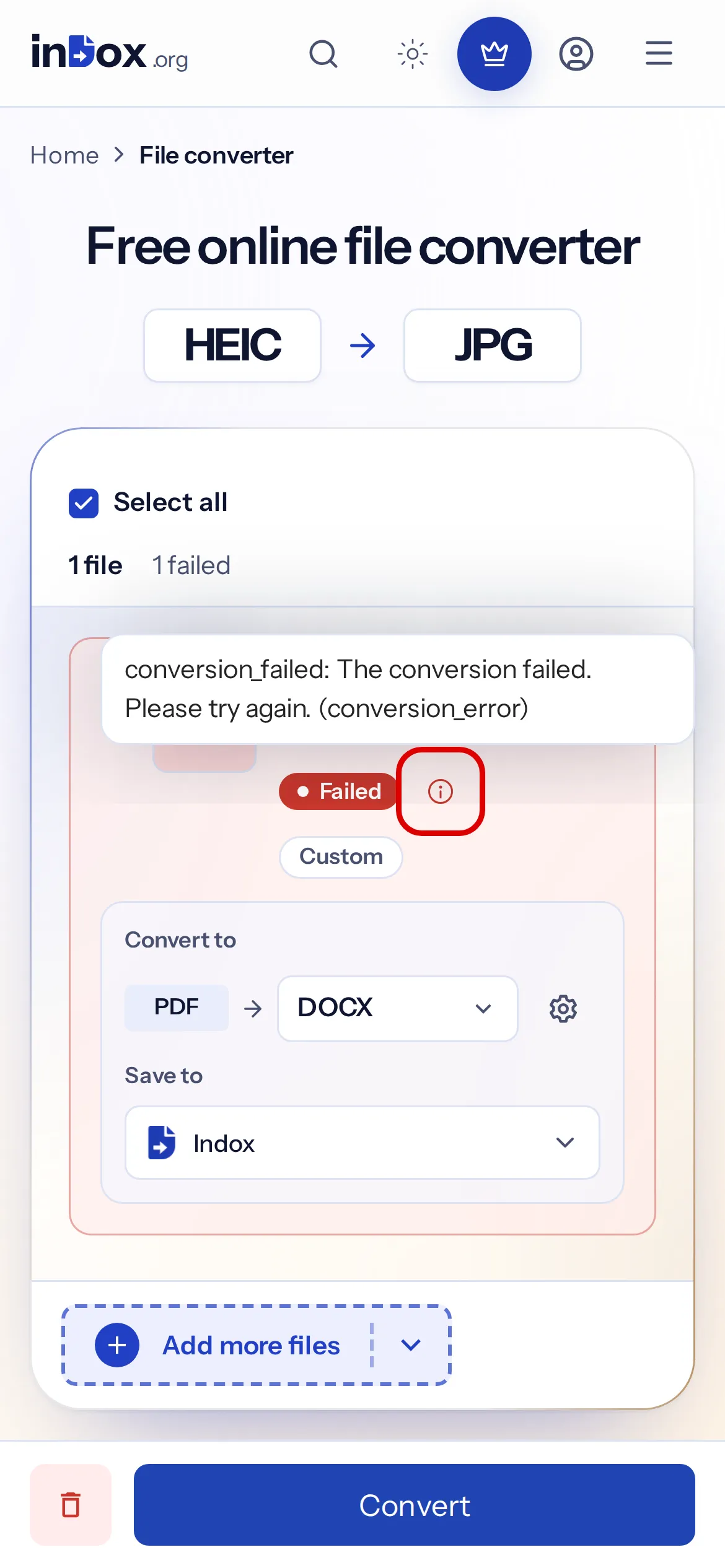
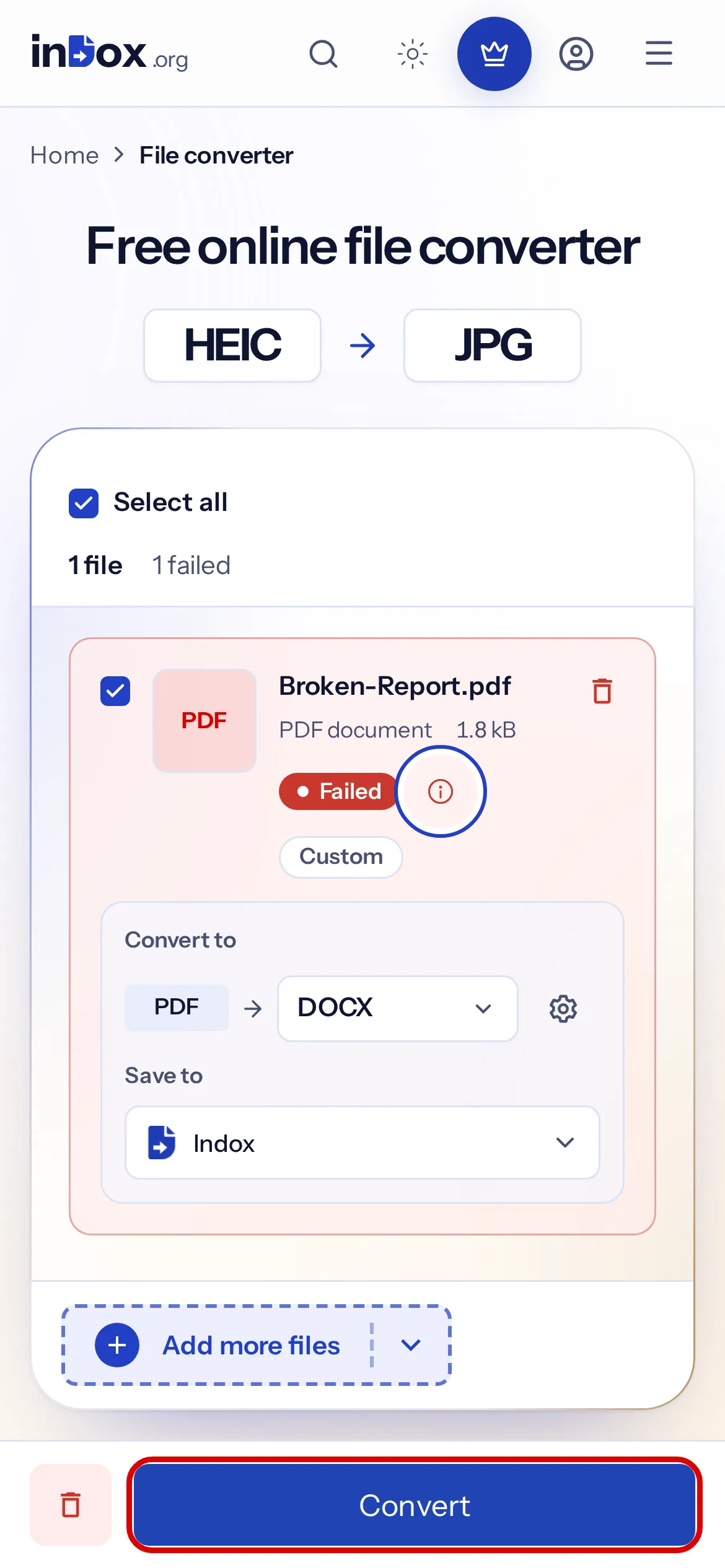
Next to Failed is a small round icon with an i. On a computer, move your mouse over it. On a phone, tap it. A small box shows the reason. It may only say The conversion failed. Please try again.
Try again
Select the blue Convert button. indox tries the file again. You can also pick another format in the Format box first.
Remove the file if it fails again
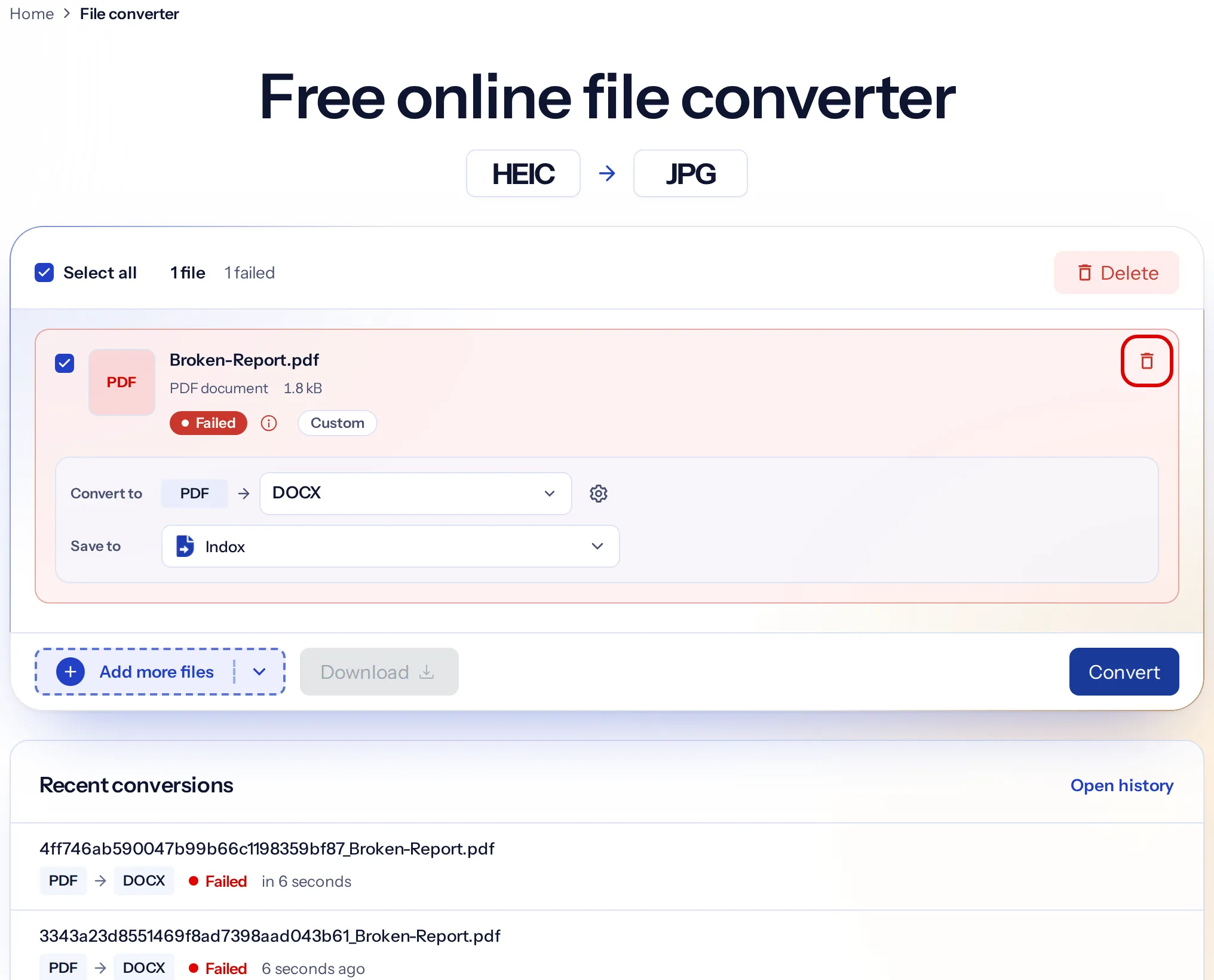
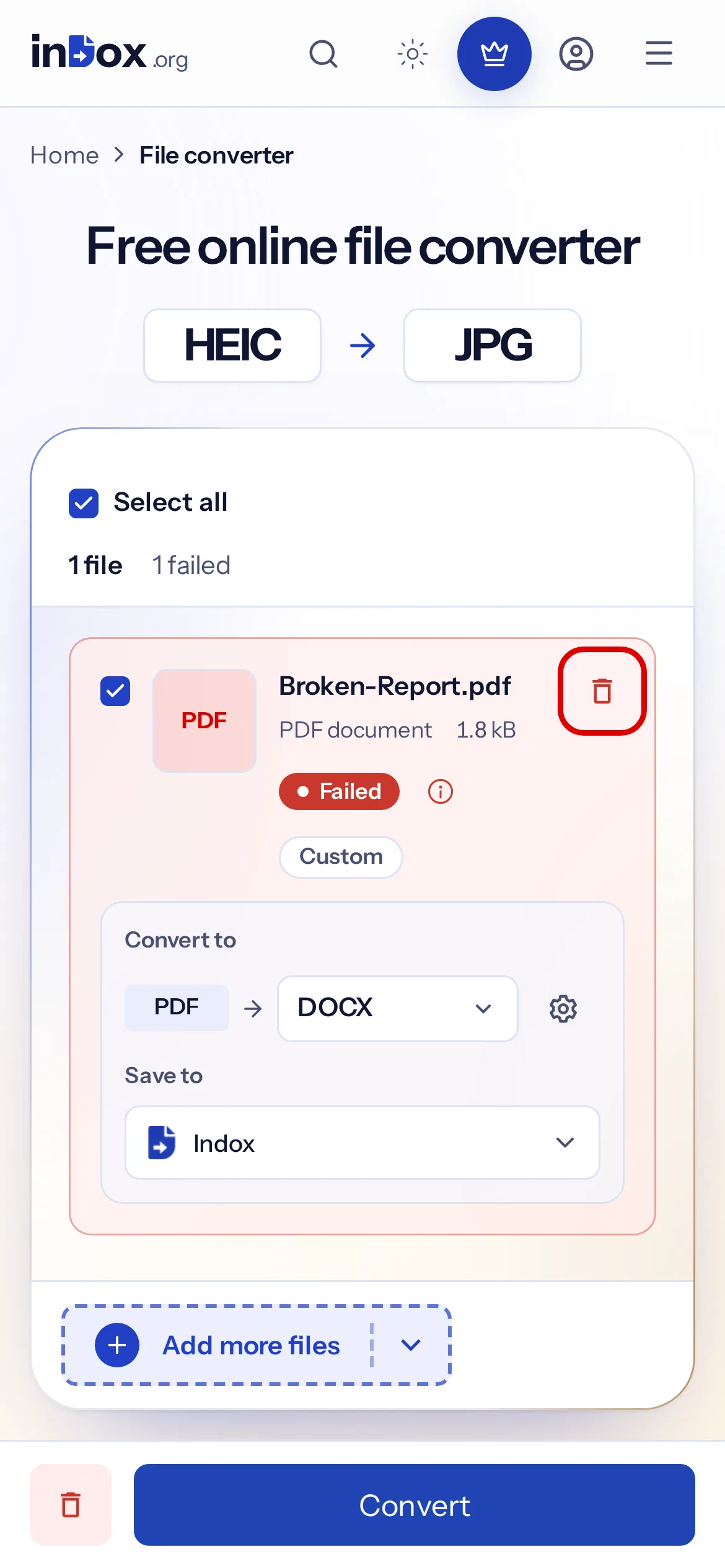
If it fails again, the file may be damaged. Select the red bin icon at the top right of the file's card. Then add a fresh copy of the file. Open that copy on your device first to check that it works.
Troubleshooting
| Problem | Cause | Fix |
|---|---|---|
| The file shows Failed again after you try again | The file may be damaged or locked with a password | Open it on your device to check that it works. If it has a password, remove the password in the program that made it, then add the file again |
| The reason only says conversion_failed | indox gives a general reason for this failure | Try once more, then try another format or a fresh copy of the file |
| Download is greyed out | The file isn't ready yet | Wait until the status shows Completed |