Last updated
Find your way around the Overview dashboard
Before you start
- You need an indox account. Sign in first.
Open the Overview page
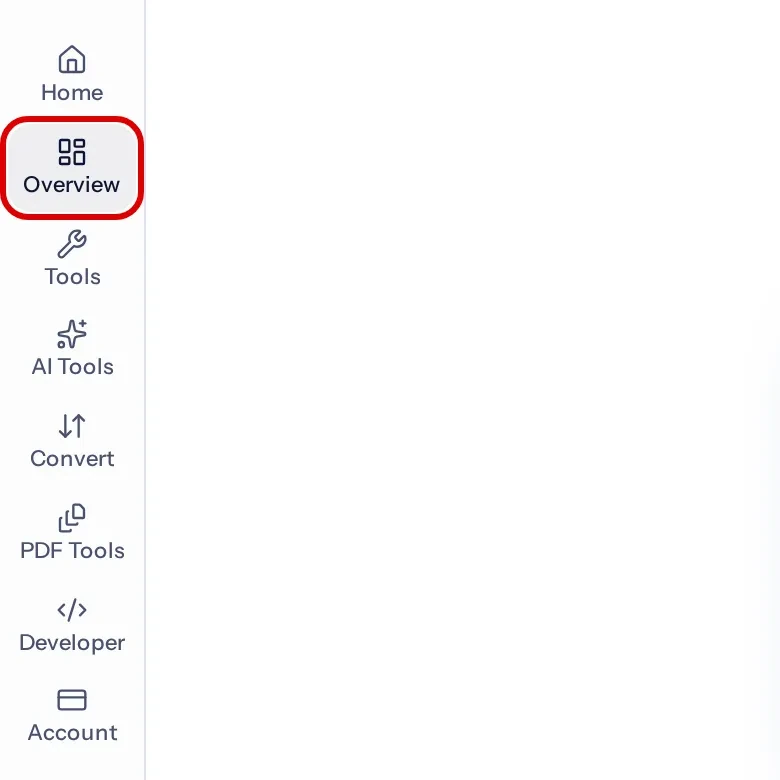
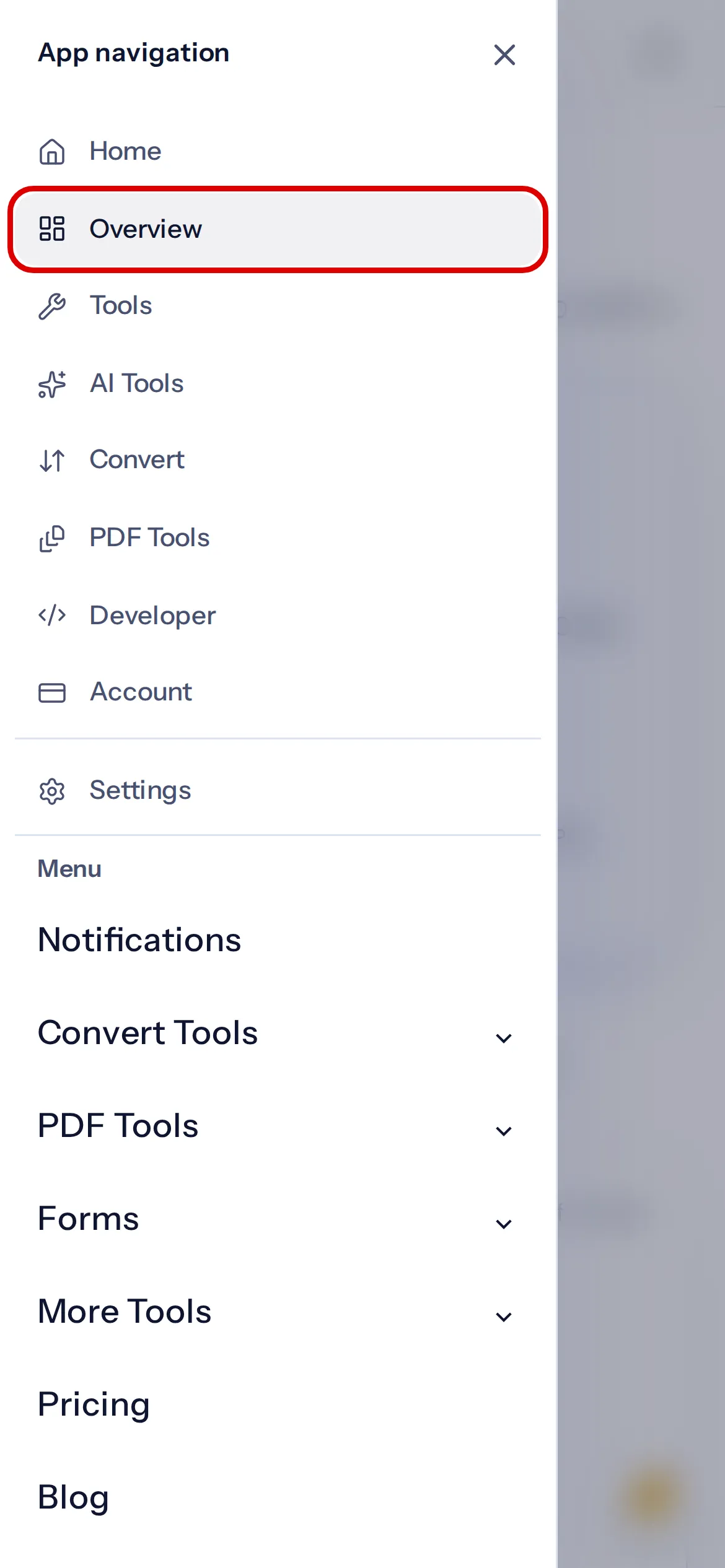
Sign in to indox.org. On a computer, select Overview in the bar at the left edge of the screen. On a phone, select the menu button (three lines) at the top right. A list opens on the left. Select Overview. The Overview page opens and greets you by name.
Add a file
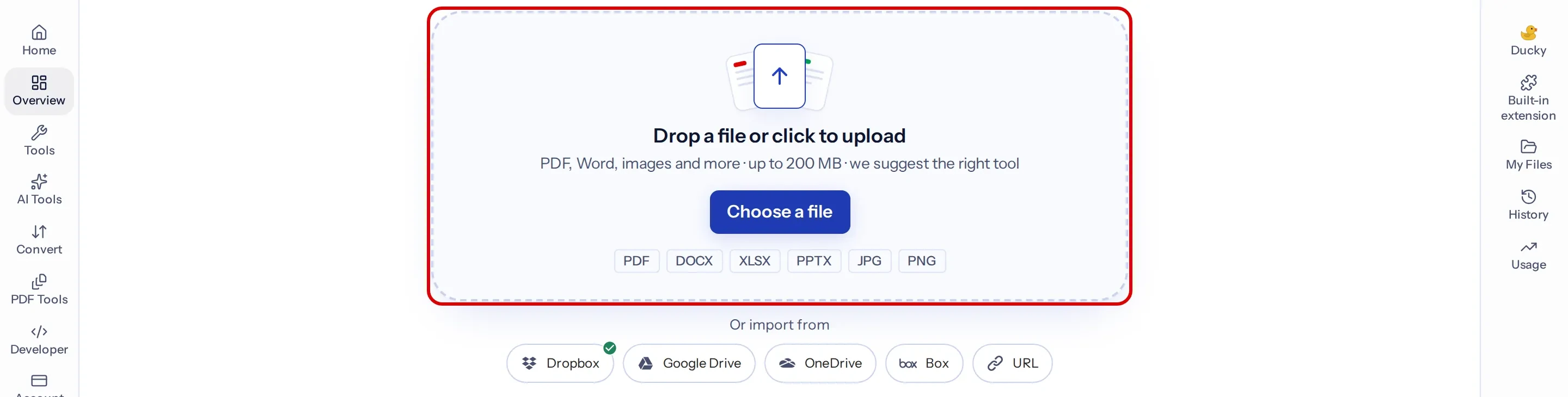
At the top is a dashed box. It says Drop a file or click to upload. On a phone it says Tap to choose a file. Drag a file into the box, or select Choose a file. The box says indox suggests the right tool for your file. Under the box, Or import from lets you pick a file from Dropbox, Google Drive, OneDrive or Box, or from a web link (URL).
Check Get started
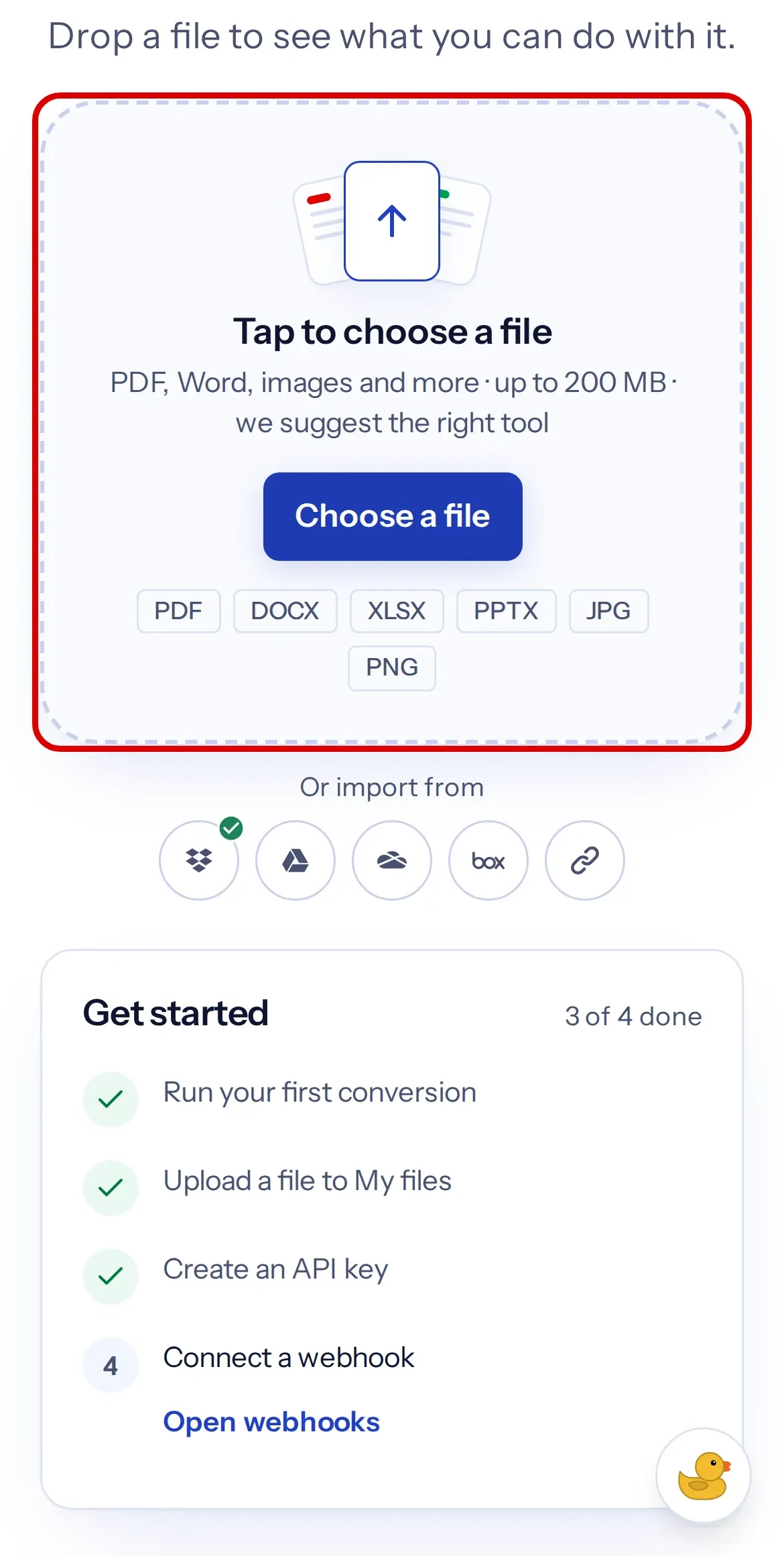
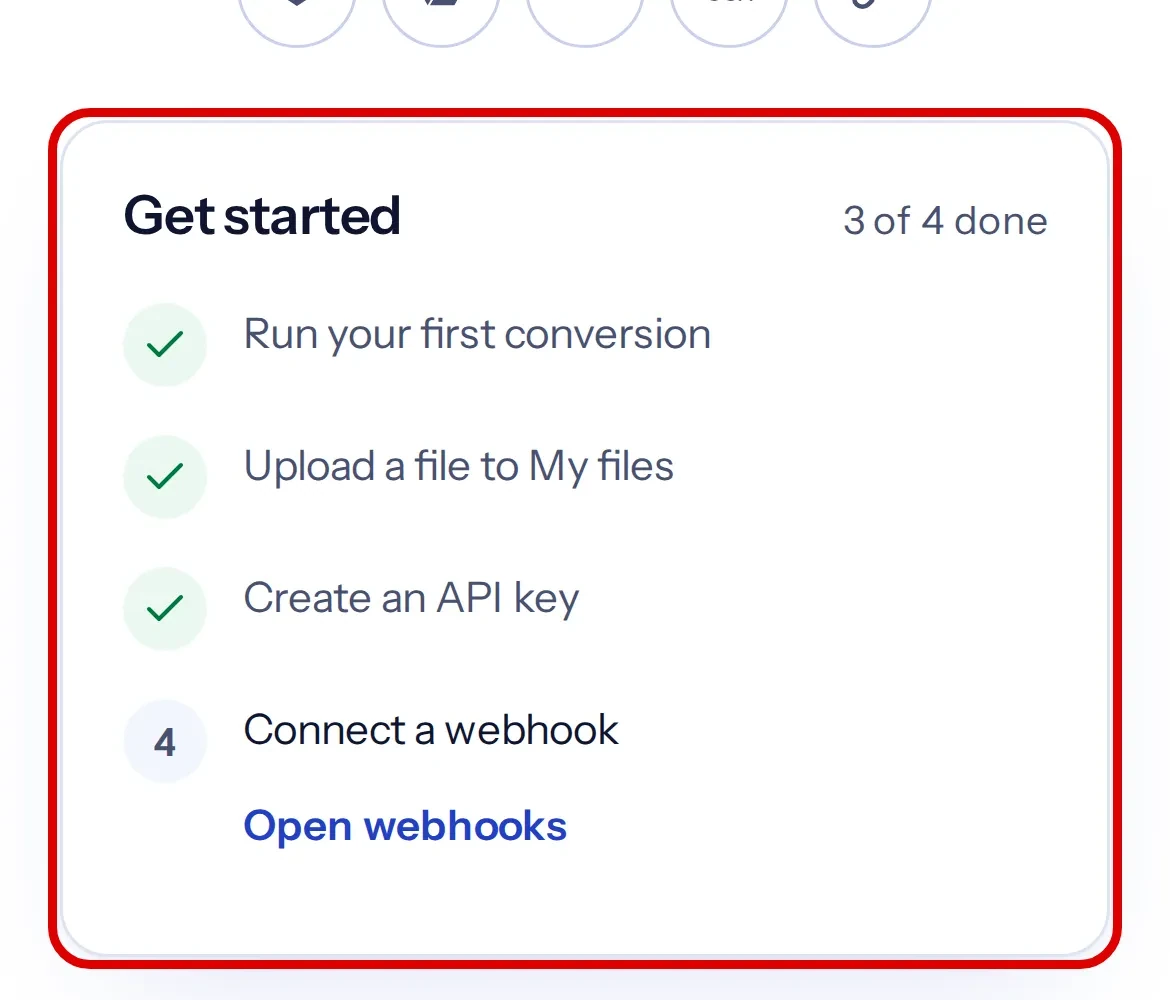
Scroll down to the box called Get started. It lists four first steps: Run your first conversion, Upload a file to My files, Create an API key and Connect a webhook. A green tick means you did that step. The box also says how many are done, for example 3 of 4 done. A step you have not done has a link, such as Open webhooks.

Read your numbers
Below it are four boxes: Conversions, Credits used, Success rate and Average time. Credits used shows how much of your credits you have used. The other three show how the number changed from last month.
Change the chart
Find the chart called Conversions per day. It shows how many files you converted each day. Above the chart, select 7 days, 30 days or 90 days to choose how far back it looks. The chart starts on 30 days.
See your recent conversions
Scroll to Recent conversions. Each row shows a file name, the format it started as and the format it became, the status such as Completed, and how long ago it ran. Use the icons at the right end of a row to download the file or share it. Select Open history at the top right of the box to see the full list.
Jump to your files and usage
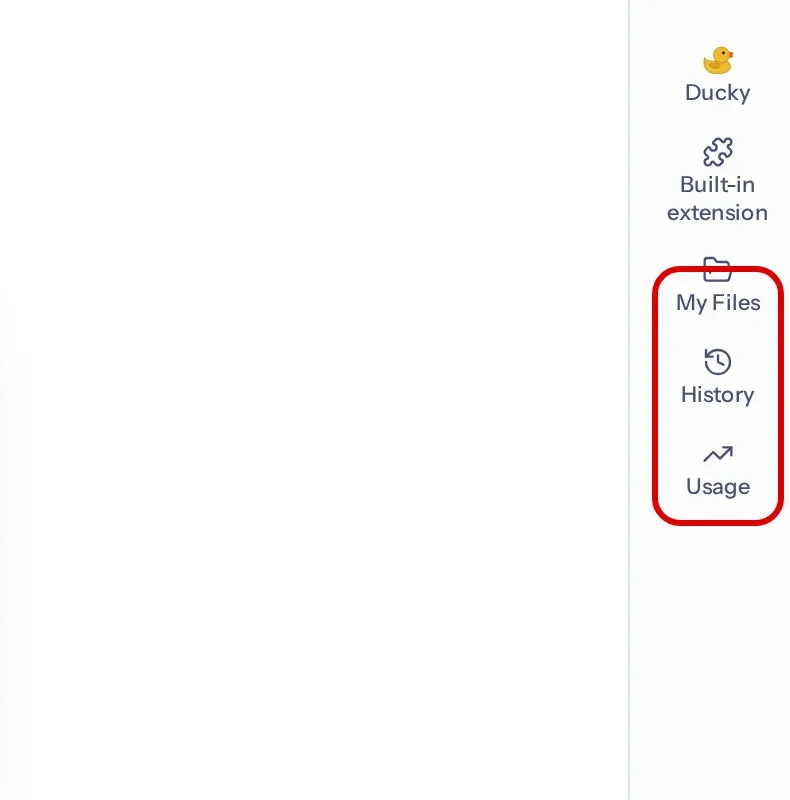
On a computer, the bar at the right edge of the screen has My Files, History and Usage. Select one to go there. On a phone, select your round picture at the top right. A menu opens with My Files and History.
Troubleshooting
| Problem | Cause | Fix |
|---|---|---|
| A step in Get started has no tick | You have not done that step yet | Use its link, such as Open webhooks, or do the step in the product |
| The bar on the right is missing | The bar shows on a computer screen only | On a phone, use the round picture at the top right |