Last updated
Change conversion options
Before you start
- Have a picture on your device, such as a PNG. This guide turns a PNG into a JPG. Other formats have other settings.
- You don't need an account.
Add your file and pick a format
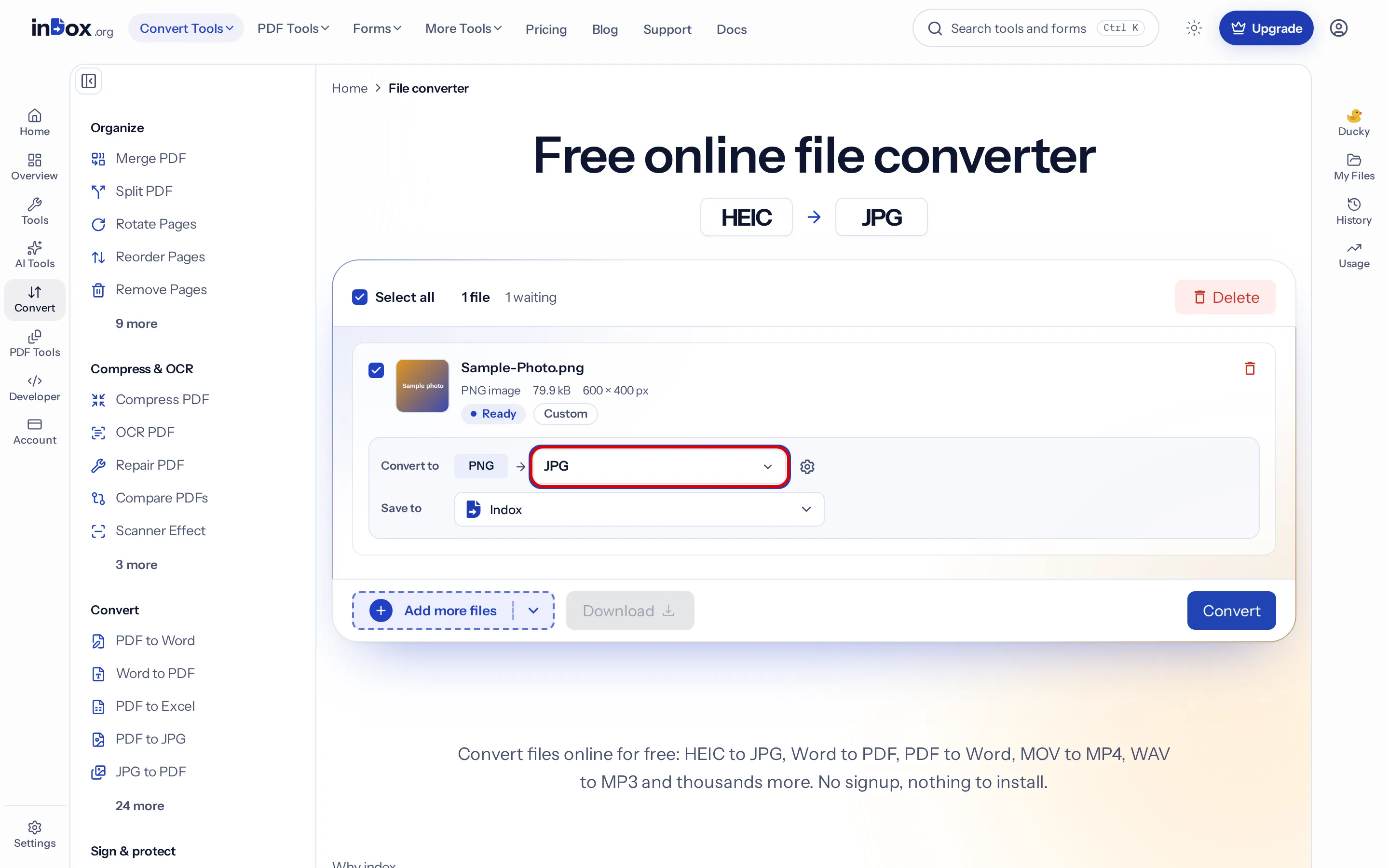
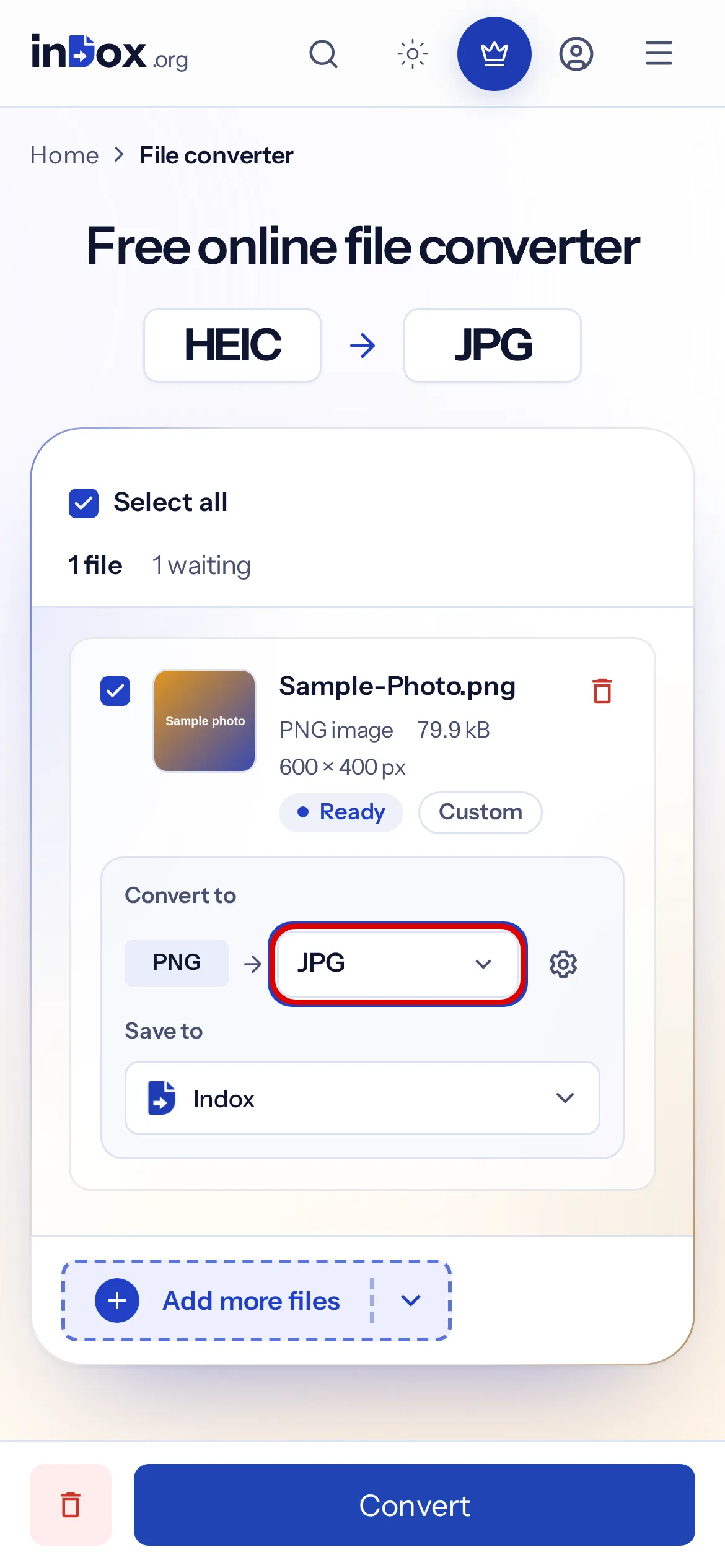
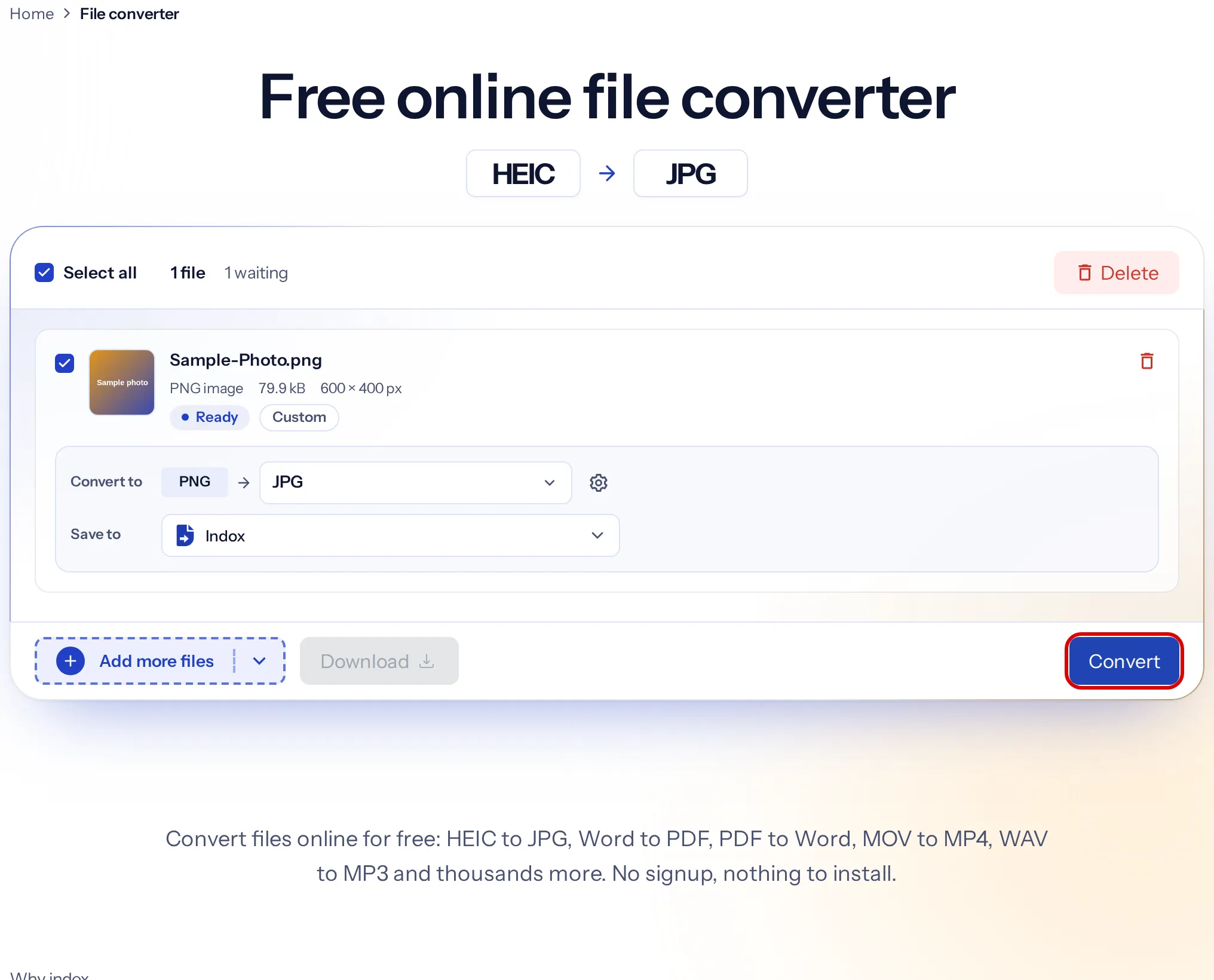
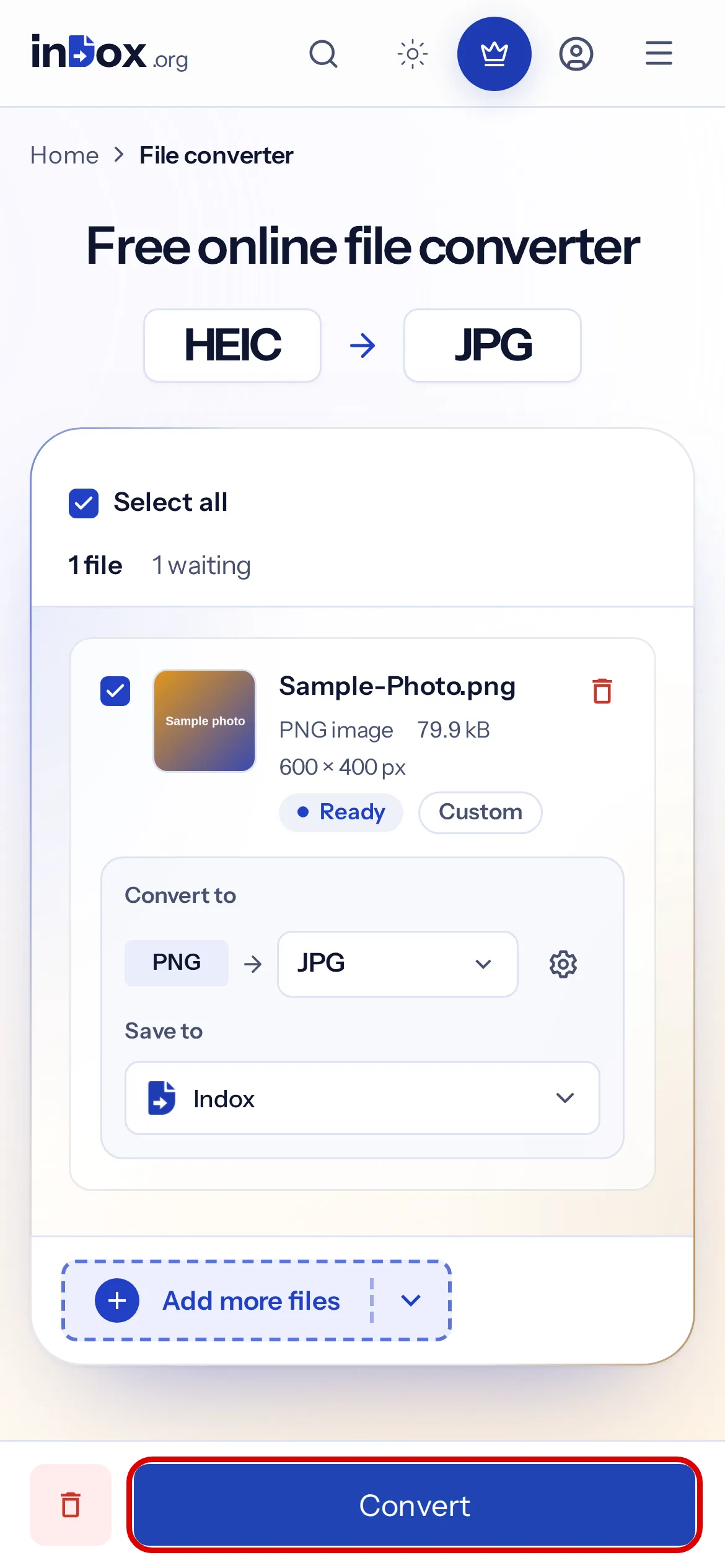
Go to the File converter and select Choose files to add your picture. In the row Convert to, select the Format box and tick JPG. The box now shows JPG.
Open the settings
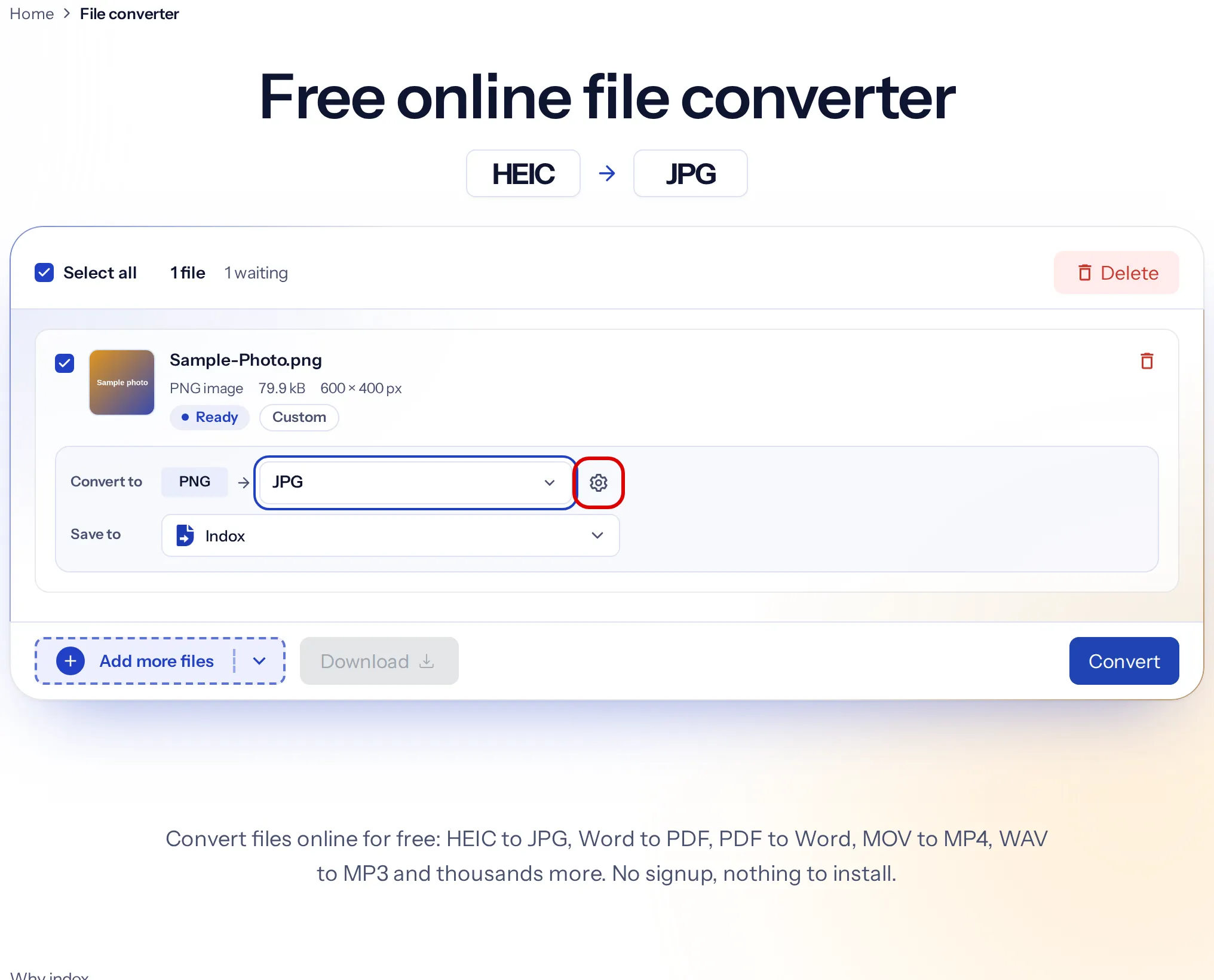
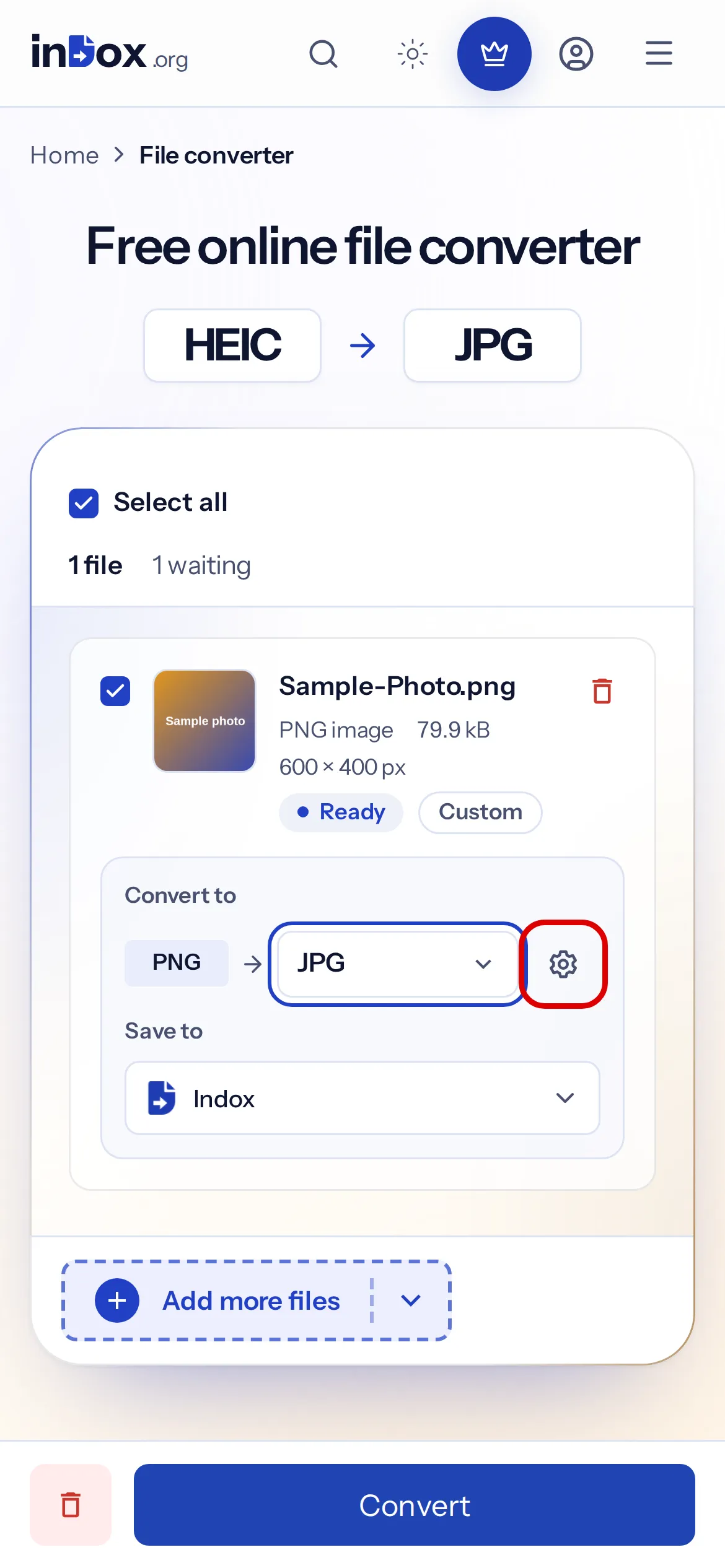
Next to the format box is a small gear icon called Format Options. Select it. The gear shows only while the file has one format picked and is not converted yet.
Change a setting
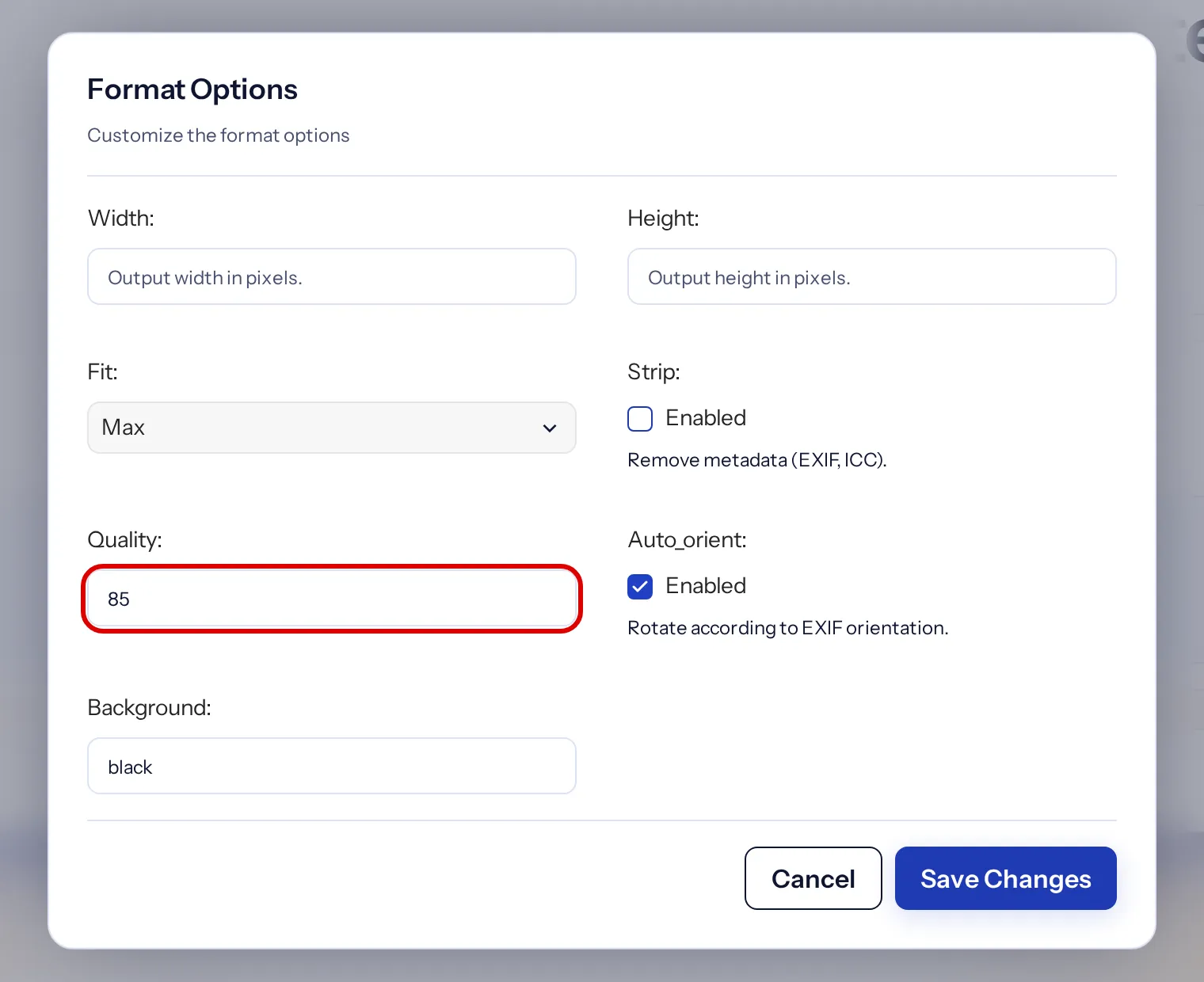
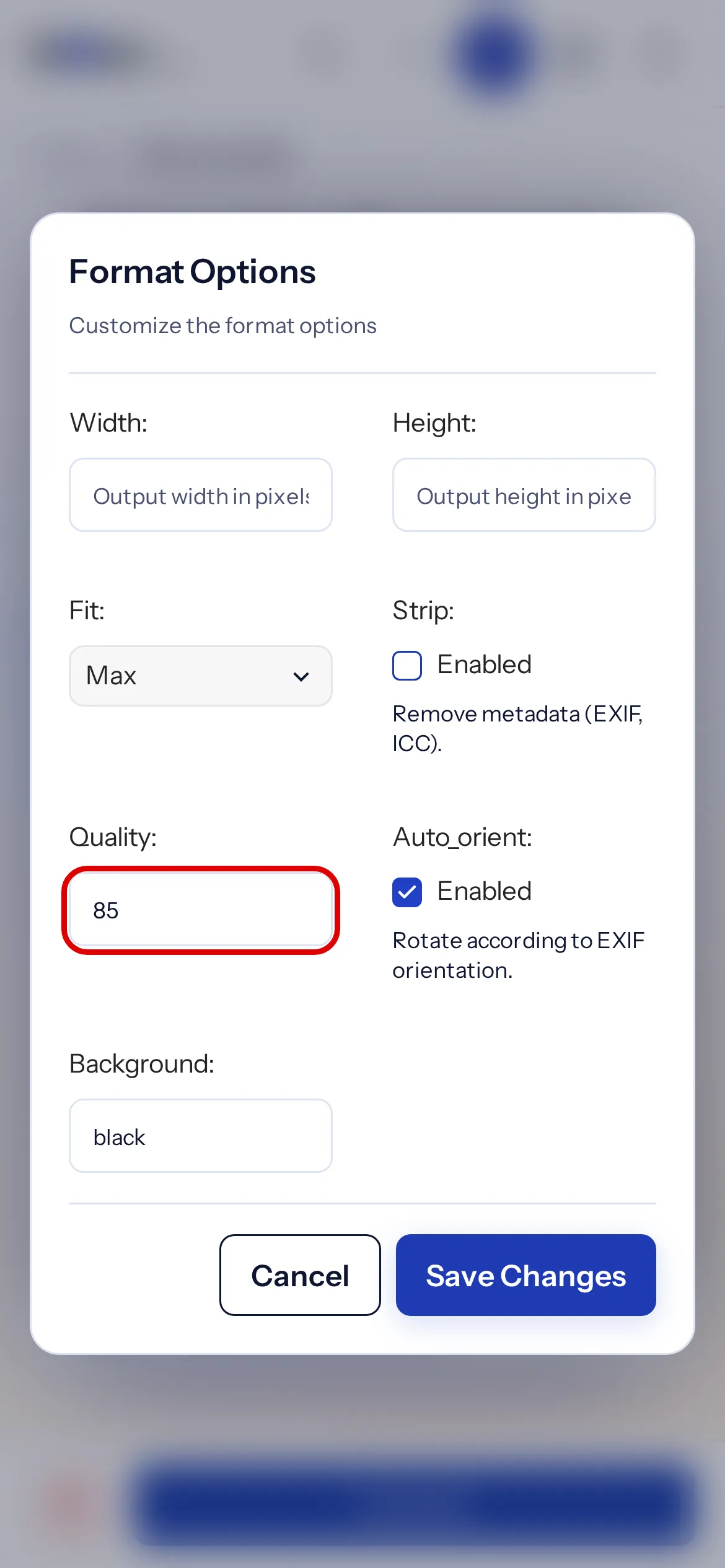
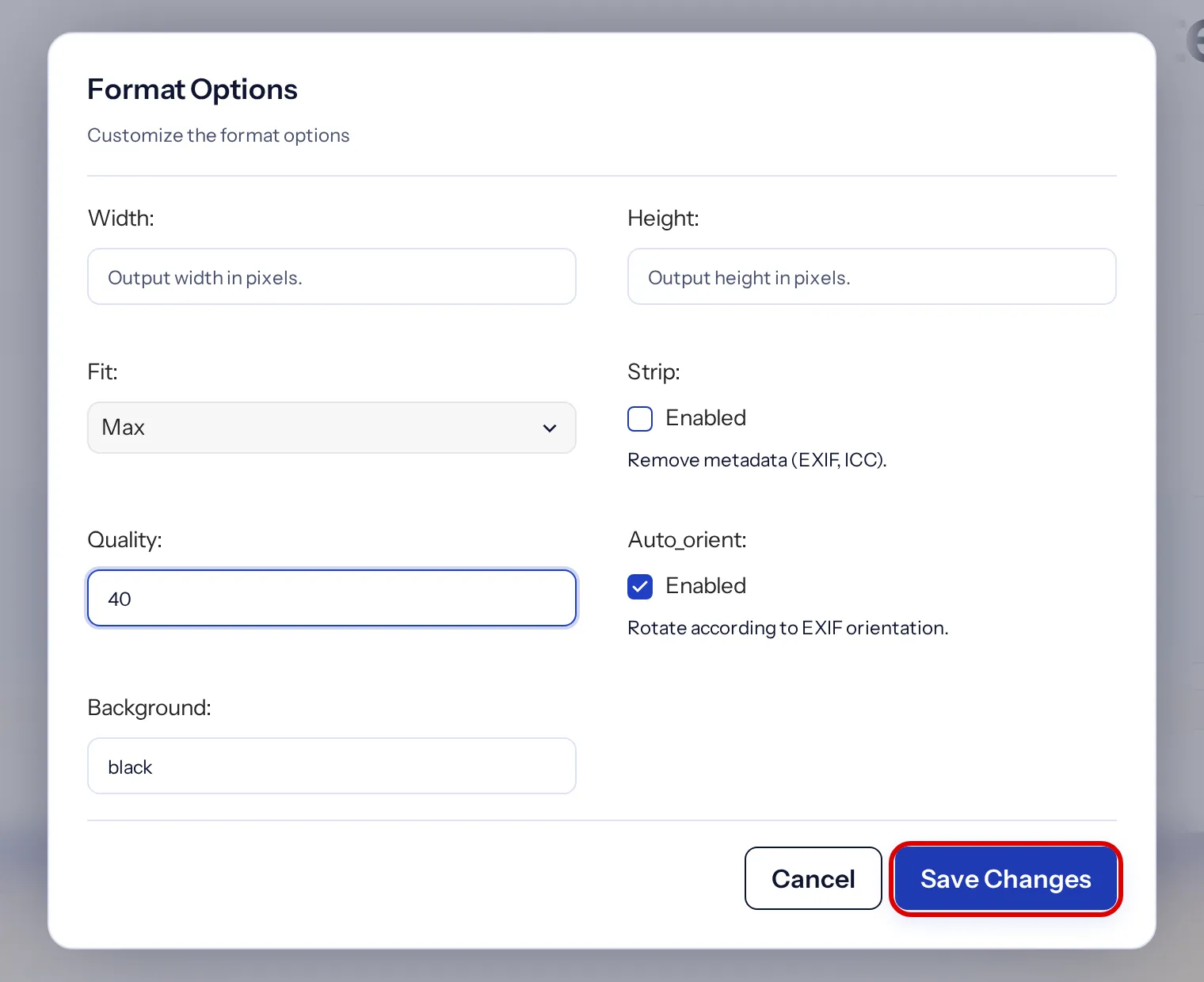
A window called Format Options opens. It lists the settings for this format. Find Quality and type a new number from 1 to 100. A higher number looks better but makes a bigger file. It starts at 85. Type 40 for a small file.
Save the settings
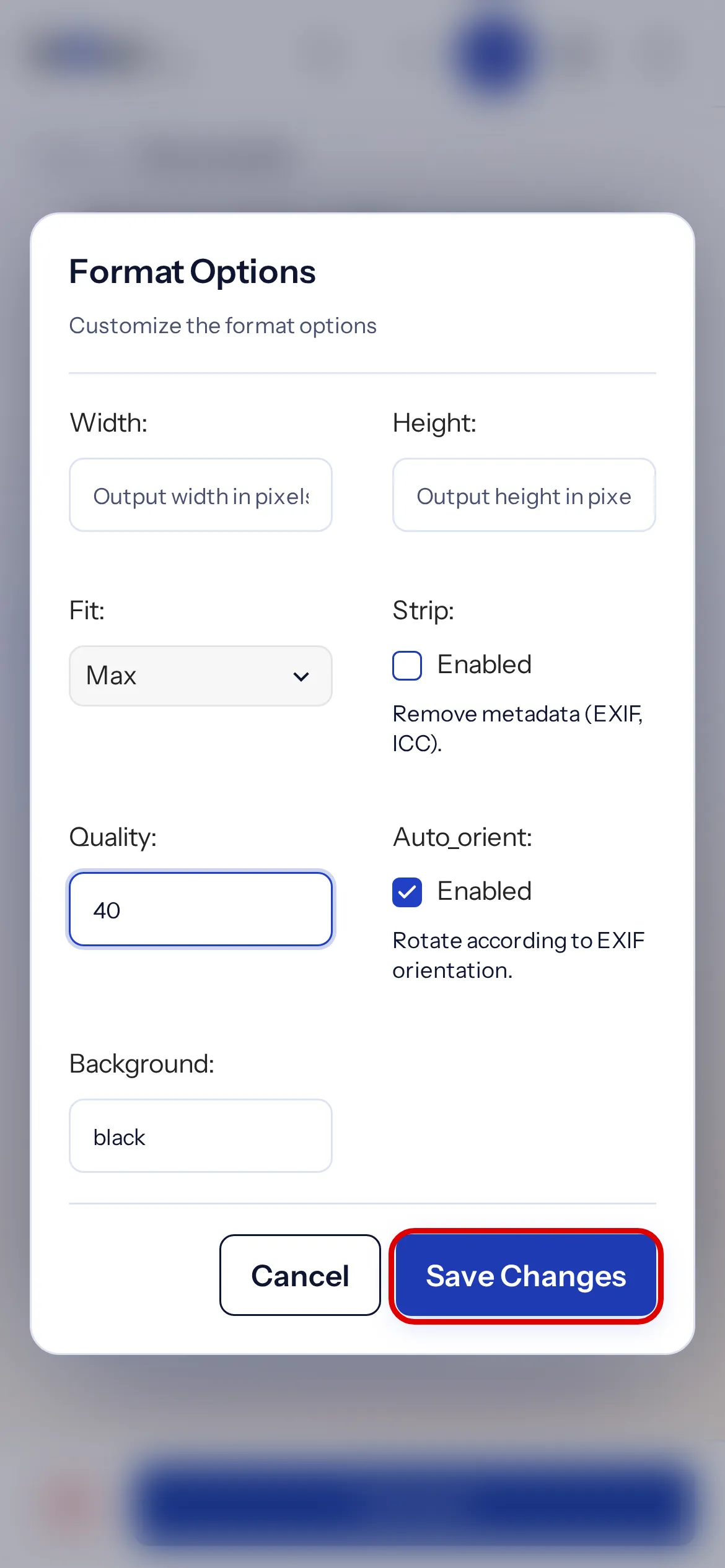
Select the blue Save Changes button. The window closes. A Custom tag now shows next to the status. It means you changed the settings.
Convert the file
Select the blue Convert button. On a computer it is at the bottom right of the panel. On a phone it is at the bottom of the screen. The status changes to Completed when the file is done.
Try again with new settings
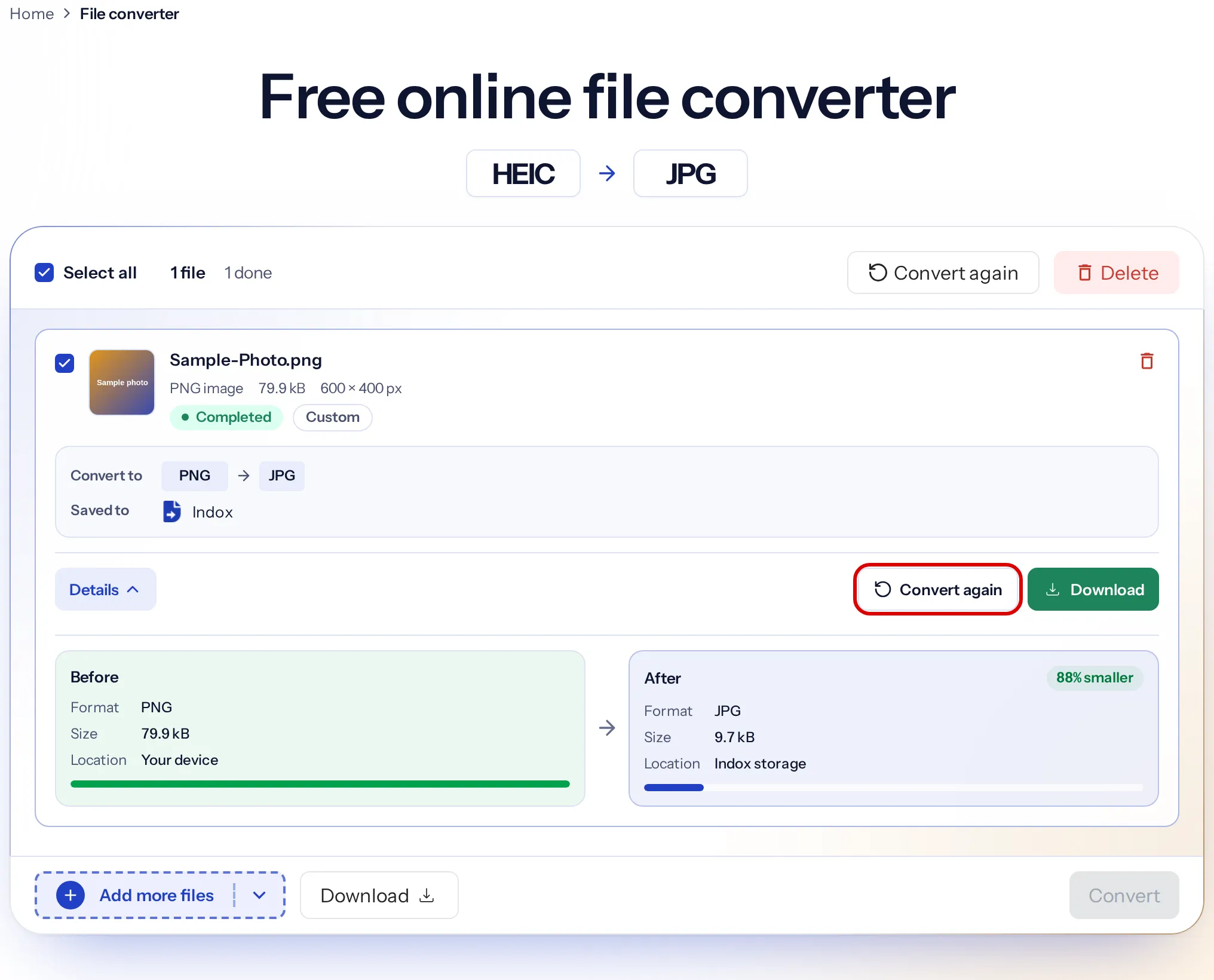
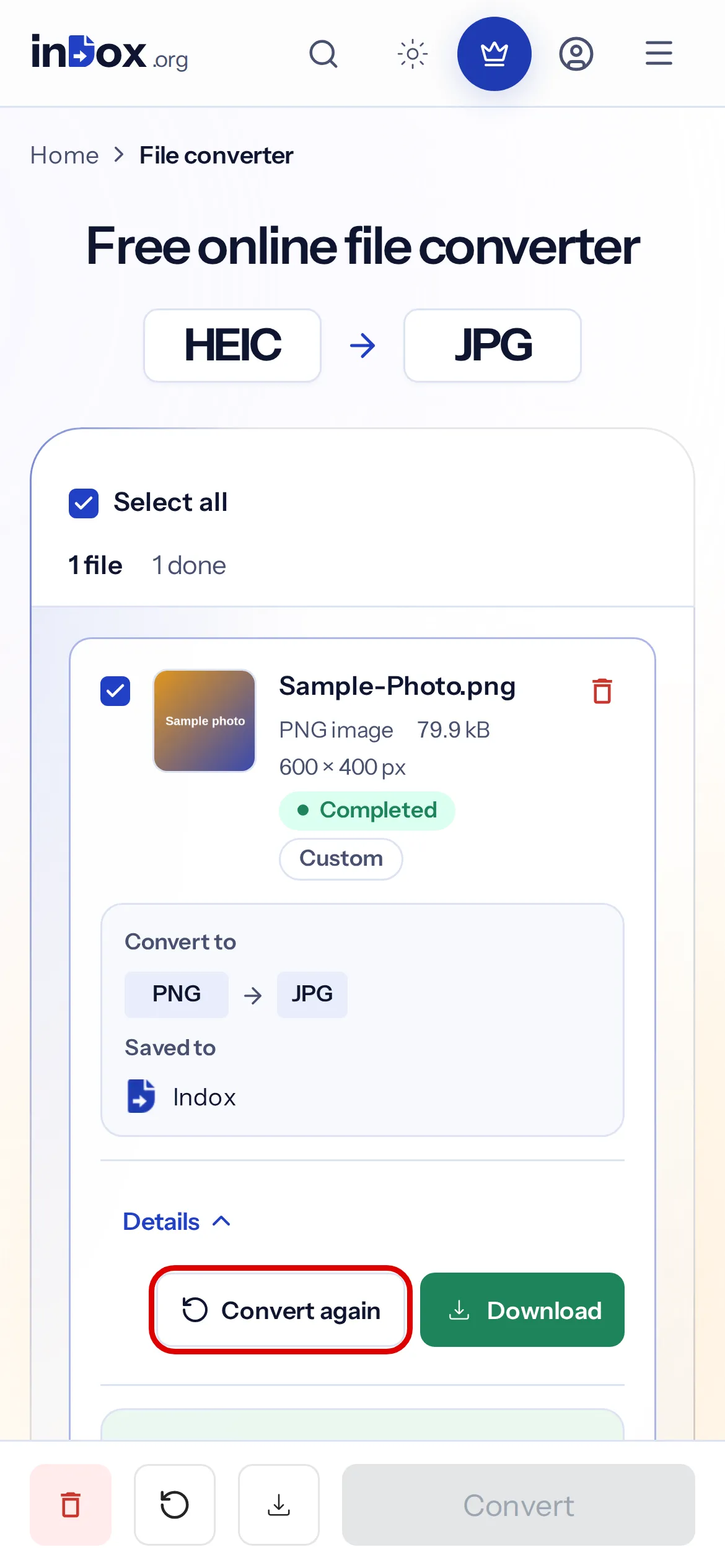
Select Details to see the size before and after. To try other settings, select Convert again in the file's card. The status goes back to Ready. Select the gear, change a setting and select Convert.
Troubleshooting
| Problem | Cause | Fix |
|---|---|---|
| The gear icon is missing | The file has more than one format picked, or it is already converted | Pick one format, or select Convert again to bring the gear back |
| The new file looks blurry | Quality is set too low | Select Convert again, raise Quality, then select Convert |
| A box says Unsaved Changes | You closed the window before you saved | Select Save Changes to keep them, or Discard Changes to drop them |