Last updated
Add a text watermark to a PDF
Before you start
- Have the PDF on your phone or computer. The upload box tells you how big a file can be.
- A watermark is a word printed faintly across every page, such as DRAFT or CONFIDENTIAL. It shows what the file is. It does not lock the file.
- The mark becomes part of each page, so keep your original.
- You don't need an account.
Open your PDF
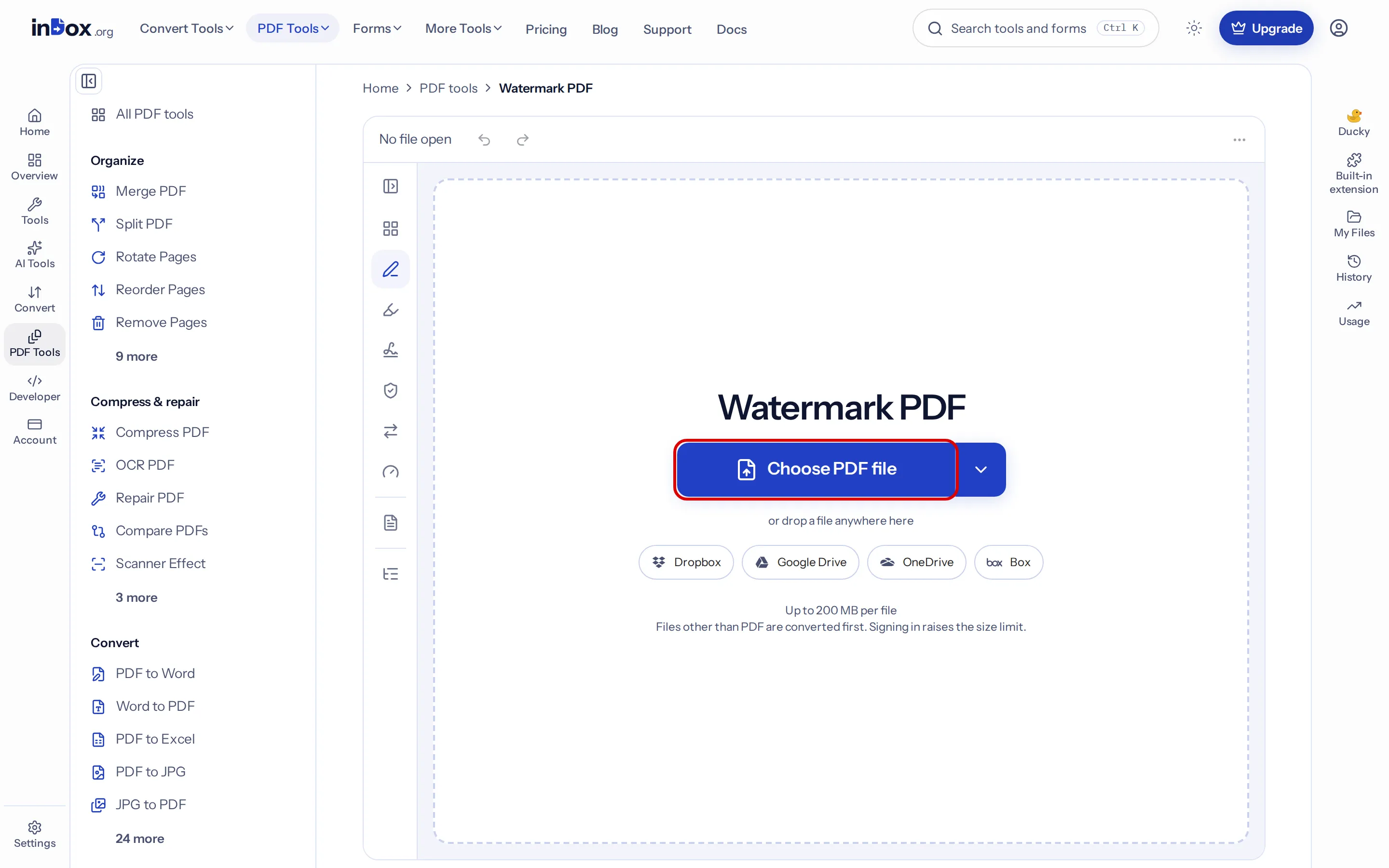
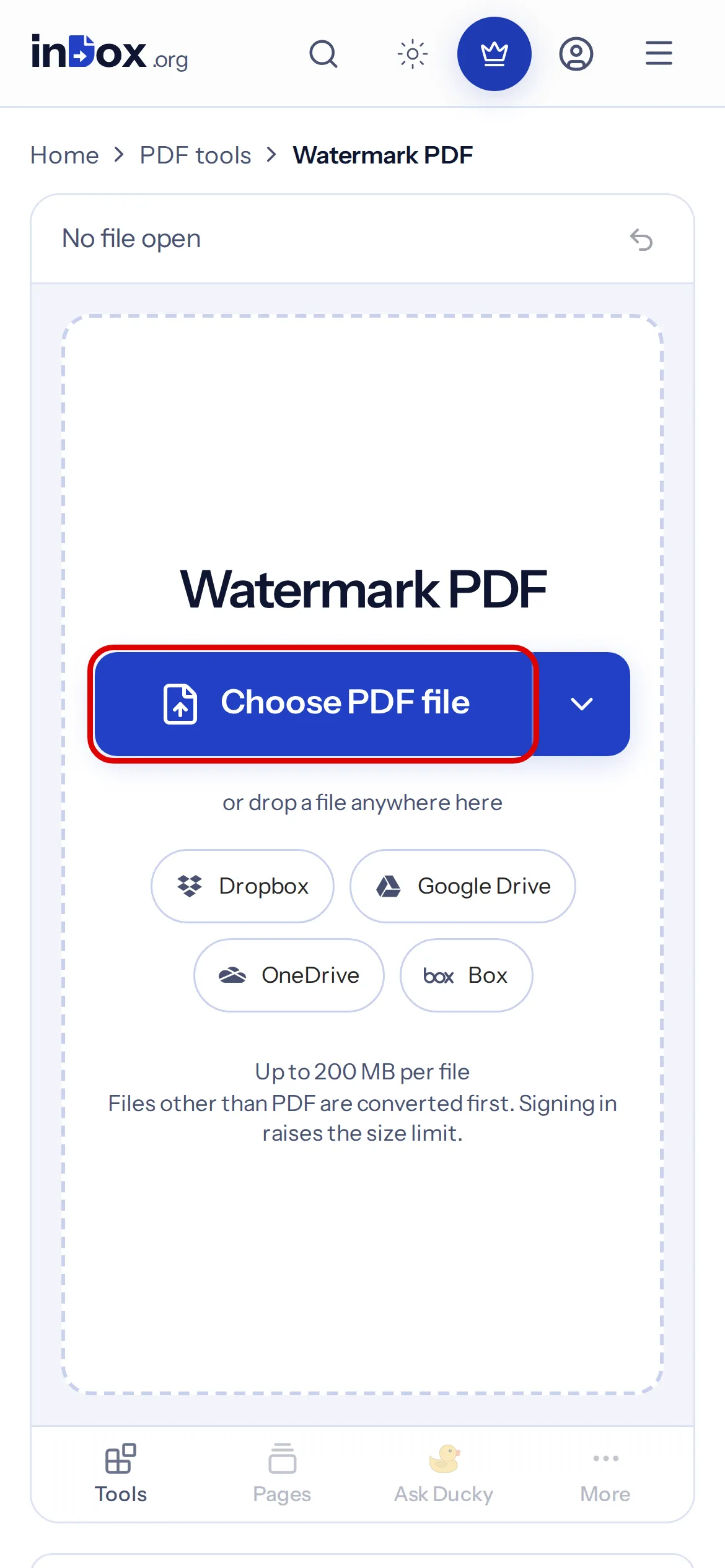
Go to the Watermark PDF page. In the middle of the page, select the blue Choose PDF file button. A box opens so you can pick a file from your device. You can also drag a file onto the page. The file opens with a panel called Watermark PDF. On a computer the panel is on the right. On a phone it slides up from the bottom.
Type the words
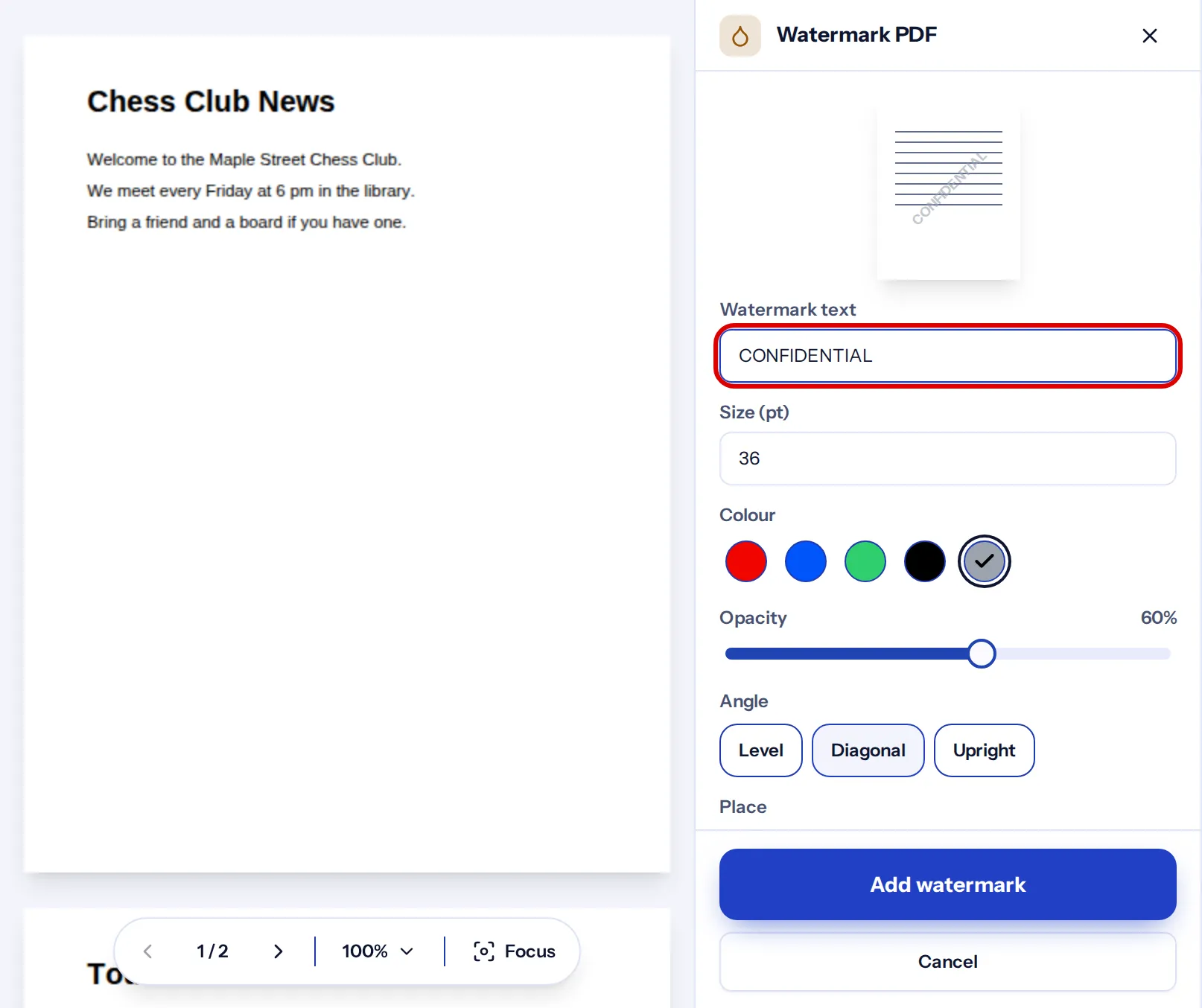
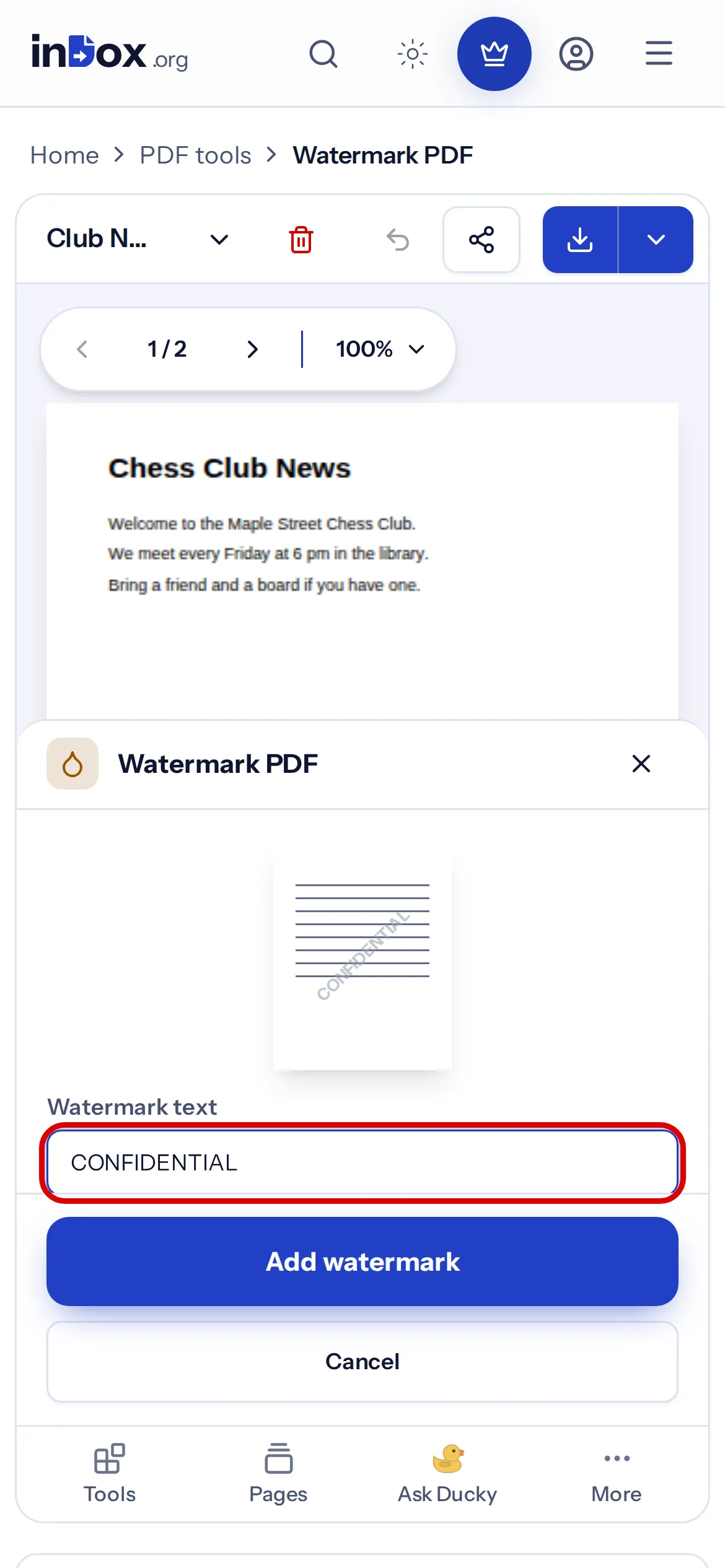
In the Watermark text box, type the word you want, such as CONFIDENTIAL. The box is empty at first. A small preview page above it shows how the mark will look.
Pick a colour
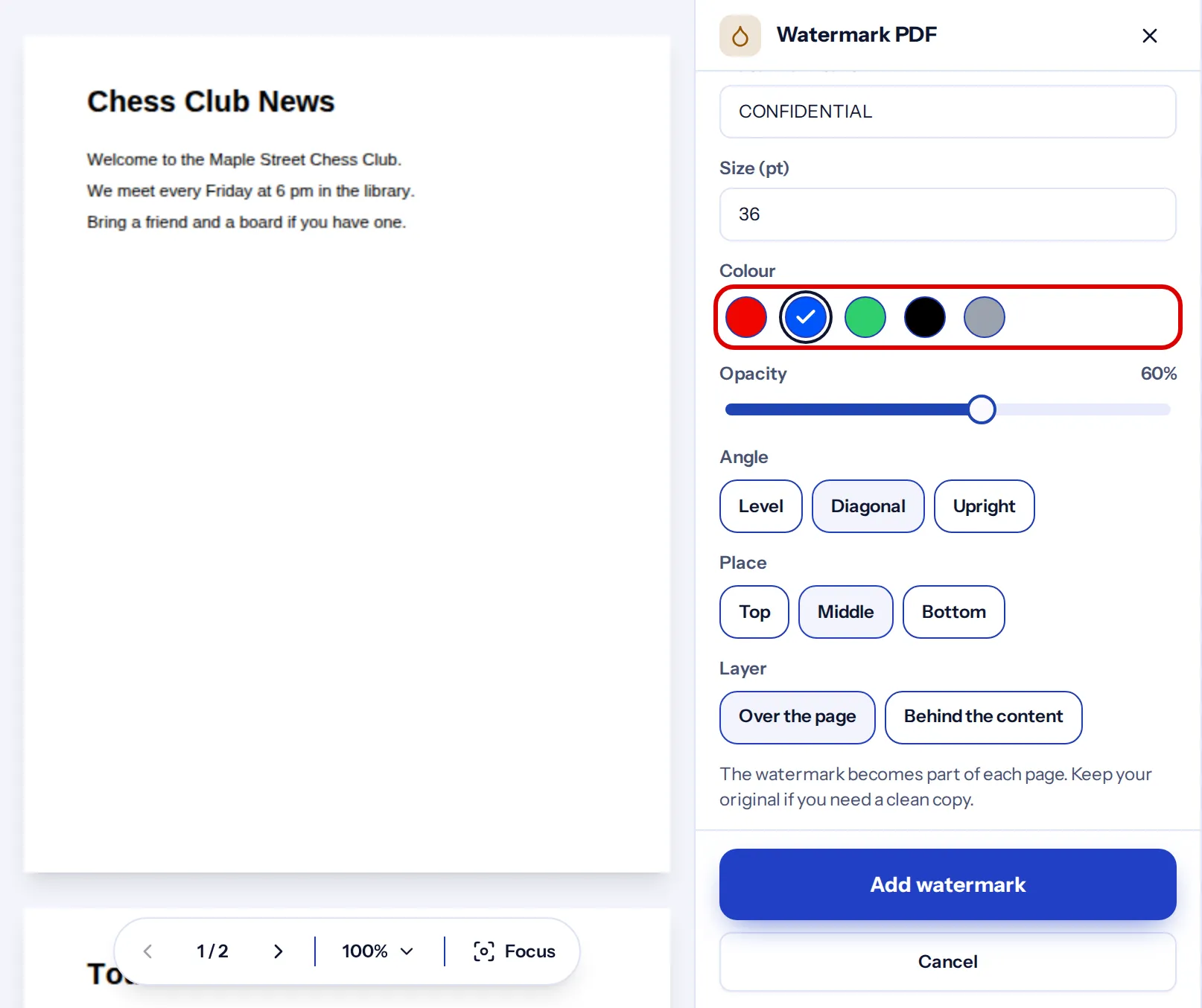
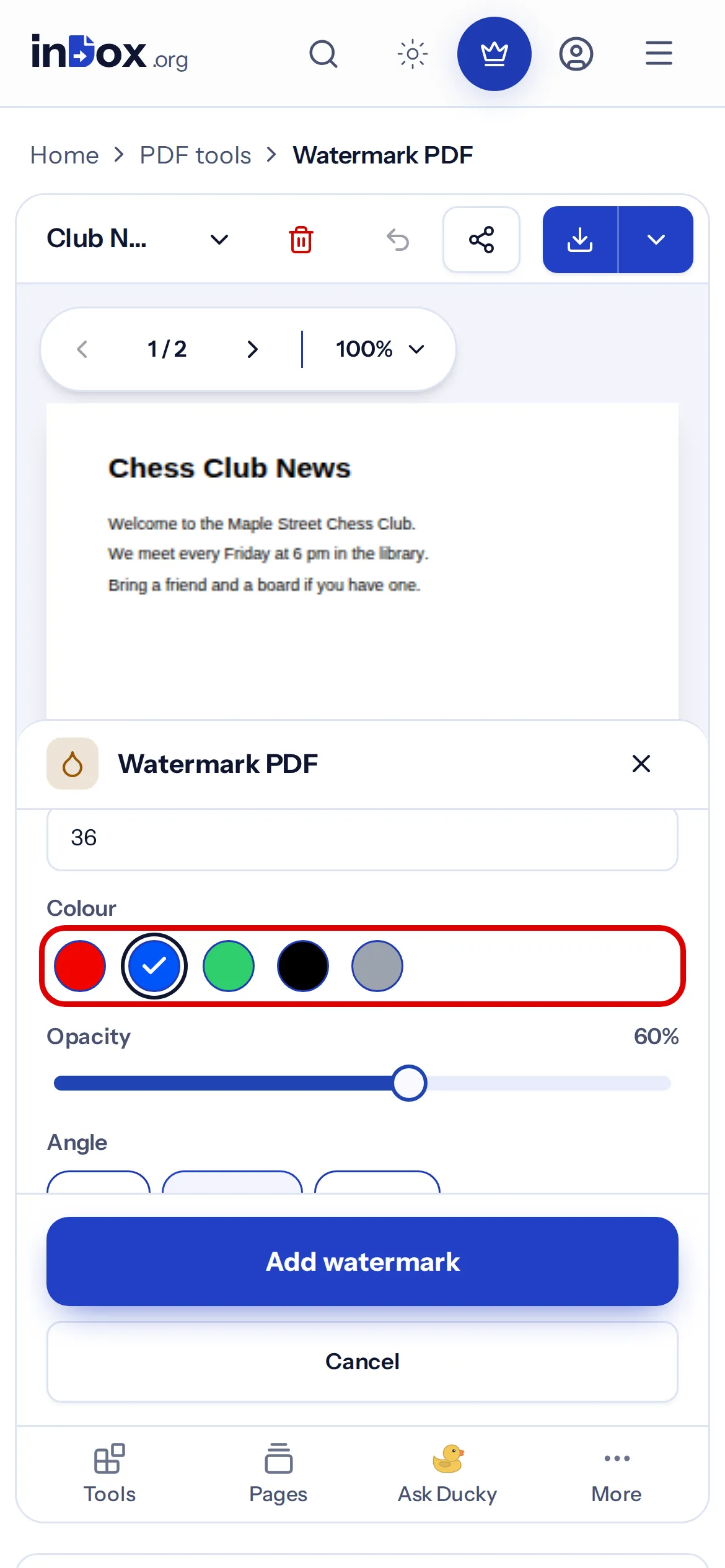
Under Colour, select one of the five round buttons: red, blue, green, black or grey. A tick shows the one you picked. Size (pt) above it sets how big the letters are. Opacity below it sets how see-through they are. It starts at 60%.
Pick the angle and the place
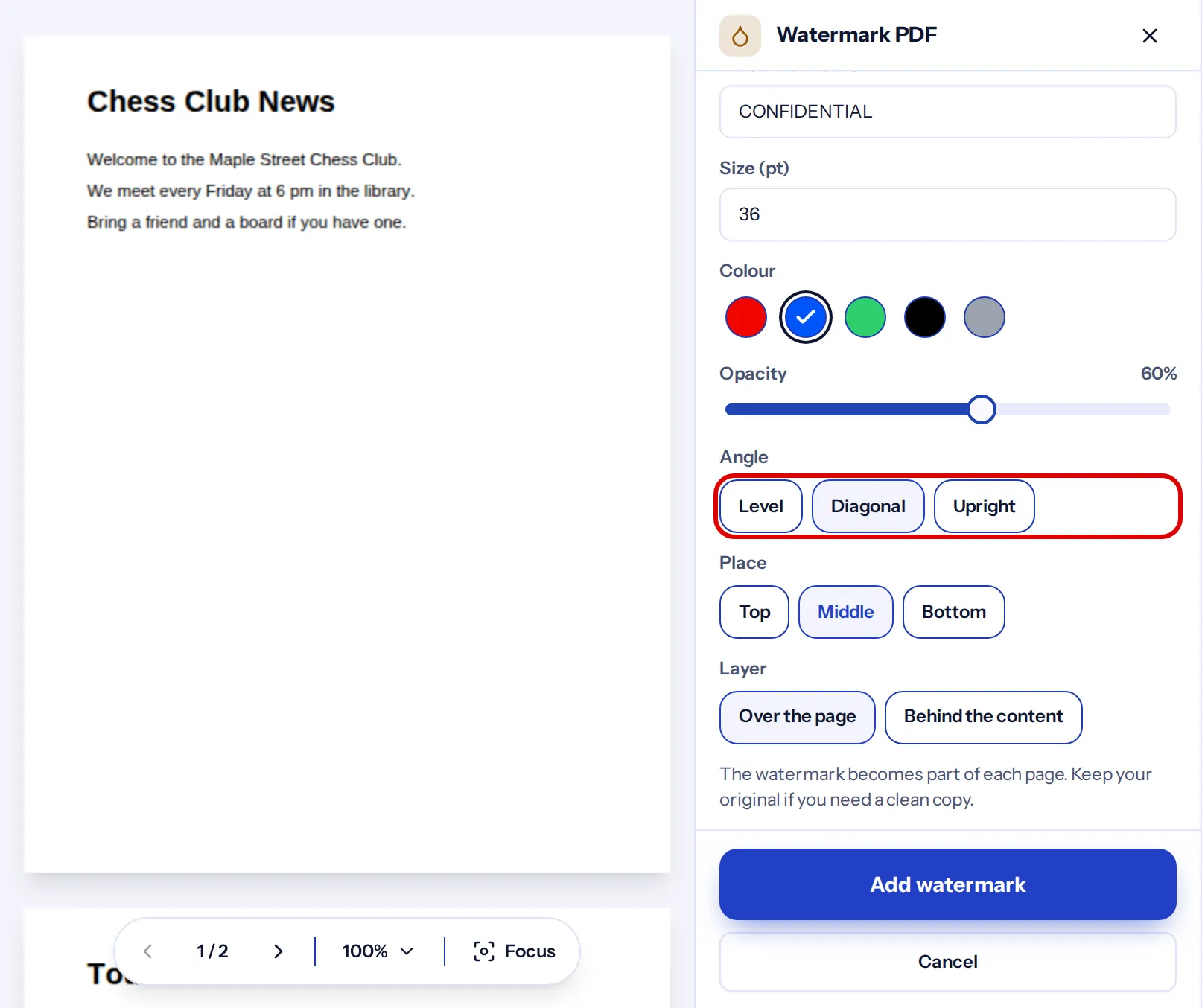
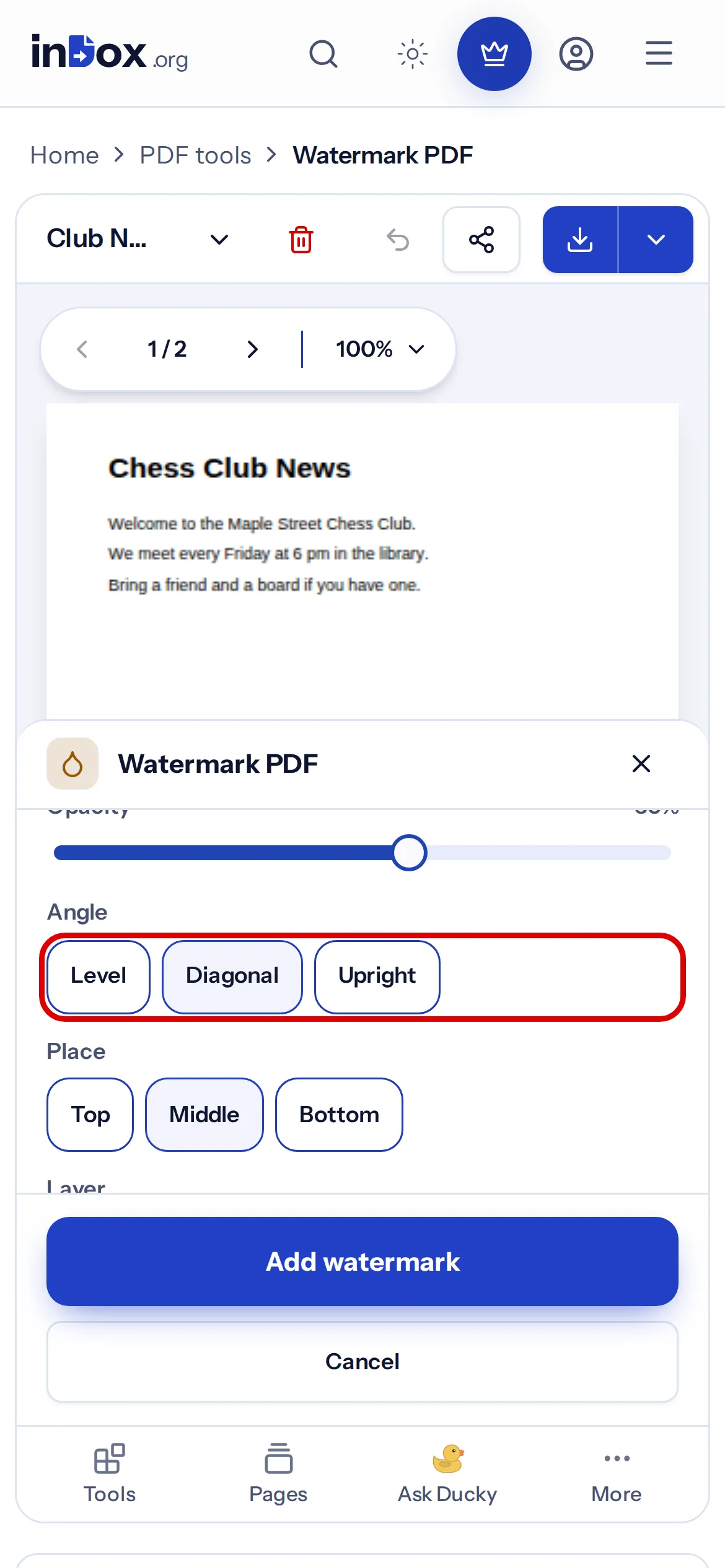
Scroll down the panel. Under Angle, pick Level, Diagonal or Upright. Under Place, pick Top, Middle or Bottom. Select Middle to put the mark in the center.
Pick the layer
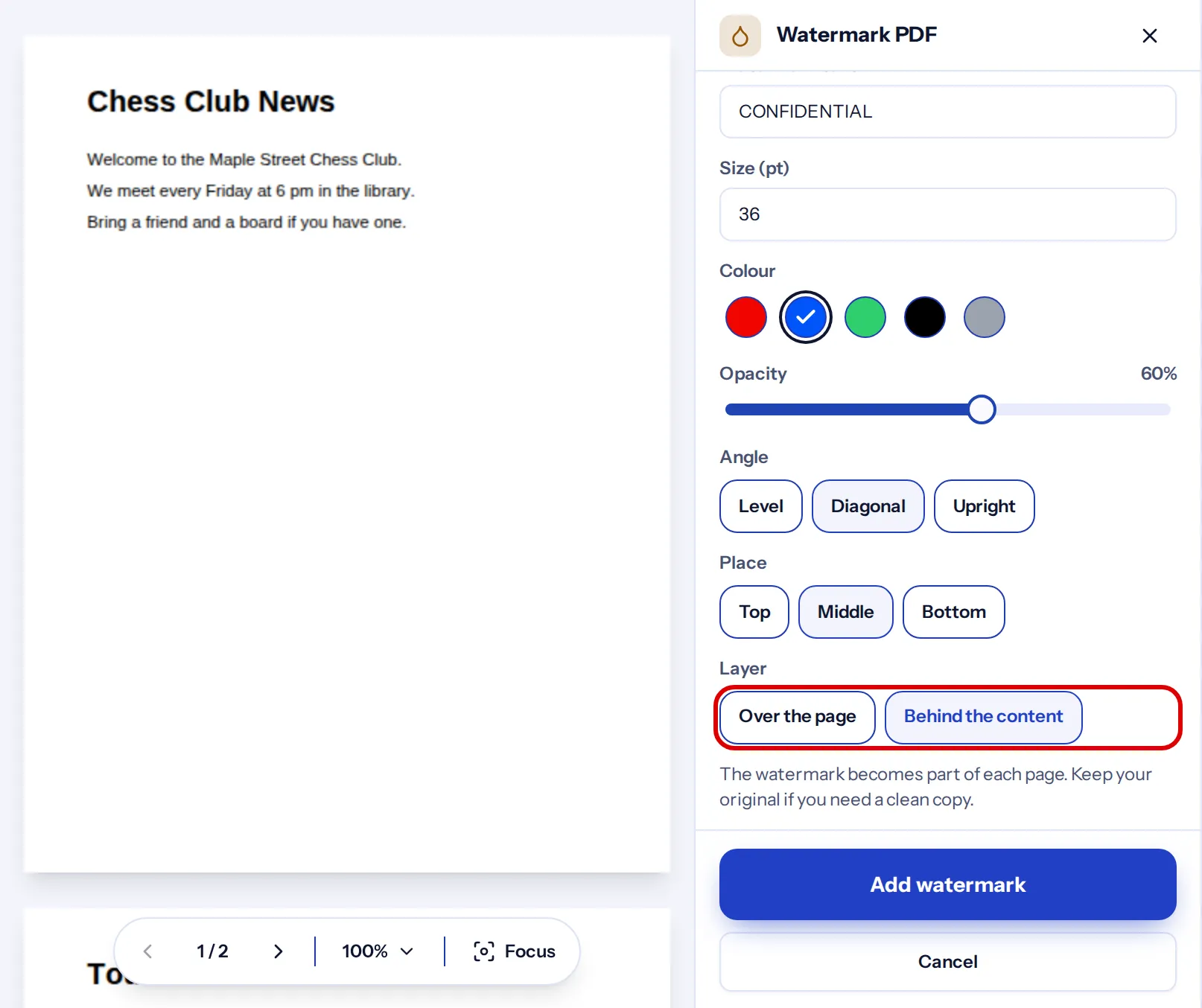
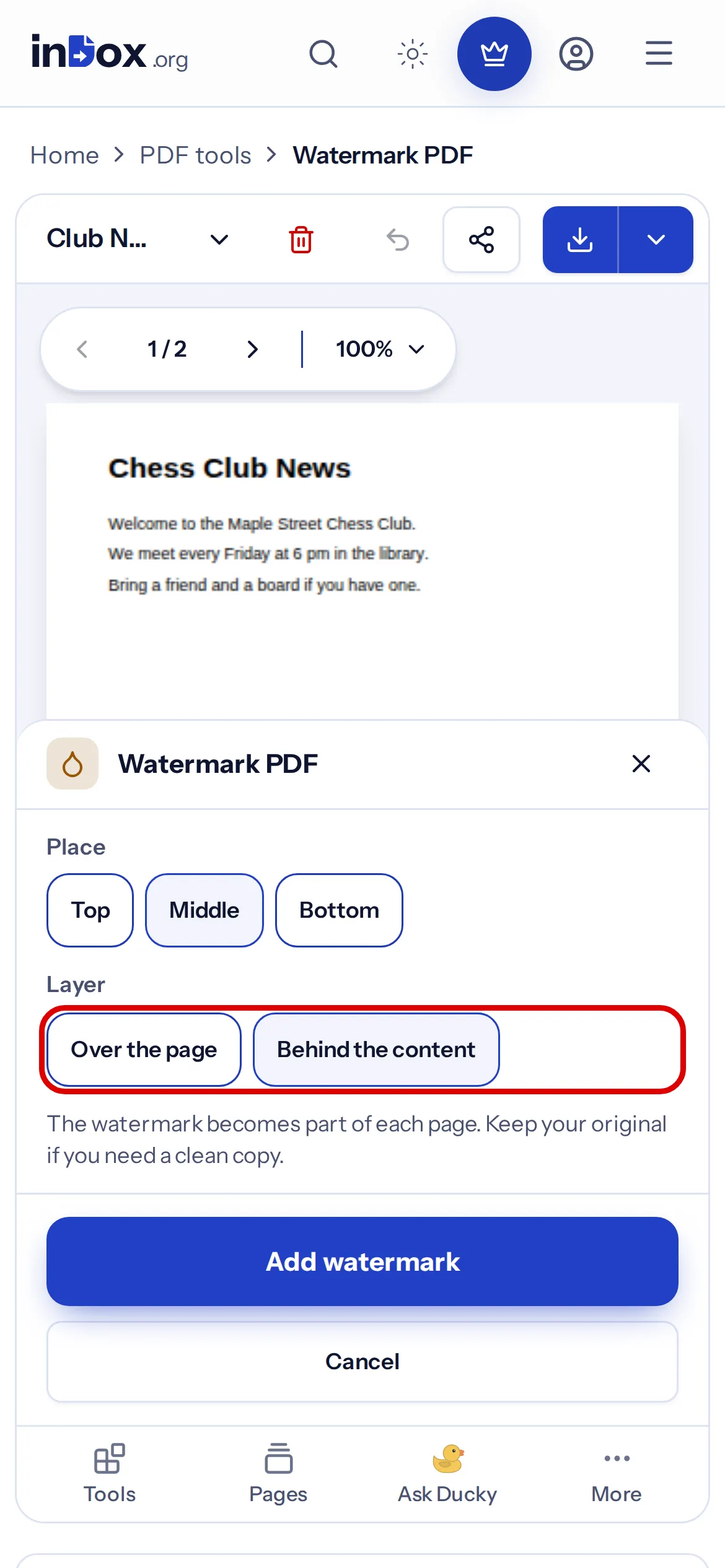
Under Layer, pick Over the page to put the mark on top of the words. Pick Behind the content to put it under them, so the words stay easy to read.
Add the watermark
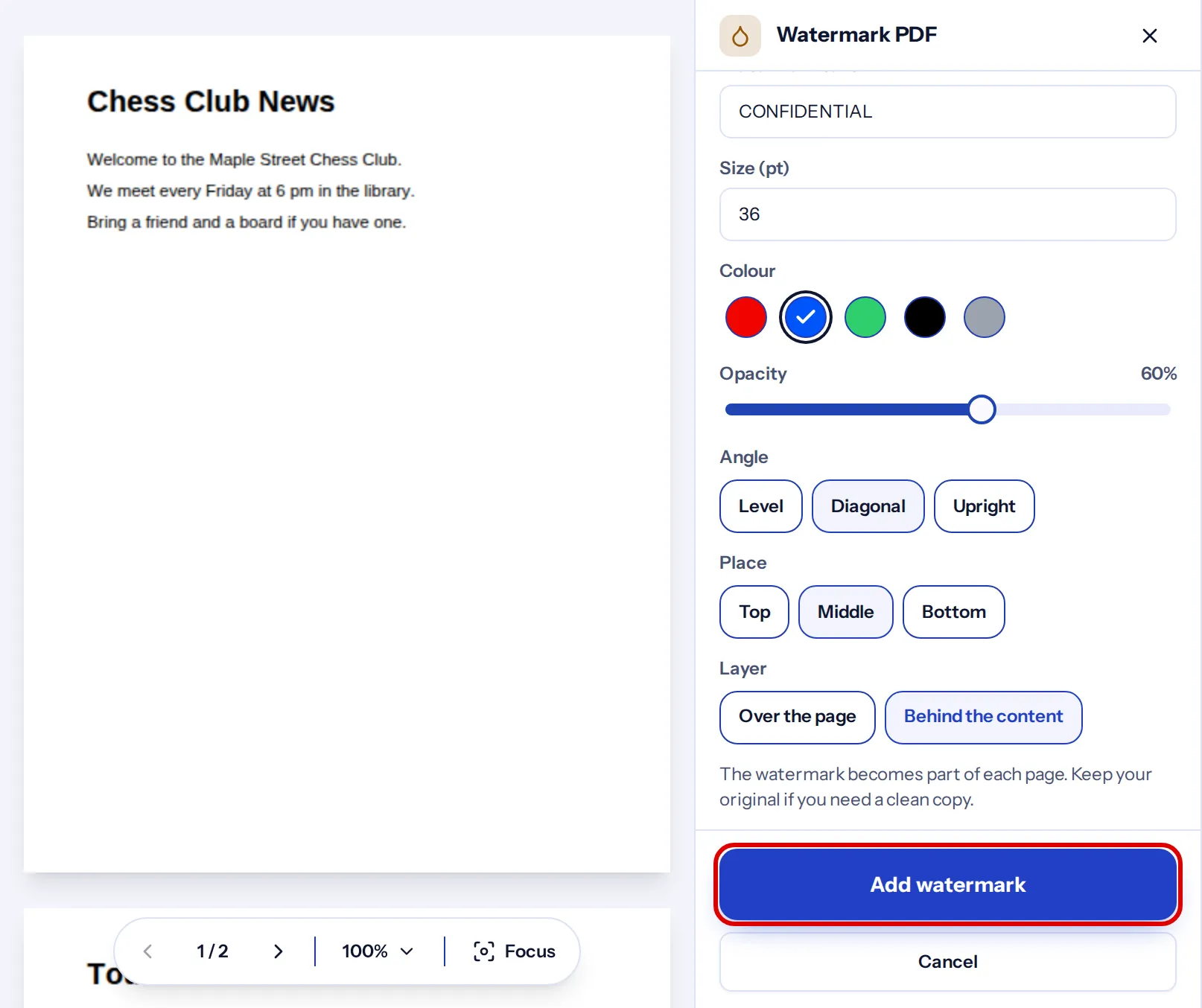
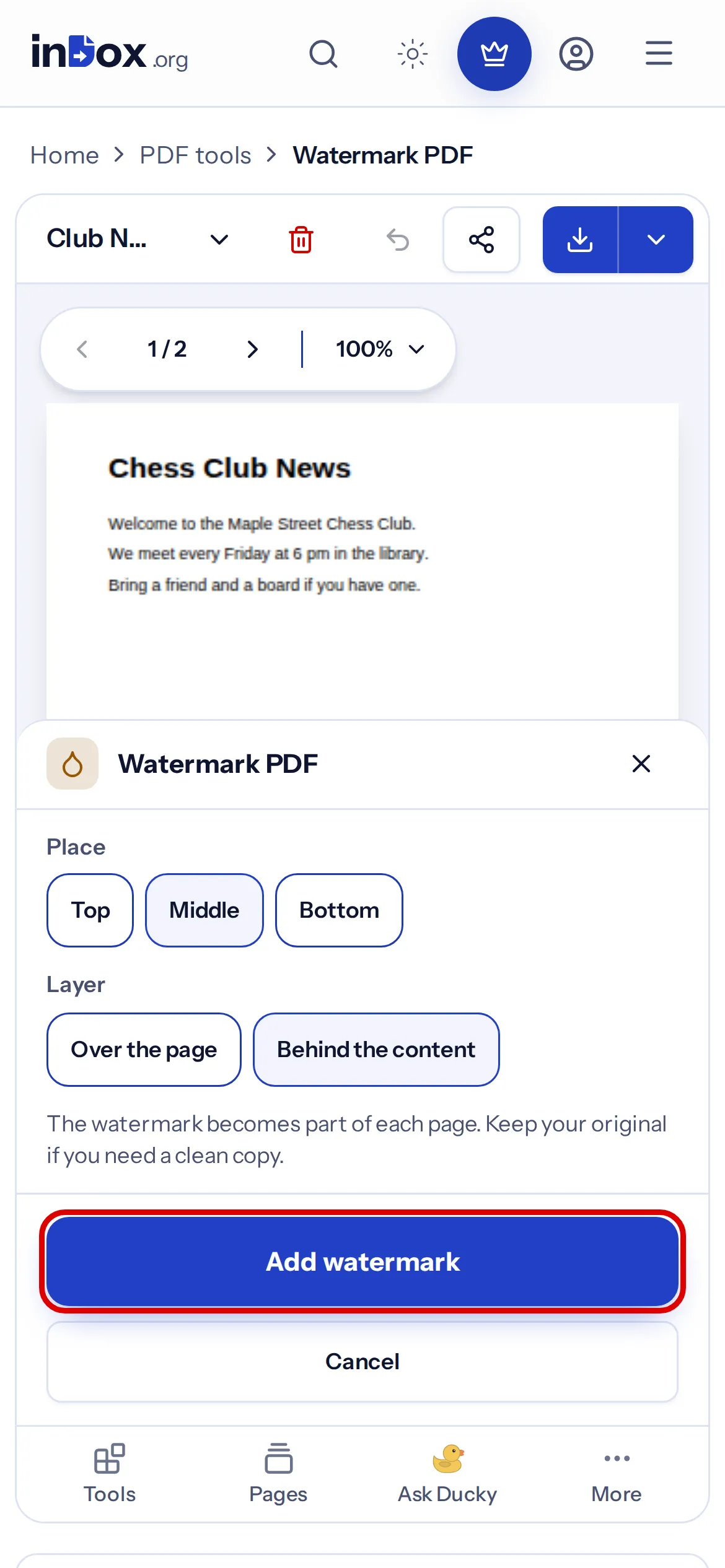
Select the blue Add watermark button at the bottom of the panel. Wait a moment.
Download your PDF
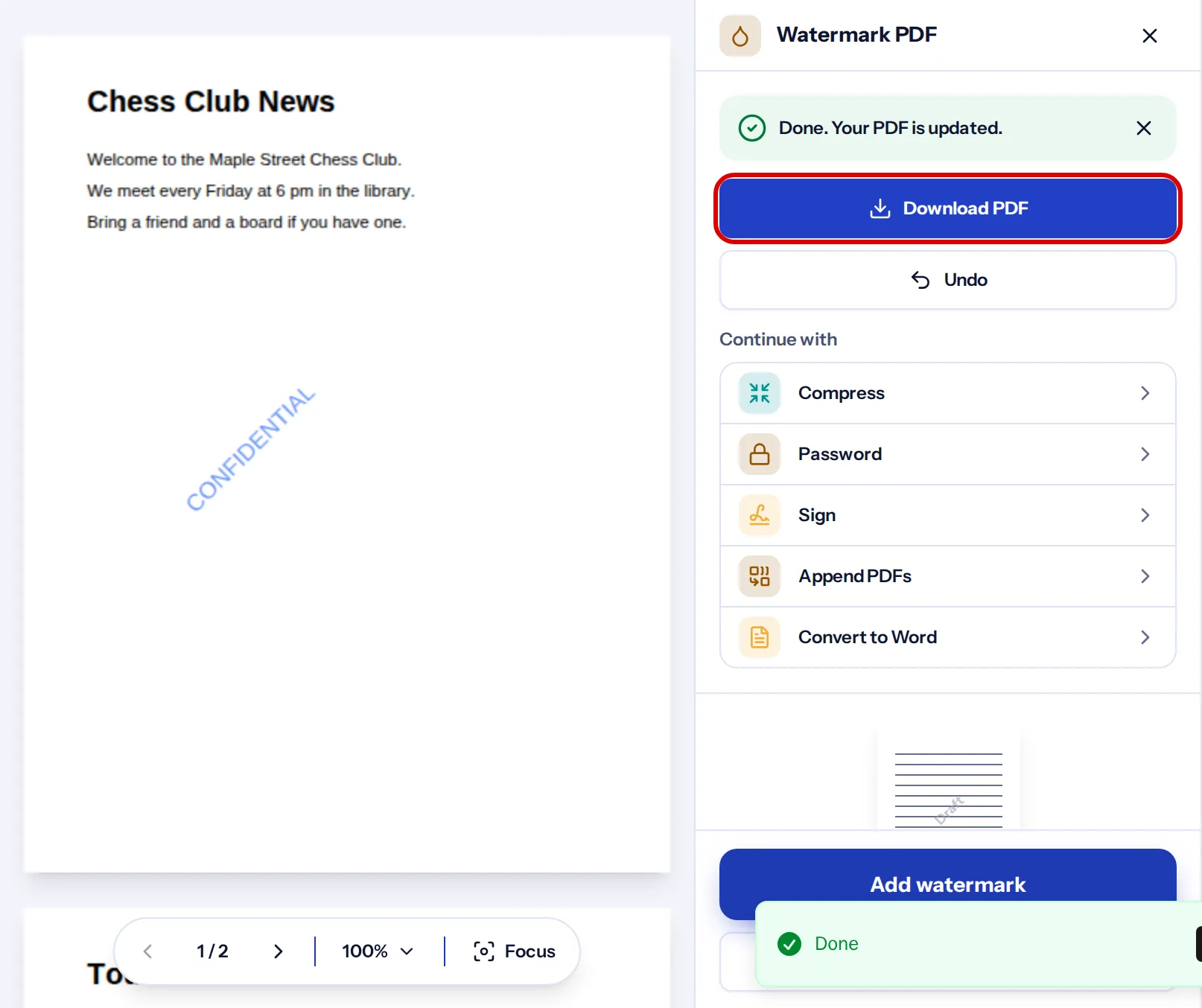
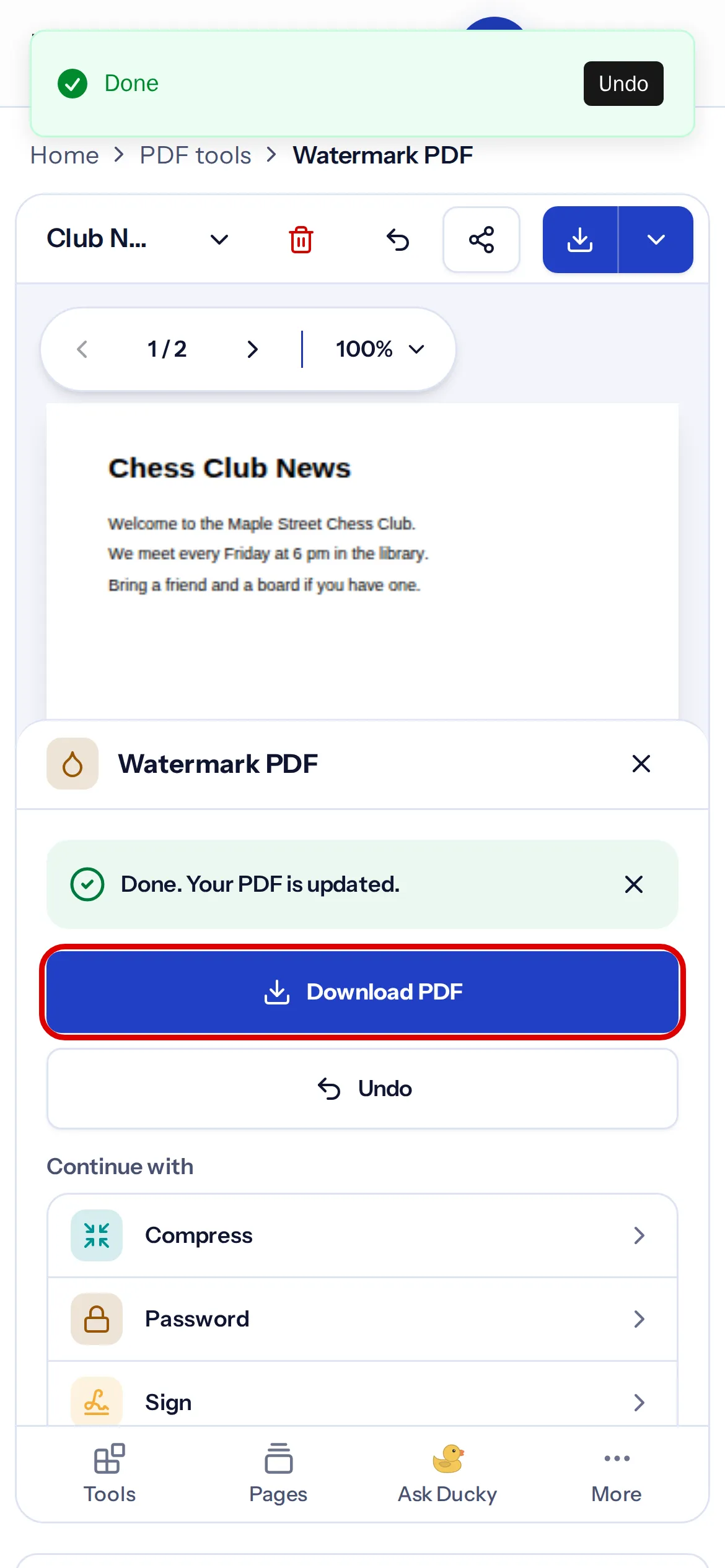
The panel says Done. Your PDF is updated. Look at the page on the left. The word is now on it. Select the blue Download PDF button. The new file is saved on your device. Its name ends in -watermarked.
Troubleshooting
| Problem | Cause | Fix |
|---|---|---|
| The mark is hard to see | The colour or opacity is too light | Select Undo, pick a darker colour, raise the Opacity and run it again |
| The mark covers your words | The layer is set to Over the page | Select Undo and pick Behind the content |
| You want the mark gone | The mark is part of the page once you add it | Select Undo next to Download PDF, or use your original file |
| The mark is in the wrong place | The place or angle was not what you wanted | Select Undo, change Angle or Place, and add it again |