Last updated
Change your password
Before you start
- You need to be signed in to indox.org.
- You need to know your current password. The page asks for it before it lets you pick a new one.
Open the Security page
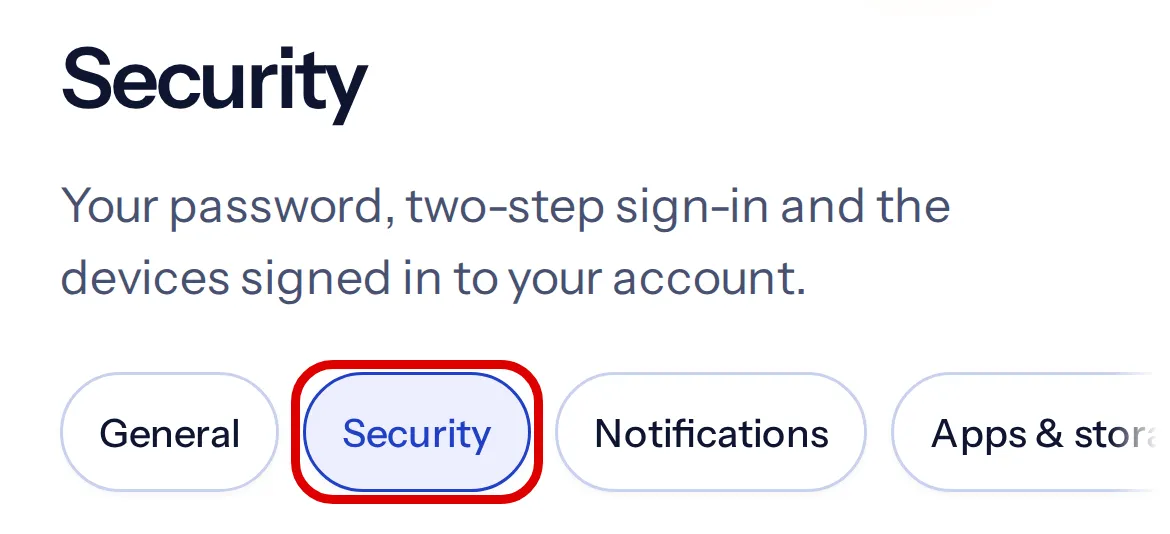
Go to the Security page. On any screen, select Security in the row of round buttons under the page title. The page title is Security, and it says: Your password, two-step sign-in and the devices signed in to your account.

Find the Change password card
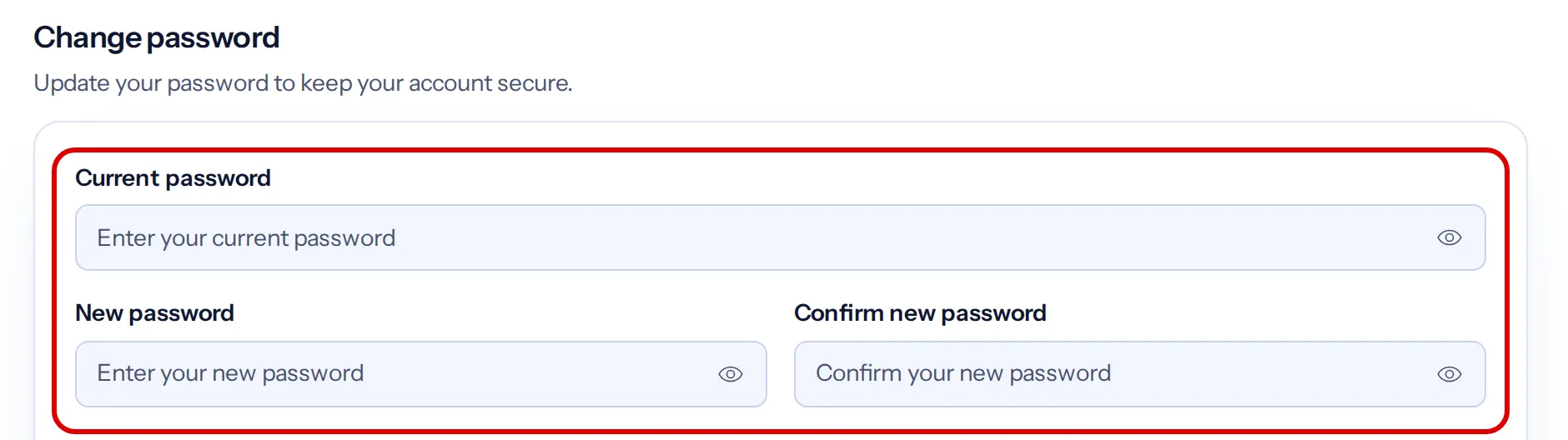
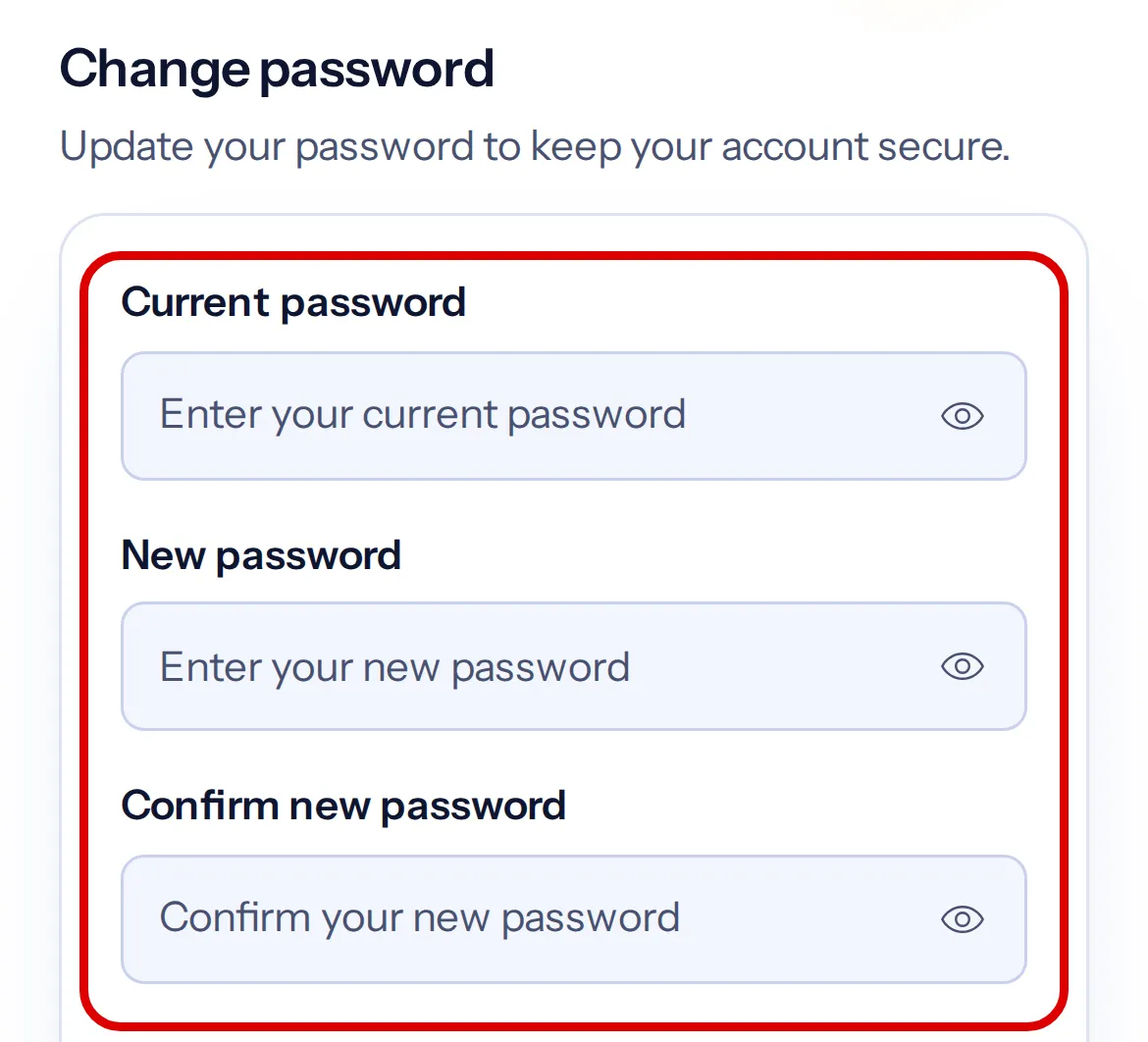
The first card is Change password. It has three boxes: Current password, New password and Confirm new password. Type your current password in the first box.
Type your new password twice
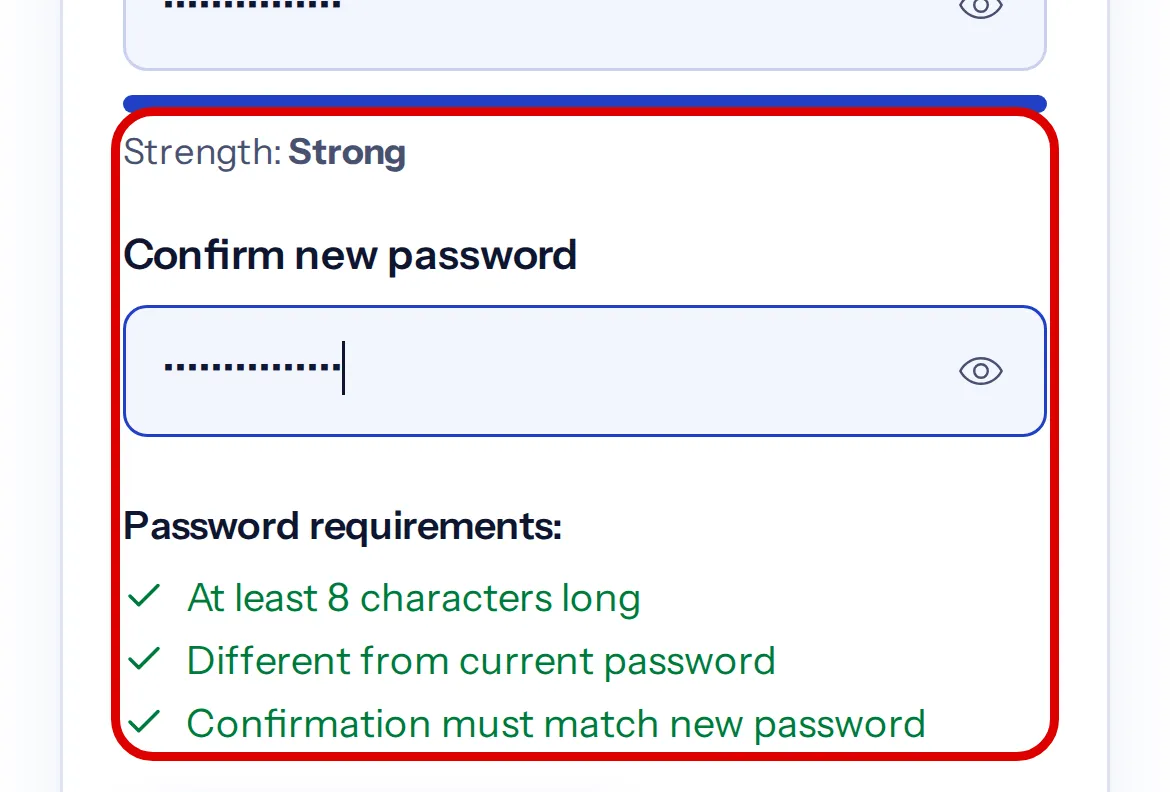
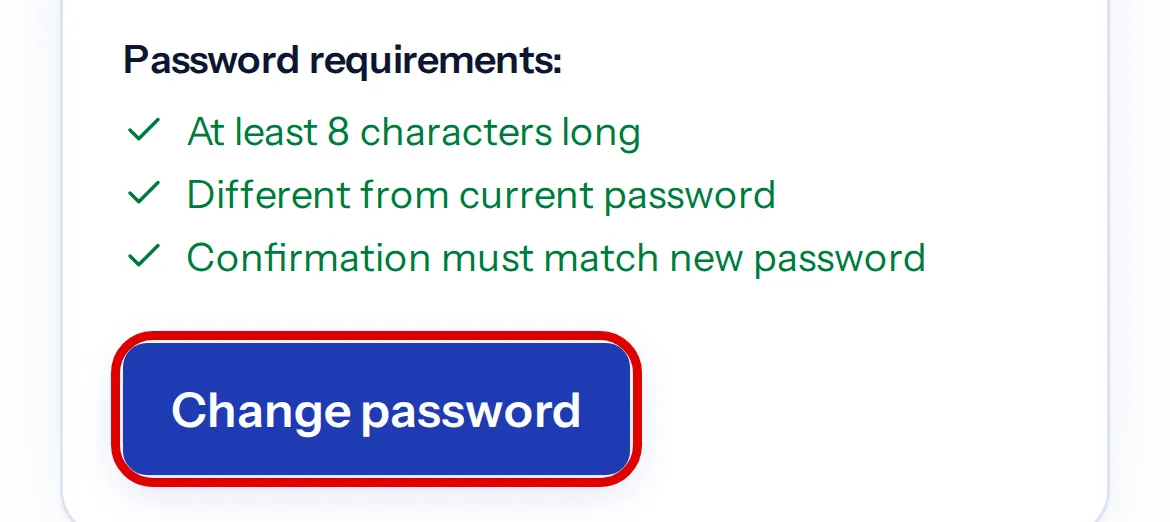
Type your new password in New password. Type it again in Confirm new password. Under the first box, Strength shows how strong the new password is. Under Password requirements, a tick turns green when you meet a rule: at least 8 characters, different from your current password, and both new boxes match.

Select Change password
When all three rules have a green tick, the Change password button turns blue. Select it to save your new password. Until then the button stays pale and cannot be pressed.

Troubleshooting
| Problem | Cause | Fix |
|---|---|---|
| The Change password button is pale | One of the three requirements does not have a green tick yet | Check the list under Password requirements. Make the new password at least 8 characters, make it different from the current one, and type the same thing in both new boxes. |
| The password shows as dots | The page hides what you type | Select the eye icon at the right end of a box to see the letters. Select it again to hide them. |