Last updated
Resize PDF pages to a paper size
Before you start
- A page size is the size of the paper the page is made for, such as Letter or A4. Letter is the usual size in the United States. A4 is the usual size in most other countries.
- Have the PDF on your phone or computer. The upload box tells you how big a file can be.
- You don't need an account.
Open your PDF
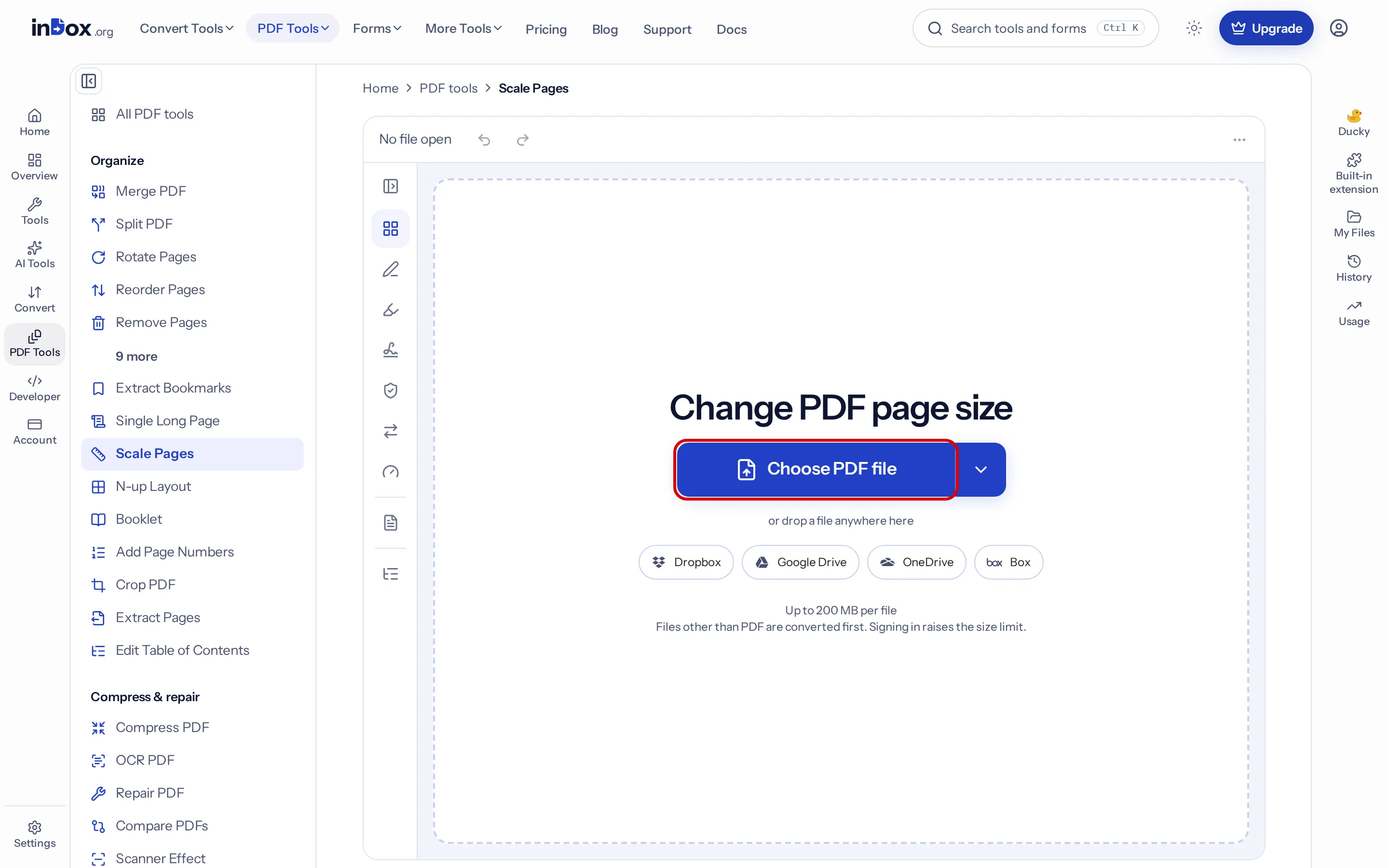
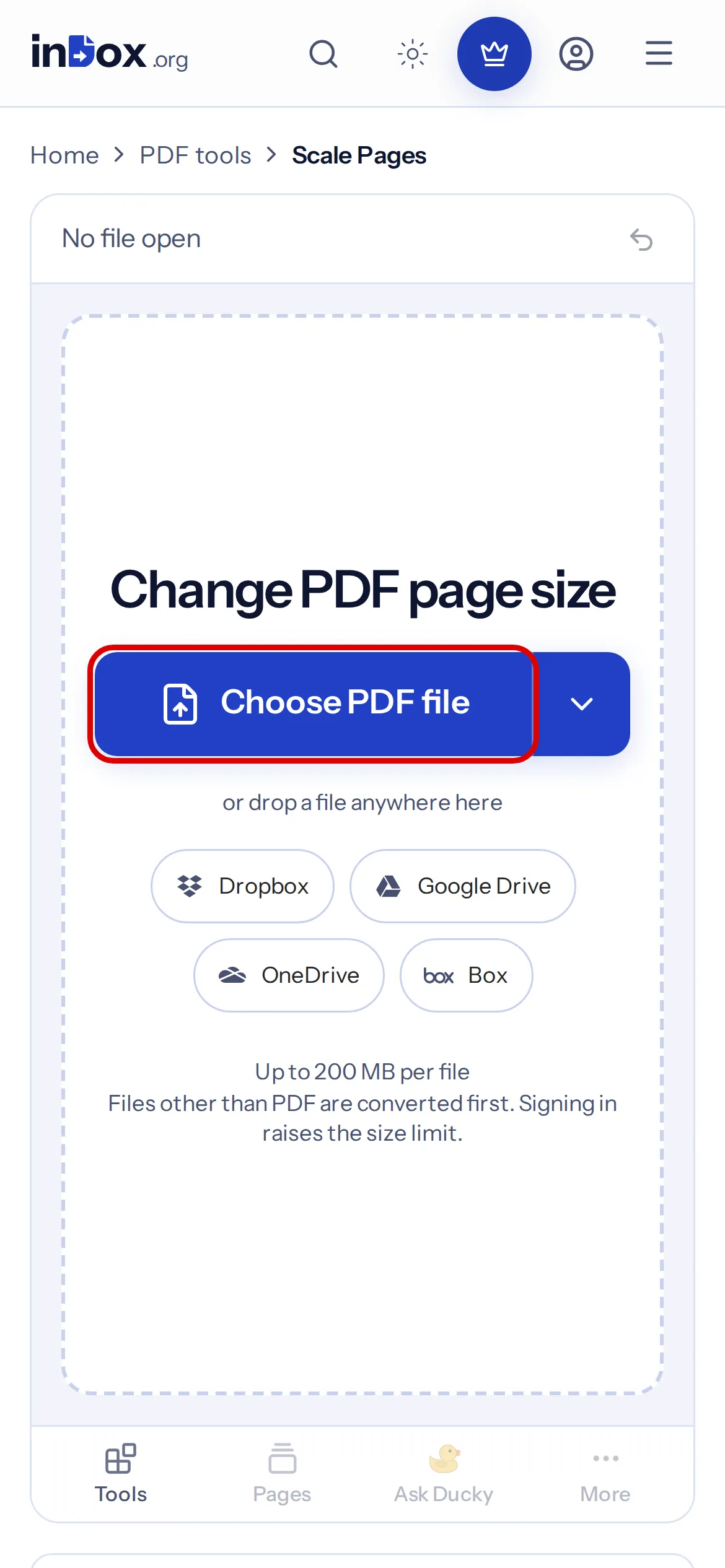
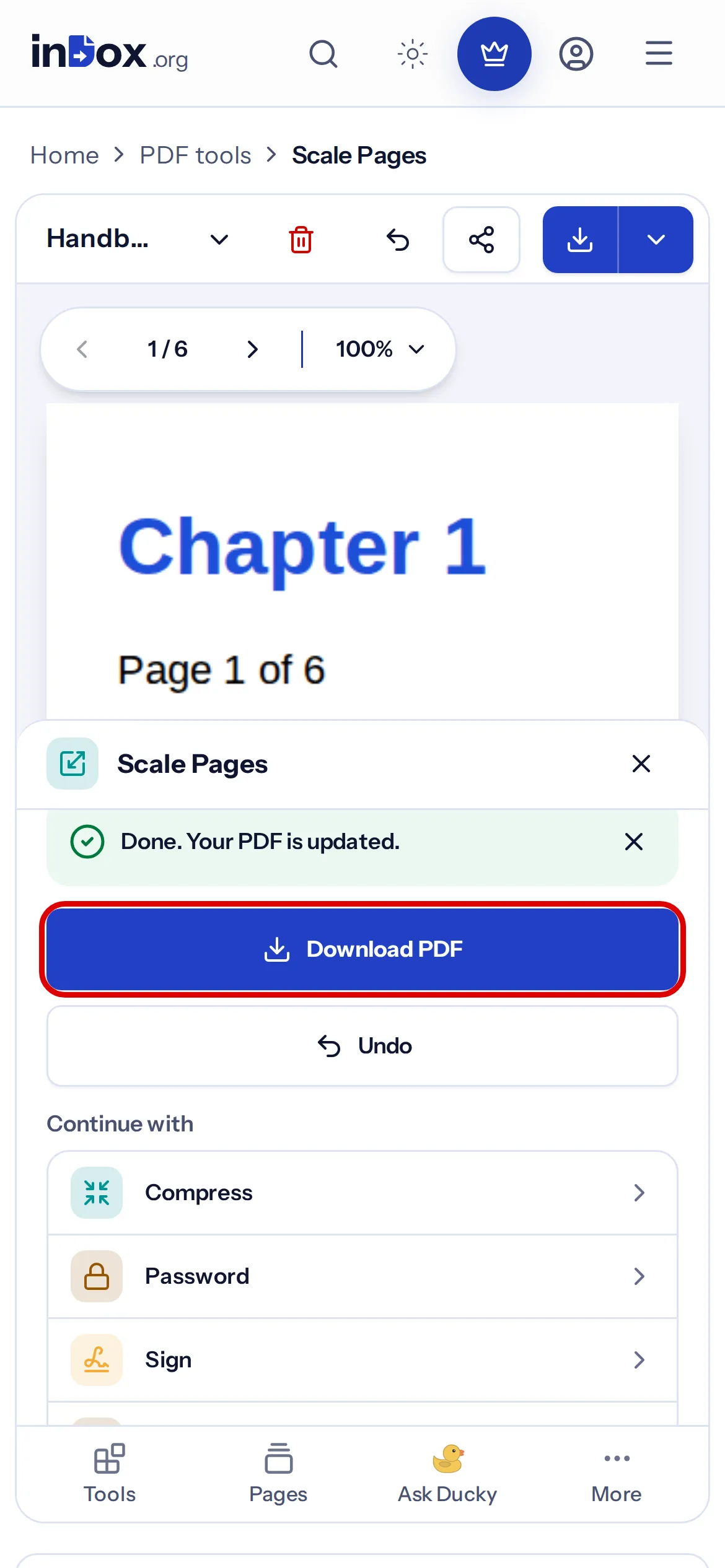
Go to the Change PDF page size page. In the middle of the page, select the blue Choose PDF file button. A box opens so you can pick a file from your device. You can also drag a file onto the page. When the file loads, you see its pages and a Scale Pages panel. On a computer the panel is on the right. On a phone it is at the bottom of the screen.
Pick the paper size
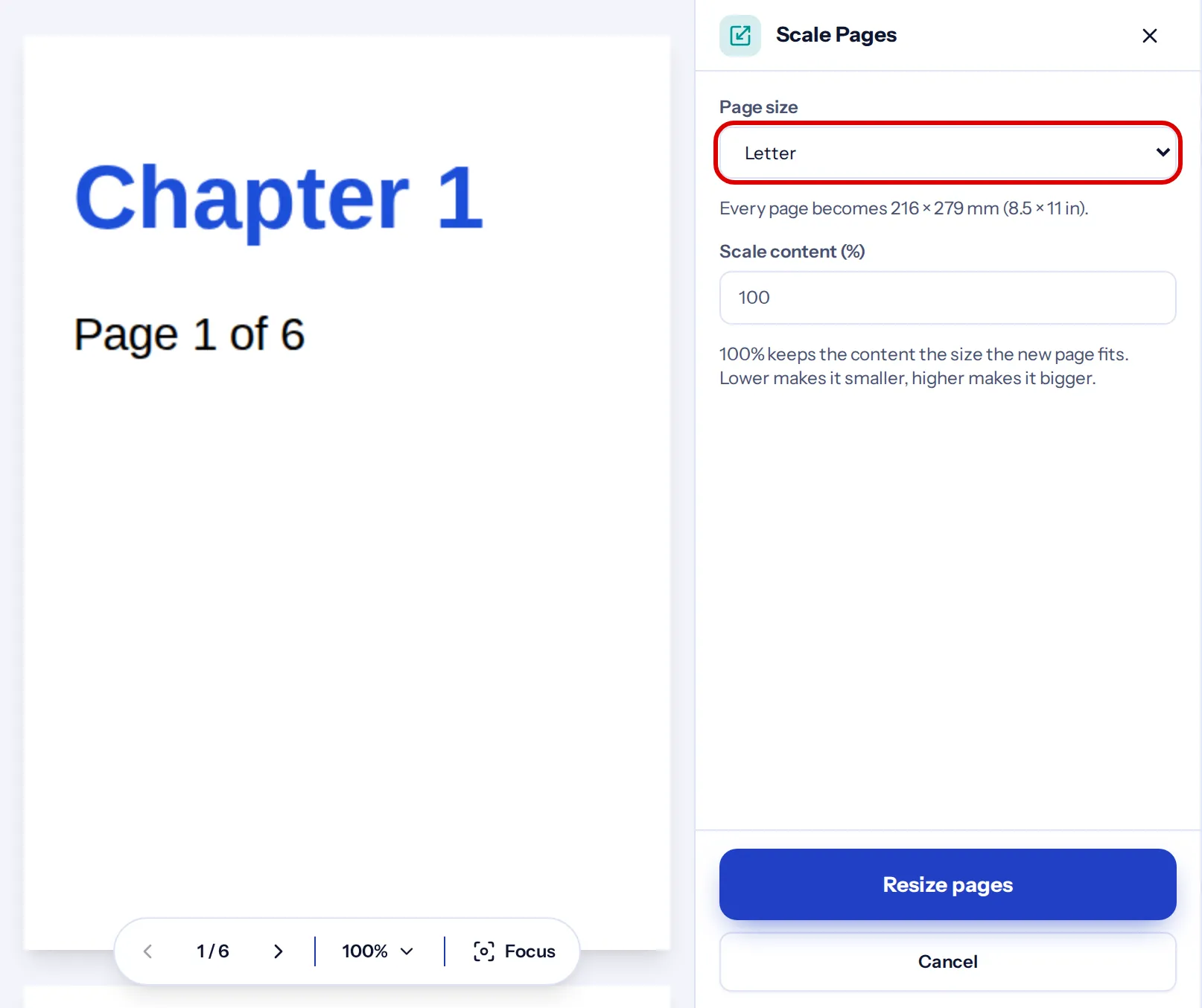
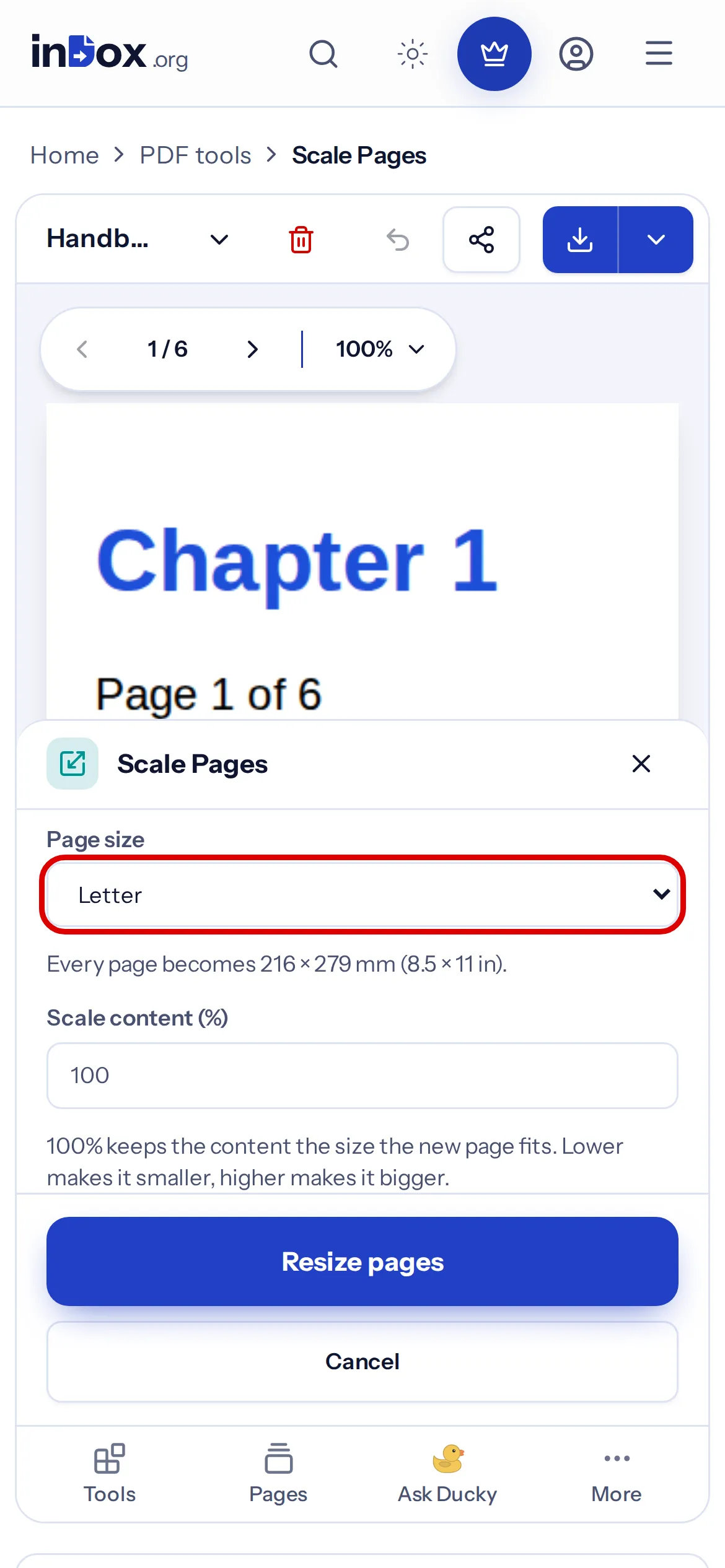
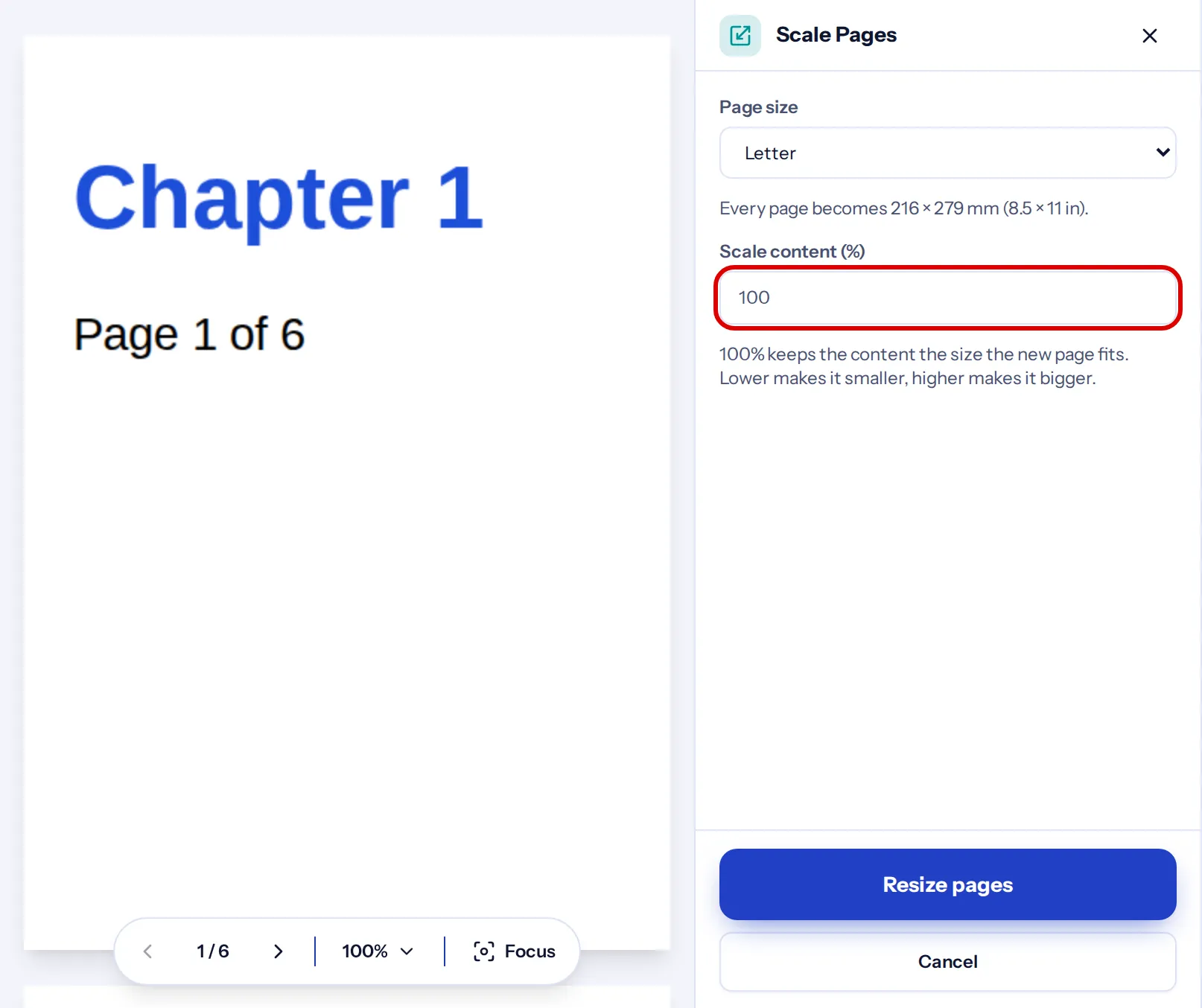
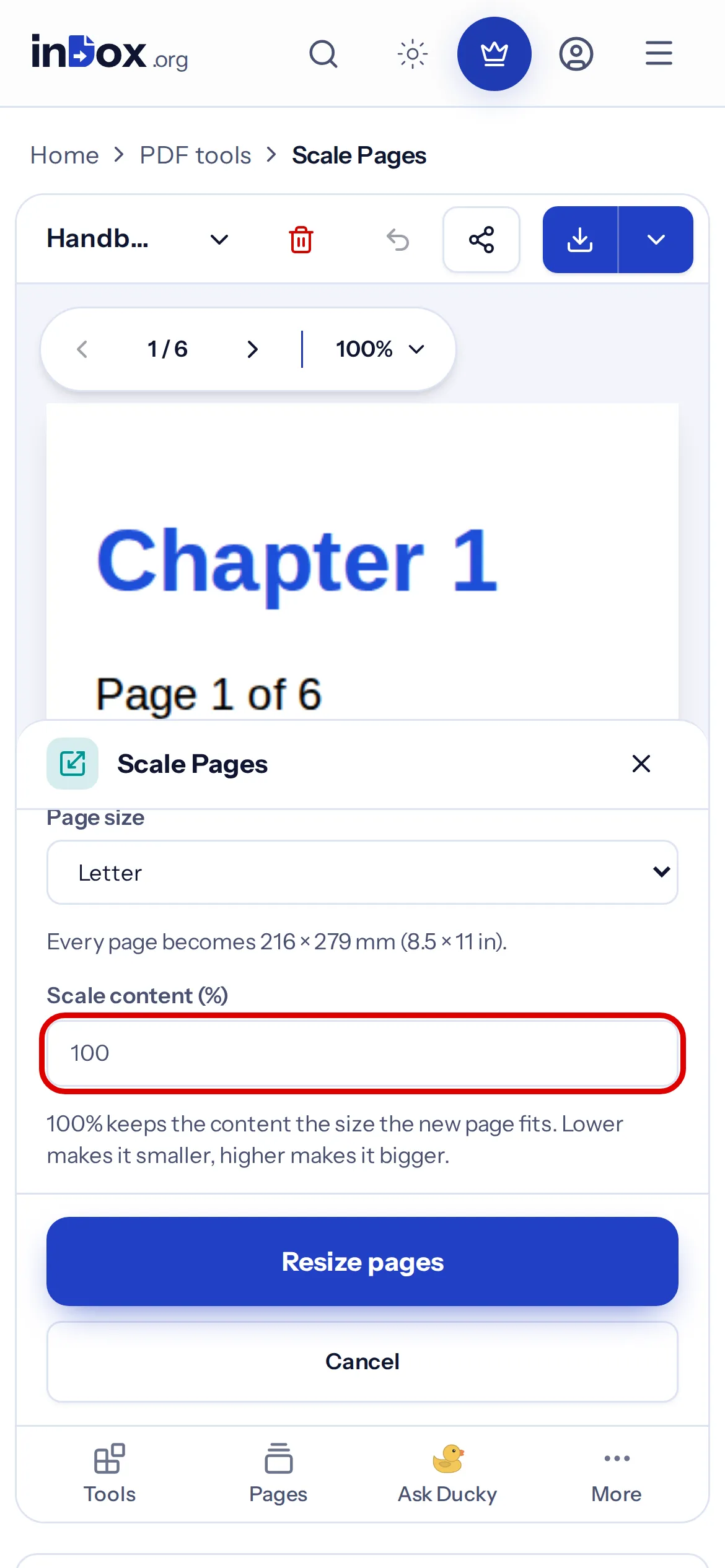
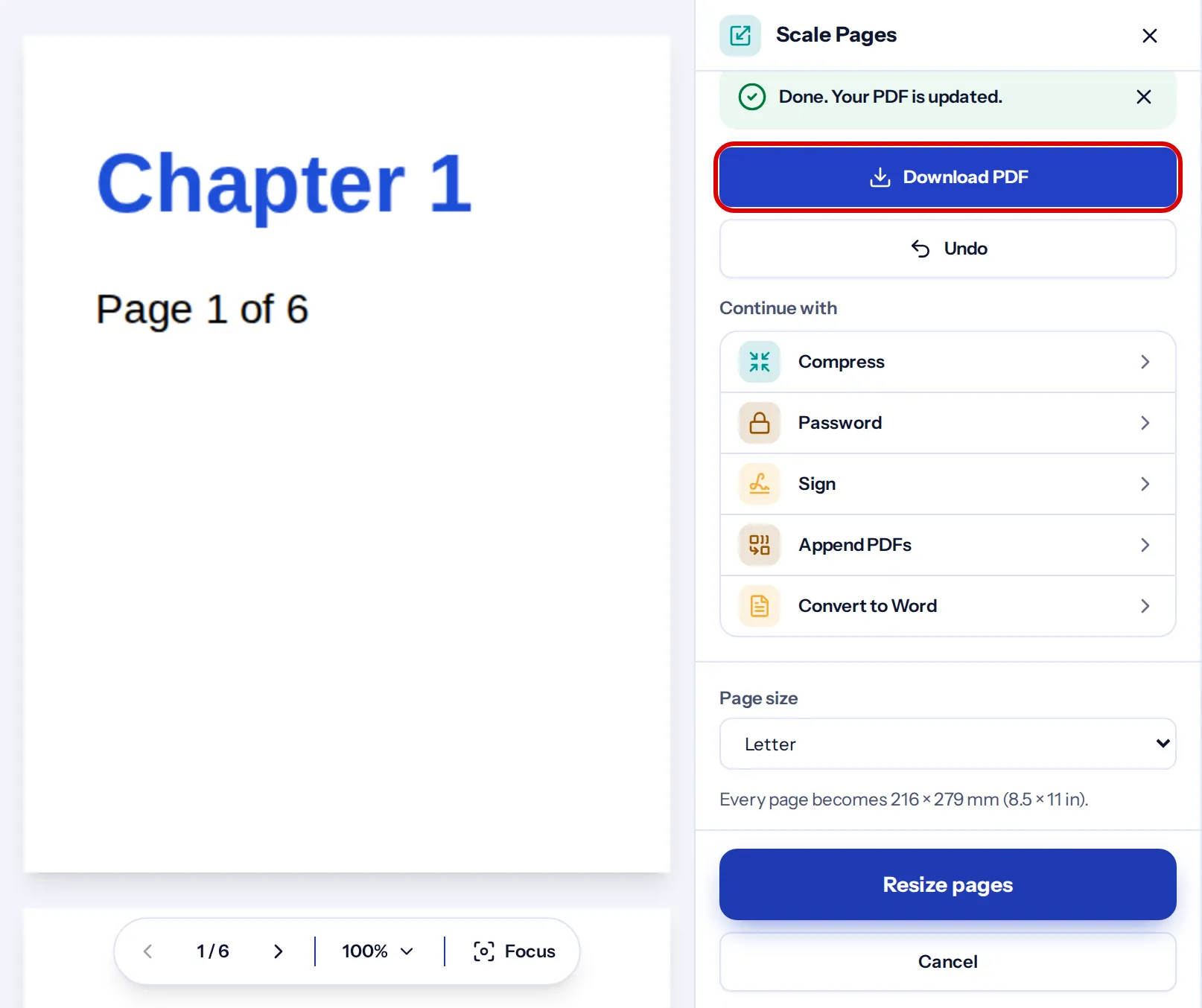
Look at the Scale Pages panel. Under Page size, open the list and choose a size, for example Letter. It starts on A4. A line under the list tells you the result, such as Every page becomes 216 × 279 mm (8.5 × 11 in). If you pick Keep each page's size, the pages stay the same size and only the content changes.
Change the scale (optional)
Find Scale content (%). The scale is how big the words and pictures are on the new page. It starts at 100, which makes the content as big as the new page allows. Type a smaller number, like 80, to make the content smaller. Type a bigger number to make it bigger. You can use any number from 10 to 500. Skip this step if you are happy with 100.
Resize the pages
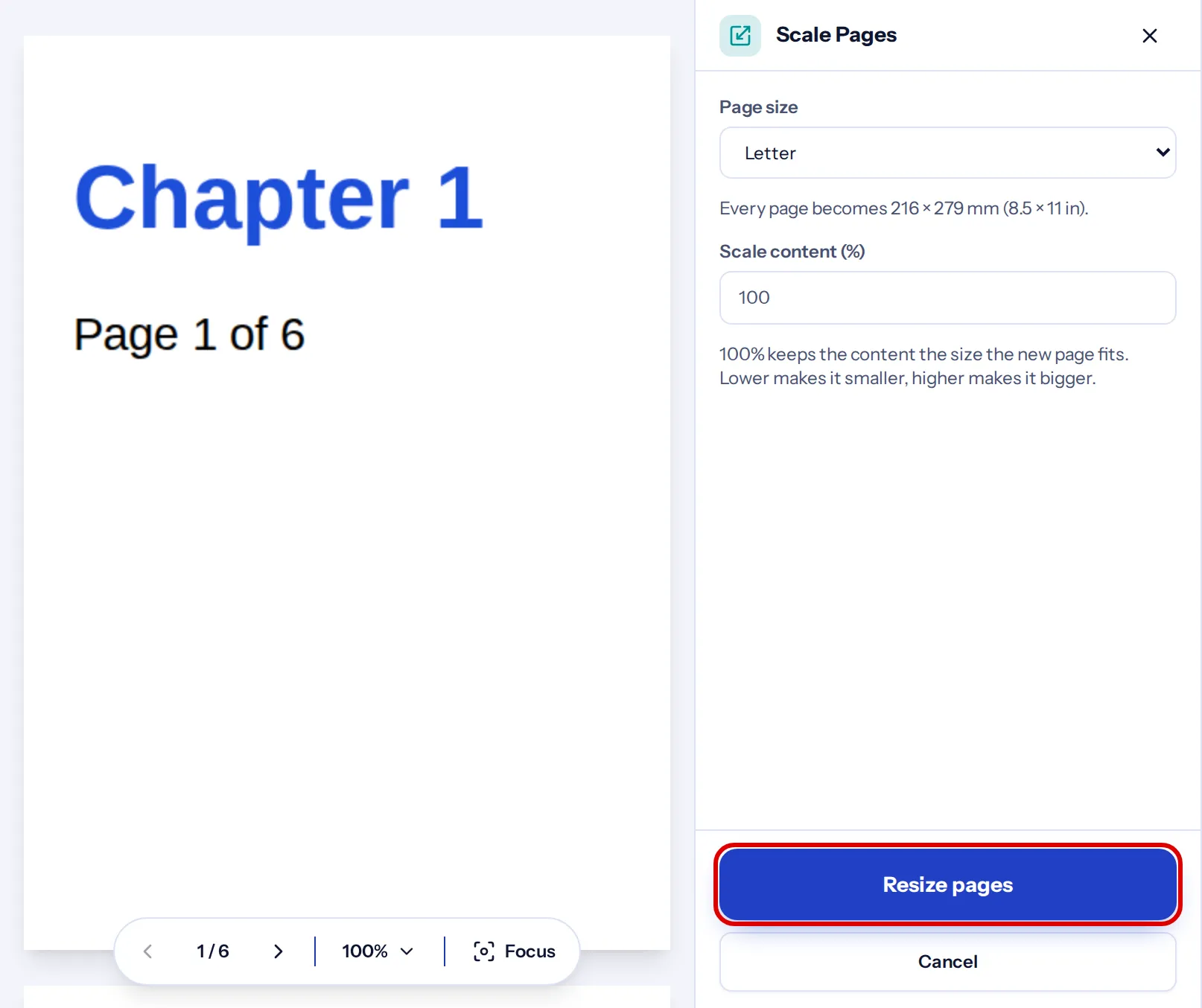
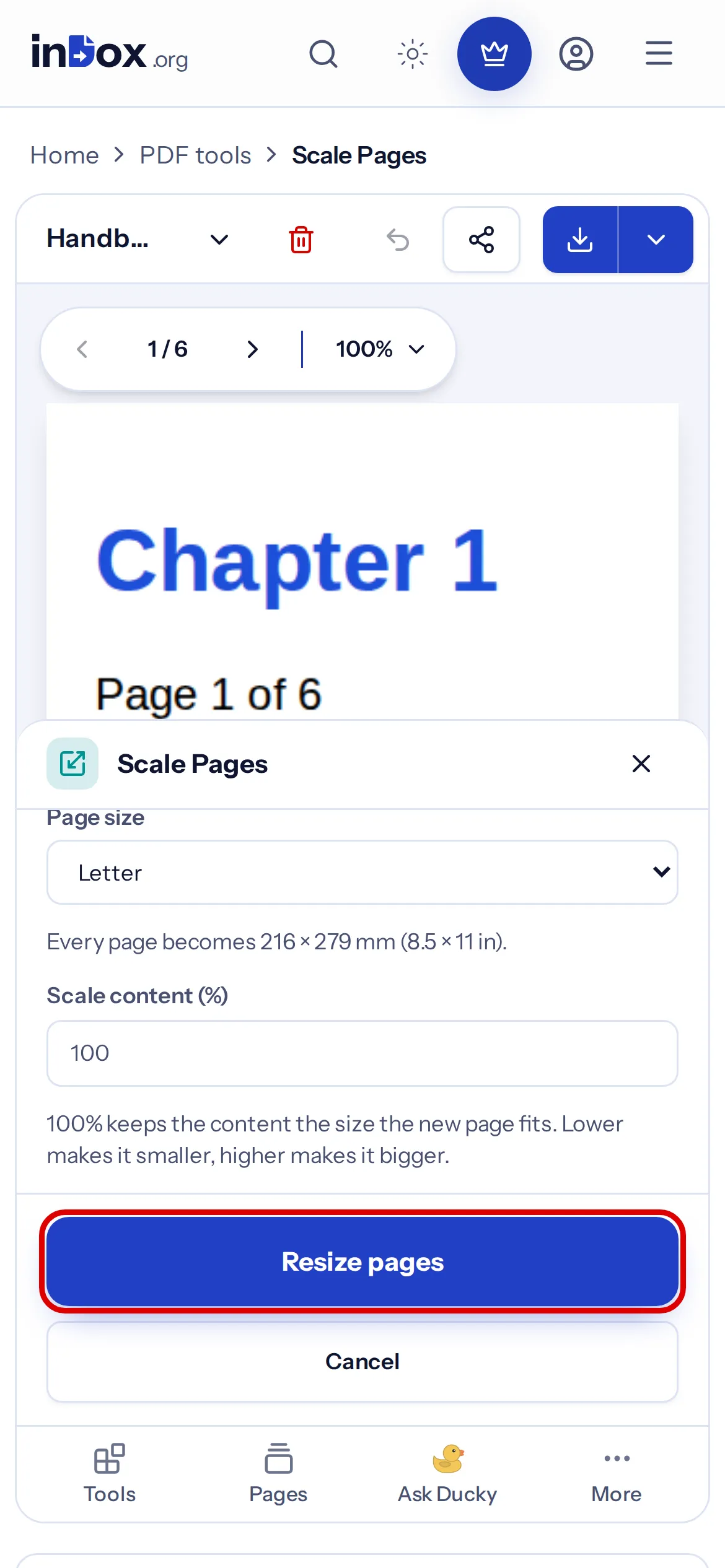
Select the blue Resize pages button at the bottom of the panel. Wait a moment while indox changes the pages. The new size is used on every page of the PDF.
Download your PDF
A green message says Done. Your PDF is updated. at the top of the panel. Select Download PDF, just below it. The new file is saved on your device. Its name is your file's name with -edited added. Not happy with it? Select Undo to get your pages back.
Troubleshooting
| Problem | Cause | Fix |
|---|---|---|
| Use a scale from 10% to 500%. appears | The number in Scale content (%) is too small or too big | Type a number from 10 to 500, then select Resize pages again |
| The content looks small on the page | A number below 100 in Scale content (%) makes the content smaller | Type 100 in Scale content (%), or a bigger number, and resize again |
| The pages are the wrong size | The Page size list was on another size | Read the line under the list, such as Every page becomes 216 × 279 mm, before you select Resize pages |
| Keep each page's size gives a message that nothing changes | With that choice and a scale of 100, there is nothing to change | Pick a paper size, or type a different number in Scale content (%) |
| You want the old pages back | The resized PDF replaces the one on screen until you undo it | Select Undo next to Download PDF. The file on your device keeps its old size either way |