indox.org
  • Convert Tools
  • Pricing
  • Blog
  • Support
  • Docs
Ctrl K
Get started
Indox

Encrypted in transit. Free-tier files auto-deleted within 24 hours. No tracking.

  • Encrypted in transit
  • Auto-delete within 24h
  • No training on your files

Convert documents

  • DOCX to PDF
  • PDF to DOCX
  • XLSX to PDF
  • PDF to JPG
  • EPUB to PDF
  • XLSX to CSV
  • HTML to PDF

Convert images

  • HEIC to JPG
  • JPG to PDF
  • AVIF to JPG
  • WEBP to JPG
  • SVG to PNG
  • JPG to PNG

Convert video and audio

  • AVI to MP4
  • WAV to MP3
  • MOV to MP4
  • M4A to MP3
  • MKV to MP4
  • MP4 to MP3
  • WEBM to MP4
  • OGG to MP3

Tools

  • Convert
  • Edit
  • Organize
  • Sign & secure
  • Compress & repair
  • AI
  • PDF converter
  • All conversions

Apps

  • AI Extract
  • Chat with a doc
  • Translate documents
  • Office
  • Form reader
  • Fill & Sign
  • PDF viewer
  • Scan to PDF
  • Unit converter

Font formats

  • TTF
  • OTF
  • WOFF
  • WOFF2
  • EOT
  • SVG
  • PFA
  • PFB

Company

  • Blog
  • Pricing
  • Support
  • Feedback
  • Terms of Use
  • Privacy Policy

IRS forms for individuals

  • Individual income tax
  • Payments, refunds & disputes
  • Tax pros & free filing help
  • IRS notices & requests
  • Records, IDs & e-file
  • Estates, gifts & trusts
  • Retirement & savings plans

IRS forms for businesses

  • Employment & payroll
  • 1099s & information returns
  • Business & corporations
  • Charities & nonprofits
  • Excise tax
  • International

USCIS family and status

  • Green cards
  • Citizenship
  • Family petitions
  • Adoption
  • Travel & status changes
  • Asylum & humanitarian relief

USCIS work and filings

  • Work authorization
  • Investors & entrepreneurs
  • Records & requests
  • Fees & payments
  • Waivers
  • Appeals & motions

Developers

  • Documentation
  • API Reference
  • Python SDK

Products

  • Businesses
  • IndoxHub
  • Pencilly

Apps and extensions

  • WebEase (Extension)
  • AI Summarizer (Extension)
  • KeyNest (Extension)
  • KeyNest (Android App)

© 2026 Nemati AI LLC. All rights reserved.

Private. Secure. Encrypted. Auto-deleted within 24 hours.

Updated on 2026-10-13, v0.26.0

Doc TranslateLayout-preserving translation50+ LANGUAGES

Drop a document to translate

PDF, Word, PowerPoint or images · up to 5 MB · layout preserved

Auto-detects the source language · 50+ targets

  1. Home
  2. AI tools
  3. Doc Translate

AI document translator

Doc Translate turns a PDF, Word file, PowerPoint or image into another language and keeps the layout. Headings, tables and images stay where they were, so the translated file looks like the original. Pick the target language, check the estimate and press Translate document. The source language is detected for you, and you can change it. Try the sample document in the workspace above first. It runs without an account, and the upload box shows the size limit that applies to you.

Why translate documents with indox?

Start from a file or a link

Start from a file or a link

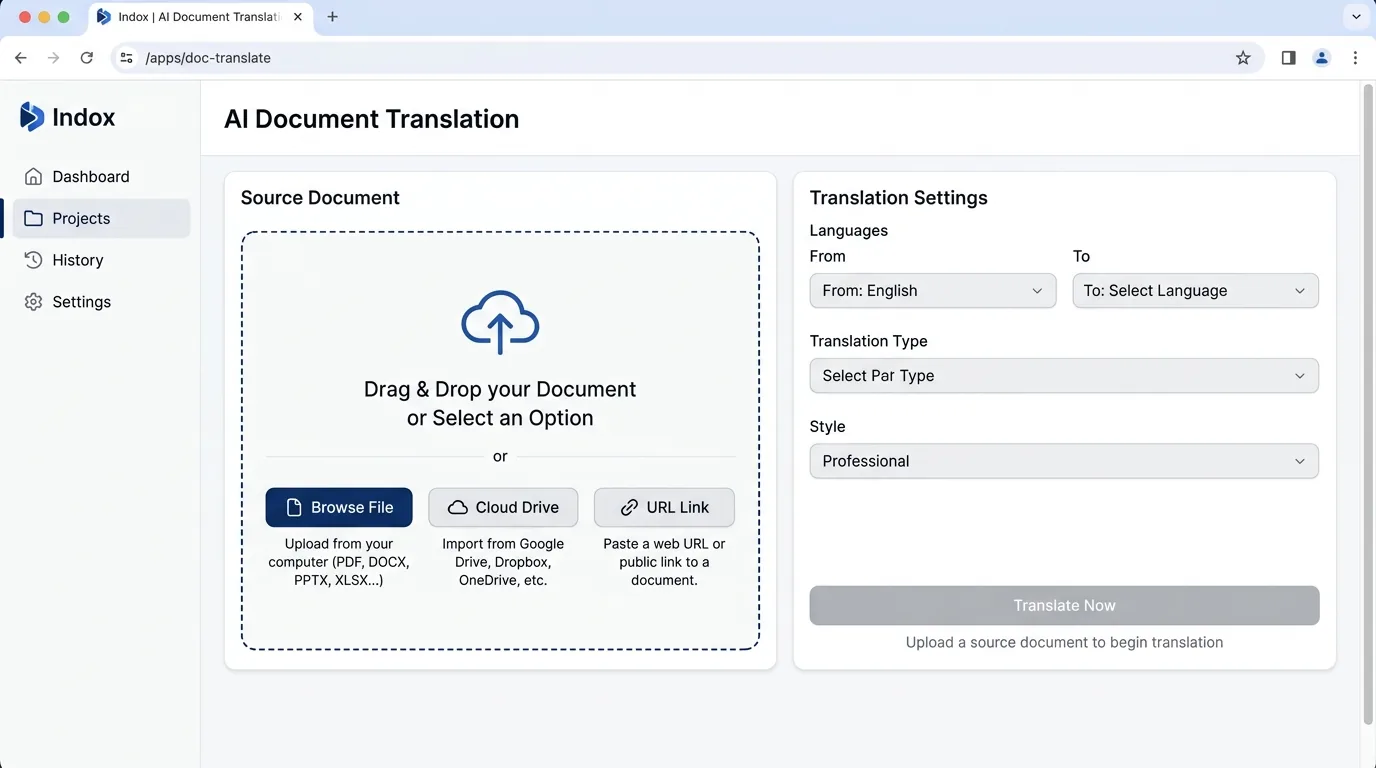
Drop a PDF, Word file, PowerPoint or image on the box, browse for it, paste a link or pick it from Drive. The upload box shows the size limit before you add anything.

Choose the languages and see the estimate

Choose the languages and see the estimate

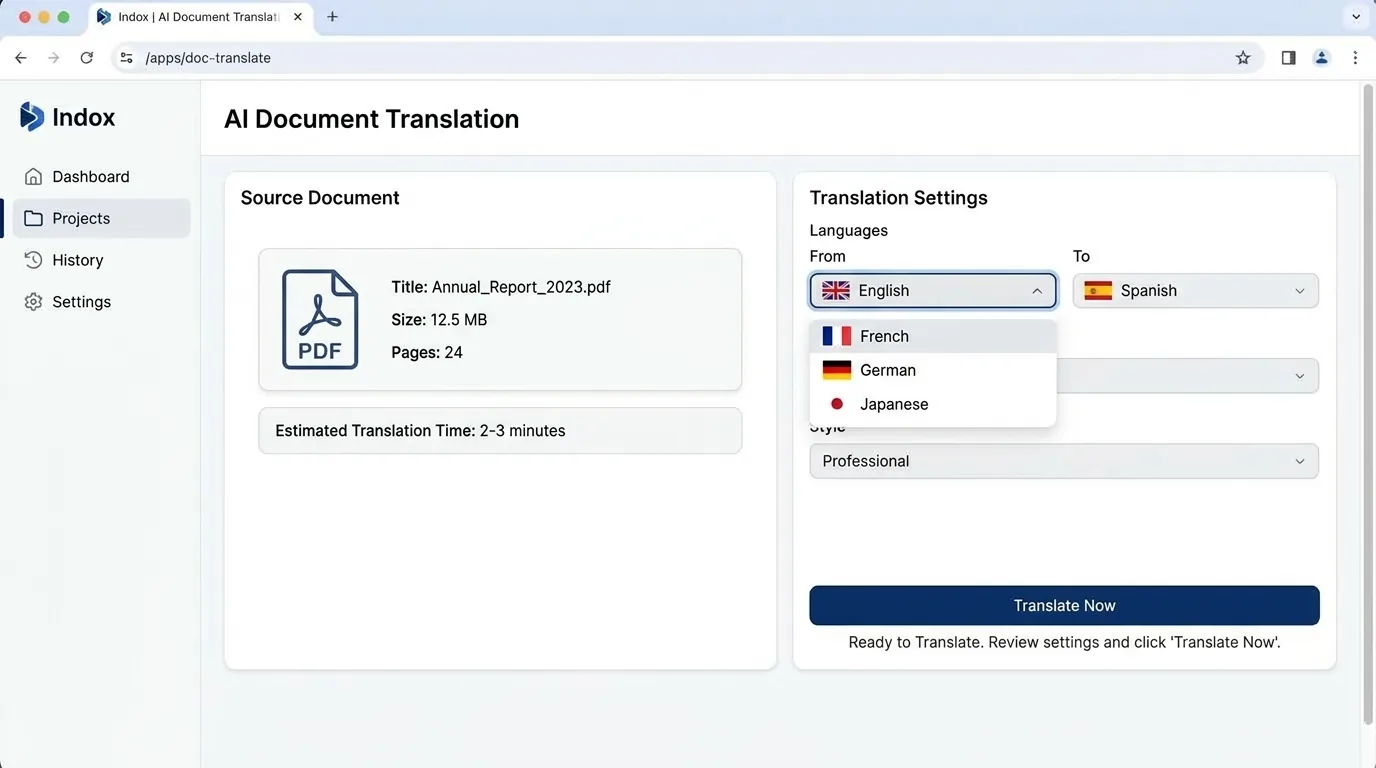
The source language is detected and shown, and you can change it. Search the target list by name, swap the two languages with one button, and read the page count, credits and time estimate before you run.

Follow it page by page

Follow it page by page

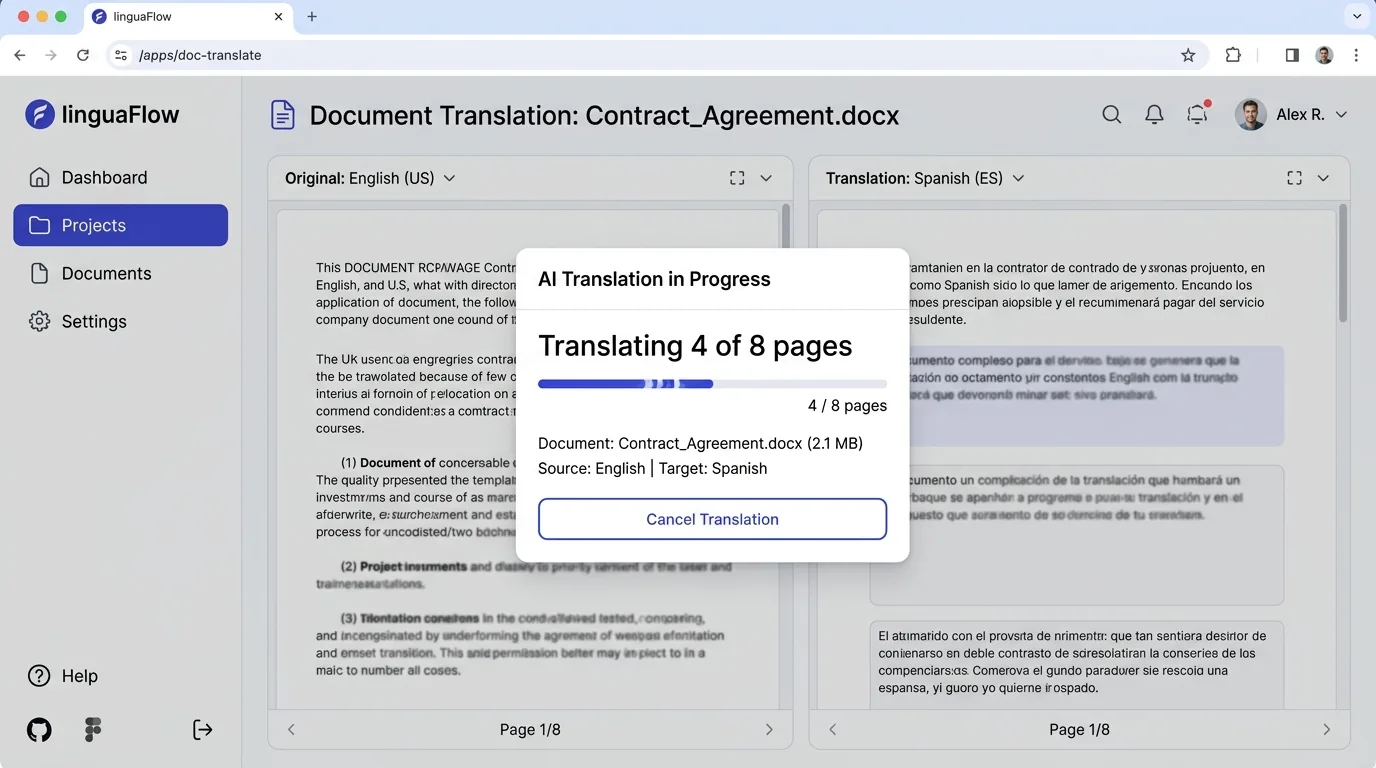
A progress bar counts pages as they finish while the original stays on screen. Cancel at any point. If a run fails, the message says no credits were charged and offers Retry.

Compare the panes and download

Compare the panes and download

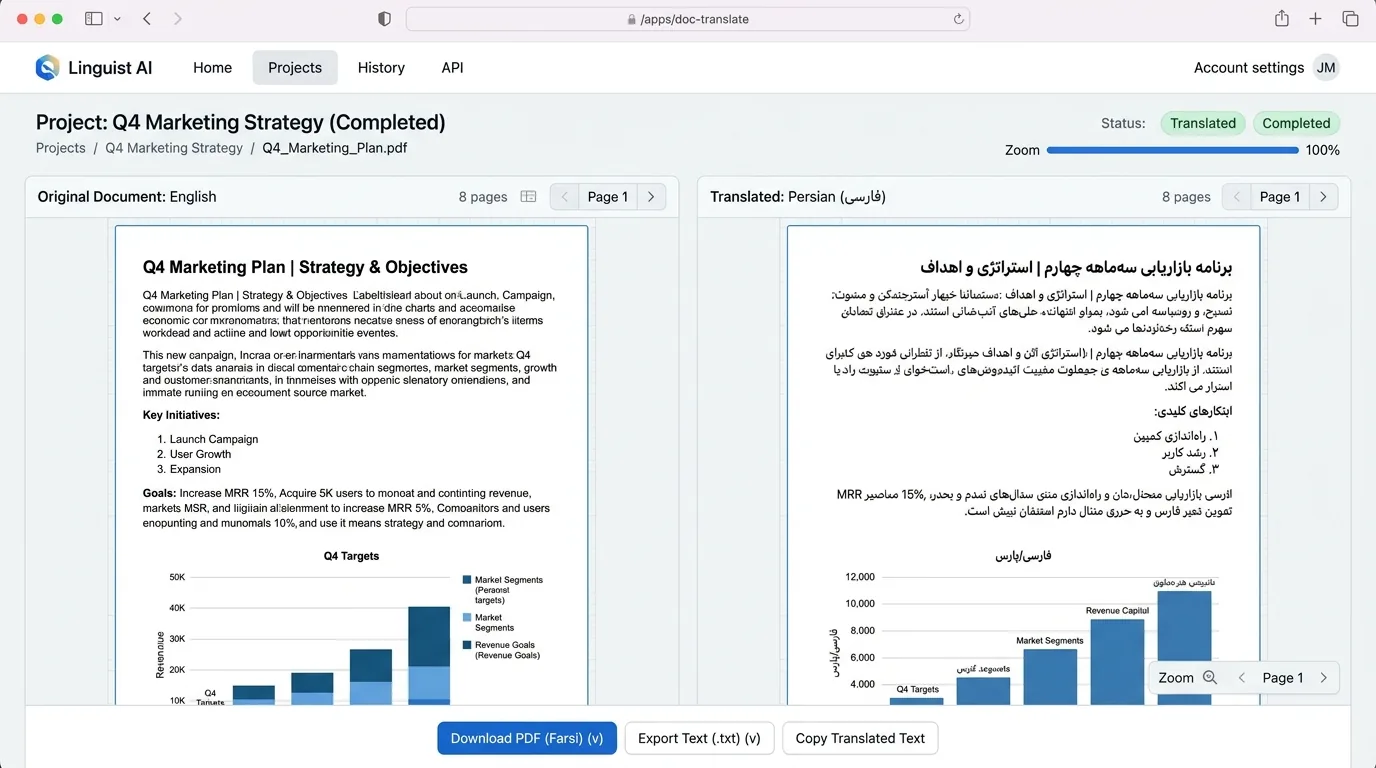
The original and the translation sit side by side with tables, headings and images in place. Right-to-left languages such as Arabic and Persian display right to left. Download the result as PDF or DOCX.

How do I translate a document?

  1. 1

    Add your document

    Drop a PDF, Word file, PowerPoint or image on the upload box, or pick it from a link or Drive.

  2. 2

    Pick the languages

    Check the detected source language, choose the target and read the estimate.

  3. 3

    Translate and download

    Press Translate document, watch the pages finish, then download the PDF or DOCX.

What do I get from indox's document translator?

The translation keeps the page as it was laid out, so you do not rebuild tables or move images by hand. You see an estimate first, watch progress as pages finish and cancel if something looks wrong.
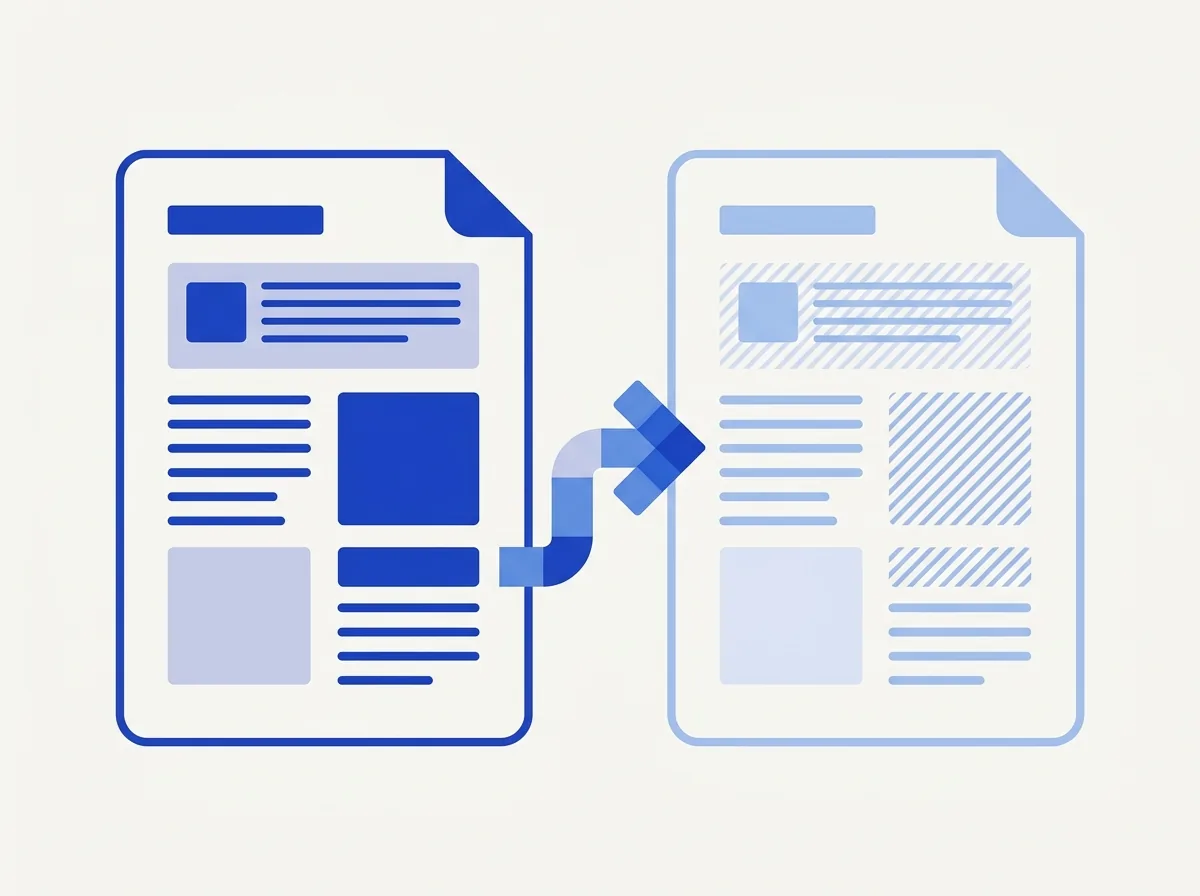
  • Tables, headings and images stay in place
  • The source language is detected for you
  • You see the estimate before you run it
  • Right-to-left languages display correctly
  • A failed translation is not charged
What do I get from indox's document translator?

What should I check before I rely on a translation?

Machine translation can get names, numbers, dates and technical terms wrong. Read the result before you send it, sign it or act on it.

For contracts, medical records, immigration papers and anything with legal weight, ask a qualified translator to review the text. Treat the output as a draft.

Some files will not translate. An encrypted file or a page that cannot be parsed stops the run and shows an error, and nothing is charged. A scanned page is a picture of text, so the result depends on how readable the scan is. Run OCR PDF first on a scanned PDF.

Translated text is often longer or shorter than the original, so line breaks and table cells can shift. Compare the two panes before you download.

Your document is sent to indox to be translated. Read the privacy page for how files are handled, and do not upload a document you are not allowed to share.

What else can I do with a document?

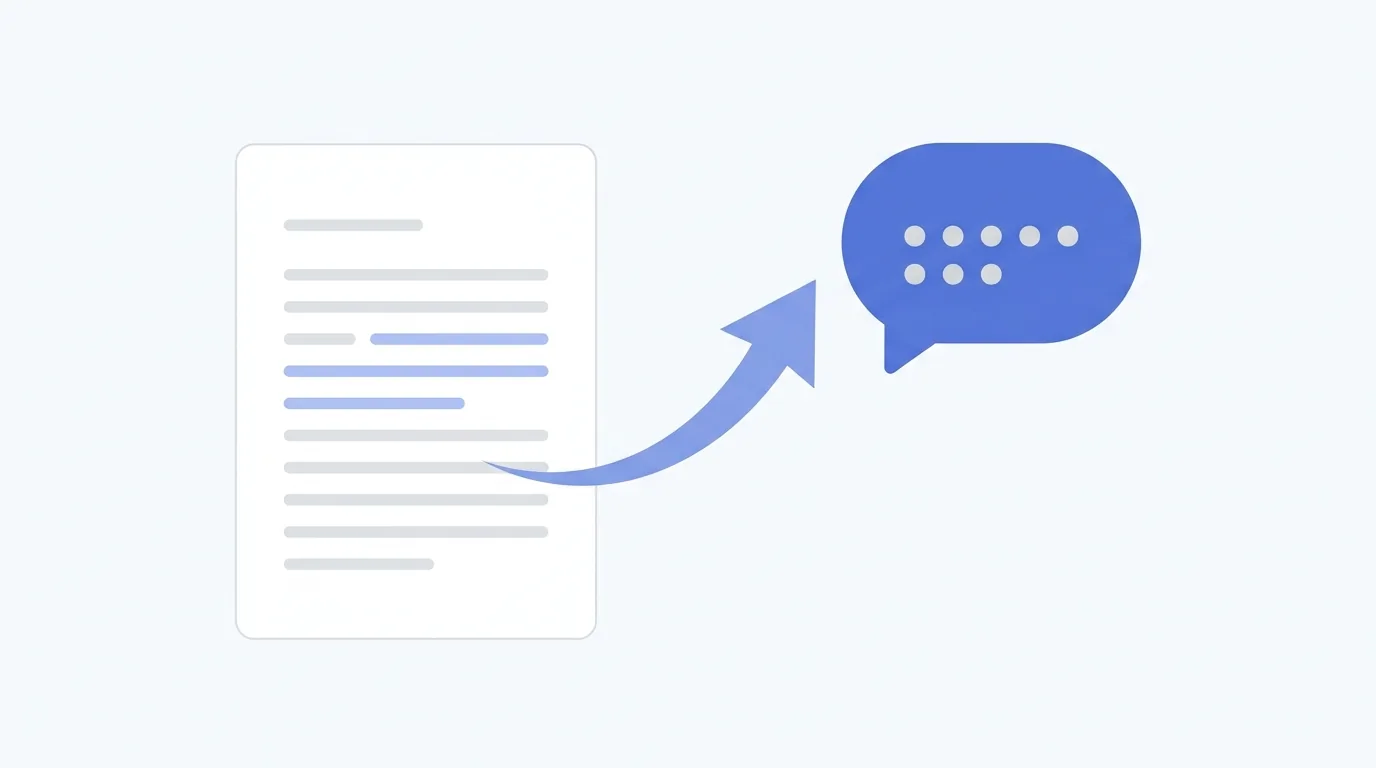
Go beyond translating: ask the document questions, pull structured data out of it, or make a scan searchable first.
What else can I do with a document?

Who can use a document translator?

  • Someone who got a document in another language

    Someone who got a document in another language

    A contract, a manual or a letter arrives in a language you do not read. Translate it to get the gist, then ask a professional if it matters.

  • A team sharing slides across countries

    A team sharing slides across countries

    You send one deck to colleagues who read different languages. Translate the PowerPoint and keep the slides laid out as they were.

  • A student or researcher

Doc Translate FAQs

A student or researcher

You are reading a report or a paper written in another language. Translate the PDF and keep the tables next to the text.

Which files can I translate?

PDF, Word (.docx), PowerPoint (.pptx) and PNG or JPG images. Add a file from your device, paste a link or pick it from Drive.

Does the translation keep my layout?

Tables, headings and images stay in place. Translated text can be longer or shorter than the original, so check the line breaks in the translated pane.

Which languages can I choose?

Pick the source and the target from the list in the language bar, and search it by name. The list includes right-to-left languages such as Arabic, Persian, Hebrew and Urdu.

Do I have to choose the source language?

No. indox detects it and shows it above the panes. If the guess is wrong, press Change and pick the right one.

How much will a translation cost?

Before you run it, the estimate shows the number of pages, the credits it uses and about how long it takes. Plans and prices are on the pricing page.

Can I stop a translation that is running?

Yes. Press Cancel on the progress card and you go back to the ready screen with your file still loaded.

What formats can I download?

PDF or DOCX. The download buttons switch on when the translation is complete.

What happens if the translation fails?

The message says the file may be encrypted or that a page failed to parse, and that no credits were charged. Retry it or upload a different file.

How accurate is the translation?

It is a machine translation, so treat it as a draft. Check names, numbers and technical terms, and have a qualified translator review anything with legal or medical weight.

Do I need an account?

The sample document runs without one. The upload box shows the size limit that applies to you before you add a file.

Is my document private?

Your file is sent to indox to be translated. The privacy page explains how files are handled. Do not upload a document you are not allowed to share.

Doc Chat

Ask questions about a document and read answers from its pages.

AI Extract

Pull structured data out of documents with AI.

OCR PDF

Make a scanned PDF searchable before you translate it.

Compare PDFs

See what changed between two PDFs.

Where can I read more about files and limits?

  • Docs

    Limits

    File size, credits and retention for free and paid use.

  • Docs

    Document formats

    Format families, and how to check one pair before you convert.

  • Docs

    Error codes

    The error shape and the HTTP status codes, with free-quota and no-credits examples.

  • Docs

    Concepts

    Auth, asynchronous jobs, polling, credits and right-to-left locales.

Do it all with indox

View all 123 tools

No tool matches that search.

Sign & secure

  • Sign PDF
  • Protect PDF
  • Unlock PDF
  • Redact PDF
  • Watermark PDF
  • Redact Text
  • Sanitize PDF
  • Certificate Sign
  • Remove Signature
  • Unlock Forms
  • Timestamp PDF
  • Change Permissions

Convert

  • PDF to Word
  • Word to PDF
  • PDF to Excel
  • PDF to JPG
  • JPG to PDF
  • Excel to PDF
  • PDF to PowerPoint
  • PowerPoint to PDF
  • PDF to CSV
  • PDF to HTML
  • Markdown to PDF
  • PDF to Markdown
  • HTML to PDF
  • PDF to Text
  • Text to PDF
  • PDF to JSON
  • JSON to PDF
  • PDF to EPUB
  • EPUB to PDF
  • Email to PDF
  • RTF to PDF
  • ODT to PDF
  • PDF to XML
  • PDF to PDF/A
  • PDF to Video
  • HEIC to JPG
  • SVG to PNG
  • CSV to Excel
  • JSON to CSV
  • PDF to EPS
  • EPS to PDF
  • PDF to PS
  • PS to PDF

Edit

  • Edit PDF
  • Fill PDF Form
  • Add Stamp
  • Edit PDF Metadata
  • Flatten PDF
  • Add / Extract Images
  • Remove Annotations
  • Adjust Contrast
  • Invert Colors
  • Replace Colors
  • Get PDF Info
  • Add Attachments
  • Show JavaScript
  • Analyze PDF
  • List Attachments
  • Extract Attachments
  • Rename Attachment
  • Delete Attachment
  • Remove Images

Organize

  • Merge PDF
  • Split PDF
  • Rotate Pages
  • Reorder Pages
  • Remove Pages
  • Extract Bookmarks
  • Single Long Page
  • Scale Pages
  • N-up Layout
  • Booklet
  • Add Page Numbers
  • Crop PDF
  • Extract Pages
  • Edit Table of Contents

Compress & repair

  • Check PDF
  • Compress PDF
  • OCR PDF
  • Repair PDF
  • Decompress PDF
  • Compare PDFs
  • Auto Rename
  • Scanner Effect
  • Pipeline
  • Multi-Tool
  • Read & Annotate

AI

  • AI Extract
  • Chat with a doc
  • Translate documents

Apps

  • Office
  • Form reader
  • Fill & Sign
  • PDF viewer
  • Scan to PDF
  • Unit converter

Image

  • Compress Image
  • Resize Image
  • Crop Image
  • Convert Image
  • Remove Background
  • Upscale Image
  • Watermark Image
  • Rotate & Flip
  • Image to Base64
  • Remove EXIF

Video

  • Convert Video
  • Compress Video
  • Trim Video
  • Video to GIF
  • Extract Audio
  • Add Subtitles
  • Video Thumbnail
  • GIF to MP4

Audio

  • Convert Audio
  • Compress Audio
  • Trim Audio
  • Merge Audio
  • Audio to Text
  • Change Speed
  • Normalize Audio
  • Record Audio

Fonts

  • Font Converter
  • TTF to WOFF2
  • OTF to WOFF2
  • WOFF to WOFF2
  • TTF to OTF
  • OTF to TTF
  • WOFF2 to TTF

What do the free and paid plans add?

Free

  • All converters
  • Daily credit refresh
  • Email support

Basic

  • Access to all features
  • AI Extract & Doc Chat
  • Priority conversions
  • Email support
Highest priority

Premium

  • Everything in Basic
  • Highest priority queue
  • Larger file limits
  • Priority support

Pay-As-You-Go

  • No subscription
  • Credits never expire
  • Opt-in auto-refill
  • Access to all features
See prices