One file in place of a page and its parts
A web page is markup that points to separate stylesheets, images and fonts. The PDF is one document that opens the same offline and on another computer, with the fonts its text needs inside it.
Get one PDF with fixed pages from your HTML file, with text you can still select and links that usually still work.
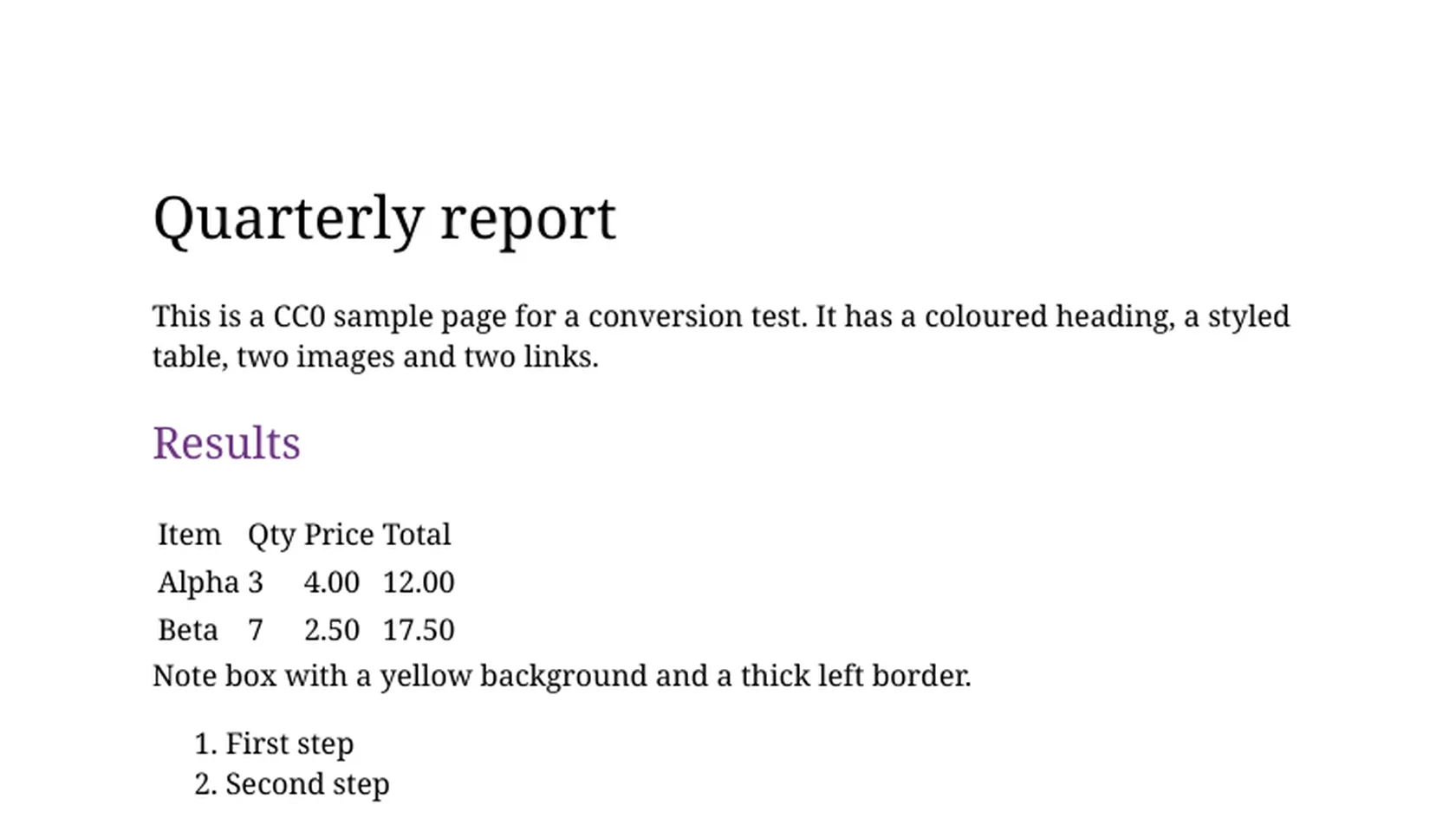
Converting HTML to PDF renders the markup once and freezes the result onto fixed pages, giving you a single file that prints and shares predictably. An .html file often only references its stylesheets, images and fonts, so anything stored outside the uploaded file may be missing from the PDF. In our test it also dropped the style block and even an image embedded as a data: address, so expect a plain, readable document that differs from the browser view. It suits saved reports, invoices and generated pages made mostly of text, lists and tables.
Transfers use HTTPS, and files converted on the free tier are deleted after 24 hours, so the result is not a long-term archive. Quality depends on the source file, so open the PDF file once before you share it.
Need more PDF options? Open the PDF Converter hub.
HTML (HyperText Markup Language)
The markup language of web pages. An HTML file is plain text describing structure, and it usually points to separate stylesheets, images, fonts and scripts. It has no page size, so a browser lays the content out to fit whatever window displays it.
PDF (Portable Document Format)
A fixed-layout document format created by Adobe and standardised as ISO 32000. Each page has set dimensions, and fonts and images can be embedded in the file, so it looks the same on any device and prints predictably.
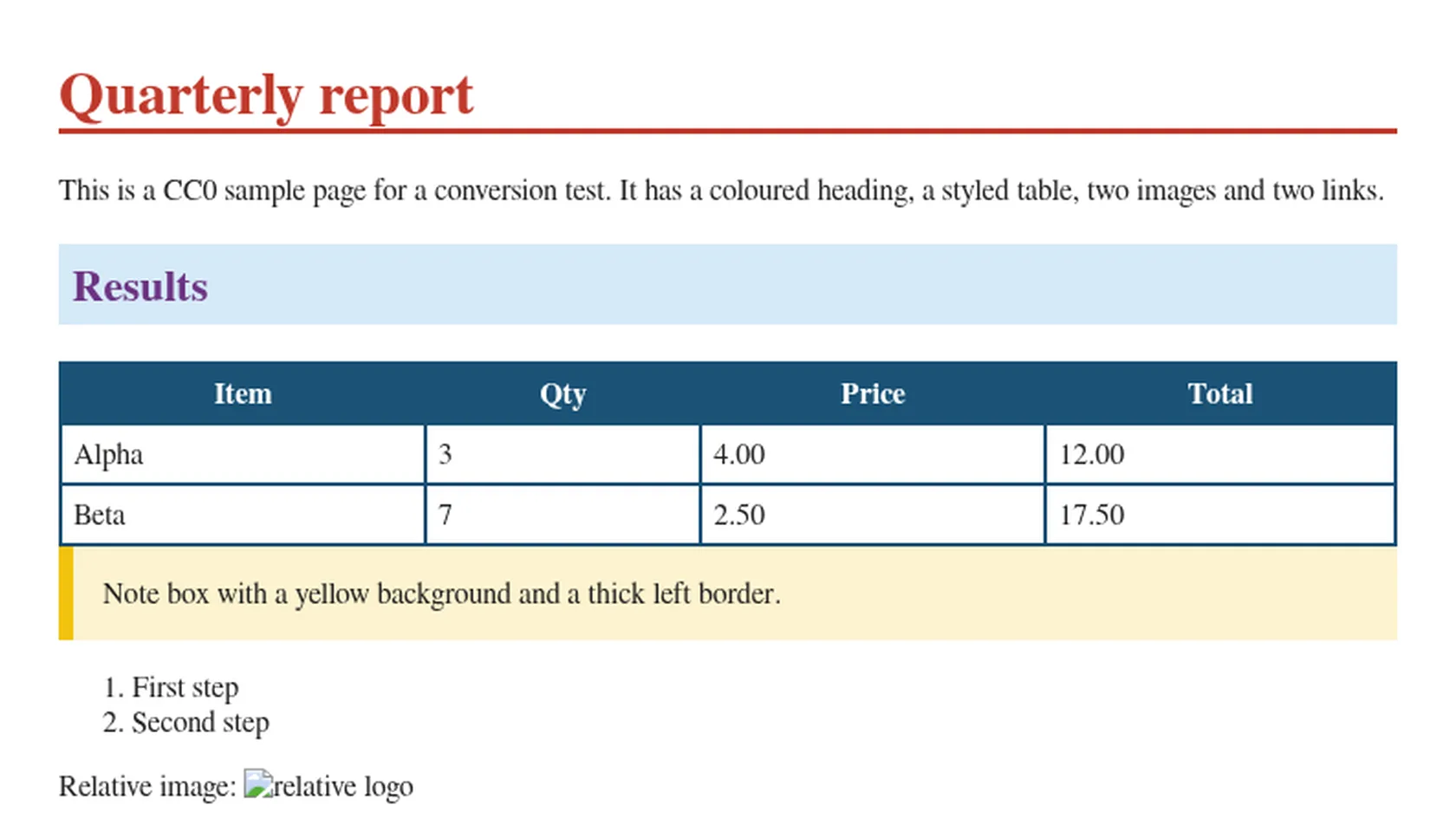
report.html, our own 36,815-byte test page with a table, a list, two images, two links and a script
A web page is markup that points to separate stylesheets, images and fonts. The PDF is one document that opens the same offline and on another computer, with the fonts its text needs inside it.
The PDF normally keeps real text that can be selected, searched and copied, and ordinary hyperlinks usually remain clickable. Scripts, media players and form submission belong to the browser and are not carried over.
Reports produced by a script or template can be added several at a time. Each HTML file returns its own PDF, which you can download, share with a link or convert again to another format.
Use headings, paragraphs, lists and tables, and put any colour you need in inline style attributes, which were kept in our test. Then drop that one .html file on the box.
When you confirm PDF and start the conversion, the markup is rendered once and frozen. Cancel the running job if you added the wrong file.
Scroll through for missing colours, borders and pictures. In our test only the alt text showed where images had been. If the look matters, move the colour into an inline style, or print the page to PDF from your browser instead.
You get a static snapshot of the HTML as a PDF with selectable text and embedded fonts. In our test the sample came out as one A4 page. Only the markup in the uploaded file is rendered, and its style block, images and scripts are not, so a plain structure of headings, lists and tables works best. Inline style attributes are kept.
The upload box shows the live size limit before you add a file. Signing in raises it; a paid plan does not change it.
HTML in, PDF out. Pick another output on the converter if you need a different format.
Files are encrypted in transit over HTTPS and processed on indox infrastructure.
Free-tier files are kept for 24 hours after the job finishes, then deleted automatically.
| What you see | Why | What to do |
|---|---|---|
| The PDF looks unstyled | The style block and class-based CSS are dropped, and only inline style attributes were kept in our test | Move the colours you need into inline style attributes, or print the page to PDF from your browser |
| Content that a script builds is missing | The renderer does not run JavaScript, so only the markup in the file is drawn | Print the finished page to PDF from your browser instead |
| Pictures are missing | Images were dropped in our test, including one embedded as a data: address, and only the alt text showed | Print the page to PDF from your browser if the pictures matter |
| Persian text is left-aligned | The dir="rtl" setting was not applied in our test | Check the PDF before sending it. The letters themselves joined correctly |
Word documents that look the same everywhere
Photos and scans as one document
Excel sheets ready to send or print
Ebooks with fixed pages
| Compared on | HTML file | PDF from indox |
|---|---|---|
| What it is | Plain text markup that describes a page | A fixed-layout document with set page dimensions, standardised as ISO 32000 |
| Pictures and fonts | Referenced by address, not stored in the file | Fonts embedded in our test, while the pictures from our sample were not carried over |
| Layout | Reflows to the window | Fixed pages, and one A4 page for our sample |
| Scripts | Run in a browser | Not run |
| Best for | Editing and live display | Reading, printing and sending |
Facts checked on November 5, 2026
No tool matches that search.
In our test the converter dropped the style block and every image, both one at a relative path and one embedded as a data: address, and showed only the alt text. Only inline style attributes were kept. If the look matters, put colours in inline style attributes, or print the finished page to PDF from your browser.
Usually yes for web addresses. In our test a link to an external address became a live link and the text stayed selectable, while a link to an #anchor in the same page did not. Links that depend on JavaScript, such as buttons that open a menu or load more content, do nothing, and relative links that pointed to other local files will no longer resolve.
No, a PDF made from a web page is a static snapshot. Scripts do not run inside it, embedded video and audio appear as a still frame or an empty box at best, and form fields generally become plain drawn shapes, not fillable inputs. Whatever was visible at the moment of rendering is all that is kept.
You cannot rely on it here. In our test the CSS property page-break-before: always was ignored and the sample came out as one A4 page. If exact page breaks matter, print the page to PDF from your browser instead.
It is the same idea, and results are often close but not identical. Both render the markup and paginate it. A browser printing a live page has every asset already loaded and your login session, while a converted file only has what the HTML contains or can reach, and different engines space text slightly differently. Choose your browser's print when the look depends on a style block, images or page breaks. This converter suits text, lists, tables and links.
You can, but you do not get the original markup back. A PDF records where each glyph and image sits on a page, not headings, paragraphs or the responsive layout, so a converter has to guess the structure. Keep the source HTML if you expect to edit the content again, and treat the PDF as the output copy.
In our test of a Persian page, the letters joined correctly and no characters turned into empty boxes. The dir="rtl" setting was not applied, so paragraphs were left-aligned and table columns ran left to right. Check right-to-left files before you send them.