 Video2:12
Video
Sign a PDF in under two minutes
Draw, type or upload a signature and place it on the page.
indox Team · · 1 min read
A PDF can carry two passwords that do different jobs. Here is how to password protect a PDF in the browser, in Preview on a Mac and from Word, what we found when we opened our own protected file with a PDF library, and the mistakes that lock you out of your own document.
On this page
Have a PDF open?
Open Protect PDFYou need to send a contract, a payslip or a medical report, and email is the only channel the other side uses. The sensible move is to password protect a PDF before it leaves your machine, so the file is unreadable to anyone who intercepts the message or finds it in a shared inbox later. Which of the two PDF passwords you set decides whether that is true.
A PDF can carry an open password and a permissions password, and they are not interchangeable.
The open password, sometimes called the user password, encrypts the file. Without it the reader shows a password prompt and nothing else. This is the one that protects a document in transit or at rest.
The permissions password, also called the owner password, does not stop anyone from opening the file. It locks a set of flags: printing, copying text, editing, filling forms, adding comments. Readers that follow the PDF standard respect those flags, but the file itself is readable once open, so enforcement is up to the viewer. Adobe says as much in its own help, and Firefox's built-in viewer ignores copy restrictions unless a hidden preference is switched on. Permissions are a request to well-behaved software.
Set both when you can, and make them different. In Acrobat, when both are set, either password opens the file; only the permissions password can change the restrictions, so if the two are the same, anyone who can open the file can also lift them.
One compatibility note. 256-bit AES, the level our tool and current Acrobat use, needs Acrobat or Reader X (version 10) or later on the recipient's side. Older software shows an error instead of a password prompt.
The quickest way when the file is already on your computer is the Protect PDF tool. It runs in the browser, needs no install, and encrypts with 256-bit AES.
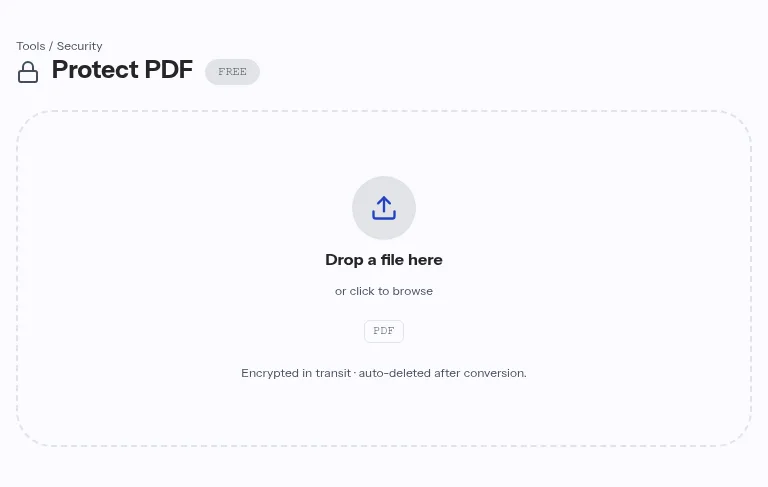
Transfers use HTTPS and free-tier files are deleted automatically after the job finishes, so download the result straight away. The same options work through the conversion API, which is the route for a folder of invoices rather than one file.
On 10 October 2026 we protected a nine-page, 184 KB PDF with an open password and a different permissions password, then opened the result with a PDF library instead of a viewer, so the file could not hide anything behind a dialog.
| Check | Result |
|---|---|
| Time from upload to download | 2.3 seconds |
| Output size | 185 KB (up 1 KB) |
| Open without a password | refused |
| Open with a wrong password | refused |
| Open with the open password | 9 pages readable |
| Encryption reported by the file | Standard security handler, 256-bit AES, revision 6 (PDF 2.0) |
| Permission flags with the permissions password | printing and editing blocked; copying and form filling allowed |
The last row is worth a second look. The first time we ran this test the file carried the permissions password but no restriction flags, so printing stayed allowed; we fixed the tool the same day, and the table shows the result after the fix. Copying and form filling are deliberately left open, because the label promises only editing and printing. Remember that these two flags bind readers that honour them; the open password is still the protection that matters.
Preview can do this without any extra software. Open the PDF, choose File, then Export, and give the copy a new name if you want to keep an unencrypted original. Click the Permissions button. Tick Require Password To Open Document and enter the password twice. Below that, each checkbox is an action readers may perform without the owner password; leave one unticked to require it. Set the owner password, click Apply, then Save. To change the settings later, use File, then Edit Permissions; to remove the password, export the file again with encryption turned off.
If the document starts life in Word, you can protect the PDF as you create it. Choose File, then Save As, set the type to PDF, click Options and tick "Encrypt the document with a password". Enter it twice, confirm, and save. The same checkbox sits under File, Export, Create PDF/XPS Document, Options. If the checkbox is greyed out, untick "PDF/A compliant" in the same dialog first; readers on Microsoft Q&A hit exactly that. Two limits worth knowing: Word sets an open password only, with no permissions password, and Microsoft's page does not say which encryption level it uses. Word also keeps showing the unencrypted .docx afterwards, so delete it or protect it separately if the source is also sensitive.
Two complaints come up again and again in the Adobe and Apple forums. Phone and tablet readers sometimes ask for the owner password before they will let the reader fill in a form, even though the open password was accepted; Adobe calls that designed behaviour. And some corporate mail systems quarantine encrypted attachments because the scanner cannot read them, so tell a company recipient what to expect and keep a second channel, such as an expiring share link, ready.
Encryption hides the document from people who do not have the password. It does nothing about the people who do. A recipient with the open password can forward the file, screenshot it or print it to a new unprotected PDF. Three situations call for a different tool:
When a protected file comes back to you and you want a clean copy, Unlock PDF removes the protection as long as you know the current password. Preview does the same through Export with encryption turned off.
| You want to | Do this |
|---|---|
| Lock a file before emailing it | Protect PDF, set an open password |
| Stop printing or copying in most readers | A permissions password with restriction flags, in a tool that sets them, such as Preview |
| Protect a PDF while exporting from Word | Save As, PDF, Options, Encrypt the document with a password |
| Change or remove protection on a Mac | Preview, File, Edit Permissions |
| Hide a sentence from the recipient for good | Redact PDF, then protect |
enablePermissions preference (copy restrictions ignored by default), April 2020: https://github.com/mozilla/pdf.js/pull/11789If it has an open password, yes. We checked a file protected with our tool in a PDF library and it reported the standard security handler with 256-bit AES, revision 6, which is the PDF 2.0 level. A file that has only a permissions password is not locked in that sense, because it opens without a password and the restrictions are applied by the reader.
No. There is no reset for a PDF open password, and that is the point of the encryption. Adobe and Apple support staff give the same answer in their forums. Store the password in a password manager when you set it, and keep an unprotected copy of the original somewhere you control.
A permissions password can block copying and printing in readers that honour the flags, and most do. It cannot stop a screenshot or a photo of the screen. If a passage must never leave the document, remove it with Redact PDF before you share the file.
No. PDF encryption covers the whole document. If one section is more sensitive than the rest, split it into its own file and protect that one.
The people who build and test the indox document tools write these guides from what they see in daily use.
Video2:12Draw, type or upload a signature and place it on the page.
indox Team · · 1 min read
When changing the PDF itself is quicker than a round trip through Word.
indox Team · · 1 min read