Product updates
Batch conversion for up to 20 files at once
Drop a folder of files, pick one output format and download a zip.
indox Team · · 1 min read
Your iPhone saves photos as HEIC, and half the world still expects JPG. Here is how to convert HEIC to JPG in the browser, what we measured when we ran a 12-megapixel file through our own converter, and how to stop the problem at the camera setting.
On this page
Have a PDF open?
Open HEIC to JPGYou take a photo on your iPhone, send it to a form or an older Windows PC, and it bounces back: unknown file type. The file is HEIC, Apple's default since iOS 11. To convert HEIC to JPG you have four options: do it in the browser, change the camera setting so new photos are JPG, export from Photos or Preview on a Mac, or install Microsoft's image extensions on Windows. This guide walks through each, shows what happened when we ran a 12-megapixel file through our own converter, and ends with how to pick.
HEIC is the file extension for HEIF images. Apple introduced HEIF for photos and HEVC for video with iOS 11 and macOS High Sierra, because they compress better than JPEG and H.264 at the same visual quality. The catch is that many websites and older computers still expect JPG, so the format that saves space on the phone costs time everywhere else.
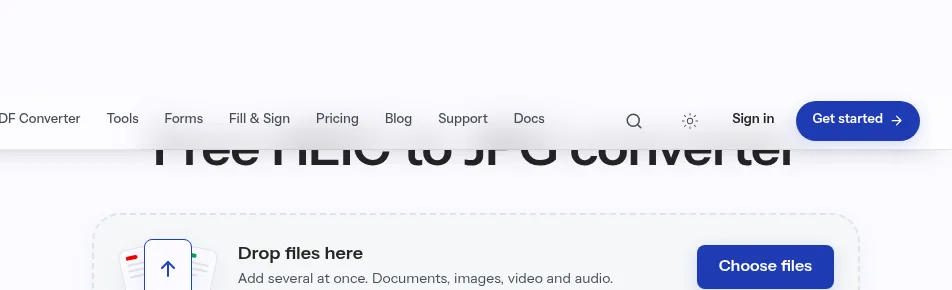
The quickest route when you already have the files is the HEIC to JPG converter. It runs in the browser, needs no install, and a single conversion needs no account.
Before you upload:
We built a 12-megapixel HEIC (4032 by 3024 pixels, 3.7 MB) with EXIF tags for the camera make, the software and a date taken of 10 October 2026 at 12:00, and sent it through the converter on 10 October 2026.
| HEIC in | JPG out | |
|---|---|---|
| Pixels | 4032 × 3024 | 4032 × 3024 |
| File size | 3.70 MB | 2.63 MB |
| Date taken (EXIF) | 2026:10:10 12:00:00 | 2026:10:10 12:00:00 |
| Camera make and software tags | present | present |
| Processing time | 2.1 seconds |
Three things from that run matter more than the numbers. The resolution is untouched. The EXIF block survives, including the date taken, which is the field readers in the Apple Community found overwritten by some desktop converters. And the whole job took about two seconds for a file the size of a real iPhone photo. The size went down only because the test image was generated rather than photographed; a camera photo normally comes out larger as a JPG, which is Apple's whole reason for HEIF.
If the problem keeps coming back, stop it at the source. On the iPhone, open Settings, then Camera, then Formats, and choose Most Compatible. New photos are saved as JPEG and new videos as H.264. Choose High Efficiency to go back to HEIF and HEVC.
There is a second switch that matters when you plug the phone into a computer. Under Settings, then Apps, then Photos, the Keep Originals option controls what happens on a USB import: with it off, HEIF photos are converted to JPEG as they land in Photos, Image Capture or a PC. With it on, you get the HEIC files untouched.
Photos you already took stay HEIC, and photos other people send you arrive in whatever format they shot. For those, use the converter above.
A Mac opens HEIC natively. To get a JPG, open the image in Preview or Photos, choose File, then Export, pick JPEG as the format and save; Preview shows a quality slider for JPEG. Preview can also do a batch: open the files in one window, select them all in the sidebar, then export. And Apple's own shortcut for sending is simpler still: AirDrop, Messages and Mail convert a HEIC to JPEG on the way out when the receiving device cannot read it, while iCloud Photos keeps the originals.
Many Windows PCs do not read HEIC out of the box. Opening one in the Photos app shows a notice that the HEIF Image Extension is required, with a link to the Microsoft Store. Install it, and for .heic files you also need the HEVC Video Extensions, which Microsoft sells separately for about a dollar; its support page says you need both even if you only open photos, and it also lists a free "from Device Manufacturer" edition of the HEVC extension that some PCs can install instead. Once both are in place, Photos opens the file and can save a copy as JPEG.
Readers on Microsoft Q&A report cases where both extensions are installed and Photos still refuses the file. If that is you, or you would rather not buy a codec for a one-off, the browser converter does the same job without touching the system.
| You want to | Do this |
|---|---|
| Convert a few photos right now | HEIC to JPG in the browser |
| Convert a whole folder | Drop them all on the converter, download each result |
| Never see HEIC again on this phone | Settings, Camera, Formats, Most Compatible |
| Keep HEIC on the phone, JPG on the computer | Turn Keep Originals off before the USB import |
| Edit one photo on a Mac and hand over a JPG | Preview, File, Export, JPEG |
Two things change when a HEIC becomes a JPG. The file usually grows, because JPG needs more bytes for the same picture. And the image is re-encoded, which costs a small amount of quality that you will not notice on a screen but might on a large print. The sensible habit is to keep the HEIC as your original and treat the JPG as the copy you send. A Live Photo becomes a still JPG; if you want the motion part too, export the unmodified original from Photos on a Mac, which gives you a still image and a video file.
If the JPG is too large for an email or a form, Compress Image brings it down, and Resize Image trims the pixel dimensions when a 12-megapixel photo is overkill for a profile picture. Need the photos inside a document instead? JPG to PDF turns a set of images into one file, in the order you choose.
A little, because JPG is lossy and the image is re-encoded from the HEIC data. On a screen you will not see it; on a large print you might. Keep the HEIC as the original and treat the JPG as the copy you send.
In our test, yes. The camera make, the software tag and the original date and time were present in the JPG exactly as they were in the HEIC. Some desktop converters replace the date taken with the conversion date; check one file before you convert a thousand.
Yes. Drop several files on the converter, or add more while the first ones run. Each file gets its own download. For the readers in the Apple forums with 1,200 photos, this is the step that replaces exporting them one at a time.
Apple's HEIF format compresses more efficiently than JPEG at the same visual quality, so a camera photo usually grows when it becomes a JPG. Our synthetic test image went the other way, which is a reminder that the size change depends on the picture, not on the converter.
The people who build and test the indox document tools write these guides from what they see in daily use.
Drop a folder of files, pick one output format and download a zip.
indox Team · · 1 min read
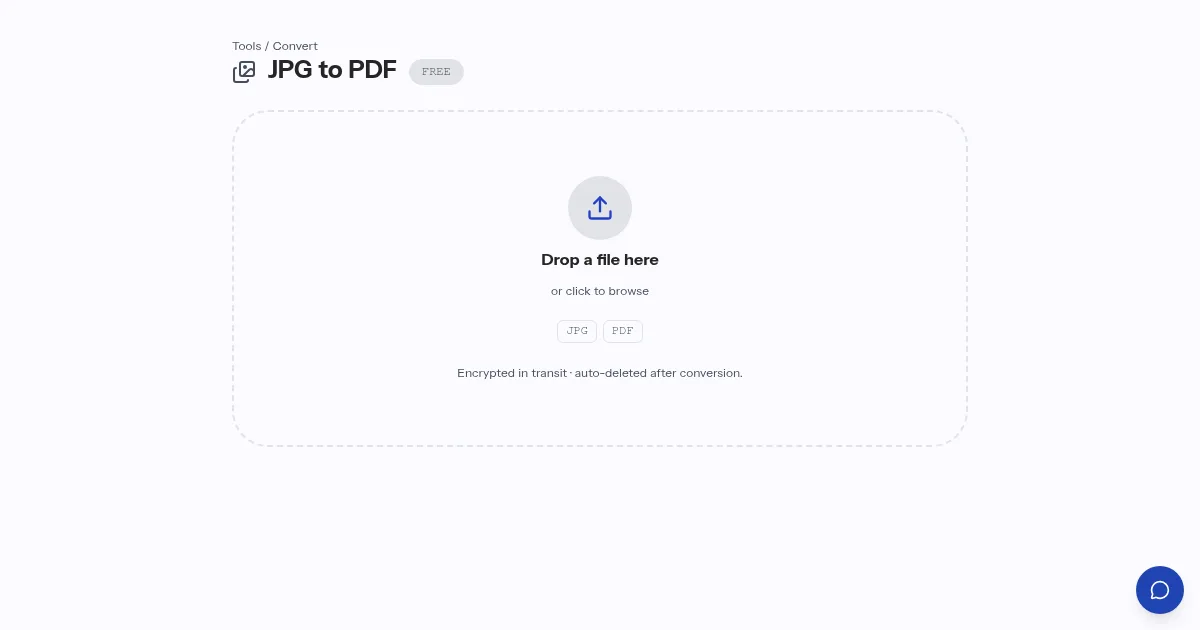
Page size, margins and image order before you combine photos.
indox Team · · 1 min read