Remove a password you know
Type the current password and press Remove password. The copy opens without asking for it.
or drop a file anywhere here
Files other than PDF are converted first. Signing in raises the size limit.
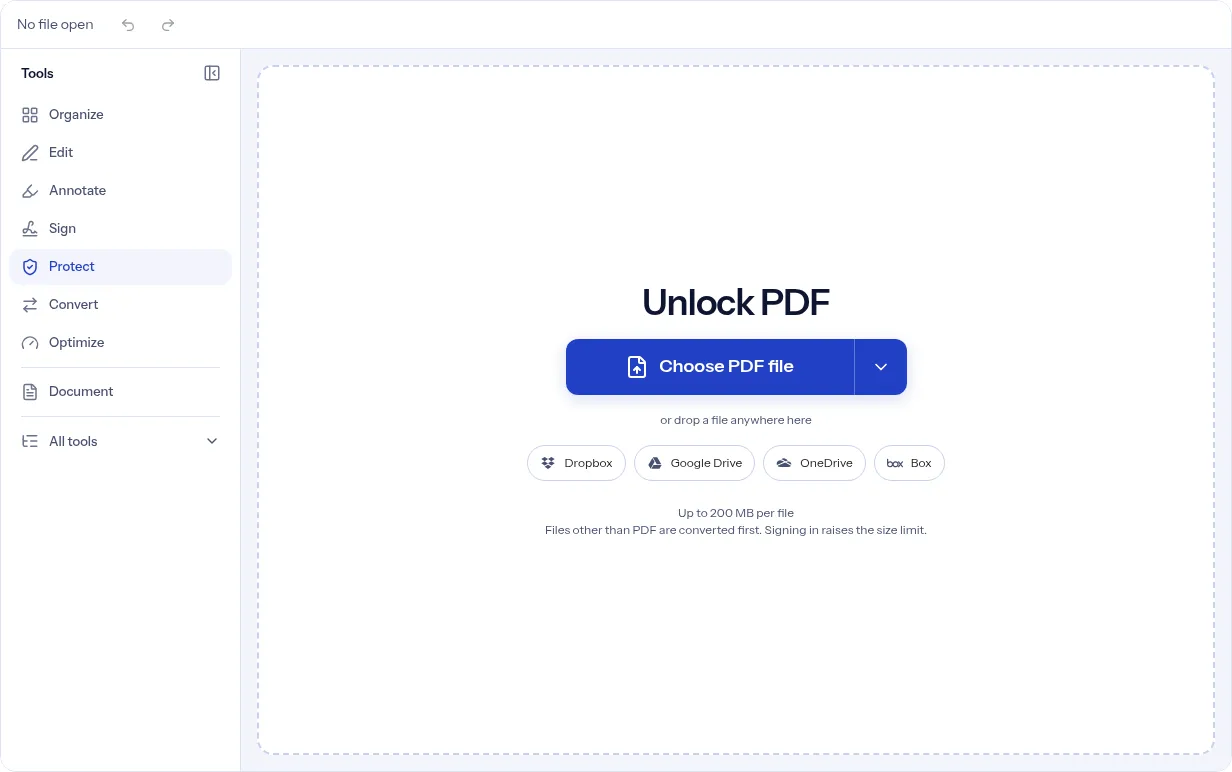
Unlock PDF takes the password off a PDF so it opens without one. You need the password it has now. Add the file, type that password in Current password, and press Remove password. If you already typed the password to open the file in the editor, the box starts filled with it. A warning under the box says that anyone who has the file will be able to open it. If the password is wrong, the panel says so, selects what you typed so you can retype it, and leaves your file unchanged. This tool does not guess or break passwords: without the right one, nothing is unlocked. Some PDFs open without asking but still block printing or copying. Those have an owner password, and this tool needs that password too. In our test the button stayed off until something was typed, and there is no way here to lift the restrictions without a password.
Two 3-page sample PDFs made by us with AES-256 encryption, unlocked on indox.org with the right password
Type the current password and press Remove password. The copy opens without asking for it.
If you typed the password to open the file in the editor, Current password is filled in for you. You can change it before you press the button.
A wrong password shows that it did not work, puts the cursor back in the box with your text selected, and leaves your file unchanged. Retype and press the button again.
When the job ends the panel shows that the password was removed and that this copy opens without one. Undo puts back the locked version.
Drop the file on the upload area at the top of the page, or click to choose it.
Type the password in Current password. The button stays off until the box has something in it.
The button fills with the job's progress. When it says Done, the editor holds the copy without a password: press Download PDF, or Undo to go back.
The panel does one thing and tells you what it will do before you press the button. It says it needs the password the file has now, warns that the unlocked copy opens for anyone, and handles a wrong password without touching your file. You can unlock a file without signing in, within the free daily limit and the free file size limit.
| What you see | Why | What to do |
|---|---|---|
| The file opens with no prompt but you cannot print or copy | It has an owner password only | Type the owner password in Current password and press Remove password. The button stays off while the box is empty. |
| An error appears about 6 seconds after you press Remove password, and the progress list shows Unlock PDF as failed | The password card accepts any text, and the password is only checked when the job runs on the server | Retype the password in Current password and press the button again. Your file is unchanged. |
| You do not remember the password | indox cannot recover or guess a password | Nothing can be unlocked without it. Ask whoever protected the file for the password. |
| The panel says the password did not work | The password you typed is not the one the file has | Check it and retype it. Your file is unchanged. |
| Remove password stays off | Current password is empty | Type the password. |
| You want the password back | The copy has none | Run Protect PDF on it. |
The first two rows follow the pypdf documentation for PdfWriter.encrypt. The other rows are from our test on 5 November 2026.
| Compared on | Open password (user) | Permissions password (owner) |
|---|---|---|
| What it does | Lets a viewer open and read the file, with the restrictions the file sets | Lets a viewer open the file without any of those restrictions |
| Asked when you open the file | Yes, the editor shows a password card | No. Our owner-only sample opened with no prompt |
| What Unlock PDF needs | The password the file has now | The owner password, typed in Current password |
| Result in our test | Unencrypted copy, 3 of 3 pages, identical text | Unencrypted copy, restrictions gone, 3 of 3 pages, identical text |
| If you do not have it | Nothing is unlocked | Nothing is unlocked here |
You protected a PDF long ago and now want a copy that opens without typing the password each time.
A colleague sent a PDF with a password and gave you the password. Unlock it before editing, merging or compressing it.
You opened a protected PDF in the editor and want to keep the result without a password.
Facts checked on November 5, 2026
No tool matches that search.
The password the file has now. Type it in Current password. For a file that opens without a prompt but blocks printing or copying, that is its owner password.
No. indox cannot recover or guess a password.
The panel says the password did not work, selects what you typed so you can retype it, and leaves your file unchanged.
If you typed the password to open the file in the editor, the box starts with it. You can change it.
No. The panel says this copy opens without one.
Yes. Undo brings back the locked version.
Yes. Page content and order do not change. In our test, a 3-page sample came back with 3 pages and identical text.
No sign-in is needed to get the unlocked copy. The free daily limit and file size limit still apply.
Its owner password. In our test an owner-only sample opened with no prompt, and Remove password stayed off until we typed the owner password. With it, the copy came back with no restrictions.
The file is rewritten, so its size changes (smaller in our test), and scripts, auto-run actions, XFA forms and media annotations are removed. Page content, order and text stayed the same in our test.