No file open

Tools

OCR PDF

or drop a file anywhere here

Dropbox
Google Drive
OneDrive
Box

Files other than PDF are converted first. Signing in raises the size limit.

You add
One scanned PDF
You set
The languages that appear on the pages
You get
A PDF with a text layer on the scanned pages

OCR, optical character recognition, reads the picture of each scanned page and adds its words as hidden text behind the picture, so you can select, search and copy them. This page is for people who hold a scanned PDF, such as a letter, an invoice or a book chapter, and need to search it or copy a passage. Add your PDF, open Make searchable and tick the languages that appear on the pages. The list offers five: Chinese (Simplified), German, English, French and Portuguese. English is ticked to start, and the button stays off until at least one language is ticked. Persian and Arabic are not in the list, so a page in either cannot be read here. The panel says that pages that already have text are left as they are. The result is a PDF, and a signed-out visitor gets it without signing in or signing up, within the free daily limit and the free file size limit. The measured run above shows one real result on a scan we made ourselves.

Our own 2-page A4 scan, image only, English, German and French text, run on indox.org with those three languages ticked

Scan PDFthe original, 2 pages, no text
295,431 B
Searchable PDFfrom indox, same 2 pages
300,465 B+1.7%
Text characters found, scanextracted from the original
0
Text characters found, result320 on page 1, 269 on page 2
589
Character error rateagainst the known text, this sample only
0.34%
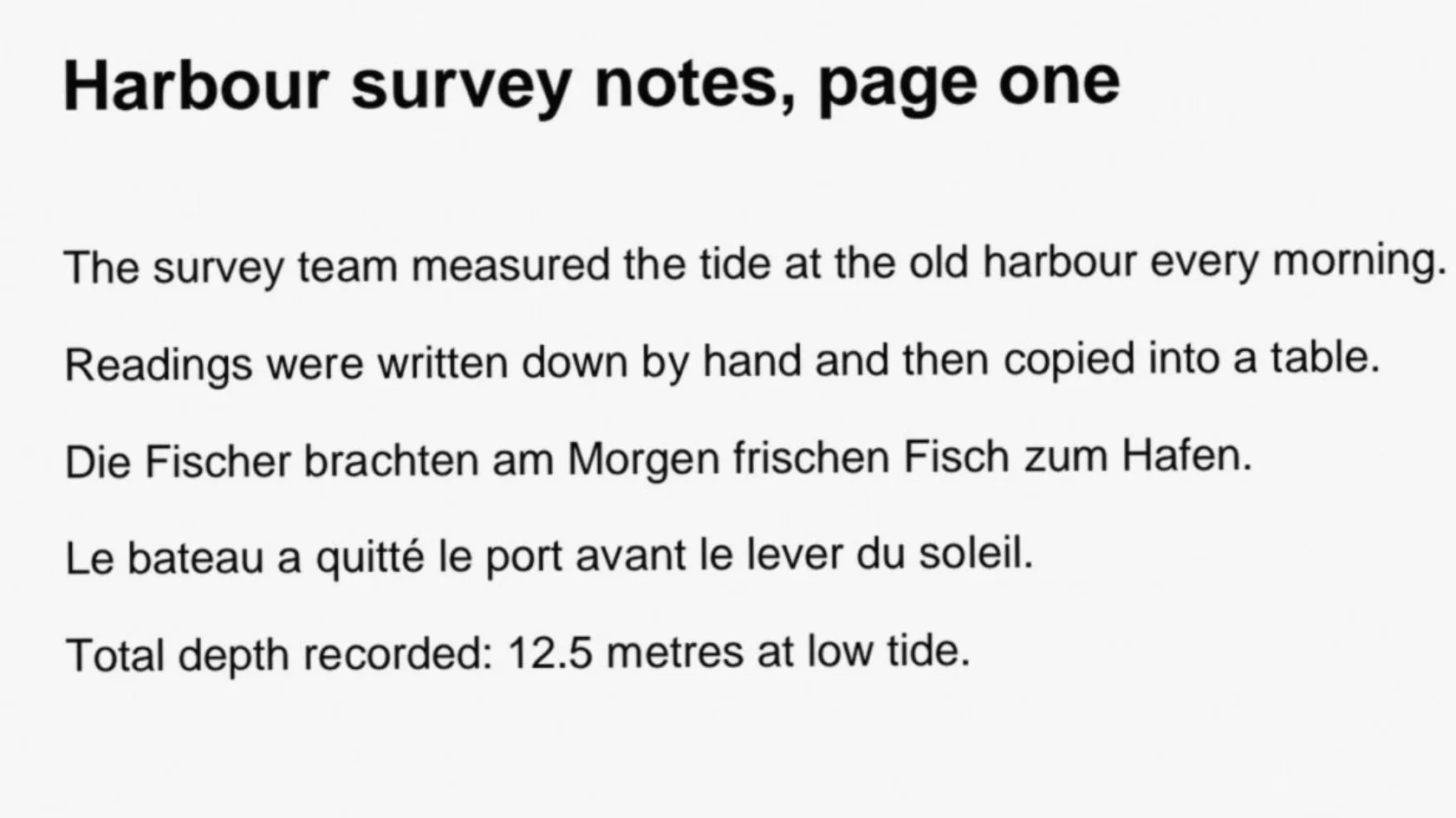
Page 1 of our test scan before OCR, enlarged
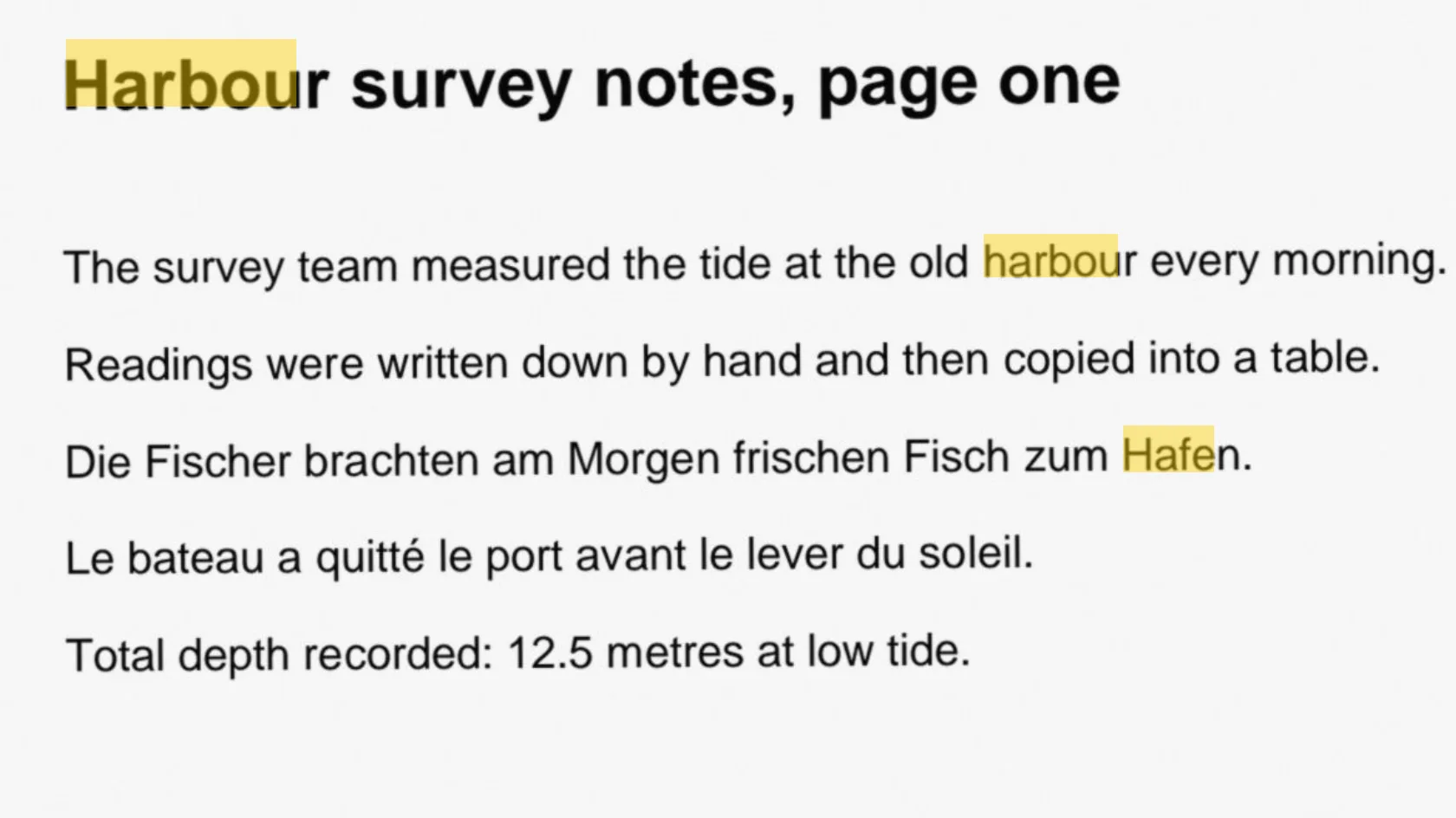
The same part after OCR, with search hits for harbour and Hafen marked in yellow
Measured on indox.org on 5 November 2026, signed out, one run on one sample. The page looks the same after OCR, so the slider compares the scan with the same page after OCR, where the yellow boxes mark search hits for harbour and Hafen in the hidden text.

What can you do when you run OCR on a PDF?

Select and search a scan

After OCR the words on a scanned page are stored as text under the picture. In our test, searches for harbour, Fische, bateau and 12.5 found them in the output and found nothing in the scan. Use the search box of your PDF reader, or select a line and copy it into another document.
Pick the languages on the pages

Tick every language that appears on the pages. The panel offers Chinese (Simplified), German, English, French and Portuguese, and shows how many you picked, for example 2 selected. English is on by default. In our test we ticked English, German and French for pages that held all three, and the German and French sentences came out right apart from one accent.

Leave pages that already have text alone

The panel says that pages that already have text are left as they are, so a file that mixes typed pages with scanned ones keeps its typed pages. We also ran a PDF that was already searchable: its text was identical afterwards. The file itself is written again, so its bytes and its creator field change.

Get a result without an account

A signed-out visitor can run OCR and get the PDF without signing in or signing up. The free daily limit and file size limit apply.

What OCR keeps and what it changes

Stays the same

  • Every page, in the same order, with its scanned picture at its original size (1654 by 2339 pixels in our test).
  • How the page looks: in our test it rendered pixel for pixel the same at 100 dpi.
  • The text on pages that already hold text.
  • The file on your device. You get a new PDF in the editor.

Changes

  • Each page without text gets a hidden text layer, so you can search, select and copy its words.
  • The words are read in the languages you ticked.
  • The file is written again even when a page needs nothing. In our test a text-only PDF grew by 345 bytes and its creator field changed.
  • A digital signature on the PDF may stop being valid, because OCR writes a new file.
  • The result is one PDF. The recognized text is not returned as a separate file.

OCR PDF, PDF to DOCX or Rotate PDF: which do you need?

You want toUseWhat you get
Search or copy text from a scanned PDFOCR PDF, this pageThe same PDF with a hidden text layer behind each page picture
Edit the text in WordOCR PDF first, then PDF to DOCXA Word file. On its own, the conversion runs no text recognition on scanned pages
Read pages that are sidewaysRotate PDF, then OCR PDFUpright pages, so the text can be recognized

How to OCR a PDF in 3 steps

  1. Add your scanned PDF

    Drop one PDF on the upload area at the top of the page, or click to choose it. Try selecting a sentence in your PDF reader first: if nothing highlights, the pages are pictures and OCR is what you need.

  2. Tick the languages

    Open Make searchable and tick every language that appears on the pages. English is ticked to start. The button stays off if none is ticked.

  3. Press Make searchable and download

    The button fills with the job's progress and the steps show under it. When it says Done, press Download PDF, or Undo to go back. Search for a word from a scanned page to check.

Why run OCR with indox?

You get the same PDF with a hidden text layer added to the pages that have none. You choose the languages, English is on to start, and the panel will not run with none picked. We ran the tool ourselves, signed out, on a scan with known text, and the figures in the measured run come from that file. The language list is short, and if yours is not among the five, this tool cannot read it. You do not have to sign in or sign up to get the result, within the free daily limit and the free file size limit.

  • You pick the languages, from five offered
  • English is on by default
  • Pages that already have text keep their text
  • Undo brings back the scan
  • No sign-in or sign-up before the result
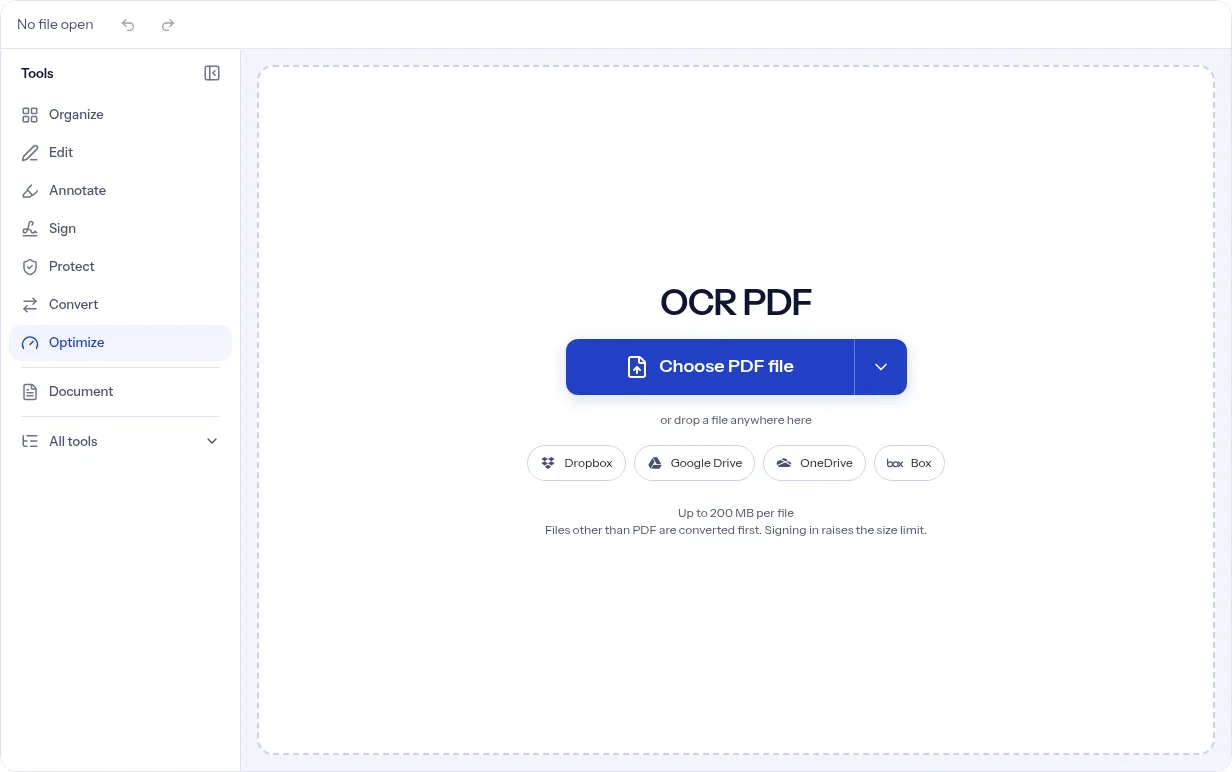
The indox OCR PDF tool on indox.org, ready for a scanned PDF

What are the limits of OCR on a PDF?

Size
Guests have a lower file size limit. Signing in raises it; a paid plan does not change it.
Formats
This tool works on PDF files. To change a file's type, use the PDF converter.
Privacy
Files are encrypted in transit and processed on indox infrastructure.
Deletion
Free-tier files are kept for 24 hours after the job finishes, then deleted automatically. Signed-in output stays in your history for your plan's retention period.

Limits worth knowing

  • Only five languages are offered: Chinese (Simplified), German, English, French and Portuguese. Persian and Arabic are not among them, so a Persian or Arabic scan cannot be read here.
  • The tool does not check or score its own accuracy. In our one test the character error rate was 0.34% on a clean two-page sample with known text, and an accent was lost once: dégagé was read as degage. Faint, tilted or low-resolution scans are harder to read, so proofread names, numbers and dates before you rely on the text.
  • A page that already has a text layer is left as it is, even when that layer is wrong. This tool does not repair OCR made by a scanner or another program. The file is written again either way, so its bytes change.
  • The panel has no controls to straighten, rotate or clean a scan. Our test scan was tilted by under half a degree and still read well. Turn sideways pages upright with [Rotate PDF](/pdf-tools/rotate-pdf) first.
  • The result is a PDF. The recognized text is not returned as a separate file.
  • The free daily limit and file size limit apply.

When the OCR result is not what you expected

What you seeWhyWhat to do
Nothing is searchable after the runThe pages already had text and were left as they were, or the text on them is not in a language you tickedSearch for a word from a scanned page. Run OCR again with every language on the pages ticked.
Words come out garbledThe scan is low resolution, tilted or faint, or the page is in a language you did not tickRescan at a higher resolution, straighten the page and tick every language in the document.
An accented letter comes out plainIn our test dégagé was read as degage, so recognition is not exact on small marksProofread accented words and fix them in your editor.
Persian or Arabic words are not foundNeither language is in the list of five, so those pages were not readUse this tool only for Chinese (Simplified), German, English, French and Portuguese pages.
Sideways pages read as nonsenseThe panel has no rotate settingTurn the pages upright with Rotate PDF, then run OCR again.
Make searchable is offNo language is tickedTick at least one language.
The file changed although it already had textOCR writes the file again. In our test the text was identical but the file grew by 345 bytesKeep your original if you need its exact bytes.
The signature shows as invalidOCR writes a new fileKeep the signed original as the record and use the OCR copy only for searching.

What do the free and paid plans add?

Free

  • All converters
  • Daily credit refresh
  • Email support

Basic

  • Access to all features
  • AI Extract
  • Priority conversions
  • Email support
Highest priority

Premium

  • Everything in Basic
  • Highest priority queue
  • Priority support

Pay-As-You-Go

  • No subscription
  • Credits never expire
  • Opt-in auto-refill
  • Access to all features
See prices

OCR modes in OCRmyPDF and the one this page uses

ModePages that already have textPages without textOn this page
skip-textCopied to the output unchangedRecognized and given a hidden text layerUsed. The panel shows no mode choice, and in our test a text-only file kept identical text
force-ocrTurned into pictures and recognized againRecognized and given a hidden text layerNot offered in the panel
redo-ocrHidden OCR text from an earlier run is removed and read againRecognized and given a hidden text layerNot offered in the panel

Who runs OCR on PDFs?

  • Students and researchers

    You have scanned articles and book chapters. OCR lets you search them and copy quotes.

  • Office and admin staff

    Your archive is full of scanned letters and invoices. A text layer makes them findable.

  • People who need text from a scan

    You want to convert a scan to Word. Run OCR first, then convert the searchable PDF.

When to run OCR on a PDF

  • When a scanned PDF cannot be searched.
  • When you need to copy a passage from a scan.
  • Before converting a scan to Word, so there is text to convert.
  • When a file mixes typed pages and scanned pages, and only the scans need text.
  • When the document uses more than one of the five offered languages and you want each one read.
  • When you are not sure whether a PDF is a scan: if you cannot select a sentence in it, it is.

Where can I read more?

Sources

Facts checked on November 5, 2026

Do it all with indox

View all 94 tools

OCR PDF FAQs

What does OCR do to a PDF?

It reads the letters on each scanned page and adds them as a hidden text layer behind the page picture. In our test the picture stayed at its original size, and the words became searchable, selectable and copyable.

Which languages can the tool read?

The five the panel lists: Chinese (Simplified), German, English, French and Portuguese. Tick each one that appears in your document. With none ticked, the panel asks you to pick at least one and Make searchable stays off.

Can it read Persian or Arabic?

No. Neither language is in the list, so a page in either cannot be recognized here.

How can I tell whether my PDF is a scan?

Try to select a sentence in your PDF reader, or search for a word you can see on the page. If nothing highlights or the search finds nothing, the pages are pictures and OCR will give them text.

My PDF already has selectable text. Will OCR change it?

The panel says that pages that already have text are left as they are. In our test with a PDF that already had text, the extracted text was identical afterwards and no hidden layer was added. The file was still written again, so it grew by 345 bytes and its creator field now names OCRmyPDF.

How accurate is the text it finds?

We measured one run: a two-page scan we made at 200 dpi from known English, German and French text, with a slight tilt and added noise. 0.34% of the characters differed from the known text, none on page 1 and 0.74% on page 2, and the only error was the accent lost in dégagé. That is one clean sample, so treat it as a data point and proofread your own result.

Will the file get bigger?

In our test the scan went from 295,431 bytes to 300,465 bytes, 1.7% larger, because a text layer is added and the page picture is kept. That is one file, and we do not promise a size for yours.

Do I need to sign in or sign up to get the result?

No. A signed-out visitor gets the OCR result without signing in or signing up. The free daily limit and file size limit apply.

Can I get a Word or text file from a scan?

This tool returns a PDF. Run OCR first, then convert the searchable PDF to Word.

Will OCR break a digital signature?

It may. OCR writes a new file, so a signature on the original can stop being valid. Keep the signed original and use the OCR copy for searching.