Combine several PDFs into one file
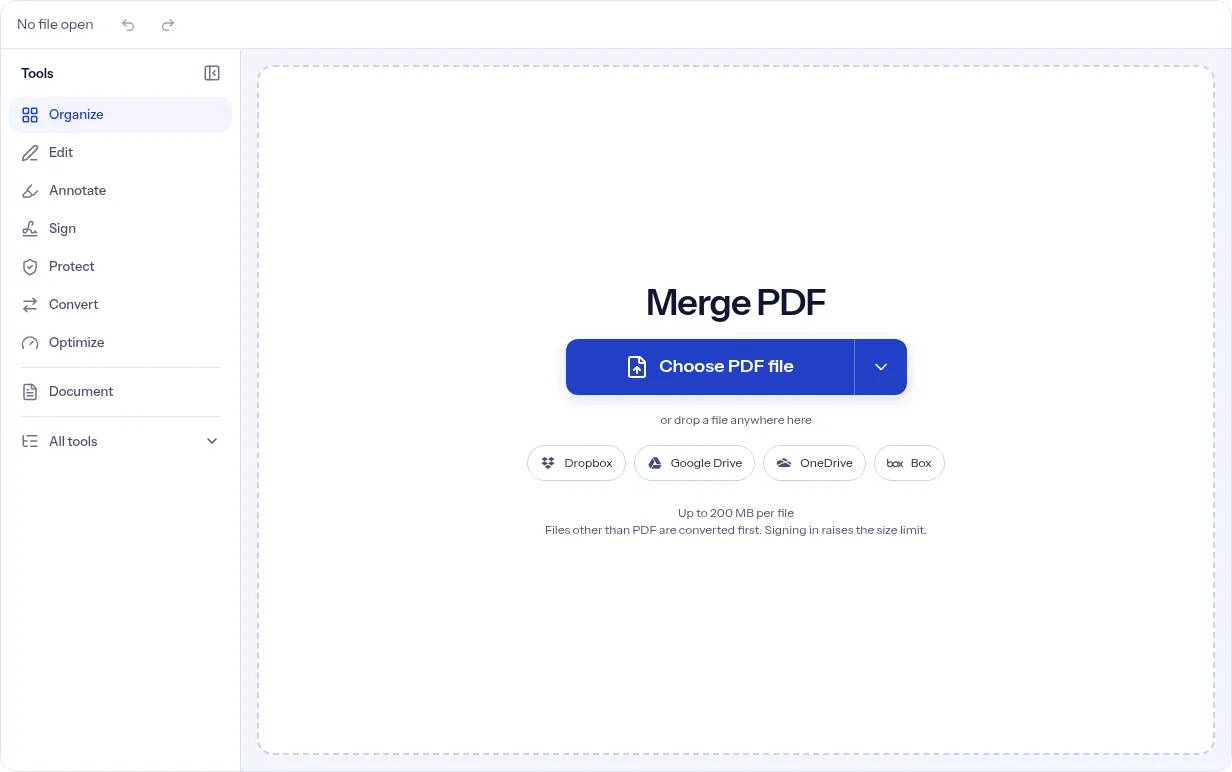
Open one PDF and add up to 50 more in a single job. Add PDFs opens your device's file picker, and you can select many files at once.
or drop a file anywhere here
Files other than PDF are converted first. Signing in raises the size limit.
To merge PDF files here, open the first PDF, press Add PDFs and pick the others. The list shows every file in the order it will appear. Click an added file to move it up or down or to take it out. Press Merge and the files become one PDF that replaces the open file, so you can look it over before you download. This page is for anyone who has several PDFs and needs one file in a set order, such as an application, a contract with its attachments or the chapters of a report. It needs no account and nothing to install. Each file is joined whole, with no page selection. The table below shows what happened to pages, links, form fields and bookmarks when we merged two test files.
Two PDFs we made (CC0): A, 3 pages Letter; B, 2 pages A4 landscape
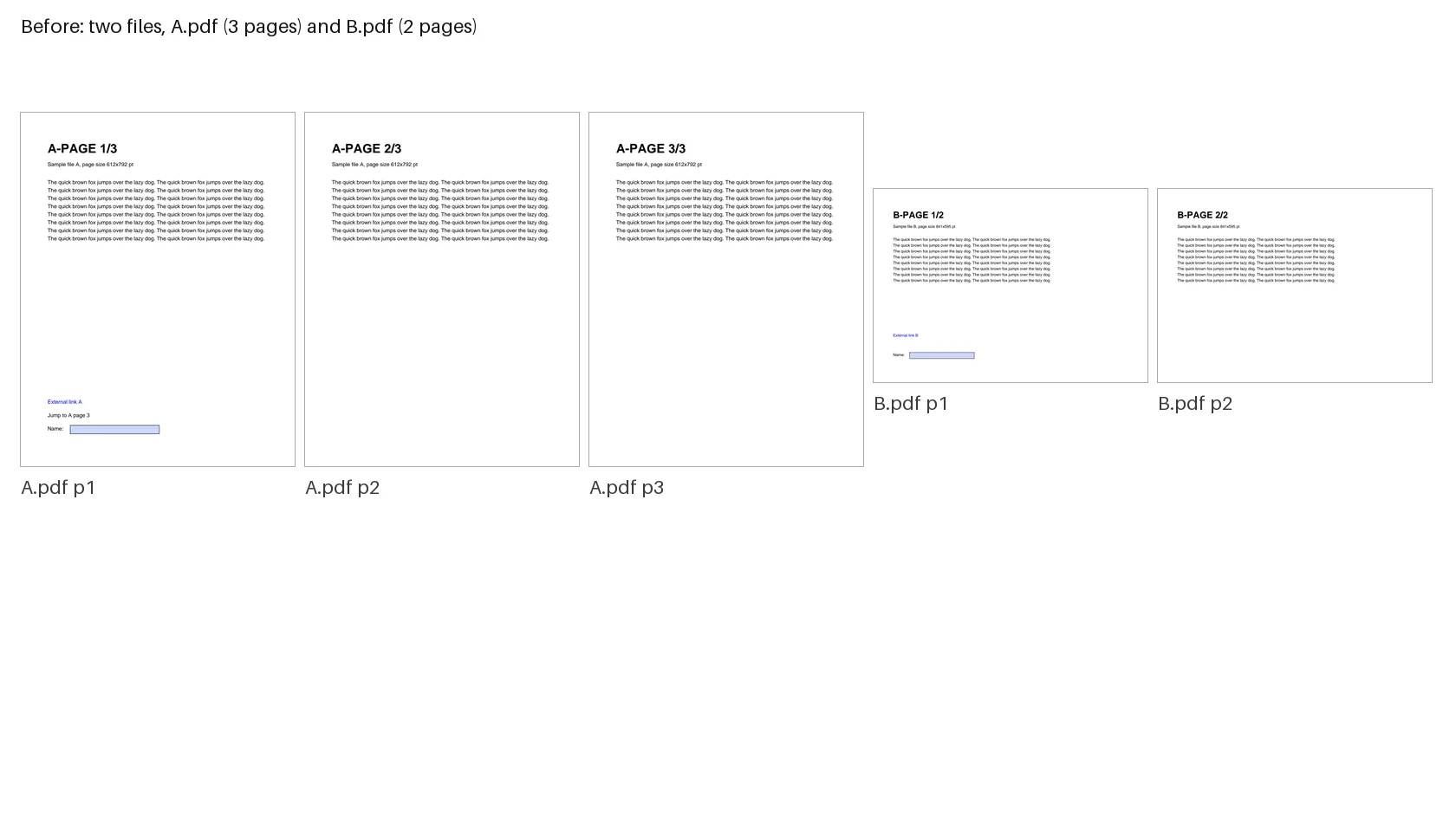
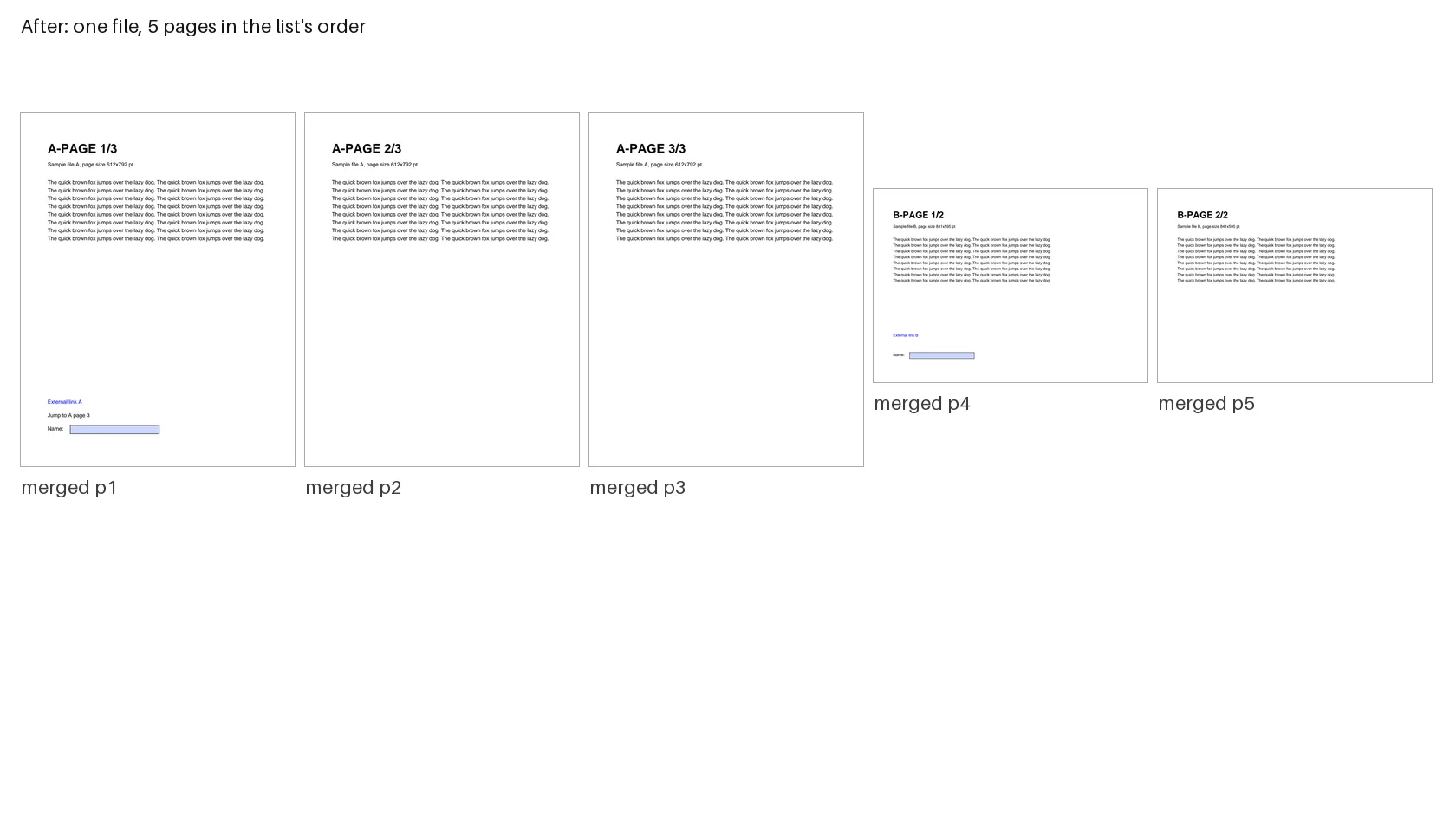
Open one PDF and add up to 50 more in a single job. Add PDFs opens your device's file picker, and you can select many files at once.
The open file is always first and cannot be moved. Click an added file, then use Move up or Move down. The merged PDF follows the list from top to bottom.
Click an added file and press Take out. The others keep their places. Press Add PDFs again at any point to add more.
The merged PDF replaces the open file in the editor and the page grid marks which file each page came from. Undo brings your original back. Look through the pages, then press Download PDF.
There is nothing to install. We tested it in a desktop browser. The editor also has a phone layout, which we did not test.
In our anonymous test we were not asked to sign up and saw no limit or paywall. The page shows 'Up to 200 MB per file' for a visitor who is not signed in.
Put a PDF in the upload area by choosing a file, dropping it, using From URL, pasting from the clipboard or scanning pages with Scan with phone. It opens in the editor with the merge panel ready.
Press Add PDFs and select one or more files. You can press it again to add more. Files that are not PDFs are left out of the list.
The open file stays first. Click an added file, then press Move up, Move down or Take out.
The button counts every file, including the open one, so two added files read Merge 3 files. With no added file, the panel says to add at least one more PDF.
The merged PDF replaces the open file, and Undo brings your original back. When the pages look right, press Download PDF.
Merging here takes one panel: the files, their order and one button. We ran it anonymously on indox.org with two test files, and the five pages came out in order with the same page sizes. The open file stays first, every added file can be moved or taken out before you merge, and the result opens in the editor, where you can check it or undo it before you download. Bookmarks and form field names can change when files are merged, and the tables below show how.
| What you see | Why | What to do |
|---|---|---|
| Bookmarks from the second file are missing | In our test with form fields in both files, only the first file's bookmarks were in the merged PDF | Open the bookmarks panel in your viewer to check. Rebuild them with Edit TOC if you need them |
| Bookmarks show but do not jump to a page | In our test without form fields, the bookmark titles were kept but their targets were stored as page numbers that two tools we checked could not follow | Click one in your own viewer. If it does not jump, rebuild the bookmarks with Edit TOC |
| A form field in the second file has a new name | Two fields with the same name would share one value, so the second was renamed, for example file2.name | Check the names if another system reads the fields. If nobody needs to fill them in, use Flatten PDF |
| A file I added is not in the list | Add PDFs accepts PDFs only and leaves other files out without a message | Convert the file to PDF first, then add it |
| A file is reported as unable to be opened | The merge cannot read a locked file | Take the file out, or remove its password with Unlock PDF, then add it again |
| The merge fails with many files | A request can include at most 50 added files | Merge in two rounds and merge the two results |
| The document title or author is gone | In our test with form fields, the merged file lost its title and author | Set them again with Edit Metadata |
| Compared on | Merge PDF | Extract Pages, then merge | Split PDF |
|---|---|---|---|
| What you give it | Whole files in a list | One file, the pages you keep | One file |
| What you get | One PDF with every page of every file | One PDF with only the pages you chose | Several PDFs cut from one |
| Choose it when | Every page of every file belongs in the result | Only some pages of a file belong in the result. Run Extract Pages on it, then merge | You have one long PDF and need parts of it as separate files. See Split PDF |
| Page order | Files in list order, pages as in each file | Pages in the order you give | Pages as in the original |
A form, an ID scan and a cover letter arrive as separate PDFs. Merge them into one file in the order the recipient asked for.
Chapters, articles and appendices saved as separate PDFs become one document you can read in order.
Combine a contract, its schedule and an invoice before you send them.
Facts checked on November 4, 2026
No tool matches that search.
Open your first PDF, press Add PDFs and select the others. Put them in order with Move up and Move down, press Merge and then Download PDF. Merging is free and needs no Adobe Acrobat or other app.
Yes. Our test run was anonymous and we were not asked for an account or an email address. We saw no limit or paywall.
The open file is always first. Click an added file and use Move up or Move down until the list matches the order you want, then press Merge. Pages inside the merged file can be reordered afterwards with Reorder Pages.
The tool runs in the browser, so there is no app to install on a Mac, an iPad, an iPhone or an Android phone. We tested it in a desktop browser only, and Add PDFs opens the device's file picker.
Add PDFs takes PDFs only, and anything else is left out of the list. Convert a Word file or an image to PDF first, for example with Word to PDF or JPG to PDF, then add the result. The file you open first may be an image or an Office file, because it is converted when it opens.
The page has no quality or compression setting for merging. In our test the five merged pages matched the input pages pixel for pixel when rendered, and the Letter and A4 landscape sizes were kept. The merged files were 82.6% and 93.6% of the two inputs added together. If you need a smaller file, run Compress PDF on the result.
In our test all three links survived, including one that jumps to another page. With form fields in both files the two same-named fields were kept, the second renamed file2.name, but only the first file's three bookmarks were kept and the document title and author were dropped. Without form fields all five bookmark titles were kept, but their targets could not be read by the tools we checked. Check bookmarks in your viewer after merging.
You can add up to 50 PDFs to the one you opened, so 51 files in a single merge. A request with more than 50 added files fails.
We did not test a signed file. We expect the merge to remove a certificate (digital) signature, so merge your files first and sign the result afterwards, with Sign PDF or Certificate Sign.
Each file is merged whole. To use some pages, run Extract Pages or Remove Pages on that file first. To cut one PDF into several, use Split PDF.