Files other than PDF are converted first. Signing in raises the size limit.
You add
One PDF with text you can select
You set
Text, images and whiteout edited on the page
You get
The edited PDF, ready to download
To edit a PDF here, open it, click a line of text on the page and type; the caret lands where you clicked. The editor replaces the text where it sits, and in our test the edited line kept its font family and size. Click empty space to add new text in the size and colour you pick, add an image and drag it into place, white out a line or remove every image. Nothing is written into the file until you press Download edited PDF, and in our test no account was needed to edit or download. Use it when you no longer have the source file and one name, date or number in the PDF is wrong. Scanned pages and existing right-to-left lines such as Persian or Arabic cannot be edited in place.
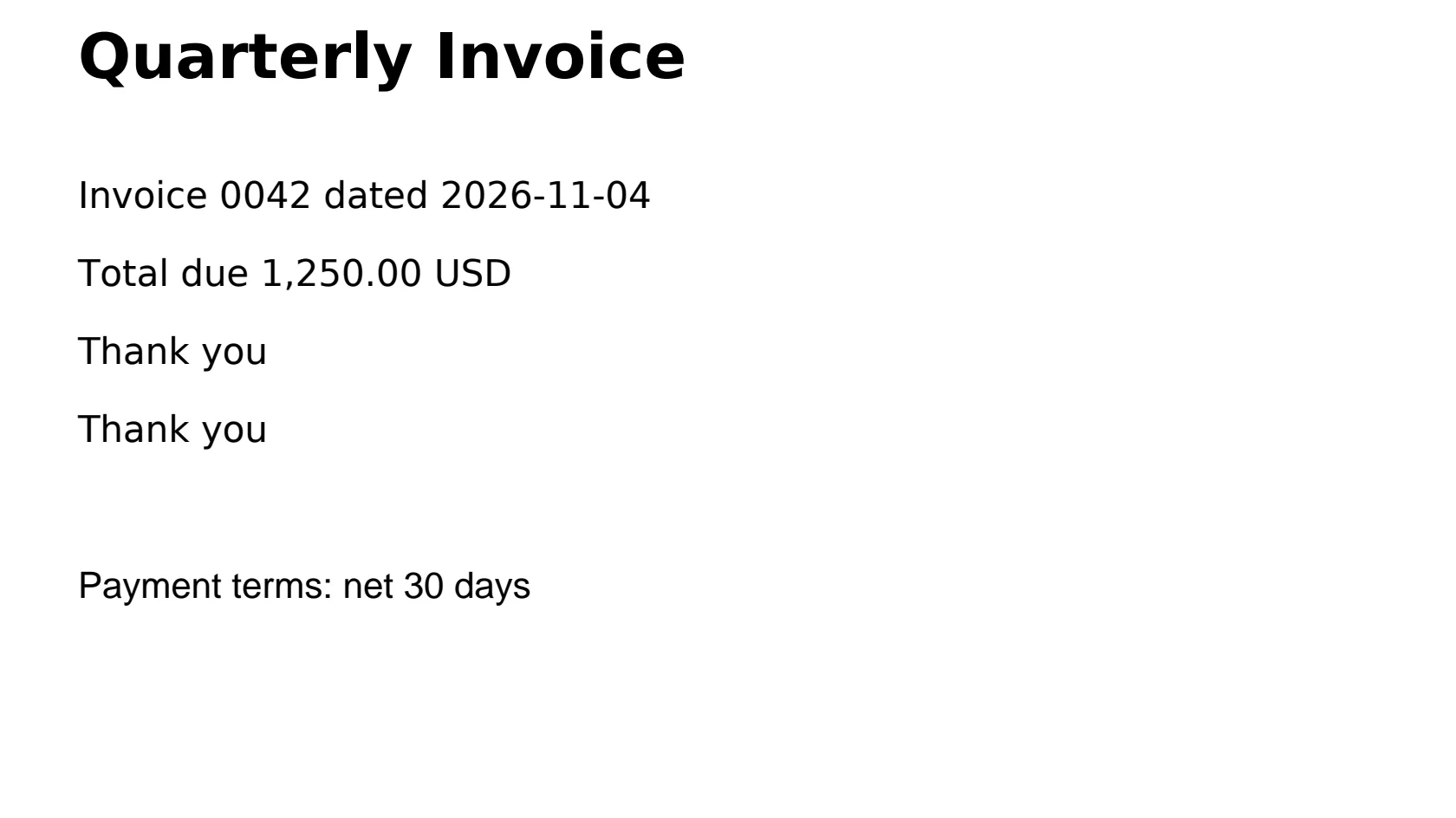
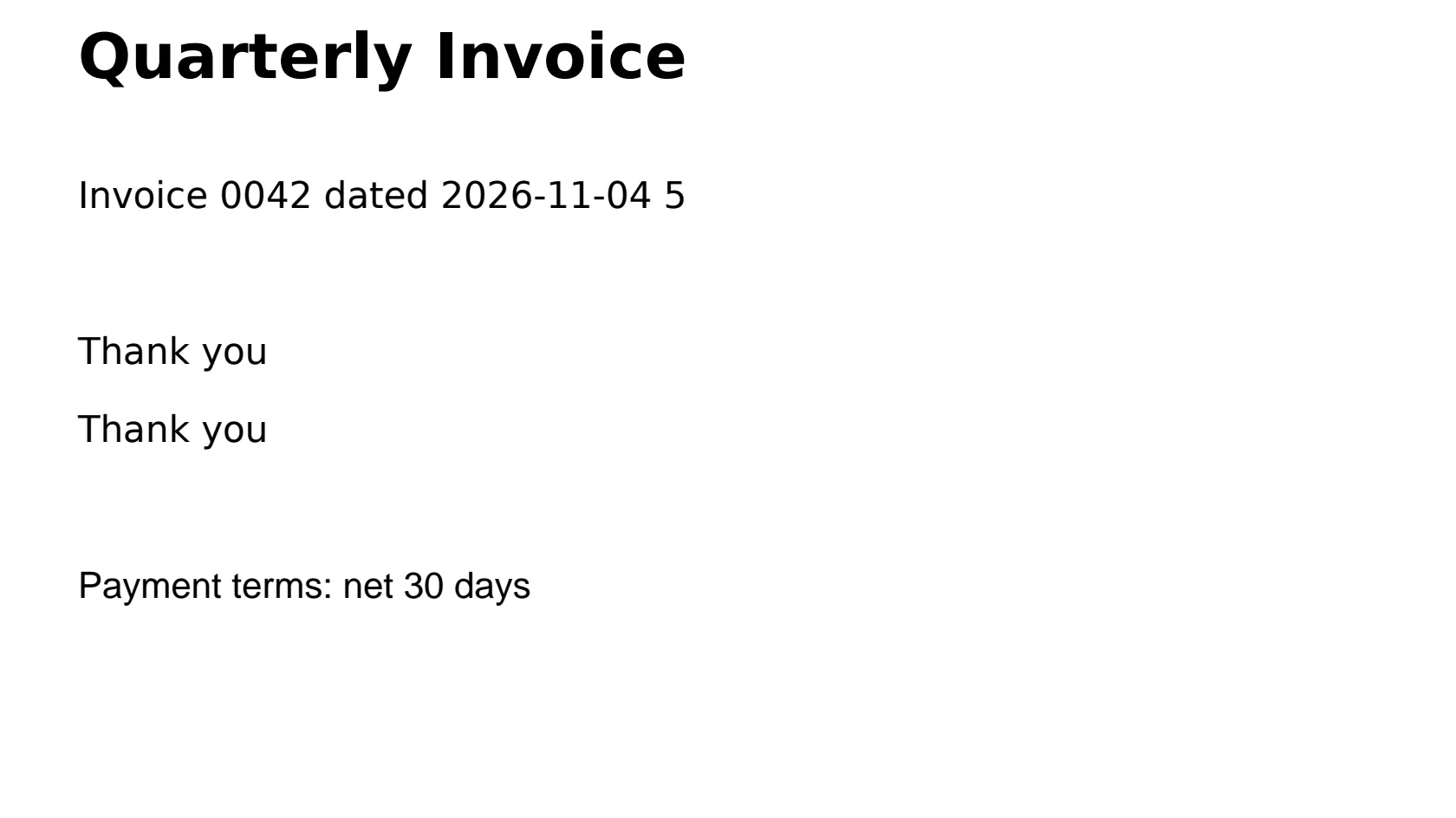
Our own one-page test invoice (no personal data), edited on indox.org
Input PDFthe original, 1 page, subset DejaVu Sans fonts
43 KB
Edited, run 1line edit, added text and whiteout; about 18.5 times the input
806 KB
Edited, run 2line edit with a digit missing from the original subset; about 17.3 times the input
753 KB
‹›Original PDFEdited by indox
Measured on indox.org on 4 November 2026, as an anonymous visitor: the invoice we uploaded and the file we downloaded after one line edit, an added line and a whiteout. Drag the handle to compare the same part of the page. Sizes are for the whole PDF.
What can you do when you edit a PDF?
Change a line of text in place
Click a line on the page, type the new text and press Enter. Escape cancels. The edit replaces that line's text where it sits. In our test the edited line stayed in the same font family and size (14 pt), but the file came back with a full copy of the font in place of the original subset and was much larger (see the measured run above). If the same line repeats on the page, the editor warns you that all of them will change.
Find and replace across the file
In Find & replace, type the words to find and what to put in their place. Match case and Whole words narrow the matches. Replace changes the current match and Replace all changes every match, with the count on the button.
Add images and text
Add image puts a PNG or JPEG straight onto the page you are looking at. Drag it to move it, drag a corner to resize it, or use the arrow keys and + or −. Click empty space on the page to add new text in the size and colour you choose, from the suggested inks or any colour. In our test the added text was drawn in the page's own font at 14 pt, at the point we clicked. New text is one line in one style and the file can cut it at the page edge, and the editor shows no warning if it has to use another font, so zoom in on what you add. Each addition shows in the Changes list with an X to take it back, and Undo works too.
White out a line
Whiteout lays a white box over a line of text. It covers the line on the page only. The words stay in the file and can still be selected, copied or found, so use it only to cover text for the eye.
Remove every image
Remove images strips all the pictures from the PDF when you download. A confirmation asks first, because it affects the whole file.
Edit on a phone or a Mac
The editor runs in your browser, so the steps are the same on an iPhone, an Android phone or a Mac. Nothing to install. These edit tools are not on the larger-screen-only list.
What happens to your PDF
Stays
Your original PDF, which is not touched
The text and fonts of lines you did not edit; in our test both repeated Thank you lines were left as they were
The page count, and in our test no annotations were added and the file stayed unencrypted
The producer field of the file, which still read ReportLab in our test
Changes
The edited line: its text is replaced, in the same font family and size in our test
Fonts and file size: a full copy of the font replaces the subset, so a 43 KB file came back at 753 to 806 KB in our test
The PDF version, which went from 1.3 to 1.6 in our test
Whiteout: a white image is added, and the covered text stays in the file
Added text: drawn in the page's own font in our test, with no warning shown if another font is used
How to edit text in a PDF in 4 steps
Add your PDF
Put your PDF in the upload area. It opens in the editor with Edit text & images ready, under Edit in the tool list. If it asks for a password, enter it and press Unlock.
1 / 4
Click a line and type
Click a line of text on the page and type; Enter or a click elsewhere keeps the change. Click empty space to start new text. Text and Whiteout switch what a click does, and Add image and Remove images sit under them. Find & replace is in the Edit list.
2 / 4
Review your changes
Check each row in Changes. The X beside a row takes that change back, and Undo steps back one edit. Zoom in on every line you changed.
3 / 4
Press Download edited PDF
Press Download edited PDF. Your edits are written into the file and the edited PDF downloads.
4 / 4
Why edit a PDF with indox?
You edit text on the page itself, so you see the real layout while you work. Below are our measurements on one sample, including what an edit does to fonts and file size and what whiteout leaves behind in the file. In our test you could edit and download without signing up.
Edit text on the page, nothing to install
Font family and size kept on an edited line, in our test
Find and replace across every page
Whiteout and file growth measured and stated
No account needed to edit or download
What are the limits when you edit a PDF?
Size
Guests have a lower file size limit. Signing in raises it; a paid plan does not change it.
Formats
This tool works on PDF files. To change a file's type, use the PDF converter.
Privacy
Files are encrypted in transit and processed on indox infrastructure.
Deletion
Free-tier files are kept for 24 hours after the job finishes, then deleted automatically. Signed-in output stays in your history for your plan's retention period.
Limits worth knowing
Right-to-left text, such as Persian or Arabic, cannot be edited in place yet. Clicking such a line shows a message saying so.
A scanned PDF is a picture of text, so it has no text lines to click. OCR PDF can add a text layer first.
Whiteout hides text on the page but does not delete it. For text that must be gone, use Redact PDF or Redact Text.
Each click picks one line of text. The edit replaces that line where it sits and does not reflow a paragraph.
Existing lines keep their own size and colour; only new text takes the size and colour you choose. An added image keeps its shape when you resize it and cannot be rotated yet.
A text edit that would make the file larger than the text-edit size ceiling is rejected instead of returned. The upload area says Up to 200 MB per file and that signing in raises the limit.
An edited file can be many times larger than the original. In our test a 43 KB invoice came back at 753 KB and 806 KB, because a full copy of the font replaced the original subset.
An edit rewrites the file's font entries and its version. In our test the output listed 6 font entries against 3 in the input, and the PDF version went from 1.3 to 1.6.
In our test the editor showed no warning, including when we typed a digit the original font subset did not contain. That digit came out correctly, but we tried one digit in one file, so check every changed line.
New text is added as one line in one colour and size, and the file can cut it at the page edge without a warning.
We did not test Remove images or a repeated-line edit on our sample. Their descriptions on this page come from the editor's own messages.
When editing does not go as expected
What you see
Why
What to do
Clicking the page selects no line of text.
WhyThe PDF is a scan, so the page holds a picture and no text lines.
What to doRun OCR PDF to add a text layer, then open the result here and check how it edits.
A message says right-to-left text can't be edited in place yet.
WhyThe line you clicked is in a right-to-left script such as Persian, Arabic or Hebrew.
What to doEdit the other lines. This line stays as it is.
A message says the line appears a number of times and all of them will be changed.
WhyThe same text repeats on that page, and a text edit replaces every copy on the page.
What to doGo on if every copy should change. Otherwise take the change back with the X in Changes or Undo.
Download fails and says the text was not found on a page.
WhyThe text to replace no longer matches the page's text, so nothing could be changed.
What to doRemove that change from the Changes list and make it again from the line on the page.
A page says This PDF is password-protected.
WhyThe file needs its password before it can be opened.
What to doEnter the password and press Unlock, or try another file.
Text under a whiteout box can still be selected.
WhyWhiteout is a white image over the line. The text is still in the file.
The downloaded file is many times larger than the one you opened.
WhyA text edit puts a full copy of the font in the file in place of the original subset. In our test a 43 KB invoice came back at 753 to 806 KB.
What to doIf size matters, run Compress PDF on the result and check that the lines still look right.
A changed line looks a little different in the downloaded file.
WhyThe edit rewrites the line with a full copy of its font, and the editor shows no warning if it has to use a different one. In our test the family and size stayed the same.
What to doZoom in on each changed line in the downloaded file before you send it. Take the change back and redo it if it is wrong.
Text you added runs off the right edge of the page.
WhyAdded text is one line, and the file can cut it at the page edge without a warning.
What to doKeep new text short, or add it as two lines in two additions, then check the downloaded file.
Can I edit the text in a PDF, on a computer, iPhone, Android phone or Mac?
Yes, if the PDF has real text. Click a line on the page, type the new wording and press Enter. The line is replaced where it sits. The editor runs in your browser, so the steps are the same on a phone or a Mac. Scanned pages and right-to-left text cannot be edited this way.
Do I need an account, and how long are my files kept?
In our test no account was needed: we opened the editor, made edits and downloaded the edited PDF with no sign-up dialog. Files on the free tier are kept for 24 hours after the job finishes, then deleted automatically. Output from a signed-in account stays in your history for your plan's retention period.
How do I white out text in a PDF, and does it remove the text?
Open the PDF, choose Whiteout in the toolbar and click a line of text. A white box is placed over it; the X in Changes or Undo takes it back. It does not remove the text. In our test the covered line was still extracted from the downloaded file by pdfplumber and pdftotext, so it can be selected, copied or found. To remove text for good, use Redact PDF or Redact Text.
Can I edit a PDF and keep the same font, even for a letter it does not contain?
In our test, yes for a line edit. We added text to a line set in DejaVu Sans 14 pt in a test invoice and it came back in DejaVu Sans at 14 pt. PDFs often embed only the letters they use, a font subset (ISO 32000-1, section 9.6.4). We typed a digit that our subset did not contain and it came out correctly, drawn in a full copy of the font, with no missing-glyph box. That was one digit in one file, and the editor shows no warning if it uses another font, so zoom in on each changed line before you send the file.
Why is my PDF bigger after editing?
A text edit replaces the original font subset with a full embedded copy of the font. In our test a 43 KB invoice came back at 806 KB after an edit, an added line and a whiteout, and at 753 KB after one edit. Other lines kept their text and fonts.
How do I find and replace text in a PDF?
Open Find & replace in the Edit list. Type what to find and what to replace it with. Match case and Whole words narrow the matches. Replace changes the current match and Replace all changes every match. Then download the PDF.
How do I add text or an image to a PDF?
For text, click empty space on the page and type; pick its size and colour in the panel. For a picture, press Add image and choose a PNG or JPEG: it appears on the page, where you drag it into place and drag a corner to resize it. Each addition appears in Changes, where an X removes it.
Can I edit Persian, Arabic or Hebrew text in a PDF?
Not in place yet. When you click a right-to-left line, the editor says that right-to-left text cannot be edited in place yet. You can edit the other lines on the page.
Can I edit a scanned PDF?
Not directly. A scan is a picture of text, so the page has no lines to click. OCR PDF can add a text layer, but check the result, because how well the recognized text edits depends on the scan.
Why can't I edit my PDF?
The usual reasons are a scanned page with no text lines, a line in a right-to-left script, or a password you have not entered yet. If the download fails with a message that text was not found on a page, remove that change and redo it from the line on the page. A fillable form is better filled with Fill PDF Form.