Files other than PDF are converted first. Signing in raises the size limit.
You add
One PDF
You set
A level: Light, Recommended, Strong or your own from 1 to 9
You get
The smaller PDF, with Undo
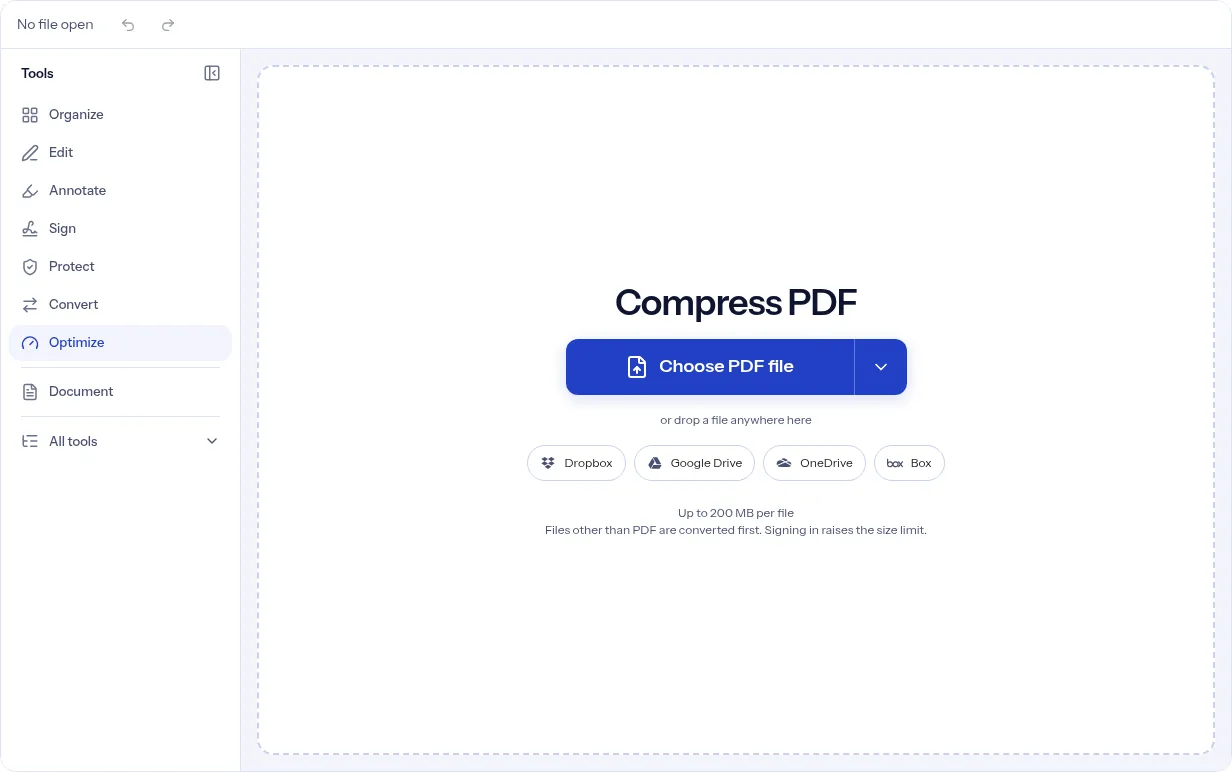
To compress a PDF, open it here, pick Light, Recommended or Strong and press Compress. The panel shows the current size and an estimate for each level before you run. The smaller file then replaces the open one, and a message shows the size before and after. If you do not like the result, press Undo. Recommended is selected when the panel opens. This page is for anyone whose PDF is refused by a mailbox, an upload form or a chat because it is too large, and who wants a smaller file without installing anything. In our test, a 4.7 MB photo report came out at 367.5 kB with Recommended and its text stayed selectable. How much your file shrinks depends on what is inside it, and there is no box for a target size. You can compress and download without an account, in the browser on a Mac, an iPhone, an Android phone or a PC.
photo-report.pdf, our own 4-page A4 test PDF with four JPEG photos and selectable text, compressed on indox.org
Original4,890,627 bytes, 4 pages
4.7 MB
Recommended376,359 bytes, 92.3% smaller, text still selectable
367.5 kB
Strongpanel message in a second run, 99% smaller, file not downloaded
59 kB
‹›OriginalRecommended
Measured on indox.org on 4 November 2026: the file we uploaded and the Recommended file we downloaded. Drag the handle to compare the same part of page 1. The Strong row is the message the panel showed in a second run, and we did not download that file.
What can you do when you compress a PDF?
Pick Light, Recommended or Strong
Light is labeled No quality loss, Recommended is Good quality for screen and email, and Strong is Much smaller, softer images. They run at levels 3, 5 and 8 on a scale of 1 to 9. Recommended is selected when the panel opens.
Set your own level
Choose Custom level… and a slider from 1 to 9 appears, with your number beside it. A higher number gives a smaller file, and 9 is the smallest. Use it to reduce PDF size a step at a time.
See the size before and after
The panel says how big the file is now and estimates the size at each level before you run. When a run finishes, a message shows the old size, the new size and the percentage saved. In our test the estimates were cautious: Recommended was estimated at about 706.5 kB and the result was 367.5 kB.
Undo the result
Compress swaps the smaller file into the editor, and the message has an Undo button. Your other edits are kept, and the copy on your device is never touched.
Make a scan searchable at the same time
Switch on Also make text searchable (OCR), choose the languages and the button becomes Compress and make searchable. This option needs an account, and a signed-out visitor gets a sign-up dialog when it runs.
Compress on a Mac, iPhone or Android
The tool works in a browser, so there is nothing to install on a Mac, an iPhone, an iPad or an Android phone.
What happens to your PDF
Stays
Your original file on your device, which is not touched
The text: in our test 24 of 24 occurrences of a test phrase were still found, so it stayed selectable
The page count and the fonts: 4 pages and Helvetica before and after
Changes
Image resolution: with Recommended the photos went from 1800 by 1200 to 1224 by 816 pixels, 305 to 207 dpi, and stayed JPEG
Sharpness: the photos look slightly softer, and Strong is labeled as softer still
File details: the producer changed from ReportLab to Stirling-PDF v3.0.2 and the PDF version from 1.3 to 1.6
Size: not guaranteed. We did not test a text-only PDF, which has less to shrink
Which level for which job
You want to
Choose
Check after
Email a text-heavy report
ChooseRecommended
Check afterCompare the new size with the mailbox limit. Personal Gmail accounts allow 25 MB per message.
Keep a contract or invoice sharp
ChooseLight
Check afterCompare the two sizes. Light is labeled No quality loss, so the saving may be small.
Send a photo-heavy brochure or a scan over a slow connection
ChooseStrong
Check afterLook at photos, stamps and small print at 100%.
Get the smallest file the panel can make
ChooseCustom level… at 9
Check afterRead the pages again. If the file is still too big, cut it with Split PDF.
How to reduce PDF file size in 4 steps
Add your PDF
Put a PDF in the upload area by choosing a file, dropping it or using From URL. It opens in the editor with the Compress panel.
1 / 4
Choose a level
Pick Light, Recommended or Strong. For your own number, choose Custom level… and move the slider.
2 / 4
Press Compress
The button reads Compressing… while the job runs. When it ends, a message shows the size before and after.
3 / 4
Check it and download
Wait for the message that shows both sizes. In our test the status read Done for a moment before the compressed file replaced the open one, and a download in that moment saved the original. Then compare the sizes and look over the pages. Press Undo if the result is not what you want, or choose Download PDF to save it.
4 / 4
Why compress a PDF with indox?
This PDF compressor gives you three presets and a slider from 1 to 9. You see the size before and after on screen, and Undo is one press away if the result is worse than the original. Compressing and downloading need no account. A measured run further down shows the sizes, what stayed the same and what changed, with a before and after slider.
Three presets and a 1 to 9 slider
The size before and after, on screen
Undo after every run
No account to compress or download
A measured test run, shown on this page
What are the limits when you compress a PDF?
Size
Guests have a lower file size limit. Signing in raises it; a paid plan does not change it.
Formats
This tool works on PDF files. To change a file's type, use the PDF converter.
Privacy
Files are encrypted in transit and processed on indox infrastructure.
Deletion
Free-tier files are kept for 24 hours after the job finishes, then deleted automatically. Signed-in output stays in your history for your plan's retention period.
Limits worth knowing
You cannot type a target size. The panel estimates each level before you run, but in our test the estimates were off: Recommended was estimated at about 706.5 kB and gave 367.5 kB, and Strong was estimated at about 326.2 kB and its message read 59 kB. For a smaller file, choose Strong or a higher Custom level.
Right after you press Compress, the status can read Done a moment before the compressed file replaces the open one. In our test a Download PDF click in that window saved the original, byte for byte. Wait for the message with both sizes.
No level promises a smaller file. A PDF that is mostly text, or one that was already optimized, may barely change.
Stronger levels lower image quality. Look at photos, stamps and small print before you send the result.
One PDF goes through at a time, and the level applies to the whole document. There are no per-image or per-page settings.
Compress needs a connection. The button is greyed out while you are offline or while a run is in progress.
The OCR option needs an account and at least one language. Without an account you can compress with it switched off.
We tested one image-heavy PDF. Light, Custom levels, a text-only PDF, a downloaded Strong file and the OCR option were not tested, so the numbers on this page describe that run only.
When the result is not what you expected
What you see
Why
What to do
The file is barely smaller
WhyIt is mostly text, or it was already optimized
What to doTry Strong or Custom level… at 9. To drop pages you do not need, use Remove Pages.
The new size is the same or bigger
WhyThe editor does not check that the result is smaller, and it replaces the open file anyway
What to doPress Undo in the message, then try another level or keep the original.
Download PDF saved the original file
WhyThe status read Done before the compressed file replaced the open one, and the download came from the old file
What to doWait for the message that shows both sizes, then choose Download PDF. Check that the size matches the message.
The result is smaller than the estimate
WhyThe estimates are cautious. In our test Recommended was estimated at about 706.5 kB and gave 367.5 kB
What to doRead the size in the message after the run, not the estimate.
A warning says Compression didn’t run, your file is unchanged
WhyThe compression step failed and the job finished with your file as it was
What to doPress Compress again. If the file may be damaged, try Repair PDF first.
Photos or scans look soft
WhyStrong and high Custom levels lower image quality
What to doPress Undo and pick Light or Recommended.
Compress and make searchable opens a sign-up dialog
WhyThe OCR option needs an account
What to doSign up, or switch the OCR option off to compress without one.
Add your PDF, pick Light, Recommended or Strong in the Compress panel and press Compress. The smaller file replaces the open one, and Download PDF saves it. You can compress without an account.
How do I reduce PDF size for email?
Compress it with Recommended, then compare the new size with your mailbox limit. Personal Gmail accounts allow 25 MB per message, according to Google's help page. If the file is still too big, try Strong, or cut it into parts with Split PDF.
Does compressing a PDF reduce quality?
It can. In our test, Recommended re-encoded the four photos in a PDF from 1800 by 1200 to 1224 by 816 pixels, which is 305 to 207 dpi at the printed size, and the result looked only slightly softer in the before and after slider on this page. Text, page count and fonts did not change. Strong goes further and its label says softer images, but we did not download or measure that output. Light is labeled No quality loss, and we did not test it. To compress without losing quality, start with Light, compare the sizes, zoom in on the pages that matter and press Undo if you see a loss.
Does text stay selectable after compressing a PDF?
In our test, yes at Recommended. We compressed a four-page PDF with Helvetica text and four photos. Afterwards it still had 4 pages, 556 characters on each page, the same fonts, and a test phrase was found 24 times out of 24. We did not test a Strong output or a scanned page, which has no text layer unless OCR was run.
Why won't my PDF get smaller?
Some PDFs have little left to squeeze, such as a file that is mostly text or one that was already optimized. The editor does not check that the result is smaller, so it can show the same size or a bigger one. Try Strong or Custom level… at 9, and press Undo if the new file is no better.
Which level should I pick?
Start with Recommended, which is selected when the panel opens. Use Light when the pages must stay sharp and Strong when size matters most. Custom level… gives you every number from 1 to 9.
How do I compress a scanned PDF?
A scan is a stack of page pictures, so the image quality setting decides the size. Strong gives the smallest file at lower image quality. Switch on Also make text searchable (OCR) if you want selectable text too, which needs an account. The panel warns that OCR can make the file larger.
Can I set a target size, or get a PDF under 2 MB?
No. The panel has levels and no size box, so a PDF under 2 MB or any other cap takes trial and error. Raise the level one step at a time and read the new size after each run. In our test one Recommended run took a 4.7 MB photo PDF to 367.5 kB, but a PDF that is mostly text may barely change. If level 9 is still over the cap, cut the file with Split PDF.
Can I compress a PDF on iPhone or Mac?
Yes. The tool works in your browser, so there is no app to install on a Mac, an iPhone, an iPad or an Android phone. Open this page, add the PDF and press Compress.
Do I need an account to compress a PDF?
No. Compressing and downloading work without signing in. Only the OCR option, Also make text searchable (OCR), needs an account.