Last updated
Edit a PDF online
Goal: Your PDF with your text changes, downloaded to your device.
Before you start
- Have the PDF on your device. The upload box shows how large a file you can upload.
- You don't need an account.
Open your PDF
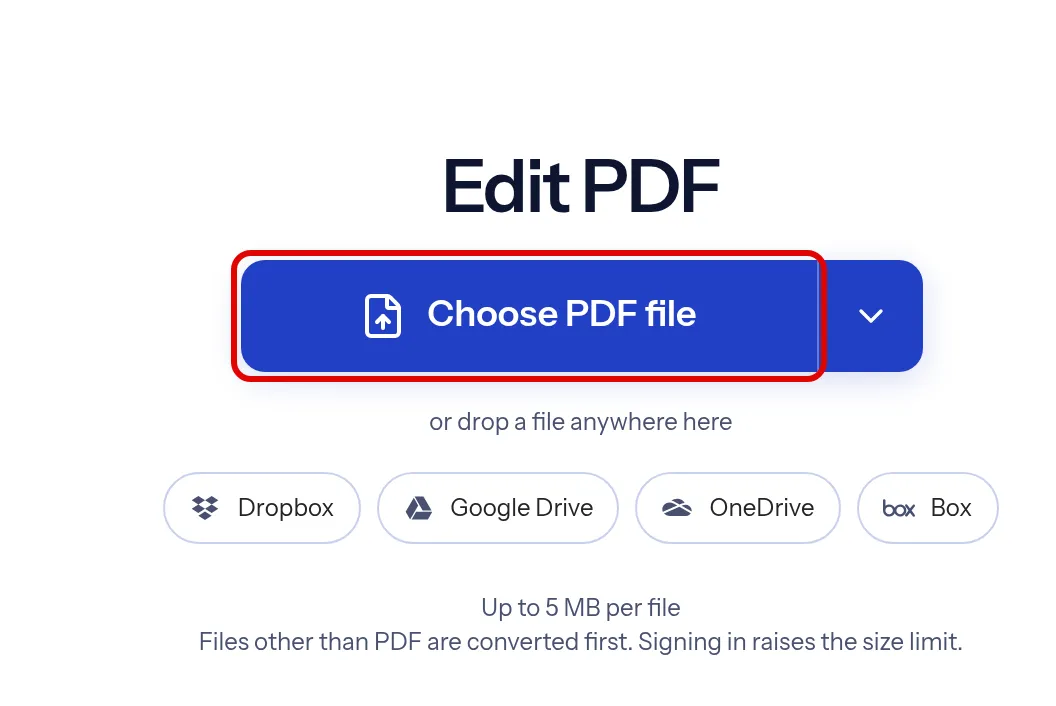
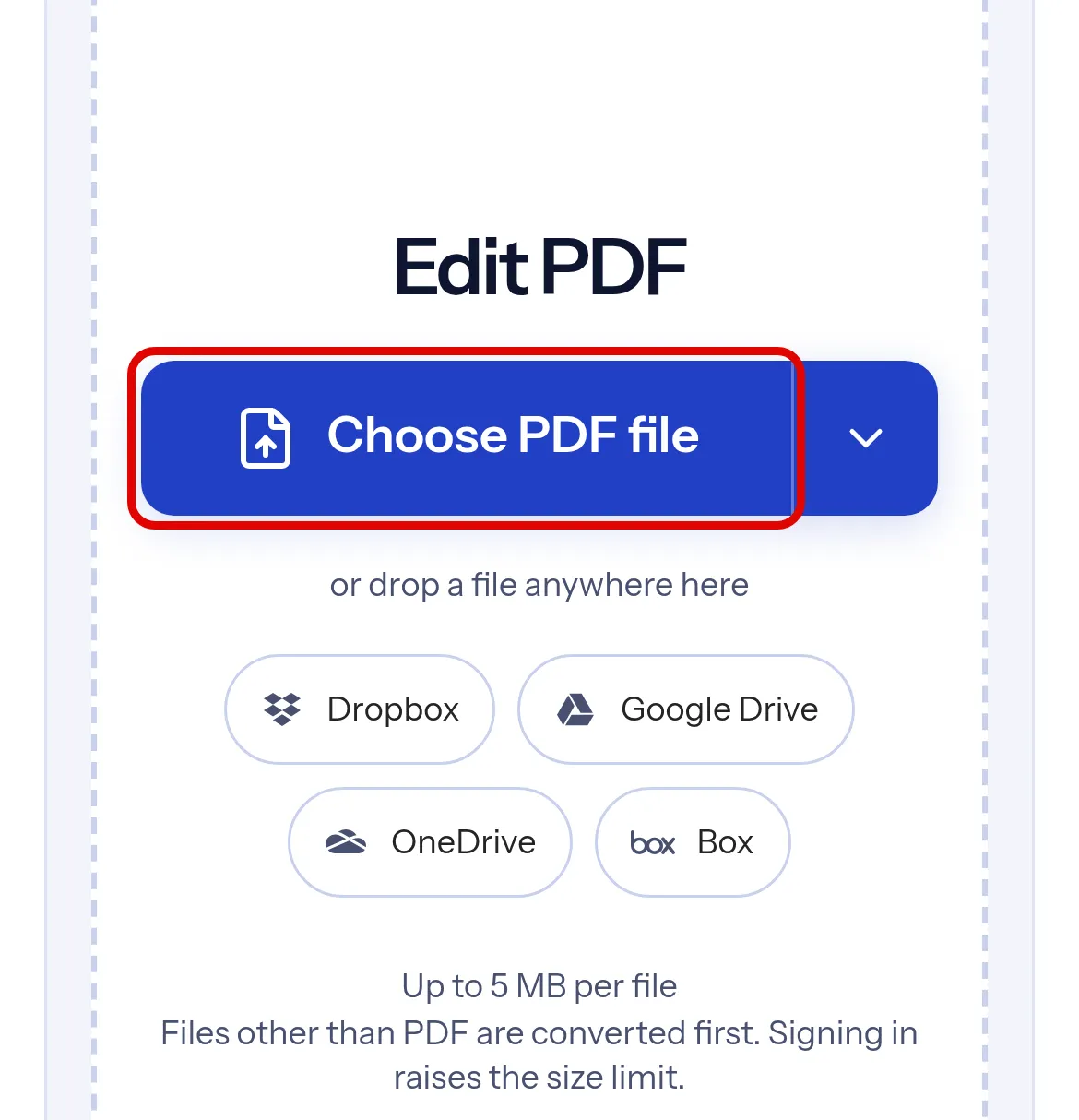
Go to the Edit PDF page and select Choose PDF file. You can also drop the file anywhere on the page.
Change existing text
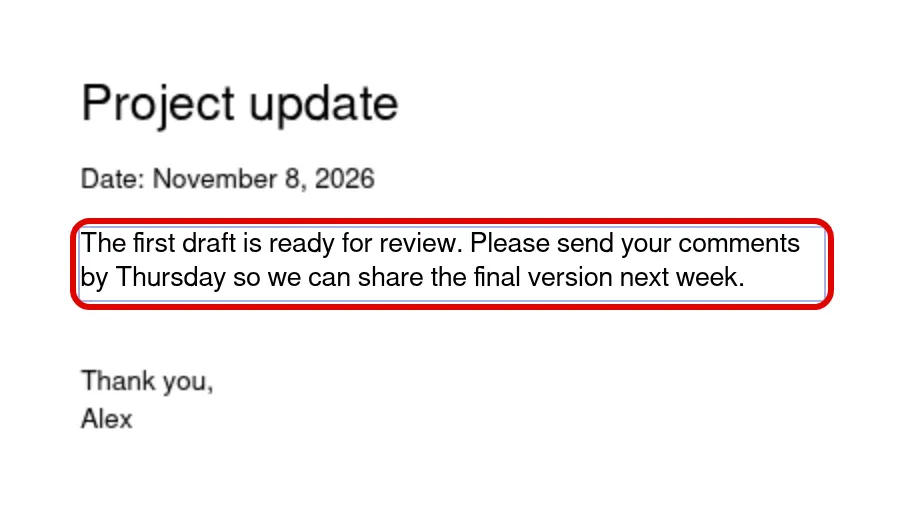
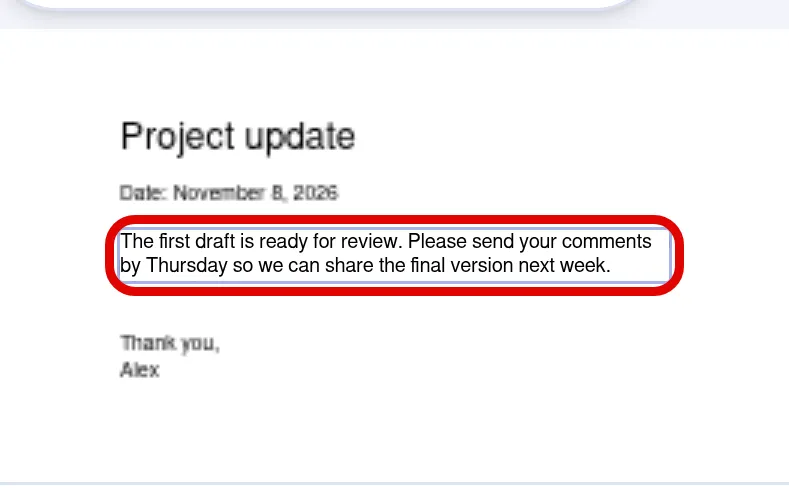
Select a line of text on the page and type your change. The edited line keeps its own font, size and colour.
Add new text
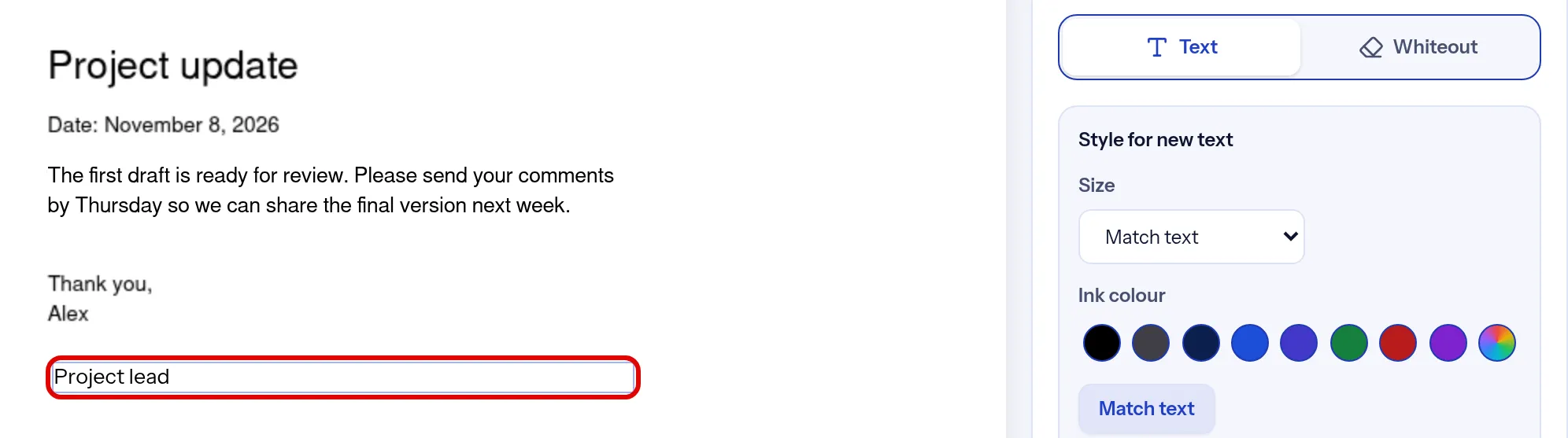
Select an empty spot on the page and type. To choose a size or colour for new text, use Style for new text in the Edit panel.
Download the edited PDF
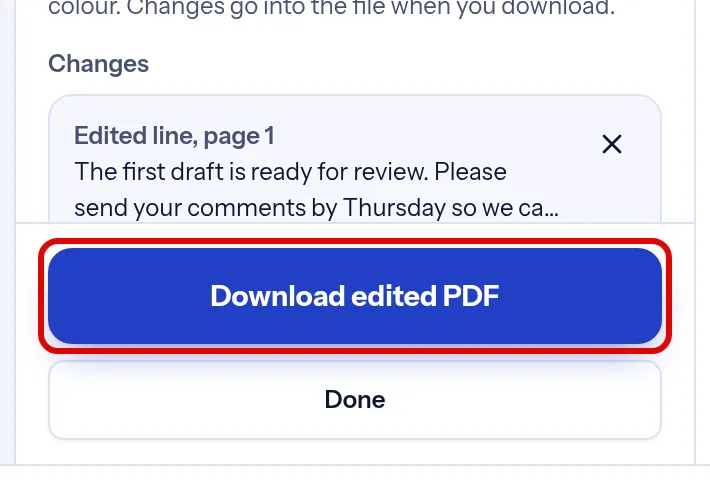
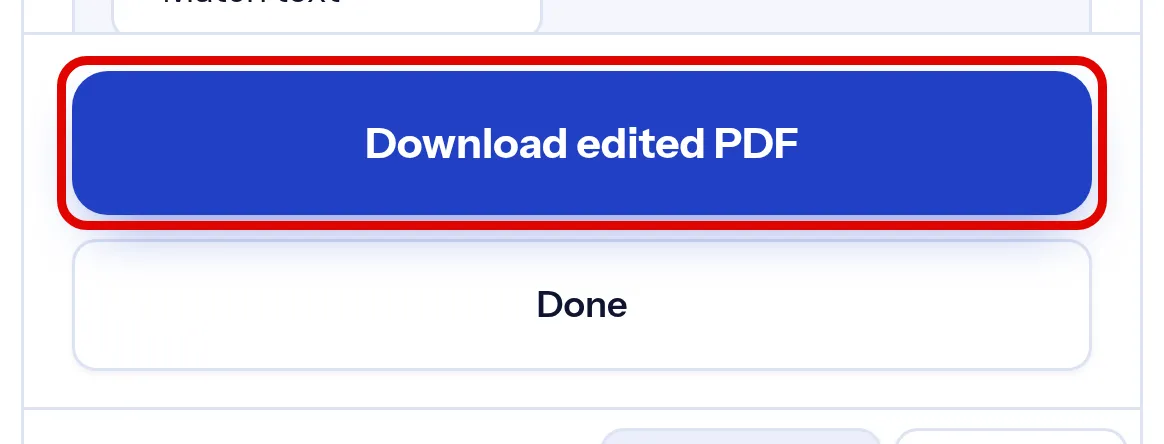
Select Download edited PDF. indox applies your changes and the file downloads to your device.
Troubleshooting
| Problem | Cause | Fix |
|---|---|---|
| Download edited PDF is greyed out | You haven't changed anything yet | Change a line or add new text first. Your edits are listed under Changes |
| You see This PDF is password-protected | The file is locked with a password | Enter the password to open it, or choose another file |
| You see Couldn’t prepare your download | Your changes couldn't be applied to this file | Select Download edited PDF again. If it keeps happening, try another file |