Last updated
Sign a PDF
Goal: Your PDF with your signature on it, downloaded to your device.
Before you start
- Have the PDF on your device. The upload box shows how large a file you can upload.
- You don't need an account to sign a PDF yourself.
Open your PDF
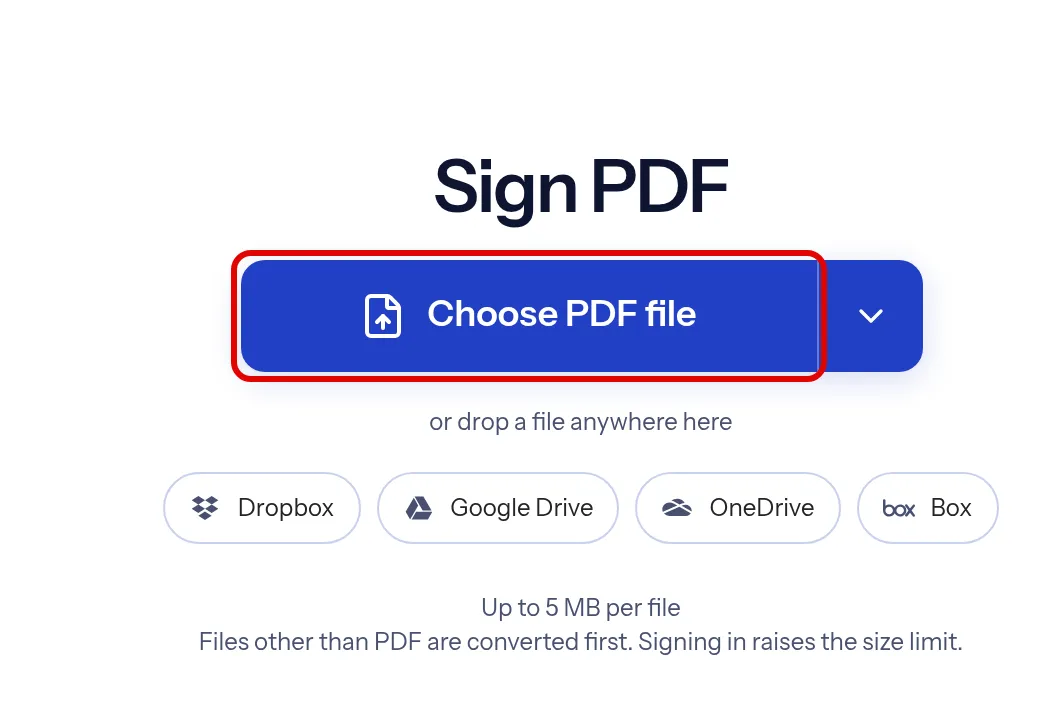
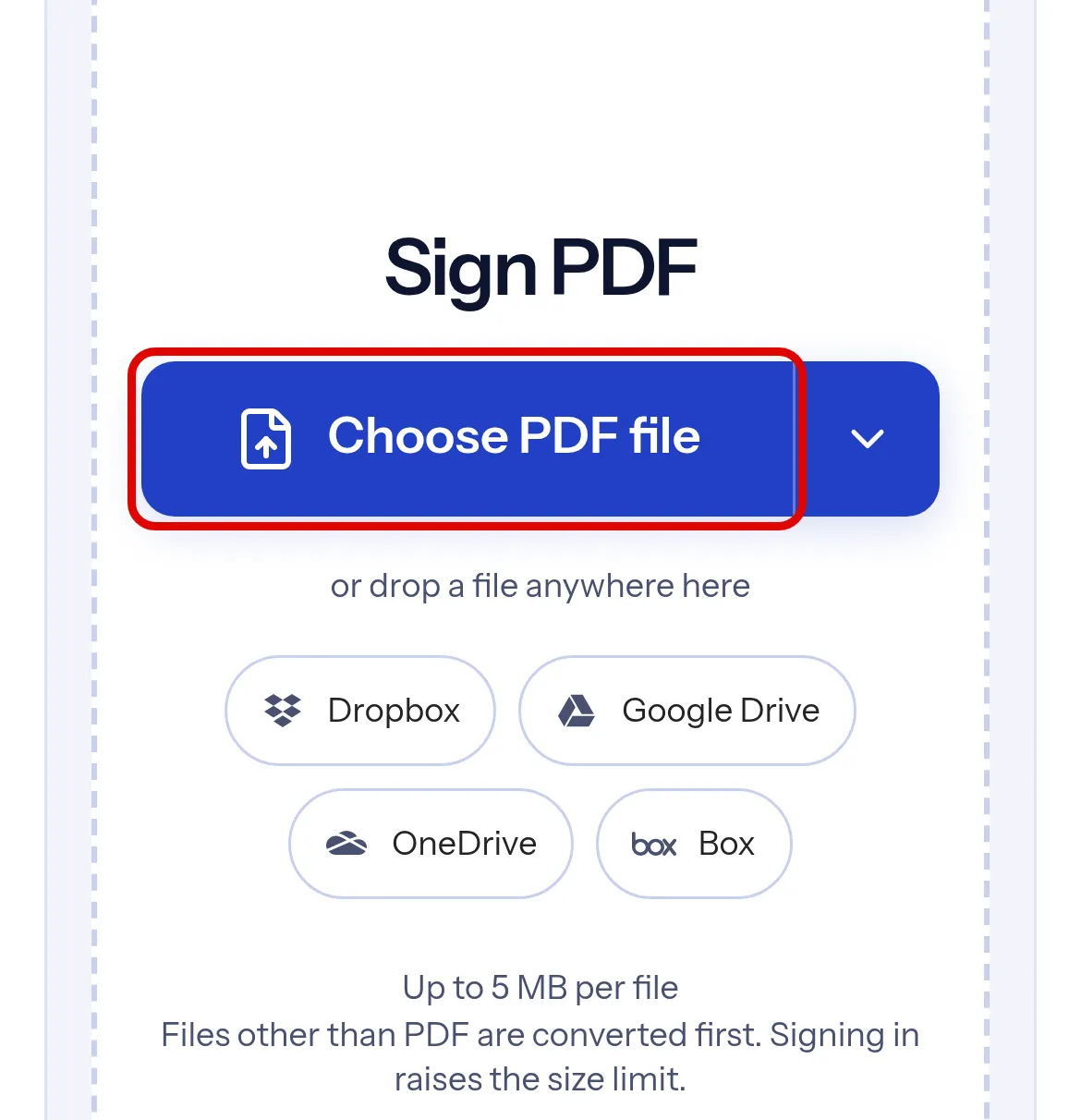
Go to the Sign PDF page and select Choose PDF file. You can also drop the file anywhere on the page.
Choose who signs
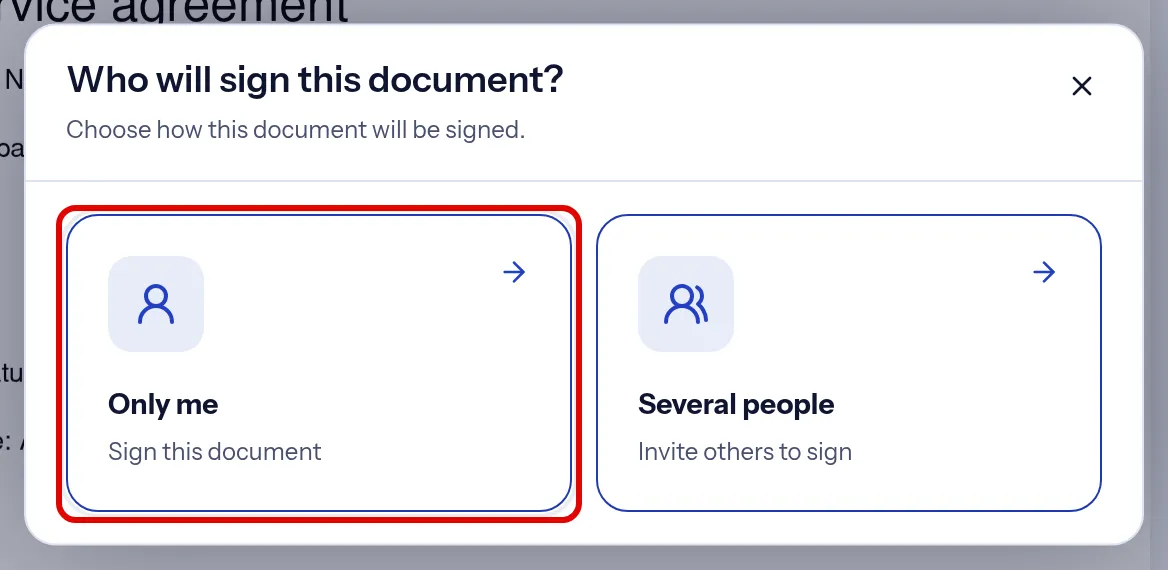
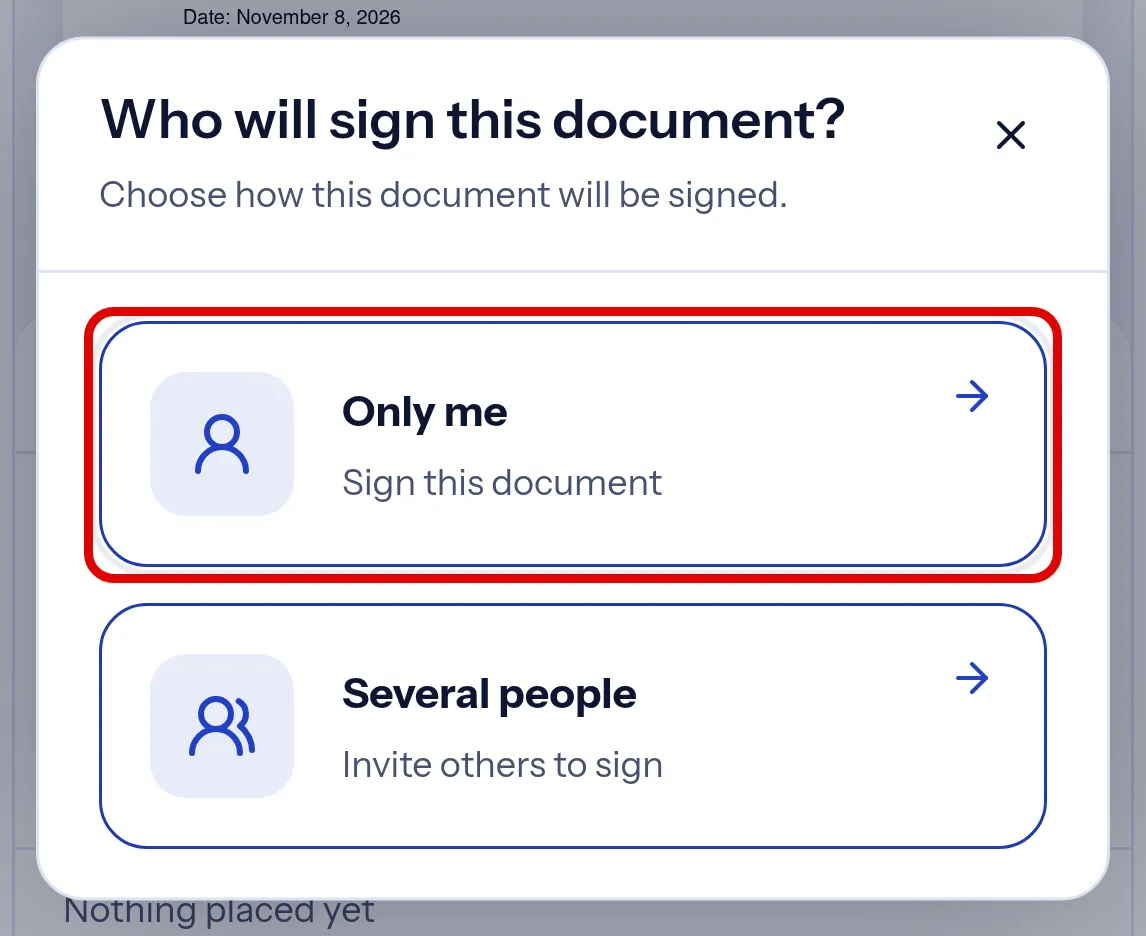
When indox asks Who will sign this document?, select Only me.
Create your signature
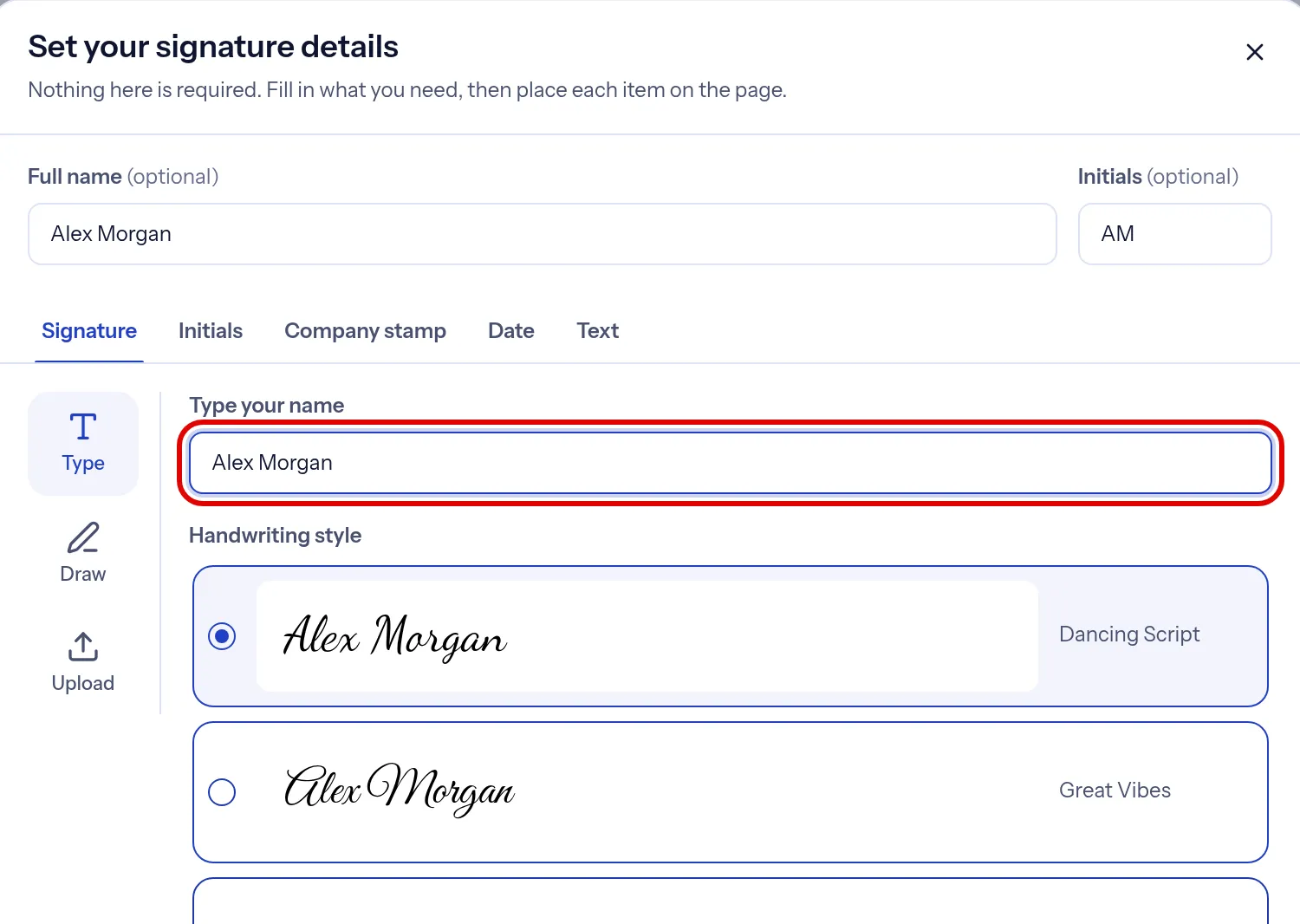
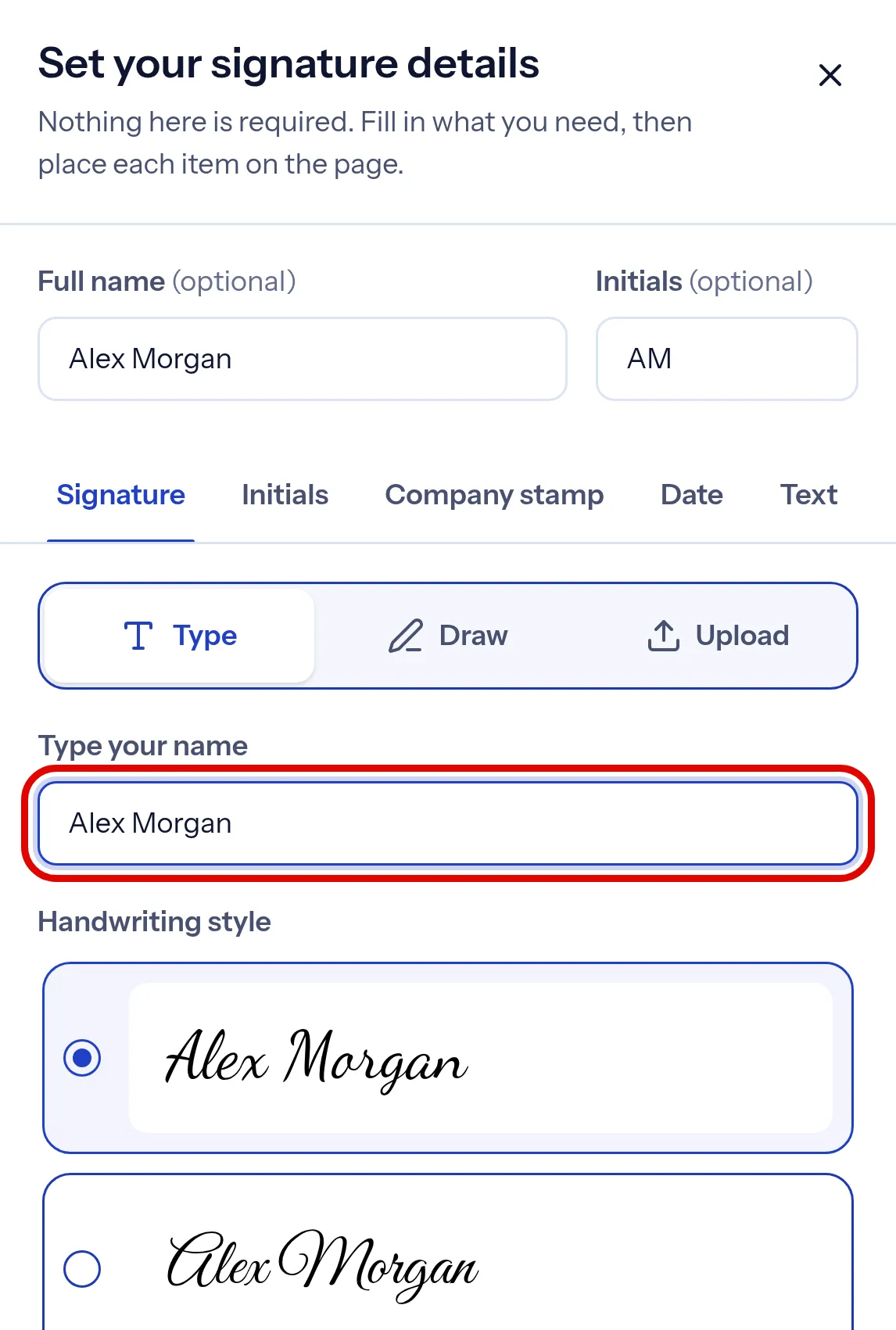
In Set your signature details, type your name under Type your name and pick a handwriting style. To draw your signature or use a picture of it, select Draw or Upload. Then select Apply.
Place your signature
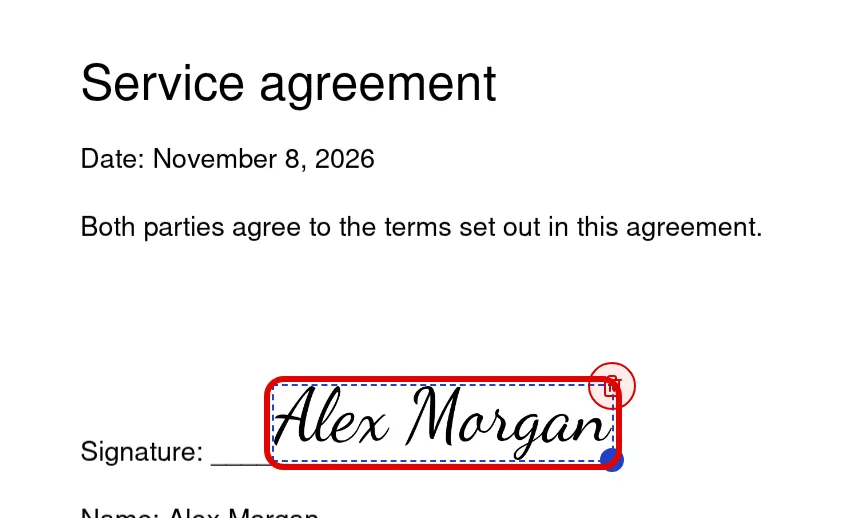
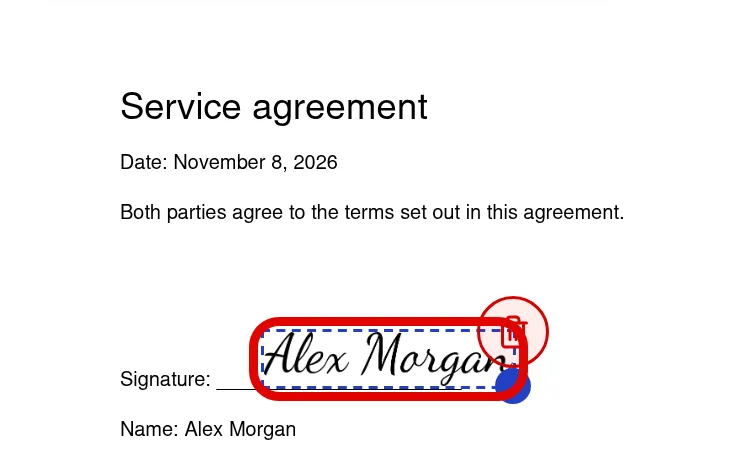
Your signature appears on the page. Drag it to where it belongs.
Sign and download
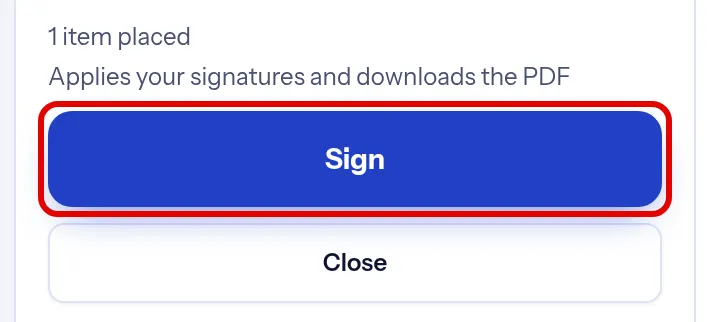
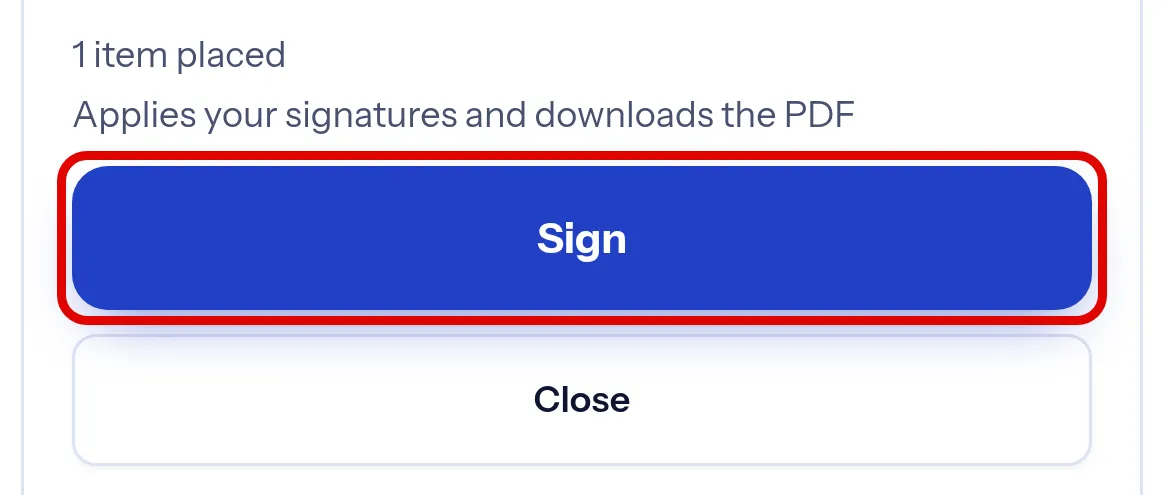
Select Sign. indox adds your signature to the PDF and the file downloads to your device. On a phone, select Options first to see the Sign button.
Troubleshooting
| Problem | Cause | Fix |
|---|---|---|
| Sign is greyed out | Nothing is placed on the page yet | Create your signature and place it on the page first |
| You see This PDF is password-protected | The file is locked with a password | Enter the password to open it, or choose another file |
| Other people need to sign too | Only me is for your own signature | Choose Several people instead. You need to be signed in to send a document for signing |