Last updated
Convert an image to another format
Goal: Your image in the format you need, downloaded to your device.
Before you start
- Have the image on your device. The upload box shows how large a file you can upload.
- You don't need an account.
Choose your image
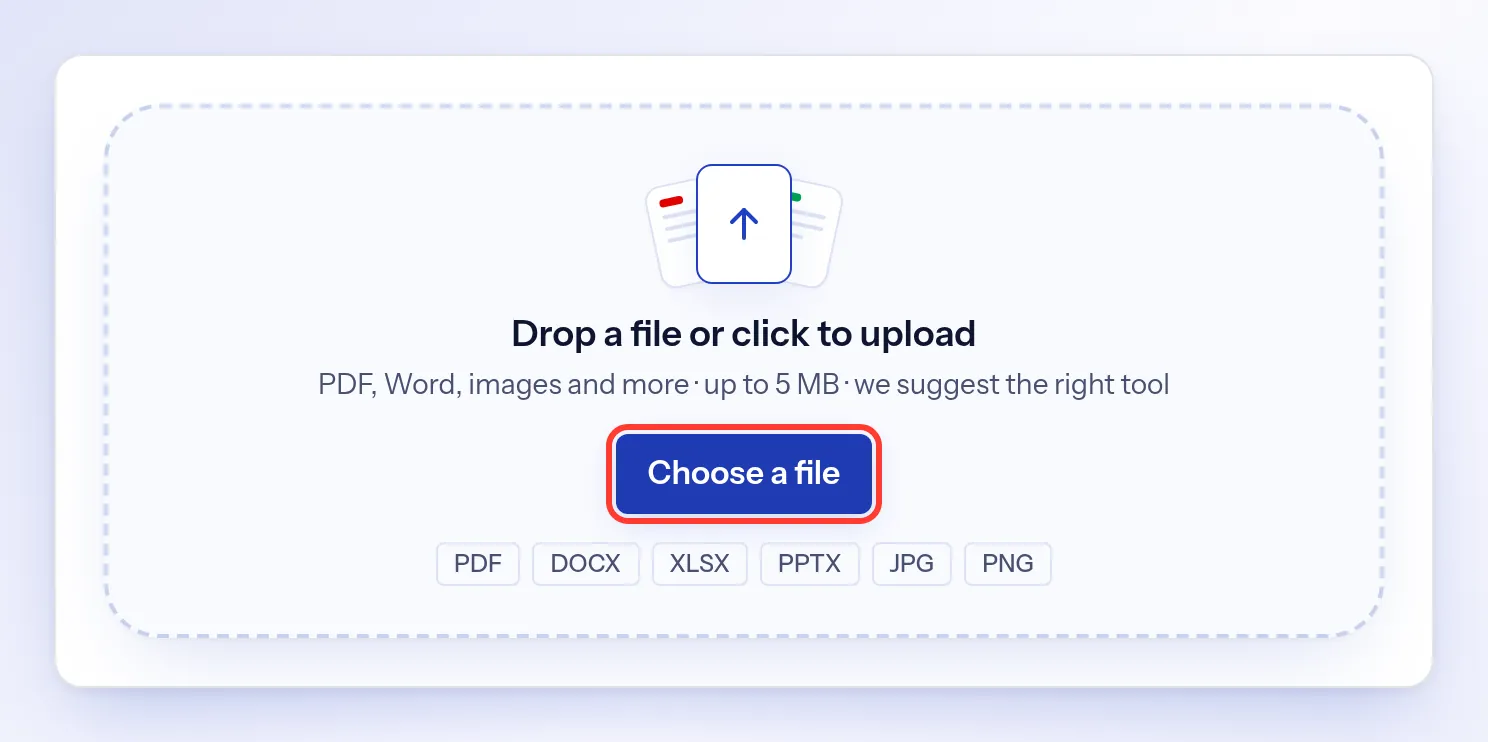
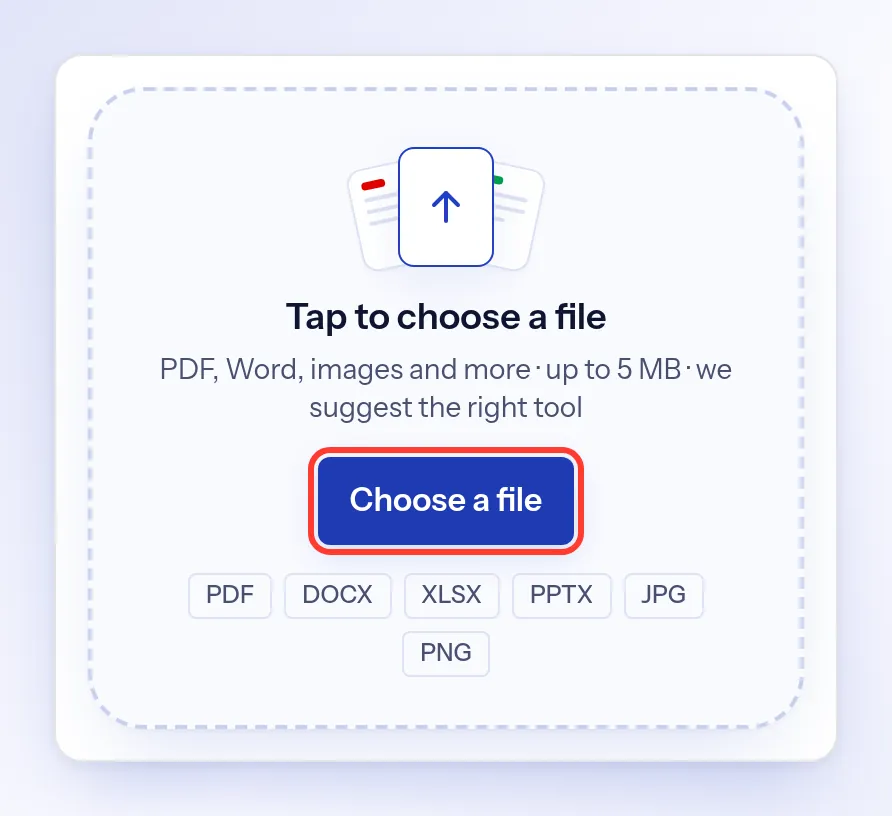
On the indox.org home page , select Choose a file and pick your image.
Pick a conversion
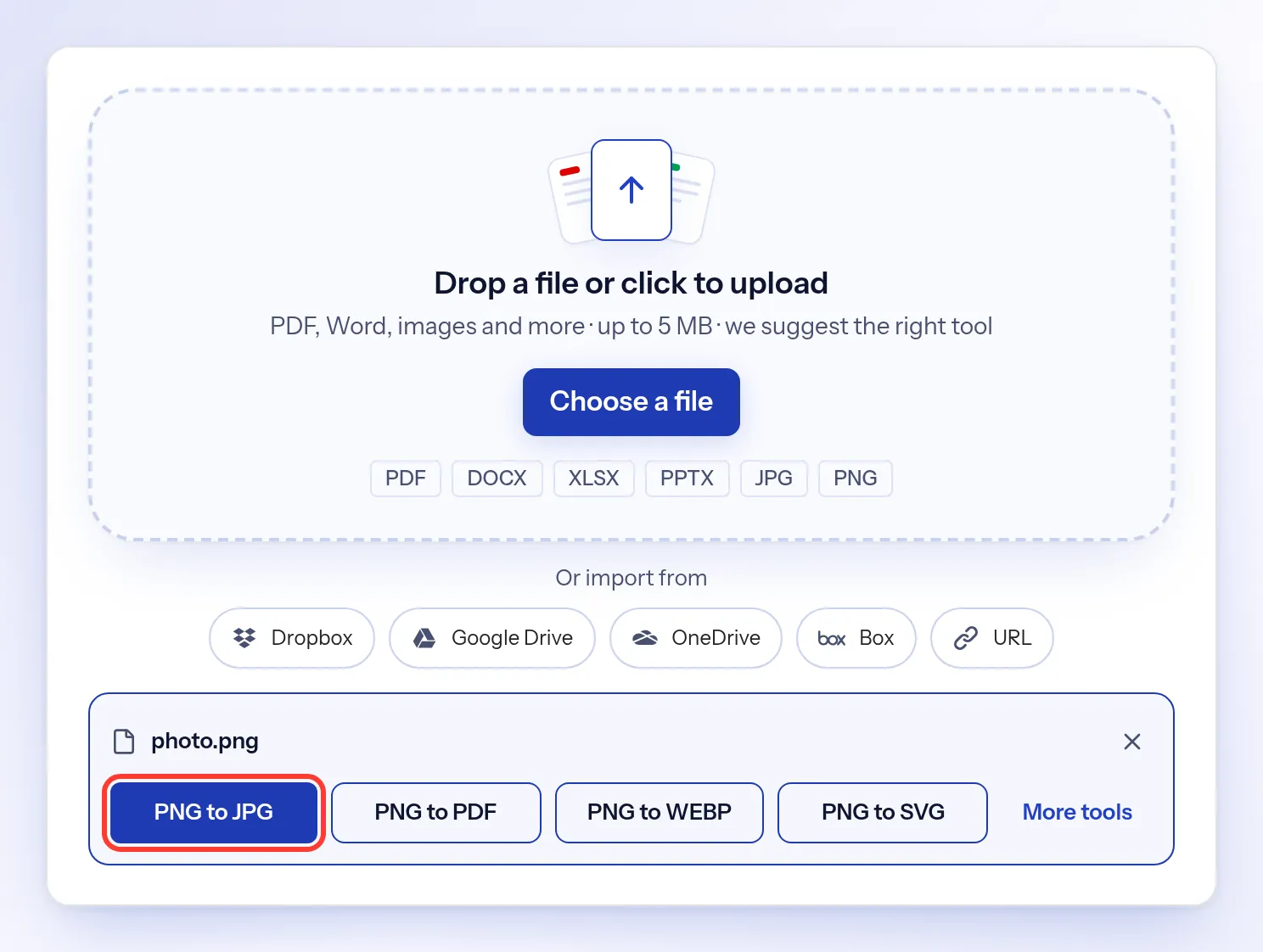
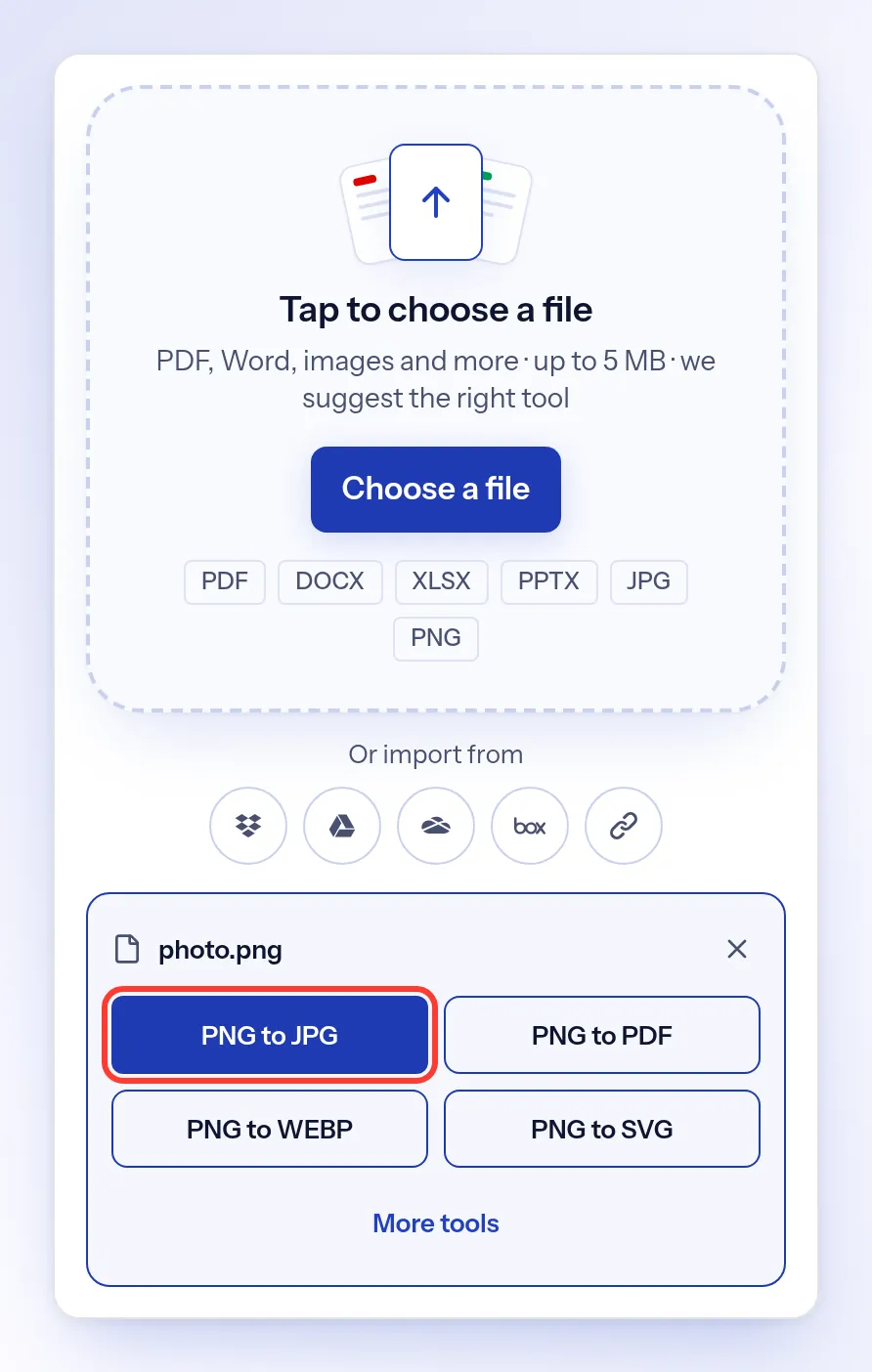
indox suggests conversions that fit your image. For a PNG, they are PNG to JPG, PNG to PDF, PNG to WEBP and PNG to SVG. Select one.
Check the output format
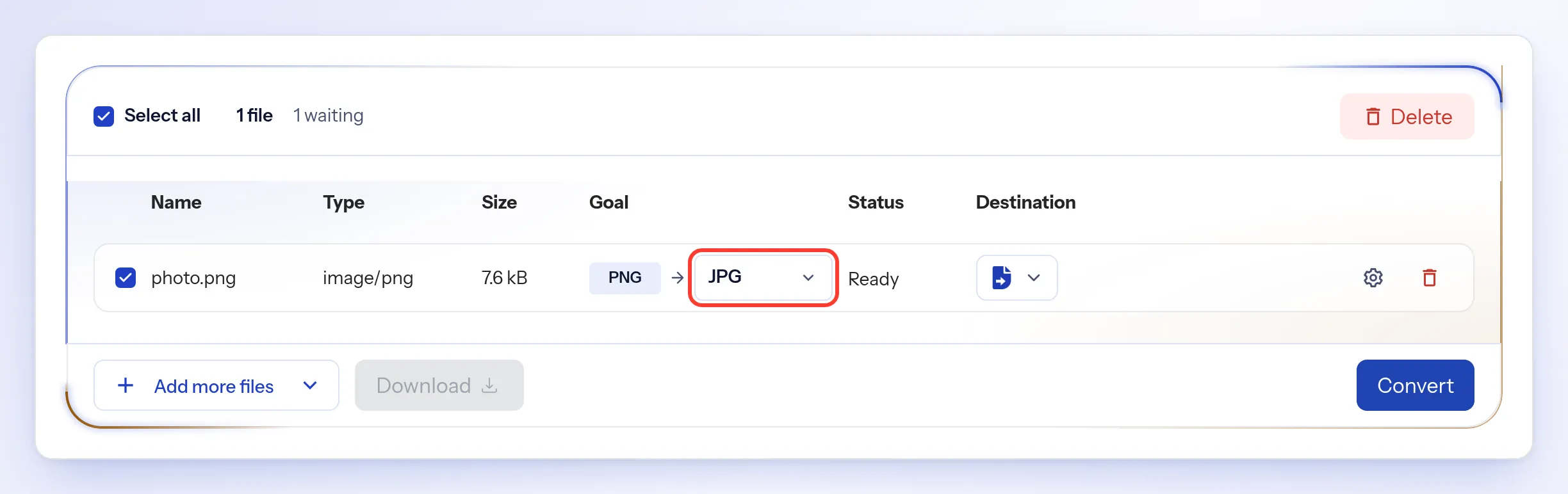
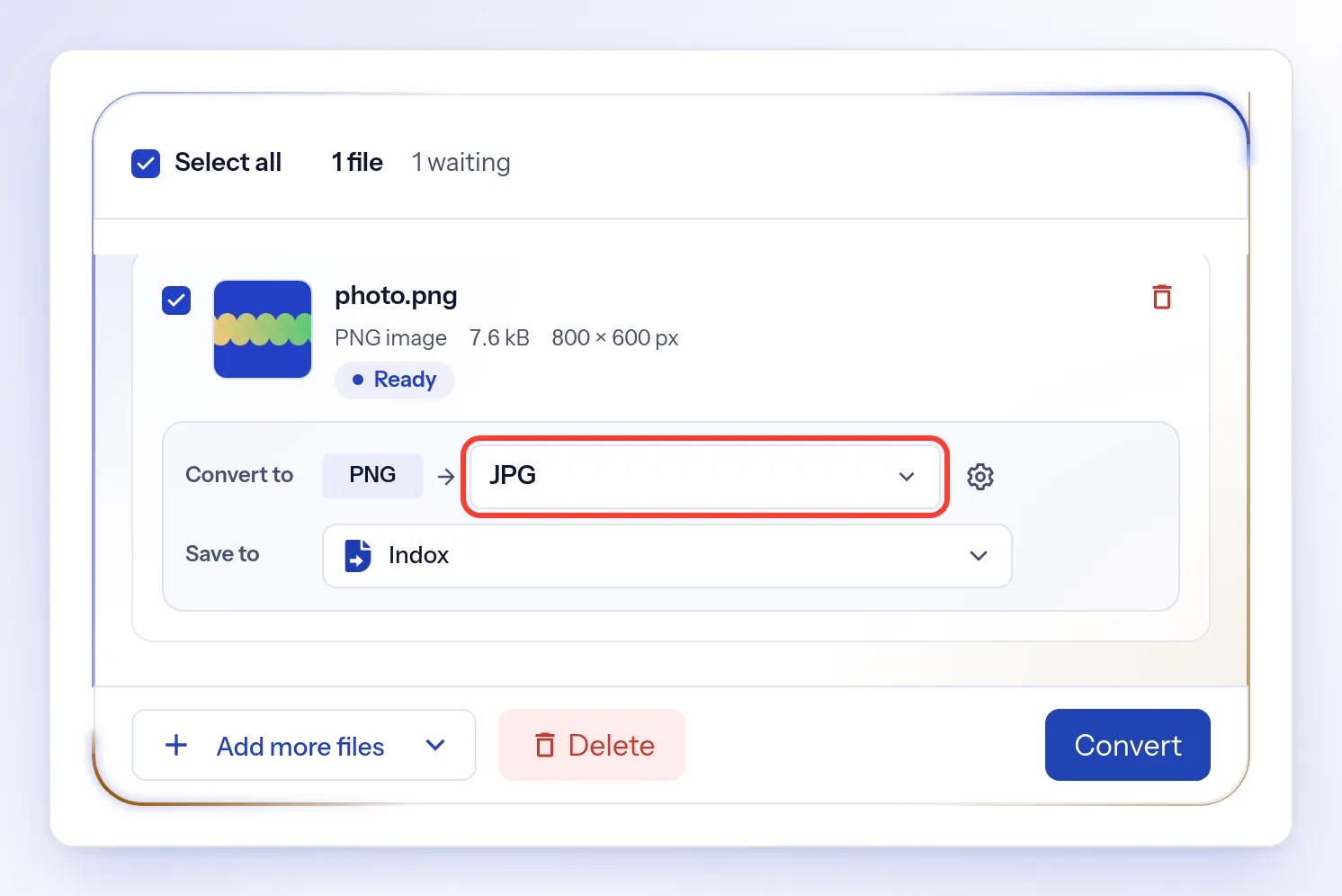
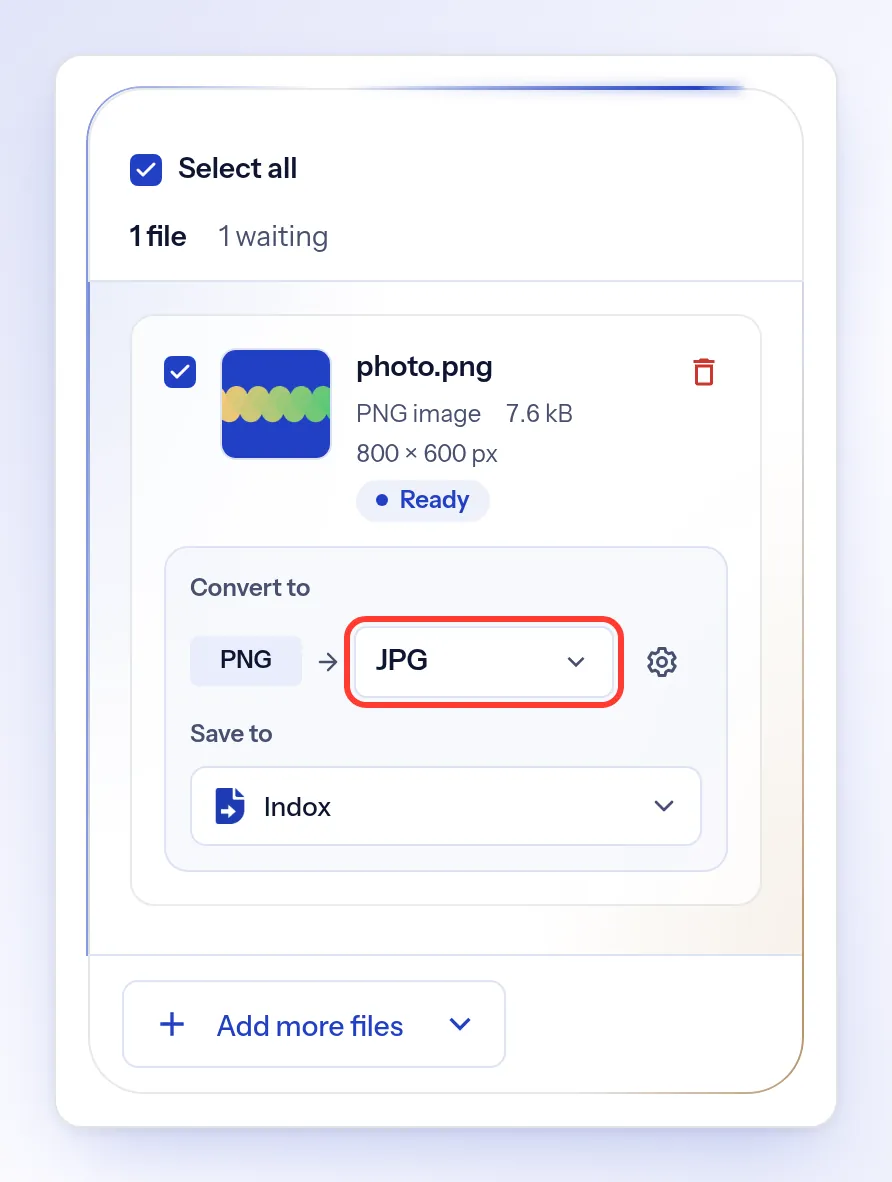
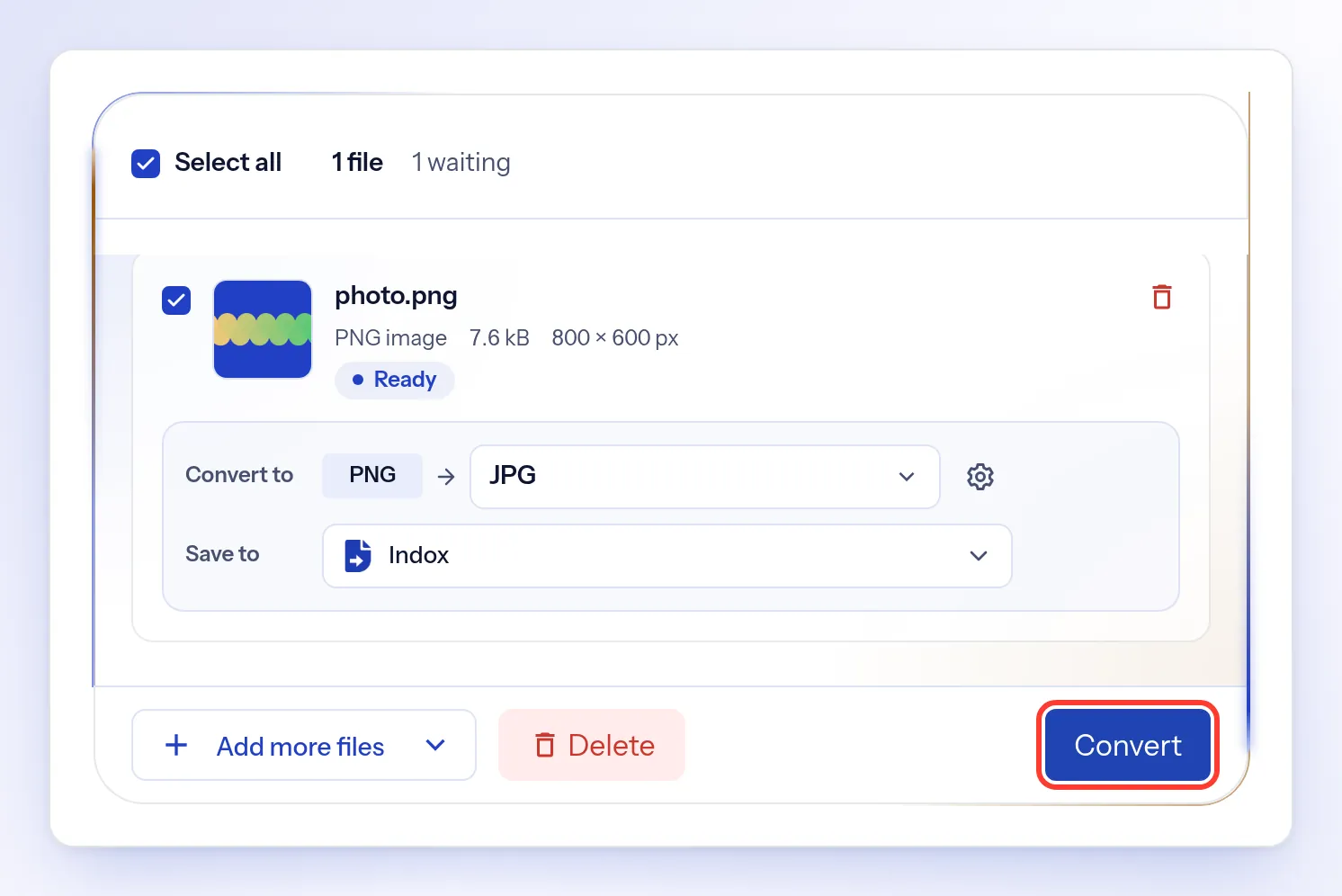
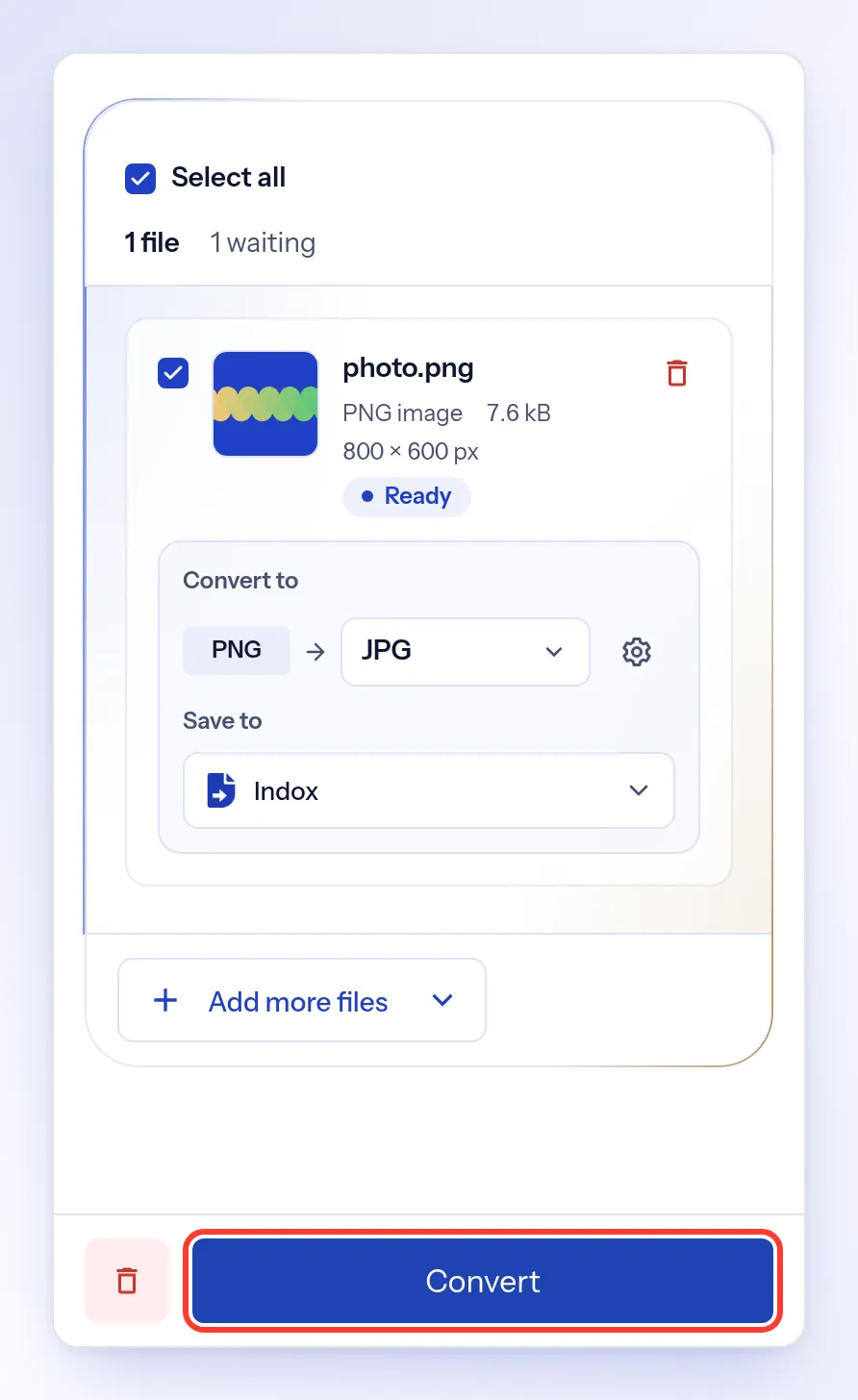
Next to Goal (Convert to on a tablet or phone), check the format. To change it, select the format and pick another one, such as AVIF, GIF or TIFF.
Convert the image
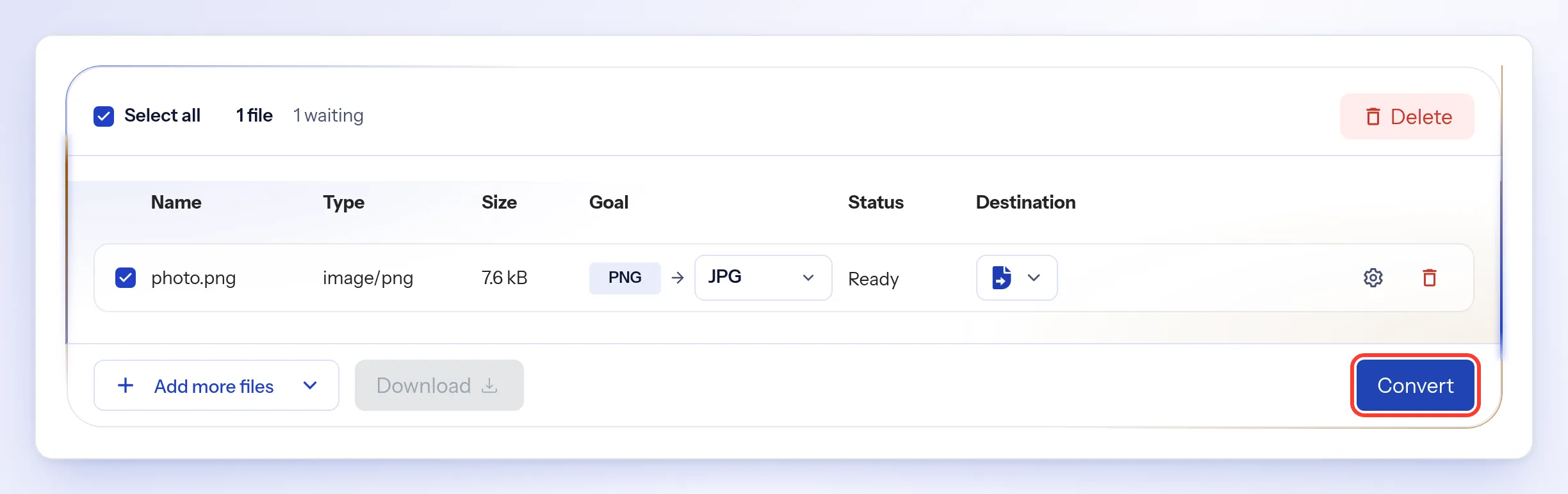
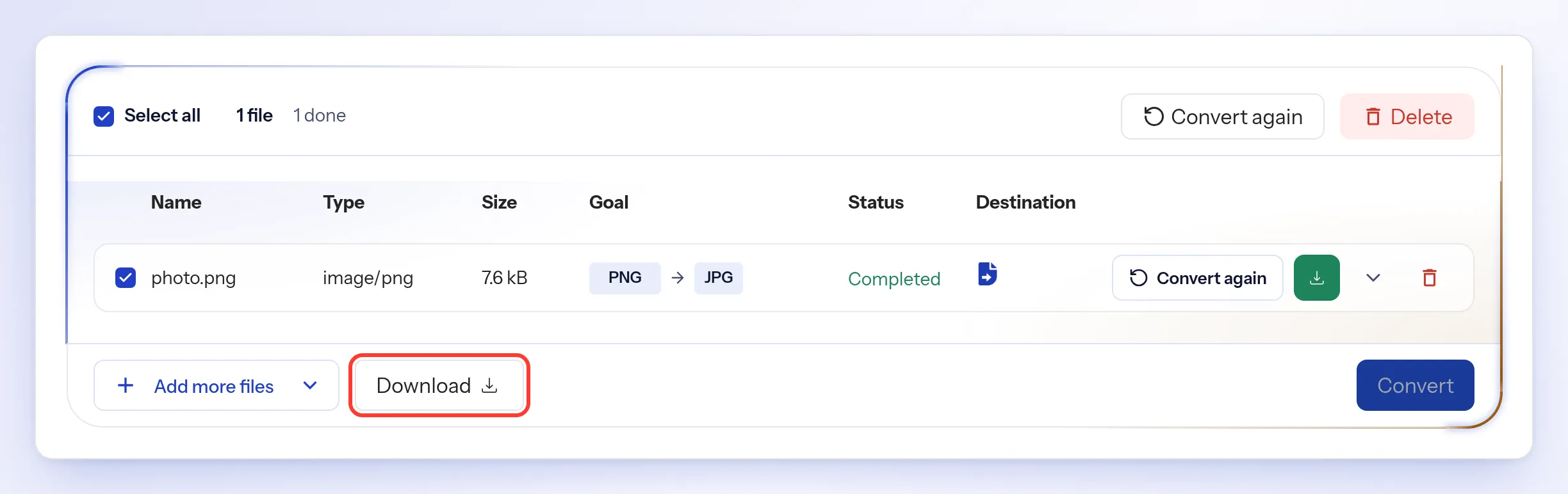
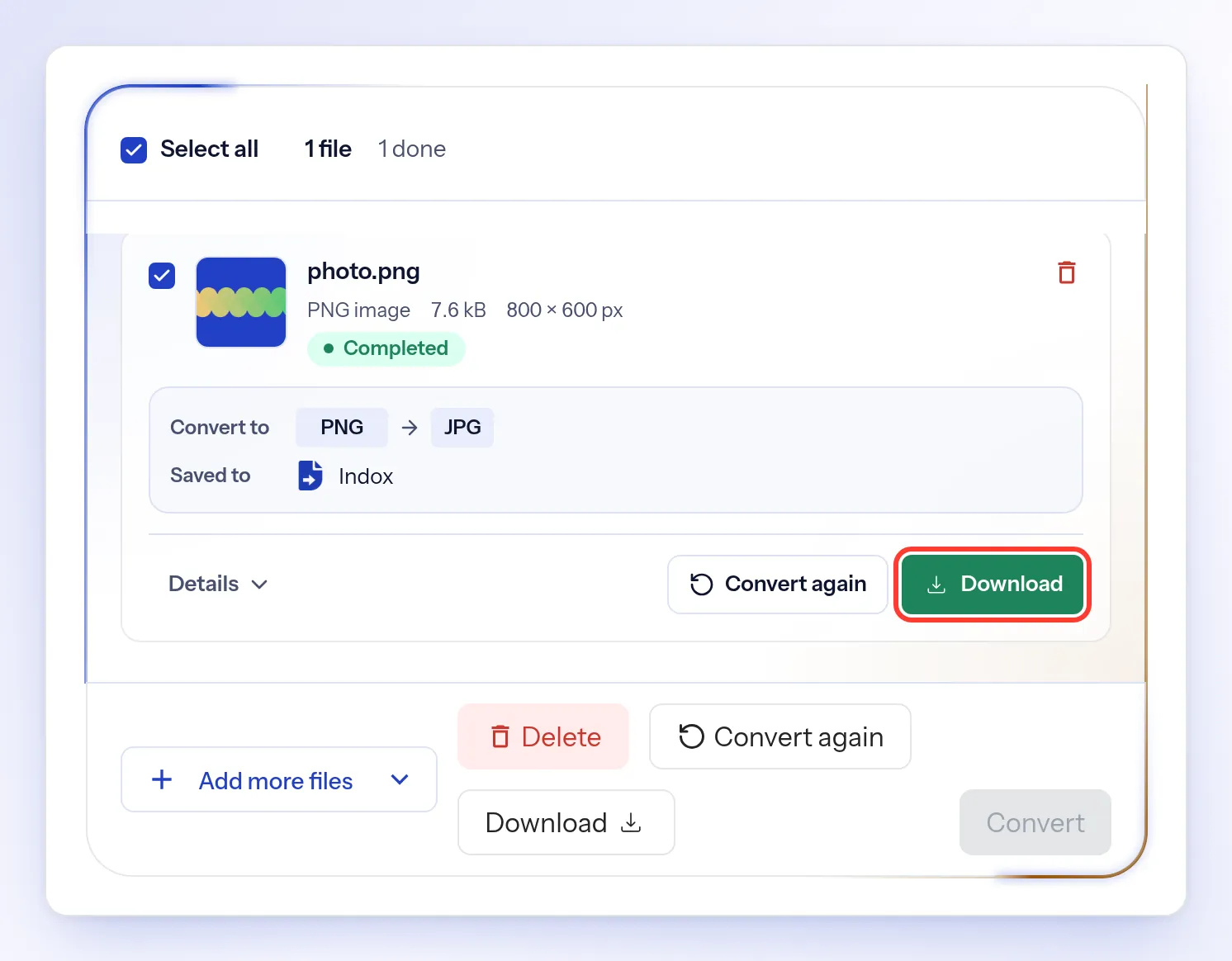
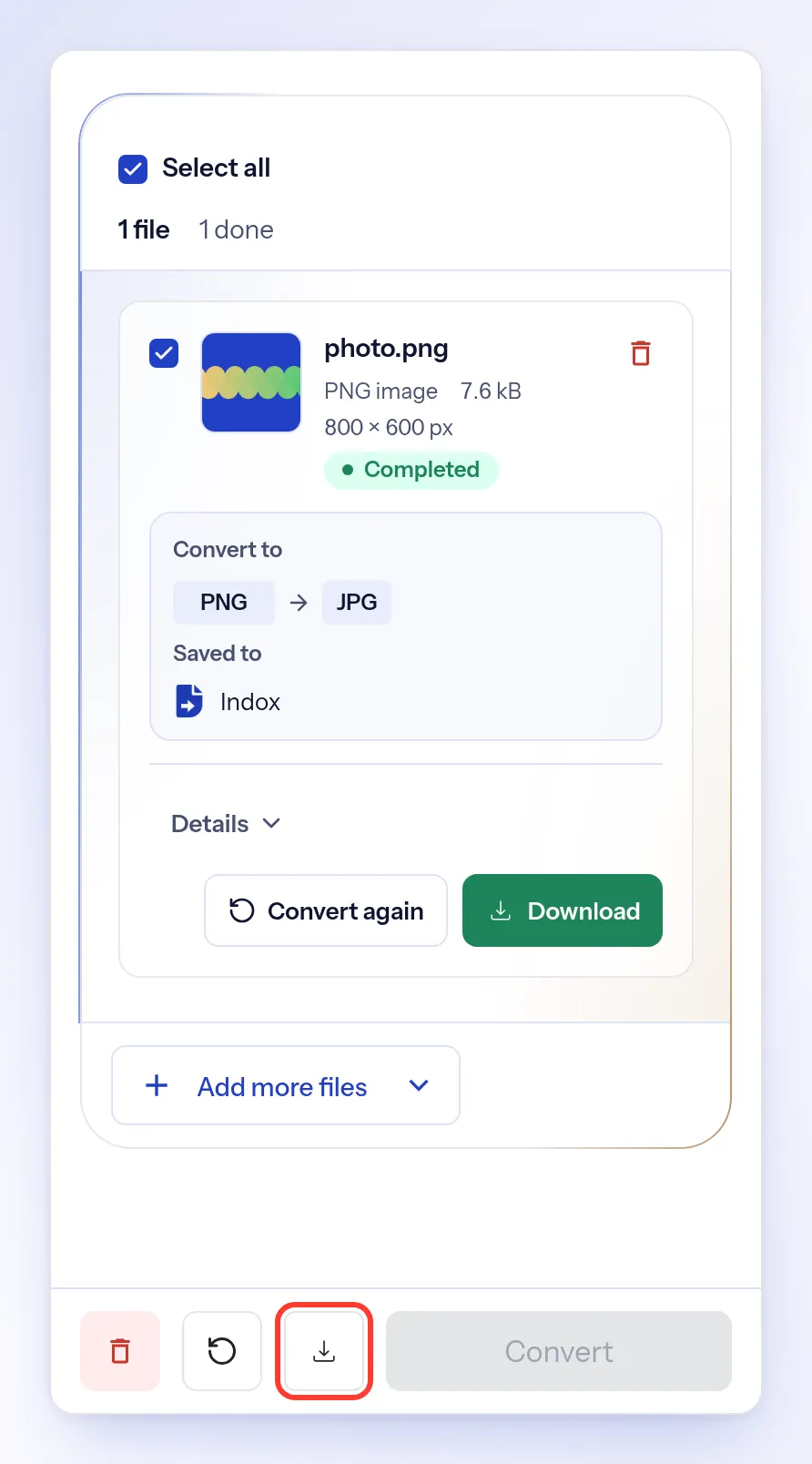
Select Convert. When your image is ready, its status changes to Completed.
Download the result
Select Download. On a phone, it's the download button at the bottom of the screen.
Troubleshooting
| Problem | Cause | Fix |
|---|---|---|
| The status shows Error | The conversion failed | Select Why it failed to see the reason, then select Convert to try again |
| Download is greyed out | The file hasn't finished converting | Wait until the status shows Completed |
| You see File is too large | The file is over your upload limit | Use a smaller file. The message shows your limit |
| The format you need isn't in the list | indox can't convert this image type to that format | Pick the closest format in the list |